
C2-DD46-UA2-CBL-KVM - Switch StarTech.com - Free user manual and instructions
Find the device manual for free C2-DD46-UA2-CBL-KVM StarTech.com in PDF.


| Product Type | KVM Switch |
| Model | C2-DD46-UA2-CBL-KVM |
| Brand | StarTech.com |
| Number of Computers Supported | 2 |
| Video Interface | DisplayPort |
| Max Resolution | 4K 60Hz |
| USB Ports | 4x USB 2.0 |
| Audio Support | Yes (3.5mm combo) |
| Power Source | USB bus-powered (USB-B) |
| Cable Length | 3 ft (0.9 m) integrated |
| Housing Material | Plastic with metal base |
| Dimensions (LxWxH) | 4.7 x 2.4 x 0.9 in (120 x 60 x 23 mm) |
| Weight | 0.4 lbs (180 g) |
| Operating Temperature | 32°F to 122°F (0°C to 50°C) |
| Compatibility | Windows, macOS, Linux |
| Switching Methods | Push-button, hotkey |
| Package Contents | KVM switch, manual |
| Warranty | 2 years |
Frequently Asked Questions - C2-DD46-UA2-CBL-KVM StarTech.com
User questions about C2-DD46-UA2-CBL-KVM StarTech.com
0 question about this device. Answer the ones you know or ask your own.
Ask a new question about this device
Download the instructions for your Switch in PDF format for free! Find your manual C2-DD46-UA2-CBL-KVM - StarTech.com and take your electronic device back in hand. On this page are published all the documents necessary for the use of your device. C2-DD46-UA2-CBL-KVM by StarTech.com.
USER MANUAL C2-DD46-UA2-CBL-KVM StarTech.com
2-Port Dual Monitor Cable KVM Switch - DisplayPort - 4K 60Hz
Product ID
C2-DD46-UA2-CBL-KVM
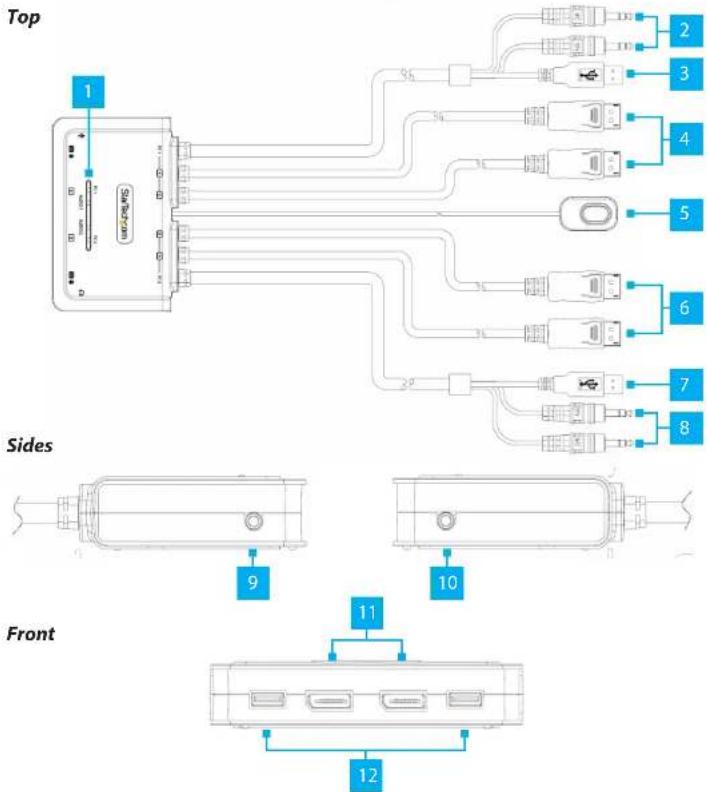
| Component Function | ||
| 1 | LED Indicators | Solid Green = Selected PC is ConnectedBlinking Green = Selected PC is not detectedAmber LED = Selected Audio Source |
| 2 | PC 1 Audio Connectors | Green: Connect to 3.5mm Headphone PortPink: Connect to a 3.5mm Microphone Port |
| 3 | PC 1 USB-A Host Connector | Connect to a USB-A port on PC 1 |
| 4 | PC 1 DisplayPort Connectors | Connect to a DisplayPort Enabled Computer |
| 5 | Remote Port Selector | A wired button used to switch between PC 1 and PC 2Press and Release the Remote Switch to switch between PC 1 and PC 2 |
| 6 | PC 2 DisplayPort Connectors | Connect to a DisplayPort Enabled Computer |
| 7 | PC 2 USB-A Host Connector | Connect to a USB-A port on PC 2 |
| 8 | PC 2 Audio Connectors | Green: Connect to 3.5mm Headphone PortPink: Connect to a 3.5mm Microphone Port |
| 9 | Console Microphone Port | Pink: Connect a Microphone |
| 10 | Console Audio Output | Green: Connect an Audio Device (ie. Speakers or Headphones) |
| 11 | Console DisplayPort Output Ports | Connect to two DisplayPort Displays |
| 12 | Console USB HID Ports | Connect a USB Mouse and Keyboard |
Product Information
For the latest manuals, product information, technical specifications, and declarations of conformance, please visit: www.StarTech.com/C2-DD46-UA2-CBL-KVM
Package Contents
• KVM Switch x 1
- Quick-Start Guide x 1
Requirements
• DisplayPort Enabled Computers x 2
• DisplayPort Cables x 2
- DisplayPort Display x 2
• USB HID Devices (Keyboard / Mouse) x 2
• (Optional) Microphone x 1
• (Optional) Powered/Active Stereo Speakers or Headphones x1
• (Optional) Headset x 1
Note: A Headset may require the use of a Headset Adapter. Please check with the manufacturer of the Headset for more details.
Installation
Connect the Computers
Note: Power off all Computers, Displays, and Peripherals before completing the following installation steps.
- Connect the built-in PC 1 DisplayPort Connectors to the DisplayPort Output Ports on PC 1.
- Connect the built-in PC 1 USB Host Connector to a USB-A Port on PC 1.
- (Optional) Connect the built-in PC 1 Audio Connectors to the corresponding 3.5 mm Audio Ports on PC 1.
- Repeat Steps 1-3 to install PC 2.
Connect the Console
- Connect a USB Mouse and Keyboard to the Console USB HID Ports, located on the front of the KVM Switch.
- Connect a DisplayPort Cable from each DisplayPort Display, to each of the Console DisplayPort Output Ports, located on the front of the KVM Switch.
FCC Compliance Statement
This equipment has been tested and found to comply with the limits for a Class B digital device, pursuant to part 15 of the FCC Rules. These limits are designed to provide reasonable protection against harmful interference in a residential installation. This equipment generates, uses and can radiate radio frequency energy and, if not installed and used in accordance with the instructions, may cause harmful interference to radio communications. However, there is no guarantee that interference will not occur in a particular installation. If this equipment does cause harmful interference to radio or television reception, which can be determined by turning the equipment off and on, the user is encouraged to try to correct the interference by one or more of the following measures:
• Reorient or relocate the receiving antenna.
+ Increase the separation between the equipment and receiver.
- Connect the equipment into an outlet on a circuit different from that to which the receiver is connected.
- Consult the dealer or an experienced radio/TV technician for help
This device complies with part 15 of the FCC Rules. Operation is subject to the following two conditions:
(1) This device may not cause harmful interference, and (2) this device must accept any interference received, including interference that may cause undesired operation. Changes or modifications not expressly approved by StarTech.com could void the user's authority to operate the equipment.
Industry Canada Statement
This Class B digital apparatus complies with Canadian ICES-003.
This device complies with Industry Canada licence-exempt RSS standard(s). Operation is subject to the following two
conditions:
(1) This device may not cause interference, and (2) This device must accept any interference, including interference that may
cause undesired operation of the device.
Warranty Information
This product is backed by a two-year warranty.
For further information on product warranty terms and conditions, please refer to www.startech.com/warranty.
- (Optional) Connect a 3.5 mm Audio Cable from the Stereo Speakers or Headphones to the Speaker Audio Port (green), located on the side of the KVM Switch.
- (Optional) Connect a 3.5 mm Audio Cable from the Microphone to the Microphone Audio Port (pink), located on the side of the KVM Switch.
Operation
Switching with the Remote Port Selector
To switch between which Host Computer is active, press and release the button on the Remote Port Selector.
Software Operation
Install the KVM Switching Software on each computer connected to the KVM Switch to use features such as autoscan, fixed audio, and more.
Note: To download the latest KVM Switching Software, please visit: www.StarTech.com/C2-DD46-UA2-CBL-KVM
Hotkey Reference Guide
Note: Each hotkey sequence keystroke should be pressed within two seconds.
Keyboard with Scroll Lock: To switch Computers the hotkey combination is Scroll Lock + Scroll Lock + 1 - 2
Keyboard with no Scroll Lock: Use the available software to define the new hotkey sequence
Limitation of Liability
In no event shall the liability of StarTech.com Ltd. and StarTech.com USA LLP (or their officers, directors, employees or agents) for any damages (whether direct or indirect, special, punitive, incidental, consequential, or otherwise), loss of profits, loss of business, or any pecuniary loss, arising out of or related to the use of the product exceed the actual price paid for the product. Some states do not allow the exclusion or limitation of incidental or consequential damages. If such laws apply, the limitations or exclusions contained in this statement may not apply to you.
Safety Measures
- If product has an exposed circuit board, do not touch the product under power.
Mesures de sécurité
II: startech.com/it JP: startech.com/jp
- 2-Port Dual Monitor Cable KVM Switch - DisplayPort - 4K 60Hz
- Product Information
- Package Contents
- Requirements
- Installation
- Connect the Computers
- Connect the Console
- FCC Compliance Statement
- Industry Canada Statement
- Operation
- Switching with the Remote Port Selector
- Software Operation
- Hotkey Reference Guide
- Limitation of Liability
- Safety Measures
- Mesures de sécurité
Brand : StarTech.com
Model : C2-DD46-UA2-CBL-KVM
Category : Switch