
Soundlinq 3 - Bluetooth Adapter VAIS Technology - Free user manual and instructions
Find the device manual for free Soundlinq 3 VAIS Technology in PDF.


| Product Type | Bluetooth Interface Adapter |
| Model | Soundlinq 3 (SL3B) |
| Dimensions | 3.0 x 2.0 x 1.0 inches (approx.) |
| Weight | 0.2 lbs (approx.) |
| Power Supply | 12V DC from vehicle ignition/accessory |
| Bluetooth Version | Not specified (assumes standard A2DP/AVRCP) |
| Compatible Devices | iOS (iPhone/iPad/iPod), Android, other Bluetooth audio devices |
| Emulation Modes | CD changer, MD changer, CD-MP3 changer |
| Text Display Support | Song/artist/album text on compatible factory radios |
| Vehicle Compatibility | Select Lexus and Toyota models (2001-2012) – see manual for specific list |
| Installation Type | Wired, behind head unit using Y-harness (12-pin or 20-pin) |
| Controls | Factory head unit buttons and steering wheel controls |
| USB Port | USB (charging only, not for data) |
| Audio Harness Length | 36 inches (12-pin and 20-pin harnesses) |
| Maintenance | None required; keep dry and dust-free |
| Safety Features | Automatic bypass of navigation warnings (configurable); do not disassemble |
| Warranty | 1 year limited warranty |
Frequently Asked Questions - Soundlinq 3 VAIS Technology
User questions about Soundlinq 3 VAIS Technology
0 question about this device. Answer the ones you know or ask your own.
Ask a new question about this device
Download the instructions for your Bluetooth Adapter in PDF format for free! Find your manual Soundlinq 3 - VAIS Technology and take your electronic device back in hand. On this page are published all the documents necessary for the use of your device. Soundlinq 3 by VAIS Technology.
USER MANUAL Soundlinq 3 VAIS Technology
SoundLinQ3 Bluetooth Interface Adapter for iOS, Android, and other devices
Bluetooth Interface Adapter for iOS, Android, and other devices with Bluetooth Streaming capabilities.

WARNING
DO NOT DISASSEMBLE OR ALTER
Doing so may result in an accident, fire or electric shock.
Do not block your view
Do not mount product or any added audio and/or video equipment where it can block your view through the windshield or your view of dashboard indicators and displays.
Do not block the airbag
Do not mount product or any added audio and/or video equipment where it can obstruct the operation of the safety device such as the airbag.
Distraction warning
Do not let product or any added audio and/or video equipment to distract you while you are driving.
BEFORE WIRING, DISCONNECT THE CABLE FROM THE NEGATIVE BATTERY TERMINAL
Before starting any installation work, you must wait 90 seconds after turning the ignition switch to the LOCK position and disconnecting the negative (-) terminal from the battery. The supplemental restraint system (airbag) is equipped with a backup power source. If installation work is started less 90 seconds after disconnection of the negative (-) battery terminal, the SRS may deploy. When the negative (-) terminal cable is disconnected from the battery the clock and audio systems memory will be erased. Before starting installation work make a record of the clock and audio systems memory settings. When installation is complete, reset the clock and audio systems to their previous settings. Power tilt, power telescopic steering column, front power seats, power mirrors, and power shoulder belt anchorage are equipped with a memory function. The rear power seat is not equipped with a memory function. e and they can make a record of the memory contents, rear power seat is not equipped with the memory function. When installation is complete, it is necessary to readjust the features to their previous settings. Never use a backup power supply (such as another battery) during installation work to avoid losing these memory settings.

CAUTION
DO NOT SPLICE INTO ELECTRICAL CABLES
Never cut away cable insulation to supply power to other equipment. Doing so will exceed the current carrying capacity of the wire and result in fire or electric shock.
DO NOT ALLOW CABLES TO BECOME ENTANGLED IN SURROUNDING OBJECTS
Cables or wiring that obstruct or get caught on the places such as the steering wheel, shift lever, brake pedals, etc. can be extremely hazardous.
DO NOT INSTALL IN LOCATIONS WITH HIGH MOISTURE OR DUST
Moisture or dust may result in product failure.
HAVE THE WIRING AND INSTALLATION DONE BY EXPERTS
The wiring and installation of this product requires special technical skills and experience.
USE ONLY SPECIFIED ACCESSORY PARTS
Use of other than specified parts may damage product internally.
FOLLOW THE OPERATIONAL AND INSTALLATION MANUALS.
YOU SHOULD READ AND FAMILIARIZE YOURSELF THOROUGHLY WITH THE FOLLOWING INFORMATION PRIOR TO INSTALLING AND USING THIS UNIT. IN ADDITION, YOU MUST CAREFULLY READ AND FOLLOW THE INSTALLATION SCHEMATICS/INSTRUCTIONS FOR THE PRODUCT AND THE VEHICLE IN WHICH IT IS BEING INSTALLED. FAILURE TO FOLLOW INSTALLATION INSTRUCTIONS MAY DAMAGE THE PRODUCT AND THE VEHICLE, WILL VOID THE PRODUCT WARRANTY, MAY VOID THE VEHICLE WARRANTY
CHECK YOUR LOCAL LAWS
Some States/Provinces or other governmental jurisdictions (such as cities) may have laws that prohibit the operation of a video screen within the sight of the Driver. If you have purchased such a product, you should use the product only in locations where it is legal to do so, and if you do use the product, set up the screen so it is only visible to passengers.
TROUBLESHOOTING
Should this product fail to operate properly, please contact your Dealer or our Customer Service Department at support@vaistech.com.
i IMPORTANT
- The iPod/iPhone has NOT been designed to withstand automotive temperature extremes. You may damage your iPod/iPhone If you leave it inside the vehicle on a hot or cold day. For further information please refer to the iPod/iPhone specifications.
- VAIS Technology accepts no responsibility for loss of data on the iPod/iPhone, even if that data is lost while using this unit
i About iPod Operation
- The iPod/iPhone is charging as long as it's connected to the unit and the vehicle's ignition is "ON" or in the "Acc" position. The head unit does not have to be "ON".
- The iPod/iPhone automatically turns ON when you turn the ignition key into the "ON" or "Acc" position.
- The iPod/iPhone automatically turns OFF when the vehicle's ignition key is turned OFF. (The iPod/iPhone is paused and goes into Sleep mode after some period of inactivity).
- iPod/iPhone interface mode is displayed in the same way as a factory CD-changer, MiniDisc-changer or CD-MP3 Changer.
i About iPod Settings
- WE STRONGLY RECOMMEND THAT YOU ORGANIZE YOUR SONGS INTO PLAYLISTS FOR PROPER OPERATION OF THIS UNIT.
To avoid improper track number/text information display (Do NOT place more then 99 songs into single playlist for CD changer emulation and 999 songs for MD/CD-MP3 changer emulation) IF IPOD DOES NOT HAVE PLAYLISTS/SONGS IT MAY CAUSE UNPREDICTABLE OUTCOME AND IMPROPER OPERATION OF THE UNIT.
EMPTY PLAYLISTS WILL CAUSE UNIT TO SEARCH FOR NEXT PLAYLIST WITH SONGS IN IT.
RECOMMENDATIONS
We recommend that you set the iPod Equalizer to be "OFF".
We recommend that you set "Sound Check" on the iPod to "ON" (if applicable).
i IMPORTANT

Important Please Read!

(1) After a delay of five seconds, this product will automatically bypass the automobile manufacturer's on-screen warnings concerning use of the onboard navigation system. These warnings are: "Caution, Drive safely and obey traffic rules. Watching this screen while vehicle is in motion can lead to a serious accident. Make selections only while stopped. Some map data may be incorrect. Read safety instructions in Navigation Manual."
(2) PLEASE PRE-NOTIFY EVERY DRIVER OF THIS VEHICLE OF THE CONTENT OF THE AUTOMOBILE MANUFACTURER'S WARNING.
(3) IF YOU PREFER THAT THIS PRODUCT NOT ELIMINATE THE FOREGOING WARNINGS, YOU MAY DISABLE THIS FEATURE BY FOLLOWING THE INSTRUCTIONS IN THIS OWNER'S MANUAL, OR REFER TO INSTRUCTIONS AVAILABLE ON THE MANUFACTURER'S WEBSITE .WWW.VAISTECH.COM
Connecting SoundLinQ3
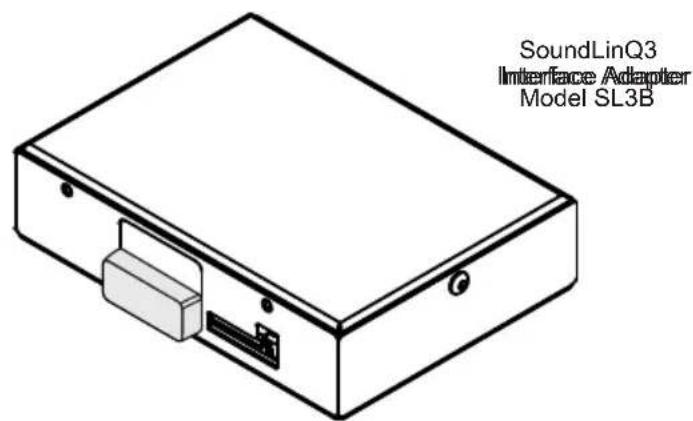

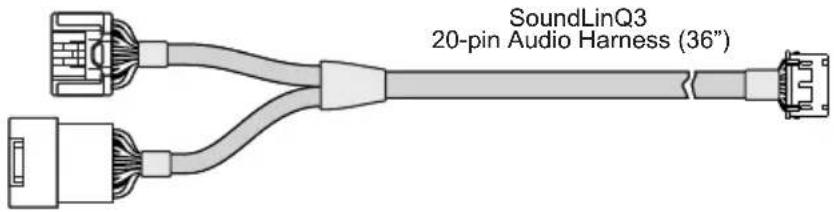
SoundLinQ3
Model:SL3B
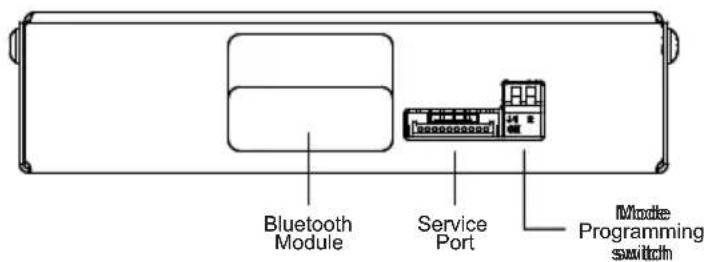

Connecting SoundLinQ3 to head unit using 20-pin Y-harness

Connecting SoundLinQ3 to head unit using 12-pin Y-harness

i IMPORTANT
We strongly recommend that you install the unit in easily accessible location. So you can later upgrade the unit or re-program it in case of incorrect programming.
Installation
... Gain access to the back of you vehicle's Head Unit.
... Find the same port as our Y-Harness (see "Connecting SoundLinQ3 to head unit")
--- Disconnect the existing connector and plug in our Y-Harness connector into this port, then plug female end of Audio Harness to the plug in for your factory connector. Audio harness female connector is not used in some vehicles, in this case isolate unused plug to prevent accidental shortage to vehicle body.
Plug the other end of Audio Harness into designated port on SoundLinQ3.
... Connect iPod cable as shown in the "Connecting SoundLinQ3" picture.
--- Setup proper Emulation Mode for this unit (see "Emulation Mode Selection")
--- Turn the car on and check SoundLinQ3 functionality and (especially Text capability) before the final assembly.
… Make sure your iPod has at least two playlists, in order for this unit to operate properly.
--- Please mount this unit in easy accessible location for upgrading and re-programming purposes.
--- Secure the Head Unit in its original position.
Emulation Mode Selection
MD Changer Emulation Mode programming steps:
... | Properly install this unit.
Put both programming switches in "DOWN" position.
Put ignition switch into "ACC" position.
Wait for long beep followed by a few short beeps. This take up to one minute.
- Return programming switches into their default position (both switches "UP").
Wait up to 30 seconds until confirmation beep.
Put ignition switch into the "OFF" position. Wait at least 10 seconds.
Put ignition switch into the "ACC" or "ON" position.
... Check SoundLinQ3 for functionality, especially TEXT capabilities.

CD Changer Emulation Mode programming steps:
... | Properly install this unit.
... Put "Right" programming switch in the "DOWN" position.
Put ignition switch into the "ACC" position.
Wait for long beep followed by a few short beeps. This may take up to one minute.
... | Return programming switches into their default position (both switches "UP").
Wait up to 30 seconds until confirmation beep.
Put ignition switch into the "OFF" position. Wait at least 10 seconds.
Put ignition switch into the "ACC" or "ON" position.
Check SoundLinQ3 for functionality, especially TEXT capabilities.

i IMPORTANT
- Improper Emulation Mode setting may cause this unit to be unrecognized by head unit.
- CD or MD Changer Emulation Mode Programming MUST BE DONE in order for the unit to find proper address location in the vehicle Audio/Video network.
CD-MP3 Emulation Mode Selection (CD-MP3 emulation)
CD-MP3 Emulation Mode programming steps:
... | Properly install this unit.
Put "Left" programming switch in "DOWN" position.
Put ignition switch into the "ACC" position.
Wait for long beep followed by a few short beeps. This may take up to one minute.
... Return programming switches into their default position (both switches "UP").
Wait up to 30 seconds until confirmation beep.
Put ignition switch into the "OFF" position. Wait at least 10 seconds.
Put ignition switch into "ACC" or "ON" position.
... Check SoundLinQ for functionality, especially TEXT capabilities.

Left switch "DOWN"

Ignition into "ACC" or "ON" position

Confirmation beep (Red LED blinks)
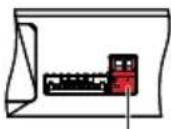
Bottin switchness "UP"

up to 30 sec

Confirmation beep (Red LED blinks)

Ignition into "OFF" position

up to 10 sec
Mounting unit using Velcro fasteners

NOTE
- Velcro Fasteners are not included
● VAIS Technology strongly recomand to ground unit to the car chassis for best results
Connecting Android Device to SL3B
... On the Home screen, press the Menu key.
... Touch Settings
... Touch Wireless & networks
-- Touch Bluetooth to turn it On
-- Touch Bluetooth settings
... Touch Scan for devices (make sure your headset is in pairing mode).
- Your phone scans for available Bluetooth devices (SL3B:XX:XX)
... Touch the Bluetooth device (SL3B:XX:XX) to select it
... Touch the device name again to connect to it.
Connecting iPod, iPhone, iPad to SL3B
... From the home screen, tap Settings.
... Tap Bluetooth.
... Pair with Bluetooth
Tap the Bluetooth toggle to enable the feature if it is not already active.
The handset automatically searches for available Bluetooth devices.
Tap the preferred Bluetooth device (SL3B:XX:XX).
... Pair with Bluetooth
... The Bluetooth device is now paired.
Other devices may have other requirements.
Refer to the Bluetooth device's user manual for device specific requirements.
NOTE: SL3B automatically connects to the last connected device. In case SL3B does not connect, you can force connection by activating and then deactivating "SCAN" button on the factory radio.
i IMPORTANT

Important Please Read!

(1) After a delay of five seconds, this product will automatically bypass the automobile manufacturer's on-screen warnings concerning use of the onboard navigation system. These warnings are: "Caution, Drive safely and obey traffic rules. Watching this screen while vehicle is in motion can lead to a serious accident. Make selections only while stopped. Some map data may be incorrect. Read safety instructions in Navigation Manual."
(2) PLEASE PRE-NOTIFY EVERY DRIVER OF THIS VEHICLE OF THE CONTENT OF THE AUTOMOBILE MANUFACTURER'S WARNING.
(3) IF YOU PREFER THAT THIS PRODUCT NOT ELIMINATE THE FOREGOING WARNINGS, YOU MAY DISABLE THIS FEATURE BY FOLLOWING THE INSTRUCTIONS IN THIS OWNER'S MANUAL, OR REFER TO INSTRUCTIONS AVAILABLE ON THE MANUFACTURER'S WEBSITE .WWW.VAISTECH.COM
Activate / Deactivate "I Agree" Automatic Bypass Function
... Put your device in Simple Mode by rapidly pressing the [SCAN] button 8 times (MUST BE DONE within 1-2 seconds). ... Push DISC REPEAT button to hear a long beep to toggle the "I Agree" Automatic Bypass Function ON and OFF. (For vehicles not equipped with DISC REPEAT as a physical button, push and hold the REPEAT button until you hear a long beep to toggle the "I Agree" Automatic Bypass Function ON and OFF.
CD/MD Changer Emulation
Source Selection
Select desired source by pressing DISC button on the head unit or MODE on the steering wheel control. (See diagram below)
Head Unit:
To switch between the unit sources you need to use "DISC" or "CD" button on the radio (Diagram below assumes factory CD changer is present).

flowchart
graph LR
    A["CD"] --> B["CD1"]
    B --> C["CD CD"]
    C --> D["SL3B"]
    D --> E["OR"]
    E --> F["CD"]
    F --> G["NMD11"]
    G --> H["CD MB"]
    H --> I["SL3B"]
    I --> J["OR"]
    J --> K["SL3B"]
    K --> L["OR"]
    L --> M["SL3B"]
    M --> N["OR"]
    N --> O["SL3B"]
    O --> P["OR"]
    P --> Q["SL3B"]
    Q --> R["OR"]
    R --> S["SL3B"]
    S --> T["OR"]
    T --> U["SL3B"]
    U --> V["OR"]
    V --> W["SL3B"]
    W --> X["OR"]
    X --> Y["SL3B"]
    Y --> Z["OR"]
    Z --> AA["SL3B"]
    AA --> AB["OR"]
    AB --> AC["SL3B"]
    AC --> AD["OR"]
    AD --> AE["SL3B"]
    AE --> AF["OR"]
    AF --> AG["SL3B"]
    AG --> AH["OR"]
    AH --> AI["SL3B"]
    AI --> AJ["OR"]
    AJ --> AK["SL3B"]
    AK --> AL["OR"]
    AL --> AM["SL3B"]
    AM --> AN["OR"]
    AN --> AO["SL3B"]
    AO --> AP["OR"]
    AP --> AQ["SL3B"]
    AQ --> AR["OR"]
    AR --> AS["SL3B"]
    AS --> AT["OR"]
    AT --> AU["SL3B"]
    AU --> AV["OR"]
    AV --> AW["SL3B"]
    AW --> AX["OR"]
    AX --> AY["SL3B"]
    AY --> AZ["OR"]
    AZ --> BA["SL3B"]
    BA --> BB["OR"]
    BB --> BC["SL3B"]
    BC --> BD["OR"]
    BD --> BE["SL3B"]
    BE --> BF["OR"]
    BF --> BG["SL3B"]
    BG --> BH["OR"]
    BH --> BI["SL3B"]
    BI --> BJ["OR"]
    BJ --> BK["SL3B"]
    BK --> BL["OR"]
    BL --> BM["SL3B"]
    BM --> BN["OR"]
    BN --> BO["SL3B"]
    BO --> BP["OR"]
    BP --> BQ["SL3B"]
    BQ --> BR["OR"]
    BR --> BS["SL3B"]
    BS --> BT["OR"]
    BT --> BU["SL3B"]
    BU --> BV["OR"]
    BV --> BW["SL3B"]
    BW --> BX["OR"]
    BX --> BY["SL3B"]
    BY --> BZ["OR"]
    BZ --> CA["SL3B"]
    CA --> CB["OR"]
    CB --> CC["SL3B"]
    CC --> CD
    CD --> CE["SL3B"]
    CE --> CF["OR"]
    CF --> CG["SL3B"]
    CG --> CH["OR"]
    CH --> CI["SL3B"]
    CI --> CJ["OR"]
    CJ --> CK["SL3B"]
Steering Wheel control:
To switch between the unit and radio you need to use the "MODE" button on the steering wheel control. (Diagram below assumes following sources are present).

flowchart
graph LR
    A["AM"] --> B["FM1"]
    B --> C["FM2"]
    C --> D["TRAPPE"]
    D --> E["CD"]
    E --> F["CD1"]
    F --> G["SL3B"]
    G --> A
Functionality Description
Control of connected Bluetooth Streaming Device is done through your head unit or the steering wheel controls (explained below).
This unit can be programmed in CD changer emulation mode, MD changer emulation mode and CD-MP3 Emulation. Please see attached chart to determine which emulation mode is compatible with your vehicle.
MD changer emulation
For Radio Receiver with LCD


CD changer emulation
For Radio Receiver with LCD

For Radio Integrated into Navigation System

Radio Integrated into Navigation System CD-Text support
For Radio Integrated into Navigation System

Radio Intragracted into Navigation System
Dinsect disc selection
WAY NOT bee avail ladd be floor all we hit bde mootell.
Applicable for iOS integration ONLY.
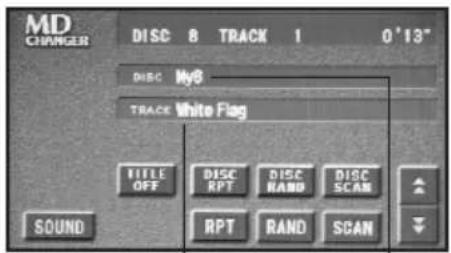
Strong Title, Antiest Name or Album Name (see "ID BSC SSCAN" function)
Playlist Title
CD/MD Changer Emulation
NOTE: Folder/Disc Title information may not display properly if song selected directly from the iOS device. Some applications may not refresh Folder/Disc Title when the song changes.
TRACK+ and TRACK-
Select the desired track
(Maximum number of tracks is 99 for CD changer Emulation mode, 999 for MD changer Emulation mode).
You can fast switch through tracks by repeatedly pressing the [TRACK+] / [TRACK-] button.
The track will change after a brief pause when you stop pressing the button.
NOTE: If a playlist only contains one track, the [TRACK+] / [TRACK-] buttons will not function.
DISC+ DISOd
Select the desired playlist (Maximum number of playlists is 99).
You can fast switch through playlists by repeatedly pressing the [DISC+] / [DISC-] button.
The new playlist will start after a brief pause when you stop pressing the button.
NOTE: If there are no songs in a playlist the unit will jump to the next playlist.
Fast Forward/Rewind the song
DISC SCAN
SCAN
NOTE: For vehicle not equipped with [DISC+] and [DISC-] buttons, if "DISC SCAN" function is active use [SCROLL UP] and [SCROLL DOWN] as [DISC+] and [DISC-] to select the desired playlist
NOTE: if "SCAN" function is active use [SCROLL UP] and [SCROLL DOWN] as "TRACK +10" and "TRACK -10" to select the desired song
DISC SCAN SCAN
NOTE: if "SCAN" and "DISC SCAN" function are active use [SCROLL UP] and [SCROLL DOWN] as "TRACK +50" and "TRACK -50" to select the desired song
RPT
Activates iPod "Repeat One" function
DISC RPT
Activates iPod "Repeat All" function.
NOTE: Repeats all songs in active playlist.
RAND
Activates iPod "Shuffle" function.
NOTE: Shuffle all songs in the active playlist. iPod starts playing songs from your entire playlist in random order, skipping audiobooks.
DISC RAND
Select the desired track title display mode. You can choose between Song Title, Artist Name, or Album Name. Note: Track Title information can ONLY be displayed on Radio LCD or Navigation screen that support CD or MD changers with CD-Text or MD-Text.
Displayed Errors (available only as a TEXT message)
Check BT Device
iPod/iPhone (as a Bluetooth Device) is not connected to SL3B.
NOTE: SL3B automatically connects to the last connected device. In case SL3B does not connect, you can force connection by activating and then deactivating "SCAN" button on the factory radio.
CD/MD Changer Emulation
NOTE: Functionality such as track information display and controls must be supported by connected device and selected application.
TRACK+
and
TRACK-
Select the desired track
(Maximum number of tracks is 99 for CD changer Emulation mode, 999 for MD changer Emulation mode).
You can fast switch through tracks by repeatedly pressing the [TRACK+] / [TRACK-] button.
The track will change after a brief pause when you stop pressing the button.
NOTE: Some devices/applications may not display track information correctly.
RPT
Activates "Repeat One" function
NOTE: This functionality must be supported by selected application.
DISC RPT
Activates "Repeat All" function.
NOTE: Repeats all songs in current category selection.
NOTE: This functionality must be supported by selected application.
RAND
Activates "Shuffle" function.
NOTE: Shuffle all songs in the current category selection.
NOTE: This functionality must be supported by selected application.
DISC RAND
Select the desired track title display mode. You can choose between Song Title, Artist Name, or Album Name. Note: Track Title information can ONLY be displayed on Radio LCD or Navigation screen that support CD or MD changers with CD-Text or MD-Text.
Displayed Errors (available only as a TEXT message)
Check BT Device
Android (as a Bluetooth Device) is not connected to SL3B.
NOTE: SL3B automatically connects to the last connected device. In case SL3B does not connect, you can force connection by activating and then deactivating "SCAN" button on the factory radio.
CD-MP3 Changer Emulation
Source Selection
Select desired source by pressing DISC button on the head unit or MODE on the steering wheel control. (See diagram below)
Head Unit:
To switch between the unit sources you need to use "DISC" or "CD" button on the radio (Diagram below assumes factory CD changer is present).

flowchart
graph LR
    A["CID"] --> B["CDC1"]
    B --> C["CID"]
    C --> D["CDC11"]
    D --> E["SL3B"]
    E --> F["OR"]
    F --> G["CDC11"]
    G --> H["SL3B"]
    H --> I["SL3B SL3B"]
    I --> J["OR"]
    J --> K["SL3B"]
Steering Wheel control:
To switch between the unit and radio you need to use the "MODE" button on the steering wheel control. (Diagram below assumes following sources are present).

flowchart
graph LR
    A["A0M1"] --> B["FFM11"]
    B --> C["FM2"]
    C --> D["TAXPE"]
    D --> E["CD"]
    E --> F["CD1"]
    F --> G["SIL3HB"]
    G --> A
Functionality Description
Control of connected Bluetooth Streaming Device is done through your head unit or the steering wheel controls (explained below).
This unit can be programmed in CD changer emulation mode, MD changer emulation mode and CD-MP3 Emulation. Please see attached chart to determine which emulation mode is compatible with your vehicle.
CD-MP3 changer emulation
For Radio Integrated into Navigation System (5th Generation Navigation System)

This functionality applicable for iOS integration ONLY.
6 disc CD-changer
Disc 1 - Playlist
Disc 2 - Artist
Disc 3 - Album
Disc 4 - Genre
Disc 5 - Audiobook
Disc 6 - Podcast


List Of Foddlens (List of Albums) List Of Files (List of songs in selected Albums) (List of songs in selected Album)
List of folders represent either list of Playlists, Artists, Albums, Genres, Audiobooks, or Podcasts, depending on your "Browsing mode" selection.
"Browsing mode" selection:
Disc 1 - Playlists, Disc 2 - Artists, Disc 3 - Albums, Disc 4 - Genres, Disc 5 - Audiobooks, Disc 6 - Podcasts.
List of files represent list of songs in each of the folder category.
This functionality is available for all 5th Gen Navigation system.
Please note all Toyota vehicles except for Prius, do not have a list of files and folders display available on the screen due to Radio limitation.
CD-MP3 Changer Emulation
NOTE: Folder/Disc Title information may not display properly if song selected directly from the iOS device. Some applications may not refresh Folder/Disc Title when the song changes.
TRACK+ and TRACK-
Select the desired track
(Maximum number of tracks is 999 for CD-MP3 changer Emulation mode).
You can fast switch through tracks by repeatedly pressing the [TRACK+] / [TRACK-] button.
The track will change after a brief pause when you stop pressing the button.
NOTE: If a playlist only contains one track, the [TRACK+] / [TRACK-] buttons will not function.
FOLDER+ FOLDER-
Select the desired playlist (Maximum number of playlists is 999).
You can fast switch through playlists by repeatedly pressing the [FOLDER+] / [FOLDER-] button.
The new playlist will start after a brief pause when you stop pressing the button.
NOTE: If there are no songs in a playlist the unit will jump to the next playlist.
Fast Forward/Rewind the song
NOTE: For vehicle not equipped with [DISC+] and [DISC-] buttons, if "SCAN" function is active use
[SCROLL UP] and [SCROLL DOWN] as [DISC+] and [DISC-] to select the desired playlist (in this case [DISC+] and [DISC-] will work as a [FOLDER+] and [FOLDER-])
RPT
Activates iPod "Repeat One" function
FOLDER RPT
Press and hold the RPT button to activate playlist repeat. This mode will cause the current playlist to start over with the first track after the last track has been played, instead of moving on to the next playlist.
NOTE: Repeats all songs in active playlist.
RAND
The RAND button activates the playlist randomizer function. All tracks in the current playlist will be placed into a new, random order. The currently selected track will be renumbered to Track 1, and all subsequent tracks will be random selections from the playlist. After activating the playlist randomizer, the displayed track number does not map to the physical track number in the playlist, but rather to the new, randomized order.
NOTE: Shuffle all songs in the active playlist. iPod starts playing songs from your entire playlist in random order, skipping audiobooks.
FOLDER LIST
The FOLDER button will bring up a new display that allows you to scroll through the playlists and tracks on your iPod device. [Folder Up] or [Folder Down] will scroll through playlists, while [File Up] or [File Down] will scroll through tracks. If a playlist contains a large number of songs, it may take some time for the data to be transferred to the head unit. This can cause the scroll buttons to become unresponsive during rapid scrolling, until data has been loaded from the iPod.
NOTE: Some vehicles' head units do not support the Folder/File display function. In this case when you press FOLDER you will see a blank display in the Folder and File lists.
DETAIL
Pressing the DETAIL button will bring up details on the current track. It will display Album Title, Track Title, and Artist. Genre is not supported and will always be blank.
NOTE: You can switch tracks while in DETAIL view, but it will not display the current track number.
Displayed Errors (available only as a TEXT message)
Check BT Device
iPod/iPhone (as a Bluetooth Device) is not connected to SL3B.
NOTE: SL3B automatically connects to the last connected device. In case SL3B does not connect, you can force connection by activating and then deactivating "SCAN" button on the factory radio.
CD-MP3 Changer Emulation
NOTE: Functionality such as track information display and controls must be supported by connected device and selected application.
TRACK+
and
TRACK-
Select the desired track
(Maximum number of tracks is 99 for CD changer Emulation mode, 999 for MD changer Emulation mode).
You can fast switch through tracks by repeatedly pressing the [TRACK+] / [TRACK-] button.
The track will change after a brief pause when you stop pressing the button.
NOTE: Some devices/applications may not display track information correctly.
RPT
Activates "Repeat One" function
NOTE: This functionality must be supported by selected application.
DISC RPT
Activates "Repeat All" function.
NOTE: Repeats all songs in current category selection.
NOTE: This functionality must be supported by selected application.
RAND
Activates "Shuffle" function.
NOTE: Shuffle all songs in the current category selection.
NOTE: This functionality must be supported by selected application.
FOLDER LIST
Information displayed in Folders/Files list does not correspond to current selection.
NOTE: Some vehicles' head units do not support the Folder/File display function. In this case when you press FOLDER you will see a blank display in the Folder and File lists.
DETAIL
Pressing the DETAIL button will bring up details on the current track. It will display Album Title, Track Title, and Artist. Genre is not supported and will always be blank.
NOTE: You can switch tracks while in DETAIL view, but it will not display the current track number.
Displayed Errors (available only as a TEXT message)
Check BT Device
Android (as a Bluetooth Device) is not connected to SL3B.
NOTE: SL3B automatically connects to the last connected device. In case SL3B does not connect, you can force connection by activating and then deactivating "SCAN" button on the factory radio.
Internet Radio / Third party Music Players Support for iOS 5.1+ devices
i IMPORTANT
To play Internet Radio or Third party Music Player applications (iOS 5.1+ device required):
- Connect iPod/iPhone.
- Let the iPod/iPhone "built-in" player to start playing.
- Start Internet Radio/Third party Music Player application
- Text information (Artist Name and Song Title) will appear on the nav display/radio LCD.
NOTE: Some applications require manually select "Play".
For CD-MP3 Emulation "List of files" and "List of folders" will not display correct information.
TRACK+ and TRACK-
Select the desired track
NOTE: Functionality of [TRACK+] / [TRACK-] buttons are available only if iOS application supports it.
CD-MP3 Changer Emulation
FOLDER+ FOLDER-
Will exit currently played Application and return to "built-in" iPod Player.
CD/MD Changer Emulation
DISC+ DISCd
Will exit currently played Application and return to "built-in" iPod Player.
Settings Mode
Enable/Disable "Settings mode"- press the [SCAN] button 8 times (MUST BE DONE within 1-2 seconds). You will hear a long beep.
Sound Level Adjustment
... Enable "Settings mode"
... Start playing desired song by pressing the [Play/Pause] button on the connected BT Audio Device
... Activate "SCAN" function on the head unit
... Set the desired volume on the head unit
... While "SCAN" is active use [SCROLL UP] to increase volume and [SCROLL DOWN] to decrease volume.
Sound level [01..10] will be displayed as Seconds on the head unit.
... Deactivate "SCAN" function
... Disable "Settings mode"
NOTE: Remember, a high sound level may result in noticeable sound distortion.
Activate / Deactivate "Disc Switching Fix" Function
"Disc switching Fix" has been designed to avoid a Radio malfunctioning in some vehicles while navigating through disc selection. SL3B comes with this feature activated by default, and it can causes screen to go black for 0.5 sec -1.5 sec in between disc selection. It doesn't have to be ON for all vehicles. Users are welcome to turn this feature OFF to determine wether or not it actually needs to be ON or OFF for their vehicles.
... Put your device in Settings Mode by rapidly pressing the [SCAN] button 8 times (MUST BE DONE within 1-2 seconds).
... Push DISC RANDOM button to hear a long beep to toggle the "Disc Switching Fix" Function ON and OFF. (For vehicles not equipped with DISC RANDOM as a physical button, push and hold the REPEAT button until you hear a long beep to toggle the "Disc Switching Fix" Function ON and OFF.
- | Disable "Settings mode"
Activate / Deactivate "I Agree" Automatic Bypass Function
--- Put your device in Settings Mode by rapidly pressing the [SCAN] button 8 times (MUST BE DONE within 1-2 seconds).
--- Push DISC REPEAT button to hear a long beep to toggle the "I Agree" Automatic Bypass Function ON and OFF. (For vehicles not equipped with DISC REPEAT as a physical button, push and hold the REPEAT button until you hear a long beep to toggle the "I Agree" Automatic Bypass Function ON and OFF.
i IMPORTANT

Important Please Read!

(1) After a delay of five seconds, this product will automatically bypass the automobile manufacturer's on-screen warnings concerning use of the onboard navigation system. These warnings are: "Caution, Drive safely and obey traffic rules. Watching this screen while vehicle is in motion can lead to a serious accident. Make selections only while stopped. Some map data may be incorrect. Read safety instructions in Navigation Manual."
(2) PLEASE PRE-NOTIFY EVERY DRIVER OF THIS VEHICLE OF THE CONTENT OF THE AUTOMOBILE MANUFACTURER'S WARNING.
(3) IF YOU PREFER THAT THIS PRODUCT NOT ELIMINATE THE FOREGOING WARNINGS, YOU MAY DISABLE THIS FEATURE BY FOLLOWING THE INSTRUCTIONS IN THIS OWNER'S MANUAL, OR REFER TO INSTRUCTIONS AVAILABLE ON THE MANUFACTURER'S WEBSITE .WWW.VAISTECH.COM
LICENSING AGREEMENT, DISCLAIMERS AND LIMITED WARRANTY
VAIS TECHNOLOGY, LLC
LICENSE AGREEMENT
VAIS TECHNOLOGY- SoundLinQ3 (SL3i), (SL3x), (SL3s), (SL3B)
for U.S.A. (hereinafter referred to as 'PRODUCT') and its related software
For Most Toyota/Lexus Vehicles 2001-2009; (hereinafter collectively referred to as 'PRODUCTS'). THIS IS A LEGAL AGREEMENT BETWEEN YOU, AS THE END USER, AND VAIS TECHNOLOGY, LLC ("VAIS"). PLEASE CAREFULLY READ THE TERMS AND CONDITIONS OF THIS AGREEMENT BEFORE USING THE VAIS PRODUCTS. BY USING THE VAIS PRODUCTS AND SOFTWARE INSTALLED ON THE VAIS PRODUCTS, YOU ARE AGREEING TO BE BOUND BY THE TERMS OF THIS AGREEMENT. THE AUDIO INTERFACE CONTROLLER AND THE AUDIO VIDEO INTERFACE CONTROLLER ARE ESSENTIALLY THE BRIDGE BETWEEN A VEHICLE, ITS EQUIPMENT, AND ANY 'AFTER-MARKET' EQUIPMENT SUBSEQUENTLY ADDED TO THE VEHICLE BY THE END-USER. THE EQUIPMENT SOLD TO YOU, THE END USER, IF PROPERLY INSTALLE D. IS A RESETTABLE TECHNOLOGY, WHICH WILL, UNDER NORMAL CIRCUMSTANCES, AUTOMATICALLY DISCONNECT IN THE EVENT OF ANY MALFUNCTION. SINCE VAIS DOES NOT INSTALL THIS EQUIPMENT, VAIS DISCLAIMS ANY LIABILITY FOR IMPROPER INSTALLATION OF THE VAIS TECHNOLOGY OR THE 'AFTER-MARKET' EQUIPMENT (INPUTS). FURTHER, THE 'END USER' ACKNOWLEDGES THAT THE PRODUCT AND ITS SOFTWARE ARE NOT INHERENTLY DANGEROUS AND DO NOT PROVIDE ANY INHERENT RISKS AND THEREFORE POTENTIAL DAMAGES TO THE END-USER, OTHER THAN 'Fitness for its Purpose'. Some radio receiver models may cause you to experience some technical difficulties, if the product does not operate properly please contact technical department promptly at support@vaistech.com.
1. GRANT OF LICENSE
VAIS grants to you a non-transferable, non-exclusive license to use the PRODUCT and its software installed on the VAIS product (the "PRODUCTS") and the related documentation solely for your own personal use or for internal use by your business, only on such VAIS PRODUCTS. You shall not copy, reverse engineer, translate, port, modify or make derivative works of the Software contained in the PRODUCT. You shall not loan, rent, disclose, publish, sell, assign, lease, sublicense, market or otherwise transfer the Software in the PRODUCT or use it in any manner not expressly authorized by this agreement. You shall not derive or attempt to derive the source code or structure of all or any portion of the Software in the PRODUCT by reverse engineering, disassembly, recompilation, or any other means. You shall not use the Software in the PRODUCT to operate a service bureau or for any other use involving the processing of data for other persons or entities. VAIS and its licensor(s) shall retain all copyright, trade secret, patent and other proprietary ownership rights to the Software in the PRODUCT. The PRODUCTS are Copyrighted/ Patented and/or at various stages of Pending and may not be copied, even if modified or merged with other products. You shall not alter or remove any copyright notice or proprietary legend contained in or on the PRODUCTS. You may transfer all of your license rights in the Software or the PRODUCT, the related documentation and a copy of this License Agreement And Warranty to another party, provided that the party reads and agrees to accept the terms and conditions of this License Agreement And Warranty.
2. OPERATIONAL WARNING AND SAFETY INSTRUCTIONS.
IMPORTANT NOTICE: YOU SHOULD READ AND FAMILIARIZE YOURSELF THOROUGHLY WITH THE FOLLOWING INFORMATION PRIOR TO INSTALLING AND USING THE -SoundLinQ3 (SL3i), (SL3x), (SI3s), (SL3B) and its related software (THE "PRODUCTS").
IN ADDITION, YOU MUST CAREFULLY READ AND FOLLOW THE INSTALLATION SCHEMATICS/INSTRUCTIONS FOR THE PRODUCT AND THE VEHICLE IN WHICH IT IS BEING INSTALLED. FAILURE TO FOLLOW INSTALLATION INSTRUCTIONS MAY DAMAGE THE PRODUCT AND THE VEHICLE AND WILL VOID THE PRODUCT WARRANTY AND MAY VOID THE VEHICLE WARRANTY. (A copy of the installation schematics is included with the Product and can also be found on the VAIS TECHNOLOGY website at www.vaistech.com.)
FAILURE TO ABIDE BY THESE OPERATIONAL WARNINGS AND SAFETY INSTRUCTIONS COULD RESULT IN SERIOUS BODILY INJURY OR DEATH. IN ADDITION, FAILURE TO FOLLOW THESE INSTRUCTIONS MAY VOID THE PRODUCT WARRANTY AND COULD BECOME A BASIS FOR LIABILITY ON THE PART OF THE VEHICLE OPERATOR IN THE EVENT OF AN ACCIDENT WHICH RESULTS IN INJURY TO PERSONS OR PROPERTY. UNDER NO CIRCUMSTANCES WILL VAIS OR ITS IMMEDIATE AGENTS OR PRINCIPALS, BE LIABLE, FOR DAMAGES INCURRED TO THE PRODUCTS, THE VEHICLE OR ITS PASSENGERS, OR OTHER THIRD-PARTIES AS A RESULT OF FAILURE TO FOLLOW VAIS'S INSTALLATION INSTRUCTIONS.
A COPY OF THE 'OPERATIONAL WARNINGS AND SAFETY INSTRUCTIONS' IS TO BE KEPT WITH THE VEHICLE AT ALL TIMES.
3.DISCLAIMER AND LIMITATION OF WARRANTIES.
(A) EXCEPT AS OTHERWISE CONTAINED HEREIN, the PRODUCTS and related documentation are provided to you, "AS IS". IN NO EVENT SHALL VAIS BE LIABLE FOR ANY DAMAGES, CLAIM OR LOSS INCURRED BY YOU (INCLUDING WITHOUT LIMITATION, COMPENSATORY, INCIDENTAL, INDIRECT, SPECIAL, CONSEQUENTIAL, OR EXEMPLARY DAMAGES, LOST PROFITS, LOST SALES OR BUSINESS, EXPENDITURES, INVESTMENTS, OR COMMITMENTS IN CONNECTION WITH ANY BUSINESS, LOSS OF ANY GOODWILL, OR DAMAGES. THE TERM 'INCIDENTAL DAMAGES' REFERS TO THE EXPENSES OF TRANSPORTING THE PRODUCTS TO THE VAIS SERVICE CENTER, LOSS OF THE END-USERS [ORIGINAL PURCHASER'S] TIME, LOSS OF THE USE OF THE PRODUCT, BUS FARES, CAR RENTALS OR OTHER COSTS RELATED TO THE CARE AND CUSTODY OF THE PRODUCT. THE TERM 'CONSEQUENTIAL DAMAGES' REFERS TO THE COST OF REPAIRING OR REPLACING OTHER PROPERTY, WHICH IS DAMAGED WHEN THIS PRODUCT DOES NOT WORK PROPERLY.) RESULTING FROM THE USE OR INABILITY TO USE THE PRODUCTS, INCLUDING ANY DAMAGES INCURRED DUE TO THE NEGLIGENT OPERATION OF A MOTOR VEHICLE, IN CONJUNCTION WITH THE USE OF SAID PRODUCTS. THE END-USER ACKNOWLEDGES ITS RESPONSIBILITY FOR THE USE OF THE PRODUCT. THE ADDITION OF VAIS PRODUCTS AND ANY AFTER-MARKET EQUIPMENT MAY ENHANCE THE VALUE OF A VEHICLE OR CAUSE A THIRD-PARTY TO ILLEGALLY ATTEMPT TO REMOVE THE PRODUCTS AND AFTER-MARKET EQUIPMENT. VAIS DISCLAIMS ANY LIABILITY RELATE D TO SUCH THEFT AND POTENTIAL DAMAGE TO PROPERTY.IT IS THE END-USERS RESPONSIBILITY TO PROTECT ITS OWN PROPERTY.
THE END-USER FURTHER ACKNOWLEDGES THAT THE OPERATION OF A MOTOR VEHICLE IS AN INHERENTLY DANGEROUS ACTIVITY, AND BY ITS USE OF VAIS'S PRODUCTS, ACKNOWLEDG ES THAT THE PRODUCTS ARE REMOTELY RELATED TO SAID MOTOR VEHICLE OPERATION, AND THUS ANY DAMAGES CAUSED TO THE DRIVER OF THE VEHICLE, THE VEHICLE ITSELF OR ANY THIRD-PARTY AND ITS PROPERTY IS NO T THE RESPONSIBILITY OF VAIS, ITS AG ENTS OR ITS PRINCIPALS AND IS THE SOLE RESPONSIBILITY OF THE DRIVER OF SAID VEHICLE.
YOU, THE END-USER, OR ANY OTHER DRIVER OF THE VEHICLE, IS SOLELY RESPONSIBLE FOR THE SAFE OPERATION OF THE VEHICLE AND THE SAFETY OF BOTH YOU AND THE PASSENGERS. FOR SAFETY PURPOSES, THE PRODUCT SHOULD NOT BE USED FOR THE DRIVER'S ENTERTAINMENT, WHILE THE VEHICLE IS BEING DRIVEN. SUCH USE COULD BE A DISTRACTION TO THE DRIVER, WHICH COULD CAUSE AN ACCIDENT LEADING TO SERIOUS INJURY OR DEATH. IF YOU, THE END-USER ALLOW ANOTHER PERSON TO USE THE VEHICLE, IT IS YOUR RESPONSIBILITY TO THOROUGHLY BRIEF THAT OTHER USER, ON THE SAFETY REQUIREMENTS FOR OPERATING THE VEHICLE AND THE PRODUCTS INSTALLED THEREIN.
(B) SAID DISCLAIMERS SHALL APPLY TO THE USE OF SAID PRODUCTS, EVEN IF VAIS HAS BEEN INFORMED OF, KNEW OF, OR SHOULD HAVE KNOWN OF THE LIKELIHOOD OF SUCH DAMAGES. THIS LIMITATION APPLIES TO ALL CAUSES OF ACTION IN THE AGGREGATE, INCLUDING WITHOUT LIMITATION: BREACH OF CONTRACT, BREACH OF WARRANTY, NEGLIGENCE, STRICT LIABILITY, MISREPRESENTATION AND OTHER TORTS. IF VAIS'S WARRANTY DISCLAIMER OR LIMITATION OF LIABILITY SET FORTH IN THIS AGREEMENT SHALL, OR FOR ANY REASON WHATSOEVER, BE HELD UNENFORCEABLE OR INAPPLICABLE, YOU AND ANY OTHER END USER AGREE THAT VAI S'S LIABILITY SHALL NOT EXCEED (50%) OF THE PRICE PAID FOR THE ENCLOSED VAIS PRODUCT.
Some states do not allow the exclusion or limitation of incidental or consequential damages, so the above limitation or exclusion may not apply to you. This Warranty Disclaimer and Limitation of Liability shall not be applicable to the extent that any federal, state or local law, which cannot be preempted, prohibits any provision of this Warranty.
(C) Some States/Provinces or other governmental jurisdictions (such as cities) may have laws that prohibit the operation of a video screen within the sight of the Driver. If you have purchased such a product, you should use the product only in locations where it is legal to do so, and if you do use the product, set up the screen only where it may be visible to passengers only. Although VAIS strongly recommends that Products not be used while the vehicle is in motion, it is your responsibility to determine whether the product can be used in any given location. Any use of the PRODUCTS where it is illegal to do so, may be used against you as evidence of negligence in the event of an auto accident or other traffic infraction.
4. THIRTY (30)- DAY MONEY BACK WARRANTY ONLY IF PURCHASED DIRECT FROM VAIS.
Any Product purchased directly from VAIS, referencing a Return Authorization Number (RAN) during the Thirty-(30) day period following shipment by VAIS, may be returned for a full refund of the purchase price actually paid, only if you have received damaged, defective or incorrectly shipped merchandise. The RAN number may be obtained from VAIS's Customer Support at (720) 733-2348, and is valid for only thirty- (30) days from its issuance. Said RAN must be noted on the outside of the returned PRODUCTS' packaging. The PRODUCTS must be returned in its original packaging, intact, without any evidence of tampering with the PRODUCTS or physical damage caused by the Customer (End-User).
WE WOULD STRONGLY RECOMMEND THAT THE ITEM BE SHIPPED INSURED, SINCE THE RISK OF LOSS DURING SHIPPING IS WITH THE END-USER. Re-stocking Fees may apply. Damage Fees if deemed caused by the End-User may apply. SHIPPING AND HANDLING OF THE END-USER IS NOT REFUNDABLE AND MUST BE PREPAID, FOR THIS WARRANTY TO BE APPLICABLE. END-USER SHALL ASSUME ALL RISK OF LOSS FOR THE SHIPPING OF THE PRODUCTS TO VAIS. PLEASE ALLOW UP TO EIGHT (8) WEEKS FOR VAIS TO CREDIT YOUR ACCOUNT.
5. LIMITED WARRANTY.
VAIS warrants that the PRODUCTS will be free from defects in materials and workmanship for a period of ONE (1) YEAR from the date of purchase. VAIS'S sole obligation under this warranty is to repair or replace at VAIS'S option, any PRODUCTS that VAIS shall have determined to be defective. Any replacement of parts, shall at the option of VAIS and at no additional charge to the end-user, be new or rebuilt/re-engineered replacement parts. Any replacement of PRODUCTS shall be with new or remanufactured equivalent PRODUCTS. The End-User is responsible for all shipping costs to VAIS, in connection with warranty service. VAIS will not be liable for any defects arising out of any modification of the PRODUCTS, or misuse, neglect, improper installation not in accordance with the specifications provided by VAIS, or if the product is used in violation of any applicable local, state or federal laws. It is the End Users responsibility to ascertain the existence and applicability of any local laws to the operation of the PRODUCTS, in any location where the PRODUCTS are being used. other causes beyond Seller's reasonable control.
A. WHO PERFORMS VAIS TECHNOLOGY'S WARRANTY COMPLIANCE.
VAIS Technology's professional technical department will perform VAIS warranty obligations.
B. WHAT YOU MUST DO
To obtain warranty performance, you must take the PRODUCTS, or deliver the PRODUCTS freight prepaid, to a VAIS Technology Authorized Service Center. If shipped, the PRODUCTS must be packaged so that it is protected from possible shipping damage. VAIS Technology will ship the PRODUCTS to you when warranty performance is completed. VAIS Technology will pay for shipping the PRODUCTS to you, if the product was repaired under the warranty and the Product was received by the Service Center during the warranty period, in which case the Product will be returned to you freight prepaid by VAIS. You must present to the Service Center, or include with your shipment, a dealer's bill of sale, or other original evidence, showing the date and place of purchase and describing the Product purchased to establish warranty eligibility. Be sure to include your return address and a written description of the problem and a daytime telephone number where you can be reached should the need arise.
SHIP TO: VAIS Technology
13792 Compark Blvd., Unit #125
Englewood, CO
80112
ATTENTION: SERVICE DEPARTMENT
For your own protection, you should obtain a proof of delivery receipt. Return shipping (that is, shipping back to the customer following repair or replacement), will be paid by the Seller unless repair or replacement is determined not to be covered by the warranty.
C. WHAT THE WARRANTY DOES NOT COVER. VAIS shall have no liability or obligation to Purchaser with respect to any PRODUCTS requiring service during the warranty period which is subjected to any of the following: abuse, improper operation, negligence, accident, modification, improper connections, failure of the end-user to follow the operating procedures outlined both herein, and in any user's manual, attempted repair by non-qualified personnel, Company or Association; operation of the Product outside of the published environmental and electrical parameters, or if such Product's original identification (trademark, serial number) markings have been defaced, altered, or removed. VAIS excludes from warranty coverage Products which have not been sold by VAIS or an Authorized VAIS Deale r to the Purchaser. VAIS also excludes from warranty coverage Products sold outside of the United States. All wires and connectors furnished with, or as part of the PRODUCTS is furnished "AS IS" (i.e., without any warranty of any kind), except where expressly provided otherwise in any documentation or license agreement furnished with the PRODUCTS.
Other Items Not covered Pursuant to this Warranty:
- Damage occurring during shipment of the product to VAIS for repair (claims must be presented to the carrier);
- Any cost or expense related to the removal or reinstallation of the product;
- Any Products which have been adjusted, altered or modified without VAIS's consent;
- Any Products that has been determined to contain an excessive amount of dust or dirt and any product that contains any other contaminants including liquid or foreign objects.
REPAIR OR REPLACEMENT AS PROVIDED IN THIS WARRANTY IS THE PURCHASER'S EXCLUSIVE WARRANTY REMEDY. IMPLIED WARRANTIES, INCLUDING THE WARRANTIES OF MERCHANTABILITY AND OF FITNESS FOR A PARTICULAR PURPOSE, SHALL NOT EXTEND BEYOND THE DURATION OF THE APPLICABLE PARTS WARRANTY PERIOD AND NO PERSON, COMPANY OR ASSOCIATION (INCLUDING AUTHORIZED DEALERS) IS AUTHORIZED TO ASSUME FOR VAIS ANY OTHER LIABILITY IN CONNECTION WITH THE SALE OF THE PRODUCT.
D. ALL WARRANTIES EXPRESS OR IMPLIED, ARE HEREBY DISCLAIMED BY VAIS, AND ANY SUCH WARRANTY IS DEEMED VOID, IN THE EVENT THE END-USER ATTEMPTS TO MODIFY THE PRODUCT OR PRODUCTS IN ANY WAY.
In addition, some states, do not allow limitations on how long an implied warranty lasts or the exclusion or limitation of incidental or consequential damages, so the above limitations or exclusion may not apply to you. This warranty gives you specific legal rights and you may have other rights, which may vary, from state to state. THE ABOVE WARRANTY TERMS AND CONDITIONS ARE VALID ONLY IN THE U.S.A.
IMPORTANT STEPS TO SAFEGUARD YOUR DATA AND PROPERTY :
Be sure to remove all third-party after market equipment, options, alterations, and attachments not warranted by VAIS Technolog y before sending the Product to VAIS for warranty service. VAIS IS NOT LIABLE FOR ANY LOSS OR DAMAGE TO THESE ITEMS.
6. OTHER PROVISIONS:
A. INDEMNIFICATION OF VAIS, ITS AGENTS AND EMPLOYEES. By Purchasing, Installing and Using the Products, You, the End-User, agree to indemnify, defend and hold harmless, VAIS, and its Affiliates, Directors, Officers, Agents and Employees from any Liabilities, Damage, Loss, Claim and Expense (including reasonable Attorney's Fees) arising out of the installation and use of the Products.
B. GOVERNING LAW. THIS AGREEMENT, and all Purchases hereunder shall be governed by, and construed under the laws of the State of Colorado, without regard to conflicts of law rules. You agree that the Courts of Colorado shall have exclusive jurisdiction over the Parties, for all disputes. Venue shall lie exclusively in either: (i) Arapahoe County District Court; or the U.S. District Court, District of Colorado.
C. NOT FOR RESALE NOR EXPORT ASSURANCES. You, the End-User certifies and agrees that the Products are being Purchased for the End-Users own use, and not for resale. The End-User further agrees that he/she/it will not remove components from Product for resale, unless he/she/it becomes certified as an official dealer of VAIS and enters into the appropriate 'Distribution Agreements' required by VAIS technology. The End-User further agrees that neither the software, nor any other technical date received from VAIS, nor the direct Product thereof, will be exported outside the United States, except as authorized and as permitted by VAIS and in accordance with the laws and regulations of the United States. If the software or Products rightfully obtained by you outside of the United States, you agree that you will not export the Software, Products, nor other technical data, received from VAIS; except as authorized and as permitted by VAIS, and in accordance with the laws and regulations of the United States. VAIS and the End-User recognize that violation of these provisions will result in damages to VAIS, in a substantial amount, which is not easily determined. If these provision are violated, the End-User shall be liable to VAIS in the amount of \$100/day, as liquidated damages and not as a penalty, commencing with the first day in which the end-user violates this provision and ending on the day in which such Products or its parts are recovered by VAIS.
D. FORCE MAJEURE ____. VAIS Technology shall not be liable for any delay or failure in performance caused by or resulting from acts of God, fire, flood, storms, earthquakes, tornadoes, other acts of nature, any accidents, riots, wars, government intervention, embargoes, strikes, labor difficulties, equipment failures, or any other causes beyond the control of VAIS Technology. Quantities are subject to av ailability. In the event of shortage, VAIS Technology may allocate sales and deliveries in its sole discretion.
E. WAIVER. Failure of VAIS Technology to insist upon strict performance of any provisions hereof shall not be deemed a waiver of its right and remedies.
F. SEVERABILITY: In the event that any of the provisions, or portions thereof, of this Agreement are held to be unenforceable or invalid by any court or tribunal of competent jurisdiction, the validity and enforceability of the remaining provisions, or portions thereof, shall not be affected thereby, and effect shall be given to the intent manifested by the provisions, or portions thereof, held to be enforceable and valid.
G. CONSTRUCTION: Throughout this Agreement the singular shall include the plural, and the plural shall include the singular, and masculine shall include the feminine wherever the context so requires.
H. COMPETENCY OF THE PARTIES. Each party is legally competent and fully authorized to execute this Agreement.
I. OPPORTUNITY TO REVIEW AGREEMENT WITH COUNSEL OF PARTIES OWN CHOOSING. You, the End-User acknowledge that YOU have had every right to consult a licensed attorney, and have done so to the extent of your desires, prior to entering into this Agreement, and: (a) has fully and carefully read and considered this Agreement prior to its execution; (b) has been sent to, or has had the opportunity to be fully apprised by his or her attorney of the legal effect and meaning of this document and all of its terms and conditions; (c) has had the opportunity to make whatever investigation or inquiry he/she deems necessary or appropriate in connection with the subject matter of this Agreement; (d) has been afforded the opportunity to negotiate as to any and all terms of this Agreement; and (e) is executing this Agreement voluntarily, free from any undue influence, coercion, duress or fraud of any kind.
J. BINDING EFFECT: Upon execution, this Agreement shall be binding and fully enforceable, and shall inure to the benefit of the parties hereto, their successors, personal representatives and heirs.
K. NOTICES: All notices, as may be required by this Agreement, shall be sent to the respective parties at the addresses set forth below. Appropriate registered or certified mailing to the parties may modify the place of notice.
L. ENTIRE AGREEMENT. These terms and conditions constitute the entire and exclusive agreement between you, the End-User and VAIS Technology, concerning the Products, and your purchase hereunder, and supercede all statements or other agreements, whether oral or written, between you and VAIS Technology. No change in this Agreement shall be effective, unless agreed to in writing by bot h, you, the end-user and VAIS.
IF YOU DO NOT AGREE WITH THESE TERMS, PLEASE RETURN THE VAIS PRODUCTS (INCLUDING THE SOFTWARE\* AND ANY WRITTEN MATERIALS) IN ORIGINAL CONDITION, AND IN ORIGINAL PACKAGE (INCLUDING SHIPPING BOX, AND ALL PACKAGING BELONGINGS USED FOR SECURE SHIPPING) WITHIN FIVE (5) BUSINESS DAYS OF RECEIPT OF THE PRODUCTS, TO THE PLACE FROM WHICH YOU PURCHASED THEM, FOR A FULL REFUND OF THE PURCHASE PRICE OF THE VAIS PRODUCTS.
* VALID FOR SPECIFIC VAIS PRODUCTS ONLY

VAIS TECHNOLOGY
8811 American Way, Suite 125. Englewood CO 80112
Tel: 720-733-2348 Fax: 720-528-7683 E-mail: info@vaistech.com
| Make | Model | Year | Audio System | SL3i & SL3B | SL3U | MML-MultiMediaLinQ | ||||
| Lexus | ||||||||||
| Emulation | Text | Emulation | Text | Model | Emulation | Text | ||||
| GS 300/350/430/450h | 2001-2005 | All Packages | CD | No | CD | N/A | MML-L1 | CD | No | |
| 2006 | All Packages | CD | Yes | CD | N/A | MML-T1 | CD | Yes | ||
| 2007-2009 | All Packages | MP3 | Yes | CD | N/A | MML-T1 | MP3 | Yes | ||
| 2010-2012 | All Packages | MML-L2 | USB | Yes | ||||||
| ES 300/330/350 | 2002-2003 | With Navigation | MD | Yes | MD | N/A | MML-L1 | MD | Yes | |
| 2004-2006 | Without Navigation | CD | No | CD | N/A | MML-L1 | CD | No | ||
| With Navigation | CD | Yes | CD | N/A | MML-L1 | CD | Yes | |||
| 2007-2009 | With Navigation | MP3 | Yes | CD | N/A | MML-T1 | MP3 | Yes | ||
| Without Navigation | CD | Yes | CD | N/A | MML-T1 | MD | Yes | |||
| 2010-2012 | All Packages | MML-L2 | USB | Yes | ||||||
| GX 470/460 | 2003-2004 | With Navigation | MD | Yes | MD | N/A | MML-L1 | MD | Yes | |
| Without Navigation | CD | Yes | CD | N/A | MML-L1 | CD | Yes | |||
| 2005-2006 | With Navigation | MD | Yes | MD | N/A | MML-T1 | MD | Yes | ||
| Without Navigation | CD | Yes | CD | N/A | MML-T1 | CD | Yes | |||
| 2007-2009 | With Navigation | MP3 | Yes | CD | N/A | MML-T1 | MP3 | Yes | ||
| Without Navigation | CD | Yes | CD | N/A | MML-T1 | CD | Yes | |||
| 2010-2012 | All Packages | MML-L2 | USB | Yes | ||||||
| RX 300/330/400h/350/450h | 2001-2003 | With Navigation | CD | No | CD | N/A | MML-L1 | CD | No | |
| Without Navigation | N/A | N/A | N/A | N/A | MML-L1 | N/A | N/A | |||
| 2004-2006 | All Packages | CD | Yes | CD | N/A | MML-L1 | CD | Yes | ||
| 2007-2009 | With Navigation | MP3 | Yes | CD | N/A | MML-T1 | MP3 | Yes | ||
| Without Navigation | CD | Yes | CD | N/A | MML-T1 | CD | Yes | |||
| 2010-2012 | All Packages | MML-L2 | USB | Yes | ||||||
| LX 470 | 2004-2007 | All Packages | MD | Yes | MD | N/A | MML-T1 | MD | Yes | |
| LX 570 | 2008-2009 | All Packages | MP3 | Yes | CD | N/A | MML-T1 | MP3 | Yes | |
| 2010-2012 | All Packages | MML-L2 | USB | Yes | ||||||
| LS 430 | 2001-2003 | All Packages | MD | Yes | MD | N/A | MML-L1 | MD | Yes | |
| 2004-2006 | MD | Yes | MD | N/A | MML-T1 | MD | Yes | |||
| LS 460 | 2007-2009 | With Navigation | MP3 | Yes | N/A | N/A | MML-T1 | MP3 | Yes | |
| Without Navigation | N/A | N/A | N/A | N/A | N/A | N/A | N/A | |||
| 2010-2012 | All Packages | MML-L2 | USB | Yes | ||||||
| SC 430 | 2002-2004 | All Packages | N/A | N/A | Special | N/A | N/A | N/A | N/A | |
| 2005-2009 | All Packages | CD | No | CD | N/A | MML-L1 | CD | No | ||
| IS 300/250/350 | 2001-2005 | All Packages | CD | No | CD | N/A | MML-L1 | CD | No | |
| 2006-2009 | With Navigation | MP3 | Yes | CD | N/A | MML-T1 | MP3 | Yes | ||
| Without Navigation | CD | Yes | CD | N/A | MML-T1 | CD | Yes | |||
| 2010-2012 | All Packages | MML-L2 | USB | Yes | ||||||
© Copyright 2006-2014 VAIS Technology All right reserved
Liability Disclaimer: This application guide is based on the testing results at the time of publishing.
VAIS Technology can not be held liable for damages or injuries caused by, or resulting from use of this guide.
Strictly adhere to all car manufacturer warnings that pertain to the disassembly, maintenance, or servicing of the vehicle and any of its associated part systems.
VAIS Technology can not be responsible for discrepancies, or inconsistencies that may occur due to automobile manufacturing changes.

VAIS TECHNOLOGY
8811 American Way, Suite 125. Englewood CO 80112
Tel: 720-733-2348 Fax: 720-528-7683 E-mail: info@vaistech.com
| Make | Model | Year | Audio System | SL3i & SL3B | SL3U | MML-MultiMediaLinQ | ||||
| Toyota | ||||||||||
| Emulation | Text | Emulation | Text | Model | Emulation | Text | ||||
| Corolla/Matrix/Yaris | 2007-2012 | All Packages | CD | Yes* | CD | N/A | MML-T1 | CD | Yes* | |
| Avalon | 2005-2011 | With and Without JBL | CD | Yes | CD | N/A | MML-T1 | CD | Yes | |
| With Navigation | Simple mode only | N/A | N/A | N/A | N/A | N/A | ||||
| Tacoma | 2005-2012 | All Packages | CD | Yes* | CD | N/A | MML-T1 | CD | Yes* | |
| 4 Runner | 2005-2009 | Without Navigation | CD | Yes* | CD | N/A | MML-T1 | CD | Yes* | |
| With Navigation | MP3** | Yes* | CD | N/A | MML-T1 | MP3** | Yes | |||
| 2010-2011 | Without Navigation | CD | Yes | CD | N/A | MML-T1 | CD | Yes | ||
| With Navigation | N/A | N/A | MML-T2 | USB | Yes | |||||
| Tundra | 2005-2006 | Without JBL | CD | No | CD | N/A | MML-T1 | CD | No | |
| With JBL or Navigation | CD | Yes | CD | N/A | MML-T1 | CD | Yes | |||
| 2007-2009 | Without Navigation | CD | Yes* | CD | N/A | MML-T1 | CD | Yes* | ||
| With Navigation | MP3** | Yes | CD | N/A | MML-T1 | MP3** | Yes | |||
| 2010-2012 | Without Navigation | CD | Yes | CD | N/A | MML-T1 | CD | Yes | ||
| With Navigation | N/A | N/A | MML-T2 | USB | Yes | |||||
| Sequoia | 2005-2009 | Without JBL | CD | No | CD | N/A | MML-T1 | CD | No | |
| With JBL or Navigation | CD | Yes* | CD | N/A | MML-T1 | CD | Yes* | |||
| 2010-2011 | Without Navigation | CD | Yes | CD | N/A | MML-T1 | CD | Yes | ||
| With Navigation | N/A | N/A | MML-T2 | USB | Yes | |||||
| Prius | 2004-2005 | All Packages | MD | Yes | MD | N/A | MML-T1 | MD | Yes | |
| 2008-2009 | All Packages | MP3** | Yes | CD | N/A | MML-T1 | MP3** | Yes | ||
| 2010-2012 | Without Navigation | CD | Yes | CD | N/A | MML-T1 | MP3** | Yes | ||
| With Navigation | N/A | N/A | MML-T2 | USB | Yes | |||||
| Camry/Solara | 2005-2006 | All Packages | CD | Yes* | CD | N/A | MML-T1 | CD | Yes* | |
| 2007-2009 | With and Without JBL | CD | Yes | CD | N/A | MML-T1 | CD | Yes | ||
| With Navigation | MP3** | Yes | CD | N/A | MML-T1 | MP3** | Yes | |||
| 2010-2012 | Without Navigation | CD | Yes | CD | N/A | MML-T1 | CD | Yes | ||
| With Navigation | N/A | N/A | MML-T2 | USB | Yes | |||||
| Sienna | 2004-2005 | With Navigation | CD | Yes | CD | N/A | MML-T1 | CD | Yes | |
| 2008-2010 | With or Without JBL | CD | Yes | CD | N/A | MML-T1 | CD | Yes | ||
| With Navigation | MP3** | Yes | CD | N/A | MML-T1 | MP3** | Yes | |||
| 2012 | Without Navigation | CD | Yes | CD | N/A | MML-T1 | CD | Yes | ||
| With Navigation | N/A | N/A | MML-T2 | USB | Yes | |||||
| Land Cruiser | 2004 | With Navigation | MD | Yes | MD | N/A | MML-T1 | MD | Yes | |
| 2005-2007 | With and Without Navigation | CD | Yes | CD | N/A | MML-T1 | CD | Yes | ||
| 2008-2009 | All Packages | MP3** | Yes | CD | N/A | MML-T1 | MP3** | Yes | ||
| 2010-2011 | All Packages | USB | Yes | |||||||
| Highlander | 2005-2007 | All Packages | CD | Yes* | CD | N/A | MML-T1 | CD | Yes* | |
| 2008-2010 | With or Without JBL | CD | Yes* | CD | N/A | MML-T1 | CD | Yes* | ||
| With Navigation | MP3** | Yes | CD | N/A | MML-T1 | MP3** | Yes | |||
| 2012 | Without Navigation | CD | Yes | CD | N/A | MML-T1 | CD | Yes | ||
| With Navigation | N/A | N/A | MML-T2 | USB | Yes | |||||
| FJ Cruiser | 2008-2012 | All Packages | CD | Yes* | CD | N/A | MML-T1 | CD | Yes* | |
| RAV4 | 2008-2011 | With or Without JBL | CD | Yes | CD | N/A | MML-T1 | CD | Yes | |
| With Navigation | MP3** | Yes | CD | N/A | MML-T1 | MP3** | Yes | |||
| Venza | 2009-2011 | All Packages | N/A | N/A | MML-T2 | USB | Yes | |||
| Scion | ||||||||||
| All | 2008-2012 | All Packages | CD | Yes* | CD | N/A | MML-T1 | CD | Yes* | |
© Copyright 2006-2014 VAIS Technology All right reserved
Liability Disclaimer. This application guide is based on the testing results at the time of publishing.
VAIS Technology can not be held liable for damages or injuries caused by, or resulting from use of this guide.
Strictly adhere to all car manufacturer warnings that pertain to the disassembly, maintenance, or servicing of the vehicle and any of its associated part systems.
VAIS Technology can not be responsible for discrepancies, or inconsistencies that may occur due to automobile manufacturing changes.

VAIS TECHNOLOGY
8811 American Way, Suite 125. Englewood CO 80112
Tel: 720-733-2348 E-mail: sales@vaistech.com
| Make Model Year | Audio System | SL3B | |||
| Lexus | |||||
| Emulation | Text | ||||
| GS 300/350/430/450h | 2001-2005 | All Packages | CD | No | |
| 2006 | All Packages | CD | Yes | ||
| 2007-2009 | All Packages | MP3 | Yes | ||
| ES 300/330/350 | 2002-2003 | With Navigation | MD | Yes | |
| 2004-2006 | Without Navigation | CD | No | ||
| With Navigation | CD | Yes | |||
| 2007-2009 | With Navigation | MP3 | Yes | ||
| Without Navigation | CD | Yes | |||
| GX 470/460 | 2003-2004 | With Navigation | MD | Yes | |
| Without Navigation | CD | Yes | |||
| 2005-2006 | With Navigation | MD | Yes | ||
| Without Navigation | CD | Yes | |||
| 2007-2009 | With Navigation | MP3 | Yes | ||
| Without Navigation | CD | Yes | |||
| RX 300/330/400h/350/450h | 2001-2003 | With Navigation | CD | No | |
| Without Navigation | N/A | N/A | |||
| 2004-2006 | All Packages | CD | Yes | ||
| 2007-2009 | With Navigation | MP3 | Yes | ||
| Without Navigation | CD | Yes | |||
| LX 470 | 2003-2007 | All Packages | MD | Yes | |
| LX 570 | 2008-2009 | All Packages | MP3 | Yes | |
| LS 430 | 2001-2003 | All Packages | MD | Yes | |
| 2004-2006 | MD Yes | ||||
| LS 460 | 2007-2009 | With Navigation | MP3 | Yes | |
| Without Navigation | N/A | N/A | |||
| SC 430 | 2002-2004 | All Packages | N/A | N/A | |
| 2005-2009 | All Packages | CD | No | ||
| IS 300/250/350 | 2001-2005 | All Packages | CD | No | |
| 2006-2009 | With Navigation | MP3 | Yes | ||
| Without Navigation | CD | Yes | |||
© Copyright 2006-2024 VAIS Technology All right reserved.
Liability Disclaimer: This application guide is based on the testing results at the time of publishing.
VAIS Technology can not be held liable for damages or injuries caused by, or resulting from use of this guide.
Strictly adhere to all car manufacturer warnings that pertain to the disassembly, maintenance, or servicing of the vehicle and any of its associated part systems.
VAIS Technology can not be responsible for discrepancies, or inconsistencies that may occur due to automobile manufacturing changes.

VAIS TECHNOLOGY
8811 American Way, Suite 125. Englewood CO 80112
Tel: 720-733-2348 E-mail: sales@vaistech.com
| Make Model Year | Audio System | SL3B | |||
| Toyota | |||||
| Emulation | Text | ||||
| Corolla/Matrix/Yaris 2007-2012 | All Packages | CD | Yes* | ||
| Avalon | 2005-2011 | With and Without JBL | CD | Yes | |
| With Navigation | Simple mode only | ||||
| Tacoma | 2005-2012 | All Packages | CD | Yes* | |
| 4 Runner | 2005-2009 | Without Navigation | CD | Yes* | |
| With Navigation | MP3** | Yes* | |||
| 2010-2011 | Without Navigation | CD | Yes | ||
| With Navigation | |||||
| Tundra | 2005-2006 | Without JBL | CD | No | |
| With JBL or Navigation | CD | Yes | |||
| 2007-2009 | Without Navigation | CD | Yes* | ||
| With Navigation | MP3** | Yes | |||
| 2010-2012 | Without Navigation | CD | Yes | ||
| With Navigation | |||||
| Sequoia | 2005-2009 | Without JBL | CD | No | |
| With JBL or Navigation | CD | Yes* | |||
| 2010-2011 | Without Navigation | CD | Yes | ||
| With Navigation | |||||
| Prius | 2004-2005 | All Packages | MD | Yes | |
| 2006-2009 | All Packages | MP3** | Yes | ||
| 2010-2012 | Without Navigation | CD | Yes | ||
| With Navigation | |||||
| Camry/Solara | 2005-2006 | All Packages | CD | Yes* | |
| 2007-2009 | With and Without JBL | CD | Yes | ||
| With Navigation | MP3** | Yes | |||
| 2010-2012 | Without Navigation | CD | Yes | ||
| With Navigation | |||||
| Sienna | 2004-2005 | With Navigation | CD | Yes | |
| 2006-2010 | With or Without JBL | CD | Yes | ||
| With Navigation | MP3** | Yes | |||
| 2012 | Without Navigation | CD | Yes | ||
| With Navigation | |||||
| Land Cruiser | 2003-2004 | With Navigation | MD | Yes | |
| 2005-2007 | With and Without Navigation | CD | Yes | ||
| 2008-2009 | All Packages | MP3** | Yes | ||
| 2010-2011 | All Packages | ||||
| Highlander | 2005-2007 | All Packages | CD | Yes* | |
| 2008-2010 | With or Without JBL | CD | Yes* | ||
| With Navigation | MP3** | Yes | |||
| 2012 | Without Navigation | CD | Yes | ||
| With Navigation | |||||
| FJ Cruiser | 2006-2012 | All Packages | CD | Yes* | |
| RAV4 | 2008-2011 | With or Without JBL | CD | Yes | |
| With Navigation | MP3** | Yes | |||
| Venza | 2009-2011 | All Packages | |||
| Scion | |||||
| All | 2006-2012 | All Packages | CD | Yes* | |
| Notes:* Text display on the radio is only available for radios that support CD Text feature.** MP3 emulation mode is available only for '06-'09 models with 5th Gen Navigation system. | |||||
© Copyright 2006-2024 VAIS Technology All right reserved.
Liability Disclaimer: This application guide is based on the testing results at the time of publishing.
VAIS Technology can not be held liable for damages or injuries caused by, or resulting from use of this guide.
Strictly adhere to all car manufacturer warnings that pertain to the disassembly, maintenance, or servicing of the vehicle and any of its associated part systems.
VAIS Technology can not be responsible for discrepancies, or inconsistencies that may occur due to automobile manufacturing changes.
- SoundLinQ3 Bluetooth Interface Adapter for iOS, Android, and other devices
- WARNING
- DO NOT DISASSEMBLE OR ALTER
- Do not block your view
- Do not block the airbag
- Distraction warning
- BEFORE WIRING, DISCONNECT THE CABLE FROM THE NEGATIVE BATTERY TERMINAL
- CAUTION
- DO NOT SPLICE INTO ELECTRICAL CABLES
- DO NOT ALLOW CABLES TO BECOME ENTANGLED IN SURROUNDING OBJECTS
- DO NOT INSTALL IN LOCATIONS WITH HIGH MOISTURE OR DUST
- HAVE THE WIRING AND INSTALLATION DONE BY EXPERTS
- USE ONLY SPECIFIED ACCESSORY PARTS
- FOLLOW THE OPERATIONAL AND INSTALLATION MANUALS.
- CHECK YOUR LOCAL LAWS
- TROUBLESHOOTING
- i IMPORTANT
- i About iPod Operation
- i About iPod Settings
- RECOMMENDATIONS
- Important Please Read!
- Connecting SoundLinQ3
- Connecting SoundLinQ3 to head unit using 20-pin Y-harness
- Connecting SoundLinQ3 to head unit using 12-pin Y-harness
- Installation
- Emulation Mode Selection
- CD-MP3 Emulation Mode Selection (CD-MP3 emulation)
- Mounting unit using Velcro fasteners
- NOTE
- Connecting Android Device to SL3B
- Connecting iPod, iPhone, iPad to SL3B
- Activate / Deactivate "I Agree" Automatic Bypass Function
- CD/MD Changer Emulation
- Source Selection
- Head Unit:
- Steering Wheel control:
- Functionality Description
- TRACK+ and TRACK-
- DISC+ DISOd
- DISC SCAN SCAN
- RPT
- DISC RPT
- RAND
- DISC RAND
- TRACK+
- TRACK-
- Check BT Device
- CD-MP3 Changer Emulation
- FOLDER+ FOLDER-
- FOLDER RPT
- FOLDER LIST
- DETAIL
- Internet Radio / Third party Music Players Support for iOS 5.1+ devices
- Settings Mode
- Sound Level Adjustment
- Activate / Deactivate "Disc Switching Fix" Function
- LICENSING AGREEMENT, DISCLAIMERS AND LIMITED WARRANTY
- VAIS TECHNOLOGY, LLC
- LICENSE AGREEMENT
- GRANT OF LICENSE
- OPERATIONAL WARNING AND SAFETY INSTRUCTIONS.
- 3.DISCLAIMER AND LIMITATION OF WARRANTIES.
- THIRTY (30)- DAY MONEY BACK WARRANTY ONLY IF PURCHASED DIRECT FROM VAIS.
- LIMITED WARRANTY.
- WHO PERFORMS VAIS TECHNOLOGY'S WARRANTY COMPLIANCE.
- WHAT YOU MUST DO
- ATTENTION: SERVICE DEPARTMENT
- Other Items Not covered Pursuant to this Warranty:
- IMPORTANT STEPS TO SAFEGUARD YOUR DATA AND PROPERTY :
- OTHER PROVISIONS:
- IF YOU DO NOT AGREE WITH THESE TERMS, PLEASE RETURN THE VAIS PRODUCTS (INCLUDING THE SOFTWARE\* AND ANY WRITTEN MATERIALS) IN ORIGINAL CONDITION, AND IN ORIGINAL PACKAGE (INCLUDING SHIPPING BOX, AND ALL PACKAGING BELONGINGS USED FOR SECURE SHIPPING) WITHIN FIVE (5) BUSINESS DAYS OF RECEIPT OF THE PRODUCTS, TO THE PLACE FROM WHICH YOU PURCHASED THEM, FOR A FULL REFUND OF THE PURCHASE PRICE OF THE VAIS PRODUCTS.
- VAIS TECHNOLOGY
Brand : VAIS Technology
Model : Soundlinq 3
Category : Bluetooth Adapter