
ST124HD202 - Séparateur StarTech.com - Free user manual and instructions
Find the device manual for free ST124HD202 StarTech.com in PDF.


| Product Type | HDMI Video Splitter |
| Brand | StarTech.com |
| Model | ST124HD202 |
| Number of Inputs | 1 x HDMI (female) |
| Number of Outputs | 4 x HDMI (female) |
| Max Video Resolution | 4K @ 60Hz |
| Power Supply | DC 5V via included universal power adapter (NA, EU, UK, ANZ) |
| EDID Management | Switchable between Default (1920x1080@60Hz, 2ch stereo) or EDID from Output 1 |
| LED Indicators | Power, Input, 4 x Output |
| Compliance | FCC Class B, ICES-003 (Canada) |
| Warranty | 1 Year |
| Package Contents | HDMI Splitter, Universal Power Adapter, Quick-Start Guide |
| Cables Required | Up to 5 HDMI cables (sold separately) |
| Maintenance | Clean with a dry, soft cloth; do not use liquids or solvents |
| Repairability | No user-serviceable parts inside; refer to qualified service personnel for repairs |
Frequently Asked Questions - ST124HD202 StarTech.com
User questions about ST124HD202 StarTech.com
0 question about this device. Answer the ones you know or ask your own.
Ask a new question about this device
Download the instructions for your Séparateur in PDF format for free! Find your manual ST124HD202 - StarTech.com and take your electronic device back in hand. On this page are published all the documents necessary for the use of your device. ST124HD202 by StarTech.com.
USER MANUAL ST124HD202 StarTech.com
4-Port HDMI® Video Splitter - 4K 60Hz
Product Design
Actual product may vary from photos
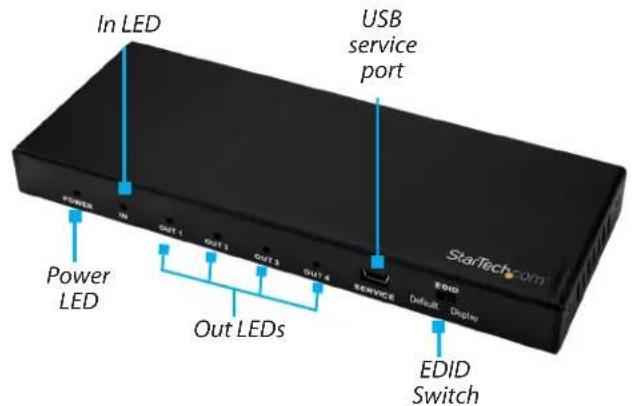
Front View
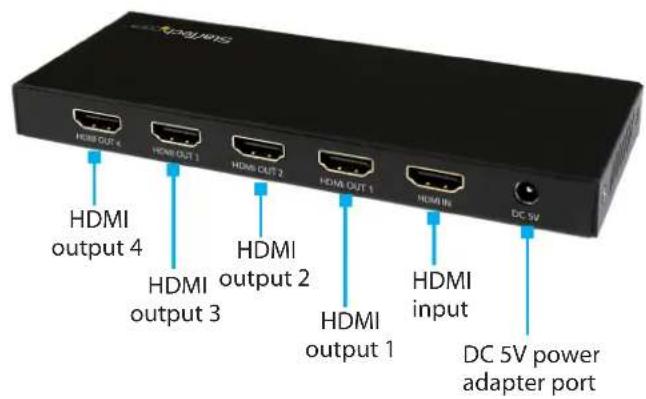
Rear View
Packaging Contents
- 1 x HDMI ^ video splitter
- 1 x universal power adapter (NA, EU, UK, ANZ)
- 1 x quick-start guide
Requirements
Operating system requirements are subject to change. For the latest requirements, please visit www.startech.com/ST124HD202.
Displays:
Displays are sold separately.
• HDMI Video Source Device x 1
• HDMI Displays x 4
Cables:
Cables are sold separately.
• HDMI Cables x 5
Installation
Note: Before you begin the installation, ensure your HDMI source device and each of the HDMI video displays are powered off.
- Connect an HDMI Cable, to the HDMI Input Port on the HDMI Splitter. Connect the other end of the HDMI Cable in the HDMI Output Port on the Video Source Device.
- Connect an HDMI Cable, to the HDMI Out 1 Port on the HDMI Splitter. Connect the other end of the HDMI Cable in the HDMI Input Port on the Display.
- Repeat Steps 1 - 2 to connected additional display (max 4).
- Connect the Universal Power Adapter to the DC 5V Power Adapter Port on the Video Splitter. Connect the other end of the Universal Power Adapter to an AC Electrical Outlet.
- Turn on the Video Source Device.
- Turn on the Displays
- Verify that the video source is on the connected Displays.
EDID Switch
The HDMI Splitter features an Extended Display Identification Data (EDID) Switch that allows you to use the EDID settings from the display connected to the HDMI Out 1 Port, or emulate standard EDID settings.
By default the EDID Switch is set to default (standard).
EDID Default Settings:
• Resolution: 1920 x 1080 60Hz
• Audio: 2 channel stereo
Using HDMI Out 1 Port EDID Settings
-
On the HDMI Splitter, change the EDID Switch from default to display.
Note: To switch back to the Default EDID setting, switch from display to default and follow Steps 2 - 3. -
Disconnect the Universal Power Adapter from the AC Electrical Outlet and then disconnect it from the HDMI Splitter.
-
Reconnect the Universal Power Adapter to the DC 5V Power Adapter Port on the Video Splitter. Connect the other end of the Universal Power Adapter to an AC Electrical Outlet.
LED Indicators
| LED Status | |
| Power LED Lights when the HDMI Splitter is connected to a power source. | |
| Input LED Lights when an active video source is connected to the HDMI In Port | |
| Output LEDs Lights when an active video display is connected to the HDMI Out Port | |
Safety Measures
- Wiring terminations should not be made with the product and/or electric lines under power.
- Product installation and/or mounting should be completed by a certified professional as per the local safety and building code guidelines.
- Cables (including power and charging cables) should be placed and routed to avoid creating electric, tripping or safety hazards.
Mesures de sécurité
FCC Compliance Statement
This equipment has been tested and found to comply with the limits for a Class B digital device, pursuant to part 15 of the FCC Rules. These limits are designed to provide reasonable protection against harmful interference in a residential installation. This equipment generates, uses and can radiate radio frequency energy and, if not installed and used in accordance with the instructions, may cause harmful interference to radio communications. However, there is no guarantee that interference will not occur in a particular installation. If this equipment does cause harmful interference to radio or television reception, which can be determined by turning the equipment off and
on, the user is encouraged to try to correct the interference by one or more of the following measures:
• Reorient or relocate the receiving antenna.
- Increase the separation between the equipment and receiver.
- Connect the equipment into an outlet on a circuit different from that to which the receiver is connected.
- Consult the dealer or an experienced radio/TV technician for help
This device complies with part 15 of the FCC Rules. Operation is subject to the following two conditions: (1) This device may not cause harmful interference, and (2) this device must accept any interference received, including interference that may cause undesired operation. Changes or modifications not expressly approved by StarTech.com could void the user's authority to operate the equipment.
Industry Canada Statement
This Class B digital apparatus complies with Canadian ICES-003.
This device complies with Industry Canada licence-exempt RSS standard(s). Operation is subject to the following two conditions:
(1) This device may not cause interference, and (2) This device must accept any interference, including interference that may cause undesired operation of the device.
Use of Trademarks, Registered Trademarks, and other Protected Names and Symbols
This manual may make reference to trademarks, registered trademarks, and other protected names and/or symbols of third-party companies not related in any way to StarTech.com. Where they occur these references are for illustrative purposes only and do not represent an endorsement of a product or service by StarTech.com, or an endorsement of the product(s) to which this manual applies by the third-party company in question. StarTech.com hereby acknowledges that all trademarks, registered trademarks, service marks, and other protected names and/or symbols contained in this manual and related documents are the property of their respective holders.
Technical Support
StarTech.com's lifetime technical support is an integral part of our commitment to provide industry-leading solutions. If you ever need help with your product, visit www.startech.com/support and access our comprehensive selection of online tools, documentation, and downloads. For the latest drivers/software, please visit www.startech.com/downloads
Warranty Information
This product is backed by a one-year warranty. StarTech.com warrants its products against defects in materials and workmanship for the periods noted, following the initial date of purchase. During this period, the products may be returned for repair, or replacement with equivalent products at our discretion. The warranty covers parts and labor costs only. StarTech.com does not warrant its products from defects or damages arising from misuse, abuse, alteration, or normal wear and tear.
Limitation of Liability
In no event shall the liability of StarTech.com Ltd. and StarTech.com USA LLP (or their officers, directors, employees or agents) for any damages (whether direct or indirect, special, punitive, incidental, consequential, or otherwise), loss of profits, loss of business, or any pecuniary loss, arising out of or related to the use of the product exceed the actual price paid for the product. Some states do not allow the exclusion or limitation of incidental or consequential damages. If such laws apply, the limitations or exclusions contained in this statement may not apply to you.
FR: fr.startech.com PT: pt.startech.com
DE: de.startech.com IT: it.startech.com
ES: es.startech.com JP: jp.startech.com
NL: nl.startech.com
- 4-Port HDMI® Video Splitter - 4K 60Hz
- Product Design
- Packaging Contents
- Requirements
- Displays:
- Cables:
- Installation
- EDID Switch
- EDID Default Settings:
- Using HDMI Out 1 Port EDID Settings
- Safety Measures
- Mesures de sécurité
- FCC Compliance Statement
- Industry Canada Statement
- Use of Trademarks, Registered Trademarks, and other Protected Names and Symbols
- Technical Support
- Warranty Information
- Limitation of Liability
Brand : StarTech.com
Model : ST124HD202
Category : Séparateur