Vibe - Smartphone HMD - Free user manual and instructions
Find the device manual for free Vibe HMD in PDF.


| Product Type | Smartphone |
| Model | TA-1590 |
| Brand | HMD |
| Display | Touch screen, orientation lock |
| Processor | Not specified |
| RAM | Not specified |
| Storage | Expandable via microSD up to 512 GB |
| Operating System | Android |
| SIM Card | Nano-SIM |
| Camera | Rear camera with flash, front camera |
| Connectivity | Wi-Fi, Bluetooth, USB-C, headset connector |
| Sensors | Face recognition, proximity, ambient light |
| Battery | Non-removable, rechargeable via USB-C |
| Charger | Compatible charger, USB-C cable |
| Protection | Screen lock, face unlock, Find My Device |
| Maintenance | Clean with soft dry cloth; keep dry |
| Safety | Glass screen may break; avoid high volume; keep away from small children |
| Repair | Authorized service only; no user replaceable battery |
| General | HMD Global, manufactured by HMD |
Frequently Asked Questions - Vibe HMD
User questions about Vibe HMD
0 question about this device. Answer the ones you know or ask your own.
Ask a new question about this device
Download the instructions for your Smartphone in PDF format for free! Find your manual Vibe - HMD and take your electronic device back in hand. On this page are published all the documents necessary for the use of your device. Vibe by HMD.
USER MANUAL Vibe HMD
1 About this user guide 5
2 Get started 6
Keep your phone up to date . . . . . . . . . . . . . . . . . . . . . .
Keys and parts . . . . . . . . . . . . . . . . . . . . . . . . . . . . . . . .
Insert the SIM and memory cards . . . . . . . . . . . . . . . . . . . .
Charge your phone . . . . . . . . . . . . . . . . . . . . . . . . . . . .
Switch on and set up your phone . . . . . . . . . . . . . . . . . . .
Use the touch screen 9
3 Protect your phone 13
Lock or unlock your phone 13
Protect your phone with a screen lock 13
Protect your phone with your face 13
Find your lost phone 14
4 Basics 15
Personalize your phone 15
Notifications 15
Control volume 16
Automatic text correction 17
Battery life 17
Accessibility 18
5 Connect with your friends and family 1
Calls 19
Contacts 19
Send messages 20
Mail 20
6 Camera 21
Camera basics
Your photos and videos . . . . . . . . . . . . . . . . . . . . . . . . . . . .
7 Internet and connections 23
Activate Wi-Fi
Browse the web . . . . . . . . . . . . . . . . . . . . . . . . . . . . . . .
Bluetooth®
VPN
8 Organize your day 26
Date and time 26
Alarm clock 26
Calendar 27
9 Maps 28
Find places and get directions 28
10 Apps, updates, and backups 29
Get apps from Google Play 29
Update your phone software 29
Back up your data 29
Restore original settings and remove private content from your phone 30
11 Product and safety information 31
For your safety 31
Network services and costs 33
Emergency calls 34
Take care of your device 34
Recycle 35
Crossed-out wheelie bin symbol 36
Battery and charger information 36
HMD Vibe User Guide
Small children . . . . . . . . . . . . . . . . . . . . . . . . . . . . . . . . . . . . .
Nickel
Medical devices
Implanted medical devices . . . . . . . . . . . . . . . . . . . . . . . . . .
Hearing
Protect your device from harmful content . . . . . . . . . . . . . . . . .
Vehicles
Potentially explosive environments . . . . . . . . . . . . . . . . . . . . . .
Certification information
About Digital Rights Management . . . . . . . . . . . . . . . . . . . . . .
Feature-specific information
Copyrights and other notices . . . . . . . . . . . . . . . . . . . . . . . .
1 About this user guide
Important: For important information on the safe use of your device and battery, "Product and safety information" before you take the device into use. To find out started with your new device, read the user guide.
2 Get started
KEEP YOUR PHONE UP TO DATE
Your phone software
Keep your phone up to date and accept available software updates to get new features for your phone. Updating the software may also improve your phone's p
KEYS AND PARTS
Your phone
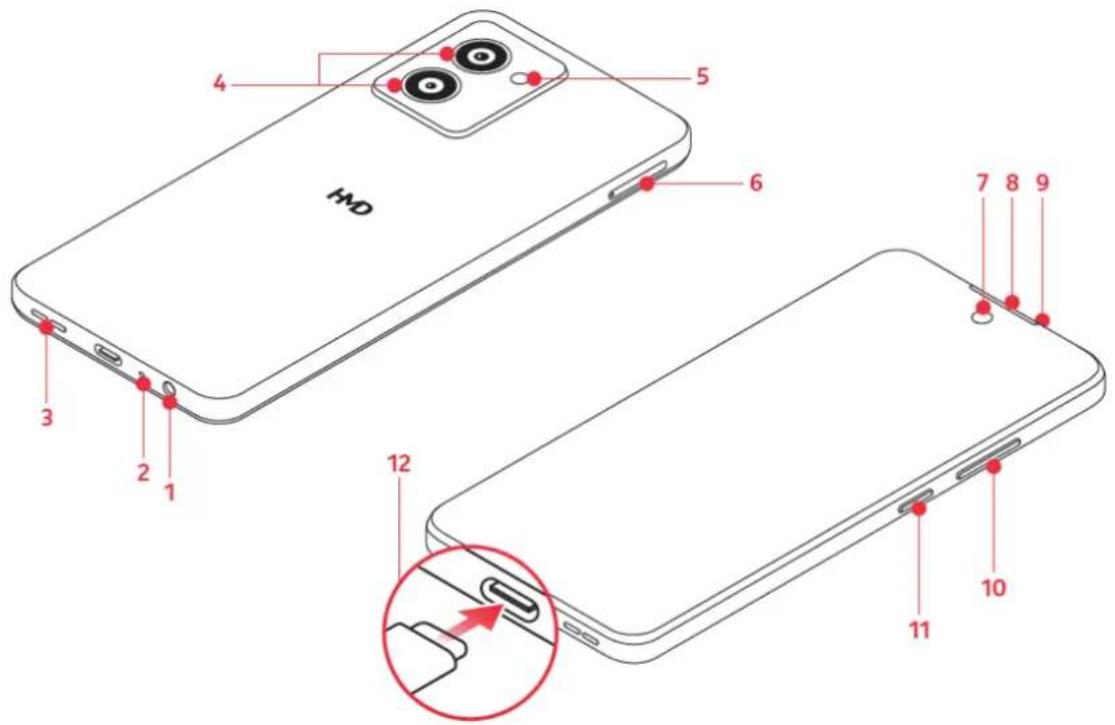
This user guide applies to the following model: TA-1590.
-
Headset connector
-
Front camera
-
Microphone
-
Earpiece
-
Loudspeaker
-
Microphone
-
Camera
-
Volume keys
-
Flash
-
Power/Lock key
-
SIM and memory card slot
-
USB connector
HMD Vibe User Guide
Some of the accessories mentioned in this user guide, such as charger, headset ble, may be sold separately.
Parts and connectors, magnetism
Do not connect to products that create an output signal, as this may damage not connect any voltage source to the audio connector. If you connect an exte headset, other than those approved for use with this device, to the audio conn cial attention to volume levels.
Parts of the device are magnetic. Metallic materials may be attracted to the de-place credit cards or other magnetic stripe cards near the device for extended time, since the cards may be damaged.
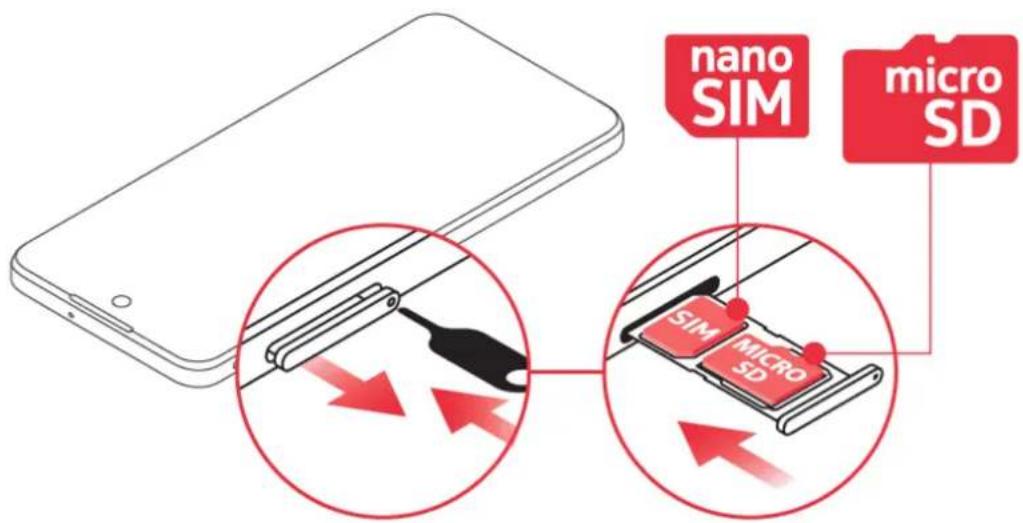
INSERT THE SIM AND MEMORY CARDS
Insert the cards
-
Open the SIM card tray: push the tray opener pin in the tray hole and sli
-
Put a nano-SIM card in the SIM card slot and a memory card in the mem tray with the contact areas face down.
-
Slide the tray back in.
Use only original nano-SIM cards. Use of incompatible SIM cards may damage the device, and may corrupt data stored on the card.
Use only compatible memory cards approved for use with this device. Incompatible damage the card and the device and corrupt data stored on the card.
TM and © 2024 HMD Global. All rights reserved. 7
HMD Vibe User Guide
Important: Do not remove the memory card when an app is using it. Doing so if the memory card and the device and corrupt data stored on the card.

Tip: Use a fast, up to 512 GB microSD memory card from a well-known manufact

Note: Pre-installed system software and apps use a significant part of memory spa
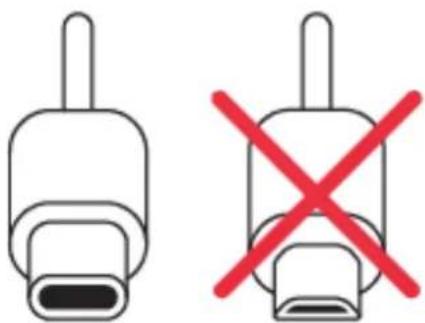
CHARGE YOUR PHONE
Charge the battery
natural_image
Two identical line drawings of electronic components with a red X symbol crossed out, no text or symbols present.-
Plug a compatible charger into a wall outlet.
-
Connect the cable to your phone.
Your phone supports the USB-C cable. You can also charge your phone from a a USB cable, but it may take a longer time.
If the battery is completely discharged, it may take several minutes before the cator is displayed.
SWITCH ON AND SET UP YOUR PHONE
Switch on your phone
When you switch your phone on for the first time, your phone guides you to work connections and phone settings.
- Press and hold the power key.
- Choose your language and region.
- Follow the instructions shown on your phone.
TM and © 2024 HMD Global. All rights reserved. 8
Transfer data from your previous phone
You can transfer data from an old phone to your new phone using your Google. To back up data on your old phone to your Google account, refer to your old guide.
Restore app settings from your previous Android™ phone
If your previous phone was an Android, and you had set it to back up data count, you can restore your app settings and passwords.
- Tap Settings > Passwords & accounts > Add account > Google .
- Select which data you want to restore on your new phone. The sync starts once your phone is connected to the internet.
Switch off your phone
To switch off your phone, press the power key and the volume up key at the select Power off.

Tip: If you want to switch off your phone by pressing and holding the power ke Settings > System > Gestures > Press and hold power button and switch off Hold for Assistant .
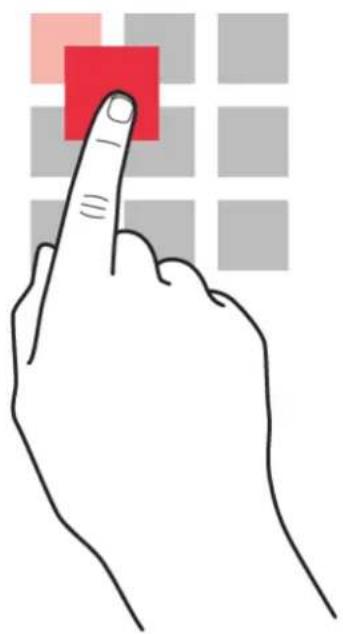
Tap and hold to drag an item
natural_image
Hand pointing at a red square on a grid background (no text or symbols)Place your finger on the item for a couple of seconds, and slide your finger a
Swipe
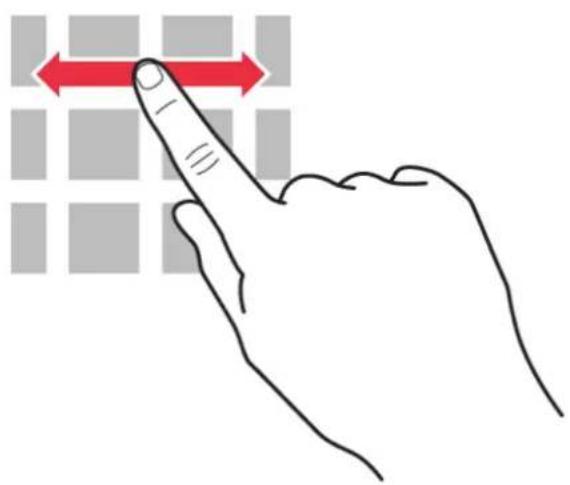
Place your finger on the screen, and slide your finger in the direction you want
TM and © 2024 HMD Global. All rights reserved. 10
HMD Vibe User Guide
Scroll through a long list or menu
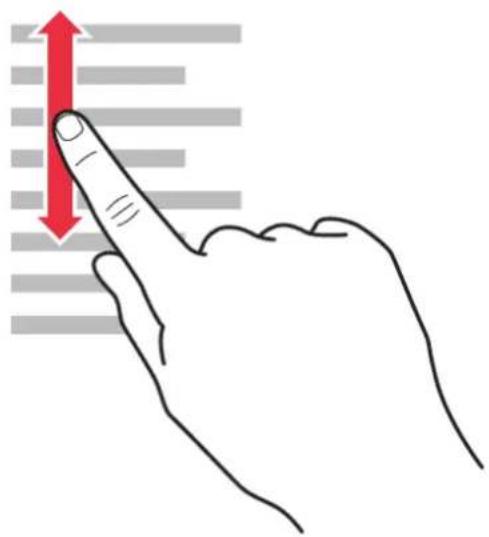
Slide your finger quickly in a flicking motion up or down the screen, and lift y the scrolling, tap the screen.
Zoom in or out
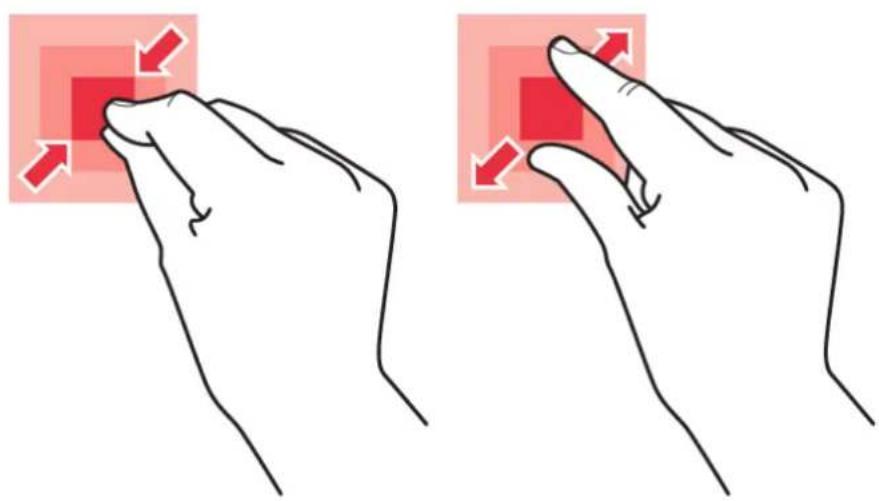
natural_image
Illustration of two hands demonstrating a finger press application with red arrows indicating movement (no text or symbols present)Place 2 fingers on an item, such as a map, photo, or web page, and slide you together.
TM and © 2024 HMD Global. All rights reserved. 11
Lock the screen orientation
The screen rotates automatically when you turn the phone 90 degrees.
To lock the screen in portrait mode, swipe down from the top of the screen, Auto-rotate > Off.
Navigate with gestures
To switch on using gesture navigation, tap Settings > System > Gestures > Navigation mode > Gesture navigation .
• To see all your apps, on the home screen, swipe up on the screen.
- To go to the home screen, swipe up from the bottom of the screen. The stays open in the background.
- To see which apps you have open, swipe up from the bottom of the screening your finger until you see the apps, and then release your finger. To switch open app, tap the app. To close all the open apps, swipe right through all CLEAR ALL.
- To go back to the previous screen you were in, swipe from the right or left screen. Your phone remembers all the apps and websites you've visited since your screen was locked.
Navigate with keys
To switch on the navigation keys, tap Settings > System > Gestures > Navigation 3-button navigation .
• To see all your apps, on the home screen, swipe up from the bottom of
• To go to the home screen, tap ●. The app you were in stays open in tl
- To see which apps you have open, tap ■. To switch to another open app, and tap the app. To close all the open apps, swipe right through all the app CLEAR ALL .
- To go back to the previous screen you were in, tap ◀. Your phone remem and websites you've visited since the last time your screen was locked.
3 Protect your phone
LOCK OR UNLOCK YOUR PHONE
Lock your phone
If you want to avoid accidentally making a call when your phone is in your pc can lock your keys and screen.
To lock your keys and screen, press the power key.
Unlock the keys and screen
Press the power key, and swipe up across the screen. If asked, provide addition
PROTECT YOUR PHONE WITH A SCREEN LOCK
You can set your phone to require authentication when unlocking the screen.
Set a screen lock
- Tap Settings > Security & privacy > Device unlock > Screen lock .
- Choose the type of lock and follow the instructions on your phone.
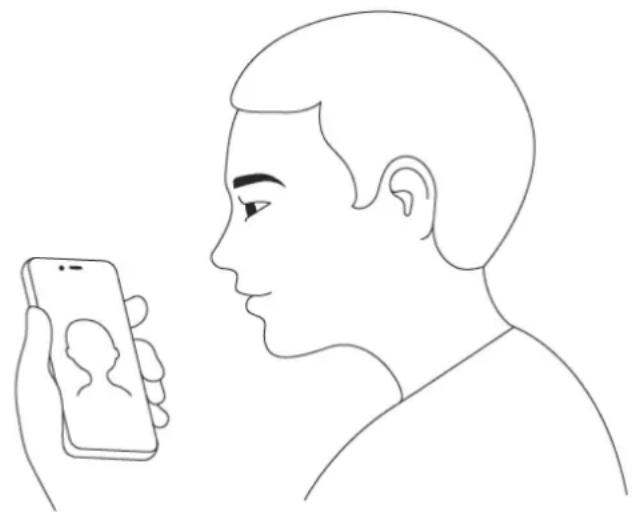
PROTECT YOUR PHONE WITH YOUR FACE
Set up face authentication
natural_image
Line drawing of a person holding a smartphone, viewed from the side (no text or symbols)-
Tap Settings > Security & privacy > Device unlock > Face unlock .
-
Select what backup unlocking method you want to use for the lock screen instructions shown on your phone.
Keep your eyes open and make sure your face is fully visible and not covered such as a hat or sunglasses.
Note: Using your face to unlock your phone is less secure than using a patter. Your phone may be unlocked by someone or something with similar appearance. may not work properly in backlight or too dark or bright environment.
Unlock your phone with your face
To unlock your phone, just turn your screen on and look at the front camera.
If there is a facial recognition error, and you cannot use alternative sign-in met or reset the phone in any way, your phone will require service. Additional charge and all the personal data on your phone may be deleted. For more info, contact authorized service facility for your phone, or your phone dealer.
FIND YOUR LOST PHONE
Locate or lock your phone
If you lose your phone, you may be able to find, lock, or erase it remotely if in to a Google Account. Find My Device is on by default for phones associated Account.
To use Find My Device, your lost phone must be:
- Turned on
• Visible on Google Play
• Signed in to a Google Account - Location turned on
- Connected to mobile data or Wi-Fi
• Find My Device turned on
When Find My Device connects with your phone, you see the phone's location, gets a notification.
- Open android.com/find on a computer, tablet or phone connected to the inter in to your Google Account.
- If you have more than one phone, click the lost phone at the top of the
- On the map, see about where the phone is. The location is approximate and accurate.
If your device can't be found, Find My Device will show its last known location lock or erase your phone, follow the instructions on the web site.
4 Basics
PERSONALIZE YOUR PHONE
Change your wallpaper
Tap Settings > Wallpaper & style .
Change your phone ringtone
Tap Settings > Sound & vibration > Phone ringtone , and select the tone.
Change your message notification sound
Tap Settings > Sound & vibration > Default notification sound .
NOTIFICATIONS
Use the notification panel
natural_image
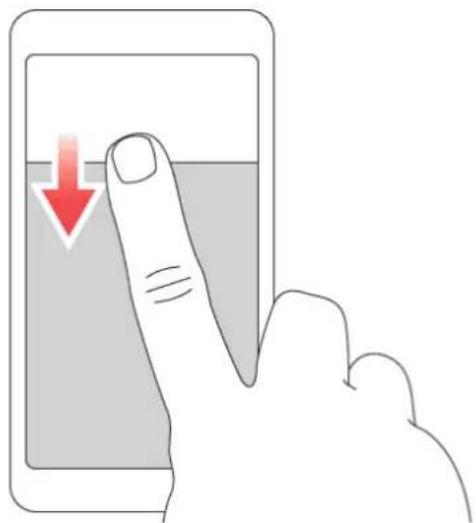
Illustration of a finger pressing down on a smartphone screen with a red downward arrow (no text or symbols)When you receive new notifications, such as messages or missed calls, icons ap top of the screen.
To see more information about the notifications, swipe down from the top of the close the view, swipe up on the screen.
To change the notification settings of an app, tap Settings > Notifications > App notifications > Most recent > All apps , and switch the app's notifications off.
HMD Vibe User Guide
Use the quick access items
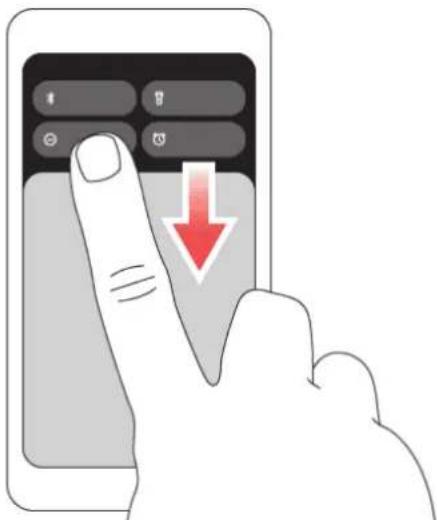
To activate features, tap the corresponding quick access item on the notification see more items, drag the menu down. To rearrange or add new items, tap ↗, item, and then drag it to another location.
CONTROL VOLUME
Change the volume
If you have trouble hearing your phone ringing in noisy environments, or calls all can change the volume to your liking by using the volume keys on the side of
Do not connect to products that create an output signal, as this may damage not connect any voltage source to the audio connector. If you connect an exte headset, other than those approved for use with this device, to the audio conn cial attention to volume levels.
Change the volume for media and apps
- Press a volume key to see the volume level bar.
- Tap ...
- Drag the slider on the volume level bars left or right.
- Tap DONE .
Set the phone to silent
- Press a volume key.
- Tap
- Tap ☐ to set your phone to vibrate only, or tap ✏ to set it to silent.
AUTOMATIC TEXT CORRECTION
Use keyboard word suggestions
Your phone suggests words as you write, to help you write quickly and more a suggestions may not be available in all languages.
When you start writing a word, your phone suggests possible words. When the is shown in the suggestion bar, select the word. To see more suggestions, tap suggestion.

Tip: If the suggested word is marked in bold, your phone automatically uses it to word you wrote. If the word is wrong, tap and hold it to see a few other sug. If you do not want the keyboard to suggest words while typing, turn off the text Tap Settings > System > Keyboard > On-screen keyboard. Select the keyboard you normally use. Tap Text correction and switch off the text correction methods you do to use.
Correct a word
If you notice that you have misspelled a word, tap it to see suggestions for a word.
Switch spell checker off
Tap Settings > System > Keyboard > Spell checker , and switch Use spell che
BATTERY LIFE
Extend battery life
To save power:
- Always charge the battery fully.
- Mute unnecessary sounds, such
as touch sounds. Tap Settings > Sound & vibration, and select which sounds to keep.
- Use wired headphones, rather than the Use network connections selectively:
loudspeaker. - Set the phone screen to switch off a short time. Tap Settings > Display Screen timeout and select the time.
- Tap Settings > Display >
Brightness level. To adjust the brightness, drag the brightness level slider. Make sure that Adaptive brightness is switched off. - Stop apps from running in the background.
- Use location services selectively: switch off location services off when you don't need them. Tap Settings > Location, and switch off Use location.
eUse network connections selectively: Switch Bluetooth on only when needed. Use a Wi-Fi connection to connect to after internet, rather than a mobile data connection. Stop your phone scanning for available wireless networks. Tap Settings > Network & internet > Internet , and switch off Wi-Fi . If you're listening to sic or otherwise using your phone, but don't want to make or receive calls, sv the airplane mode on. Tap Settings > Network & internet , and switch on Airplane mode . Airplane mode closes connections to the mobile network and switches your device's wireless features
ACCESSIBILITY
Make the text and items on the screen larger
- Tap Settings > Accessibility > Display size and text .
- Tap the font size slider until the text size is to your liking.
- Tap the display size slider until the size is to your liking.
5 Connect with your friends and family
CALLS
Make a call
- Tap
- Tap ⚪ and type in a number, or tap 🔊 and select a contact you want to call.
- Tap
Answer a call
If your phone rings when the screen is unlocked, tap ANSWER. If your phone screen is locked, swipe up to answer.
Reject a call
If your phone rings when the screen is unlocked, tap DECLINE. If your phone screen is locked, swipe down to reject the call.
CONTACTS
Add a contact
- Tap Contacts > + .
- Fill out the information.
- Tap SAVE .
Save a contact from call history
- Tap 📋 > ⓣ to see your call history.
- Tap the number you want to save.
- Tap Add contact . If this is a new contact, type in the contact information If this contact is already in your contacts list, tap Add to existing , select tap Save .
SEND MESSAGES
Send a message
- Tap Messages.
- Tap Start chat.
- To add more recipients, tap 📋+. After choosing all the recipients, tap Next, the group a name, and tap Done.
- To add a recipient, type their number in a recipients box, and tap √. To add a contact, start typing their name and tap. that ▶. contact.
You can send mail with your phone when you're on the go.
Add a mail account
When you use the Gmail app for the first time, you are asked to set up you
- Tap Gmail .
- You can select the address connected with your Google account or tap Add an email address.
- After adding all the accounts, tap TAKE ME TO GMAIL .
Send mail
- Tap Gmail . ∴ > Add from Contacts .
- Tap ♦.
- Type in the message subject and the
- In the To box, type in an address5. ofTaptap.
6 Camera
CAMERA BASICS
Take a photo
Shoot sharp and vibrant photos - capture the best moments in your photo album
- Tap Camera .
- Take aim and focus.
- Tap O.
Keep a safe distance when using the flash. Do not use the flash on people or close range. Do not cover the flash while taking a photo.
Take a selfie
- Tap Camera > to switch to the front camera.
- Tap O.
Record a video
- Tap Camera .
- Tap ⊙ to start recording.
- To switch to the video recording tap Video.
modeTo stop recording, tap ☐. - To go back to camera mode, tap Pho
YOUR PHOTOS AND VIDEOS
View photos and videos on your phone
Tap Photos .
Share your photos and videos
- Tap Photos, tap the photo you want to share and tap <.
- Select how you want to share the photo or video.
TM and © 2024 HMD Global. All rights reserved. 21
HMD Vibe User Guide
Copy your photos and videos to your computer
Connect your phone to your computer with a compatible USB cable. Use your c manager to copy or move your photos and videos to the computer.
7 Internet and connections
ACTIVATE WI-FI
Switch on Wi-Fi
- Tap Settings > Network & internet > Internet .
- Switch Wi-Fi on.
- Select the network you want to use.
Your Wi-Fi connection is active when ▼ is shown at the top of the screen. If mobile data connections are available, your phone uses the Wi-Fi connection.
Important: Use encryption to increase the security of your Wi-Fi connection. Usin tion reduces the risk of others accessing your data.
BROWSE THE WEB
Search the web
- Tap Chrome .
- Write a search word or a web address to the search field.
- Tap →, or select from the proposed matches.

Tip: If your network service provider doesn't charge you a fixed fee for data tran on data costs, use a Wi-Fi network to connect to the internet.
Use your phone to connect your computer to the web
Use your mobile data connection to access the internet with your laptop or other
- Tap Settings > Network & internet > Hotspot & tethering .
- Switch on Wi-Fi hotspot to share your mobile data connection over Wi-Fi, US to use a USB connection, Bluetooth tethering to use Bluetooth, or Ethernet to use a USB Ethernet cable connection.
The other device uses data from your data plan, which may result in data traffic on availability and costs, contact your network service provider.
BLUETOOTH®
Connect to a Bluetooth device
- Tap Settings > Connected devices Connection preferences > Bluetooth
- Tap Pair new device and tap the devi you want to pair with from the list of covered Bluetooth devices.
- Switch Use Bluetooth on.
- Make sure the other device is switched on. You may need to start the pairing process from the other device. For details, see the user guide for the other device.
Since devices with Bluetooth wireless technology communicate using radio waves, not need to be in direct line-of-sight. Bluetooth devices must, however, be within (33 feet) of each other, although the connection may be subject to interference structions such as walls or from other electronic devices.
Paired devices can connect to your phone when Bluetooth is switched on. Other detect your phone only if the Bluetooth settings view is open.
Do not pair with or accept connection requests from an unknown device. This is your phone from harmful content.
Share your content using Bluetooth
If you want to share your photos or other content with a friend, send them to phone using Bluetooth.
You can use more than one Bluetooth connection at a time. For example, while tooth headset, you can still send things to another phone.
-
Tap Settings > Connected devices > tap < > Bluetooth . Connection preferences > Bluetooth
-
Make sure Bluetooth is switched on your friend's phone. both phones and the phones are visible
to each other. 5. If the other phone needs a passcode, in or accept the passcode, and tap PA 3. Go to the content you want to send, and
The passcode is only used when you connect to something for the first time.
Remove a pairing
If you no longer have the device with which you paired your phone, you can ing.
- Tap Settings > Connected devices > Saved devices .
- Tap ✿ next to a device name.
- Tap FORGET .
VPN
You may need a virtual private network (VPN) connection to access your comparison such as intranet or corporate mail, or you may use a VPN service for personal
Contact your company IT administrator for details of your VPN configuration, or cVPN service's website for additional info.
Use a secure VPN connection
- Tap Settings > Network & internet > VPN .
-
To add a VPN profile, tap +.
-
Type in the profile info as instructed by your company IT administrator or V
Edit a VPN profile
- Tap ✿ next to a profile name.
- Change the info as required.
Delete a VPN profile
- Tap ✿ next to a profile name.
- Tap FORGET .
HMD Vibe User Guide
8 Organize your day
DATE AND TIME
Set date and time
Tap Settings > System > Date & time .
Update the time and date automatically
You can set your phone to update the time, date, and time zone automatically. Date is a network service and may not be available depending on your region of vice provider.
- Tap Settings > System > Date & time .
- Switch on Set time automatically .
- Switch on Set automatically .
Change the clock to the 24-hour format
Tap Settings > System > Date & time, and switch Use 24-hour format on.
ALARM CLOCK
Set an alarm
- Tap Clock > Alarm .
- To add an alarm, tap +.
- Select the hour and the minutes, and tap OK .
- To set the alarm to repeat on specific days, tap the corresponding weekdays
Switch an alarm off
When the alarm sounds, swipe the alarm right.
CALENDAR
Select the calendar type
Tap Calendar > ≡, and select what type of calendar you want to see.
If you have signed into an account, such as your Google account, your calendar the phone.
Add an event
- Tap Calendar > +. ten the event should repeat.
- Add the needed details.
- To set a reminder, tap Add notification and set the time.
- To make the event repeat on certain days, tap Does not repeat, and select how Tap- Save.

Tip: To edit an event, tap the event and ✿, and edit the details.
Delete an appointment
- Tap the event.
- Tap : > Delete .
9 Maps
FIND PLACES AND GET DIRECTIONS
Find a spot
Google Maps helps you find specific locations and businesses.
- Tap Maps .
- Write search words, such as a street address or place name, in the search
- Select an item from the list of proposed matches as you write, or tap 🔒 to
The location is shown on the map. If no search results are found, make sure your search words is correct.
See your current location
Tap Maps >
Get directions to a place
- Tap Maps and enter your destination in the search bar.
- Tap Directions. The highlighted icon shows the mode of transportation, for e change the mode, select the new mode under the search bar.
- If you don't want the starting point to be your current location, tap Your I search for a new starting point.
- Tap Start to start the navigation.
The route is shown on the map, along with an estimate of how long it takes see detailed directions, tap Steps.
10 Apps, updates, and backups
GET APPS FROM GOOGLE PLAY
Add a payment method
To use Google Play services, you need to have a Google account added to your Charges may apply to some of the content available in Google Play. To add a ment method, tap Play Store, tap your Google logo in the search field, and the Payments & subscriptions. Always be sure to have a permission from the payn owner when buying content from Google Play.
Download apps
- Tap Play Store .
- Tap the search bar to look for apps, or select apps from your recommendat
- In the app description, tap Install to download and install the app.
To see your apps, go to the home screen and swipe up from the bottom of
UPDATE YOUR PHONE SOFTWARE
Install available updates
Tap Settings > System > System update > Check for update to check if updat able.
When your phone notifies you that an update is available, just follow the instru on your phone. If your phone is low on memory, you may need to move your stuff to the memory card.
Before starting the update, connect a charger or make sure the device battery power, and connect to Wi-Fi, as the update packages may use up a lot of m
BACK UP YOUR DATA
To ensure your data is safe, use the backup feature in your phone. Your device Wi-Fi passwords and call history) and app data (such as settings and files store be backed up remotely.
HMD Vibe User Guide
Switch on automatic backup
Tap Settings > System > Backup, and switch back up on.
RESTORE ORIGINAL SETTINGS AND REMOVE PRIVATE CONTENT FROM YOUR PHONE
Reset your phone
- Tap Settings > System > Reset options > Erase all data (factory reset).
- Follow the instructions shown on your phone.
11 Product and safety information
FOR YOUR SAFETY
Read these simple guidelines. Not following them may be dangerous or against lo regulations. For further info, read the complete user guide.
SWITCH OFF IN RESTRICTED AREAS
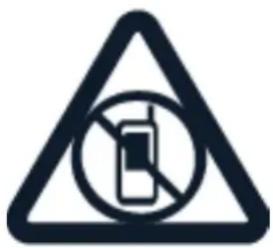
Switch the device off when mobile device use is not allowed or when it may or danger, for example, in aircraft, in hospitals or near medical equipment, fuel, blasting areas. Obey all instructions in restricted areas.
ROAD SAFETY COMES FIRST
natural_image
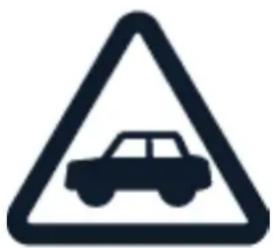
Warning sign depicting a car inside a triangle (no text or symbols)Obey all local laws. Always keep your hands free to operate the vehicle while consideration while driving should be road safety.
INTERFERENCE
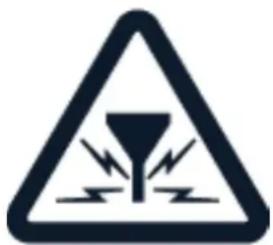
All wireless devices may be susceptible to interference, which could affect perfor
HMD Vibe User Guide
AUTHORIZED SERVICE

natural_image
Icon of a wrench inside a square frame (no text or symbols)Only authorized personnel may install or repair this product.
BATTERIES, CHARGERS, AND OTHER ACCESSORIES
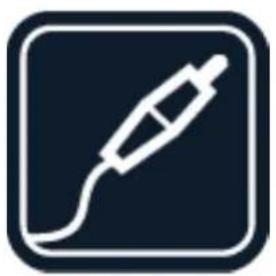
natural_image
Icon of a white cable with plug, enclosed in a dark square border (no text or symbols)Use only batteries, chargers, and other accessories approved by HMD Global Oy this device. Do not connect incompatible products.
KEEP YOUR DEVICE DRY

natural_image
Simple icon of three white water droplets on a dark blue background, enclosed in a rounded square border (no text or symbols)If your device is water-resistant, see its IP rating in the device's technical speci more detailed guidance.
HMD Vibe User Guide
GLASS PARTS

The device and/or its screen is made of glass. This glass can break if the device on a hard surface or receives a substantial impact. If the glass breaks, do not parts of the device or attempt to remove the broken glass from the device. Service until the glass is replaced by authorized service personnel.
PROTECT YOUR HEARING
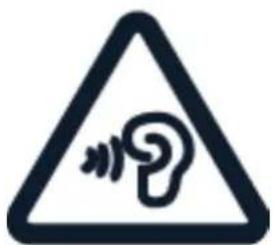
To prevent possible hearing damage, do not listen at high volume levels for long-cise caution when holding your device near your ear while the loudspeaker is in
NETWORK SERVICES AND COSTS
Using some features and services, or downloading content, including free items, in network connection. This may cause the transfer of large amounts of data, which in data costs. You may also need to subscribe to some features.
!
Important: 4G/LTE might not be supported by your network service provider or by vice provider you are using when traveling. In these cases, you may not be able
receive calls, send or receive messages or use mobile data connections. To make si device works seamlessly when full 4G/LTE service is not available, it is recommended you change the highest connection speed from 4G to 3G. To do this, on the hot tap Settings > Network & Internet > SIMs , and switch Preferred network type to more info, contact your network service provider.
!
Note: Using Wi-Fi may be restricted in some countries. For example, in the EU, y allowed to use 5150-5350 MHz Wi-Fi indoors, and in the USA and Canada, you are lowed to use 5.15-5.25 GHz Wi-Fi indoors. For more info, contact your local author. For more info, contact your network service provider.
EMERGENCY CALLS

Important: Connections in all conditions cannot be guaranteed. Never rely solely on wireless phone for essential communications like medical emergencies.
Before making the call:
- Switch the phone on.
- If the phone screen and keys are locked, unlock them.
- Move to a place with adequate signal strength.
On the home screen, tap 📞.
- Tap ⚪ and type in the official emergency number for your present location. numbers vary by location.
- Tap
- Give the necessary info as accurately as possible. Do not end the call until sion to do so.
You may also need to do the following:
- Put a SIM card in the phone. If you don't have a SIM card, on the lock Emergency .
• If your phone asks for a PIN code, tap Emergency . - Switch the call restrictions off in your phone, such as call barring, fixed dial user group.
- If the mobile network is not available, you may also try making an internet access the internet.
Handle your device, battery, charger and accessories with care. The following suggestion help you keep your device operational.
- Keep the device dry. Precipitation, humide not use or store the device in duity, and all types of liquids or moisture-dirty can areas.
contain minerals that corrode electronic
circuits. - Do not store the device in high temperatures. High temperatures may damage
the device or battery.
the battery. Rough handling can break it
- Do not store the device in cold textures. When the device warms to its mal temperature, moisture can form in side the device and damage it.
sporly use a soft, clean, dry cloth to other- surface of the device.
- Do not open the device other than structured in the user guide.
Do not paint the device. Paint can pre proper operation.
as in-
Keep the device away from magnets of magnetic fields.
- Unauthorized modifications may damage the device and violate regulations going radio devices.
To keep your important data safe, storing at least two separate places, such as your device, memory card, or computer,
- Do not drop, knock, or shake the dwide down important info.
During extended operation, the device may feel warm. In most cases, this is no getting too warm, the device may automatically slow down, dim display during a close apps, switch off charging, and if necessary, switch itself off. If the device properly, take it to the nearest authorized service facility.
RECYCLE

natural_image
Recycling symbol with three arrows forming a triangle (no text or labels)Always return your used electronic products, batteries, and packaging materials to collection points. This way you help prevent uncontrolled waste disposal and prom cycling of materials. Electrical and electronic products contain a lot of valuable m cluding metals (such as copper, aluminum, steel, and magnesium) and precious m as gold, silver, and palladium). All materials of the device can be recovered as energy.
HMD Vibe User Guide
CROSSED-OUT WHEELIE BIN SYMBOL
Crossed-out wheelie bin symbol
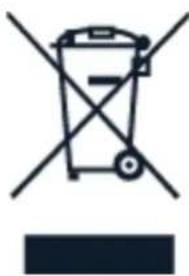
natural_image
Symbol of a trash bin with no text or labels, crossed by diagonal lines and a solid rectangle below (no readable text or symbols)The crossed-out wheelie-bin symbol on your product, battery, literature, or packagii minds you that all electrical and electronic products and batteries must be taker collection at the end of their working life. Remember to remove personal data f first. Do not dispose of these products as unsorted municipal waste: take them For info on your nearest recycling point, check with your local waste authority, HMD's take-back program and its availability in your country at www.hmd.com/supp ics/recycle.
BATTERY AND CHARGER INFORMATION
Battery and charger info
To check if your phone has a removable or non-removable battery, see the prin
Devices with a removable battery Use your device only with an original recharg The battery can be charged and discharged hundreds of times, but it will event When the talk and standby times are noticeably shorter than normal, replace the
Devices with a non-removable battery Do not attempt to remove the battery, a damage the device. The battery can be charged and discharged hundreds of time eventually wear out. When the talk and standby times are noticeably shorter than replace the battery, take the device to the nearest authorized service facility.
Charge your device with a compatible charger. Charger plug type may vary. Char vary depending on device capability.
Battery and charger safety info
Once charging of your device is complete, unplug the charger from the device outlet. Please note that continuous charging should not exceed 12 hours. If left fully charged battery will lose its charge over time.
Extreme temperatures reduce the capacity and lifetime of the battery. Always kee tery between 15^ and 25^ (59°F and 77°F) for optimal performance. A device
cold battery may not work temporarily. Note that the battery may drain quickly atures and lose enough power to switch off the phone within minutes. When you in cold temperatures, keep your phone warm.
Obey local regulations. Recycle when possible. Do not dispose as household waste
Do not expose the battery to extremely low air pressure or leave it to extreme temperature, for example dispose it in a fire, as that may cause the battery to e flammable liquid or gas.
Do not dismantle, cut, crush, bend, puncture, or otherwise damage the battery ir If a battery leaks, do not let liquid touch skin or eyes. If this happens, immed affected areas with water, or seek medical help. Do not modify, attempt to inse jects into the battery, or immerse or expose it to water or other liquids. Batter if damaged.
Use the battery and charger for their intended purposes only. Improper use, or proved or incompatible batteries or chargers may present a risk of fire, explosion hazard, and may invalidate any approval or warranty. If you believe the battery is damaged, take it to a service centre or your phone dealer before continuing to use a damaged battery or charger. Only use the charger indoors. Do not charge during a lightning storm. When charger is not included in the sales pack, charge device using the data cable (included) and a USB power adaptor (may be sold so can charge your device with third-party cables and power adaptors that are com USB 2.0 or later and with applicable country regulations and international and reg standards. Other adaptors may not meet applicable safety standards, and charging adaptors could pose a risk of property loss or personal injury.
Third -party chargers that comply with the applicable CTIA requirements and bear logo, and can connect to your device USB connector, may also be compatible.
Only use the battery with a charging system that has been qualified with the Certification Requirements for Battery System Compliance to IEEE 1725. Use of an battery or charger may present a risk of fire, explosion, leakage, or other hazards
Replace the battery only with another battery that has been qualified with the standard, IEEE-Std-1725. Use of an unqualified battery may present a risk of fire, leakage or other hazard.
The device recognizes the battery via the battery model name on the battery lab. Avoid dropping the device or battery. If the device or battery is dropped, especially surface, and the user suspects damage, take it to a service center for inspection. Improper battery use may result in a fire, explosion or other hazard.
To unplug a charger or an accessory, hold and pull the plug, not the cord.
Additionally, the following applies if your device has a removable battery:
• Always switch the device off and unplug the charger before removing the ba
- Accidental short-circuiting can happen when a metallic object touches the met the battery. This may damage the battery or the other object.
SMALL CHILDREN
Your device and its accessories are not toys. They may contain small parts. Keep the reach of small children.
NICKEL
The surface of this device is nickel-free.
MEDICAL DEVICES
Operation of radio transmitting equipment, including wireless phones, may interfere adequately shielded medical devices' function. Consult a physician or the medical manufacturer to determine if it is adequately shielded from external radio energy.
IMPLANTED MEDICAL DEVICES
To avoid potential interference, manufacturers of implanted medical devices (such as pacemakers, insulin pumps, and neurostimulators) recommend a minimum separation centimeters (6 inches) between a wireless device and the medical device. Person such devices should:
- Always keep the wireless device more site the medical device than 15.3 centimeters (6 inches) from the medical device.
- Switch the wireless device
- Not carry the wireless device in a breaking place. pocket.
- Hold the wireless device to the ear implanted medical device.
If you have any questions about using your wireless device with an implanted n consult your health care provider.
HEARING
Warning: When you use the headset, your ability to hear outside sounds may be Do not use the headset where it can endanger your safety.
Some wireless devices may interfere with some hearing aids.
PROTECT YOUR DEVICE FROM HARMFUL CONTENT
Your device may be exposed to viruses and other harmful content. Take the fol tions:
- Be cautious when opening messages. Install antivirus and other security soft- They may contain malicious software orware on your device and any connected otherwise be harmful to your device ocomputer. Only use one antivirus app at computer. Time. Using more may affect performance
- Be cautious when accepting connectivity, requests, browsing the internet, or downloading content. Do not accept Bluetooth if you access preinstalled bookmarks and connections from sources you do not links to third party internet sites, take trust. appropriate precautions. HMD Global
- Only install and use services and software from sources that you trust and that offer adequate security and protection.
VEHICLES
Radio signals may affect improperly installed or inadequately shielded electronic systems. For more info, check with the manufacturer of your vehicle or its equipment authorized personnel should install the device in a vehicle. Faulty installation may ous and invalidate your warranty. Check regularly that all wireless device equipment vehicle is mounted and operating properly. Do not store or carry flammable or e-terials in the same compartment as the device, its parts, or accessories. Do not device or accessories in the air bag deployment area.
POTENTIALLY EXPLOSIVE ENVIRONMENTS
Switch your device off in potentially explosive environments, such as near gasoline Sparks may cause an explosion or fire resulting in injury or death. Note restricts with fuel; chemical plants; or where blasting operations are in progress. Areas with tially explosive environment may not be clearly marked. These usually are areas advised to switch your engine off, below deck on boats, chemical transfer or stand and where the air contains chemicals or particles. Check with the manufacturers using liquefied petroleum gas (such as propane or butane) if this device can be their vicinity.
CERTIFICATION INFORMATION
FCC RF Exposure Information
This mobile device meets guidelines for exposure to radio waves as set forth by
Communications Commission (FCC). Refer to the following.
Your handset is a radio transmitter and receiver. It is designed and manufactured, indeed the emission limits for exposure to radio frequency (RF) energy set by the munications Commission of the U.S. Government. The guidelines are based on state were developed by independent scientific organization through periodic and thorough ation of scientific studies. The standards include a substantial safety margin design sure the safety of all persons, regardless of age and health. The exposure stands less handsets employs a unit of measurement known as the Specific Absorption The SAR limit set by the FCC is 1.6 W/kg. The tests are performed in position (e.g. at the ear and worn on the body) as required by the FCC for each month clips, holsters and similar accessories should not contain metallic components in ability. The use of accessories that do not satisfy these requirements may not correlate RF exposure requirements, and should be avoided. The FCC has granted an Equip thorization for this handset model with all reported SAR levels evaluated as in order to the FCC RF emission guidelines. Additional information on Specific Absorption Rates can be found on the FCC website at www.fcc.gov/general/radio-frequency-safety-0. To send data or messages, a good connection to the network is needed. Sending may be such a connection is available. Follow the separation distance instructions until that is finished. During general use, the SAR values are usually well below the values. This is because, for purposes of system efficiency and to minimise interference of work, the operating power of your mobile is automatically decreased when full point needed for the call. The lower the power output, the lower the SAR value. Dev has different versions and more than one value. Component and design changes over time and some changes could affect SAR values. For more info, go to www.sar-tick.com.
Note that mobile devices may be transmitting even if you are not making a vo bile device is also designed to meet the United States Federal Communications (FCC) guidelines. FCC ratings for your device and more information on SAR can http://transition.fcc.gov/oet/rfsafety/sar.html. The World Health Organization (WHO) has stated that current scientific information does not indicate the need for any spe tions when using mobile devices. If you are interested in reducing your exposure mend you limit your usage or use a hands-free kit to keep the device away f body. For more information and explanations and discussions on RF exposure, go website at https://www.who.int/health-topics/electromagnetic-fields#tab=tab_1.
FCC Notice
This device complies with part 15 of the FCC rules. Operation is subject to the conditions: (1) This device may not cause harmful interference, and (2) this device is not to accept any interference received, including interference that may cause undesired operation. For more info, go to www.fcc.gov/engineering-technology/electromagnetic-compatibility-division/radio-frequency-safety/faq/rf-safety. Any changes or modifications not expressly approved by HMD Global could void the user's authority to operate this equipment equipment has been tested and found to comply with the limits for a Class B pursuant to part 15 of the FCC Rules. These limits are designed to provide reaction against harmful interference in a residential installation. This equipment generally and can radiate radio frequency energy and, if not installed and used in accordance with instructions, may cause harmful interference to radio communications. However, there
guarantee that interference will not occur in a particular installation. If this equip cause harmful interference to radio or television reception, which can be determining the equipment off and on, the user is encouraged to try to correct the ir or more of the following measures:
- Reorient or relocate the receiving antenna.
- Increase the separation between the equipment and receiver.
- Connect the equipment into an outlet on a circuit different from that to which is connected.
- Consult the dealer or an experienced radio/TV technician for help.
This mobile device meets guidelines for exposure to radio waves.
Your mobile device is a radio transmitter and receiver. It is designed not to ex for exposure to radio waves (radio frequency electromagnetic fields), recommended national guidelines from the independent scientific organization ICNIRP. These guide corporate substantial safety margins that are intended to assure the protection of regardless of age and health. The exposure guidelines are based on the Specific Rate (SAR), which is an expression of the amount of radio frequency (RF) power the head or body when the device is transmitting. The ICNIRP SAR limit for mo 2.0 W/kg averaged over 10 grams of tissue.
SAR tests are carried out with the device in standard operating positions, transm highest certified power level, in all its frequency bands.
This device meets RF exposure guidelines when used against the head or when at least 5/8 inch (1.5 centimetres) away from the body. When a carry case, be form of device holder is used for body-worn operation, it should not contain me provide at least the above stated separation distance from the body.
To send data or messages, a good connection to the network is needed. Send layed until such a connection is available. Follow the separation distance instruction the sending is finished.
During general use, the SAR values are usually well below the values stated above cause, for purposes of system efficiency and to minimize interference on the next-erating power of your mobile device is automatically decreased when full power is for the call. The lower the power output, the lower the SAR value.
Device models may have different versions and more than one value. Component changes may occur over time and some changes could affect SAR values.
For more info, go to www.sar-tick.com. Note that mobile devices may be transmitting even if you are not making a voice call.
The World Health Organization (WHO) has stated that current scientific information not indicate the need for any special precautions when using mobile devices. If interested in reducing your exposure, they recommend you limit your usage or use free kit to keep the device away from your head and body. For more information nations and discussions on RF exposure, go to the WHO website at www.who.int topics/electromagnetic-fields#tab=tab_1.
Please refer to www.hmd.com/sar for the maximum SAR value of the device.
HAC notice
This phone meets the Federal Communications Commission (FCC) Hearing Aid Com (HAC) requirements. This means that the phone has been tested with hearing aids of manufacturers and has been found to reduce interference with hearing aids both acoustic mode (when the handset is placed near the ear) and inductive c (when the handset is connected to a hearing aid's telecoil). This phone has been demonstrated compliance to (ANSI) C63.19 2019, and this version does not use the term that older versions of the standard used. In addition, in this version of the conversational gain of the device is tested, both with and without hearing aids.
Conversational gain with hearing aids: 10.04 dB
Conversational gain without hearing aids: 14.74 dB
This phone has been tested and certified for use with hearing aids for some less technologies that it uses. However, there may be some newer wireless to used in this phone that have not been tested yet for use with hearing aids that to try the different features of this phone thoroughly and in different being your hearing aid or cochlear implant, to determine if you hear any interf. Consult your service provider or the manufacturer of this phone for information aid compatibility. If you have questions about return or exchange policies, your service provider or phone retailer.
Important: Individual hearing aids may vary, depending on the level of immunity in giving aid and the degree of your hearing loss. If your hearing aid is vulnerable to you may not be able to use a rated phone successfully. Trying out the phone aid is the best way to evaluate it for your personal needs. Consult your service manufacturer of this phone for information on hearing aid compatibility.
ABOUT DIGITAL RIGHTS MANAGEMENT
When using this device, obey all laws and respect local customs, privacy and le of others, including copyrights. Copyright protection may prevent you from copying ing, or transferring photos, music, and other content.
FEATURE-SPECIFIC INFORMATION
Safety and texting while driving
Safety should be every driver's first priority. Drivers must obey all local laws that restrictions on the use of mobile phones or accessories while driving. If use is
keep your hands free to operate the vehicle while driving and use a hands-free ever possible. Suspend calls in heavy traffic or hazardous weather. Get to know phone and its features and make any necessary information inputs prior to drivir put data or engage in text messaging while driving. Mobile phones should not k use may be a distraction to the driver.
Messaging
You can send text messages that are longer than the character limit for a single longer messages are sent as two or more messages. Your service provider may accordingly. Characters with accents, other marks, or some language options, take it and limit the number of characters that can be sent in a single message.
Maps and positioning
Contents of digital maps may sometimes be inaccurate and incomplete. Never rely the content or the service for essential communications, such as in emergencies.
Flashlight
If your phone has a flashlight and you are using it, be careful when touching feel hot. Always switch off the flashlight before putting the phone in your pocket
Information on health
The U.S. Food and Drug Administration (FDA) and the U.S. Federal Communication mission (FCC) published statements and questions and answers concerning mobile and health. HMD Global encourages you to visit these websites for updated information. You can access the FDA website at fda.gov/radiation-emitting-products/home-business-and-entertainment-products/cell-phones and the FCC website at fcc.gov/engineering-technology/electromagnetic-compatibility-division/radio-frequency-safety/faq/rf-safety. Additional health-related information is available from the World Health Organization (WHO) at who.int/en/news-room/fact-sheets/detail/electromagnetic-fields-and-public-health-mobile-phones and from The National Cancer Institute ("NCI") at cancer.gov/a cancer/causes-prevention/risk/radiation/cell-phones-fact-sheet. In the event that you are concerned about possible health effects, the FDA suggests that you limit your own children's radio frequency (RF) exposure by limiting the length of calls or by using devices.
COPYRIGHTS AND OTHER NOTICES
Copyrights and other notices
The availability of some products, features, applications and services described in may vary by region and require activation, sign up, network and/or internet conn an appropriate service plan. For more info, contact your dealer or your service p device may contain commodities, technology or software subject to export laws a tions from the US and other countries. Diversion contrary to law is prohibited.
The contents of this document are provided "as is". Except as required by applied warranties of any kind, either express or implied, including, but not limited to, the warranties of merchantability and fitness for a particular purpose, are made in relative accuracy, reliability or contents of this document. HMD Global reserves the right to document or withdraw it at any time without prior notice.
To the maximum extent permitted by applicable law, under no circumstances shall or any of its licensors be responsible for any loss of data or income or any consequential or indirect damages howsoever caused.
Reproduction, transfer or distribution of part or all of the contents in this document without the prior written permission of HMD Global is prohibited. HMD Global a policy of continuous development. HMD Global reserves the right to make char improvements to any of the products described in this document without prior not
HMD Global does not make any representations, provide a warranty, or take any ity for the functionality, content, or end-user support of third-party apps provided device. By using an app, you acknowledge that the app is provided as is.
Downloading of maps, games, music and videos and uploading of images and video transferring large amounts of data. Your service provider may charge for the mission. The availability of particular products, services and features may vary by Please check with your local dealer for further details and availability of language
Certain features, functionality and product specifications may be network dependent subject to additional terms, conditions, and charges.
All specifications, features and other product information provided are subject to without notice.
HMD Global Privacy Policy, available at https://www.hmd.com/privacy, applies to your use of the device.
TM and © 2024 HMD Global. All rights reserved.
Android, Google and other related marks and logos are trademarks of Google LLC
The Bluetooth word mark and logos are owned by the Bluetooth SIG, Inc. and marks by HMD Global is under license.
- About this user guide 5
- Get started 6
- Protect your phone 13
- Basics 15
- Connect with your friends and family 1
- Camera 21
- Internet and connections 23
- Organize your day 26
- Maps 28
- Apps, updates, and backups 29
- Product and safety information 31
- About this user guide
- Get started
- KEEP YOUR PHONE UP TO DATE
- Your phone software
- KEYS AND PARTS
- Parts and connectors, magnetism
- INSERT THE SIM AND MEMORY CARDS
- CHARGE YOUR PHONE
- SWITCH ON AND SET UP YOUR PHONE
- Transfer data from your previous phone
- Restore app settings from your previous Android™ phone
- Switch off your phone
- Lock the screen orientation
- Navigate with gestures
- Navigate with keys
- Protect your phone
- LOCK OR UNLOCK YOUR PHONE
- PROTECT YOUR PHONE WITH A SCREEN LOCK
- Set a screen lock
- PROTECT YOUR PHONE WITH YOUR FACE
- Unlock your phone with your face
- FIND YOUR LOST PHONE
- Locate or lock your phone
- Basics
- PERSONALIZE YOUR PHONE
- NOTIFICATIONS
- CONTROL VOLUME
- Change the volume
- Change the volume for media and apps
- Set the phone to silent
- AUTOMATIC TEXT CORRECTION
- Use keyboard word suggestions
- Correct a word
- Switch spell checker off
- BATTERY LIFE
- Extend battery life
- ACCESSIBILITY
- Connect with your friends and family
- CALLS
- Make a call
- Answer a call
- Reject a call
- CONTACTS
- Add a contact
- Save a contact from call history
- SEND MESSAGES
- Send a message
- Add a mail account
- Send mail
- Camera
- CAMERA BASICS
- Take a photo
- Take a selfie
- Record a video
- YOUR PHOTOS AND VIDEOS
- Share your photos and videos
- Copy your photos and videos to your computer
- Internet and connections
- ACTIVATE WI-FI
- Switch on Wi-Fi
- BROWSE THE WEB
- Search the web
- Use your phone to connect your computer to the web
- BLUETOOTH®
- Connect to a Bluetooth device
- Share your content using Bluetooth
- Remove a pairing
- VPN
- Use a secure VPN connection
- Edit a VPN profile
- Delete a VPN profile
- Organize your day
- DATE AND TIME
- Update the time and date automatically
- Change the clock to the 24-hour format
- ALARM CLOCK
- Set an alarm
- Switch an alarm off
- CALENDAR
- Select the calendar type
- Add an event
- Delete an appointment
- Maps
- FIND PLACES AND GET DIRECTIONS
- Apps, updates, and backups
- GET APPS FROM GOOGLE PLAY
- Add a payment method
- Download apps
- UPDATE YOUR PHONE SOFTWARE
- Install available updates
- BACK UP YOUR DATA
- RESTORE ORIGINAL SETTINGS AND REMOVE PRIVATE CONTENT FROM YOUR PHONE
- Reset your phone
- Product and safety information
- FOR YOUR SAFETY
- SWITCH OFF IN RESTRICTED AREAS
- ROAD SAFETY COMES FIRST
- INTERFERENCE
- AUTHORIZED SERVICE
- BATTERIES, CHARGERS, AND OTHER ACCESSORIES
- KEEP YOUR DEVICE DRY
- GLASS PARTS
- PROTECT YOUR HEARING
- NETWORK SERVICES AND COSTS
- EMERGENCY CALLS
- RECYCLE
- CROSSED-OUT WHEELIE BIN SYMBOL
- BATTERY AND CHARGER INFORMATION
- Battery and charger safety info
- SMALL CHILDREN
- NICKEL
- MEDICAL DEVICES
- IMPLANTED MEDICAL DEVICES
- HEARING
- PROTECT YOUR DEVICE FROM HARMFUL CONTENT
- VEHICLES
- POTENTIALLY EXPLOSIVE ENVIRONMENTS
- CERTIFICATION INFORMATION
- FCC RF Exposure Information
- FCC Notice
- This mobile device meets guidelines for exposure to radio waves.
- HAC notice
- ABOUT DIGITAL RIGHTS MANAGEMENT
- FEATURE-SPECIFIC INFORMATION
- Messaging
- Maps and positioning
- Flashlight
- Information on health
- COPYRIGHTS AND OTHER NOTICES
Brand : HMD
Model : Vibe
Category : Smartphone