
ZPad 10 - Tablet ZTE - Free user manual and instructions
Find the device manual for free ZPad 10 ZTE in PDF.


| Product Type | Tablet |
| Brand | ZTE |
| Model | ZPad 10 |
| Operating System | Android (implied) |
| Display | 10-inch touch screen (estimated) |
| Front Camera | Yes |
| Rear Camera | Yes, with flash |
| Audio | Built-in speakers and microphone |
| Connectivity | USB Type-C, Bluetooth, Wi-Fi (implied) |
| Card Slots | nano-SIM and microSDXC (up to 1TB typical) |
| Sensors | Light sensor, indicator light |
| Buttons | Power key, Volume key |
| Battery | Rechargeable lithium-ion, non-removable |
| Charging | Via USB Type-C with approved charger |
| Safety | FCC (SAR 1.43 W/kg), IC certified |
| Dimensions | Approximately 240 x 160 x 8 mm (9.4 x 6.3 x 0.3 in) |
| Weight | Approximately 500 g (1.1 lb) |
Frequently Asked Questions - ZPad 10 ZTE
User questions about ZPad 10 ZTE
0 question about this device. Answer the ones you know or ask your own.
Ask a new question about this device
Download the instructions for your Tablet in PDF format for free! Find your manual ZPad 10 - ZTE and take your electronic device back in hand. On this page are published all the documents necessary for the use of your device. ZPad 10 by ZTE.
USER MANUAL ZPad 10 ZTE
Copyright © 2021 ZTE CORPORATION.
All rights reserved.
No part of this publication may be quoted, reproduced, translated or used in any form or by any means, electronic or mechanical, including photocopying and microfilm, without the prior written permission of ZTE Corporation.
Notice
ZTE Corporation reserves the right to make modifications on print errors or update specifications in this guide without prior notice.
We offer self-service for our smart terminal device users. Please visit the ZTE official website (at www.ztedevices.com) for more information on user manual, self-service and supported product models. Information on the website takes precedence.
Disclaimer
ZTE Corporation expressly disclaims any liability for faults and damages caused by unauthorized modifications of the software.
Images and screenshots used in this guide may differ from the actual product. Content in this guide may differ from the actual product or software.
Trademarks
ZTE and the ZTE logos are trademarks of ZTE Corporation.
Android ^™ is a trademark of Google LLC.
The Bluetooth ^® word mark and logos are registered trademarks owned by the Bluetooth SIG, Inc. and any use of such marks by ZTE Corporation is under license.

microSDXC logo is a trademark of SD-3C, LLC.

For DTS patents, see http://patents.dts.com. Manufactured under license from DTS Licensing Limited. DTS, the Symbol, & DTS and the Symbol together, DTS:X, the DTS:X logo, and DTS:X Ultra are registered trademarks or trademarks of DTS, Inc. in the United States and/or other countries. © DTS, Inc. All Rights Reserved.
Other trademarks and trade names are the property of their respective owners.
Version No.: R1.0
Edition Time : June 15, 2021
Getting to Know Your Tablet
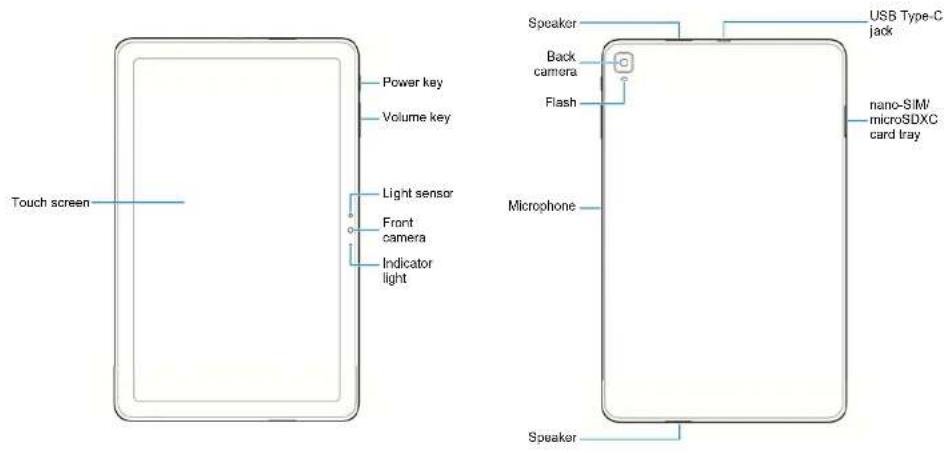
Setting Up Your Tablet
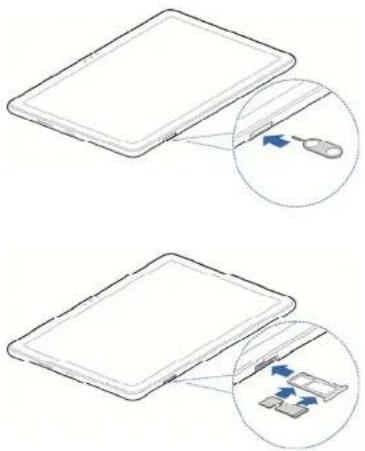
Before exploring all the great features of your tablet, set it up by installing the nano-SIM card and an optional microSDXC card (sold separately).
WARNING!
To avoid damage to the device, do not use any other kind of SIM cards, or any non-standard nano-SIM card cut from a SIM card. You can get a standard nano-SIM card from your service provider.
- Insert the tip of the tray eject tool into the hole on the card tray.
CAUTION:
Never replace the included tray eject tool with sharp objects. Ensure that the tray eject tool is perpendicular to the hole. Otherwise, the phone may be damaged.
- Pull out the card tray and place a nano-SIM card and a microSDXC card (optional) into the card slots, as shown. Note the notch and the shape of the cards and the card slots. Carefully slide the tray back into place.
NOTE:
Both the nano-SIM card and the microSDXC card can be installed or removed while the device is turned on. You need to unmount the microSDXC card before removing it. See the User Manual for details.
natural_image
Two-step diagram showing a laptop screen with an open lid and a magnified inset illustrating the device's internal structure (no text or symbols)Charging the Battery
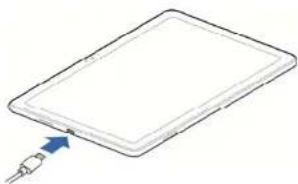
Your new tablet's battery should have enough power for the device to turn on and find a signal. You should fully charge the battery as soon as possible.
WARNING!
Use only ZTE-approved chargers and USB cables. The use of unapproved accessories could damage your device or cause the battery to explode.
WARNING!
Do not remove the back cover. The battery is not removable. Removal may cause fire or explosion.
-
Connect the adapter to the charging jack.
-
Connect the charger to a standard AC power outlet.
-
Disconnect the charger when the battery is fully charged.
NOTE:
If the battery is extremely low, you may be unable to power on the tablet even when it is being charged. In this case, try again after charging for at least 20 minutes. Contact customer service if you still cannot power on the tablet after prolonged charging.
natural_image
Diagram of a rectangular electronic device with a blue arrow pointing to its side (no text or symbols present)Powering On/Off
- Press and hold the Power key to turn on your tablet.
- To turn it off, press and hold the Power key to open the options menu and touch ⏻ > ⏻
NOTE:
If the device freezes or takes too long to respond, try pressing and holding the Power key for about 10 seconds to restart the device.
Waking Up Your Tablet
Your tablet automatically goes into sleep mode when it is not in use for some time. The display is turned off to save power and the keys are locked to prevent accidental operations.
You can wake up your tablet by turning on the display and unlocking the keys.
- Press the Power key to turn the screen on.
- Swipe up on the screen.
NOTE:
If you have set an unlock pattern, a PIN or a password for your tablet, you'll need to draw the pattern, or enter the PIN/password to unlock the screen.
Product Safety Information


Don't use at gas stations.
Don't make or receive phone calls while driving. Never text while driving.
Your tablet may produce a bright or flashing light.
Don't dispose of your tablet in fire.
Small parts may cause choking.
Avoid contact with anything magnetic.
Your tablet can produce a loud sound.
To prevent possible hearing damage, do not listen at high volume levels for long periods.
Avoid extreme temperatures.
Keep away from pacemakers and other electronic medical devices.
Avoid contact with liquids. Keep your tablet dry.
| Turn off when asked to in hospitals and medical facilities. | |
| Do not attempt to disassemble your tablet. | |
| Turn off when told to on aircraft and at airports. | |
| Don't rely on your tablet as a primary device for emergency communications. | |
| Turn off when near explosive materials or liquids. | |
| Only use approved accessories. |
FCC RF Exposure Information (SAR)
This device is designed and manufactured not to exceed the emission limits for exposure to radio frequency (RF) energy set by the Federal Communications Commission of the United States and Industry Canada of Canada.
The exposure standard for wireless devices employing a unit of measurement is known as the Specific Absorption Rate, or SAR. The SAR limit set by the FCC is 1.6 W/kg and 1.6 W/kg by Industry
Canada.
The FCC has granted an Equipment Authorization for this model device with all reported SAR levels evaluated as in compliance with the FCC RF exposure guidelines. SAR information on this model device is on file with the FCC and can be found under the Display Grant section of www.fcc.gov/oet/ea/fccid after searching on FCC ID SRQ-K95L.
For this device, the highest reported SAR value for usage near the body is 1.43 W/kg.
While there may be differences between the SAR levels of various devices and at various positions, they all meet the government requirements.
FCC Regulations
This device complies with part 15 of the FCC Rules. Operation is subject to the following two conditions: (1) This device may not cause harmful interference, and (2) this device must accept any interference received, including interference that may cause undesired operation.
This equipment has been tested and found to comply with the limits for a Class B digital device, pursuant to part 15 of the FCC Rules. These limits are designed to provide reasonable protection against
harmful interference in a residential installation. This equipment generates, uses and can radiate radio frequency energy and, if not installed and used in accordance with the instructions, may cause harmful interference to radio communications. However, there is no guarantee that interference will not occur in a particular installation. If this equipment does cause harmful interference to radio or television reception, which can be determined by turning the equipment off and on, the user is encouraged to try to correct the interference by one or more of the following measures:
- Reorient or relocate the receiving antenna.
- Increase the separation between the equipment and receiver.
- Connect the equipment into an outlet on a circuit different from that to which the receiver is connected.
- Consult the dealer or an experienced radio/TV technician for help.
CAUTION:
Changes or modifications not expressly approved by the party responsible for compliance could void the user's authority to operate the equipment.
IC Notice
This device complies with Industry Canada license-exempt RSS standard(s). Operation is subject to the following two conditions: (1) this device may not cause interference, and (2) this device must accept any interference, including interference that may cause undesired operation of the device.
This Class B digital apparatus complies with Canadian ICES-003. IC: 5200E-K95L
IC Radiation Exposure Statement
d or operating in conjunction with any other antenna or transmitter.
This Class B digital apparatus complies with Canadian ICES-003.
IC : 5200E-K95L
- Copyright © 2021 ZTE CORPORATION.
- All rights reserved.
- Notice
- Disclaimer
- Trademarks
- Setting Up Your Tablet
- WARNING!
- CAUTION:
- NOTE:
- Charging the Battery
- Powering On/Off
- Waking Up Your Tablet
- Product Safety Information
- FCC RF Exposure Information (SAR)
- Canada.
- FCC Regulations
- IC Notice
- IC Radiation Exposure Statement
Brand : ZTE
Model : ZPad 10
Category : Tablet