
PLINK3 - Television Pyle - Free user manual and instructions
Find the device manual for free PLINK3 Pyle in PDF.


| Product Type | HDMI Video Capture Device |
| Model | PLINK3 |
| Brand | Pyle |
| Input Ports | 1 x HDMI Input, 1 x Line In (3.5mm) |
| Output Ports | 1 x HDMI Output (Pass-Through), 1 x USB 3.0 |
| USB Standard | USB 3.1 Gen 1 |
| Maximum Resolution | 3840 x 2160 (4K) at 30 fps |
| Supported Resolutions | 4K (3840x2160) @30fps, 1080p @120fps, 1440p @60fps, 720p @60fps |
| Video Format Support | NV12, YUY2, XRGB |
| Audio Capture | Via HDMI or Line In |
| LED Indicators | Red (power on), Green (signal active) |
| Software Compatibility | OBS Studio (recommended) |
| Operating System Support | Windows 10 x64, macOS 10.15+ |
| Minimum PC Requirements (1080p60) | Intel Core i5-3330 / AMD equivalent, 4GB RAM, NVIDIA GTX 650 / AMD Radeon R7 250X |
| Recommended PC Requirements (4K30) | Intel Core i5-6xxx / AMD Ryzen 3, 8GB DDR4, NVIDIA GTX 1060 / AMD RX 5700 |
| Dimensions | Approximately 4.5 x 2.0 x 0.7 inches (estimation) |
| Weight | Approximately 0.2 lbs (estimation) |
| Power Supply | Bus-powered via USB 3.0 |
| Color | Black |
| Warranty | Check PyleUSA.com for details |
Frequently Asked Questions - PLINK3 Pyle
User questions about PLINK3 Pyle
0 question about this device. Answer the ones you know or ask your own.
Ask a new question about this device
Download the instructions for your Television in PDF format for free! Find your manual PLINK3 - Pyle and take your electronic device back in hand. On this page are published all the documents necessary for the use of your device. PLINK3 by Pyle.
USER MANUAL PLINK3 Pyle
natural_image
Black PLYLE FYUJ24-6nm device with two ports and a logo on the front (no readable text beyond branding)
○○○○○○○○○○○○○○○○○○○○○○○○○○○○○○○○○○○○○○○○○○○○○○○○○○○○○○○○○○○○○○○○○○○○○○○○○○○○○○○○○○○○○○○○○○○○○○○○○○○○
Live Streaming Record Capture, USB 3.1, GEN1 Video Recording with HDMI Pass-Through
USER GUIDE
Overview
- HDMI Input Port
- HDMI Output Port
- LED Indicator
- Line In Port
- USB 3.0 Port
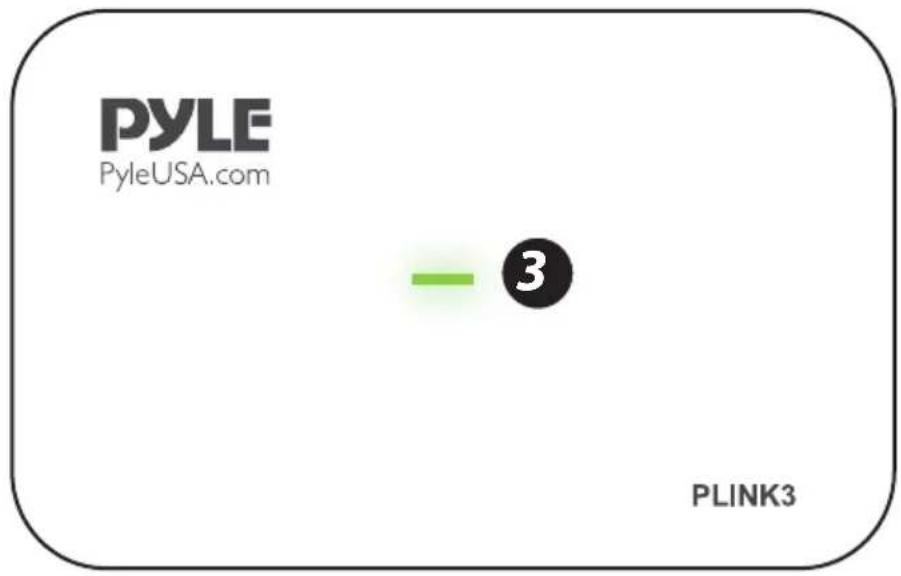

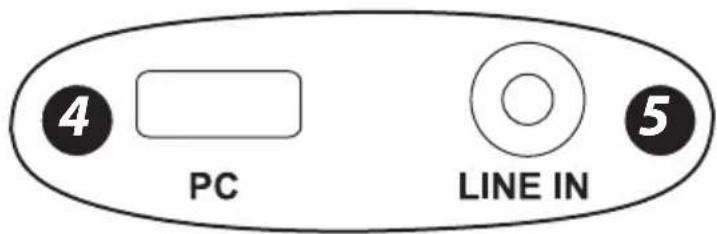
LED Indicator
Red: No operation, power ON only
Green: Run signal
Software
For professional live streaming or recording, we suggest use OBS, download link: https://obsproject.com/

This product can expose you to a chemical or group of chemicals, which may include "Nickel Carbonate" which is known in the state of California to cause cancer, birth defects, or other reproductive harm. For more info, go to https://www.p65warnings.ca.gov/.
Work with OBS
Device Select
After download and installation, run OBS, add a "Video Capture Device":


Click "OK" to Create

Device: Choose "Pyle Game Link PLINK3"
Resolution Setting
Resolution: Choose Custom or Default
Set a resolution you want (if set custom):

Note:
Make sure the resolution set is the same or smaller than the source, otherwise, you may see "Check Resolutions Settings" as follows:

Set to 4k while input is not. Set to lower resolution to match the source.
If you set resolution to 4k (3840*2160), you may find that the viewing picture is way out of the frame of OBS. Right click window and select "Resize output (source size)".
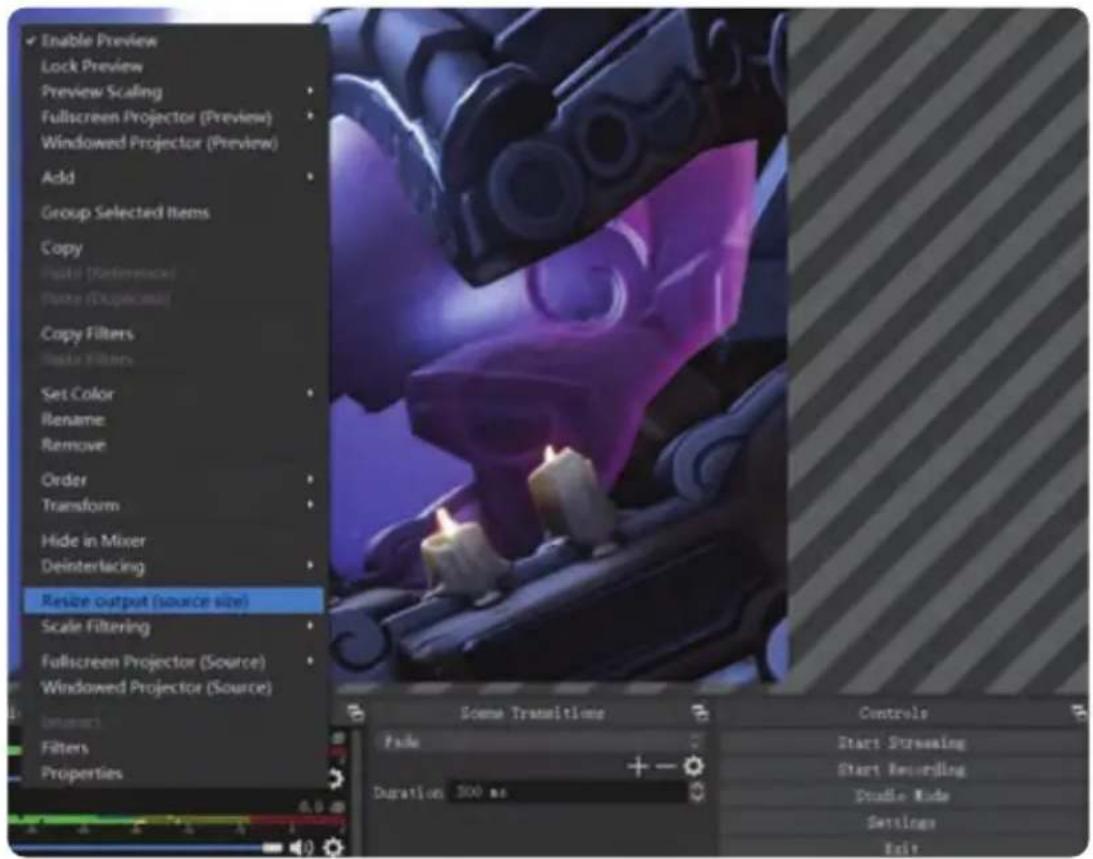
After confirmation you can see the whole picture:

The video format options depend on resolution, the max FPS depends on both resolution and video format:
| Video Format options MAX FPS | ||
| 3840 x 2160 | NV12 30 | |
| 1920 x 1080 | NV12 120 | |
| YUY2 60 | ||
| XRGB 30 | ||
| 2560 x 1440 | NV12 60 | |
| YUY2 50 | ||
| 1280 x 720 | NV12 60 | |
| YUY2 60 | ||
| XRGB 60 | ||
Audio Setting
Audio Output Mode: Capture audio only
Tick "Use custom audio device"
Audio Device: HDMI (Pyle Game Link PLINK3)
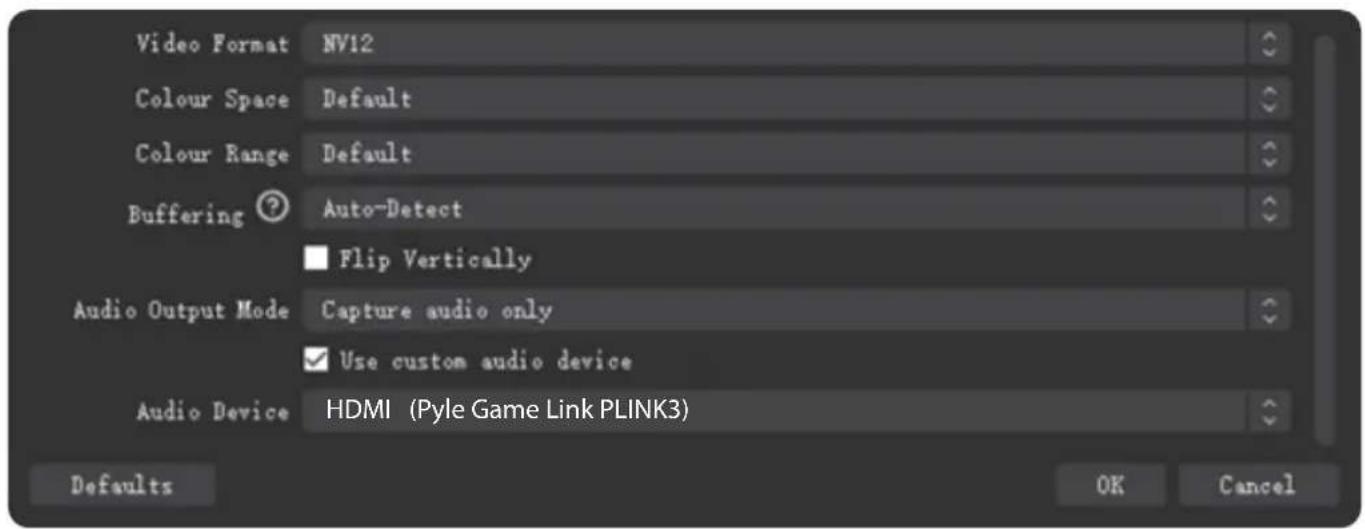

Click Settings, then click "Advanced Audio Properties"
Audio Monitoring: Monitor Only (mute output)
Sync offset: - 470ms (this is for audio and video sync; you can adjust it until your audio video is synched)

Recording
Record resolution setting:

You may also want to record a 120HZ video -- Choose Integer FPS, then type 120:
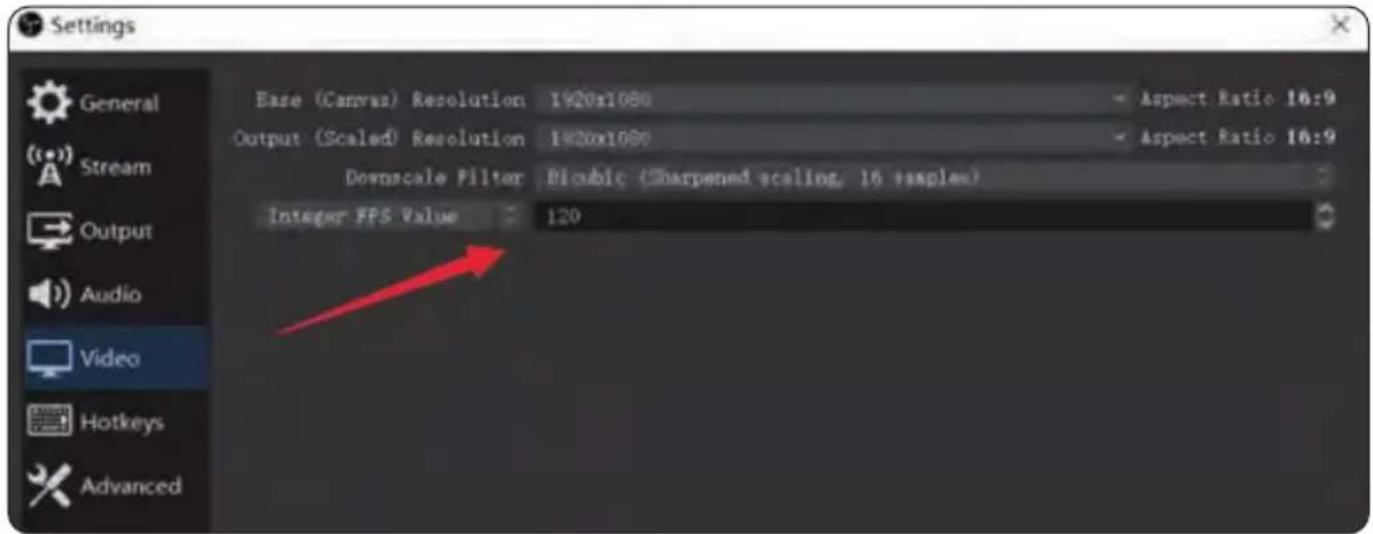
Output setting for Recording:

If you want record a better quality, one of the suggest setting is:
Recording Quality: High Quality, Medium File Size
Recording Format: Mp4
Encoder: Software (x264 low CPU usage preset, increase file size)
After setting, simply click "Start Recording"
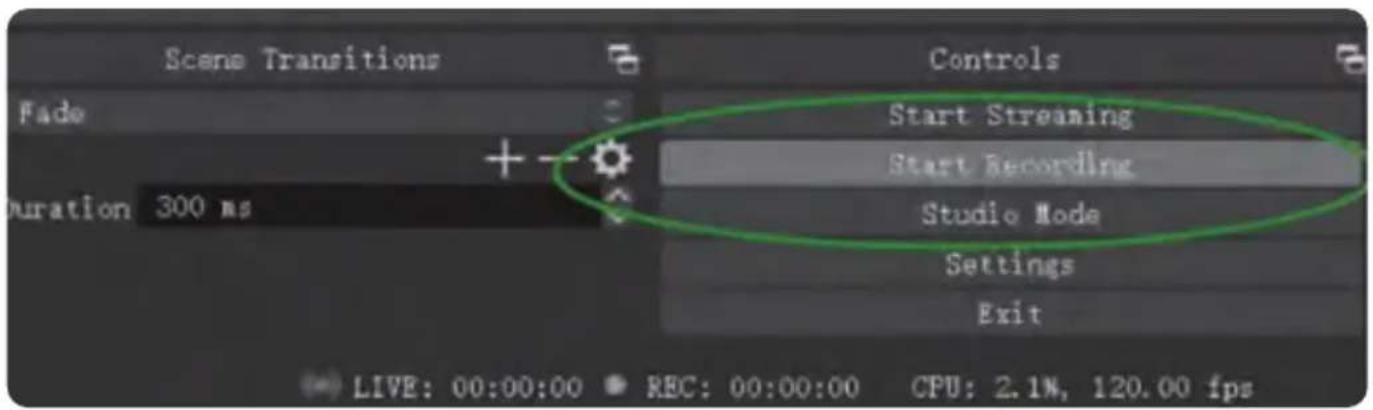
During recording click to stop when you want:

Streaming
Set video quality for streaming (adjust depends your computer, network speed):

Set the service:

Click "Start streaming" to start:
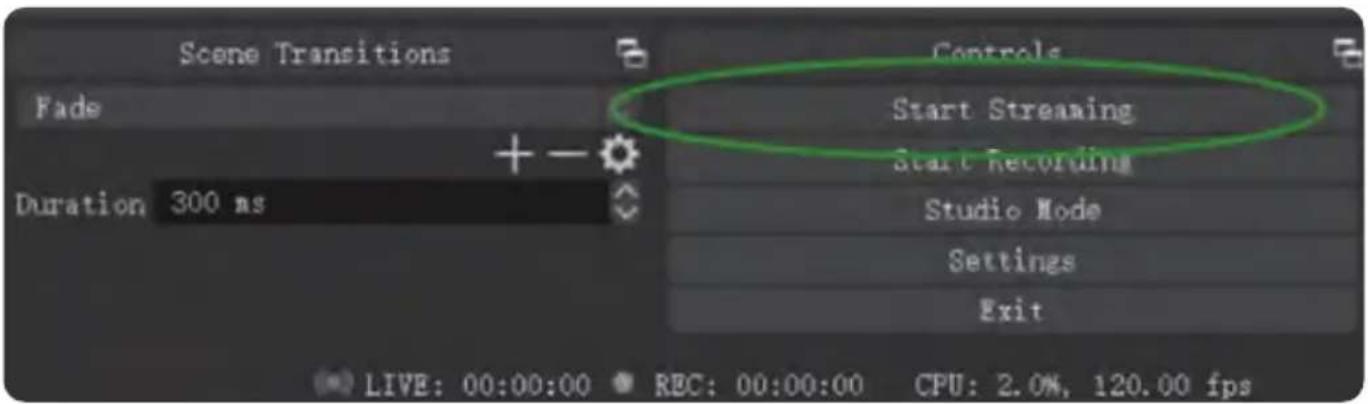
Operating system
Windows® 10 x64
Laptop
For 4Kp30 or 1080p120 recording:
- Intel Core i7-7700HQ or above
• NVIDIA® GeForce® GTX1050 Ti or above - 8 GB*
For 1080p60 recording:
- Intel Core i7-4810MQ
• NVIDIA® GeForce® GTX 870M or above
• 8 GB
Desktop
For 4Kp30 or 1080p120 recording:
- Intel® Core™ i5-6XXX / AMD Ryzen™
3 XXX or above
• NVIDIA® GTX 1060 / AMD RX 5700 or above - 8 GB*
For 1080p60 recording:
- Intel® Core™ i5-3330 or above (i7-3770 recommended)
- NVIDIA® GeForce® GTX 650 / AMD Radeon™ R7 250X or above
- 4 GB
- * RAM must be DDR4 2400 or above
Mac system requirement
Operating system:
MacOS High Sierra 10.15 and above Mac Thunderbolt 3 For 4Kp30 or 1080p120 Recording
iMac 2019:
• 3.2GHz 6-core Intel Core i7
- Radeon Pro 555X with 2GB of GDDR5 memory
• 16GB of 2400MHz DDR4 memory
MacBook Pro 2018:
• 2.6GHz 6-core Intel Core i7
- Radeon Pro 560X with 4GB of GDDR5 memory and above
• 16GB 2400MHz DDR4 memory
PYLE
PyleUSA.com

natural_image
Illustration of a laptop with a red checkmark on screen, no text or symbols presentVISIT US ONLINE:
Have a question?
Need service or repair?
Want to leave a comment?
PyleUSA.com/ContactUs
Questions? Issues?
We are here to help!
Phone: (1) 718-535-1800
Email: support@pyleusa.com
- Overview
- LED Indicator
- Software
- Work with OBS
- Device Select
- Resolution Setting
- Note:
- 2.501/007782 (R4361) (R4361)
- Audio Setting
- Recording
- Streaming
- Click "Start streaming" to start:
- Operating system
- Windows® 10 x64
- Laptop
- For 1080p60 recording:
- Desktop
- Mac system requirement
- iMac 2019:
- MacBook Pro 2018:
- PYLE
- PyleUSA.com
Brand : Pyle
Model : PLINK3
Category : Television