
Smart Sticky Note Printer - Printer AMAZON - Free user manual and instructions
Find the device manual for free Smart Sticky Note Printer AMAZON in PDF.


| Product Type | Smart Sticky Note Printer |
| Brand | Amazon |
| Model | Smart Sticky Note Printer |
| Connectivity | Bluetooth 4.2 |
| Printing Technology | Thermal |
| Paper Size | Sticky note (76 x 76 mm) |
| Print Resolution | 203 dpi |
| Power Source | Built-in rechargeable battery (Lithium-ion, 1200 mAh) |
| Charging | USB-C, 5V/1A |
| Battery Life | Up to 2 hours of continuous printing |
| Dimensions | 120 x 80 x 40 mm |
| Weight | Approx. 200 g |
| Color | White |
| Printing Speed | Up to 30 mm/s |
| Functions | Print sticky notes from mobile app, templates, draw/write text |
| Maintenance | Clean print head with alcohol swab after every 5 rolls |
| Safety | Do not disassemble, avoid water, keep away from children under 3 |
| Spare Parts | Print head, battery, USB cable |
| Repairability | Modules replaceable, contact Amazon support for service |
| General Information | Works with Amazon Alexa, requires free app, 1-year warranty |
Frequently Asked Questions - Smart Sticky Note Printer AMAZON
User questions about Smart Sticky Note Printer AMAZON
0 question about this device. Answer the ones you know or ask your own.
Ask a new question about this device
Download the instructions for your Printer in PDF format for free! Find your manual Smart Sticky Note Printer - AMAZON and take your electronic device back in hand. On this page are published all the documents necessary for the use of your device. Smart Sticky Note Printer by AMAZON.
USER MANUAL Smart Sticky Note Printer AMAZON
Smart Sticky Note Printer
A Day 1 Editions concept
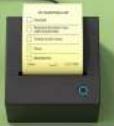
Let's get started
If you purchased your Smart Security Note Panel or a gift, you can review this guide to your gift recipient to help them with sat us!
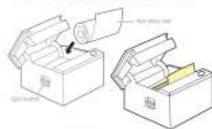
1. Install the-paper roll
Past the safety strike-off the printer and press the spct button to sure the printer then usual the paper roll as shown above, staying attention to the orientation of the roll. Make sure that the end of the paper roll is striking out of the start on your printer before you close it.
2. Plug in and connect your printer
Place your printer within 30 feet of a compatible Echka device and plug the printer into a power outlet using the infaced adapter. Your printer will try to correct to your home with network using your trained credentials. It may take a few minutes to correct to your home will

When you play in your grade, it should print the above message.

If the printer successfully connects to your home will, it should point the close entrance
- Pair your printer with your Echo

Once your printer's LED button button turns solid blue, finish set-up by saying "Alive, Discover my printer." You're now ready to make your first print. You can check your printer is powered by coming "Alive, print a text page."

If your printer cannot connect to your home with network automatically.
If your prior cannot correct, to your home will, it will print the campaign shown below. Please state. You will need to use the Alleg app on an Android phone / iPhone 7 (or later) for setup.

Add your printer using the Alexa app
Make sure that you have the latest version of the Alexa app on your phone in the app, tap the "Miao" app, then add a doublepage printer. October "Amazon" on the next screen. You can now follow the co-survey instructions to correct your printer to your home will
*Setting all your printer using an Apple iPhone 81 or other is not possible.

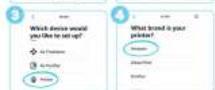

Pair your printer with Alexa

Your printer will now print the message above. Once your printer's LED action button turns blank, finish set up by saying "Also." Shower my printer. "You're now ready to make your best print! You can check your printer is opened by saying 'Also, print a text page."
Troubleshooting
All my prints are blank
The paper will may be installed incorrectly. Remove and re-insert it, paying particular attention to the orientation of the paper. Have sure that the sticky tide faces up loose disupper at top of paper.
My Prints are sporty, streaky or faded
if your peritouts have virtual stripes, are mostly or listed. algorithmic
-
Intensive time and time of the
-
Queen Fox unidas and remove the sugar roll
-
Suppose the centered heads and gently wipe them with a clean, dry studi
-
Illustra the page will add close the greater
-
Please note your attention
Click here to and a video showing how to do it.
Alexa didn't discover my printer
Ensure the LTD set/subicon on your printer to install blue and try to
discover the printer again by saying "Also, discover my printer".
(3) 10.2.2017 (Innov) To set new works, we did not
comparillate Echo device
the sure your life desire in
B Followed off
(2) Of the new M-H network (55901) as the printer
(2) Regulated to a value of 0.1 million USD to the price
Jitsu Dai (Chu Gen) Echo Plus (Hu Gen), Jitsu Dai (Kish Eliens) Echo Tech
of Amazon Top
You cannot pair the printer using the Akira app alone.
I have more than one printer - how do I control which one Alexa uses?
Some print types such as notes, notes, and automatically outlined your Smart Sticky Home Picture. You can almost all prints to the picture your choice by disabling the other prints using the Alexa-Ago.

Need help with setup?
Amazon's Customer Service team is available 24/7 at the Smart Baby Note Printer
- Smart Sticky Note Printer
- Let's get started
- Install the-paper roll
- Plug in and connect your printer
- Add your printer using the Alexa app
- Troubleshooting
- All my prints are blank
- My Prints are sporty, streaky or faded
- Alexa didn't discover my printer
- the sure your life desire in
- B Followed off
- Need help with setup?
Brand : AMAZON
Model : Smart Sticky Note Printer
Category : Printer