
MAXcam 360c - Detector Escort - Free user manual and instructions
Find the device manual for free MAXcam 360c Escort in PDF.


| Product Type | Radar/Laser Detector with Camera |
| Brand | Escort |
| Model | MAXcam 360c |
| Detection Technology | 360° Laser and Radar (X, K, Ka, Ku, Laser, POP) |
| GPS | Built-in GPS with RedLight and Speed Camera Alerts |
| Connectivity | Wi-Fi and Bluetooth |
| Display | High-resolution OLED screen |
| Camera | 1080p HD Dash Cam with wide-angle lens |
| Voice Alerts | Yes, customizable voice alerts |
| Power Source | 12V DC (cigarette lighter adapter) |
| Dimensions | 1.5 x 2.5 x 5.5 inches (approx.) |
| Weight | 7.5 oz (approx.) |
| Operating Temperature | -20°C to 70°C |
| Update Method | Wi-Fi or USB via computer |
| Mounting Type | Windshield suction cup mount |
| Maintenance | Clean lens with soft, dry cloth; avoid solvents |
| Safety Warnings | Do not obstruct view; keep away from moisture; use only included accessories |
| Spare Parts | Not available separately; contact support for repairs |
| Warranty | 1 year limited warranty |
| Compliance | FCC, RoHS |
Frequently Asked Questions - MAXcam 360c Escort
User questions about MAXcam 360c Escort
0 question about this device. Answer the ones you know or ask your own.
Ask a new question about this device
Download the instructions for your Detector in PDF format for free! Find your manual MAXcam 360c - Escort and take your electronic device back in hand. On this page are published all the documents necessary for the use of your device. MAXcam 360c by Escort.
USER MANUAL MAXcam 360c Escort
REVEAL THE ROAD AHEAD
The Complete Driver Alert System
OWNER'S MANUAL

natural_image
Black and white photo of a portable electric air conditioner on a wooden table with headphones, a coffee mug, and a red refrigerator in the background (no visible text or symbols)
Contents
INTRODUCTION....3
MAXcam 360c FEATURES....3
PRODUCT SERVICE AND SUPPORT 4
WHAT'S IN THE BOX 4
OPTIONAL ACCESSORIES – available at www.escortradar.com....4
CONTROLS & FEATURES....5
INSTALLATION 7
DOWNLOAD AND CONNECT TO Drive Smarter ^® 10
DISPLAY AND MENU 11
UNDERSTANDING YOUR DETECTOR 12
UNDERSTANDING YOUR DASH CAMERA 13
PROGRAMMING MENU 14
VIEW AND EDIT VIDEOS ON YOUR SMARTPHONE....28
TROUBLESHOOTING 29
TRADEMARKS ACKNOWLEDGEMENT, WARNINGS,
and REGULATORY INFORMATION....30
LIMITED 1-YEAR WARRANTY 31

Introduction
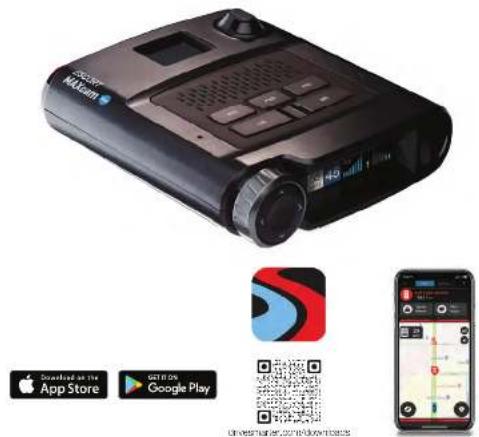
Congratulations! You've made the smart choice by purchasing a MAXcam 360c from Escort. The Escort MAXcam 360c provides peace of mind by continuously recording the road in beautiful HD video. With cutting-edge features, phenomenal video quality, and an industry-leading focus on user experience, the Escort MAXcam 360c is the best solution to record your ride.
MAXcam 360c FEATURES
- MAXcam 360c's advanced performance quickly and accurately reports alerts sooner than other detectors, and with directional awareness arrows, provides you with location information so you can drive smarter and safer.
- Updatable IVT Filter™ automatically reduces false alerts from moving In-Vehicle Technology sources such as collision avoidance systems and adaptive cruise control.
- MAXcam 360c features a customizable display that intuitively displays relevant information and device status at a glance.
- Access to the DEFENDER Database, which warns you of verified speed traps, speed cameras, and rod light cameras.
- Built-in Wi-Fi and Bluetooth ^ connectivity connects you to the Drive Smartor ^ app and community. Receive over 100 million shared alerts a year and access local speed limit data forever-speed alerts.


Introduction
PRODUCT SERVICE AND SUPPORT
For any questions about operating or installing this new Escort product, PLEASE CONTACT ESCORT FIRST...do not return this product to the retail store. The contact information for Escort will vary depending on the country in which you purchased and utilize the product. For the latest contact information, please go to www.escortradar.com/support
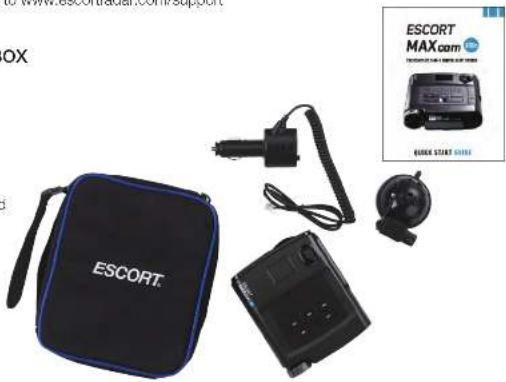
WHAT'S IN THE BOX
• MAXcam 360c
- SmartCord®USB
- Mini USB Cable
- EZ Mag Mount
- 16GB microSD Card
- Carry Case
- Quick Start Guide
OPTIONAL ACCESSORIES - available at www.escortradar.com
Direct Wire: 0010058-1
Wires your dash cam and radar directly into the fuse box for a quick and clean installation without any dangling wires. Necessary to enable Parking Mode features on the Dash Cam,

natural_image
Coiled black cable with red and white connectors, no visible text or symbols
Introduction

Introduction
CONTROLS & FEATURES
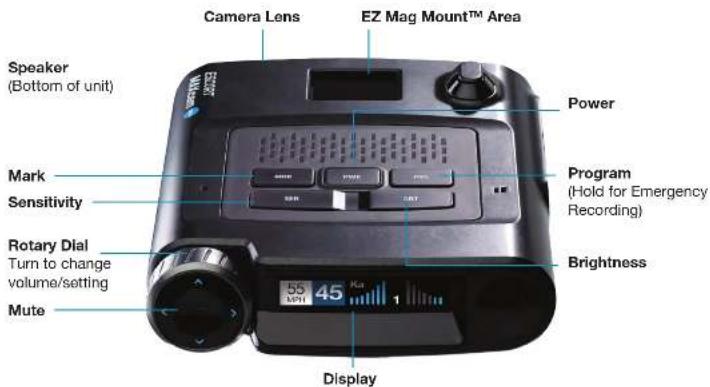
Power
Press to power on. Hold for two seconds to power off.
SEN
Press SEN to adjust the X and K band radar detection sensitivity/range. Auto = speed adjusted. The slower you travel, the shorter the X and K band detection range. At 50 mph and above, X and K detection range is at maximum. Ka band detection range is always at maximum, regardless of the SEN setting.
MUTE
To silence an alert, press the MUTE button during the alert. Once the radar or laser encounter has passed, the mute will disengage, and the audio will return to your preset level. You can also silence an alert by pressing the SmartCord MUTE button.
BRT
Brightness. Press to adjust the display brightness.
MRK
To mark a location for future alerts:
- Press MRK twice
- Rotate the Volume/Rotary Dial to select the type of marker type of marker
- Press MRK again to confirm
To unmark a location alert, press MRK twice while receiving a marker alert.
Program
Briefly press PRG to access the programming menu. To start an emergency recording, hold PRG until MAXcam 360c states "Emergency Recording". The recording will automatically stop according to the Loop Clip Time setting.
Rotary Dial
Rotate to adjust volume. When in the Menu or using MRK, rotate to change the setting.
Using MAXcam 360c
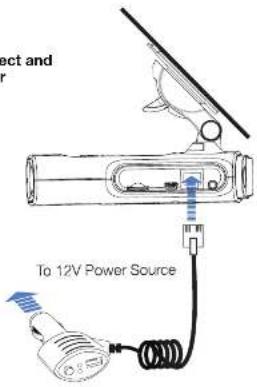
1 Plug small end of SmartCord into modular jack on MAXcam 360c and large end of SmartCord into your car's lighter/accessory socket.
2 MAXcam 360c should power on automatically. If not, press the device's PWR button.
Software Updates
MAXcam 360c's red light and speed camera database and firmware are updated by connecting MAXcam 360c to a WI-FI hotspot with internet access using the Drive Smarter app on your smartphone. Once connected, MAXcam 360c will check for available updates. If an update is available, MAXcam 360c will prompt you to install the update. If you refuse to perform the update, or if the prompt times out, MAXcam 360c will check again when it connects to a WI-FI hotspot. Importantly note that Defender database updates require first registering MAXcam 360c to activate the included 90 day Defender subscription. Defender subscriptions are available at EscortRadar.com
Using SmartCord USB
- Mute Button:
- Press to mute the audio for a specific alert.
- Press three times to lock out a false alert.
- Press twice while receiving a locked-out alert to unlock.
- When connected to the Drive Smarter app press and hold the mute button on unit or cord to manually report to other user a verified X or K-band alert, or police office observing traffic.
- Alert Light: Blinks red when receiving an alert.
• Power Light: Lights green when device is powered on.
- USB Charging Port: Charge smartphones, tablets and other USB-charged devices.


Installation Installation

natural_image
Top-down view of a black Maxcam device with labeled buttons and accessories (no readable text beyond branding)Your new detector comes with our latest EZ Mag Mount™. Simply slide the detector onto the mounting bracket fully and that's it. To remove the detector from the mount, simply pull the detector off of the mount.
Mounting Tips:
- Center of windshield between driver and passenger.
- Ensure clear view of road ahead and sky above.
- Avoid windshield wipers and heavily tinted areas.
To mount the detector in your vehicle:
1 Remove backing from EZ Mag Mount.
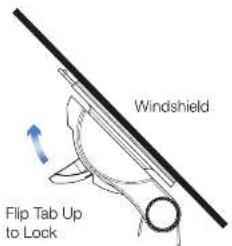
2 Firmly press the EZ Mag Mount onto the windshield and flip the locking clamp to secure.
3 Tilt the display end of the detector slightly upward and engage with the mounting bracket. The EZ Mag Mount magnet holds the detector firmly in place.
4 To adjust view, loosen thumb wheel and adjust angle of mounting bracket. Tighten thumb wheel to secure.
5 To remove the detector, simply lift the display end of the detector upward. The detector will from the mount.
6 To remove the mount from windshield, release the locking clamp and pull the tab on top of the EZ Mag Mount.
EZ Mag Mount Care Instructions:
To clean your EZ Mag Mount, simply rinse under warm water, gently wipe off any debris and allow to air dry.

Installation continued

Operation
Attach EZ Mag Mount to MAXcam 360c

Mount to Windshield

Lock Mount
Connect and Power
DOWNLOAD AND CONNECT TO Drive Smarter ^46
1 Power on MAXcam 360c.
2 Install and run the Drive Smarter * app on your smartphone.

3 In the Drive Smarter app, press the Account button then select "Add Camera".
4 Follow the prompts in the Drive Smarter app to connect MAXcam 360c and your mobile Wi-Fi hotspot.
Note: the first time you run the app, you will be prompted to register a new account.


Operation
DISPLAY AND MENU
bar
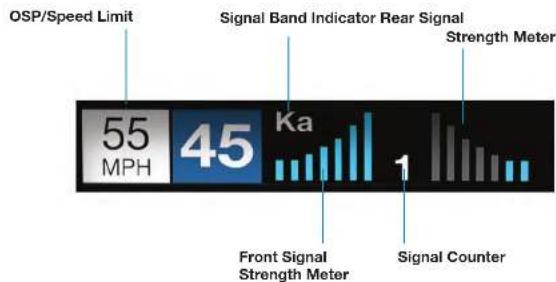
| Category | Value | |---|---| | OSP/Speed Limit | 55 MPH | | Signal Band Indicator Rear Signal | 45 Ka | | Strength Meter | 1 | | Front Signal Strength Meter | | | Signal Counter | |• Signal Band Indicator
Displays the radar band of the alert:
- X Band (commonly false alerts).
- K band (used by police radar and false alerts)
- Ka band (almost always police radar)
- Laser (almost always police)
• Signal Strength Meters
Displays the signal strength, or how close, the alert is. The more alert bars displayed, the stronger the signal strength. The left meter is front signal strength. The right meter is rear signal strength.
- OSP/Speed Limit Indicator
Over Speed alert setting, can be adjusted in the Programming menu. Bluetooth icon will appear here when paired to phone. Speed limit data will appear here when connected to the Drive Smarter app or your mobile Wi-Fi spot.
- Signal Counter
Displays the number of alerts being detected.
- Speed
Displays the current speed. When Speed Display is off, displays the vehicle voltage

Operation
UNDERSTANDING YOUR DETECTOR
How Radar Works
Traffic radar, which consists of microwaves, travels in straight lines and is easily reflected by objects such as cars, trucks, even guardrails and overpasses. Radar works by directing its microwave beam down the road. As your vehicle travels into range, the microwave beam bounces off your car, and the radar antenna looks for the reflections.
Using the Doppler Principle, the radar equipment then calculates your speed by comparing the frequency of the reflection of your car to the original frequency of the beam sent out.
Traffic radar has limitations, the most significant of these being that it typically can monitor only one target at a time. If there is more than one vehicle within range, it is up to the radar operator to decide which target is producing the strongest reflection. Since the strength of the reflection is affected by both the size of the vehicle and its proximity to the antenna, it is difficult for the radar operator to determine if the signal is from a sports car nearby or a semi-truck several hundred feet away.
Radar range also depends on the power of the radar equipment itself. The strength of the radar unit's beam diminishes with distance. The farther the radar has to travel, the less energy it has for speed detection.
Because intrusion alarms and motion sensors often operate on the same frequency as X, and K-band radar, your detector will occasionally receive non-police radar signals. These transmitters generally produce much weaker readings than will a true radar encounter.
As you become familiar with the sources of these pseudo alarms in your daily driving, they will serve as confirmation that your device's radar detection abilities are fully operational.
How Laser (Lidar) Works )
Laser speed detection is actually light detection and ranging (LIDAR). Laser guns project a beam of invisible infrared light. The signal is a series of very short infrared light energy pulses that move in a straight line, reflecting off your car and returning to the gun. Laser uses these light pulses to measure the distance to a vehicle. Speed is then calculated by measuring how quickly these pulses are reflected, given the known speed of light.
Laser is a newer technology whose use is not as widespread as conventional radar; therefore, you may not encounter it on a daily basis. And unlike radar detection, laser is not prone to false alarms. Because laser transmits a much narrower beam than does radar, it is much more accurate in its ability to distinguish between targets and is also more difficult to detect. As a result, even the brielest laser alert should be taken seriously. There are limitations to laser, however. Laser is much more sensitive to weather conditions than radar; and a laser gun's range will be decreased by anything affecting visibility, such as rain, fog or smoke. A laser gun cannot operate through glass, and it must be stationary to get an accurate reading. Because laser must have a clear line of sight and is subject to cosine error (an inaccuracy that increases as the angle between the gun and the vehicle increases), police typically use laser equipment parallel to the road or from an overpass. Laser can be used day or night.
TSR Signal Ranking Software
Your radar detector includes an optional boost in anti-falsing software to eliminate excessive alerts from erroneous K-band sources. One example of this is traffic flow monitoring systems. These systems, which are becoming more widely used in several countries, generate K-band signals to measure the flow of traffic on a given road. Unfortunately most detectors see this as a real threat and will alert you to it unnecessarily. Our proprietary TSR software, intelligently sorts, ranks and rejects this type of false alarm automatically. The result is ultimate protection without excessive false alarms.

Operation

Operation
UNDERSTANDING YOUR DASH CAMERA
Loop Recordings
Once the SD card is full, the camera will continuously overwrite the oldest footage recorded with recent recordings. To protect a clip so that it will not be overwritten, hold the PRG button for two seconds so that the clip is moved into the locked content partition.
Emergency Recordings
An Emergency Recording is triggered when the PRG Button is held down for two seconds or when the G-Sensor registers a significant impact (hard braking or collision). Emergency Recordings create locked files that are not overwritten by Continuous Loop Recording. To ensure that important footage is not lost surrounding an incident, the prior video clip is locked if the incident happens within 30 seconds of the beginning or end of a clip.
Micro SD Memory Card
MAXcam 360c comes with a Micro SD memory card. To remove the SD card, press firmly on the SD card to push it further into the slot. There will be a click and the SD card will pop out on release. Extract the card and replace as necessary by inserting a card into the slot and pressing until it locks in place. This camera is compatible with Micro SD cards up to 256GB. Please be sure to format the card in-camera before use. Class 10 high-endurance cards from reputable brands are recommended for constant video recording of a dash camera.
G-Sensor Impact Detection
Your Dash Cam includes a built in G-Sensor which allows the device to determine when the car has been in a collision. If it detects a collision, it automatically locks the recording being made at the time of the accident. Additionally, if the event occurs within 30 seconds of the start or end of a clip, the adjacent recording will also be locked so you always have at least 30 seconds saved from before and after the event. You can use this setting to set the sensitivity of the G-Sensor from 1-3 or turn it off. Level 1 is the easiest to activate the G-sensor. Level 3 will only lock videos when the most severe impacts are detected. Locked videos created as a result of a G-sensor impact detection are stored in the Events folder on the SD card.
Parking Mode & Motion Detection
Parking Mode uses the Motion Sensor and G-Sensor to monitor while your vehicle is parked. The idea is that when you are parked, the dash cam will be "sleeping", but it will monitor surroundings for motion along with G-Sensor impacts. If it detects motion or if it detects an impact, then the unit will wake up and start recording.
The camera will enter parking mode after 5 minutes. If there is no motion is during this period, the display will turn off and the recording will stop (the camera monitors for g-sensor impacts or motion). If motion is detected or if a G-sensor impact above Level 1 is triggered, the unit will wake up and start saving 1 minute clips for as long as activity is being detected.
Note: Parking Mode only works properly if the dash cam is powered. Either the Cigarette Lighter Socket must remain on with the ignition off, or the MAXcam 360c must be hardwired to a constant power source.
PROGRAMMING MENU
Overview
To access the Programming menu, press the PRG button. "Programming" will be displayed. To navigate the Programming menu:
- The selected Menu item is displayed in white text.
- Rotate the Volume Ring to change the selected (white) Menu item.
- Press the MUTE button to change the setting of the selected Menu item.
- Press the MUTE button again to return to the selected Menu item.
To exit Programming, press the PRG button or simply wait a few seconds without pressing any buttons. A "Completed" message will display, confirming your selection(s).
To restore MAXcam 360c to its original factory settings:
- Press and hold MRK and BRT while turning the power on.
- Restore Factory Settings? will display.
- Press the MUTE button to confirm. To cancel, wait 10 seconds.
• Factory Settings Restored will display and MAXcam 360c will reboot. - You will be prompted to select your Time Zone and the Daylight Saving Time setting.
The following is a list of all settings available in the Programming menu followed by detailed descriptions of each setting.

Operation Operation
| User Mode | Advanced"Novice | Access and customize all Settings and PreferencesAccess and customize Units and Display Color only (all other Settings are set to factory defaults)NOTE: Switch back to Advanced Mode to view all Preferences. |
| Pilot Mode | Scanning"Full Word | Display scanning bar and the selected SEN modeDisplays only the selected SEN mode |
| Arrow Mode | Single"MultipleBand | Displays a single threat-direction arrow for the primary alertDisplays threat-direction arrows for multiple alertsDisplays color-coded threat-direction arrows for multiple alert bandsX - green, K - blue, Ku/Laser - red |
| Display Color | Blue*/Green/Red/Ambar | Set color to match your vehicle's dash display |
| Speed Display | On"Off | Displays current speedDisplays battery voltage |
| Cruise Alert | 20 mph*Off/20-160 mph | Offers on y double beep alert tones below the specified speed |
| Over Speed | 70 mph*Off/20-160 mph | A erts when the specified speed is exceeded |
| Over Spd Limi | Off/Spd Limit*/5 Over/7 Over/10 Over/15 Over/20 Over/25 Over | Alerts when the specified speed over the speed limit has been exceededNOTE: only applicable when connected to a mobile Wi-Fi hotspot |
| Meter Mode | StandardStandard FR' | Displays primary alert band with front signal strength bar graphDisplays primary alert band and signal counter with front and rear signal strength bar graphs |
| Spec | Displays primary alert band with numeric frequency and only front signal strength bar graph | |
| Spec FR | Displays primary alert band, numeric frequency and signal counter with front and rear signal strength bar graphs | |
| Expert FR | Displays up to four alert bands with front and rear signal strength bar graphs for each | |
| Simple | Simple messages replace alert band and signal strength bar graphs;Caution (if traveling below Cruise Alert limit)Slow Down (if traveling above Cruise Alert limit) |

| Tones | Standard* | Standard alert tones |
| Standard+ | Standard alert tones for primary alert plus a double beep tone for additional alerts | |
| Mild | Mild doorbell chime alert tones | |
| AutoMute | Low / Med* / High / Off | During an alert, automatically reduces audio to selected volume level |
| AutoLearn | On* / Off | Automatically stores and locks out false alerts |
| Units | English* / Metric | Units for distance and speed |
| Language | English* / Español | Language for voice and text |
| Voice | On* / Off | Voice announcements |
| GPS Fiter | On* / Off | Enables GPS Filtering of stored false alerts |
| AutoPower | Off / 1 Hour / 2 Hours / 4 Hours*/ 8 Hours | Powers down unit after specified timeNOTE: If AutoPower is enabled, to save screen life the display screen goes blank after 30 minutes without moving. Display screen will turn on automatically after you reach 10MPH |
| Band Enables | Default*Modified | Default Band EnablesBand Enables have been modified from their default settings |
| X Band | On* / Off | |
| K Band | On* / Off | Covers frequency range: 24.050 – 24.250 GHzNOTE: When K Band is off, K Narrow bands are available selections |
| K Narrow 1 | On* / Off | Covers frequency range: 24.050 – 24.110 GHz |
| K Narrow 2 | On* / Off | Covers frequency range: 24.110 – 24.175 GHz |
| K Narrow 3 | On* / Off | Covers frequency range: 24.175 – 24.250 GHz |
| K Narrow 4 | On / Off* | Covers frequency range: 23.950 – 24.050 GHz |
| MultaRadar CD | On / Off* | MultaRadar CD detection |
| MultaRadar CT | On / Off* | MultaRadar CT detection |

Operation
| Ka Band | On / Off* | Covers frequency range: 33.400 – 36.000 GHzNOTE: When Ka Band is off, Ka Narrow bands are available selections |
| Ka Narrow 1 | On / Off* | Covers frequency range: 33.600 – 33.700 GHz |
| Ka Narrow 2 | On* / Off | Covers frequency range: 33.700 – 33.900 GHz |
| Ka Narrow 3 | On / Off* | Covers frequency range: 33.900 – 34.200 GHz |
| Ka Narrow 4 | On / Off* | Covers frequency range: 34.200 – 34.600 GHz |
| Ka Narrow 5 | On* / Off | Covers frequency range: 34.600 – 34.800 GHz |
| Ka Narrow 6 | On / Off* | Covers frequency range: 34.800 – 35.160 GHz |
| Ka Narrow 7 | On / Off* | Covers frequency range: 35.160 – 35.400 GHz |
| Ka Narrow 8 | On* / Off | Covers frequency range: 35.400 – 35.600 GHz |
| Ka Narrow 9 | On / Off* | Covers frequency range: 35.600 – 35.840 GHz |
| Ka Narrow 10 | On / Off* | Covers frequency range: 35.840 – 36.000 GHz |
| Laser | On* / Off | Laser detection |
| TSR | On* / Off | Traffic Sensor Rejection (TSR) filtering |
| Exit | Exit Band Enables menu | |
| K Notch | On / Off* | Reduces sensitivity of K band frequency range: 24.190 – 24.210 GHzNOTE: K Notch is effective at reducing alerts to certain vehicle collision avoidance systems |
| Shifters | Receive / Shift* / Shift4 / Shift6 / Shift8 / Shift10 / Off | Shifter mode, Receive = receive-only Shift4/6/8/10 puts shifters in receive-only mode after 4/6/8/10 seconds from receiving an alertNOTE: only available when optional ZRS or ZWS shifters are connected |
| Marker Enable | Default*Modified | Default Marker EnablesMarker Enables have been modified from their default settings |

Operation
| Other | On* / Off | Other location |
| Redlight | On* / Off | Redlight camera |
| Red & Speed | On* / Off | Redlight and speed camera |
| Speed Camera | On* / Off | Speed camera |
| Speed Trap | On* / Off | Speed trap |
| Air Patrol | On / Off* | Aircraft enforcement areas |
| Exit | Exit Marker Enab es menu | |
| Clear Location | Marked | Clear all user marked locations |
| Lockouts | Clear all locked out false aerts | |
| Defender | Clear all Defender locations | |
| Format | Clears all locationsPress MUTE again to confirm selection | |
| Wi-Fi | On* / Off | Allows connection to a Wi-Fi hotspot |
| Bluetooth | On* / Off | Allows connection to the Drive Smarter app |
| Auto Update | Off / Database/Firmware/All* | Automatically checks for the selected updates when connected to aWi-Fi hotspot |
| WiFi Update | Database/Firmware | Perform an update to the selected software |
| Camera | Default*Modified | Default Camera SettingsCamera Settings have been modified from their default settings |

Operation
Video Record On* / Off Turn off/an video recording
Microphone On* / Off Turn off/an microphone
Loop Clip Time 1 Min* / 3 Min / 5 Min Loop Recording Time
G-Sensor Off / Level 1<>*/
Level 2<<>>/
Level 3<<>>
Parking Mode On / Off ^4 Turn off/on Parking Mode
Motion Detect On / Off ^* Turn off/on Motion Detection
Watermark On* / Off Turn off/on Watermark stamp
Date/Time On* / Off Turn off/on Date/Time stamp
Speed Stamp On / Off* Turn off/on Speed stamp
Radar Stamp On* / Off Turn off/on Radar stamp
Format Card Format Formats SD Card. Press Mute again to confirm
Exit Exit
Serial Number and Software Version
To view your MAXcam 360c's serial number and software revision, press and hold the MRK and MUTE buttons while powering on the detector.
User Mode
Advanced Access and customize all settings and preferences.
Novice Access and customize only Units (English or metric) and Display Color. All other preferences are set to factory defaults. To view all settings and preferences, you must switch to Advanced mode.
Arrow Mode
Single Arrows are displayed indicating the direction of only the primary threat. All arrows use your selected display color.
Multiple Threat-direction arrows are displayed for multiple threats. When multiple threats are displayed, the direction arrow of the primary threat will blink.
Band Threat-direction arrows are color-coded for the band that is being detected. When multiple threats are displayed, the direction arrow of the primary threat will blink. X band = green, K band = blue, Ka band and Laser = red

Operation
Display Color
The display graphics can be changed to blue, green, red or orange to match the instrument lighting of your vehicle.
Speed Display
Turns Speed Display off or on. When Speed Display is off, the vehicle's voltage is displayed.
Cruise Alert
While traveling below the set Cruise Alert speed, all alerts sound a short double beep. The alert will fully sound when you exceed the Cruise Alert speed.
Over Speed
You can set the Over Speed alert to notify you when you are traveling over a specified speed. When you travel above the speed that you have set, the background display for your current speed will turn red and a voice prompt will announce "Over Speed".
When connected to the Drive Smarter app or a mobile Wi-Fi hotspot, the Over Speed setting is automatically set to the speed limit showing on the display. If no speed limit data is available and the display shows --, the Over Speed setting is used.
Over Speed Limit
Note: this setting only applies when MAXcam 360c is connected to a Wi-Fi hotspot with internet connectivity.
When the speed limit is exceeded by the set speed, the background for your current speed will change to red and a voice prompt will announce "Over Speed". If no speed limit data is available and the display shows --, the Over Speed setting is used.
Meter Mode
MAXcam 360c offers five different settings for displaying information about alerts.
Standard

The Standard meter mode provides only the band information and front signal strength information of a single alert. When radar is detected, the band (X, K or Ka) and a bar graph of the signal's strength are displayed. When laser is detected, the display will simply read "Laser." If there are multiple alerts present, only the highest priority threat is displayed. Laser is the highest priority threat, followed by Ka, K, then X band radar.
Standard FR
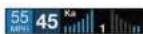
The Standard FR meter mode displays the band of the highest priority threat along with a front and rear bar graph of its signal strength. The left bar graph shows the signal strength in front of the detector while the right bar graph shows the signal strength from the rear. If there are multiple alerts present, only the signal strength of the highest priority threat is displayed. Laser is the highest priority threat, followed by Ka, K, then X band radar. The number in between the bar graphs is the total number of alerts that are being detected.

Operation
Spec FR
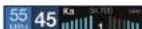
The Spec FR meter mode displays the numeric frequency and band of the highest priority threat along with a front and rear bar graph of its signal strength. The left bar graph shows the signal in front of the detector while the right bar graph shows the signal strength from the rear. If there are multiple alerts present, only the signal strength of the highest priority threat is displayed. Laser is the highest priority threat, followed by Ka, K, then X band radar. The number in between the bar graphs is the total number of alerts that are being detected.
Expert FR
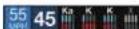
Expert FR meter mode (FR = Front and Rear signal strengths) simultaneously tracks up to four radar alerts displaying each alert's band along with a bar graph of their front and rear signal strengths. When using this meter mode the rear signal strength bar graph is always the opposite color of the selected display color. In the above image, a Ka band, two K bands, and an X band signal are being detected. The X band alert is grey to show that it is a locked out false alert. For more information about locking out false alerts see the GPS Filtering/TrueLock section. Expert FR meter mode can help you spot a change in your normal driving environment (e.g., a traffic radar unit being operated in an area where there are normally other signals present).
Simple

Simple messages replace bands and signal strengths or frequencies:
Caution used when an alert is received while you are traveling below your current Cruise Alert setting (or posted speed limit for your current location when connected to Drive Smarter).
Slow Down displayed when an alert is received while you are traveling above the current Cruise Alert setting (or posted speed limit of your current location, when connected to DriveSmarter).

Operation
Tones
Standard
The factory default Standard alert tones uses a Geiger counter-type sound to indicate the signal strength and type of radar signal being encountered. When you encounter radar, a distinct audible alert will sound and will increase as the signal gets stronger. This allows you to judge the distance from the signal source without taking your eyes off of the road. Each band has a distinct tone for easy identification:
X band = beep tone
K band = brap tone
Ka band = double-brap tone Laser = solid brap tone
POP = solid brap tone
Standard Plus
Features the Standard alert tones outlined above for the primary alert, plus double-beep tones for additional alerts.
Mild
Mild alert tones offer softer, simpler alert tones that are less obtrusive to the driving experience:
X band, K band, Ka band and POP = Doorbell chime
Low signal strength = Double ohime
High signal strength = Triple chime
If alert remains in area more than 15 seconds = Single chime (as a reminder)
Laser = Solid brap tone
Since laser signals are a possible threat no matter how weak, laser alerts are always full strength.
AutoMute
Your MAXcam 360c also includes ESCORT's patented AutoMute feature. Once MAXcam 360c alerts you to a radar encounter at your selected volume level, it automatically reduces the volume to the selected AutoMute level. This keeps you informed without the annoyance of a continuous full-volume alert. If you prefer, you can turn the AutoMute feature off.

Operation

Operation
AutoLearn
The AutoLearn feature analyzes (over time) the source of radar signals by location and frequency. This allows MAXcam 360c to determine if a fixed location signal is a real threat or a false one. If it determines that the signal is an automatic door opener, motion sensor, etc., it automatically locks out this source at this particular location. A "Stored" message will appear on the display when a signal has been automatically locked out. AutoLearn needs to encounter the exact frequency in the same location approximately three times to lock it out. Since some door openers are turned on and off routinely, some variations may occur. Variations may also occur with seasonal temperature changes that can affects the frequency that those radar sources transmit.
MAXcam 360c will also unlock signals to protect you from locking out real threats. If a particular signal is no longer present at a location that was previously locked out, MAXcam 360c will unlock that signal. If you prefer, you can turn the AutoLearn feature off.
GPS Filter (TrueLock)
MAXcam 360c is equipped with a TrueLock GPS Filter to store and lock out, or ignore, fixed location false alerts in its memory. Common sources of fixed location false alerts are storefront automatic door openers and motion sensors. The TrueLock GPS Filter will not lock out moving false alerts that are commonly caused by vehicle's blind spot monitoring and collision avoidance systems.
Locking Out False Alerts
To manually lock out a fixed location false alert (X band, K band or laser only), press the MUTE button three times during an alert. Pressing the first time will silence the audio. Pressing a second time will generate a prompt on the display that will read "Lockout"? Press a third time to confirm you want to lock this signal out by location and frequency. A "Stored" message will be displayed. Once a signal has been stored, MAXcam 360c will not audibly alert the next time you approach this area but will display the locked-out alert in grey.
Locked Out Alert

To unlock a signal that has already been stored, simply press the MUTE button twice while receiving the locked out alert. The display will read "Unlock?" when pressing MUTE the first time. Press the MUTE button again to unlock it from memory. The display will read "Unlocked" to confirm your action.
Note: When the GPS Filter is set to OFF, you do not have access to MAXcam 360c's other GPS-enabled features (e.g., Defender Database alerts, marking locations, etc.).
AutoPower
This feature automatically turns off MAXcam 360c after a set period of time to save unnecessary drain on your battery. This is especially useful if your vehicle has a constant-power ignition. To turn MAXcam 360c on again you must press the power button.
Note: If AutoPower is on, to save screen life the display screen goes blank after 30 minutes without moving. The display screen will turn on automatically after you reach 10MPH.
Band Enables
In the factory default setting the suggested radar and laser bands for North America are monitored and sources of some common false alerts are rejected. It is highly recommended that you use your MAXcam 360c in this mode.
If you modify Bend Enables then this setting will show Modified. The MAXcam 360c will also notify you during the startup sequence with an audible alert.
WARNING: Do not turn off any Band Enables unless you are absolutely certain there are no traffic radar guns in your area using that specific band.
K Notch
Reduces sensitivity of K band in the frequency range of 24.190 - 24.210 GHz. This is effective at reducing alerts to certain vehicle collision avoidance systems.
Shifters (only available when optional ZR5 or ZW5 laser shifters are connected)
Sets the shifter mode of operation. Receive = receive-only mode. Shift4/6/8/10 puts the laser shifters into receive-only mode after 4/6/8/10 seconds from receiving an alert. After 30 seconds of not receiving a Laser alert, the shifters automatically return to shift mode. You can also manually put the laser shifters into receive-only mode by double taoping the Mute button on the detector or SmartCord.
Marker Enables
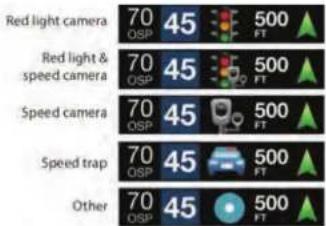
MAXcam 360c gives advanced warning of upcoming markers at the following distances:
Red light cameras 250 ft or 10 seconds
Red light & speed cameras 250 ft or 10 seconds
Speed cameras 500 ft when traveling below 55 mph
1,000 ft when traveling above 55 mph
Speed traps 0.3 mi or approximately 1,584 ft
Other 500 ft when traveling below 55 mph
1.000 fl when traveling above 55 mph

Operation

Operation
To Mark A Location
- Press MRK. The display will read "Mark?" Press MRK again to bring up a menu of markers to choose from.
- Use the Rotary Dial to scroll through the markers then press MRK to select the marker that you wish to use at this location.
- The display will read "Marked!"
Air Patrol locations cannot be marked by the user.
Note: When a location is marked the first time, you must travel at least 1 mile away from that location to receive an alert when you return to the area.
To Unmark A Location
Touch the MRK button when you are receiving a marked-location alert. The display will read "Unmark?" Touch the MRK button again to confirm. The display will read "Unmarked!"
Clear Locations
At some point, you may wish to clear some of the data in MAXcam 360c's database. This may include any of the following: Defender Database data, Marked locations or false alert Lockouts.
To clear locations in the selected database, select the database then press MUTE to confirm. Format clears locations in all databases.
Wi-Fi
Tums on and off Wi-Fi connection to a hotspot.
NOTE: Compatible with 2.4 and 5 GHz hotspots
Bluetooth
Turns on and off Bluetooth connection to a smartphone.
Auto Update
Selects which software is updated automatically when connected to a Wi-Fi hotspot. Default is All. Requires Drive Smarter® mode Wi-Fi connection to a hotspot with internet access.
Wi-Fi Update
Manually force the detector to search for updated software. Press MUTE to make the selection then follow display prompts. Requires Drive Smarter® mode Wi-Fi connection to a hotspot with internet access.
Camera Settings
If you modify Camera Settings then this setting will show Modified.
Video Record
Turns on and off video recording.
Note: Once the SD card is full, the camera will continuously overwrite the oldest footage recorded with recent recordings. To protect a clip so that it will not be overwritten, press and hold the PRG button so that the clip is moved into the locked content partition.
Microphone Record
Turns on and off the microphone for video recording.
Loop Clip Time
Sets the duration of video clips.
G-Sensor
MAXcam 360c includes a built in G-Sensor which allows the device to determine when the car has been in a collision. If a collision is detected, MAXcam 360c automatically locks the recording being made at the time of the accident. You can use this setting to set the sensitivity of the G-Sensor from 1-3 or turn it off. Level 1 is the easiest to activate and may lock files due to bumps. Level 3 is the hardest to activate the G-sensor.

Operation

Operation
Parking Mode
Parking Mode uses the G-Sensor to monitor while your vehicle is parked. The idea is that when you are parked, the dash cam will be "sleeping", but it will monitor for G-Sensor impacts. If it detects an impact, then the unit will wake up and start recording.
The camera will enter parking mode after 5 minutes. If there is no movement during this period, the display will turn off and the recording will stop. If a G-sensor impact above Level 1 is triggered, the unit will wake up and start saving 1 minute clips for as long as activity is being detected.
Note: Parking Mode only works properly if the dash cam is powered. Either the Cigarette Lighter Socket must remain on with the ignition off, or the dash cam must be hardwired to a constant power source (please check www.cscortradar.com for available accessories).
Motion Detect
Motion Detection uses the camera's Motion Sensor to monitor while your vehicle is parked. The idea is that when you are parked, the dash cam will be "sleeping", but it will monitor surroundings for motion. If it detects motion, then the unit will wake up and start recording.
The camera will enter Motion Detection after 5 minutes. If there is no movement during this period, the display will turn off and the recording will stop. If movement is detected, the unit will wake up and start saving 1 minute clips for as long as activity is being detected.
Note: Motion Detection only works properly if the dash cam is powered. Either the Cigarette Lighter Socket must remain on with the ignition off, or the dash cam must be hardwired to a constant power source (please check www.escortrader.com for available accessories).
Watermark
Turn off or on placing an Escort watermark on saved video clips (factory default is on).
Date/Time Stamp
Turn off and on placing a date and time stamp on video clips (factory default is on).
Speed Stamp
Turn off and on placing your speed on video clips (factory default is off).
Radar Stamp
Turn off and on placing alert information on video clips (factory default is on).
Format Card
Press MUTE to format the SD card.
Importantly, be aware that this will erase all content on the SD card including locked SOS movie clips.
Once the SD card is full, the camera will continuously overwrite the oldest footage recorded with recent recordings. To protect a clip so that it will not be overwritten, press the Emergency Record/Favorites Button so that the clip is moved into the locked content partition.
DASH CAM INSTRUCTIONS
View and Edit Videos on your Smartphone
Receive crowd sourced alerts, software updates, view, edit and share camera footage using the Drive Smarter ^2 smartphone app.
Remove backing from EZ Mag Mount.
1 Power on MAXcam 360c.
2 Install and run the Drive Smarter ^® app on your smartphone.
3 In the Drive Smarter * app, press the Account button then select "Add Camera"
4 Follow the prompts in the Drive Smarter app to connect MAXcam 360c and your mobile Wi-Fi hotspot.
NOTE: the first time you run the app, you will be prompted to register a new account.
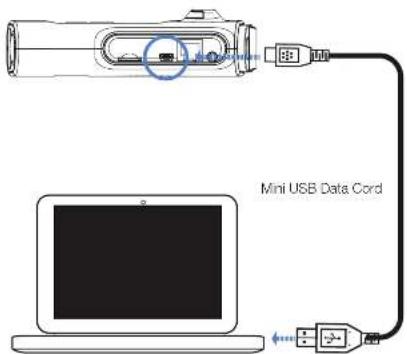
Or use the included Mini USB Cable to update software, view, edit and share camera footage using your desktop.
You're all set!



driveemarter.com/downsade

Troubleshooting
| PROBLEM | SOLUTION |
| Detector beeps briefly at the same location every day, but no radar source is in sight. | A motion sensor or intrusion alarm is located within range of your route. If you have AutoLearn enabled, the factory default setting, then MAXcam 360c will store this signal after about 3 passes and no longer alert to it. |
| Detector did not alert when a police car was in view. | Officer may not have radar or laser unit turned on. VASCAR (Visual Average Speed Computer and Recorder), a stopwatch method of speed detection, may be in use. |
| Detector's audible alerts become softer after the first few alerts. | Detector is in AutoMute mode. See "AutoMute" in the Settings & Preferences section for details. |
| The power-on sequence recovers while you are driving. | A loose power connection can cause MAXcam 360c to be briefly disconnected and will retrigger the power-on sequence. Check all connections. |
| You wish to restore the factory default settings. | Press and hold the MRK and BRT buttons while powering on the detector. A "Factory Settings Restored" message will display, acknowledging the reset. |
| The device will not turn on. | Check that vehicle ignition is on. |
| The display is blank. | MAXcam 360c is in Dark mode. Press the BRT button to adjust the brightness. |

Trademarks Acknowledgment, Warnings, and Regulatory Information
©2021 ESCORT Inc. ESCORT®, MAXCAM 360c®, Defender®, AutoLearn®, TrueLock™,
AutoSensitivity™, SpecDisplay™, ExpertMeter™, IMT Filter™, SmartMute™ and EZ Mag Mount™ are trademarks of ESCORT, Inc.
Drive Smarter® is a registered trademark of Cedar Electronics Corporation.
Apple and the Apple Logo are trademarks of Apple Inc. Android, Google Play, and the Google Play Logo are trademarks of Google Inc.
The Bluetooth® work mark and logos are registered trademarks owned by Bluetooth SIG and any use of such marks by ESCORT Inc is under license. Sony is a trademark of Sony Corporation. Ambrella, and the Ambrella Logo are trademarks of Ambrella, Inc. All other brands, product names and company names are trademarks of their respective owners.
Features, Specifications and prices subject to change without notice.
FCC NOTE: Modifications not expressly approved by the manufacturer could void the user's FCC granted authority to operate the equipment.
FCC ID: QKLMXCAM
This equipment has been tested and found to comply with the limits for a Class B digital device, pursuant to part 15 of the FCC Rules. These limits are designed to provide reasonable protection against harmful interference in a residential installation. This equipment generates, uses and can radiate radio frequency energy and, if not installed and used in accordance with the instructions, may cause harmful interference to radio communications. However, there is no guarantee that interference will not occur in a particular installation. If this equipment does cause harmful interference to radio or television reception, which can be determined by turning the equipment off and on, the user is encouraged to try to correct the interference by one or more of the following measures:
- Reorient or relocate the receiving antenna.
- Increase the separation between the equipment and receiver.
- Connect the equipment into an outlet on a circuit different from that to which the receiver is connected.
- Consult the dealer or an experienced radio/TV technician for help
Warning:
This device should be installed and operated with minimum 20 cm between the radiator and your body.
DISPOSAL OF ELECTRONICS EQUIPMENT: This product may contain hazardous substances that could impact health and the environment if not disposed of properly.

The crossed out wheeled bin symbol indicates that the product should not be disposed of along with household waste. It should be handed over to an applicable collection point for the recycling of electrical equipment. By ensuring that this product is disposed of correctly you will help/prevent potential negative impact on the environment.
If you need more information on the collection, reuse and recycling systems, please contact your local civic office or the shop where it was originally purchased.
LIMITED 1-YEAR WARRANTY
Escort, Inc. ("Escort") warrants that this product and the component parts thereof, will be free of defects in workmanship and materials for a period of one year from the date of first consumer purchase. This warranty may be enforced by the first consumer purchaser. If the product is under warranty, it will be repaired or exchanged depending on the model as determined at Escort's sole discretion. Such remedy shall be your sole and exclusive remedy for any breach of warranty.
The procedure for obtaining service and support, and the applicability of this warranty, will vary depending on the country or jurisdiction in which you purchased and utilize the product. For the details on obtaining product service, support and warranty please visit https://www.escortradar.com/pages/contact-us
Provided that the product is utilized within the U.S.A.- Escort will, without charge, repair or replace, at its option, defective products, products or component parts upon delivery to the Escort Factory Service department, accompanied by proof of the date of first consumer purchase, such as a duplicated copy of a sales receipt. You must pay any initial shipping charges required to ship the product for warranty service, but the return charges, to an address in the U.S.A., will be at Escort's expense, if the product is repaired or replaced under warranty.
This warranty gives you specific legal rights, and you may also have other rights which may vary from state to state and country to country.
Exclusions: This limited warranty does not apply: 1) To any product damaged by accident; 2) In the event of misuse, ordinary wear, failure to follow directions, or improper maintenance of the product or as a result of unauthorized alterations or repairs; 3) If the serial number has been altered, defaced, or removed; 4) If the product was purchased or is utilized in a jurisdiction not covered by the limited warranty.
All implied warranties, including warranties of merchantability and fitness for a particular purpose are limited in duration to the length of this warranty. Escort shall not be liable for any incidental, consequential or other damages; including, without limitation, damages resulting from loss of use or cost of installation.
Some states and countries do not allow limitations on how long an implied warranty lasts and/or do not allow the exclusion or limitation of incidental or consequential damages, so the above limitations may not apply to you. This warranty gives you specific legal rights, and you may also have other rights which vary from state to state and country to country

- REVEAL THE ROAD AHEAD
- Contents
- Introduction
- MAXcam 360c FEATURES
- PRODUCT SERVICE AND SUPPORT
- WHAT'S IN THE BOX
- OPTIONAL ACCESSORIES - available at www.escortradar.com
- Direct Wire: 0010058-1
- Power
- SEN
- MUTE
- BRT
- MRK
- Program
- Rotary Dial
- Using MAXcam 360c
- Software Updates
- Using SmartCord USB
- Installation Installation
- Mounting Tips:
- To mount the detector in your vehicle:
- EZ Mag Mount Care Instructions:
- DOWNLOAD AND CONNECT TO Drive Smarter 46
- • Signal Band Indicator
- • Signal Strength Meters
- - OSP/Speed Limit Indicator
- - Signal Counter
- - Speed
- UNDERSTANDING YOUR DETECTOR
- How Radar Works
- How Laser (Lidar) Works )
- TSR Signal Ranking Software
- Operation
- UNDERSTANDING YOUR DASH CAMERA
- Loop Recordings
- Emergency Recordings
- Micro SD Memory Card
- G-Sensor Impact Detection
- Parking Mode & Motion Detection
- PROGRAMMING MENU
- Overview
- Operation Operation
- Serial Number and Software Version
- User Mode
- Arrow Mode
- Display Color
- Speed Display
- Cruise Alert
- Over Speed
- Over Speed Limit
- Meter Mode
- Standard
- Standard FR
- Spec FR
- Expert FR
- Simple
- Tones
- Standard Plus
- Mild
- AutoMute
- AutoLearn
- GPS Filter (TrueLock)
- Locking Out False Alerts
- AutoPower
- Band Enables
- K Notch
- Marker Enables
- To Mark A Location
- To Unmark A Location
- Clear Locations
- Wi-Fi
- Bluetooth
- Auto Update
- Wi-Fi Update
- Camera Settings
- Video Record
- Microphone Record
- Loop Clip Time
- G-Sensor
- Parking Mode
- Motion Detect
- Watermark
- Date/Time Stamp
- Speed Stamp
- Radar Stamp
- Format Card
- DASH CAM INSTRUCTIONS
- View and Edit Videos on your Smartphone
- Troubleshooting
- Trademarks Acknowledgment, Warnings, and Regulatory Information
- Warning:
- LIMITED 1-YEAR WARRANTY
Brand : Escort
Model : MAXcam 360c
Category : Detector