
V-KP-1 - Hi-Fi System Russound - Free user manual and instructions
Find the device manual for free V-KP-1 Russound in PDF.


| Product Type | In-wall amplified keypad with Amazon Alexa built-in |
| Brand | Russound |
| Model | V-KP-1 |
| Dimensions (H x W x D) | 4.2 x 1.7 x 2.5 inches (106 x 42.4 x 63.6 mm) |
| Mounting Depth (behind faceplate) | 2.44 inches (62 mm) |
| Power Supply | 24 VDC from V-PS-2 power supply (sold separately, supports up to 2 keypads) |
| Amplifier Power Output | 2 x 15W, selectable 4 or 8 ohm |
| Frequency Response | 20 Hz - 20 kHz (±1 dB) |
| Distortion | <0.1% (20 Hz - 20 kHz @ 15W, 4/8 ohms) |
| Wi-Fi | 802.11 a/b/g/n/ac, 1x1 |
| Bluetooth | Bluetooth 5.0 |
| Audio Formats Supported | MP3, AAC, FLAC, ALAC, WMA, OGG |
| Streaming Services | Amazon Music, Spotify, Apple AirPlay, SiriusXM, Pandora, TuneIn, Deezer, iHeartRadio |
| Voice Control | Amazon Alexa built-in |
| Multi-Room Synchronization | Up to 10 rooms |
| Maximum Devices on Network | 32 |
| Speaker Impedance Selector | 4 or 8 ohms (rear switch) |
| Microphone Mute | Hardware disconnect via Mic Mute button (red LED when muted) |
| Included Accessories | White and black faceplates, screw-down power connector (2-pin), screw-down speaker connector (4-pin) |
| Warranty | Limited 2-year warranty |
Frequently Asked Questions - V-KP-1 Russound
User questions about V-KP-1 Russound
0 question about this device. Answer the ones you know or ask your own.
Ask a new question about this device
Download the instructions for your Hi-Fi System in PDF format for free! Find your manual V-KP-1 - Russound and take your electronic device back in hand. On this page are published all the documents necessary for the use of your device. V-KP-1 by Russound.
USER MANUAL V-KP-1 Russound
Russound a sound relationship
Product Manual
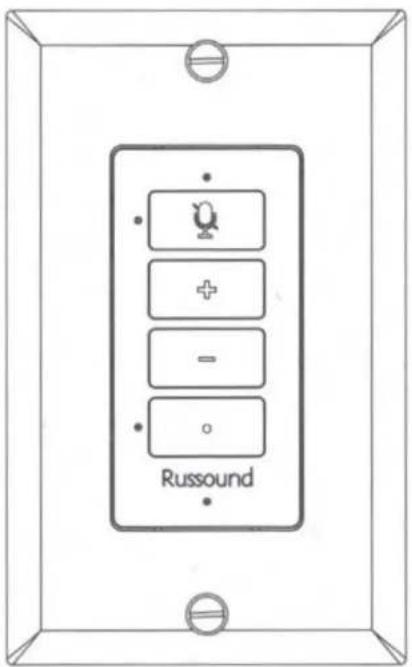
VoicePlay™ V-KP-1
Amplified Keypad with Amazon Alexa Built-in
Spotify («SiriusXM») pandora ÷ tunein 📄deezer amazon music
iHeartRADIO Apple AirPlay Alexa built-in Spotify
V-KP-1 OVERVIEW
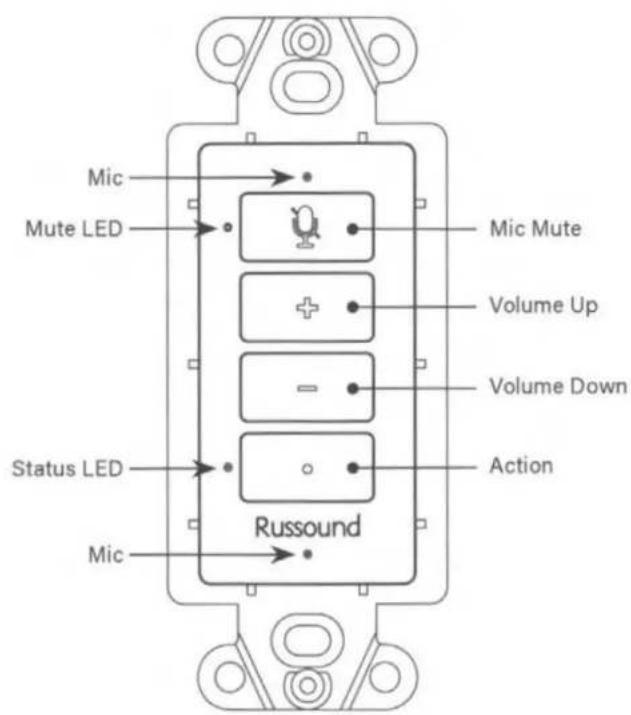
V-KP-1 WHATS IN THE BOX
What's in the Box
1 Russound V-KP-1 Wall-Mounted Wi-Fi Amplied Keypad with Amazon Alexa Built-In
1 Removable, Screw-Down 2-pin Power Connector (accepts up to 14AWG wire)
1 Removable, Screw-Down 4-pin Speaker Connector (accepts up to 14AWG wire)
1 Color Change Faceplate (Black)
What you need for the Installation
1 Russound V-PS-2 Power Supply (sold separately, supports up to 2 V-KP-1 touchpads)
Flat mini-screwdriver for the speaker connectors
Flat Screwdriver for the Wallplate Mounting
2 Philips Screwdriver for attaching the V-KP-1 to the mounting box
Wire Strippers
V-KP-1 CONNECTION AND SETUP
Making the Connections
Note: All wiring connections must be made with the system powered off and the V-PS-2 power cord disconnected from the electrical mains (unplugged from the wall outlet).
flowchart
graph TD
    A["Top Panel"] --> B["Switch 1"]
    C["Top Panel"] --> D["Switch 2"]
    E["Top Panel"] --> F["Switch 3"]
    G["Russound"] --> H["Switch 4"]
    H --> I["Switch 5"]
    style A fill:#f9f,stroke:#333
    style C fill:#f9f,stroke:#333
    style E fill:#f9f,stroke:#333
    style G fill:#ccf,stroke:#333
    style H fill:#ccf,stroke:#333
    style I fill:#ccf,stroke:#333
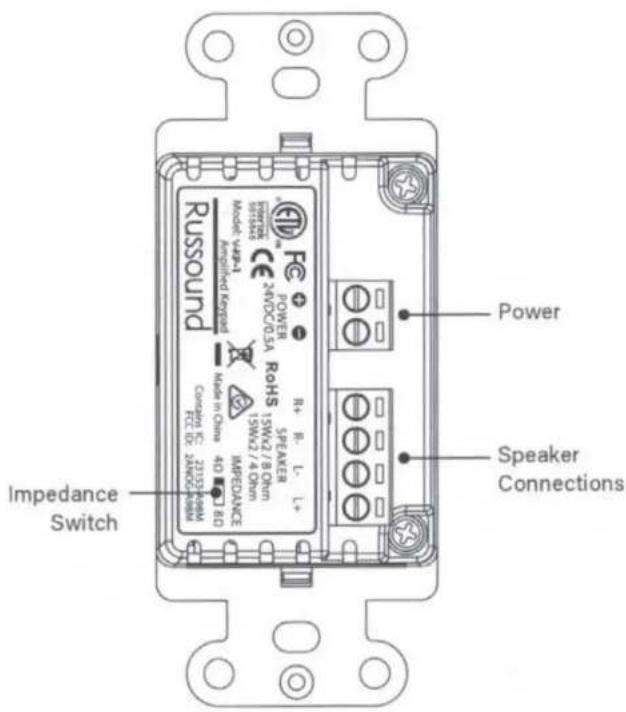
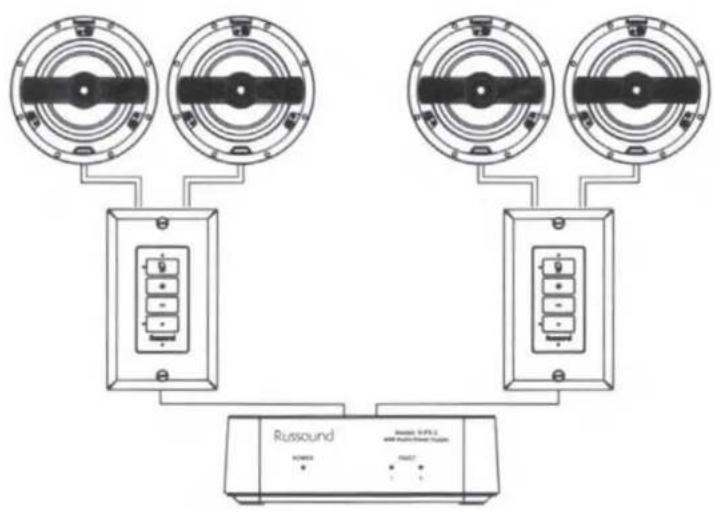
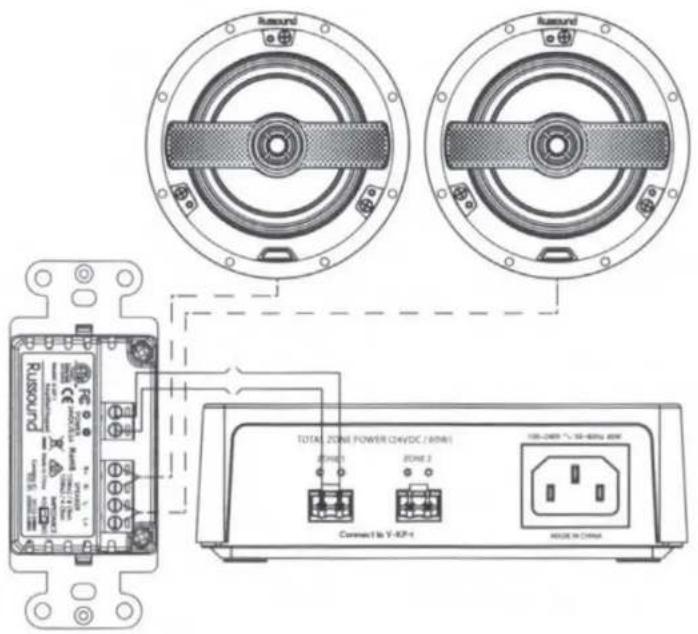
The V-KP-1 is very easy to install and only requires two connections: power and loudspeakers.
Power is provided from the V-PS-2 power supply and may be done locally or may be run using CL-2 rated cable up to 100 meters through the home from a central location to the room where the V-KP-1 is mounted.
The V-KP-1 is designed to be able to re-use any existing wiring in a home in order to upgrade existing legacy audio system components to a modern, voice-controllable, multi-room audio system.
The majority of existing installed audio systems utilized a "home" run of speaker wires from some central location to a volume control in each of the rooms of the home. From those volume controls, separate speaker wires would then be run within the room to the left and right loudspeakers.
V-KP-1 CONNECTION AND SETUP
If your system used this type of "Home" run wiring, you can use two of those conductors to carry the power from the V-PS-2 Power Supply to the new V-KP-1. The V-KP-1 would be mounted in the same location as the previous volume control and the existing wires to the room's loudspeakers would be switched from the previous volume control to the new V-KP-1.
The V-PS-2 includes important safety features such as over-current, over-temperature and short-circuit protection and can even indicate trouble in an existing wiring configuration which is especially critical when utilizing existing wiring in a home to ensure a proper electrical connection.
V-KP-1 USING THE KEYPAD WITH SPOTIFY CONNECT
First, make sure:
All devices are on the same Wi-Fi network.
Your Spotify app is installed and up-to-date on your phone/tablet.
From your phone/tablet:
- Open Spotify and play something.
- Tap the Spotify Connect Device icon at the bottom of the screen.
- Tap the V-KP-1 device you want to play to.
V-KP-1 NEW INSTALLATION
For a new installation, the location of the V-PS-2 power supply will be based on the wiring being done in the room and around the home at any other rooms. Each V-PS-2 can power up to 2 V-KP-1 wall-mounted amplifiers. Depending on the wiring that will be done at the home, it might be best to locate your power supplies in a central wiring location for the entire home, or in a central location for each floor or section of a home, or in a wiring closet near adjacent rooms, for example.
Loudspeakers will always connect directly to the V-KP-1 and typically those wires are run locally within the room from the loudspeakers to the wall-mounting location. CL2 rated wire must be used when running wire within a home's walls.
When connecting the speaker wires, be sure to observe proper polarity. The positive and negative terminals on the V-KP-1 must correspond with the positive and negative terminals at both the left and right loudspeakers. This is also true of the power connections between the V-PS-2 power supply and the V-KP-1
Strip 1/4" (about 6mm) from each of the conductors for both the left and right loudspeaker connections and insert them into the removable screw-down terminal, making sure to match the proper polarity of each connection. Tighten the screw-down connections securely and make sure that there are no exposed strands that might cause a short-circuit.
Once your speaker connections and power connections have been made to the V-KP-1, you are ready to make the same connections at the V-PS-2 for the power connection.
With the V-PS-2 disconnected from electrical power, strip 14 " (about 6mm) from each of the conductors and insert them into the removable screw-down terminal on the V-PS-2, making sure to match the proper polarity of each connection.
V-KP-1 NEW INSTALLATION
Tighten the screw-down connections securely and make sure that there are no exposed strands that might cause a short-circuit.
Impedance Setting
The V-KP-1 supports both 4-ohm and 8-ohm loudspeaker connections. There is a slider switch at the rear of the V-KP-1 that can be set to either 4 or 8 ohms. The default is 8 ohms. If using the V-KP-1 with a 4-ohm speaker load, set the switch on the back to the 4-ohm position. The switch can be adjusted at any time without needing to power down the device or disconnect the speakers.
Once the connections have been made, connect the V-PS-2 power supply to the electrical mains to power up the system. You will see a green light on the front of the V-PS-2 when it is plugged in.
The V-KP-1 status LED will blink on and off indicating that the device is powered up and awaiting Wi-Fi configuration.
Wi-Fi Configuration
When first powered up, the V-KP-1's LED lights will flash intermittently until the device is ready for use. It will then announce "Connecting to network. This will take from 1 to 3 minutes" and the Status LED will begin to blink green.
It is now ready for connection to your Wi-Fi network.
Your V-KP-1 Wi-Fi connection is configured with the Russound VoicePlay App, available for download from the App Store for iOS devices and from the Google® Play Store for Android® devices. The Russound VoicePlay App is also used to link the V-KP-1 with your Amazon Account.
To connect to your Wi-Fi network and set up your V-KP-1:
Open the VoicePlay app on your phone or tablet. The app will search for any existing VoicePlay devices. If this is your first VoicePlay device, tap on
V-KP-1 NEW INSTALLATION
"Add Device" at the bottom of the search screen and follow the instructions within the app. The app will connect your VoicePlay device to your Wi-Fi network, will check for any available firmware updates, will help you name the device for the room that it is in, and will then guide you through associating it with your Amazon account.
Using your V-KP-1 without an Amazon account
For the best possible experience, and to enable voice control, we strongly recommend associating your VoicePlay device with an Amazon account. If you choose "Not Now" when asked to associate your Amazon account, your V-KP-1 can still be used as a Bluetooth device, and for casting audio such as Spotify Connect. The front panel volume controls on the V-KP-1 will be fully operable.
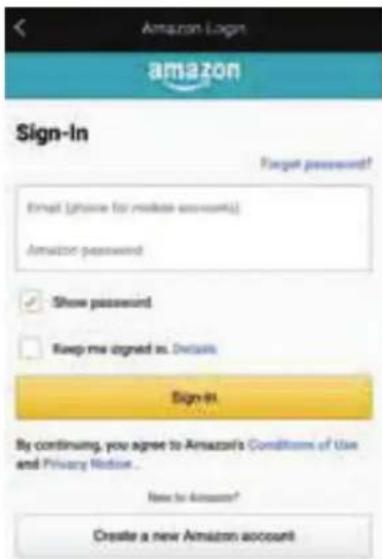
Enter your Amazon account information when prompted.
Language Selection
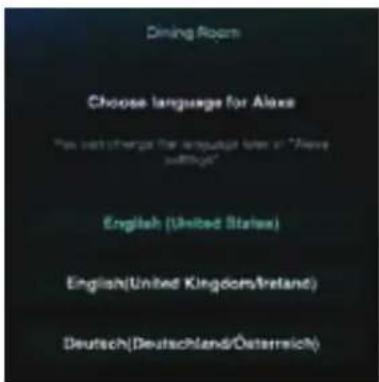
After linking your Amazon account to your V-KP-1, you will be prompted to select your preferred language for use with Alexa. Select the appropriate language for you to use for all of your voice interactions with Alexa on the V-KP-1.
Other Settings
Once your V-KP-1 has been linked to your Amazon account, you can access additional settings using the Alexa app and selecting the V-KP-1 from the list of devices on your account
The Alexa app can also be used to select default music services, select any music, and to join rooms for synchronized multiroom music. Up to 10 VoicePlay devices can be synchronized in a home.
V-KP-1 NEW INSTALLATION
Using the V-KP-1 with multiple loudspeakers
You can connect up to 2 pairs of 8 ohm speakers to the V-KP-1. When doing this, make sure to set the V-KP-1 impedance switch on the rear of the device to 4 ohms. All speaker connections should be done in parallel, with both left speakers' positive (+) terminals being connected to the V-KP-1 left + terminal and with both right speakers' negative (-) terminals being connected to the V-KP-1's right - terminal.
Adding additional amplification
If being used in a very large room, or where extra amplification is needed, Russound offers several models of amplifiers with a speaker-level input that can be used with the V-KP-1.
V-KP-1 OPERATION
Using Spotify Connect
Spotify is an award-winning digital music service that gives you on-demand access to over 20 million tracks. Spotify makes it easier than ever to discover, manage and share music with your friends, while making sure that artists get a fair deal.
Spotify lets you listen to millions of songs – the artists you love, the latest hits and discoveries just for you.
Spotify is not only extremely popular in the US but also worldwide. Spotify is available in 57 markets globally, making it the largest worldwide availability of any streaming service. The Spotify Software is subject to third party licenses found here: www.spotify.com/connect/third-party-licenses.
The V-KP-1 supports Spotify Connect, allowing you to play Spotify on your V-KP-1 using the Spotify App on your phone or tablet.
With Spotify Connect, you can listen to your favorite music using the Spotify app as a remote.
In order to get Spotify, the Spotify App must be installed on the phone or tablet that is connected to the same network as your Russound system. The Spotify App is available on the Apple App Store as well as the Google Play Store.
However, in order to use Spotify on your Russound system, a Spotify Premium Account is required.
New users to Spotify can receive a 30-day free trial from Spotify by going to www.spotify.com/freetrial.
V-KP-1 OPERATION
Music Services
Amazon offers a variety of music services that can be accessed using your V-KP-1. The availability of these services varies by country and changes from time to time. An up-to-date list of the services available in each country is available on the Amazon website or through the Alexa app.
Bluetooth® Audio
Your V-KP-1 is designed to pair with phones/tablets to allow you to play the audio content from your favorite apps. To pair your phone or tablet, simply say "Alexa, connect to my phone" and the V-KP-1 will be discoverable by nearby Bluetooth devices. Bluetooth pairing and management of paired devices can also be accomplished through the Alexa app.
Using Amazon Alexa
You're now ready to start enjoying your favorite music and audio available with a simple voice command like "Alexa, play some music". You also have access to other great Alexa features like settings, alarms,
timers, asking about the local weather, controlling your Smart Home devices, and accessing your favorite Alexa skills for games, activities, and more. Feel free to explore all that Alexa can do and stay up to date with any new features or skills through the Alexa app.
Factory Reset Procedure
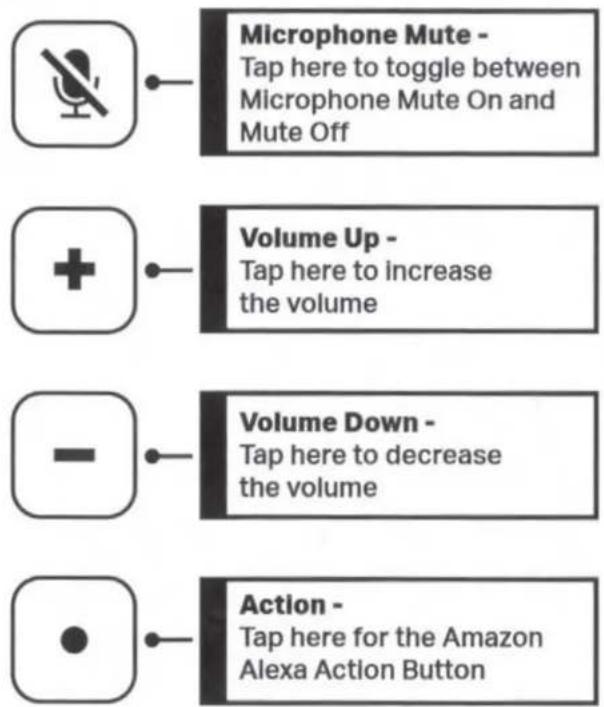
If you ever need to perform a factory reset of your V-KP-1, simply press and hold both the Mic Mute and the Alexa Action buttons simultaneously until you hear a voice confirmation that the factory reset procedure is complete. Performing a Factory Reset will erase all settings and information on the device including its Wi-Fi network connection information. Note: If you are no longer using the V-KP-1, you can delete the V-KP-1 from your device list in your Amazon account using the Alexa app.
Privacy Considerations
Your privacy is very important to Russound.
The microphone array of the V-KP-1 can be turned off at any time by pressing the Mic Mute button on the front of the V-KP-1.
When muted, the Mic Mute LED will illuminate red and, in this state, not only is the microphone software disabled, but the entire mic array is also disconnected from its electrical supply and is completely inactive.
In this state, the V-KP-1 cannot be accessed by any voice commands, but could still be used with other audio sources from the VoicePlay app, from the Amazon Alexa app, or with Spotify Connect sources or Bluetooth Audio, etc. To re-enable the microphones, simply tap the Mic Mute button again until the red LED turns off.
Notices:
Use of the Works with Apple badge means that an accessory has been designed to work specifically with the technology identified in the badge and has been certified by the developer to meet Apple performance standards.
V-KP-1 SPECIFICATIONS
| Power Output | 2 x 15W, 4 or 8 Ohm Selectable |
| Frequency Response | 20-20kJz, +/- 1dB |
| Distortion | <0.1% (20Hz-20KHz@15W, 4/8 Ohms |
| Wi-Fi | 802.11 a/b/g/n/ac, 1x1 |
| Audio Formats | MP3, AAC, FLAC, ALAC, WMA and OGG |
| Mounting Depth behind Faceplate | 2.44" (62 mm) |
| Dimensions (HxWxD) | 4.2" x 1.7" x 2.5"(106mm x 42.4mm x 63.6mm) |
| Maximum Number of V-KP-1 on a network | 32 |
| Maximum Number of Synchronized Rooms for Multiroom Music | 10 |
V-KP-1 WARRANTY

Visit russound.com
for warranty information
a sound relationship Russound
Russound
1 Forbes Road, Newmarket, NH 03857
Telephone: 603.659.5170
Email: tech@russound.com www.russound.com
©2021 Russound/FMP, Inc. All rights reserved. Russound and the Russound logo are registered trademarks of Russound/FMP, Inc. Apple and AirPlay are trademarks of Apple Inc., registered in the U.S. and other countries. All other trademarks are the property of their respective owners. Specifications are subject to change without notice. 6.21.2021 Rev. 4
a sound relationship Russound
VoicePlay™ Configuration
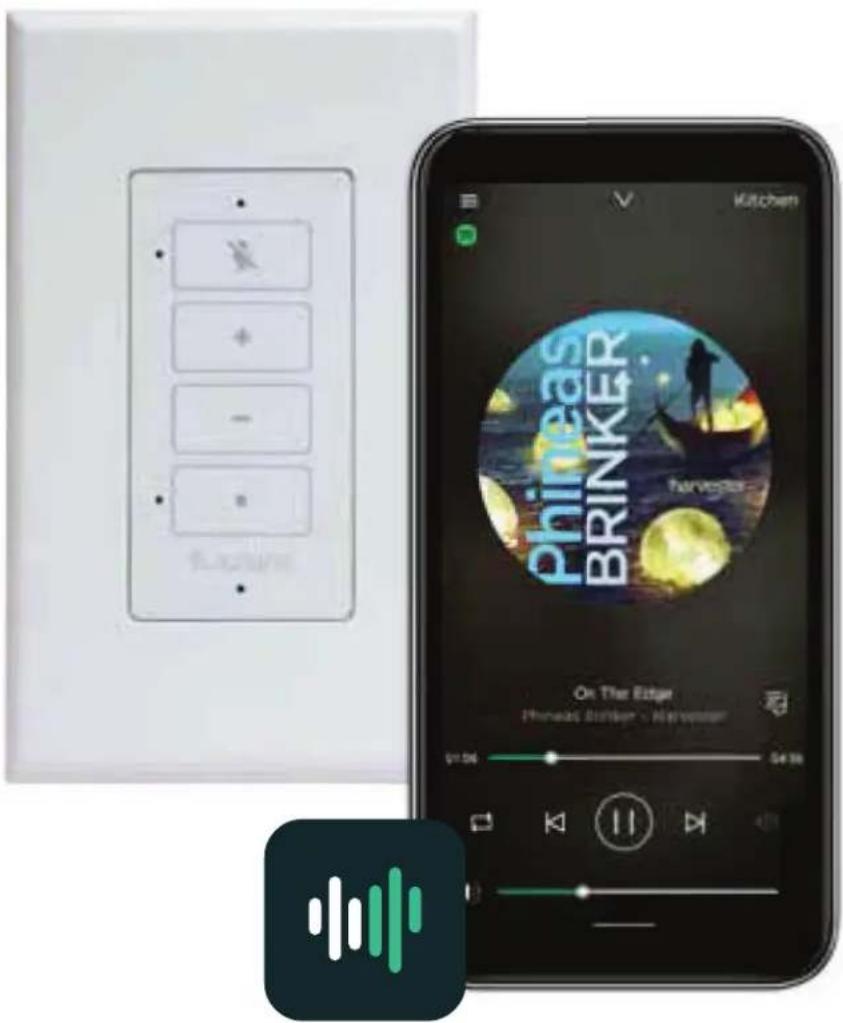
Use the VoicePlay App to configure your system
Step 1- Install the VoicePlay App



natural_image
Abstract icon with white and green vertical bars on dark background (no text or symbols)Voiceplay


Step 2- Discovering your keypad
Open the VoicePlay app
The app will automatically start searching for your VoicePlay devices.
If your device isn't found, simply tap "Add Device" at the bottom of the screen

Making sure your keypad is in Discovery Mode
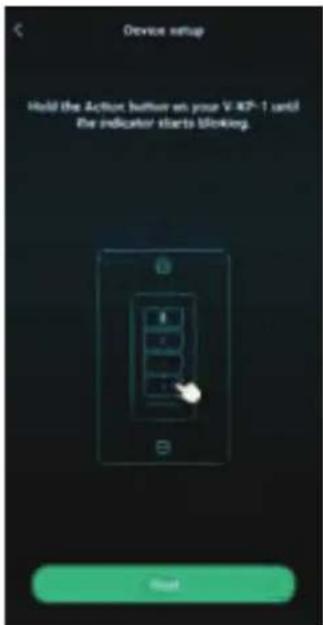
The status LED blinks green when your keypad is in Discovery Mode
If your V-KP-1 status LED isn't blinking green, press and hold the Action button as shown until the status LED blinks green.
Tap Next and the VoicePlay app will search for your keypad.
Step 3 - Setup
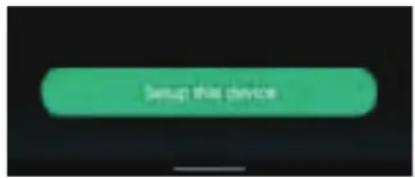
With the keypad selected at the top, tap "Setup this device"
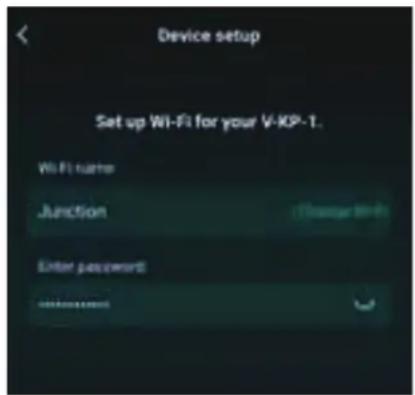
Choose the Wi-Fi network that you want to use, enter the password, and tap Next
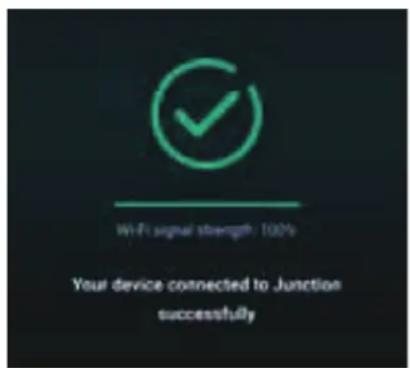
The keypad will connect to that network and display the signal strength.
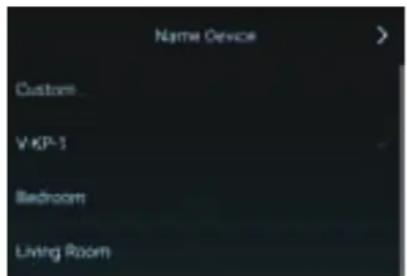
Name your keypad by choosing one of the available room names or entering a Custom name.
The keypad will then check for any available firmware updates and update automatically if needed.
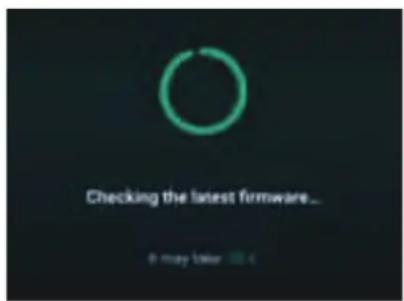
Do not remove power to the keypad during this process.
Step 4 - Amazon Alexa
The next step is associating your keypad with your Amazon Alexa account for voice control. Tap on Get Started.
If you choose to do this later, you can select "Amazon Alexa" from the main menu of the VoicePlay app to return to this step at any time.
Enter your Amazon account information and tap "Sign-in" or create a new Amazon account if you do not already have one.

Select your Amazon Alexa language
You can change this setting at any time in the VoicePlay app in the Device Settings Menu under "Amazon Alexa Settings"
Final Setup and Room Groups
Use the Amazon Alexa App to configure any default music services for voice control.
Use the Amazon Alexa app to set up groups of rooms to play synchronized music. Once the groups are set up, you can use voice control or the Alexa app to play music to them.



natural_image
Alexa logo icon with white curved arrow on blue background (no text or symbols beyond the brand name)Amazon Alexa


For instructions on how to setup groups with the Amazon Alexa App visit

Russound.com/voiceplay
5 Ways to Enjoy your Music with VoicePlay
- Use voice control to play and control your music easily. Try this now by saying:
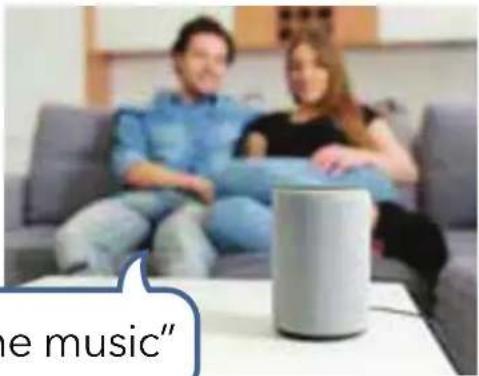
"Alexa, play some music"
- Use the Alexa app to select and play any of the configured music services within the Alexa app
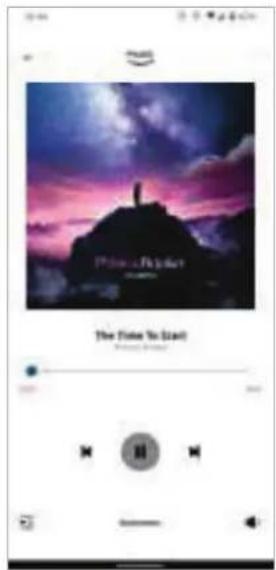
- Use Spotify Connect or Apple AirPlay to play your favorite music by selecting the VoicePlay device's room name from your compatible music app.
natural_image
Person sitting on a couch holding a smartphone displaying a glowing icon (no visible text or symbols)5 Ways to Enjoy your Music with VoicePlay
- Use the VoicePlay app to select from any of the available music services or for any music stored on your phone or tablet
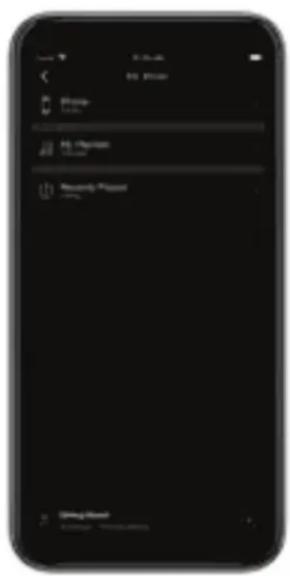
- Pair your Bluetooth device by saying:
at any time in order to use any Bluetooth audio as a source.
"Alexa, pair my phone"
©2022 Russound/FMP, Inc. All rights reserved. All trademarks are property of their respective owners. Specifications are subject to change without notice. Russound is not responsible for typographical errors or omissions.
Troubleshooting Setup
TIP #1
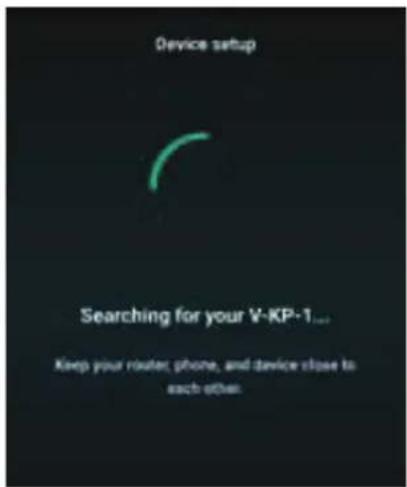
If your keypad isn't discovered during setup, the screen will give you an option for "Alternate Way to Setup". Tap that option when ready.
TIP #2
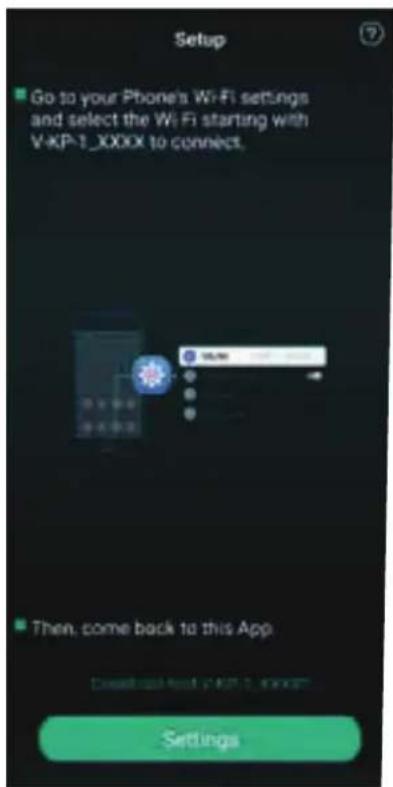
Open your phone or tablet's Wi-Fi settings and look for a network called V-KP-1-XXXX and connect to it. Then return to the VoicePlay app and tap Settings to continue through the setup process.
a sound relationship Russound
VoicePlay
Streaming Amplified In-Wall Keypad Solution and Power Supply
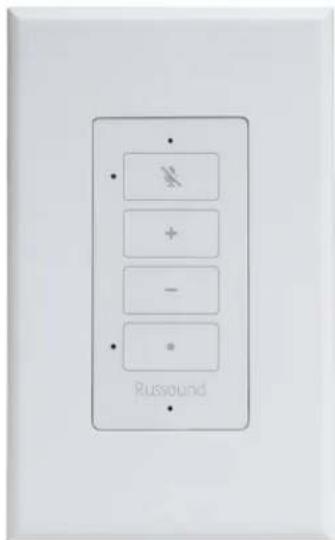
V-KP-1
In-wall multi-room system with streaming audio and voice control with Amazon Alexa built-in.
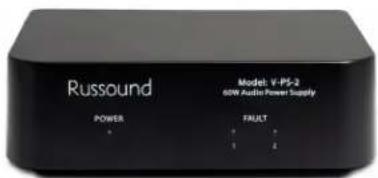
V-PS-2

Russound VoicePlay App




Designed as primary audio source in new and existing audio systems

Works with Alexa, Apple AirPlay 2, Spotify Connect and other popular streaming services

Bluetooth 5.0 for playing audio from any phone or tablet

Power across any existing wiring (A-BUS, Cat5 or speaker wire)

Great builder solution
VoicePlay Keypad Features
Bluetooth, streaming, multi-room audio and app control
Easy touch Volume Up, Volume Down, Mic On/Off and Action (standard Alexa buttons)
15W per channel, synchronize up to 10 rooms
Includes both white and black color options
Services Included*
amazon music


*Service availability varies by region.
VoicePlay Power Supply Features
Power output 60W/24VDC
Each power supply supports two VoicePlay keypads
Over voltage, over current and over temperature protection
a sound relationship Russound
VoicePlay Keypad Overview
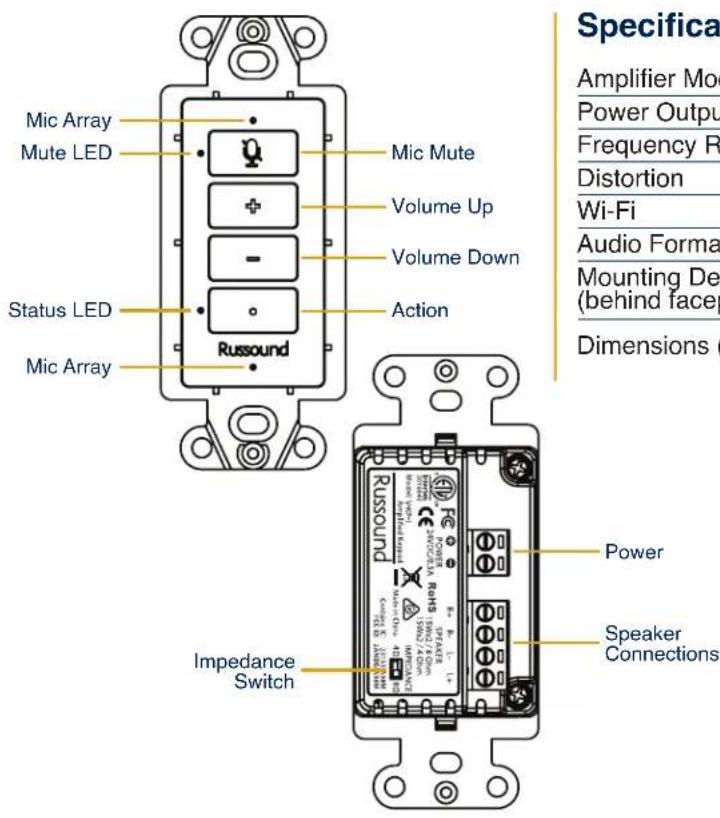
Specifications
| Amplifier Model | V-KP-1 |
| Power Output | 2 x 15W, 4 or 8 Ohm selectable |
| Frequency Response | 20-20kHz(±1dB) |
| Distortion | <0.1% (20Hz-20kHz@15W, 4/8 Ohms) |
| Wi-Fi | 802.11 a/b/g/n/a/c, 1x1 |
| Audio Formats | MP3, AAC, FLAC, ALAC, WMA and OGG |
| Mounting Depth (behind faceplate) | 2.44" (62mm) |
| Dimensions (HxWxD) | 4.2" x 1.7" x 2.5"(106mm x 43mm x 64mm) |
What's in the Box
1 Russound VoicePlay Amplified Keypad
1 Removable, Screw-Down 2-Pin Power Connector
1 Removable, Screw-Down 4-Pin Speaker Connector
1 White Faceplate
1 Black Faceplate
2 Decora Wallplates (White and Black)
VoicePlay Power Supply (V-PS-2) sold separately
VoicePlay Power Supply Overview
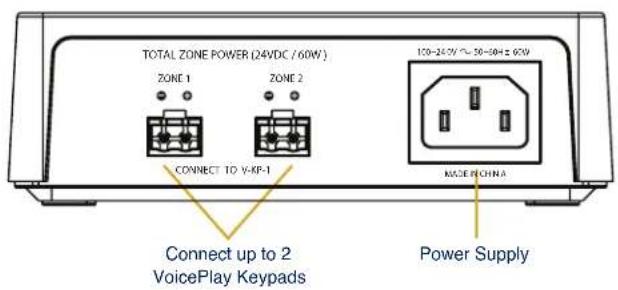
Specifications
| Power Supply Model | V-PS-2 |
| Supplies Power For | Up to 2 VoicePlay Keypads |
| Power Output | 60W/24VDC |
| Protection | Over current, over voltage and high temperature |
| Dimensions (HxWxD) | 2" x 4" x 6"(51mm x 102mm x 153mm) |
What's in the Box
1 Russound VoicePlay Power Supply
1 US Power Cord
1 Installation Guide
a sound relationship Russound
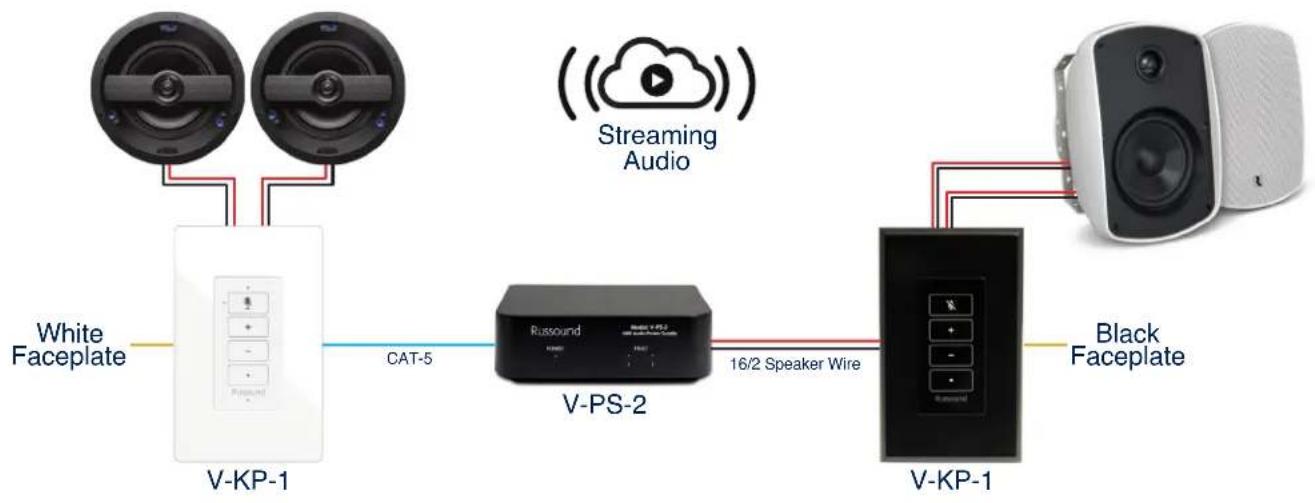
Application Wiring Diagram
Simplify multi-room audio systems with streaming and app control.
Upgrade to any VoicePlay system with no new wires.
flowchart
graph LR
    A["White Faceplate"] --> B["V-KP-1"]
    C["Streaming Audio"] --> D["V-PS-2"]
    D --> E["V-KP-1"]
    E --> F["Black Faceplate"]
    B -->|CAT-5| D
    E -->|16/2 Speaker Wire| D
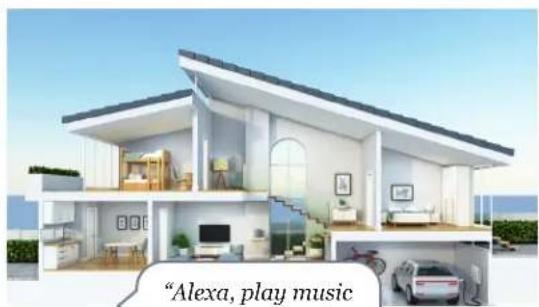
Amazon Alexa Built-In
Bring the features of Alexa to a multi-room audio system.

"Alexa, what's on TV tonight?"
natural_image
Architectural rendering of a modern house with visible furniture and signage, including a caption 'Alexa, play music' (no other text or symbols)"Alexa, play music everywhere."

"Alexa, set timer for 30 minutes."
a sound relationship Russound
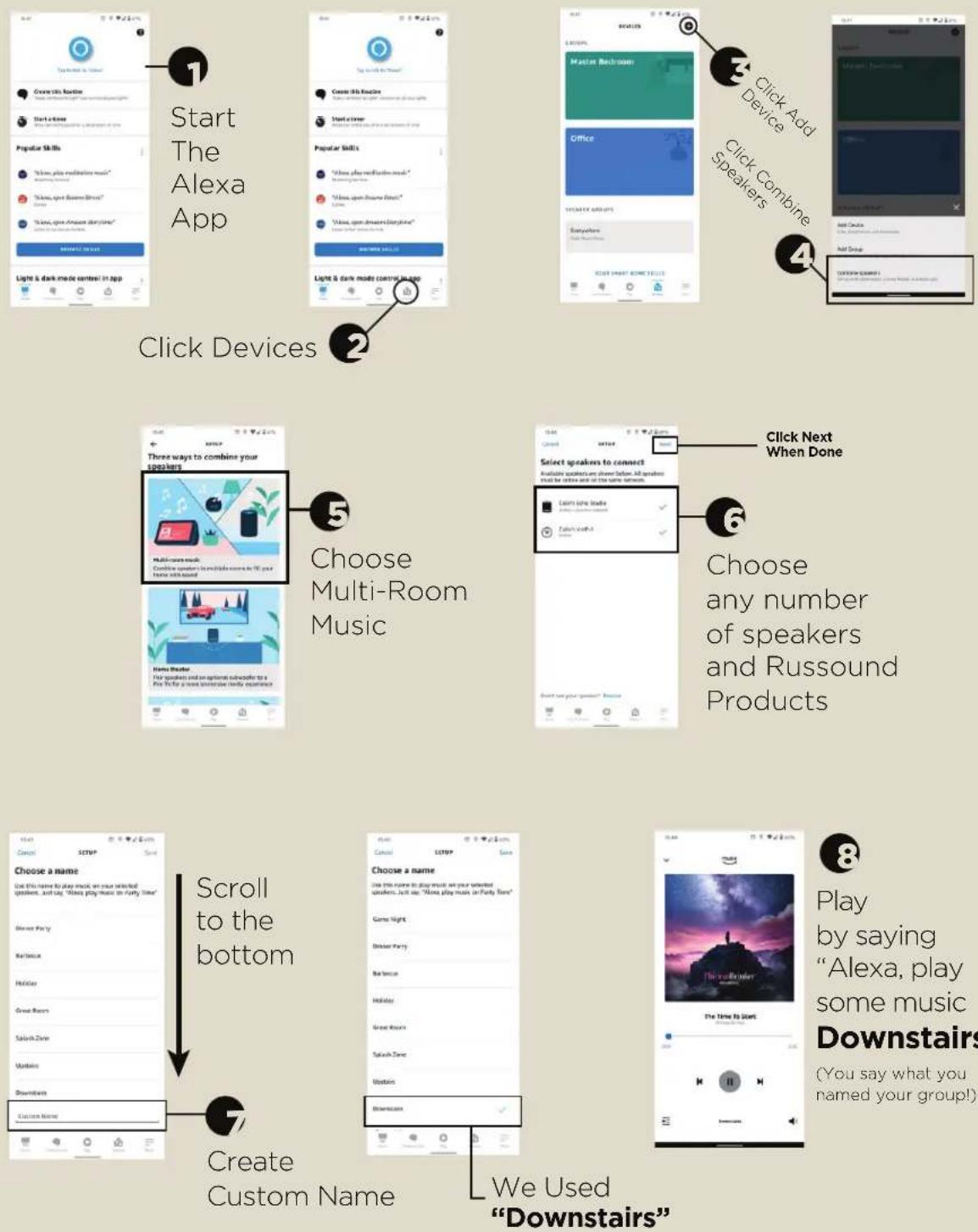
Create Groups for Synchronized Audio by using the Alexa App
Downstairs"
The Amazon Alexa app is used to create groups of VoicePlay devices to use for synchronized audio playback. Once the groups are created, they are available to use with voice control from anywhere in the home. The Alexa app is no longer needed to play music or use the groups. VoicePlay devices can even be in multiple groups for you to use when needed. For example, a Kitchen speaker might be in one group called "Dining Area", in a second group called "Downstairs" and in a third group called "Everywhere". You can then just ask Alexa to play your music on the speaker or group that you desire at any time.
- Russound a sound relationship
- Product Manual
- VoicePlay™ V-KP-1
- Amplified Keypad with Amazon Alexa Built-in
- V-KP-1 OVERVIEW
- V-KP-1 WHATS IN THE BOX
- What's in the Box
- What you need for the Installation
- Philips Screwdriver for attaching the V-KP-1 to the mounting box
- V-KP-1 CONNECTION AND SETUP
- Making the Connections
- V-KP-1 USING THE KEYPAD WITH SPOTIFY CONNECT
- V-KP-1 NEW INSTALLATION
- Impedance Setting
- Wi-Fi Configuration
- To connect to your Wi-Fi network and set up your V-KP-1:
- Using your V-KP-1 without an Amazon account
- Language Selection
- Other Settings
- Using the V-KP-1 with multiple loudspeakers
- Adding additional amplification
- V-KP-1 OPERATION
- Using Spotify Connect
- Music Services
- Using Amazon Alexa
- Factory Reset Procedure
- Privacy Considerations
- Notices:
- a sound relationship Russound
- Russound
- VoicePlay™ Configuration
- Step 1- Install the VoicePlay App
- Step 2- Discovering your keypad
- Making sure your keypad is in Discovery Mode
- Step 3 - Setup
- Step 4 - Amazon Alexa
- Final Setup and Room Groups
- Ways to Enjoy your Music with VoicePlay
- Troubleshooting Setup
- TIP #1
- TIP #2
- VoicePlay
- Streaming Amplified In-Wall Keypad Solution and Power Supply
- VoicePlay Keypad Features
- VoicePlay Power Supply Features
- VoicePlay Keypad Overview
- VoicePlay Power Supply Overview
- Application Wiring Diagram
- Amazon Alexa Built-In
- Create Groups for Synchronized Audio by using the Alexa App
Brand : Russound
Model : V-KP-1
Category : Hi-Fi System