
ISP6X - Controller IHOME - Free user manual and instructions
Find the device manual for free ISP6X IHOME in PDF.


| Product Type | Smart Plug / Wi-Fi Controller |
| Brand | iHome |
| Model | ISP6X |
| Electrical Ratings | 120V AC, 60Hz, 15A, 1800W |
| Wi-Fi Requirement | 2.4GHz network (not 5GHz) |
| Compatible Devices | Apple iOS 9.3+ or Android KitKat 4.4+ |
| App | iHome Control (App Store / Google Play) |
| Voice Control | Siri (iOS), Amazon Alexa |
| Smart Home Integration | HomeKit, Wink, Nest |
| Maximum Load | 1800W resistive load |
| Setup Method | Scan accessory code or connect to 'iHome SmartPlug xxxxx' WiFi |
| Factory Reset | Press and hold button for 15 seconds |
| LED Indicator | Solid when ON, blinking when ready for setup |
| Safety Certifications | FCC Part 15, IC RSS, CAN ICES-3(B)/NMB-3(B) |
| Usage Environment | Indoor use only |
| Sharing | Between iOS and Android devices via iHome account or invitations |
| Remote Access | Requires Apple TV (tvOS 10.1+) or iPad (iOS 10.1+) as home hub |
Frequently Asked Questions - ISP6X IHOME
User questions about ISP6X IHOME
0 question about this device. Answer the ones you know or ask your own.
Ask a new question about this device
Download the instructions for your Controller in PDF format for free! Find your manual ISP6X - IHOME and take your electronic device back in hand. On this page are published all the documents necessary for the use of your device. ISP6X by IHOME.
USER MANUAL ISP6X IHOME
Control your SmartPlug from anywhere with your smartphone
WHAT YOU'LL NEED
• WiFi network transmitting at 2.4GHz ^1
Apple® device running iOS 9.3 or later or Android device running KitKat 4.4 or later connected to your preferred WiFi network
NOTE: If you intend to use a mix of devices (iOS AND Android), please set up the SmartPlug using your iOS device and then share to your Android device(s).
Quick Start Setup
1 Download and open the iHome Control app from the App Store or Google Play.
2 Plug the SmartPlug into a desired outlet. The LED will start blinking to indicate it is ready for setup.
3 Tap Add Device ... in the Devices tab and follow the on-screen directions to complete setup.
4 When prompted, scan or type the Accessory Setup Code below:

5 Success! You should now be able to toggle your SmartPlugs ON or OFF from the iHome Control app or by using Siri®.
Alternative method for iOS: Go to your device WiFi settings and connect to "iHome SmartPlug xxxxx". Configure it to your preferred WiFi network. Then re-open the iHome app and proceed from Step 3 above.
Sharing
Now that you've successfully completed setup, you may want to gain/share access to your SmartPlugs on different devices. Please follow the chart below:
| Grant Access to iOS Devices | |
| w/ the same iCloud account | w/ different iCloud accounts |
| Download and launch the iHome Control app on other device(s) and wait for the SmartPlug(s) to appearNOTE: If you chose to set up an iHome account, use the same login on both devices | Tap Sharing in the Settings section of the iHome Control app and follow instructionsDownload and launch the iHome Control app on other devices(s)Accept invitation on other device(s) |
| Grant Access to Android Devices | |
| option 2option | |
| Download and launch the iHome Control app on other device(s) and sign in with your existing iHome account credentials | Tap Sharing in the Settings section of the iHome Control app and follow instructionsDownload and launch the iHome Control app on other device(s)Accept invitation on other device(s) |
NOTE: sharing works from iOS to iOS, iOS to Android, and Android to Android
Plug Overview
The iSP6X SmartPlug is a Wi-Fi enabled device that allows wireless control of lamps, heaters, fans and other small appliances up to 1800 Watts. ^2
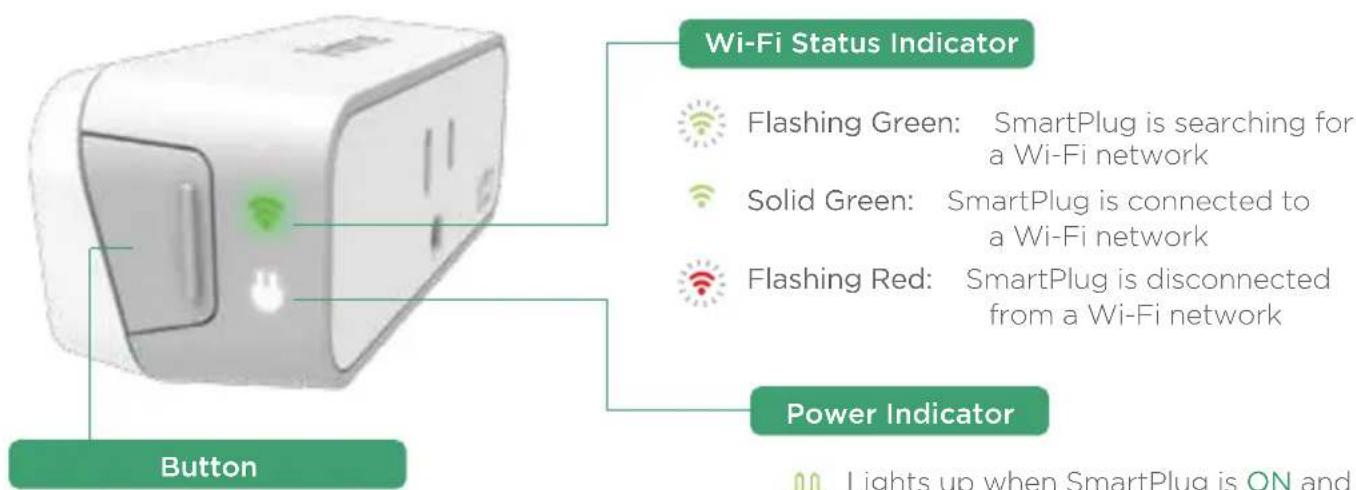
- Press once to toggle SmartPlug ON or OFF
- Press and hold for 15 seconds to reset the SmartPlug to factory settings
(Use the iHome Control app to reconfigure network settings)

Lights up when SmartPlug is ON and electricity is flowing through
HomeKit™ (iOS only)
HomeKit is an Apple standard for home control. HomeKit allows you to group together several devices into Homes, Rooms, and Zones.
Zones
Establish Zones — a collection of rooms (e.g. "First Floor")
Scenes
Create Scenes — a collection of on-demand device triggers (e.g. a "Bedtime" Scene can be set to turn ON a Fan and turn OFF a Lamp)
Siri (iOS only)
HomeKit also enables control of your SmartPlug with your voice, using Siri. Here are some examples of how to execute commands successfully. Activate Siri and say:
"Turn ON my Living Room"
This command will turn ON all SmartPlugs assigned to a particular room, in this case, the Living Room.
"Turn OFF my Bedroom Lamp"
This command turns OFF a particular SmartPlug. For example, if you have an accessory named "Lamp" in your Bedroom.
"Set Bedtime Scene"
This command will execute your Bedroom Scene if set up in the Scenes tab of your iHome Control app.
Ways to Use Your SmartPlug
Rules
Create Rules — think of a rule as a schedule or trigger

Nighttime Every day at 5:00 PM
For example, create a rule named "Nighttime." This will turn a floor lamp ON at 5:00 pm and OFF at 11:00 pm. It can be set to repeat every day or for specific days that you choose.
3rd Party Connections
We've already developed several integrations to Nest, Wink and the Amazon Alexa to make your SmartPlug even more useful. For more information, visit the Settings section of your app and click on any of the Third-Party Connections.
| Wink | SmartPlug integrates with your Wink app. No hub required!Create Robots and Shortcuts with your other Wink devices. |
| Nest | Works with your Nest Learning Thermostat* “Home” and “Away” status to automatically turn your SmartPlug ON or OFF. |
| Amazon Alexa | SmartPlug can be controlled with the Amazon Alexa. Ask Alexa to turn your SmartPlug on or off with your voice. |
Notes
All Wi-Fi routers support 2.4GHz spectrum. If your router was deliberately set to only transmit 5GHz, then please note that the SmartPlug will not work properly on your network. Enterprise networks (such as in colleges and businesses) often have more restricted security settings that may impact the performance of your SmartPlug.
2Your SmartPlug supports devices or appliances up to 1800 Watts. Please consult the owner's manual of your device.
Electrical Ratings
120V Volts AC, 60Hz
15A
1800W
General use
Safety Warnings
- Plug directly into electric outlet (not into extension cord)
• For indoor use only - Remove Smartplug from outlet before cleaning
DO NOT clean with liquid
DO NOT remove ground pin (middle pin)
DO NOT use in wet or damp areas
Keep children away from SmartPlug and outlet
• DO NOT exceed the recommended electrical ratings
• DO NOT use in precision timing applications where inaccurate timing could be dangerous (sunlamps, saunas, etc.)
• DO NOT use with devices that should not be operated unattended
Recommendations
• Test device locally for safe operation before attempting to control it remotely
• DO NOT use with an outlet controlled by a wall switch as the switch may be off
Notices
FCC
This device complies with Part 15 of the FCC Rules. Operation is subject to the following two conditions:
(1) this device may not cause harmful interference, and (2) this device must accept any interference received, including interference that may cause undesired operation.
To assure continued FCC compliance:
- Any changes or modifications not expressly approved by the grantee of this device could void the user's authority to operate the equipment.
- This equipment complies with FCC radiation exposure limits set forth for an uncontrolled environment. This equipment should be installed and operated with minimum distance 20cm between the radiator & your body.
FEDERAL COMMUNICATIONS COMMISSION INTERFERENCE STATEMENT
This equipment has been tested and found to comply with the limits for a Class B digital device, pursuant to Part 15 of the FCC Rules. These limits are designed to provide reasonable protection against harmful interference in a residential installation. This equipment generates, uses and can radiate radio frequency energy and, if not installed and used in accordance with the instructions, may cause harmful interference to radio communications. However, there is no guarantee that interference will not occur in a particular installation. If this equipment does cause harmful interference to radio or television reception, which can be determined by turning the equipment off and on, the user is encouraged to try to correct the interference by one or more of the following measures:
- Reorient or relocate the receiving antenna.
- Increase the separation between the equipment and receiver.
- Connect the equipment into an outlet on a circuit different from that to which the receiver is connected.
- Consult the dealer or an experienced radio/TV technician for help.
IC
This device complies with Industry Canada license-exempt RSS standard(s). Operation is subject to the following two conditions: (1) this device may not cause interference, and (2) this device must accept any interference, including interference that may cause undesired operation of the device.
This equipment complies with IC radiation exposure limits set forth for an uncontrolled environment. This equipment should be installed and operated with minimum distance 20cm between the radiator and your body.
Legal
CAN ICES-(B)/NMB-3(B)
Use of the Works with Apple HomeKit logo means that an electronic accessory has been designed to connect specifically to iPod touch ^® , iPhone ^® , or iPad ^® , respectively, and has been certified by the developer to meet Apple performance standards. Apple is not responsible for the operation of this device or its compliance with safety and regulatory standards.
Controlling this HomeKit-enabled accessory automatically and away from home requires an Apple TV ^® with tvOS 10.1 or later or an iPad with iOS 10.1 or later set up as a home hub.
Wink is a registered trademark. Nest ^® , Nest Learning Thermostat and the Works with Nest logos are trademarks licensed by Nest Labs, Inc. Amazon Echo is a trademark of Amazon.com, Inc. or its affiliates.

For warranty information: visit https://www.ihomeaudio.com/support/
Questions?
1.800.288.2792
www.ihome.com
- WHAT YOU'LL NEED
- Quick Start Setup
- Sharing
- Plug Overview
- HomeKit™ (iOS only)
- Zones
- Scenes
- Siri (iOS only)
- "Turn ON my Living Room"
- "Turn OFF my Bedroom Lamp"
- "Set Bedtime Scene"
- Ways to Use Your SmartPlug
- Rules
- 3rd Party Connections
- Notes
- Electrical Ratings
- Safety Warnings
- Recommendations
- Notices
- FCC
- FEDERAL COMMUNICATIONS COMMISSION INTERFERENCE STATEMENT
- IC
- Legal
Brand : IHOME
Model : ISP6X
Category : Controller