
ACH120USZ - USB Hub TARGUS - Free user manual and instructions
Find the device manual for free ACH120USZ TARGUS in PDF.


| Product Type | USB Hub |
| Model | ACH120USZ |
| Brand | Targus |
| Number of Ports | 7 (USB 3.0/2.0 compatible) |
| USB Standard | USB 3.0 (backward compatible with USB 2.0) |
| Maximum Data Transfer Speed | Up to 5 Gbps (USB 3.0) |
| Power Supply | AC adapter (optional): Input 100-240V, Output 5V 6A |
| Over-Current Protection | Yes, per port |
| System Compatibility | Windows Vista, Windows XP, Mac OS X 10.4 or later |
| Plug and Play | Yes |
| Dimensions (approx.) | 4.5 x 2.0 x 0.8 inches (114 x 51 x 20 mm) |
| Weight (approx.) | 0.3 lbs (136 g) |
| Color | Black |
| Cable Length | 3 ft (0.9 m) USB cable |
| Package Contents | Hub, AC adapter, USB cable, User Guide |
| Warranty | 1 year limited warranty |
| Certifications | FCC Class B, CE |
| Maintenance | Clean with dry cloth; avoid liquids |
| Reparability | Not user-serviceable; contact Targus support for issues |
| Manufacturer | Targus Group International, Inc. |
Frequently Asked Questions - ACH120USZ TARGUS
User questions about ACH120USZ TARGUS
0 question about this device. Answer the ones you know or ask your own.
Ask a new question about this device
Download the instructions for your USB Hub in PDF format for free! Find your manual ACH120USZ - TARGUS and take your electronic device back in hand. On this page are published all the documents necessary for the use of your device. ACH120USZ by TARGUS.
USER MANUAL ACH120USZ TARGUS
This equipment has been tested and found to comply with the limits of a Class B digital device, pursuant to Part 15 of the FCC Rules. These limits are designed to provide reasonable protection against harmful interference in a residential installation. This equipment generates, uses, and can radiate radio frequency energy and if not installed and used in accordance with the instructions, may cause harmful interference to radio communications. However, there is no guarantee that interference will not occur in a particular installation. If this equipment does cause harmful interference to radio or television reception, which can be determined by turning the equipment off and on, the user is encouraged to try to correct the interference by one or more of the following measures:
• Reorient or relocate the receiving antenna;
- Increase the separation between the equipment and receiver:
- Connect the equipment into an outlet on a circuit different from that to which the receiver is connected;
- Consult the dealer or an experienced radio/TV technician for help.
Changes or modifications not authorized by the party responsible for compliance could void the user's authority to operate this product.
Declaration of Conformity
Hereby, Targus, declares that this device is in compliance with the essential requirements and other relevant provisions of Directive 1999/5/EC.
Features and specifications subject to change without notice. Microsoft, Windows, and Windows Vista are either registered trademarks or trademarks of Microsoft Corporation in the United States and/or other countries. All trademarks and registered trademarks are the properties of their respective owners. All rights reserved. © 2011, Targus Group International, Inc. and Targus, Inc., Anaheim, CA 92806 USA.
1 YEAR LIMITED WARRANTY: We pride ourselves on the quality of our products. For complete warranty details and a list of our worldwide offices, please visit www.targus.com. Features and specifications are subject to change without notice. All trademarks and registered trademarks are the property of their respective owners. All rights reserved. 92011 Manufactured or imported by Targus Group International, Inc. (for U.S. sales: 1211 North Miller Street, Anaheim, CA 92806 USA) whose Australian sales representative is Targus Australia Pty. Ltd., 117-119 Bowloon Street, Meadowbank, NSW 2114 Australia
410-2218-001A / ACHI 20US
Targus ^®
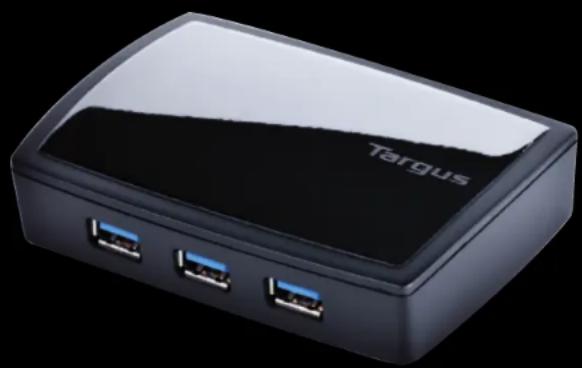
7-PORT
USB 3.0 COMBO HUB
natural_image
Exterior view of a Targus device with two ports and a white cover (no text or symbols on the device body)QUICK START GUIDE
Introduction
Thank you for your purchase of the 7-Port USB 3.0 Combo Hub. This hub allows you to connect up to 7 USB 3.0 and 2.0 devices such as hard drives, flash drives, printers and more.
Contents
- 7-Port USB 3.0 Combo Hub • AC adapter
- USB cable • User Guide
System Requirements
Hardware
- USB interface
Operating System
- Microsoft Windows Vista®
- Microsoft Windows» XP
• Mac OS® X 10.4 or later
Connecting the Hub to Your Computer
This hub is a plug and play device. It will automatically operate when the USB cord is connected to the computer.
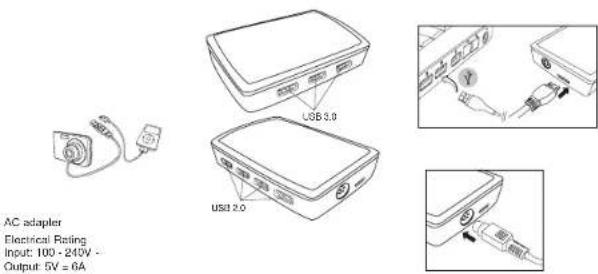

NOTE: THE INCLUDED AC ADAPTER IS OPTIONAL AND ONLY NEEDED WHEN PLUGGING IN DEVICES THAT REQUIRE MORE POWER.
Troubleshooting
Device Not Working
- Make sure that the device is fully inserted into the correct port on the 7-Port USB 3.0/2.0 Hub.
- Plug the device into a different port on the USB Hub. If it still doesn't work, test the device by connecting it directly to your computer.
- Verify that you ran the Setup or Install program for the device.
• Make sure that the device appears in Device Manager. - Disconnect all devices from the hub and reconnect them, one at a time.
Check that each device works before plugging in the next one.
• Each USB port is equipped with over-current protection. Should a USB device draw more current than the USB port can supply, the port will shut down.
To re-enable the port, unplug the device and go to Device Manager or to the message in the system tray and choose the Reset option. You can then plug the device back into the USB port. If a shut down reoccurs, check the power requirements of the device.
Verifying Devices are Installed
You can view the devices installed on the 7-Port USB 3.0/2.0 Combo Hub from the Device Manager window in System Properties.
Right-click My Computer, Properties, then click the Hardware tab, and then the Device Manager button.
Technical Support
For technical questions, please visit:
US Internet: www.targus.com/support.asp
Australia Internet: www.targus.com/au
Email: infoaust@targus.com
Telephone: 1800-641-645
New Zealand Telephone: 0800-633-222
Product Registration
Targus recommends that you register your Targus accessory shortly after purchasing it. Go to:
http://www.targus.com/registration.asp
You will need to provide your full name, email address, country of residence and product information.
Warranty
Targus warrants this product to be free from defects in materials and workmanship for one year. If your Targus accessory is found to be defective within that time, we will promptly repair or replace it. This warranty does not cover accidental damage, wear and tear, or consequential or incidental loss. Under no conditions is Targus liable for loss of, or damage to devices; nor loss of, or damage to, programs, records, or data; nor any consequential or incidental damages, even if Targus has been informed of their possibility. This warranty does not affect your statutory rights.
Regulatory Compliance
This device complies with Part 15 of the FCC Rules. Operation is subject to the following two conditions: (1) This device may not cause harmful interference, and (2) This device must accept any interference received, including interference that may cause undesired operation.
Brand : TARGUS
Model : ACH120USZ
Category : USB Hub