
5T - Smartphone ONEPLUS - Free user manual and instructions
Find the device manual for free 5T ONEPLUS in PDF.


| Product Type | Smartphone |
| Brand | OnePlus |
| Model | 5T |
| Display | 5.5-inch Optic AMOLED |
| Resolution | 1080 x 2160 pixels |
| Processor | Qualcomm Snapdragon 835 |
| RAM | 6GB / 8GB |
| Storage | 64GB / 128GB |
| Rear Camera | 16 MP (wide) + 20 MP (telephoto) |
| Front Camera | 16 MP |
| Battery | 3300 mAh (typical) |
| Charging | Dash Charge (5V/4A) |
| Operating System | OxygenOS (based on Android) |
| Dimensions | 156.1 x 75 x 7.3 mm |
| Weight | 162 g |
| SIM | Dual Nano-SIM |
| Fingerprint Sensor | Yes, front-mounted |
| Alert Slider | Yes (3 profiles) |
| Connectivity | Wi-Fi 802.11 a/b/g/n/ac, Bluetooth 5.0, NFC, USB Type-C |
| Headphone Jack | Yes |
| Colors | Midnight Black, Slate Gray |
| Additional Features | Reading Mode, Gaming Do Not Disturb, Pro Mode, Portrait Mode |
Frequently Asked Questions - 5T ONEPLUS
User questions about 5T ONEPLUS
0 question about this device. Answer the ones you know or ask your own.
Ask a new question about this device
Download the instructions for your Smartphone in PDF format for free! Find your manual 5T - ONEPLUS and take your electronic device back in hand. On this page are published all the documents necessary for the use of your device. 5T by ONEPLUS.
USER MANUAL 5T ONEPLUS
OnePlus 5 User Manual
Index
04 What's in The Box?
05 Device
06 Alert Slider
07 Camera
08 Portrait Camera Mode
09 Dual Camera Zoom
10 Video
11 Pro Mode - Overview
12 Pro Mode - How to adjust settings
13 Hamburger Menu and Settings
14 Dash Charge
15 Display
16 Dual Nano SIM Card Tray
17 Fingerprint Sensor
18 Power On
19 OxygenOS
20 Setup
21 Launcher
22 Shelf
23 Customization
24 App Long Press
25 Reading Mode
26 Gaming DnD
27 Dialer
28 Messenger
29 Gallery
30 Weather
31 Recorder
32 File Manager
33 App Permission
34 Safety Information
Welcome
Thank You!
The OnePlus 5 is the result of over 3 years of constant refinement.
Featuring a combination of top-notch hardware and fluid, open software to create a smooth experience. Every part of the OnePlus 5 was deliberately selected and optimized to ensure the best user experience
We built the OnePlus 5 together, focusing on what matters to your experience. The goals and expectations of our flagship device have never been higher. We can't wait to see you experience the OnePlus 5 for yourself.
What's in The Box

OnePlus 5 Dash Type-C Cable Quick Start Guide
(Note: The screen
protector has been
pre-applied on the phone)


SIM Tray Ejector

Dash Power Adapter Screen Protector


Safety Information
Device

Alert Slider
The Alert Slider, which is located on the upper edge of your phone, gives you complete control over your notifications. Effortlessly toggle between 3 notification profiles without having to take your phone out of your pocket. With the OnePlus 5, switching between notification profiles is faster and easier than ever before.

None
Disables all notifications
(alarms will still be enabled)

Priority
Pushes notifications only from your priority apps and contacts
(which you can program in Settings > Sound & notification > App notifications)

All
Allows notifications from all apps and contacts.
Dual Camera
The OnePlus 5's signature Dual Camera can be found on the rear of the device, featuring a 16 MP wide-angle lens and a 20 MP telephoto lens to enable a greater breadth of shots. Powered by exclusive Smart Capture technology, and a suite of new features, the OnePlus 5 Dual Camera can take extremely clear photos. On the front, you'll find a 16 MP front-facing camera for all your selfie and life streaming needs.

Portrait Mode
The OnePlus 5 uses two camera sensors together to generate a focal separation between your subject and a background. Separating the background from a face enables the OnePlus 5 to apply a professional depth-of-field, or bokeh, effect. To activate Portrait Mode, simply open your camera app and swipe to the left. Center your subject and allow the camera to apply a natural depth of field effect. Once you're happy with your shot, simple hit the shutter button to take the portrait.

Dual Camera Zoom
With the help of the 20 megapixel telephoto lens, the OnePlus 5's Dual Camera system can zoom in at high resolution and maintain quality. A combination of optical zoom and our multi-frame software algorithm lets you zoom with more clarity than ever before. Just tap the zoom button once to immediately zoom to 2x, or slide the zoom button left to manually zoom in up to 8x.
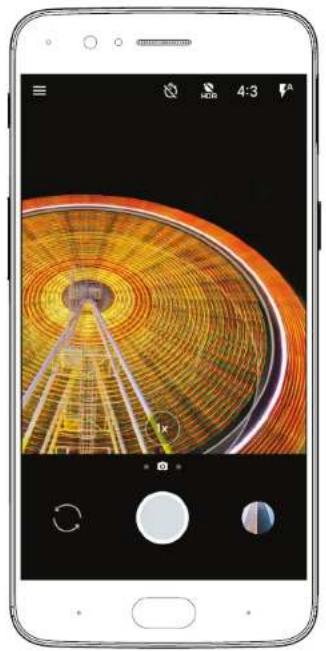
Video
The OnePlus 5 comes equipped with a variety of video recording options, so you can always find the right tool for the job. To start recording, just tap 'video' in the hamburger menu or swipe right in the camera UI. Within this menu, you can manually pick the type of video you would like to record, with options ranging from 1080P 60 FPS to 4K.

Pro Mode
The OnePlus 5 features an all-new Pro Mode that allows you to freely tweak and optimize certain parameters of your photos. Within Pro Mode, which can easily be accessed through the OnePlus 5's camera UI, you can tweak among others, the ISO, white balance, shutter-speed, focus and exposure for each shot. Simply tap on the corresponding button to open the modification wheel of any given setting, and turn the wheel to adjust it.

Pro Mode - Continued
You'll also have access to a new histogram in the top-right corner of your screen, which helps you gauge the exposure level in the photo in order to correct brightness. Using the gyroscope of the OnePlus 5, the reference line found in the center of the screen, automatically adjusts to landscape or portrait views, turning green when the shot is perfectly aligned. If you hit upon a settings profile, you can store it and another profile in Pro Mode for easy access and quick adjustments.

Hamburger Menu and Settings
Tap on the Hamburger menu in the Camera UI to unroll the menu options. Aside from the options discussed elsewhere in this guide, you can also access the time-lapse, slow motion, and panorama features in this menu. You can also tap on the settings icon in the top-right corner of the screen, which allows you to store location data, adjust the grid of the UI, and toggle the histogram on or off.


Dash Charge
The OnePlus 5 comes with Dash Charge, an exclusive technology that sets a new benchmark for fast charging solutions. A quick 30-minute charge will give your OnePlus 5 enough power for the day. Dash Charge powers your OnePlus 5 at the same rate, even when streaming videos, playing graphic-intensive games or navigating with GPS.
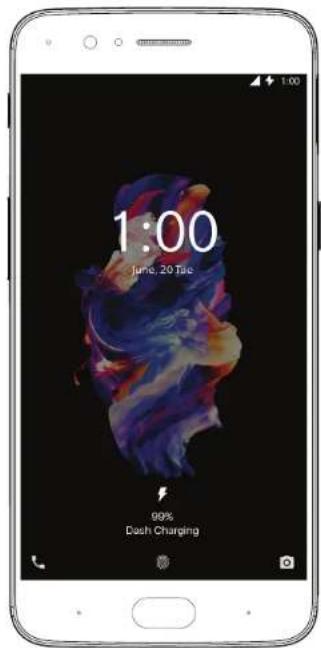
DASH CHARGE
Display
The OnePlus 5 comes equipped with a stunning 5.5" Optic AMOLED display. Colors are more vivid and true-to-life than ever before, without increasing power consumption. Three different color calibrations give you the freedom to adjust your display for maximum comfort. The new DCI-P3 Display Mode joins the sRGB and Default Display modes for enhanced flexibility.
Dual SIM Card Tray
The OnePlus 5 is carrier-unlocked out of the box, with dual nano-SIM card support. With the power to connect to two networks at the same time, you can use one device for everything. The OnePlus 5 is a true world phone, with support for 34 network bands worldwide.
Use the SIM Tray Ejector (found in the box) to remove the SIM tray from the device. Up to two Nano SIM cards fit into the tray.

Fingerprint Sensor
The premium ceramic fingerprint sensor unlocks your OnePlus 5 in 0.2 seconds, even when the screen is turned off. The sensor learns and progressively improves, so your scans get even more precise over time.

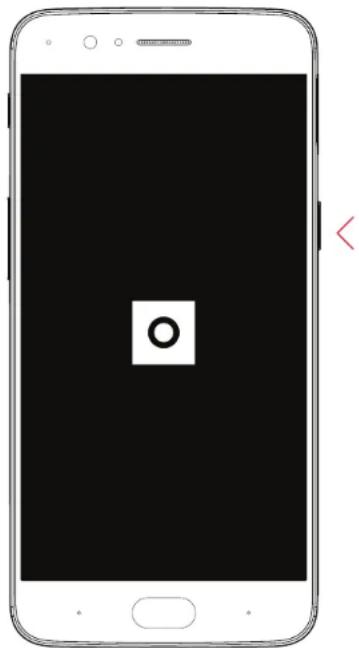
Power On
Turn on your OnePlus 5 by pressing and holding the
OxygenOS
OxygenOS is a fast, clean and customizable operating system based on Android. By constantly refining the core functionalities of our software, and implementing user feedback early and often, OxygenOS offers a smooth and flexible user experience.

Setup
Upon booting up, proceed through the Google wizard to setup your Google account & sync, setup fingerprint and more. The OnePlus Setup gives you the opportunity to personalize your OnePlus 5, allowing you to craft a smartphone experience that works just the way you want it to. You can enable software buttons, gestures and other features as you see fit.

Launcher
The launcher supports third-party icons and allows you to change your app drawer grid, assign gestures & more. Users can freely switch between three available icon packs, to make sure their phone suits their style. To access the App Drawer, simply swipe up on the home screen. All of your apps are automatically arranged in alphabetic order, for easy access. Long-press on the home screen to open the launcher options, which you can use to change to a different icon pack, select a different wallpaper, and more. Freely customize quick access icons in the status bar to improve navigation.
You can re-arrange icons by long pressing on the home screen and clicking "Rearrange" to remove clutter.

Shelf
Swipe right from your home screen to open up Shelf. This separate menu grants access to your favorite apps, most frequent contacts and recent photos. The clean and streamlined UI can be manually enhanced with widgets or customized using a variety of intelligent options.

Customization
OxygenOS features three different themes to give you full control of your viewing experience. Change your accent color and even the color of your LED from the customization page under settings. App icons can also be resized for a cleaner and more consistent look. Navigation controls can be tweaked using custom gesture controls and adjustable buttons. New to the OnePlus 5 is the ability to adjust vibration intensity, and assign vibration profiles to different callers to further personalize your experience. You'll also have access to three new off-screen gestures, that you can assign to different apps and features for quick and easy access.


App Long Press
New app shortcut support functionality allows you to quickly use specific in-app features from the comfort of your home screen. Just long press an App to open the shortcut menu, and tap your desired feature. This enables you to, for instance, open a new tab in your browser, compose an email, or check out trending videos on Youtube without having to navigate the app.


Reading mode
Reading on your smartphone is more comfortable than ever, thanks to the OnePlus 5's new Reading Mode. By filtering out blue light, gray-scale mapping, and using ambient information to adjust the sharpness and brightness of the display, Reading Mode simulates the reading experience of a real book. Reading Mode can be toggled on and off manually in the settings menu under 'Display'. You can also this mode to turn on automatically when you use certain apps.


Gaming Do not Disturb
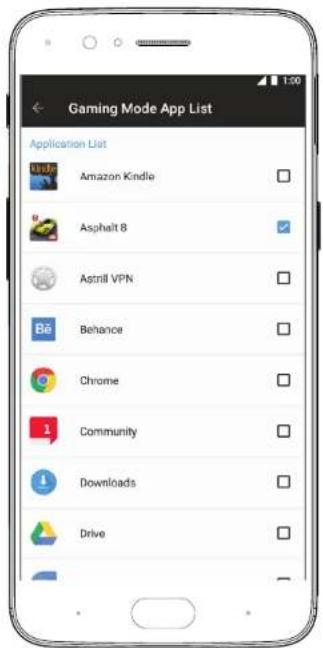
You don't want to be disturbed while you're in the heat of a challenging level. When Gaming DND is turned on, notifications are blocked and the hardware keys are turned off to ensure you won't be bothered unnecessarily. You can manually turn on Gaming DND in the Advanced Menu under Settings, and you can also set Gaming DND to turn on automatically when you start up your favorite games.

Dialer
Tap the 📊 on your home Screen or application drawer and use the dialer 🔒 to make phone calls manually, or tap any contact card from the Speed Dial list to quickly dial that contact. Select a phone number from Contacts, an e-mail, or a text message to make a call.
Contacts are automatically added to your Speed Dial list based on frequency of use. You can permanently pin contacts to the top of your Speed Dial list by marking them as Favorites ★ simply press the star icon on each contact you want to add.

Messenger
To send an SMS, launch the Messenger application on your home screen or application drawer. Enter the name or phone number in the field or select someone from your contacts. Type your message, then tap ▶.
For an MMS, in the Messenger application, select the media you want to add 📄. Type your message, then tap ▶.

Gallery
With 16 different filters, the editing mode allows you to tweak your images with actions like resize and crop." instead of "With 16 different filters, the editing mode allows you to resize and crop images.


Weather
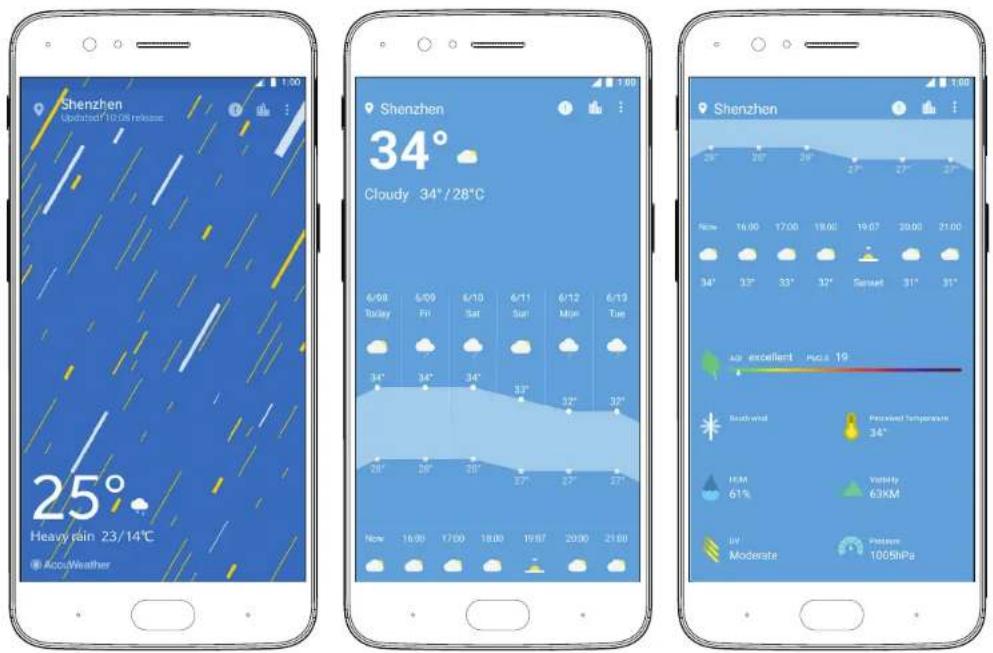
This custom weather app provides a real-time look at the weather conditions at your location. The display's visuals dynamically adapt to the environment to indicate different types of weather and environmental hazards like rain or fog.
Recorder
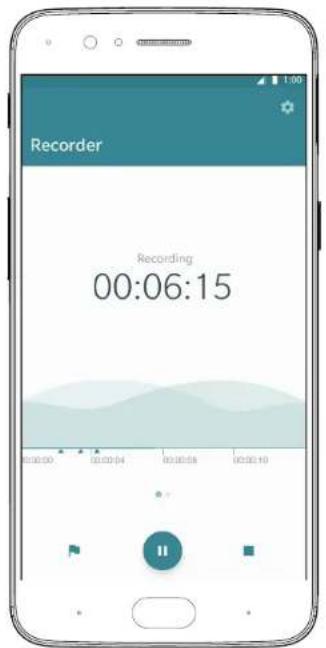
Our dynamic recorder app provides great flexibility and versatility. Stay on top of your recording by tracking the volume of all incoming sound and manually place timestamps to mark important moments.
File Manager
The File Manager has been enhanced with numerous new features. Now users can hide their private documents, photos and in Secure box, a private zone that can be unlocked by pin verification or fingerprint. Files also can be categorized and labeled to improve the structure of your files, keep track of your files using new storage info, and enjoy a much improved search function. All of your Google drive files are supported within our File Manager.


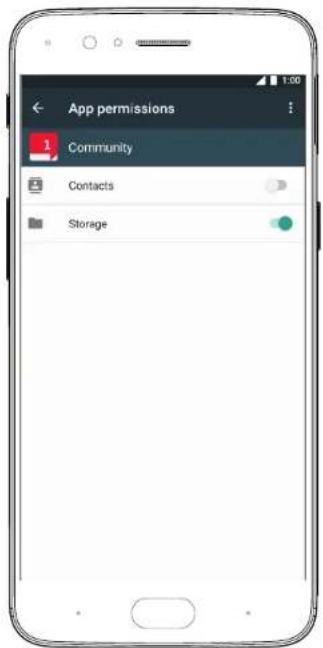
App permissions
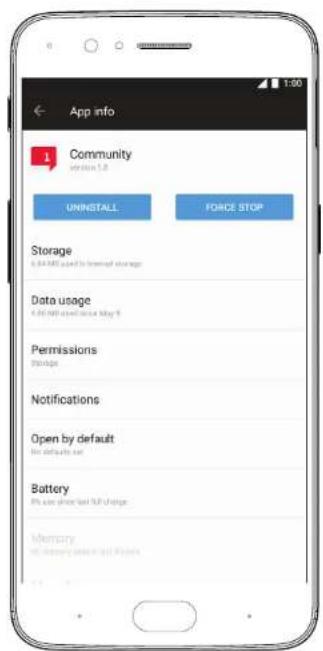
App Permissions allow you to control what information and permissions your apps can access, like location, identity, contacts and more. Customize their permissions in the apps page, found under settings.
Safety Information
This user manual contains all necessary product safety literature.
Please read carefully before using the device, and retain the manual for future reference.
Declaration
OnePlus is trademark or registered trademark of OnePlus Technology (Shenzhen) Co., Ltd.. All rights reserved. Without prior written permission of OnePlus, reproduction, transfer, distribution or storage of the contents in this document in any form is prohibited. OnePlus operates a policy of ongoing development. Thus, OnePlus reserves the right to make changes or improvements to any of the products described in this document without prior notice. The contents of this document are all provided "as is". Except as required by applicable law, no warranties of any kind, either express or implied, are made in relation to the accuracy of this document. To the maximum extent permitted by applicable law, under no circumstances shall OnePlus or any of its licensors be responsible for any loss of data or incur or any special, incidental, consequential, or indirect damages caused. Availability of product supplies, application software, and accessories may vary. For detailed information, please refer to an authorized OnePlus distributor. This device may contain commodities, technology, or software subject to export laws and regulations. Diversion contrary to law is prohibited.
Safety
Failure to follow these guidelines may cause injury to your device, property, yourself, or others.
- Do not switch on the device when prohibited, or when it may cause interference or danger.
- When operating the device in a vehicle, obey and follow all related local laws.
- Do not use the device at gas stations, service stations, or near fuel or chemicals.
• Mobile phones might cause interference with radio frequencies. Check all laws and regulations during a flight. - Hospitals or healthcare organizations may use equipment that is sensitive to radio frequencies. Please obey all rules and regulations when you are at above facilities.
• All wireless devices may be susceptible to radio frequencies interference, which could affect the performance of your device. - Only qualified and authorized personnel should perform repairs to this product.
- Please only use branded accessories and batteries that are approved by OnePlus with your device. Accessories which are not approved by OnePlus may damage the phone or cause body harm.
- This device is not water-resistant. Please keep it away from humid conditions.
- When connecting with other devices, please follow the safety guidelines which are presented in this manual.
- Do not attempt to connect your device with incompatible products.
Battery Precautions
- Please do not attempt to repair, disassemble or modify the battery. Do not place or use battery near fires, heaters, direct sunlight, or other heat sources. Prolonged exposure to heat may cause battery leakage, explosions, or fires.
- Please do not place pressure on or pierce the battery with hard objects. Damaging the battery could cause battery leakage, overheating, or fires.
• Battery liquid may cause damage to skin or clothes. If exposed, immediately wash skin with water and seek medical attention. - If you experience any battery abnormalities, such as high temperature, discoloration, distortion, or leakage, immediately discontinue usage of the device and contact customer support.
- If the battery's internal liquid comes in contact with your eyes, rinse thoroughly and immediately seek medical attention.
• Do not connect your device to a high-voltage power supply or the battery could become damaged.
• All batteries have a limited lifespan and will begin to lose capacity after several hundred charges/discharges. - Do not dispose of the battery as household waste. Please refer to local regulations.

WARNING: Please do not charge the battery over 12 hours.
To save power and achieve longer battery life
• Features like Bluetooth and Wi-Fi consume more power, please disable these features when you phone is not in use.
• The brighter the screen is set, more energy will be consumed; you can dim the screen brightness and shorten the sleep time in the settings.
- Make sure only using outlets with the correct voltages (as labelled on the adapter) for charging. Using the sockets with incorrect voltage can damage your phone and/or battery and lead to injury.
- Do not use unsafe plugs or outlets.
- Do not use a short-circuit charger.
- Do not disassemble or modify the charger, as this may lead to personal injury, electric shock or fire.
- Do not use the charger in humid environment.
- Do not touch the charger, cable or power socket with wet hands, as this may cause electric shock.
- Do not place heavy objects on the power cord or attempt to modify any cables.
• Make sure to grasp the charger firmly while unplugging it. Do not pull the power cord as this may lead to damage and cause electric shock or fire.
- Before cleaning the device, unplug the power plug from the socket.
- Do not charge the battery under the following conditions: in direct sunlight, in temperatures below 5°C or above 40°C; in the environment with humidity, dust or strong vibrations; in areas near a TV, radio or other electrical appliances.
- The maximum ambient charging temperature of the equipment declared by manufacturer is 25°C .
• The charger is intended for indoor use only.
Driving Safely
• Safety should take priority when you are operating a vehicle. Be sure to obey related regulations in the area or country in which you drive.
- Please do not store or carry your mobile phone or accessories near liquid or flammable gas. Make sure you do not place your phone or accessories near safety air bags.
- Do not rely solely on the GPS in your phone; these applications are only for reference purposes only. Location information changes regularly, and in some places these features are not supported. Map routes and/or compass may be incorrect, incomplete or unsupported.
- Electromagnetic waves (in the surrounding environment or even earphone magnets) can disrupt the accuracy of the compass, so please only use it for reference.
- If you do not wish to disclose your location, be sure not use applications that can record your location. Please obey the rules, law and your local regulations.
Operating Environment
- Please switch off your device whenever phone use is prohibited or when it may cause interference or danger.
• Mobile phones may interfere with the normal operation of electronic equipment and medical devices. Please follow related laws and regulations. - Your mobile phone's radio waves may interfere with high accuracy electronic equipment.
- Only operate your phone between -10-35°C temperature and 35-85% humidity.
- In extremely rare occasions, the device may affect a vehicle's electronic equipment.
FCC & IC Statement
OnePlus is not responsible for any radio or TV interference caused by unauthorized modifications or changes to this equipment. Such modifications or changes could void the user's authority to operate the equipment.
This equipment has been tested and found to comply with the limits for a Class B digital device, pursuant to part 15 of the FCC Rules. These limits are designed to provide reasonable protection against harmful to part interference in a residential installation. This equipment generates uses and can radiate radio frequency energy and, if not installed and used in accordance with the instructions, may cause harmful interference to radio communications.
However, there is no guarantee that interference will not occur in a particular installation. If this equipment does cause harmful interference to radio or television reception, which can be determined by turning the equipment off and on, the user is encouraged to try to correct the interference by one or more of the following measures:
- Reorient or relocate the receiving antenna.
- Increase the separation between the equipment and receiver.
- Connect the equipment into an outlet on a circuit different from that to which the receiver is connected.
- Consult the dealer or an experienced radio/TV technician for help.
FCC Caution
- Any changes or modifications not expressly approved by the party responsible for compliance could void the user's authority to operate the equipment.
• The antenna(s) used for this transmitter must not be co-located or operate in conjunction with any other antenna or transmitter. - The country code selection is for non-US model only and is not available for all US models. Per FCC regulation, all Wi-Fi product marketed in US must be fixed to US operation channels only.
- If applicable, operations in the 5.15-5.25GHz band are restricted to indoor usage only.
RF Exposure Information (SAR)
This device meets the government's requirements for exposure to radio waves.
This device is designed and manufactured not to exceed the emission limits for exposure to radiofrequency (RF) energy set by the Federal Communications Commission of the U.S. Government.
- The exposure standard for wireless devices employs a unit of measurement known as the Specific Absorption Rate, or SAR. The SAR limit set by the FCC is 1.6W/kg. Tests for SAR are conducted using standard operating positions accepted by the FCC with the device transmitting at its highest certified power level in all tested frequency bands.
- Although the SAR is determined at the highest certified power level, the actual SAR level of the device while operating can be well below the maximum value. This is because the device is designed to operate at multiple power levels so as to use only the power required to reach the network. In general, the closer you are to a wireless base station antenna, the lower the power output.
• While there may be differences between the SAR levels of various devices and at various positions, all meet the government requirement. - This device has also been tested and meets the FCC RF exposure guidelines for use with an accessory that contains no metal and positions the handset a minimum of 1.0 cm from the body.
- Use of other accessories may not ensure compliance with FCC RF exposure guidelines. Position the handset a minimum of 1.0 cm from your body when the device is switched on.
CE Certification Information (SAR)
The SAR limit of Europe is 2.0 W/kg. This device was tested for typical operation with the back of the handset kept 1.5cm from the body. To maintain compliance with RF exposure requirements, use accessories that maintain a 1.5cm separation distance between your body and the back of the handset. The use of belt clips, holsters and similar accessories should not contain metallic components in its assembly. The use of accessories that do not satisfy these requirements may not comply with RF exposure requirements, and should be avoided.
If you are using a pacemaker, hearing aids, cochlear implant or similar device, please use the phone according to your doctor's advice.
Your device is designed not to exceed the limits of emission of radio waves recommended by international guidelines.
The SAR value of the device may depend on factors such as proximity to the network tower or use of accessories.
E-Waste Disposal Declaration
E-waste refers to discarded electronics and electronic equipment (WEEE). Ensure that an authorized agency repairs devices when needed. Do not dismantle the device on your own. Always discard used electronic products, batteries and accessories at the end of their life cycle; use an authorized collection point or collection center.
Do not dispose of e-waste into garbage bins. Do not dispose of batteries into household waste. Some waste contains hazardous chemicals if not disposed properly. Improper disposal of waste may prevent natural resources from being reused, as well as release toxins and greenhouse gases into the environment.
Additional Important health and Safety Information
- Please do not use the phone if the antenna is damaged. Doing so may cause injury.
- Do not place the phone near magnetic cards or other magnetic objects. Information stored on floppy discs, memory cards, and credit cards can be damaged by magnetic radiation.
- Please keep metallic objects away from phone receiver. Small metallic objects may be attracted to the device, resulting in personal injury or device damage.
- Keep the phone away from water and other liquids.
- Damage to the display can lead to leakage of the liquid inside the LCD panel. If this liquid comes in contact with your eyes, flush your eyes with water immediately. Do not rub. Immediately seek medical attention.
- Only use OnePlus authorized batteries and chargers with your OnePlus phone. Using third-party products may cause battery leakage, overheating or fires. OnePlus does not take any responsibility for accidents or problems caused by using accessories that are not approved by OnePlus.
- Only connect to power sources with USB 2.0 or above.

WARNING: Excessive sound pressure may harm your hearing.
Care and Maintenance
Your phone is a product of superior design and craftsmanship and should be treated with care.
The following suggestions will help you to prolong the life of your device.
- Please clean immediately if the screen comes in contact with liquid or dust.
- Please do not touch the connection port of the phone, as static electricity may harm components in the device.
- Do not hit, shake, or drop the phone to avoid damage and injury.
- Do not put pressure on the device, as it may damage the screen, battery, or the device itself.
- Do not place the battery, phone, or charger in a microwave oven or other high voltage equipment. Doing so may cause circuit damage, fires, or other damage.
- Do not use the phone around flammable gas.
- Please keep the phone out of reach of children in order to prevent injuries or property damage.
- Do not place the phone on uneven or unstable surfaces.
- Please remember that the phone, battery, and charger are not waterproof. Do not use these devices in the bathroom or areas with high temperature, humidity, dust or rain.
- Use soft cloth that is dry and clean when cleaning the phone, battery and charger.
- Do not use alcohol or harsh chemicals to clean the device.
• Use a soft cloth when removing dirt and smudges. Avoid using your fingernails or other sharp objects to prevent scratching the screen. - Avoid using dirty sockets when charging your phone. Doing so may cause your phone to fail to charge properly.
- Do not remove the SIM card while the phone is transmitting data or saving information.
- Avoid using modified accessories, which may damage the device or violate local regulations for radio devices.
- If applicable, the user should turn off 5GHz Wi-Fi in outdoor environments.

WARNING: Before using the phone, please read the health and safety information carefully.
Some people may get dizzy or experience medical problems in response to flashing lights. If you are at risk, please consult your doctor before using this device. If you have the following symptoms: headache, dizziness, convulsion, eyes or muscle cramps, loss of consciousness, or involuntary body movements, please stop using the device immediately and seek medical attention. Avoid using the device for extended periods and keep proper distance from your eyes.
EU Regulatory Conformance
Hereby, OnePlus Technology (Shenzhen) Co., Ltd. declares that this device is in compliance with the essential requirements and other relevant provisions of Directive 1999/5/EC.
Notice: Please check the local regulations in the location where the device is to be used. This device may be restricted for use in some or all member states of the European Union (EU).
NEVER SETTLE


- INDEX
- WELCOME
- THANK YOU
- WHAT'S IN THE BOX
- DEVICE
- ALERT SLIDER
- NONE
- PRIORITY
- ALL
- DUAL CAMERA
- PORTRAIT MODE
- DUAL CAMERA ZOOM
- VIDEO
- PRO MODE
- PRO MODE - CONTINUED
- HAMBURGER MENU AND SETTINGS
- DASH CHARGE
- DISPLAY
- DUAL SIM CARD TRAY
- FINGERPRINT SENSOR
- POWER ON
- OXYGENOS
- SETUP
- LAUNCHER
- SHELF
- CUSTOMIZATION
- APP LONG PRESS
- READING MODE
- GAMING DO NOT DISTURB
- DIALER
- MESSENGER
- GALLERY
- WEATHER
- RECORDER
- FILE MANAGER
- APP PERMISSIONS
- SAFETY INFORMATION
- DECLARATION
- SAFETY
- BATTERY PRECAUTIONS
- TO SAVE POWER AND ACHIEVE LONGER BATTERY LIFE
- DRIVING SAFELY
- OPERATING ENVIRONMENT
- FCC & IC STATEMENT
- FCC CAUTION
- RF EXPOSURE INFORMATION (SAR)
- CE CERTIFICATION INFORMATION (SAR)
- E-WASTE DISPOSAL DECLARATION
- ADDITIONAL IMPORTANT HEALTH AND SAFETY INFORMATION
- CARE AND MAINTENANCE
- EU REGULATORY CONFORMANCE
Brand : ONEPLUS
Model : 5T
Category : Smartphone