
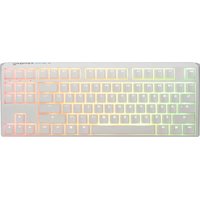
Shine 6 Special Edition - Keyboard Ducky - Free user manual and instructions
Find the device manual for free Shine 6 Special Edition Ducky in PDF.


User questions about Shine 6 Special Edition Ducky
0 question about this device. Answer the ones you know or ask your own.
Ask a new question about this device
Download the instructions for your Keyboard in PDF format for free! Find your manual Shine 6 Special Edition - Ducky and take your electronic device back in hand. On this page are published all the documents necessary for the use of your device. Shine 6 Special Edition by Ducky.
USER MANUAL Shine 6 Special Edition Ducky
Ducky Shine 6
For keyboard's specs and details, please contact our local distributors.

Side LED lighting Modes
Note: Ducky Shine 6 using a three-color RGB LED light, through Ducky Backlit technology that allows users to mix basis Red (R), Green (G), Blue (B) with a brightness of different colors, a combination of three colors that beyond performance.
Fn + F9
First mode: Smart mode
Follow Keyboard LED lighting Mode
Second mode: 100% Full Backlight mode
Players designated colors
Third mode: Marquee Mode
Players designated colors
Fourth mode: Marquee Mode
RGB Random
Fifth Mode: Color Cycling Mode
RGB Random
Sixth Mode: Backlighting Off
- Players designated colors modes above can be adjusted using the following:
◆ Fn + F1 : Adjust Color (R) brightness. 10 levels.
- Fn + F2 : Adjust Color (G) brightness. 10 levels.
◆ Fn + F3 : Adjust Color (B) brightness. 10 levels.
- Fn + F4 : Erase Red, Green and Blue color setting.
- Fn + Alt + Spacebar (Color Palette): Activate Color Palette to display 108 different colors, press to select the color you pick to complete setting.
Side LED lighting Modes
Note: Ducky Shine 6 using a three-color RGB LED light, through Ducky Backlit technology that allows users to mix basis Red (R), Green (G), Blue (B) with a brightness of different colors, a combination of three colors that beyond performance.
Fn + F9
- In addition to the smart mode, 100% LED indicators light on mode, and other modes can be adjusted by user with the following key sequences.
- Fn + Alt + ← : Decrease speed.
◆ Fn + Alt + → : Increase speed - Hold Fn + F9 for 3 seconds to turn off all backlighting (including the Keyboard lighting LED Mode, CM1 and CM2)
- Smart mode: The keyboards backlight LEDs is in relation with the LEDs on the side, as you change the backlightings LEDs the side LEDs will change as well.
Keyboard LED lighting Mode
Note:
Ducky Shine 6 using a three-color RGB LED light, through Ducky Backlit technology that allows users to mix basis Red (R), Green (G), Blue (B) with a brightness of different colors, a combination of the three colors that beyond performance.
Fn + F10
First Mode: 100% Full Backlight mode
Second Mode: Breathing Mode
Third Mode: Color Cycling Mode
Fourth Mode: Wave Mode
Fifth Mode: Rain Drop Mode
Sixth Mode: Reactive Mode Advanced
Seventh Mode: Ripple Mode
Players designated colors
Players designated colors
RGB Random
RGB Random
RGB Random
RGB Random
RGB Random
Eighth Mode: Backlighting Off
Keyboard LED lighting Mode
Note: Ducky Shine 6 using a three-color RGB LED light, through Ducky Backlit technology that allows users to mix basis Red (R), Green (G), Blue (B) with a brightness of different colors, a combination of the three colors that beyond performance.
Fn + F10
- Player designated colors modes above can be adjusted using the following:
◆ Fn + F5 : Adjust Color (R) brightness. 10 levels. - Fn + F6 : Adjust Color (G) brightness. 10 levels.
- Fn + F7 : Adjust Color (B) brightness. 10 levels.
- Fn + F8 : Erase Red, Green and Blue color setting.
- Fn + Spacebar (Color Palette): Activate Color Palette to display 108 different colors, press to select the color you pick to complete setting.
- Besides the 100% LED indicators light on mode, other modes can also adjusted by users with the following key sequences.
♦ Fn + ← : Decrease speed.
◆ Fn + → : Increase speed - Hold Fn + F10 for 3 seconds to turn off all backlighting (including Side lighting LED Modes, CM1 and CM2)
LED Zone Customization Mode
Note: Ducky Shine 6 uses Ducky's patented backlighting memory technology. This mode provides 2 sets of memory, allowing you to customize individual key's backlighting. In addition, the customized zones be set to Breathing Mode. The keyboard can be set to exactly how users want their backlight to behave.
| Fn + F11 | CM1 Cycle:First step: Turn on user customized zone and color.Second step: Breathing of user customized zone.Third Step: Turn off CM1 |
| Fn + F12 | CM2 Cycle:First step: Turn on user customized zone and color.Second step: Breathing of user customized zone.Third Step: Turn off CM2 |
| Fn + PrtSc | REC1 record CM 1 setting |
| Fn + Pause | REC1 record CM 1 setting |
| Caps Lock + F5 / F6 / F7 | Set up Red/ Green/ Blue LED Color |
| Caps Lock + F8 | Erase all LED light |
| Caps Lock + Scroll Lock | REC Over |
LED Zone Customization Mode
Note: Ducky Shine 6 uses Ducky's patented backlighting memory technology. This mode provides 2 sets of memory, allowing you to customize individual key's backlighting. In addition, the customized zones be set to Breathing Mode. The keyboard can be set to exactly how users want their backlight to behave.
- Important:
- Adjust to the brightness first, then set the individual key to be set to that color.
- Recording steps
- Press Fn + PrtSc to record CM1, and Press Fn + Pause to record CM2.
- When start recording mode, Caps Lock will display the current LED brightness. The brightness can be adjusted by hitting Caps Lock + F5/ F6/ F7/ F8. After setting the desired brightness, hitting any key on the keyboard will set that key to the selected brightness.
- Repeating the above steps allow the user to set Ducky Shine 6 with different colors to different keys. If the key have been set, press again to cancel the setting.
- To finish recording, press REC Over (Caps Lock + Scroll Lock) function to finish recording, the Brightness of the Caps Lock key is the value you set.
Note:
- Entering the recording mode will display the previously saved setting.
- If no changes are made within 30 seconds in the recording mode, the recording session will terminated without saving.
- CM1 and CM2 can be turned on along with other lighting modes. CM1 has the priority over CM2 when the zone overlaps.
DEMO Mode
This mode will not send any keycodes and will not function as a keyboard.
Please unplug and plug the keyboard to restart the keyboard in normal keyboard mode.
Hold Left Ctrl + Left Shift + Caps Lock then plug the keyboard into power source.
DEMO mode for the store window to showcase
Fn + Alt + Ctrl for 3 sec
ON/OFF display Single LED, Cycling, Wave, Snake Marquee, Aurora and Ripple Mode.
Keyboard power mode
| USB 3.0 Power Mode(Default) | Hold Right Alt + spacebar and plug-in USB port |
| USB 2.0 Power Mode | Hold Left Alt + spacebar and plug-in USB port |
Reset to Factory Defaults
| US ANSI & EU ISO Layout | Left + Windows key+ Right Windows key |
| JP JIS Layout | Fn + Left Windows key |
- Hold for 3 seconds, the keyboard's backlighting will flash 3 times to indicate the keyboard that have been reset.
DIP Switch Functions
- For compatibility with KVM or operating systems that does not support N-Key Rollover (NKRO), it is recommended to switch to 6-Key Rollover (6KRO) mode.
- Keep the keyboard unplugged for 15 seconds after switching between NKRO and 6KRO mode before plugging the keyboard into the USB port.
- Ducky Shine 6 cannot be upgraded under 6KRO. Please keep the keyboard in NORO mode(default) to upgrade the firmware.
DIP1\~DIP3 to decide where FN locate (Default is OFF、OFF、OFF):
- 1 default keyboard function, 5 custom sets for customize setting (Profile)
- Set of keys (2 layers)
Default layer
- Fn layer
- Keys can be set
- Multimedia function
- Keycode change
- Macro output
■ Time record:
▲ Show the original status when user PRESS it
▲ Add time interval manually
■ Implementation:
▲ When the key PRESS, start to run Macro
▲ PRESS to insert Macro repeatedly until PRESS again to stop
▲ Repeat to insert Macro while PRESS the key
Unable to set Macro function:
• Fn
- Fn + ESC
- Fn + F1\~F12
- Fn + Print Screen
- Fn + Scroll Lock
- Fn + Pause
- Fn + 0\~9
- Fn + Ctrl
- Fn + Alt
- Fn + windows
- Fn + ↑ ↓ ← →
- Fn + Space
Ducky Macro hotkeys function
Switch profiles
| Fn + | 1 | = | Switch to profile 1 | Default Key function (Default) |
| 2 | Switch to profile 2 | Customize MacroKey Features | ||
| 3 | Switch to profile 3 | |||
| 4 | Switch to profile 4 | |||
| 5 | Switch to profile 5 | |||
| 6 | Switch to profile 6 |
- Lighting effects: After the configuration, the Caps Lock key will start flashing the value number that you configured.
- Only Profile 2\~6 can be set for Macro.
Reset Macro setting for single profile
| US ANSI & EU ISO Layout | HOLD Any Windows key + Spacebar for 3 seconds |
| JP JIS Layout | HOLD Left Windows key + Spacebar for 3 seconds |
Ducky Macro hotkeys function
Macro implementation option
| Fn + | Q | = | When the key PRESS, start to run Macro |
| W | PRESS to insert Macro repeatedly until PRESS again to stop | ||
| E | Repeat to insert Macro while PRESS the key |
Macro Record Option
| Fn + | 1 | = | 0.02s |
| 2 | 0.1s | ||
| 3 | 0.2s | ||
| 4 | 0.4s | ||
| 5 | 0.8s | ||
| 6 | 1s |
- Note: Default Macro function will be based on the user's typing speed and will record it, while setting the time interval, the Macro function will change to the customized time interval set by the user if it does not have any customized time input by the user, it will use 0.02 second as the time interval by default.
- Macro Open/ Shortcut keys recording: Hold Fn + Ctrl for 3 sec
Multimedia function keys
In addition to replace the character with the Macro output outside, Ducky offer more options for each button, including multimedia and mouse function keys that up to 24 different kinds of multimedia features. Enter the button below to set key combination to activate the function.
| Fn + Windows key + Keys below | |||
| A | Mute | M | Search |
| B | Volume up | N | Previous page |
| C | Volume down | Q | Next page |
| D | Play/ Pause | P | Mouse Left Click |
| E | Stop | Q | Mouse Right Click |
| F | Next playlist | R | Mouse Middle Click |
| G | Previous playlist | S | Mouse Cursor Up |
| H | Calculator | T | Mouse Cursor Down |
| I | My computer | U | Mouse Cursor Left |
| J | Browser | V | Mouse Cursor Right |
| K | W | Mouse Scroll Up | |
| L | Multimedia | X | Mouse Scroll Down |

- Note: There shall be some slightly difference in each layout, and this set is base on US ANSI layout for configuration.
• Note: This is Ducky Macro V2.0 new features.
Windows common function keys
Hotkeys can be used in conjunction with combination fo windows keys to complete a task. This is reference to the most used hotkeys only, please refer to Microsoft website for more detail.
| Windows common function keys | |||
| Ctrl + C | Copy select item | Windows + D | Desktop |
| Ctrl + X | Cut select item | Windows + M | Minimized all windows |
| Ctrl + V | Paste select item | Windows + L | Lock computer or change user |
| Ctrl + Z | Undo | Windows + R | Open [RUN] window |
| Ctrl + Y | Redo | Windows + F | Search files or folders |
| Ctrl + N | Open new file | Windows + ↑ | Maximized all windows |
| Ctrl + O | Open current file | Windows + ↓ | Minimized windows |
| Ctrl + S | Save file change | Windows + ← | Maximized window to the left side |
| Ctrl + P | Print file | Windows + → | Maximized window to the right side |
| Alt + F4 | Quit the software | Windows + Home | Minimized all windows other than the one used |
- http://windows.microsoft.com/en-us/windows/keyboard-shortcuts
Ducky Macro Implication Diagram
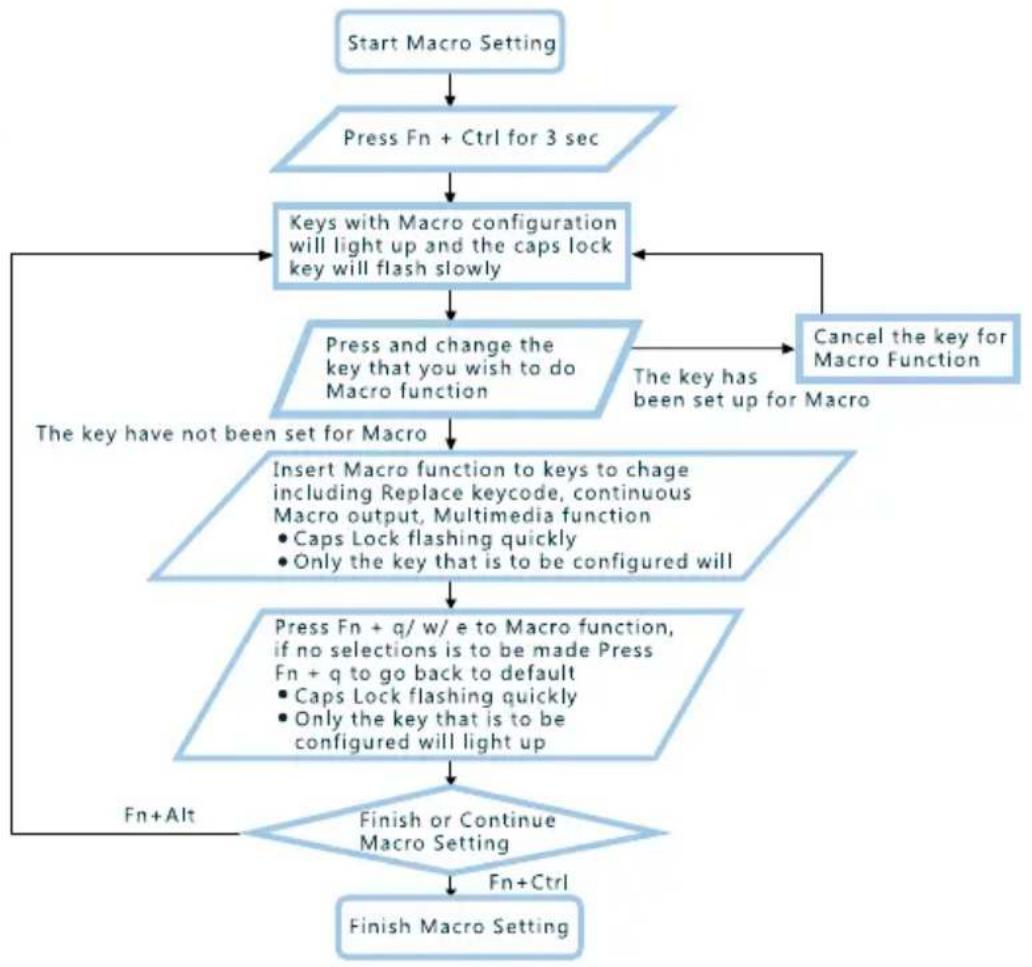
flowchart
graph TD
    A["Start Macro Setting"] --> B["Press Fn + Ctrl for 3 sec"]
    B --> C["Keys with Macro configuration will light up and the caps lock key will flash slowly"]
    C --> D["Press and change the key that you wish to do Macro function"]
    D --> E{The key have not been set for Macro}
    E -->|Yes| F["Insert Macro function to keys to chage including Replace keycode, continuous Macro output, Multimedia function\n• Caps Lock flashing quickly\n• Only the key that is to be configured will"]
    F --> G["Press Fn + q/ w/ e to Macro function, if no selections is to be made Press\nFn + q to go back to default\n• Caps Lock flashing quickly\n• Only the key that is to be configured will light up"]
    G --> H{Finish or Continue Macro Setting}
    H -->|No| I["Finish Macro Setting"]
    H -->|Yes| J["Fn+Alt"]
    J --> E
    D --> K["Cancel the key for Macro Function"]
Ducky Macro working example
[Example A]: Configure the key "Z" to "Q" output Steps: Hold Fn + Ctrl for 3 sec → Press Z → Press Q → Press Fn + Ctrl
[Example B]: Press Fn + A to insert "Ducky" repeatedly until released the key to stop Steps: Hold Fn + Ctrl for 3 sec → Press Fn + A → Insert Ducky → Press Fn + E → Press Fn + Ctrl
[Example C]: Configure the key "Q" to output word "key" while giving a time interval of 0.2 sec Steps: Hold Fn + Ctrl for 3 sec → Press Q → Insert k → Press Fn + 3 → Insert e → Press Fn + 3 → Insert y → Press Fn + Ctrl
[Example D]: Press F5 to mute the volume, under Windows system Steps: Hold Fn + Ctrl for 3 sec → Press F5 → Press Fn + Windows key + A → Press Fn + Ctrl
[Example E]: Press F1 to show Desktop, under Windows system Steps: Hold Fn + Ctrl for 3 sec → Press F1 → Hold Windows key + D → Press Fn + Ctrl
Note: Set the Profile from Profile 2\~6 before setting Macro.
NOTE

natural_image
Stylized cityscape illustration with colorful 3D cubes and striped patterns against a dark background (no text or symbols)
Ducky
Channel
www.duckychannel.com.tw
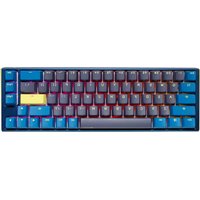
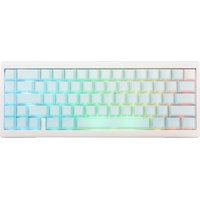
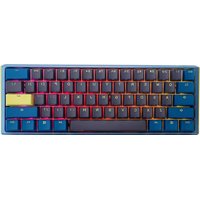
- Ducky Shine 6
- Side LED lighting Modes
- Sixth Mode: Backlighting Off
- Keyboard LED lighting Mode
- Note:
- Fn + F10
- LED Zone Customization Mode
- DEMO Mode
- Keyboard power mode
- Reset to Factory Defaults
- DIP Switch Functions
- Unable to set Macro function:
- Ducky Macro hotkeys function
- Multimedia function keys
- Windows common function keys
- Ducky Macro Implication Diagram
- Ducky Macro working example
- NOTE
Brand : Ducky
Model : Shine 6 Special Edition
Category : Keyboard