
USB3HDDV-ADP - USB Hub Alogic - Free user manual and instructions
Find the device manual for free USB3HDDV-ADP Alogic in PDF.


User questions about USB3HDDV-ADP Alogic
0 question about this device. Answer the ones you know or ask your own.
Ask a new question about this device
Download the instructions for your USB Hub in PDF format for free! Find your manual USB3HDDV-ADP - Alogic and take your electronic device back in hand. On this page are published all the documents necessary for the use of your device. USB3HDDV-ADP by Alogic.
USER MANUAL USB3HDDV-ADP Alogic
The ALOGIC USB 3.0 to HDMI/DVI* Multi Display Adapter makes it possible to convert any existing USB 3.0 port on a Laptop/Desktop into a HDMI/DVI* output, with resolutions up to 2048x1152.
*The adapters come included with a DVI converter (HDMI to DVI converter), which allows conversion to a DVI output.
Specifications
| Model | USB3HDDV-ADP |
| Input | USB-A 3.0 |
| Output | HDMI Port x 1 / DVI Port (via included HDMI to DVI Adapter) x 1 |
| Resolution | Up to 2048 x 1152 |
| System Requirement | Windows 7/8/8.1/10 & Above and Mac OS Sierra & Above |
Features
- Add an extra Display or connect your Computer to a LCD TV or Projector through any available USB 3.0 Port on your Computer.
• Video streaming is supported up to 2048x1152.
• Supports both Extend and Mirror on to the extra display.
• Resumes from hibernation and suspend modes.
• Warranty: 1 Year
Package Contents
• USB 3.0 to HDMI/DVI Multi-Display Adapter x 1
• CD (Driver and User's Manual) x 1
• Quick Installation Guide x 1
USB Cable x 1
• HDMI to DVI Adapter x 1
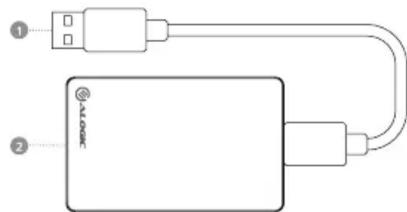
Physical Layout
1 USB 3.0 Cable
2 HDMI Port
Installing the Driver
- Insert the provided CD into your disc drive and the installer program will run automatically when the Driver CD is inserted. Then follow the on-screen prompts to complete the installation.]
For Windows ^® 7/ Windows ^® 8/ Windows ^® 8.1/ Windows ^® 10 users:
A. Please click on Run Setup.exe to execute the installer program.
B. Wait for the program to install the drivers. - Or please go to http://www.displaylink.com/downloads to download the appropriate driver from the website
Making the Connection
Please connect the adapter to your monitor or computer after driver installation is completed.
NOTE: Please wait while DisplayLink software is configured for first use as below. Your screens may temporarily go black or flash during this process. Please click "OK" to start to use the adapter.
Note
- Do not deliberately damage this product and put it in damp, direct sunlight or high temperature environment.
- If improper use, demolition or operation not according to the instructions result in any damage of your device or product, our company will not be liable for any compensation or maintenance responsibility.
Brand : Alogic
Model : USB3HDDV-ADP
Category : USB Hub