
SB11M - Computer Equipment Speco Technologies - Free user manual and instructions
Find the device manual for free SB11M Speco Technologies in PDF.


| Product Type | Network Video Recorder / Server |
| Brand | Speco Technologies |
| Model | SB11M |
| Power Supply | AC 100-240V, 50/60Hz |
| Video Output | VGA and HDMI |
| Audio I/O | MIC In, Line Out |
| Network Interface | Dual Gigabit Ethernet (LAN×2) |
| USB Ports | 8x USB (4x USB2.0, 2x USB2.0, 2x USB3.0) |
| COM Ports | 2x RS-232/422/485 (COM) |
| PS/2 Port | Yes (keyboard/mouse) |
| Storage Support | Internal HDD (system disk indicator) |
| Indicators | Power, HDD, System Disk, Reset |
| Default Login | Username: admin, Password: 1234 |
| Network Configuration | IP Group, Adaptive Load Balancing, Static IP |
| Mounting | Rack-mountable (1U) |
| Safety Compliance | Local electrical safety standards |
| Maintenance | Keep clean; avoid dust accumulation |
| Spare Parts | Contact Speco Technologies for replacement parts |
| Repairability | Contact authorized service center |
Frequently Asked Questions - SB11M Speco Technologies
User questions about SB11M Speco Technologies
0 question about this device. Answer the ones you know or ask your own.
Ask a new question about this device
Download the instructions for your Computer Equipment in PDF format for free! Find your manual SB11M - Speco Technologies and take your electronic device back in hand. On this page are published all the documents necessary for the use of your device. SB11M by Speco Technologies.
USER MANUAL SB11M Speco Technologies
natural_image
Black server rack with ventilation slots and mounting bracket (no visible text or labels)Welcome!
Thank you for purchasing this device.
This guide is designed to be a quick reference for installing the system.
Please read this guide carefully before installing and operating the unit.
For more detailed information, please refer to the user manual.
If technical assistance is needed, please contact Speco Technologies Technical Support.
Phone: 1-800-645-5516 option 3
Email: techsupport@specotech.com
Important Safeguards and Warnings
- Speco Technologies assumes no liability or responsibility for any fires or electrical shock caused by improper handling or installation.
- Speco Technologies is not liable for any problems caused by unauthorized modifications or attempted repair.
Note: All of the installation and operations here should conform to your local electric safety rules.
1 Introduction
1.1 Interfaces and Indicators
The picture below is for reference only.

| NO. | Description | NO. | Description |
| 1 | Power indicator | 3 | Reset |
| 2 | Power switch | 4 | System disk running indicator |
1.2 Rear Panel Instructions
The picture below is for reference only.

2 Login & Network Configuration
- Login
Before starting, please make sure network cable, monitor and power are connected. After the server is started, the following window will appear as shown below.

① Enter username and password (the default username is admin; the default password is 1234).
② Check "Remember Password" or "Auto Login" as needed.
③ Click [Login].
If you forget the password, please click "Reset password". Then a small window will appear. You can reset the password by answering the pre-defined questions.
If this is the first time for you to log in, it is recommended to modify the default password and set the security questions/answers.
● Network Configuration
After logging in, enter Local Configuration→Network Config interface as shown below.
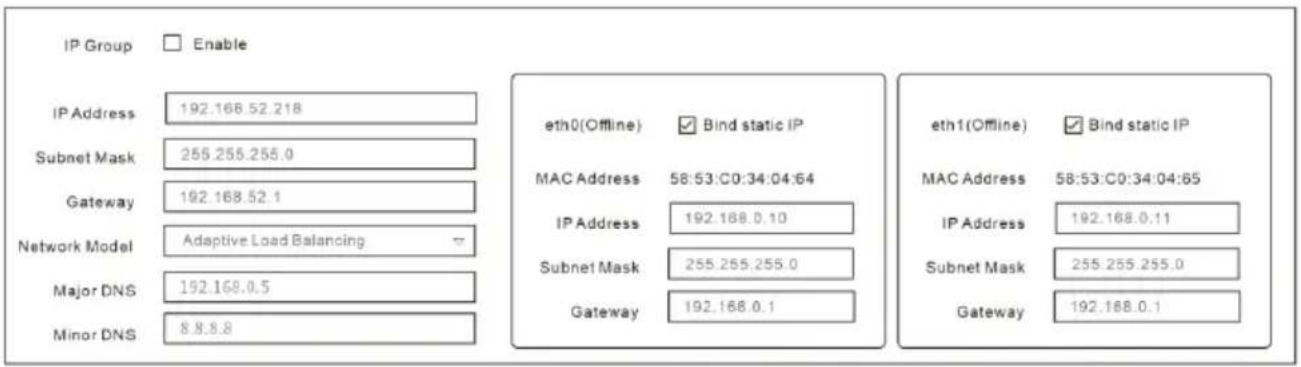
Set the network parameter according to the actual condition. It is recommended to enable "IP Group" and the network mode is set to "Adaptive Load Balancing".
Then you can add devices and set other parameters as needed. Please refer to the user manual for more details.
Brand : Speco Technologies
Model : SB11M
Category : Computer Equipment