
USB-DSC8 - Uncategorized Sabrent - Free user manual and instructions
Find the device manual for free USB-DSC8 Sabrent in PDF.


| Product Type | USB 3.0 8-Port Hub |
| Brand | Sabrent |
| Model | USB-DSC8 |
| Ports | 8 x USB 3.0 Type-A |
| Data Transfer Speed | Up to 5 Gbps |
| Power Supply | External AC adapter (12V/2A) |
| Dimensions (W x H x D) | 170 x 25 x 55 mm |
| Weight | 150 g |
| Compatibility | Windows, macOS, Linux |
| Hot Swap Support | Yes |
| LED Indicators | Power and port activity |
| Construction Material | Plastic and metal |
| Operating Temperature | 0°C to 40°C |
| Storage Temperature | -20°C to 60°C |
| Certifications | FCC, CE, RoHS |
| Cleaning Instructions | Use a dry cloth. Do not use liquid cleaners. |
| Safety Precautions | Do not expose to water or excessive heat. Use only provided power adapter. |
| Repairability | No user-serviceable parts. Contact support for issues. |
| Included Accessories | Hub, AC adapter, USB 3.0 cable, user manual |
| Warranty | 1 year limited warranty |
Frequently Asked Questions - USB-DSC8 Sabrent
User questions about USB-DSC8 Sabrent
0 question about this device. Answer the ones you know or ask your own.
Ask a new question about this device
Download the instructions for your Uncategorized in PDF format for free! Find your manual USB-DSC8 - Sabrent and take your electronic device back in hand. On this page are published all the documents necessary for the use of your device. USB-DSC8 by Sabrent.
USER MANUAL USB-DSC8 Sabrent
Connecting Differently™
USB-DSC8
USB 3.0 TO SATA/IDE Hard Drive Converter
With Power Supply & LED Activity Lights
User Manual
1-Connect the short 2.5" IDE connector from the Sabrent adapter to the pins on your 2.5" Hard Drive.
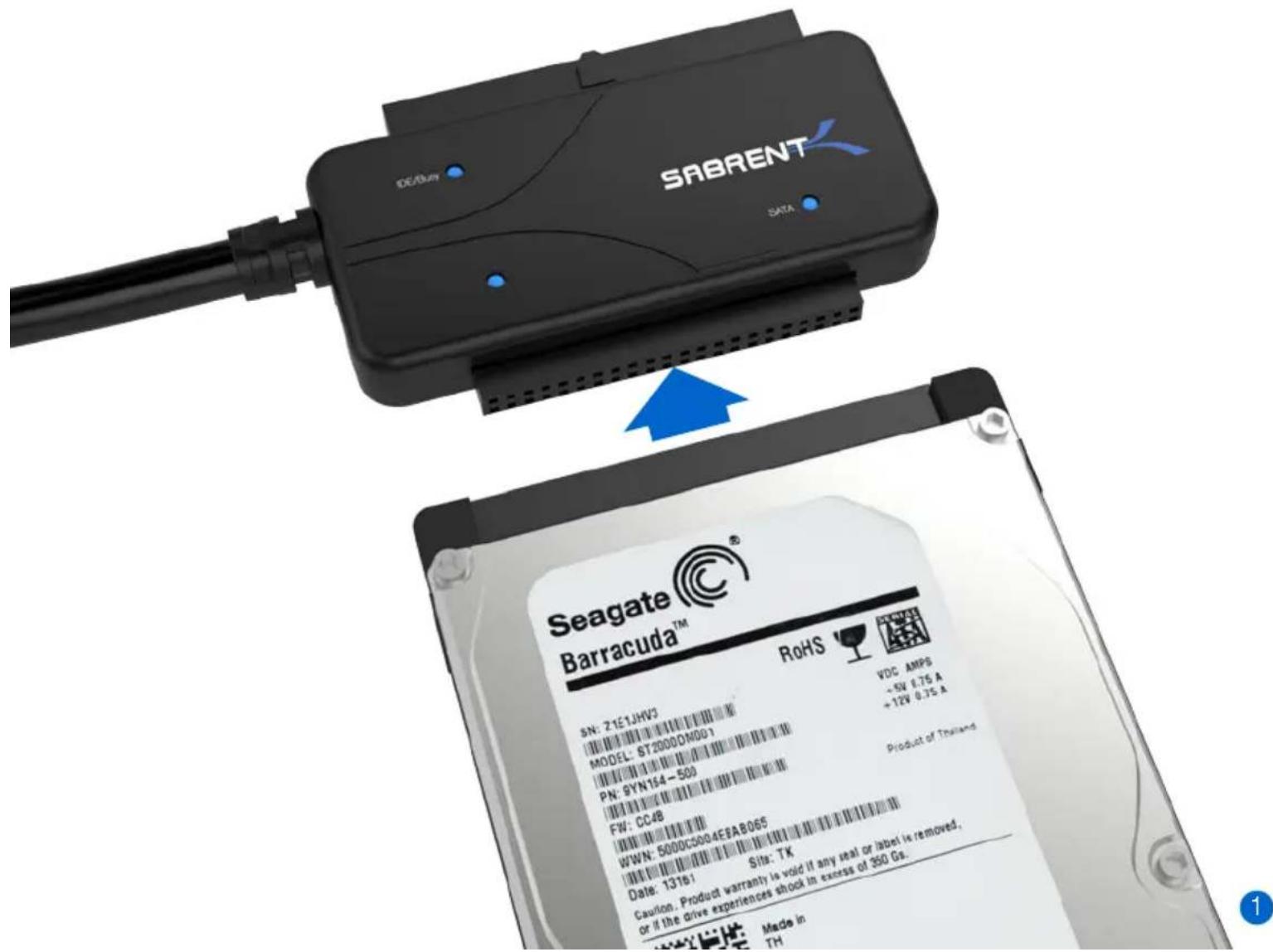
Please Note: When you remove a hard drive from an existing laptop, you may need to first remove the outer cage and sometimes an additional converter that is covering the IDE or SATA connectors.
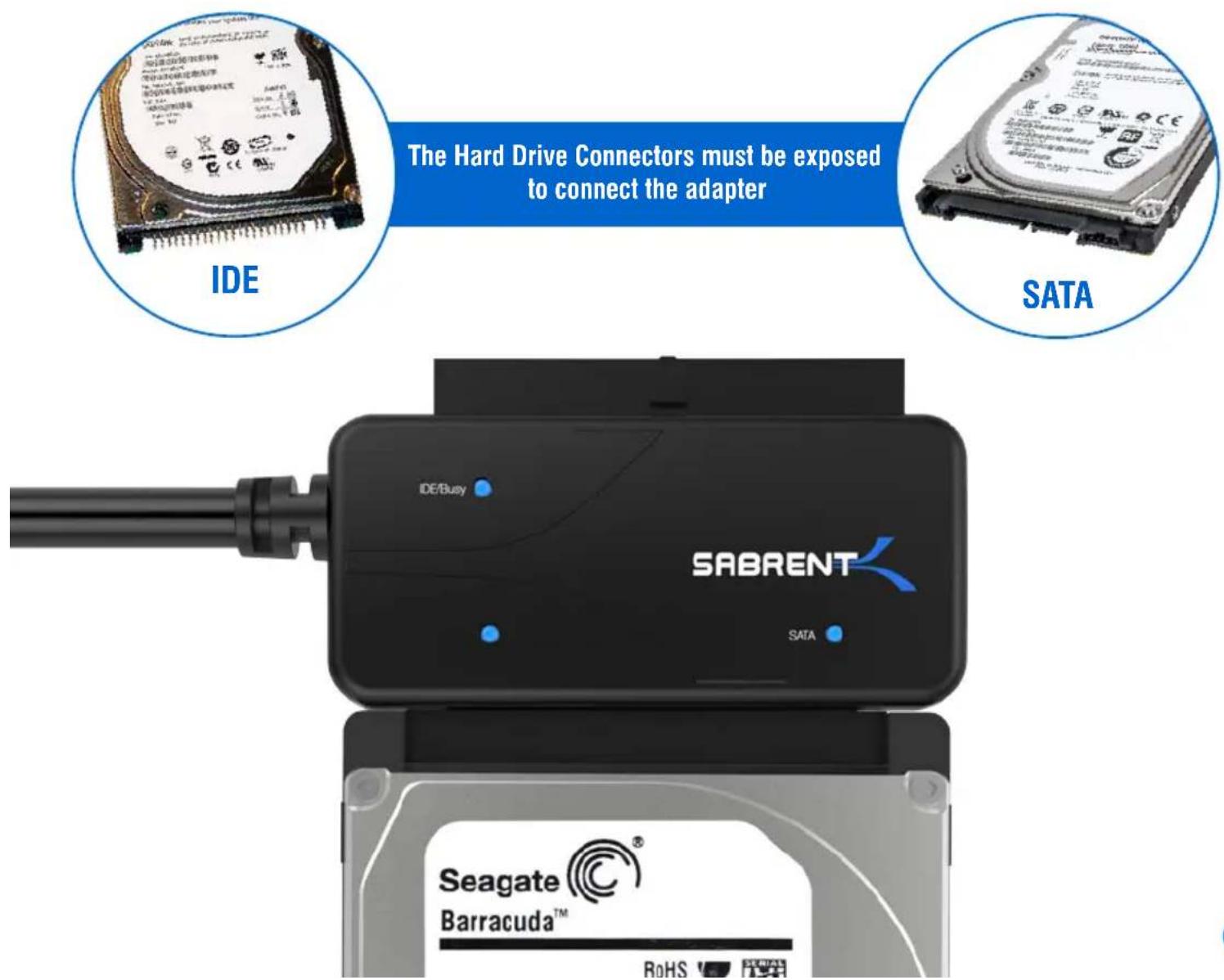
SABRENT
USB-DSC8 / User Manual
2-Connect the USB cable from the Hard Drive Adapter to an available USB port on your computer.
3-In most cases, the USB cable will supply sufficient power for the drive to spin up and initiate.
Some larger capacity Hard Drives may require more power than USB to provide sufficient power to initiate.
You may need to use the supplied power supply to provide the extra needed power
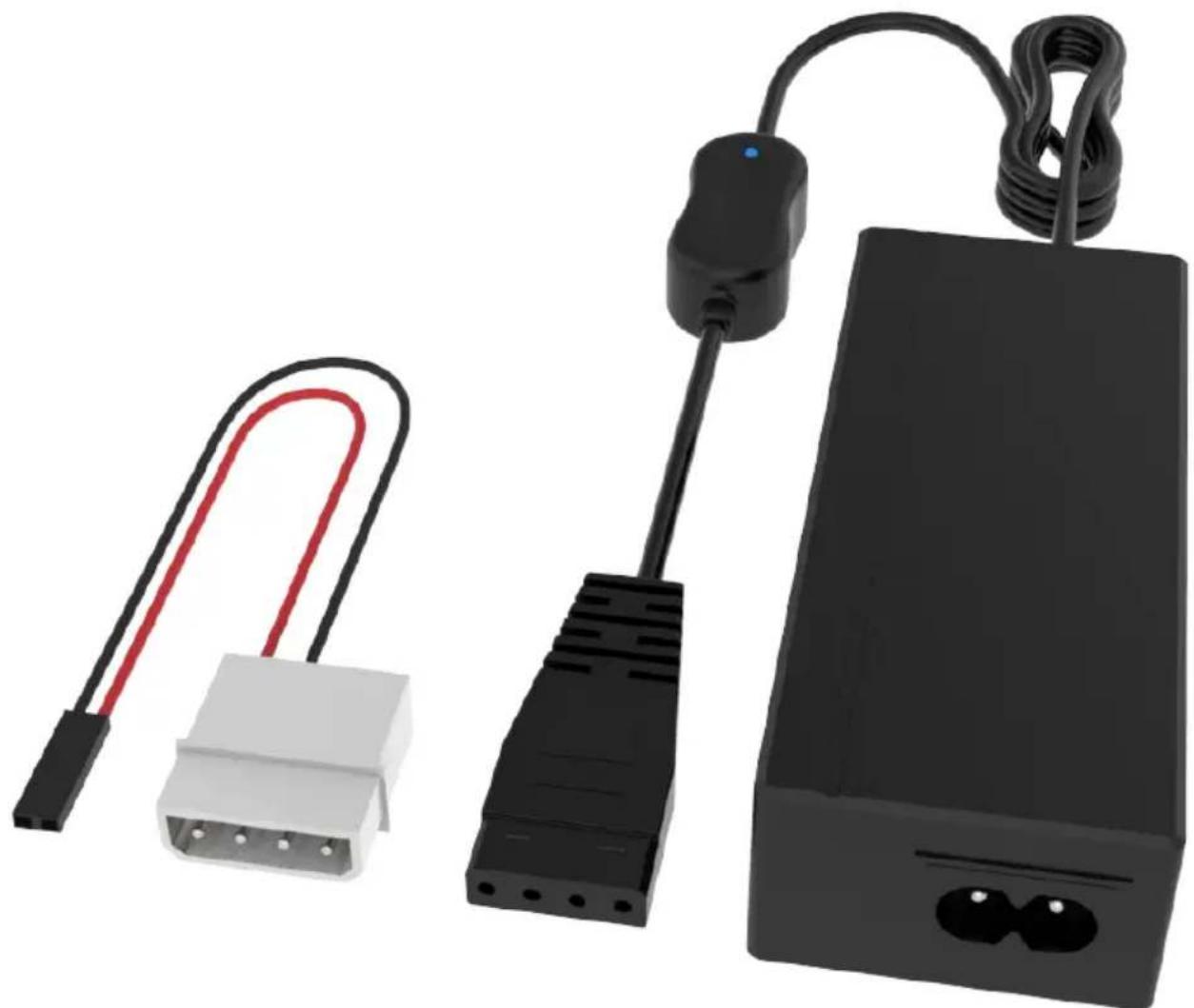
natural_image
Three electronic devices: a white connector, a black USB cable with red and black wires, and a black power adapter (no text or symbols visible)SABRENT
USB-DSC8 / User Manual
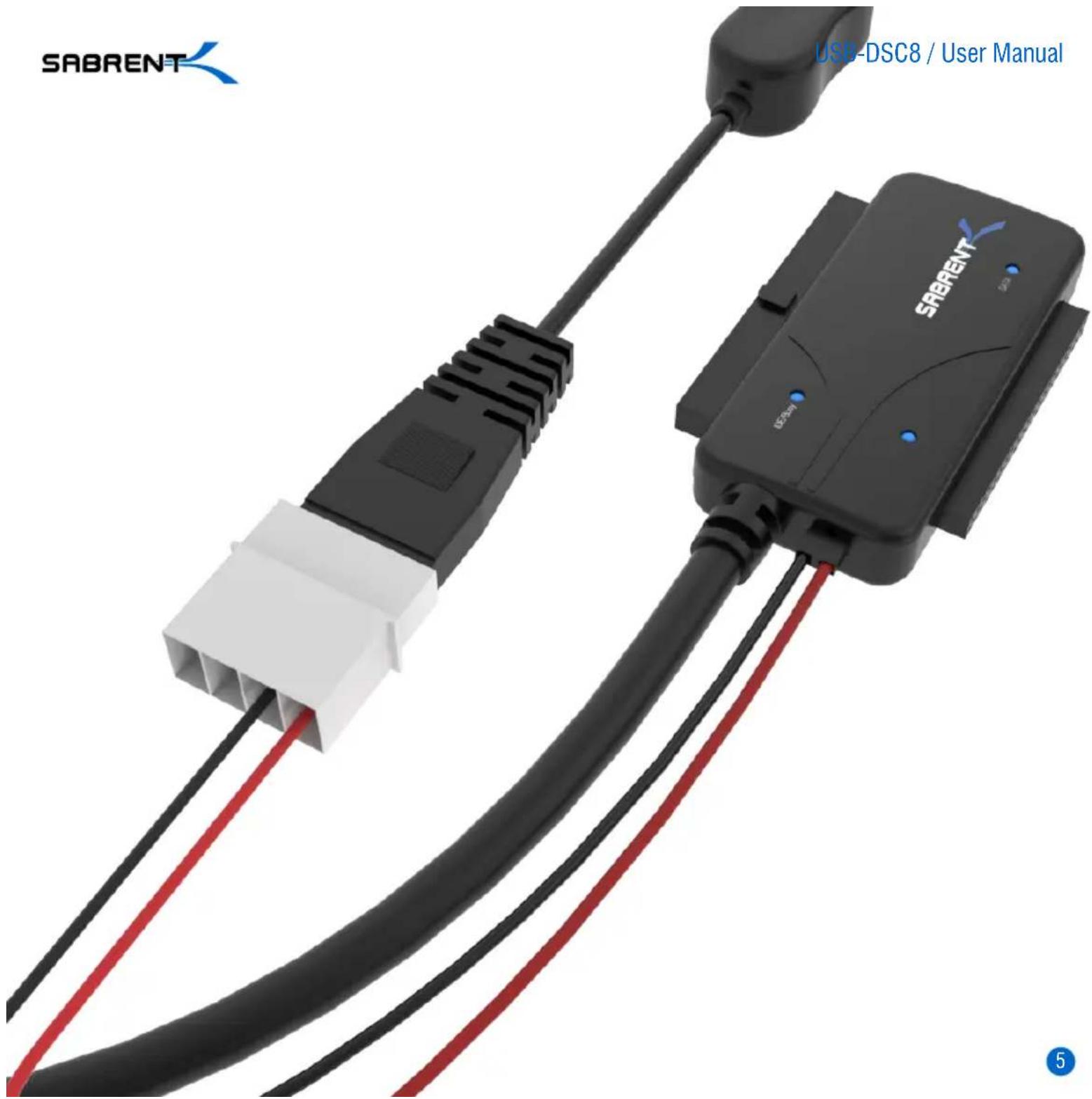
1-Connect the IDE power adapter directly in the IDE drive
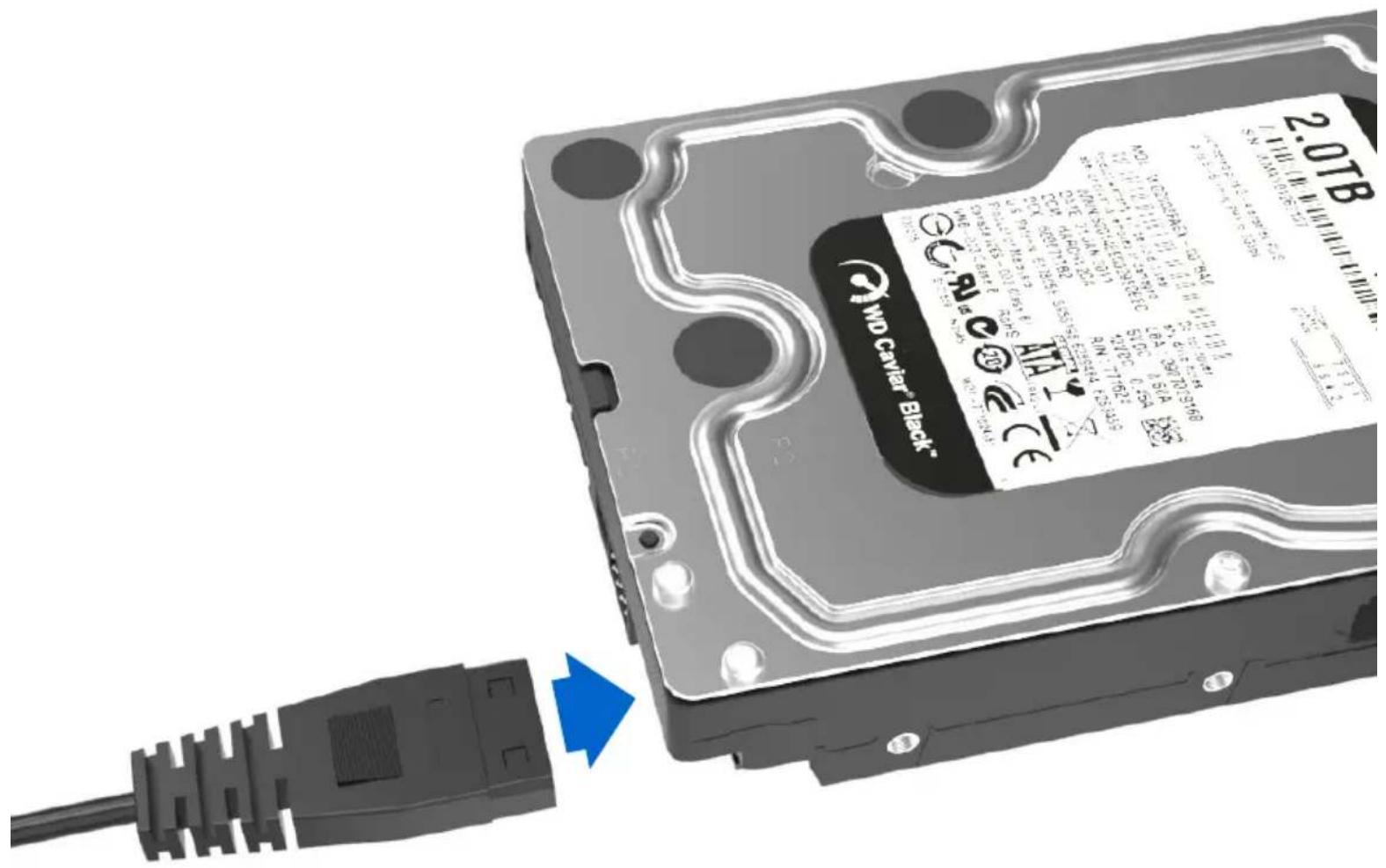
2-Connect the long 3.5 inch IDE connector to the pins on your hard drive Note the keyed pin and slot and make sure that the drive and the device line up properly and are securely connected
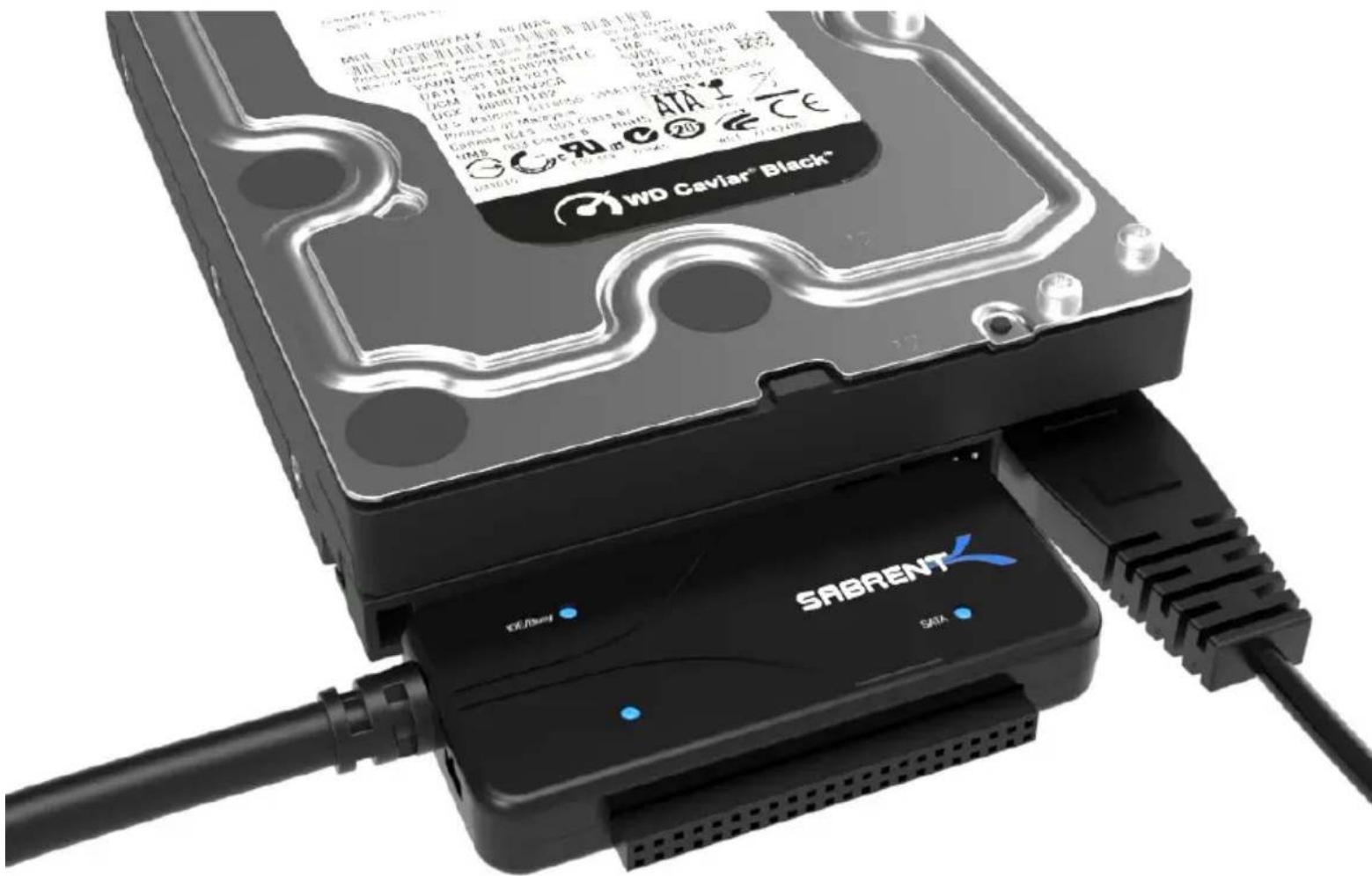
3-Connect the USB cable from the Sabrent converter to an available USB port on your computer
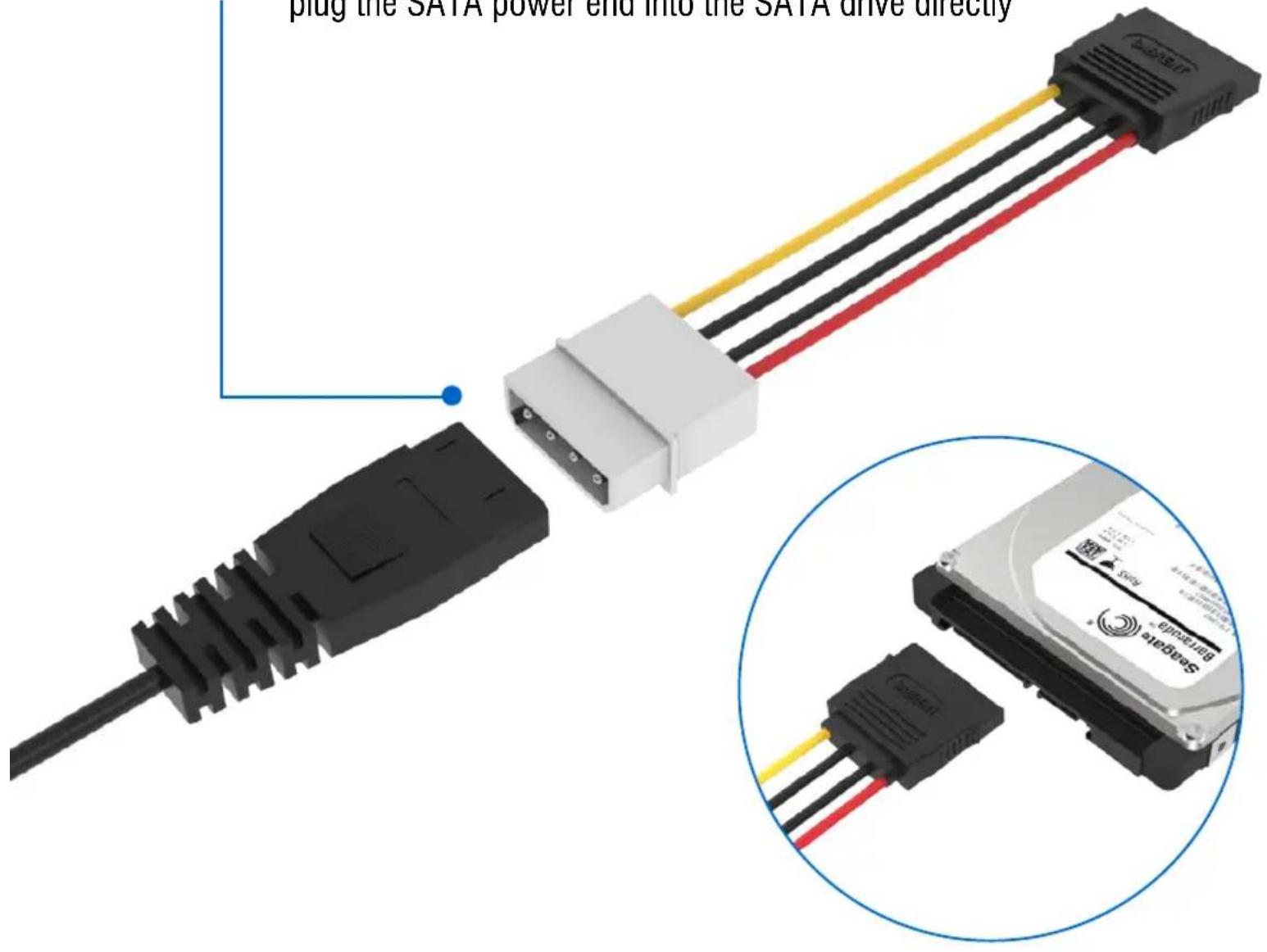
1-Connect the Sabrent converter to the power adapter, and then plug the SATA power end into the SATA drive directly
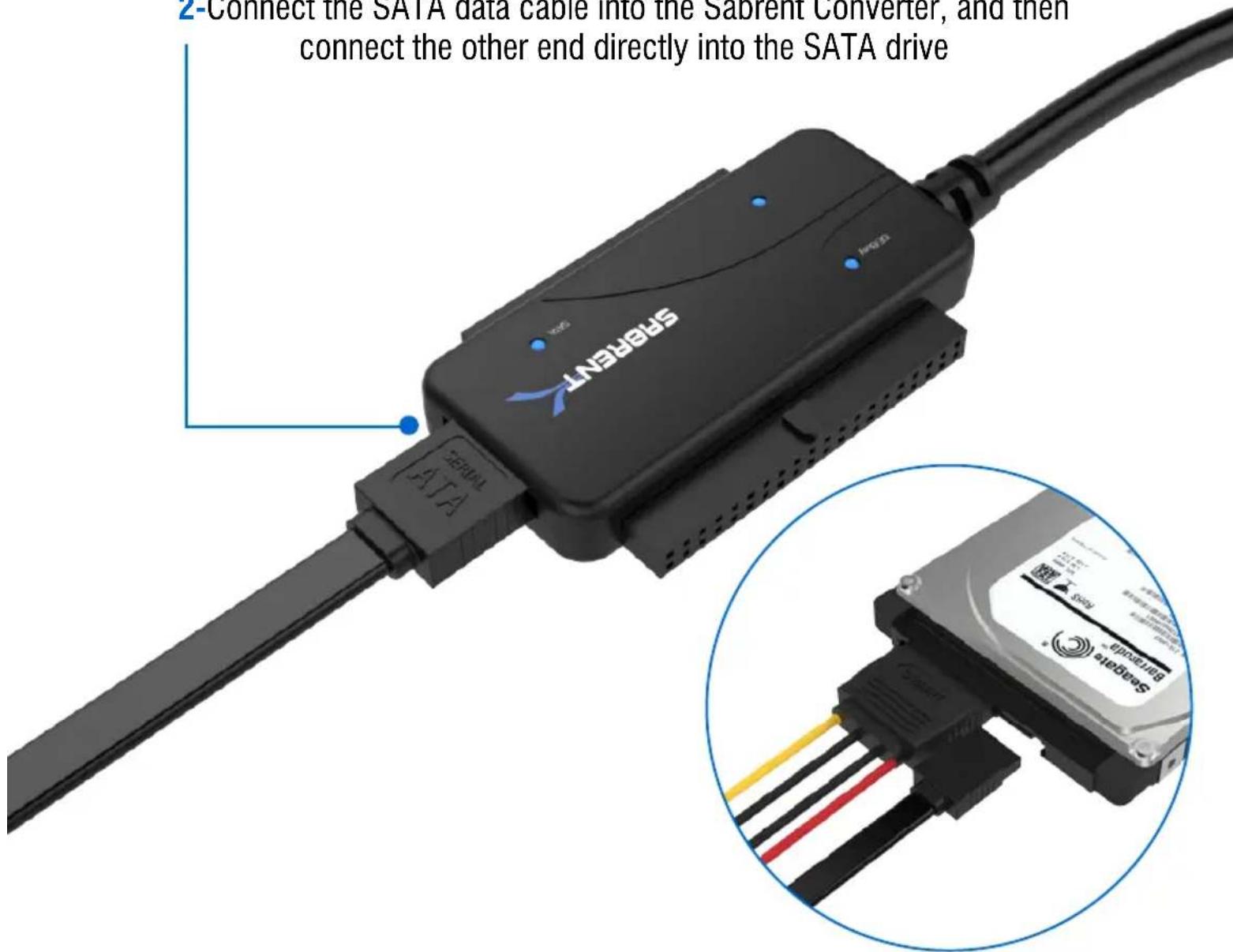
2-Connect the SATA data cable into the Sabrent Converter, and then connect the other end directly into the SATA drive
3-Connect the USB cable from the Sabrent converter to an available USB port on your computer
The Hard Drive should now spin/vibrate, indicating that the Hard Drive is powering up.
If the Hard Drive does not spin, it may indicate that the hard drive itself is no longer working. Quite often, older laptops or desktops that have failed may also have a malfunctioning hard drive. HDD Enclosures can only access working drives.
A Drive letter should appear in MY COMPUTER, indicating that the Hard Drive has mounted and the data is accessible.
- Try connecting to a different USB port on the computer (Sometimes rear ports work more reliable than front panel ports)
- Try connecting to a different computer
- Try using a different Hard Drive
If that still does not work, that may indicate that the adapter itself is not working and needs to be replaced.
If 2.5" drives work but 3.5" drives do not, you may only need a new power supply.
- Connecting Differently™
- USB 3.0 TO SATA/IDE Hard Drive Converter
- With Power Supply & LED Activity Lights
- 1-Connect the IDE power adapter directly in the IDE drive
- The Hard Drive should now spin/vibrate, indicating that the Hard Drive is powering up.
- A Drive letter should appear in MY COMPUTER, indicating that the Hard Drive has mounted and the data is accessible.
Brand : Sabrent
Model : USB-DSC8
Category : Uncategorized