KAMICEVTCLA - Mouse Kogan - Free user manual and instructions
Find the device manual for free KAMICEVTCLA Kogan in PDF.


| Product Type | Vertical Ergonomic Mouse |
| Brand | Kogan |
| Model | KAMICEVTCLA |
| Connectivity | Bluetooth 5.0, 2.4GHz (USB Receiver) |
| Bluetooth Profiles | BT3.0 Mouse, BT5.0 Mouse |
| Wireless Range | Up to 10 m (typical) |
| Buttons | 6 (Left, Right, Scroll Wheel, DPI, Forward, Backward) |
| DPI Levels | 800 / 1200 / 1600 / 2400 / 3200 |
| Scroll Wheel | Yes, with tilt (not specified) |
| RGB Lighting | Yes, 4 modes, can be turned off |
| Battery Type | Built-in lithium-ion, 500 mAh |
| Battery Life | 2 weeks (RGB on), 2 months (RGB off) |
| Charging | USB-C (cable included), 5V |
| Power Switch | On/Off, with mode selection (2.4G, BT1, BT2) |
| Sleep Mode | After 10 minutes of inactivity |
| Compatible Systems | Windows 7 and later, macOS (forward/backward buttons not supported on macOS) |
| Dimensions (Approx.) | 120 x 75 x 70 mm (estimated vertical mouse) |
| Weight (Approx.) | 100 g (typical) |
| Color | Black with colorful internal gradient bar |
| Accessories Included | USB Receiver, Charging Cable, User Guide |
Frequently Asked Questions - KAMICEVTCLA Kogan
User questions about KAMICEVTCLA Kogan
0 question about this device. Answer the ones you know or ask your own.
Ask a new question about this device
Download the instructions for your Mouse in PDF format for free! Find your manual KAMICEVTCLA - Kogan and take your electronic device back in hand. On this page are published all the documents necessary for the use of your device. KAMICEVTCLA by Kogan.
USER MANUAL KAMICEVTCLA Kogan
natural_image
Close-up of a black computer mouse with a colorful internal color gradient bar (no text or symbols visible)MX VERTICAL ADVANCED ERGONOMIC MOUSE
KAMICEVTCLA
COMPONENTS
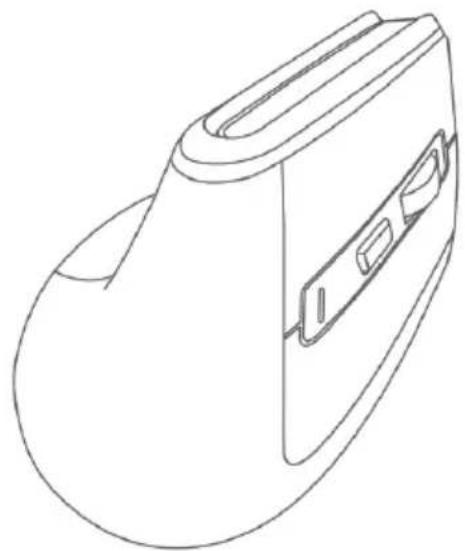
natural_image
Line drawing of a mechanical component with a curved body and internal slots (no text or symbols)Mouse

USB Receiver
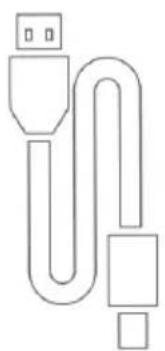
natural_image
Pure electrical circuit lines without any symbolsCharging Cable
User Guide
OVERVIEW
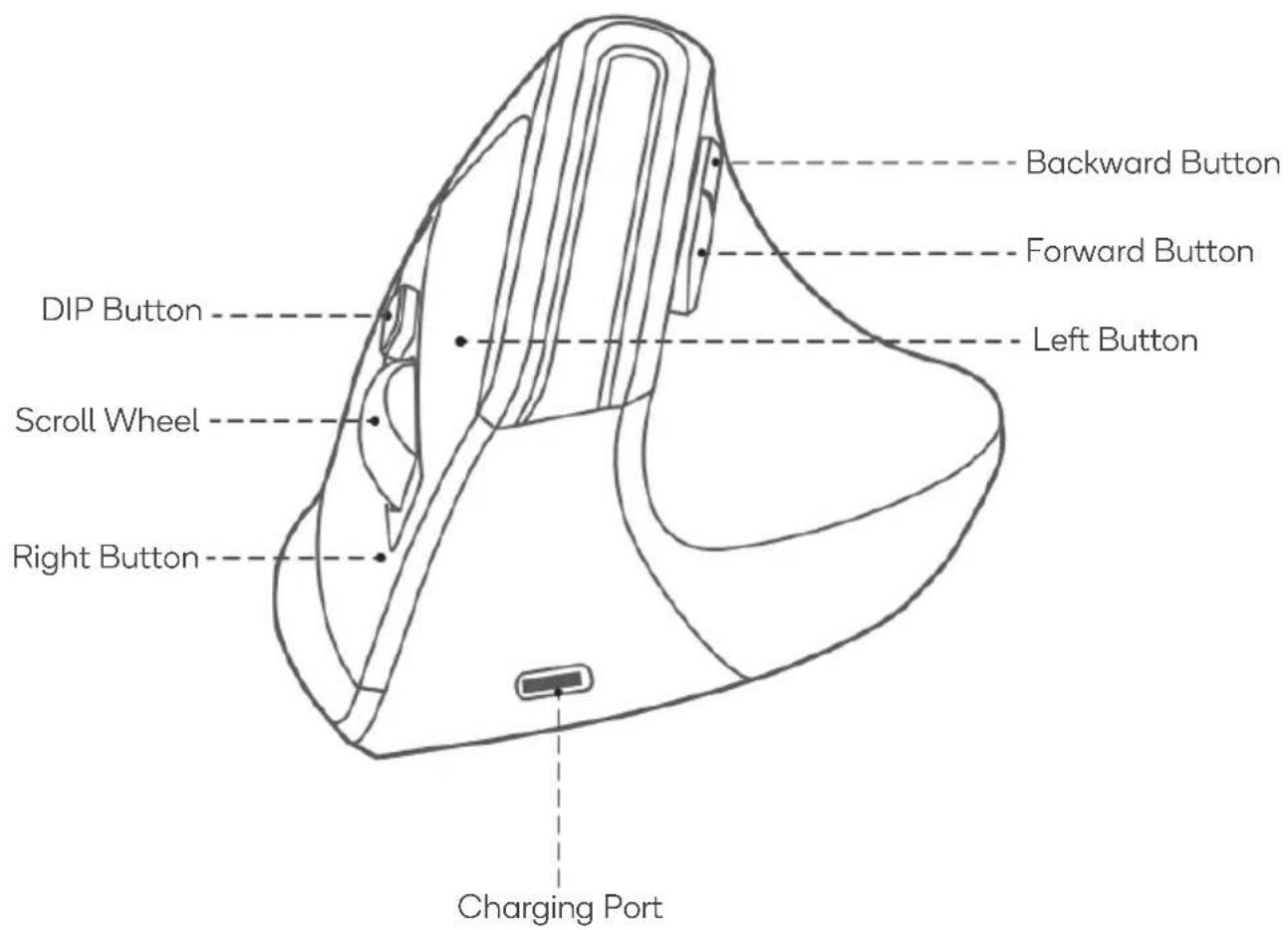
Note:
The forward and backward buttons are not available on MacOS devices.
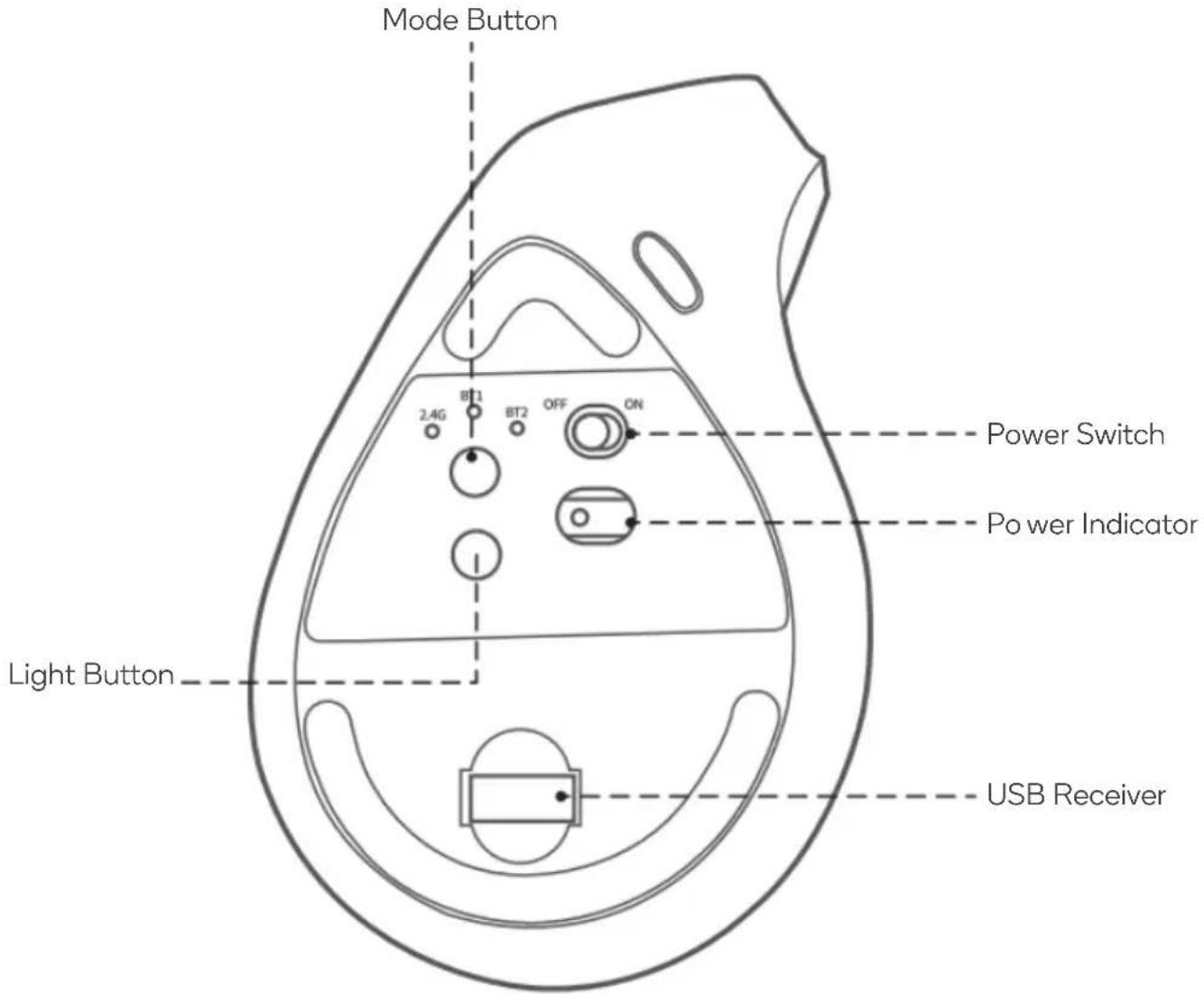
OPERATION
Mode
• This mouse has 3 modes (BT1, BT2 and 2.4G).
- Press the mode button to switch between the modes.
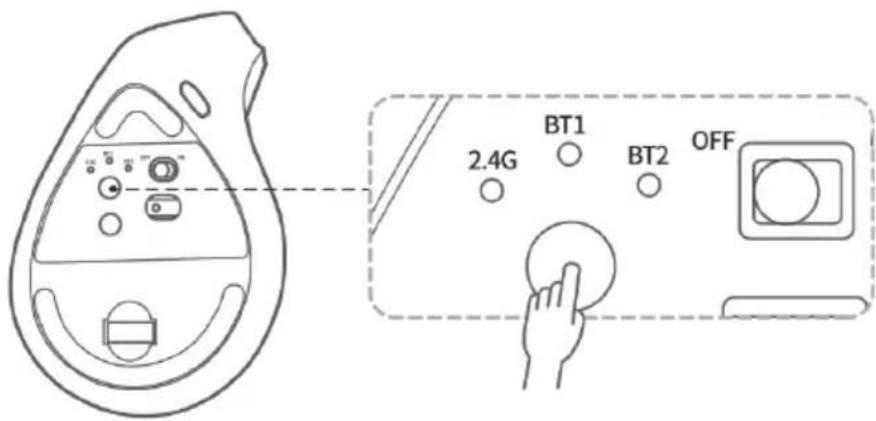
BT1 Mode (Default):
-
Move the power switch to 'ON'. The mouse will be in BT1 mode by default and the BT1 indicator will be flashing slowly.
-
Press and hold the mode button for 3 seconds to enter Bluetooth pairing. The BT1 indicator will start rapidly flashing.
-
Ensure Bluetooth is enabled on your device. For Windows 7 or earlier, select 'BT3.0 Mouse' from the list of Bluetooth devices. For Windows 8 or later and MacOS, select 'BT5.0 Mouse' from the list of Bluetooth devices.
BT2 Mode:
-
Press the mode button to switch the mouse to BT2 mode. The BT2 indicator light will flash slowly.
-
Press and hold the mode button for 3 seconds to enter Bluetooth pairing. The BT2 indicator will start rapidly flashing.
-
Ensure Bluetooth is enabled on your device. For Windows 7 or earlier, select 'BT3.0 Mouse' from the list of Bluetooth devices. For Windows 8 or later and MacOS, select 'BT5.0 Mouse' from the list of Bluetooth devices.
2.4G Mode:
- Press the mode button to switch the mouse to 2.4G mode. The 2.4G indicator will flash slowly.
- Insert the USB receiver into the device's USB port. The mouse will pair with the device.
Power
- This mouse has a built-in 500 mA lithium battery. The battery will last 2 weeks with the RGB light on and 2 months with the RGB light off.
- The power indicator will flash rapidly when the battery is low.
- Use the provided charging cable to connect the mouse to a power adapter (not provided) or an available USB port on your computer to charge the mouse.
- The mouse will automatically enter sleep mode if it is unused for 10 minutes. Move the mouse to wake it up.
RGB Light
- Press and hold the light button for 3 seconds to turn the light on/off.
- Press the light button to switch between 4 lighting modes.
DPI
• The mouse has 5 DPI options (800/1200/1600/2400/3200).
- Press the DPI button to switch between the 5 DPI options.
TROUBLESHOOTING
BT1/BT2 Connection Problems
- Switch the mouse off/on.
- Switch the device's Bluetooth off/on.
- Repeat the pairing steps for BT1 or BT2.
2.4G Connection Problems
- Confirm the mouse is in 2.4G mode.
- Press the left button, right button, and scroll wheel simultaneously for 3-5 seconds and release them when the 2.4G indicator flashes rapidly.
- Insert the USB receiver into the device's USB port. The mouse will pair with the device.
Note:
If connection issues persist after following the above troubleshooting steps, contact help.Kogan.com for support.
NOTES
The Ground Truth image displays a single, solid horizontal line. According to Rule 2 (UNDERSCORE & LINE RULES), this is a stylistic or background line, not a placeholder underscore. Therefore, the OCR result must ignore it and output nothing or only meaningful text. The provided OCR content is "____", which consists of four underscores. This is an incorrect interpretation of the line as a fill-in-the-blank placeholder, violating the rule that stylistic lines must be ignored. The OCR has hallucinated underscores where none should exist based on the GT's visual context. Hence, the OCR result is inconsistent with the Ground Truth.
[Non-Text]
[Non-Text]
[EMPTY]
[Non-Text]
[Non-Text]
The Ground Truth image displays a single, continuous horizontal line, which is a stylistic or background element (like a ruled paper line). According to Rule 2, such lines must be ignored by the OCR result. The OCR content provided is "", which consists of no characters. Since the OCR output correctly ignores the background/stylistic line and produces no actual text, it complies with the “Stylistic/Background Lines (Ignore)” rule. Therefore, the OCR result is consistent with the Ground Truth.
[Non-Text]
[Non-Text]
[EMPTY]
[Non-Text]
[Non-Text]
The Ground Truth image displays a single, continuous horizontal line, which is a stylistic or background element (like a ruled paper line). According to Rule 2, such lines must be ignored by the OCR result. The provided OCR content is "____", which consists of underscores. Underscores are not equivalent to a solid line and are not permitted under the “Stylistic/Background Lines (Ignore)” rule. Outputting underscores for a stylistic line is incorrect because it misinterprets the line as a fill-in-the-blank placeholder. Since the OCR output incorrectly rendered a stylistic line as underscores (which should be ignored), this violates the rule. Therefore, the OCR result is inconsistent with the Ground Truth.
[Non-Text]
[Non-Text]
[EMPTY]
[Non-Text]
[Non-Text]
[NO TEXT]
[Non-Text]
[Non-Text]
The Ground Truth image displays a single, continuous horizontal line, which is a stylistic or background element (like a ruled paper line). According to Rule 2, such lines must be ignored by the OCR result. The provided OCR content is "____", which consists of underscores. Underscores are not equivalent to a solid line and are not permitted under the “Stylistic/Background Lines (Ignore)” rule. Outputting underscores for a stylistic line is incorrect because it misinterprets the line as a fill-in-the-blank placeholder. Therefore, the OCR result is inconsistent with the Ground Truth.
[Non-Text]
[Non-Text]
The Ground Truth image displays a single, continuous horizontal line, which is a stylistic or background element (like a ruled paper line). According to Rule 2, such lines must be ignored by the OCR result. The provided OCR content is "____", which consists of underscores. Underscores are not equivalent to a solid line and are not permitted under the “Stylistic/Background Lines (Ignore)” rule. Outputting underscores for a stylistic line is incorrect because it misinterprets the line as a fill-in-the-blank placeholder. Therefore, the OCR result is inconsistent with the Ground Truth.
[Non-Text]
[Non-Text]
The Ground Truth image displays a single, continuous horizontal line, which is a stylistic or background element (like a ruled paper line). According to Rule 2, such lines must be ignored by the OCR result. The provided OCR content is "____", which consists of underscores. Underscores are not equivalent to a solid line and are not permitted under the “Stylistic/Background Lines (Ignore)” rule. Outputting underscores for a stylistic line is incorrect because it misinterprets the line as a fill-in-the-blank placeholder. Therefore, the OCR result is inconsistent with the Ground Truth.
[Non-Text]
[Non-Text]
The Ground Truth image displays a single, solid horizontal line. According to Rule 2 (UNDERSCORE & LINE RULES), this is a stylistic or background line, not a placeholder underscore. Therefore, the OCR result must ignore it and output nothing or only meaningful text. The provided OCR content is "____", which consists of four underscores. This is an incorrect interpretation of the line as a fill-in-the-blank placeholder, violating the rule that stylistic lines must be ignored. The OCR has hallucinated underscores where none should exist based on the GT's visual context. Hence, the OCR result is inconsistent with the Ground Truth.
[Non-Text]
[Non-Text]
The Ground Truth image displays a single, solid horizontal line, which is a stylistic or background element (like a ruled paper line or separator), not a placeholder for text. According to Rule 2, such stylistic/background lines must be ignored by the OCR result. The OCR content provided is "", which consists of no characters. This correctly represents the absence of any textual content in the GT and correctly ignores it as a hallucination. Therefore, the OCR output should have been empty or contained no text. Hence, the OCR result is consistent with the Ground Truth.
[Non-Text]
[Non-Text]
[Non-Text]
The Ground Truth image displays a single, solid horizontal line. According to Rule 2 (UNDERSCORE & LINE RULES), this is a stylistic or background line, not a placeholder underscore. Therefore, the OCR result must ignore it and output nothing or only meaningful text. The provided OCR content is "____", which consists of four underscores. This is an incorrect interpretation of the line as a placeholder, violating the rule that stylistic lines must be ignored. The OCR has hallucinated placeholder underscores where none exist in the GT. Hence, the OCR result is inconsistent with the Ground Truth.
[Non-Text]
[Non-Text]
The Ground Truth image displays a single, continuous horizontal line, which is a stylistic or background element (like a ruled paper line). According to Rule 2, such lines must be ignored by the OCR result. The provided OCR content is "____", which consists of underscores. Underscores are not equivalent to a solid line and are not permitted under the “Stylistic/Background Lines (Ignore)” rule. Outputting underscores for a stylistic line is incorrect because it misinterprets the line as a fill-in-the-blank placeholder. Therefore, the OCR result is inconsistent with the Ground Truth.
[Non-Text]
The Ground Truth image displays a single, solid horizontal line. According to Rule 2 (UNDERSCORE & LINE RULES), this is a stylistic or background line, not a placeholder underscore. Therefore, the OCR result must ignore it and output nothing or only meaningful text. The provided OCR content is "____", which consists of four underscores. This is an incorrect interpretation of the line as a placeholder, violating the rule that stylistic lines must be ignored. The OCR has hallucinated placeholder underscores where none should exist in the GT. Hence, the OCR result is inconsistent with the Ground Truth.
The Ground Truth image displays a single, solid horizontal line. According to Rule 2 (UNDERSCORE & LINE RULES), this is a stylistic or background line, not a placeholder underscore. Therefore, the OCR result must ignore it and output nothing or only meaningful text. The provided OCR content is "____", which consists of four underscores. This is an incorrect interpretation of the line as a fill-in-the-blank placeholder, violating the rule that stylistic lines must be ignored. The OCR has hallucinated underscores where none should exist based on the GT's visual context. Hence, the OCR result is inconsistent with the Ground Truth.
[Non-Text]
The Ground Truth image displays a single, solid horizontal line. According to Rule 2 (UNDERSCORE & LINE RULES), this is a stylistic or background line, not a placeholder underscore. Therefore, the OCR result must ignore it and output nothing or only meaningful text. The provided OCR content is "____", which consists of four underscores. This is an incorrect interpretation of the line as a placeholder, violating the rule that stylistic lines must be ignored. The OCR has hallucinated placeholder underscores where none exist in the GT, violating the rule to ignore such lines. Hence, the OCR result is inconsistent with the Ground Truth.

Need more information?
We hope that this user guide has given you the assistance needed for a simple set-up.
For the most up-to-date guide for your product, as well as any additional assistance you may require, head online to help.kogan.com
kogan.com
Brand : Kogan
Model : KAMICEVTCLA
Category : Mouse