
ALF-WMP4 - Remote control Alfatron - Free user manual and instructions
Find the device manual for free ALF-WMP4 Alfatron in PDF.


User questions about ALF-WMP4 Alfatron
0 question about this device. Answer the ones you know or ask your own.
Ask a new question about this device
Download the instructions for your Remote control in PDF format for free! Find your manual ALF-WMP4 - Alfatron and take your electronic device back in hand. On this page are published all the documents necessary for the use of your device. ALF-WMP4 by Alfatron.
USER MANUAL ALF-WMP4 Alfatron
Please read this manual carefully before use
Overview
The U.S. Department of Health and Human Services
The Altarion WMPs is a wireless microphone system with a controller and four 2.4GHz wireless microphones with a wireless handheld microphone input. Compatible with conferencing
software such as Skype, Teams and Zooms. The device features intelligent processing with digital audio processing, dynamic noise reduction, 384ms echo-cancellation,
full-duplex voice calls, and 360° Omni-directional pickup. The pickup address of a single omnidirectional microphone is 2m.
(No text)

12 17 18 13
Panel Diagram in Back of the Host
(7) Flown status (in light
(2) Built-in microphone
(4) Volume - key
(5) Volume + key (6) Microphone mute ke
(7) Charging indicator (8) USB charging interfa-
(6) Slawe on/off button

Wireless microphone slave
Packing List


Wireless microphone slave X4


Audio cable and audio adapter X2
Host power adapter X1


Slave power adapters 3 sets

Installation and Connection of Equipment
-
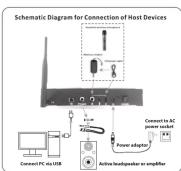
As shown in the schematic diagram for connection of host devices, connect the external antenna, then connect the computer via USB to the host device and connect the power for the host device.
-
Make sure the microphones are fully charged before use. The charging indicator light will be lit orange when charging and off when fully charged. When the host is connected wirelessly
to the microphone, the indicator ring will flash red if the battery is low.
-
To switch on the microphone, long press the power button until the circular green indicator light is of if the green light flickers, there is no wireless connection with the host.
-
The distance between the host loudspeaker and the wireless microphone must be more than 2m. The recommended installation distance (between the wireless microphones is 1.3m).
(8)
Operation Instructions

Operation Instructions
The Ground Truth image displays a single, solid horizontal line. According to Rule 2 (UNDERSCORE & LINE RULES), this is a stylistic or background line, not a placeholder underscore. Therefore, the OCR result must ignore it and output nothing or only meaningful text. The provided OCR content is "____", which consists of four underscores. This is an incorrect interpretation of the line as a placeholder, violating the rule that stylistic lines must be ignored. The OCR has hallucinated underscores where none should exist based on the GT's visual context. Hence, the OCR result is inconsistent with the Ground Truth.
- According to the application, determine the installation locations of the active speaker, or amplifier and speakers, and wireless microphone, install the antenna-on-the-host.
Connect the host to the computer via USB. Adjust the speaker volume to low.
insert the DC adaptor to the wall socket. Turn on the power switch on the foot and the power indicator will turn red. The indicator light of the speaker audio output status will be
-
Press and hold the on button of each wireless slave microphone. When the green light is it means that the microphone is connected to the host varietiesly.
-
Open video conferencing software such as Teares, Skype or Zoom, and adjust
board and microphone levels as needed. 4. During the call, press the "Microphose Ilicate" button to mute the wireless microphone.
the indicator light will turn red. To unmute, push the "Microphone Mate" button
again and the red light will turn off. 5. Push "Speaker mute" key of the wireless microphone to mode the incoming audio,
The indicator light will turn red. To resume audio, push the "Speaker mute" key again.
- When an additional household microphone is tested, you can contact to the back of the host device using a 6.5mm Jack plug. You can adjust the external microphone gain.
NOTE: This email address is on the Windows and thus receiving system.
NOTE: This device found on PC. Will Wholes and other upholding systems. The USB interface adopts USB 1.1, USB 2.0 or above. USB is plug and play and does not re
[Non-Text]
(No text)
Notes
The Ground Truth image displays a single, solid horizontal line. According to Rule 2 (UNDERSCORE & LINE RULES), this is a stylistic or background line, not a placeholder underscore. Therefore, the OCR result must ignore it and output nothing or only meaningful text. The provided OCR content is "____", which consists of four underscores. This is an incorrect interpretation of the line as a placeholder, violating the rule that stylistic lines must be ignored. The OCR has hallucinated underscores where none should exist based on the GT's visual context. Hence, the OCR result is inconsistent with the Ground Truth.
-
To avoid any issues, please do not connect other Util microphones to the PC.
-
Connect the USB cable directly to the PC. Utilizing USB Haiti is not recommended.
- After the device is connected, the default device for playing (introut) and recording lono
will deploy ALF/WHP4 in the sound and audio properties on the computer.
- Please keep the battery of the equipment away from high temperatures and to avoid it.
- I'm not attempt to prepare the equipment, contact your local dealer.
The following person of the United States is an associate
Warranty
Walt Valley
This product has a limited 7 Year Warranty. For more information, Please visit
www.allstonellectronics.com
(5)
Brand : Alfatron
Model : ALF-WMP4
Category : Remote control