MI-7979W - Uncategorized Mount-It! - Free user manual and instructions
Find the device manual for free MI-7979W Mount-It! in PDF.


| Product Type | Mobile Computer Workstation |
| Brand | Mount-It! |
| Model | MI-7979W |
| Desktop Weight Capacity | 0 - 22 lbs (0 - 10 kg) |
| Keyboard Tray Weight Capacity | ≤ 5 lbs (≤ 2.3 kg) |
| Adjustable Height | Yes, via lever mechanism |
| Mobility | 4 casters (2 locking, 2 non-locking) |
| PC Mount Included | Yes, with straps |
| Storage Shelf Included | Yes |
| Keyboard Tray Included | Yes |
| Hardware Included | Bolts, wrenches, hex keys, wing nuts, washers |
| Assembly Required | Yes, detailed instructions provided |
| Recommended Maintenance | Check stability and security every 3 months |
| Safety Warnings | Do not exceed weight capacity; use on even surfaces; keep small parts away from children |
| Customer Support | Phone: (855) 925-5668 (Mon-Fri 8am-4pm PST), Email: support@mount-it.com |
| Warranty | Contact Mount-It! for warranty information |
| Materials | Not specified, but includes metal column and brackets, plastic desktop? Estimate: steel/aluminum frame, MDF or plastic desktop |
| Color | Not specified (likely white as per model suffix W) |
| Repairability | Modular design with bolts; spare parts available from Mount-It! |
Frequently Asked Questions - MI-7979W Mount-It!
User questions about MI-7979W Mount-It!
0 question about this device. Answer the ones you know or ask your own.
Ask a new question about this device
Download the instructions for your Uncategorized in PDF format for free! Find your manual MI-7979W - Mount-It! and take your electronic device back in hand. On this page are published all the documents necessary for the use of your device. MI-7979W by Mount-It!.
USER MANUAL MI-7979W Mount-It!
natural_image
Line drawing of a modern office desk with a curved top and two wheels (no text or symbols)
Please scan this QR code to visit the product page
MOBILE COMPUTER WORKSTATION

HAVE QUESTIONS?
Monday - Friday from 8:00am - 4:00pm PST

support@mount-it.com

(855) 925-5668

www.mount-it.com
Thank you for choosing Mount-It!
EN

Read the entire instruction manual before you start installation and assembly. If you have any questions regarding any of the instructions or warnings, please contact Mount-It! for assistance.

CAUTION: Use with products heavier than the rated weights indicated may result in instability causing possible injury.
- Please closely follow the assembly instructions. Improper installation may result in damage or serious personal injury.
- This product contains small items that could be a choking hazard if swallowed. Keep these items away from children.
IMPORTANT: Ensure that you have received all parts according to the component checklist prior to installation. If any parts are missing or faulty, contact Mount-It! for a replacement.
MAINTENANCE: Check that the product is secure and safe to use at regular intervals (at least every three months).
DE

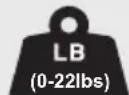
Desktop Weight: (0-22lbs)
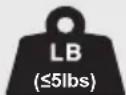
Keyboard Weight: (≤5lbs)

CAUTION: DO NOT EXCEED MAXIMUM LISTED WEIGHT CAPACITY. SERIOUS INJURY OR PROPERTY DAMAGE MAY OCCUR!
PACKAGE CONTENTS
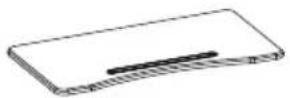
A (x1)
DESKTOP
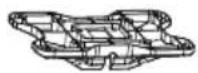
D (x1)
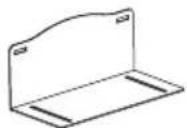
G (x1)
PC MOUNT 1/2
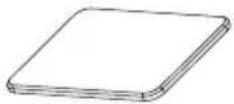
STORAGE SHELF
B (x1)
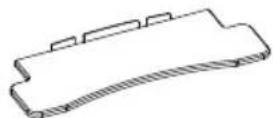
KEYBOARD TRAY KEYBOARD TRAY BRACKETS
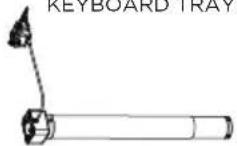
E (x1)
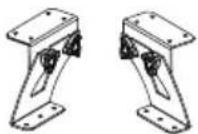
C (x1)
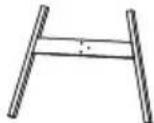
F (x1)
HEIGHT ADJUSTABLE COLUMNDESKTOP BRACKBASE
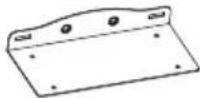
H (x1)
PC MOUNT 2/2
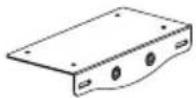
K (x1)
STORAGE SHELF BRACKET
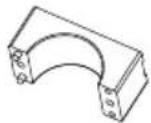
1 (x2)
POLE BRACKET

L (x2)J (x1)
PC STRAPS
HARDWARE CONTENTS
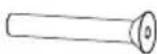
M6x40 BOLT

M5x12 BOLT
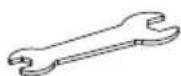
WRENCH

N (x4)M (x3)
M8x12 BOLT
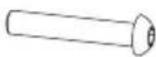
Q (x2)P (x12)
M6x80 BOLT
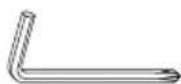
T (x1)S (x1) U (x1)
4mm
HEX WRENCH

O (x11)
M5x14 BOLT
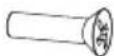
R (x6)
M5x12 BOLT
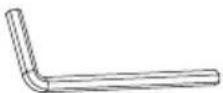
5mm
HEX WRENCH
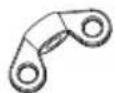
WING NUT

W (x2)
WASHER
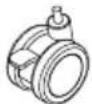
X (x2)V (x2)
LOCKING CASTER
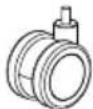
Y (x2)
NON-LOCKING CASTER
Step 1
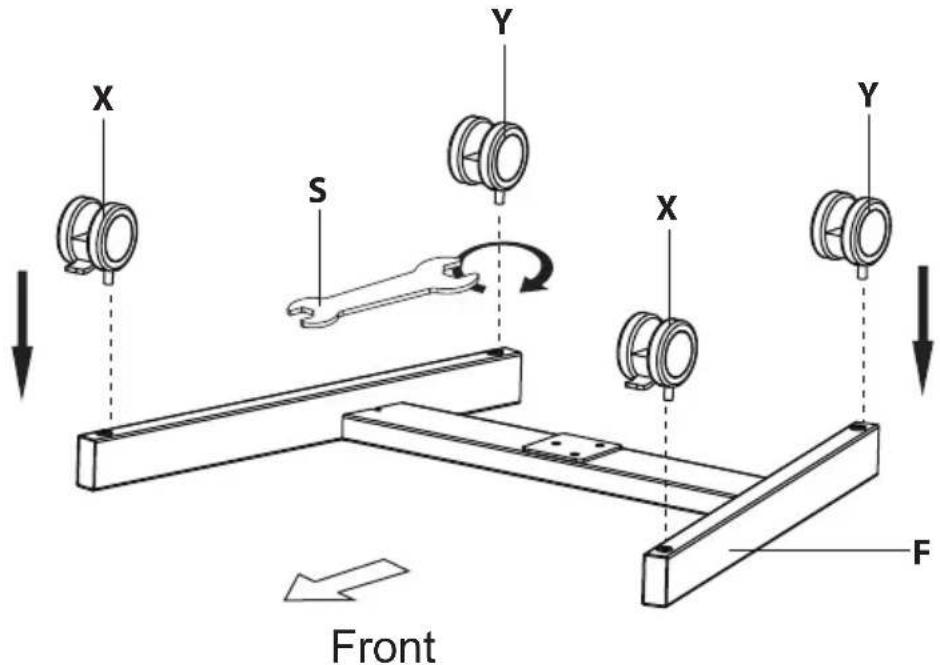
Install the Wheels
Turn the Base (#F) upside down and install the 4 Casters (#X, Y).
The Locking Casters (#X) should be installed on the longer end of the legs as shown here.
Tighten them until secure using Wrench (#S).
Step 2
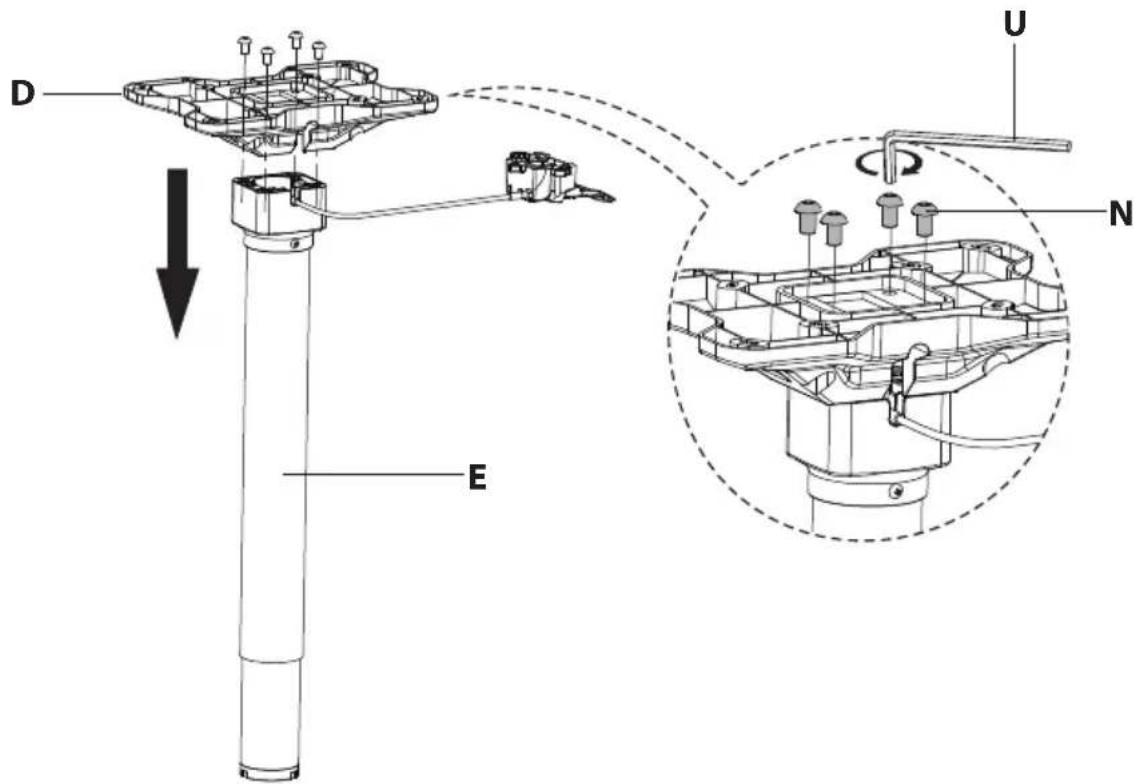
Attach the Desktop Bracket
Install the Desktop Bracket (#D) to the top of the Height Adjustable Column (#E) as shown using Bolts (#N) and Hex Wrench (#U).
Step 3
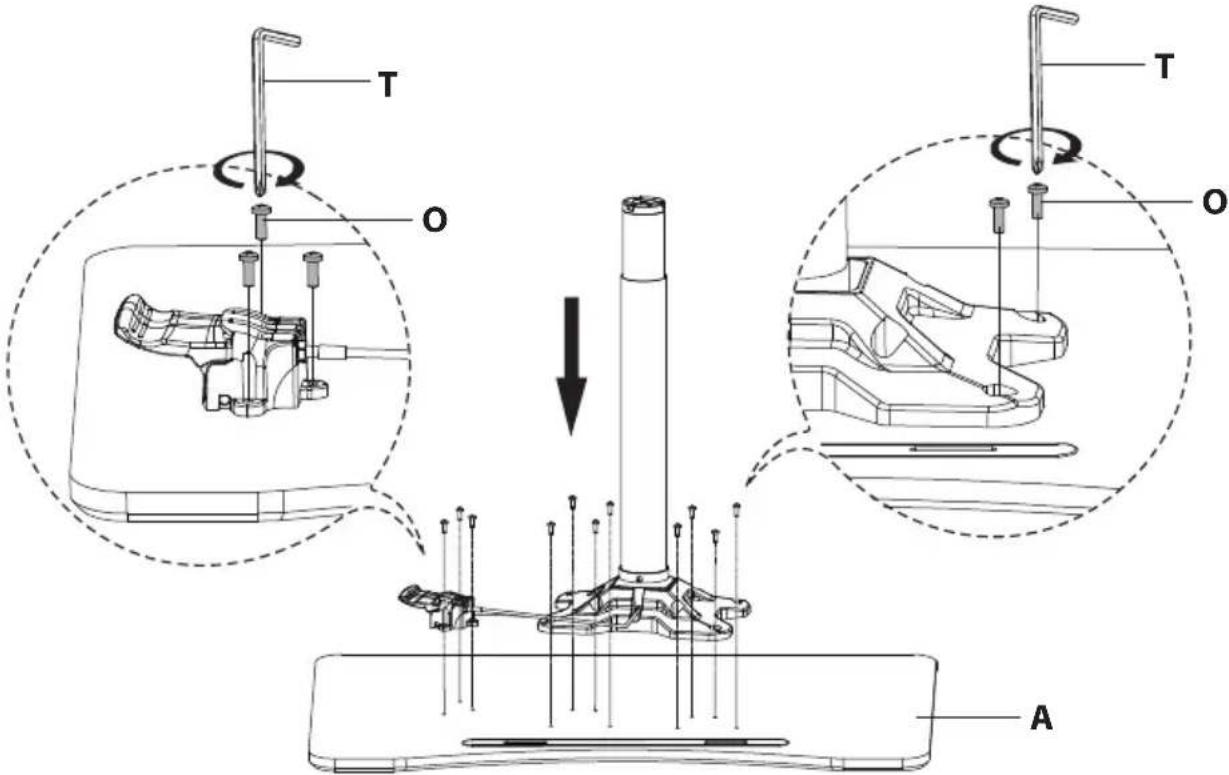
Attach the Column to the Desktop
Turn the Desktop (#A) upside down and carefully place the Height Adjustable Column (#E) on top of it, aligning the holes on the two parts. Attach using Bolts (#O) and Hex Wrench (#T), tighten until secure. Note: For an easier installation connect the main column piece first, then the handle.
Step 4
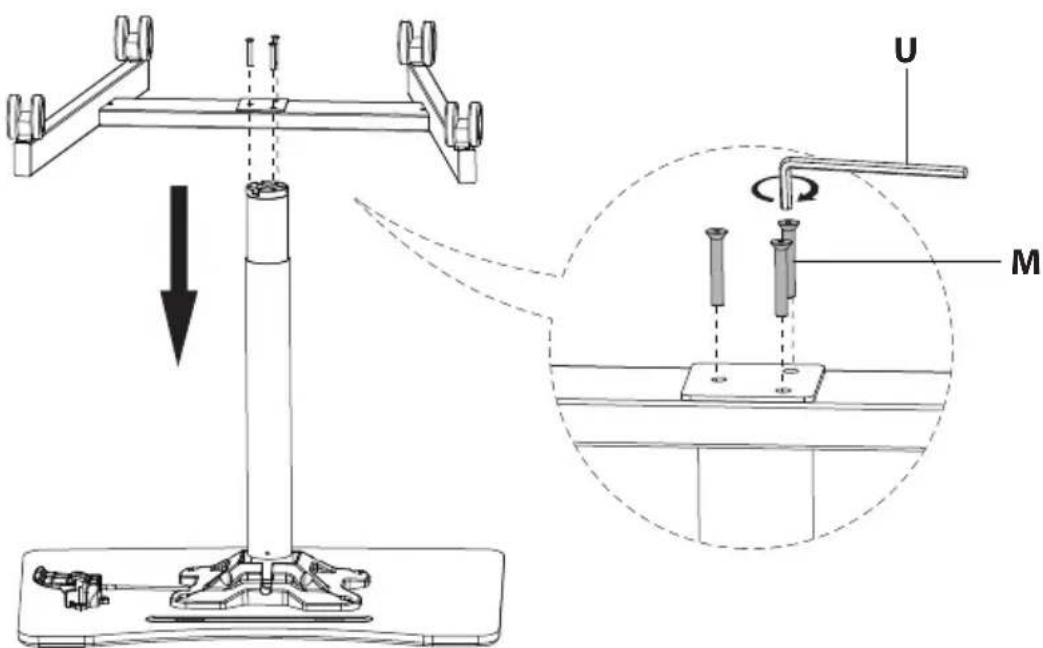
Install the Base
Install the Base (#F) to the Height Adjustable Column (#F) using Bolts (#M) and Hex Wrench (#U).
Step 5
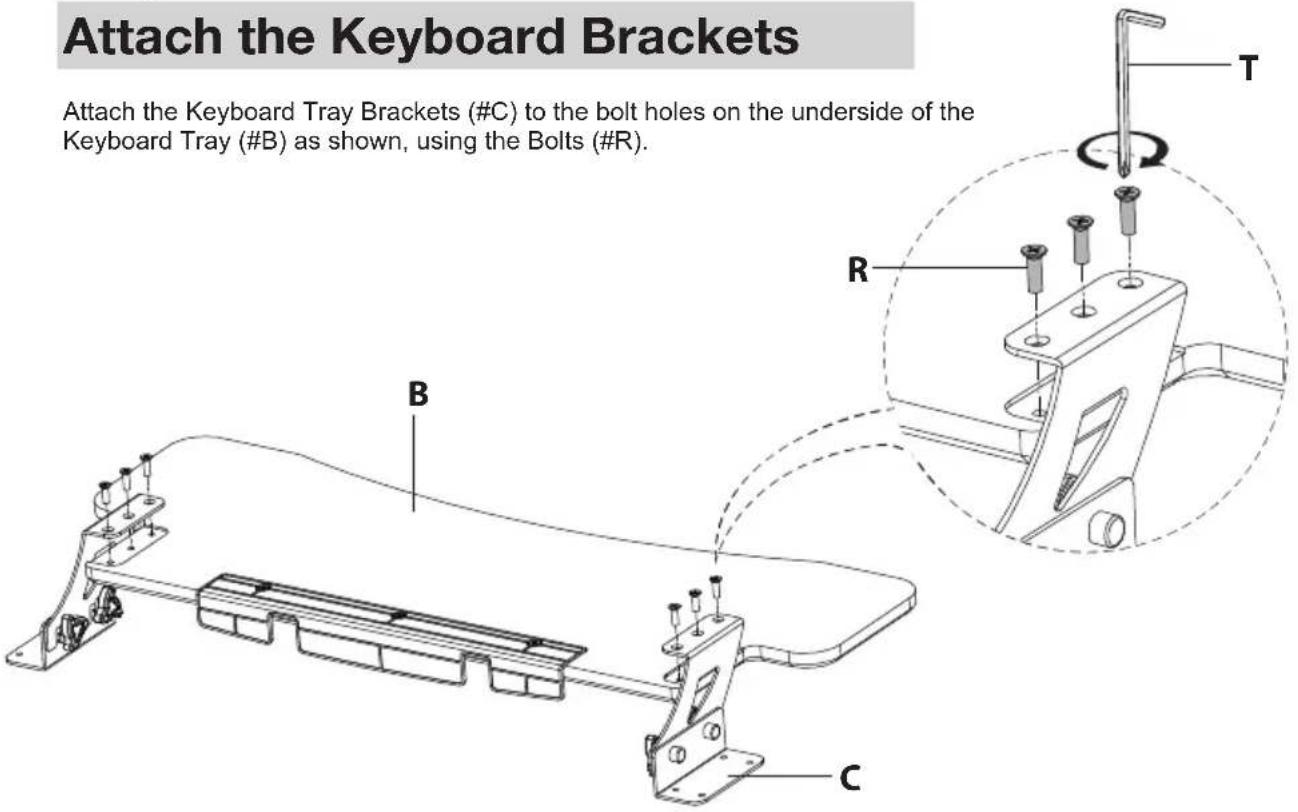
Attach the Keyboard Brackets
Attach the Keyboard Tray Brackets (#C) to the bolt holes on the underside of the Keyboard Tray (#B) as shown, using the Bolts (#R).
Step 6
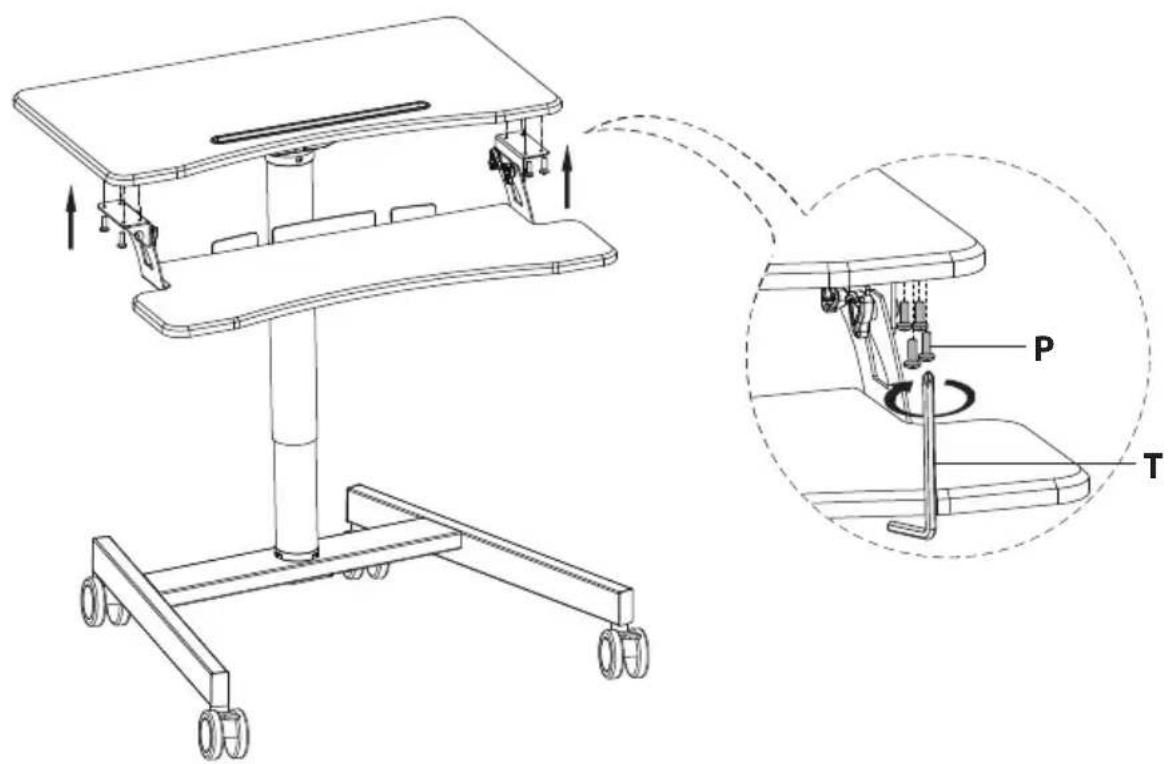
Attach the Keyboard Brackets
Attach the Keyboard Tray Brackets to the bolt holes on the underside of Desktop (#A), using Bolts (#P) and Hex Wrench (#T).
Step 7
Install the Lower Shelf and PC Mount
Turn the Storage Shelf (#J) over and install the Storage Shelf Bracket (#K) using Bolts (#P) and Hex Wrench (#T).
Connect the two halves of the PC Mount using Washers (#W) and Wing Nuts (#V).
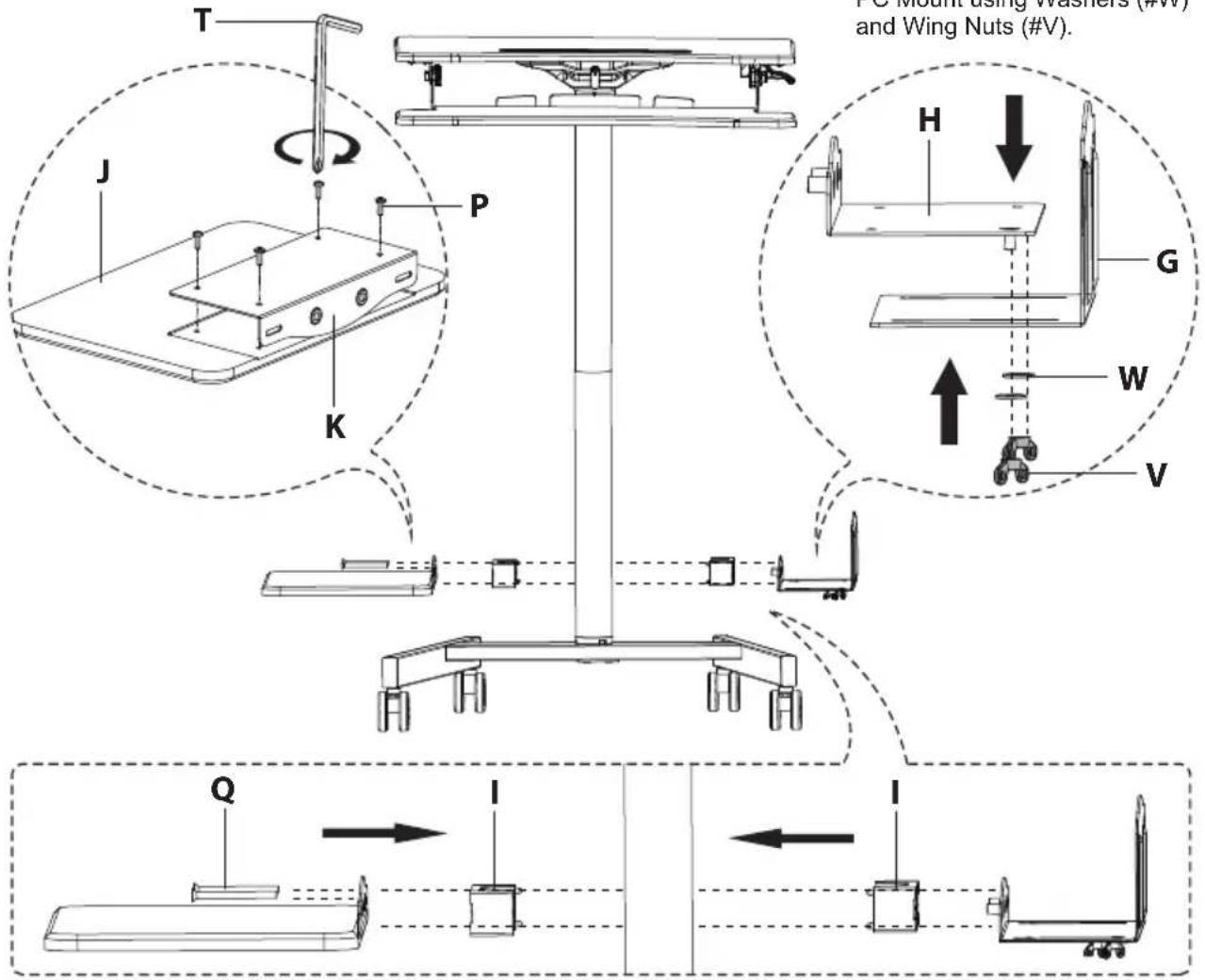
Place one half each of the Pole Bracket (#I) on either side of the column as shown and align the Lower Tray and PC Mount on each side as well. Connect the full assembly together using Bolts (#Q). Allow the assembled shelves to rest on the base below.
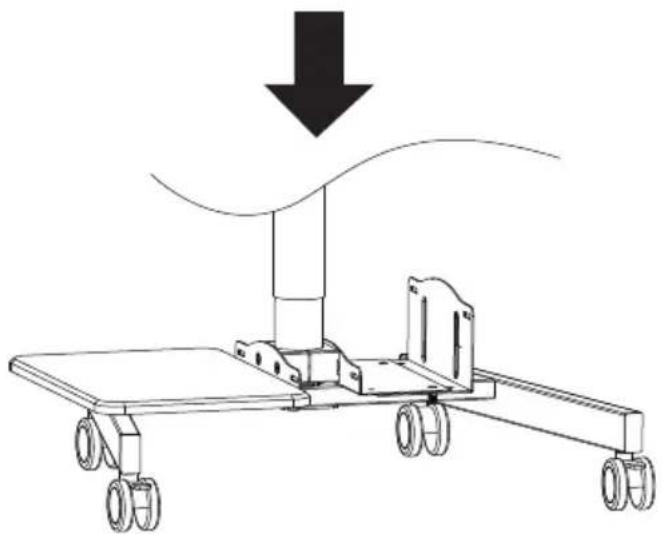
natural_image
Diagram of a mechanical device with wheels and a downward arrow indicating motion or force (no text or symbols)Step 8
Place Items on the Desk
Place all monitors, laptops, or other equipment on the desk. Ensure none of the equipment is hanging off the edge or otherwise unstable/unbalanced.
Pull and hold the lever to raise and lower the height of the workstation.
The PC may be secured into the PC Mount using the PC Straps (#L).
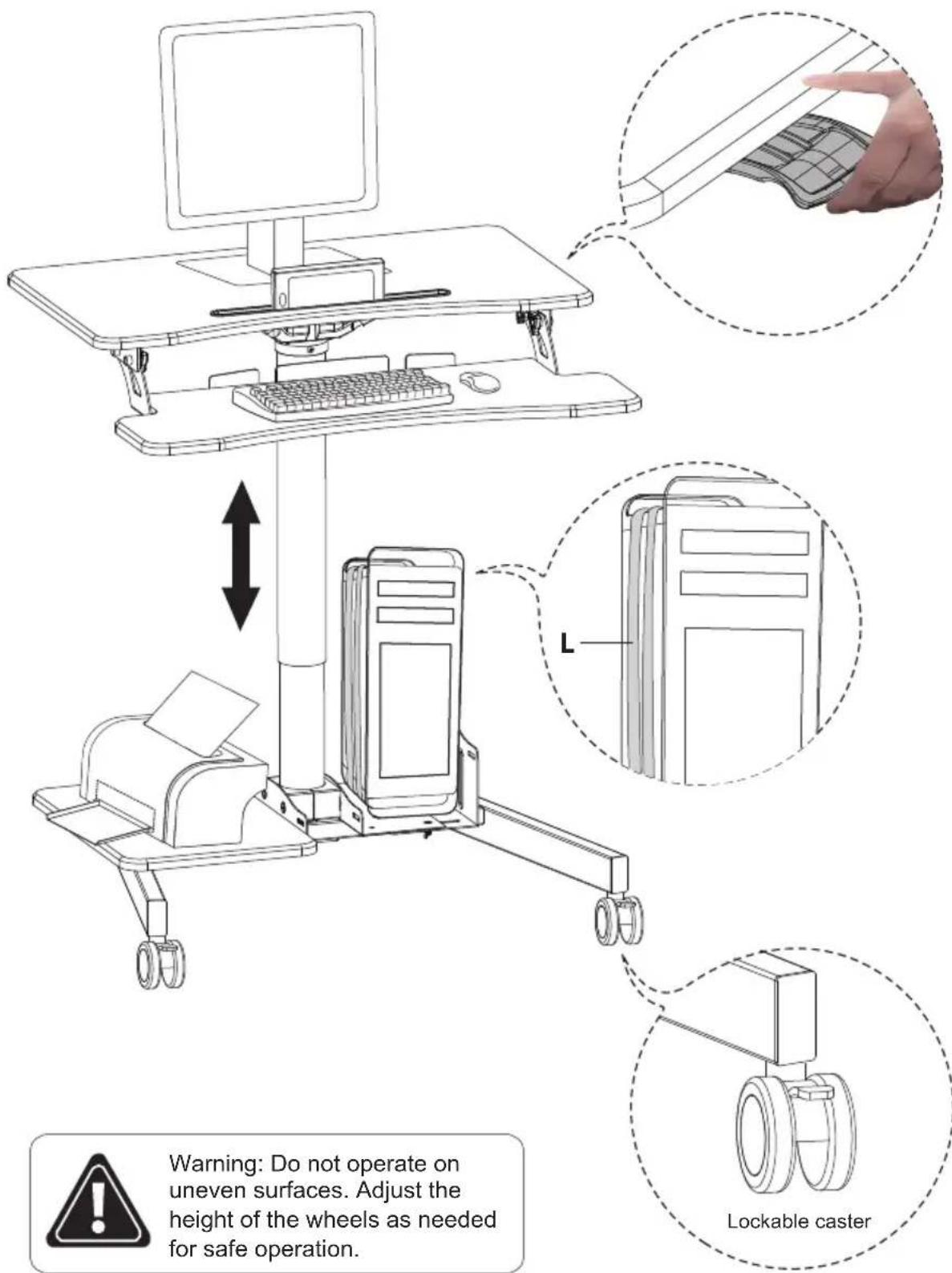

Warning: Do not operate on uneven surfaces. Adjust the height of the wheels as needed for safe operation.
- MOBILE COMPUTER WORKSTATION
- Thank you for choosing Mount-It!
- EN
- DE
- PACKAGE CONTENTS
- HARDWARE CONTENTS
- Step 1
- Install the Wheels
- Step 2
- Attach the Desktop Bracket
- Step 3
- Attach the Column to the Desktop
- Step 4
- Install the Base
- Step 5
- Attach the Keyboard Brackets
- Step 6
- Step 7
- Install the Lower Shelf and PC Mount
- Step 8
- Place Items on the Desk
Brand : Mount-It!
Model : MI-7979W
Category : Uncategorized