SmartOke-Pro - DJ Equipment Vocopro - Free user manual and instructions
Find the device manual for free SmartOke-Pro Vocopro in PDF.


| Product Type | Digital Karaoke Mixer and Wireless Microphone System |
| Brand | Vocopro |
| Model | SmartOke-Pro |
| Power Supply | DC 5V, 1W (via USB-C) |
| Microphones | 2 wireless microphones (AA battery operated) |
| Bluetooth | Yes (for music streaming) |
| Optical Input | Yes (digital optical audio in) |
| Audio Input | 3.5mm (1/8") stereo input |
| Audio Output | 3.5mm (1/8") stereo output, MIC OUT |
| Input Selection | Optical (O), Bluetooth (b), Audio (A) via button |
| Dimensions (approx.) | 10 x 10 x 3 cm (4 x 4 x 1.2 inches) |
| Weight (approx.) | 250 g (0.55 lbs) |
| Key Features | Digital karaoke mixer, wireless microphone system, multiple input options, compact design |
| Compliance | FCC Part 15, California Prop 65 |
| Maintenance | Clean with a soft, dry cloth. Avoid liquids. |
| Spare Parts / Repairability | Contact Vocopro support for parts and service. |
Frequently Asked Questions - SmartOke-Pro Vocopro
User questions about SmartOke-Pro Vocopro
0 question about this device. Answer the ones you know or ask your own.
Ask a new question about this device
Download the instructions for your DJ Equipment in PDF format for free! Find your manual SmartOke-Pro - Vocopro and take your electronic device back in hand. On this page are published all the documents necessary for the use of your device. SmartOke-Pro by Vocopro.
USER MANUAL SmartOke-Pro Vocopro
SmartOke-Pro Quick Set-Up Guide
Thank you for purchasing the SmartOke-Pro karaoke package. Below we will go over the basic setup procedure to get these items working together with your music source. More info about each item can be found in its own User Manual.
Step 1. Turning on the SmartOke
Use the USB-C cable to plug the SmartOke box into power. Press the Power button to turn it on.
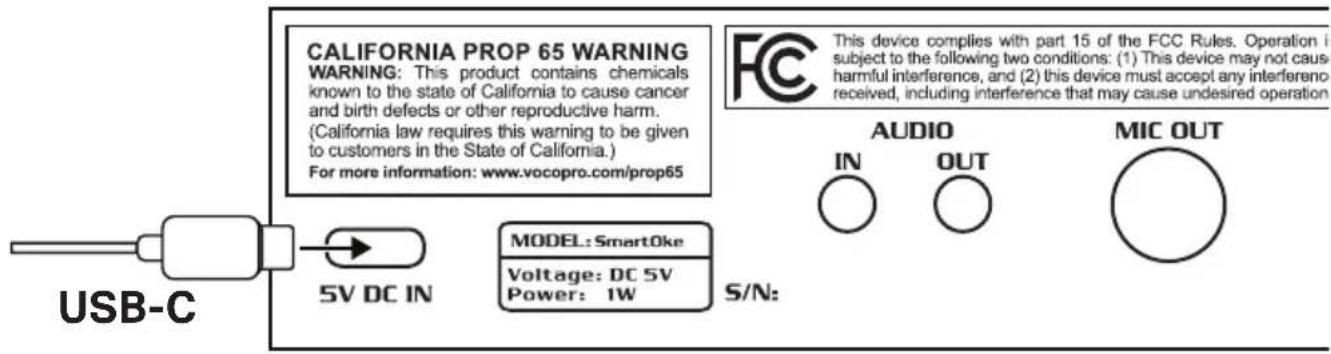
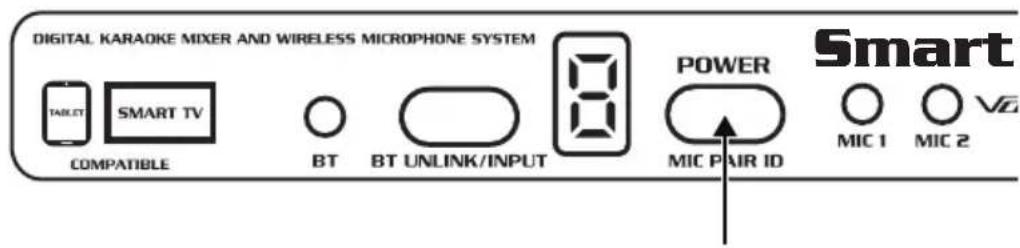
Step 1. Turning on the SmartOke (Continued)
Install 2x AA batteries in each of the wireless mics and power them on.
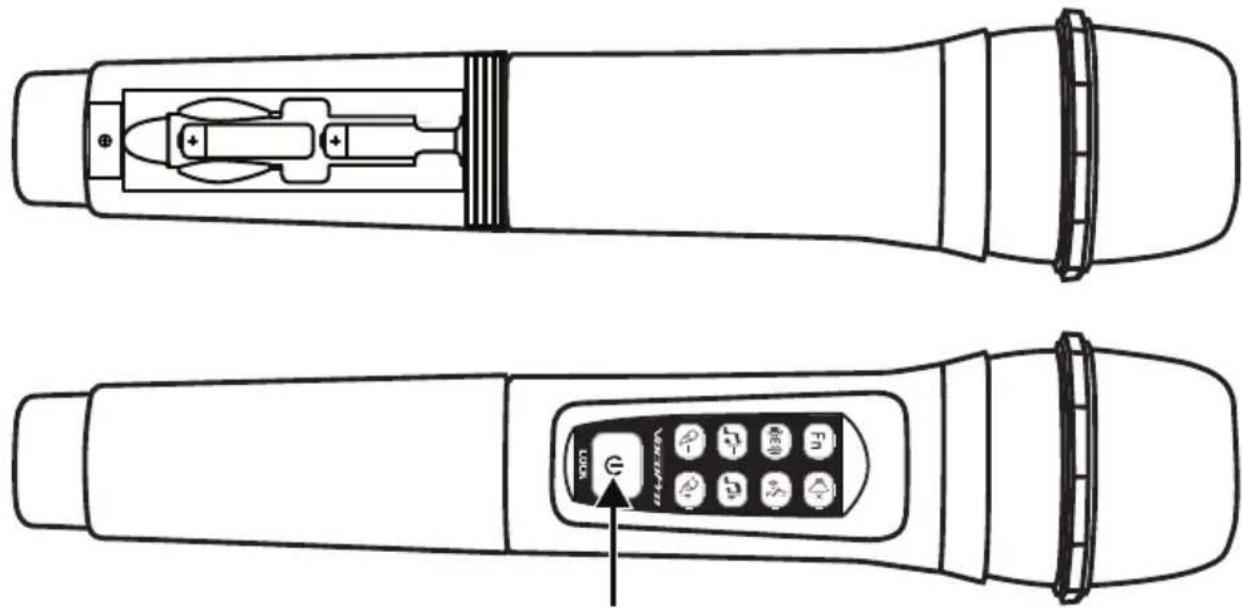
The Power button on the mics should be solid green to show they are connected, and the Mic 1 & Mic 2 status lights on the SmartOke box should also be solid green.
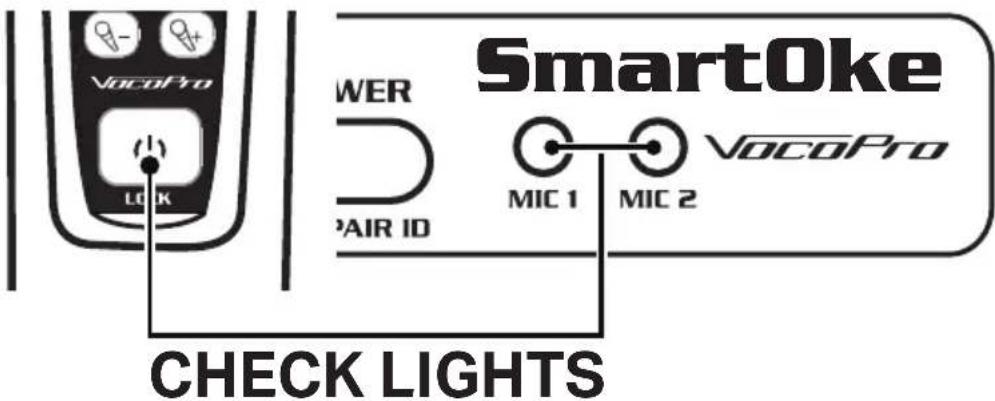
(If the mics do not pair immediately out of the box and the green lights are flashing, please see the SmartOke manual for how to re-sync them.)
Step 2. Getting Microphone Audio
Using the included 15 ft. 3.5mm (1/8") audio cable, connect one end to the AUDIO OUT on the back of the SmartOke, and connect the other end to the AUX input on the back of the PV-WEDGE-II speaker.
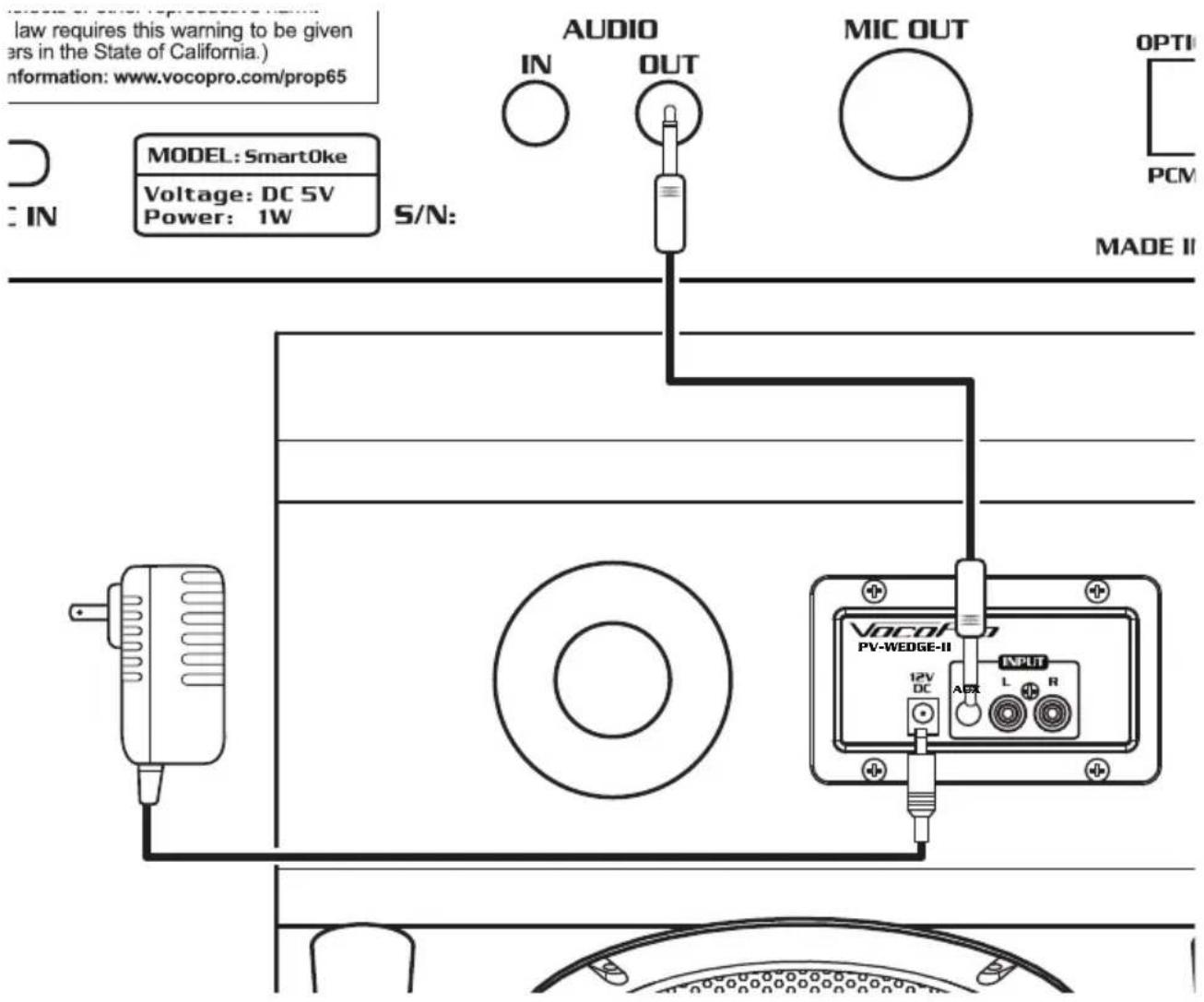
Connect the PV-WEDGE-II speaker to power using the 12V DC adapter.
Turn the speaker on, turn the volume knob up, and speak into the microphone. At this point you should be getting mic audio coming through the speaker.

Step 3. Connecting a Music Source
There are three ways to connect to SmartOke for music:
Option 1: Connecting to a Smart TV
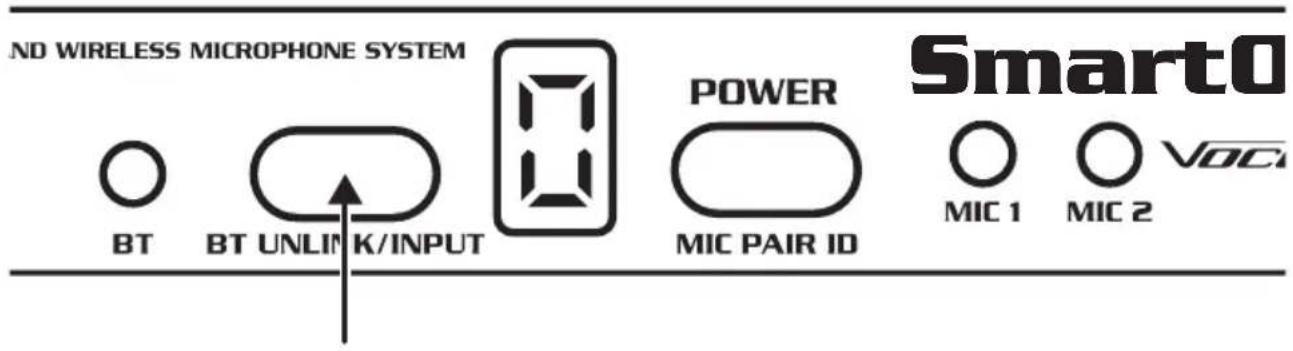
Press the BT UNLINK/INPUT button on the SmartOke until the display reads 'O' for Optical.
Using the optical cable, connect one end to the DIGITAL OPTICAL AUDIO OUT on your smart TV and connect the other end to the OPTICAL IN on the SmartOke.
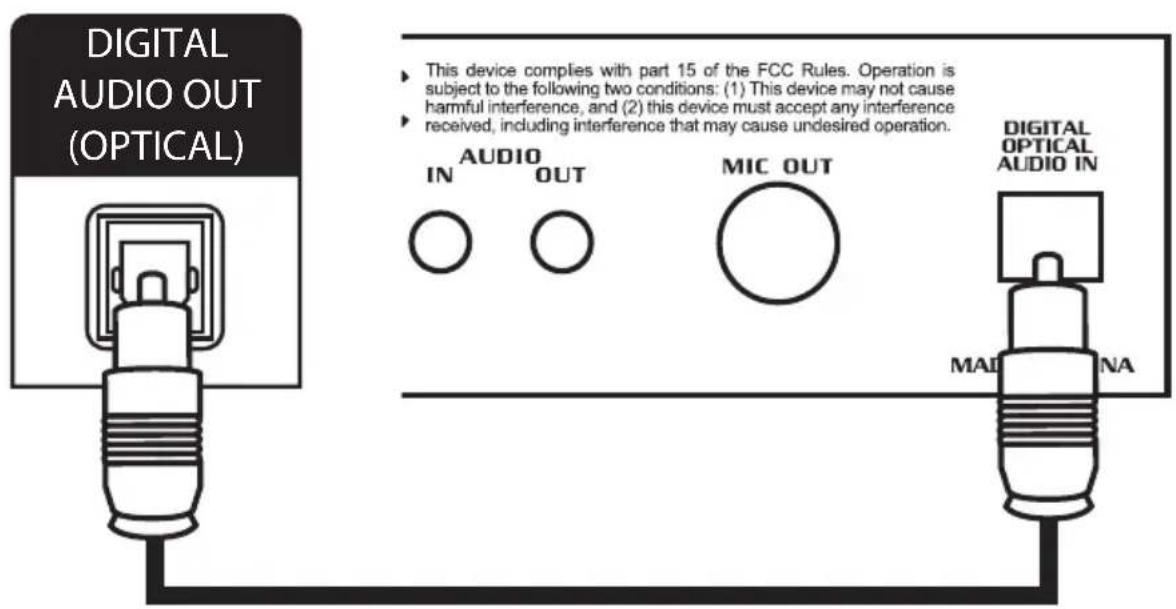
(You may need to go into your TV's sound settings and change the output to Optical and more specifically to PCM Optical if you have the option. Not all TVs have the same options and some will change automatically.)
Option 2: Connecting a Bluetooth Device
Press the BT UNLINK/INPUT button on the SmartOke until the display reads 'b' for Bluetooth.
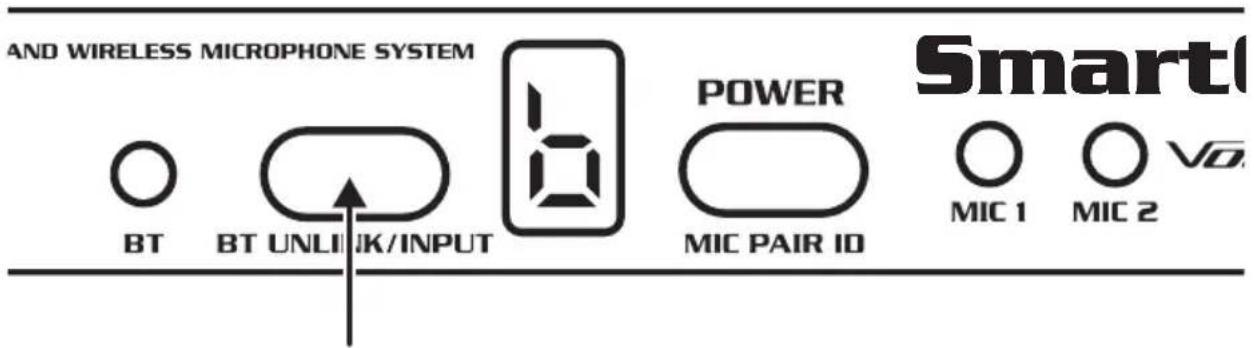
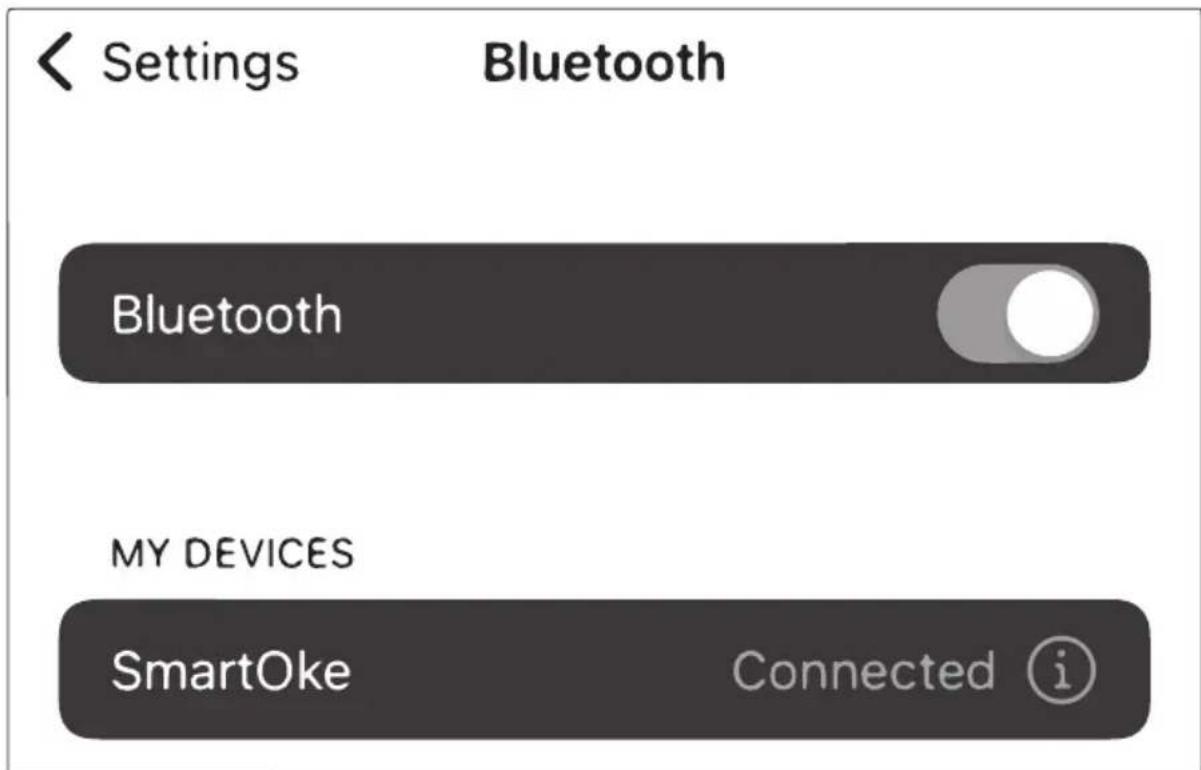
Open Bluetooth settings on your device and connect to the "SmartOke".
(If you don't see it right away, try turning Bluetooth off and back on, on your device, and/or cycling through the inputs on the SmartOke.)
Option 3. Connecting from a Stereo Source, e.g. DVD player
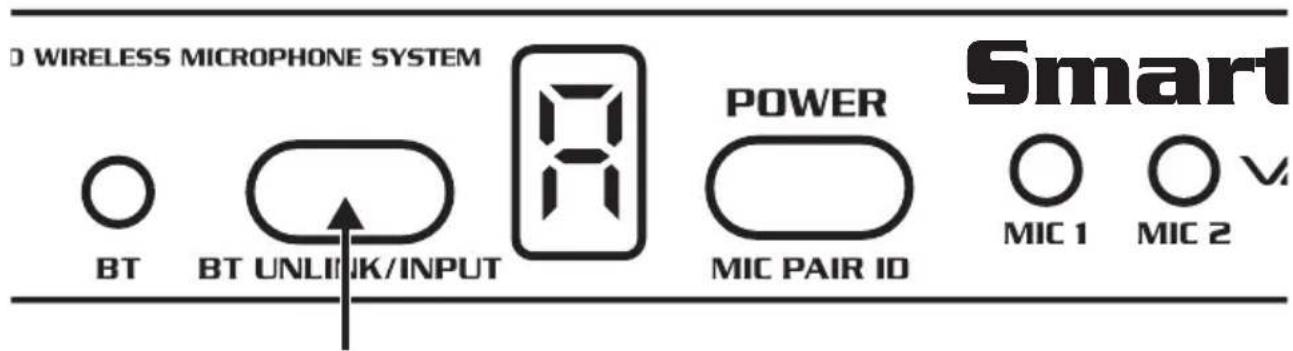
Press the BT UNLINK/INPUT button on the SmartOke until the display reads 'A' for Audio.
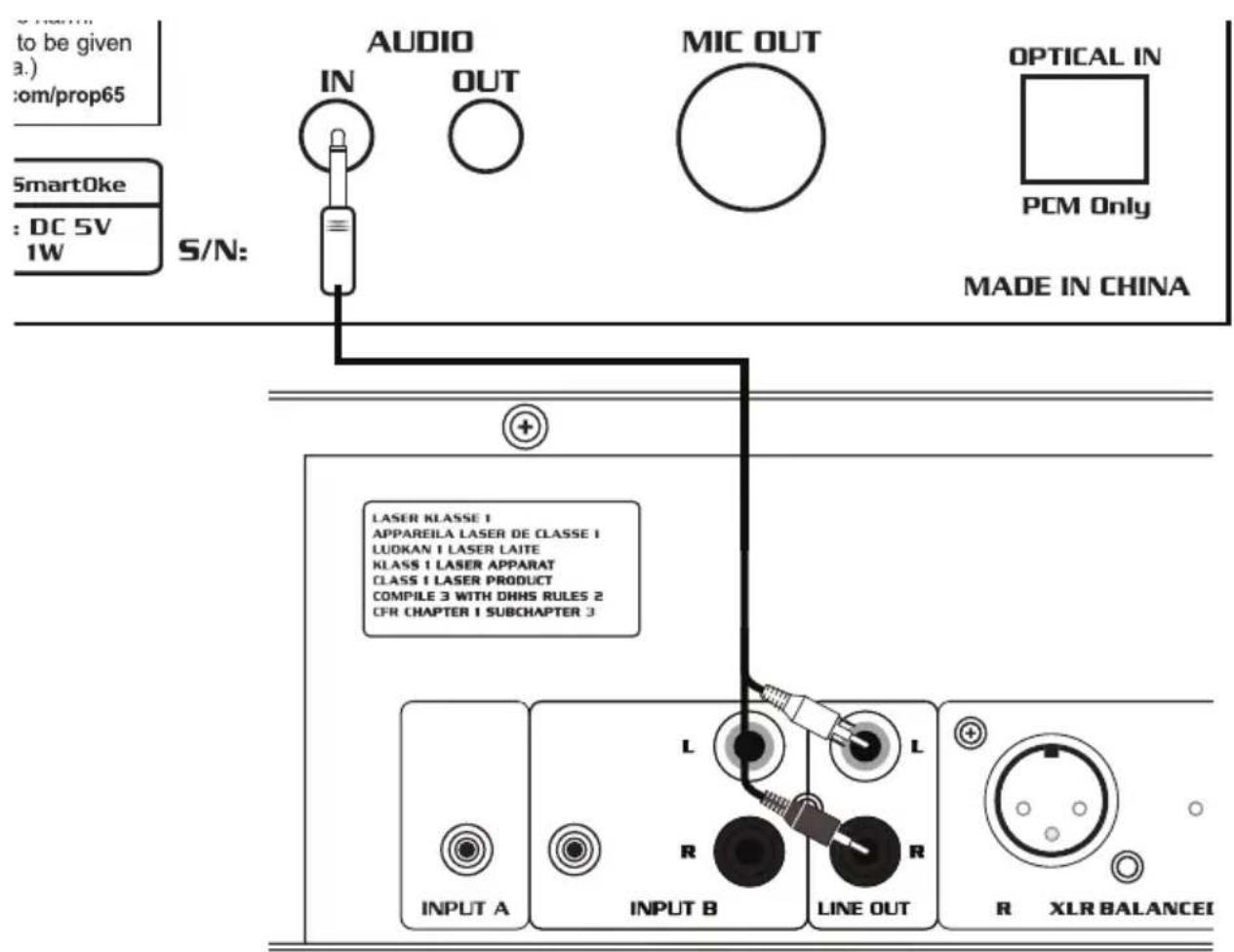
Using the 3.5mm to RCA cable, connect the single 3.5mm end into the AUDIO IN on the SmartOke and connect the dual RCA red and white ends into an AUDIO OUT on your player or device.
Our Team is Here to Help

natural_image
Simple line drawing of two speech bubbles with question mark inside, no text or symbols present

Please do not return to the retailer if you are having a technical issue operating or connecting the unit. If you need additional help, have questions, or need support with your product contact us:
Toll Free: 800-678-5348
TEL: 909-593-8893
FAX: 909-593-8890
Email Tech Support at:
techsupport@vocopro.com

natural_image
Abstract black and white circular logo with a stylized white 'V' shape (no text or symbols)Visit us on Facebook,
Twitter, and Instagram
Brand : Vocopro
Model : SmartOke-Pro
Category : DJ Equipment