
AS1 - Wireless audio system Speco Technologies - Free user manual and instructions
Find the device manual for free AS1 Speco Technologies in PDF.


| Product Type | Wireless Multizone Audio Distribution Streamer |
| Brand | Speco Technologies |
| Model | AS1 |
| Dimensions (L x W x H) | 3.9" x 4.1" x 1.1" (99 mm x 104 mm x 28 mm) |
| Weight | 0.4 lbs (181 g) |
| Power Input | DC 12V, 1A |
| Wireless Connectivity | Wi-Fi 802.11 b/g/n 2.4G |
| Wired Connectivity | RJ45 10/100M Ethernet |
| Audio Outputs | Analog RCA, Coaxial, Optical (2.1) |
| Audio Inputs | USB 2.0, Analog RCA |
| Supported Audio Formats | MP3, AAC, AAC+, ALAC, APE, WAV |
| Decoding Capability | Up to 24-bit/192kHz |
| Frequency Response | 20Hz - 20kHz |
| Maximum Zones | 12 zones (8 recommended) |
| Control App | a-live for iOS and Android |
| Supported Streaming Services | Spotify, Tidal, iHeartRadio, TuneIn, Napster, and more |
| Local Music Sources | Phone memory, NAS, USB flash drive, hard disk |
| Multi-Room Audio | Yes – stream same or different music to different zones |
| Setup Methods | App (Wi-Fi hotspot) or Web console (10.10.10.254) or LAN |
| LED Indicator | Blinking white (searching), solid white (Wi-Fi/USB streaming), solid green (line-in) |
| Reset Button | Yes – for Wi-Fi connection issues |
| Firmware Update | Via app notification |
| Mounting | Integrated bracket for wall/surface mounting |
| Maintenance & Cleaning | Keep dry; clean with soft cloth; avoid liquids and solvents |
| Safety | Complies with FCC Part 15; Do not expose to moisture or heat |
| Spare Parts / Repairability | No user-serviceable parts; contact Speco Technologies for support |
Frequently Asked Questions - AS1 Speco Technologies
User questions about AS1 Speco Technologies
0 question about this device. Answer the ones you know or ask your own.
Ask a new question about this device
Download the instructions for your Wireless audio system in PDF format for free! Find your manual AS1 - Speco Technologies and take your electronic device back in hand. On this page are published all the documents necessary for the use of your device. AS1 by Speco Technologies.
USER MANUAL AS1 Speco Technologies
Wireless Multizone Audio Distribution System
AS1 Wireless Stereo Distribution Streamer
8uick Start ⑨uide
Stream. Control. Entertain.
Introduction
This Wi ^8 i enabled digital streamer has great performance and is flexible enough to satisfy picky residential audio enthusiasts while simultaneously meeting the demands of commercial installations. With the free iOS and ^6 ndroid applications you can easily control your smart audio system to stream and distribute music in up to 12 zones. You can stream the same music to all zones or different music to different zones, no matter if the music is from local storage like cell phone memory, N ^6 S, USB flash disk and hard disk or from online streaming services such as Spotify, Tidal, TuneIn, i ^10 eart9adio, Napster, etc.
In This Box
• ⑥S1 x1
- 8uick Start ⑨uide x1
- Power supply x1
- 9⑦⑥ cable x2
• ⑥ntennas x1
What You Need For Installation
- Wifi router
- ⑥mplifier with connected speakers (⑦ommercial 70V amplifier or 9esidential amplifier, or active speaker)
- Mobile device or computer
Interface and Functions

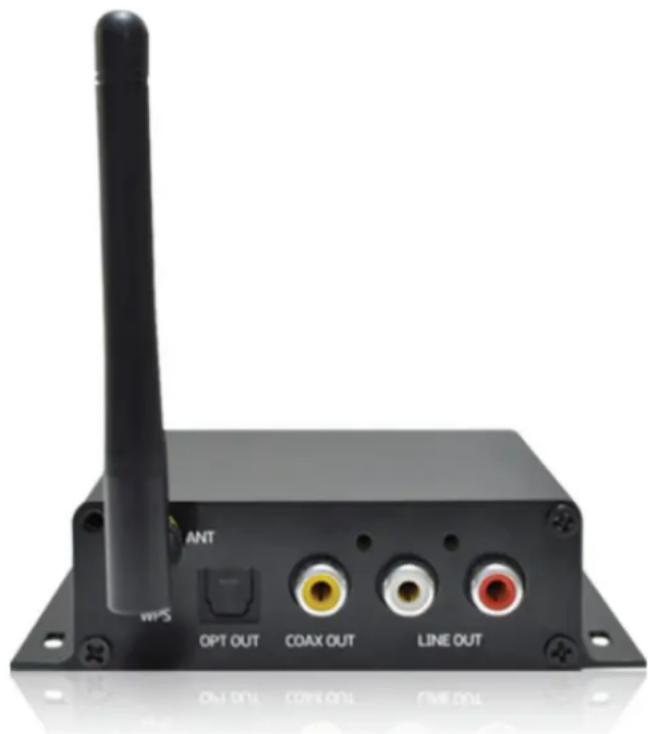
① Wi⑧i Antenna: Used to connect to Wi⑧i
② Reset: Used to reset the device when if you are having problems with your Wi⑧i connection
③ LED: Indicates the status of the device
Blinking White: Searching for a network connection
Solid white: Power on, Network connected, Wi⑧i and USB streaming
Solid green: Line in streaming
④ Optical: Used to provide 2.1 digital output to other devices such as an amplifier
⑤ ⑦oaxial: Used to provide coaxial output to other devices such as an amplifier
⑥ Line out: Used to provide an analog output to other devices such as a receiver or amplifier
Interface and Functions (Cont.)
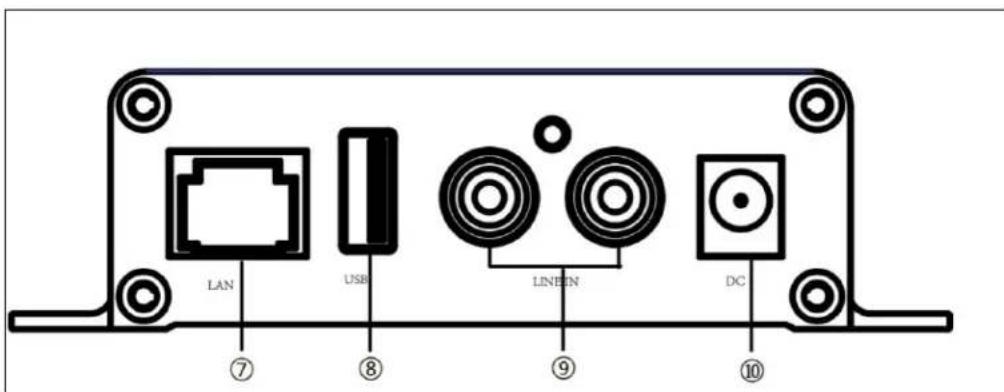
⑦ Network connector: RJ45 used to connect to a wired Ethernet network
⑧ USB input: Used to connect to local storage devices such as thumb drive
⑨ Line input: Analog input used to connect audio devices via RCA cable
⑩ Power input: Used to connect the power adaptor
How it works
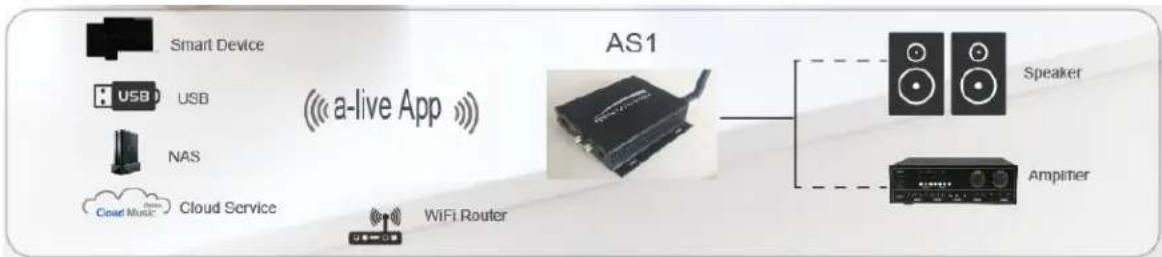
flowchart
graph LR
    A["Smart Device"] --> B["AS1"]
    C["USB"] --> B
    D["NAS"] --> B
    E["Cloud Music"] --> B
    F["Cloud Service"] --> B
    G["WiFi Router"] --> B
    H["Speaker"] --> I["Amplifier"]
    style A fill:#f9f,stroke:#333
    style C fill:#f9f,stroke:#333
    style D fill:#f9f,stroke:#333
    style E fill:#f9f,stroke:#333
    style F fill:#f9f,stroke:#333
    style G fill:#f9f,stroke:#333
    style H fill:#f9f,stroke:#333
    style I fill:#f9f,stroke:#333
Installation Guide
1. Unpack your system
Verify all accessories are included in your box.
2. Install your system
Place your streamer at a safe and proper location. ⑥n integrated mounting br.kket allows mountin to a wall or surface, but we suggest making sure you complete all installation steps before permanently mounting.
3. Connect your system
Power connection
Power the streamer with the power adaptor included in the accessories. It is recommended to connect the adapter into the streamer first, and then plug the ⑥⑦ plug into your wall or er er out

flowchart
graph LR
    A["USB"] --> B["USB Cable"]
    B --> C["Red Box"]
    C --> D["Device"]
    D --> E["AC Input"]
Audio Connection
Using the included 9⑦⑥ cable, ce ect your ⑥S1 to the +ine Input on your 70il plifier, cone of the other outputs with an optional cable to connect to a different source.
4. Download the App
Download the a-live application from the ⑥pp Store for iOS and ⑨oogle Play for Ir dr

5. Configure
Option 1-Configuration via app
-⑦connect your Mobile Device to your Wifi Network
-Open the application> press ⑥dd Device(+) > choose settings> choose the a-live_xxxx hotspot> after connecting, press the 'turn back' on your WL⑥N settings> the app will jump to the configuration step> choose the 2.4⑨ network and enter the password> wait for the device to be configured.

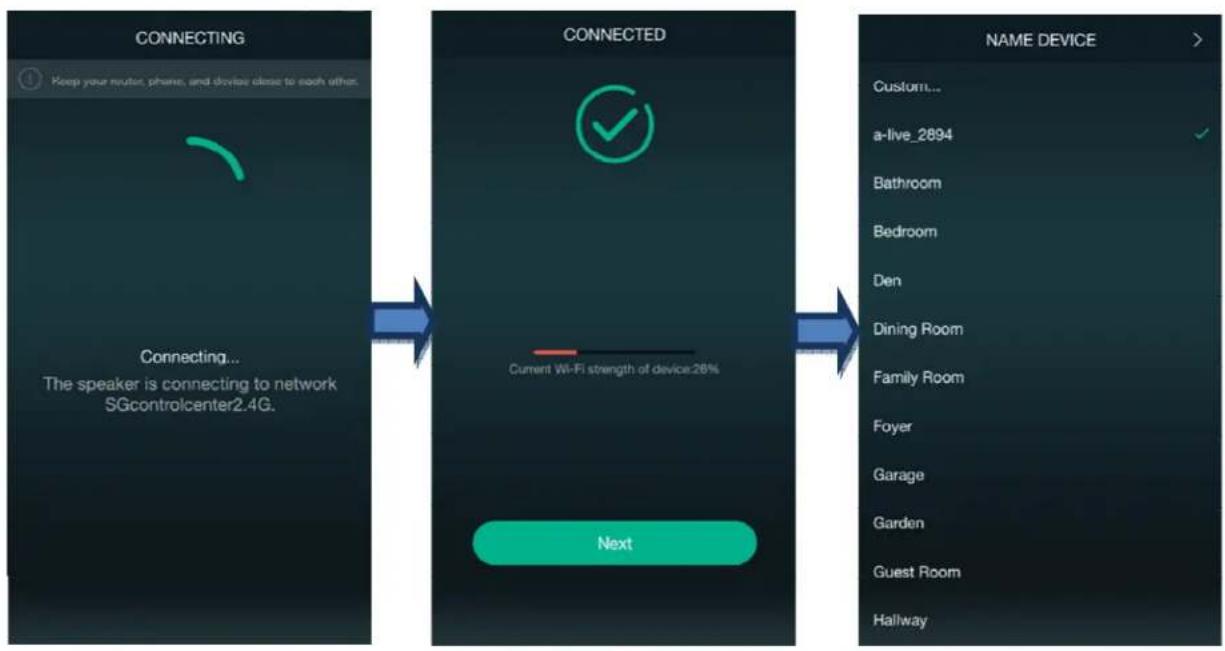
flowchart
graph LR
    A["Connecting"] --> B["Connected"]
    B --> C["NAME DEVICE"]

    subgraph_A["Connecting"]
        D["Keep your router, phone, and device close to each other."]
        E["Connecting... The speaker is connecting to network SGcontrolcenter2.4G."]
    end

    subgraph_B["CONNECTED"]
        F["Current Wi-Fi strength of device:28%"]
    end

    subgraph_C["NAME DEVICE"]
        G["Custom..."]
        H["a-live_2894"]
        I["Bathroom"]
        J["Bedroom"]
        K["Den"]
        L["Dining Room"]
        M["Family Room"]
        N["Foyer"]
        O["Garage"]
        P["Garden"]
        Q["Guest Room"]
        R["Hallway"]
    end
a-live
Option 2- Configuration via Web console
-1. Power the device.
-2. ⑦choose the hotspot(a4live_xx)in the Wi⑧i settis on your cell phone or computer and connect.
-3. Open your browser and enter 10.10.10.254 in the address bar.
-4. ⑨o for Wi⑧i>choose ya2u4⑨ rout r>enter the password> click connect> wait for he device to be configured.

Option 3-Connection via LAN
-Power the device
-Plug in the wired cable to the RJ45 Ethernet, the device will show on the app in about 10 seconds.
App Photo Gallery:
Playback
Your Device +ist will show all available zones. Press a zone to see the information on the current source. While on the view for the source, swipe right to reveal the available sources. ⑧rom here, you can select what s you want to hear next, or swipe left to return to the currently playing source.
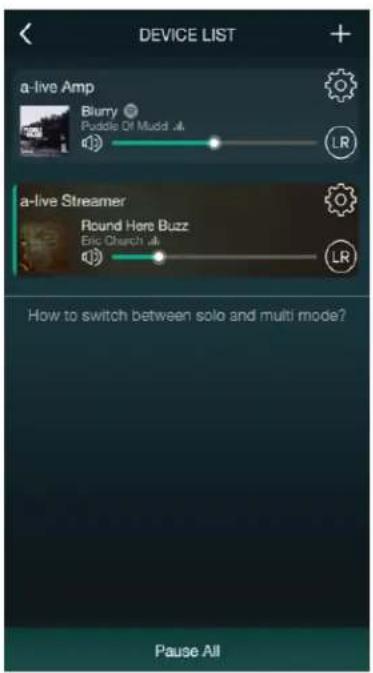


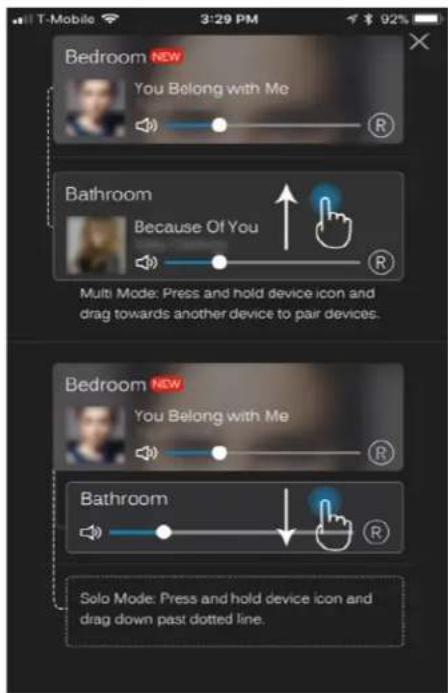
You also have the ability to combine zones so that each zone is playing the same source at the same time.
Just press your finger on the zone you want to play what another zone is playing until it indicates it is ready to merge. Then, drag it on top of the master zone and release. In roughly 30 seconds, the zones will combine.
To separate zones, repeat the process, but this time drag the zone you want to free below the dotted line.
Streaming from mobile device memory/NAS/Online Music Services
These screens let you access your available music, whether it be hard files on your network or connected to your a-live hardware, or what streaming options you've selected to be available.
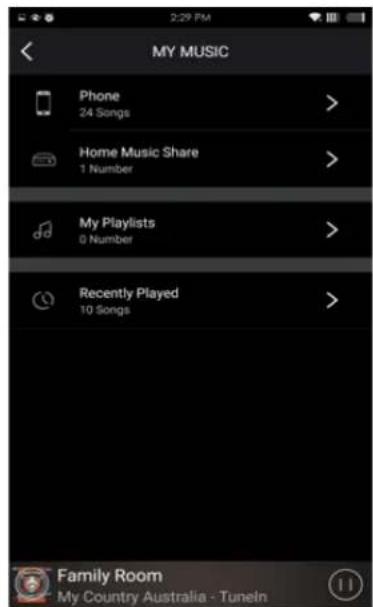


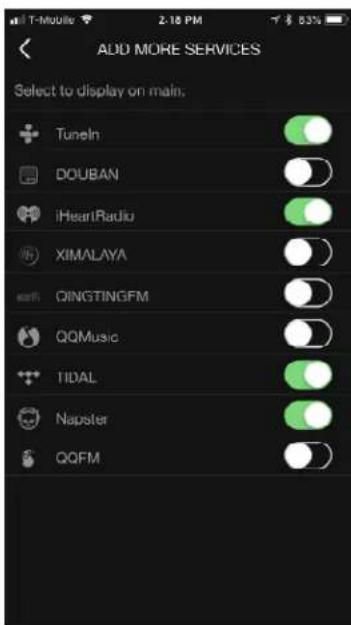
By selecting “+ ⑥dd More Services,” you can see the list of what services are available for you to add for your listening pleasure. This list will be updated over time as we continually work to bring new services to a-live.

Device Settings
Through device settings you can set an alarm clock or sleep timer, get technical information on your speaker, or rename it.

Firmware update
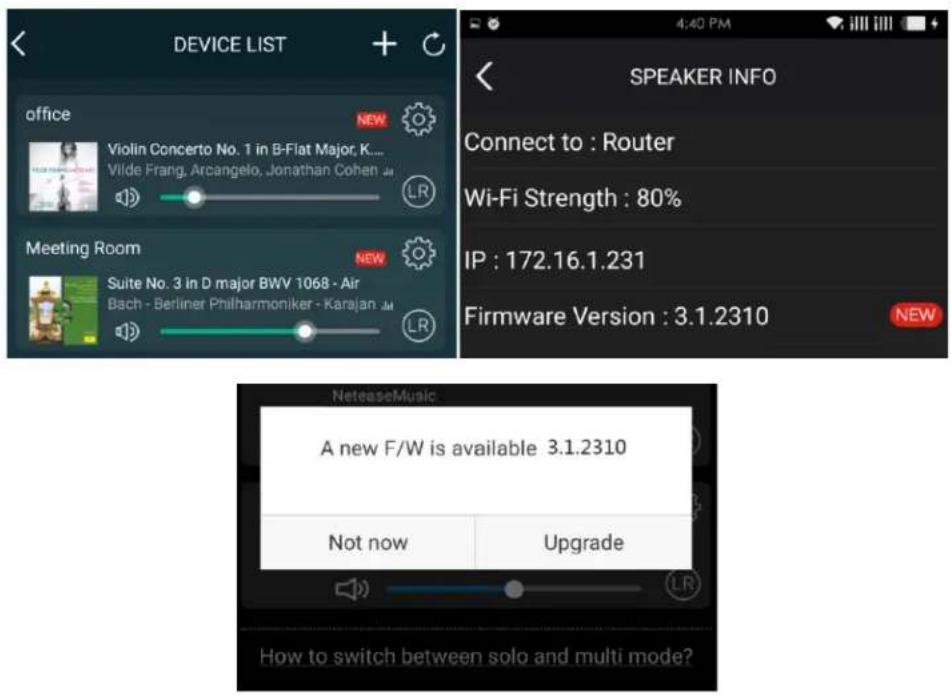
a-live will notify you in your app when there is a new firmware version available. It's recommended to update firmware whenever available as this might not only correct bugs or improve security, but could also add new features or services.
a·live
FAQ
Q: Do your devices support airplay and third-party D+N⑥ apps④
A: Yes. They support airplay and third-party apps like BubbleUPNP...
Q: ⑩ow many zones can you group on one system④
A: 12 rooms is the maximum, while 8 zones are recommended.
Q: What distance can your wireless audio system cover④
A: Once the system is connected to your Wi⑧i router, you can stream your music anywhere there is a Wi⑧i signal.
Q: ⑦ an it play high resolution music ④
A: Yes. Our devices can play ⑥PE and ⑧+⑥⑦ within the normal bit rate range. They also support decoding 24bit/1①2khz music files.
Q: ⑩ow many languages do you support④
A: Our devices will auto-detect your mobile device language and change automatically. ⑦ currently, we support English, ⑧rench, ⑨erman, Spanish, ⑦hinese, Portuguese, >orean and Japanese and more on the way.
Q: What online music services do you support④
A: Spotify, Tidal, i⑩eartRadio, Tunein, Napster, and more, with more pending.
Q: ⑦ an I play local music ④
A: Yes. You can play music from “MY MUSI⑦” on the application from local storage devices such as mobile device storage, USB thumb drives, portable hard disk and N⑥S.
Q: ⑦ an a-live work with Windows devices ④
A: The Windows application is not available at the moment, but on the Windows P⑦, users can use iTunes, ⑧oobar2000 and Spotify connect as a line input.
Technical Specifications
| Connectivity | Wireless network IEEE8 | 02.11 b/g/n 2.4G |
| LAN single 10/100M RJ45 | ||
| Frequency Response 20Hz to 20KHz | ||
| Power input DC 12V, 1A | ||
| Audio Source Input USB 2.0, Analog RCA | ||
| Audio Source Output Analog RCA, Coaxial, Optical(2.1) | ||
| Dimensions: 3.9" L x 4.1" W x 1.1" H | ||
| Weight 0.4 Lbs | ||
| Music format | MP3/AAC/AAC+/ALAC/APE/WAV | |
| Decoding | Up to 24bit/192KHz | |


This device complies with part 15 of the FCC rules. Operation is subject to the following two conditions: 1) This device may not cause harmful interference, and 2) this device must accept any interference that may cause undesired operation.
⑤⑦copyright 2018 by Speco Technologies. ⑥II 9ights 9reserved.
The information contained in this guide is intended to be accurate and reliable. Speco Technologies assumes no responsibility for any errors contained in this guide. Speco Technologies reserves the rights to make changes in the specifications and/or design of the above mentioned product without prior notice. The diagrams contained in this guide may also not fully represent the product that you are using and they are for illustration purposes. Speco Technologies assumes no responsibility for any differences between the product mentioned in this guide and the product you purchased.
Rev. 4/2/2020
- Wireless Multizone Audio Distribution System
- Introduction
- What You Need For Installation
- Interface and Functions
- Interface and Functions (Cont.)
- How it works
- Installation Guide
- Unpack your system
- Install your system
- Connect your system
- Download the App
- Configure
- a-live
- App Photo Gallery:
- Playback
- Streaming from mobile device memory/NAS/Online Music Services
- Device Settings
- Firmware update
- a·live
- FAQ
Brand : Speco Technologies
Model : AS1
Category : Wireless audio system