
MMC-B19 - Digital decoder Laser - Free user manual and instructions
Find the device manual for free MMC-B19 Laser in PDF.


| Product Type | Digital Decoder |
| Brand | Laser |
| Model | MMC-B19 |
| Dimensions (W x D x H) | 250 x 180 x 45 mm |
| Weight | 0.8 kg |
| Power Supply | 5V DC, 1A via included adapter |
| Power Consumption | < 10 W |
| Video Outputs | HDMI 1.4, Composite AV (RCA) |
| Audio Outputs | HDMI, Optical digital audio |
| Max Resolution | 1080p Full HD |
| Processor | ARM Cortex-based |
| Memory (RAM / Flash) | 256 MB RAM / 256 MB Flash |
| Supported Video Formats | MPEG-2, MPEG-4, H.264 |
| Supported Audio Formats | MP3, AAC, Dolby Digital |
| USB Ports | 1 x USB 2.0 (for media playback) |
| Smart Card Slot | 1 x Smart card reader (pay-TV) |
| Operating System | Embedded Linux |
| Remote Control | Included (IR) |
| Language Support | Multi-language menu |
| Parental Control | Yes (PIN-protected) |
| Electronic Program Guide (EPG) | Yes (7-day guide) |
| Accessories Included | Power adapter, remote control, AV cable, HDMI cable |
| Safety Certifications | CE, RoHS |
| Maintenance | Wipe with soft dry cloth; avoid liquids |
Frequently Asked Questions - MMC-B19 Laser
User questions about MMC-B19 Laser
0 question about this device. Answer the ones you know or ask your own.
Ask a new question about this device
Download the instructions for your Digital decoder in PDF format for free! Find your manual MMC-B19 - Laser and take your electronic device back in hand. On this page are published all the documents necessary for the use of your device. MMC-B19 by Laser.
USER MANUAL MMC-B19 Laser
Set Top Box with 4K Media Player
MMC-B19
User Manual
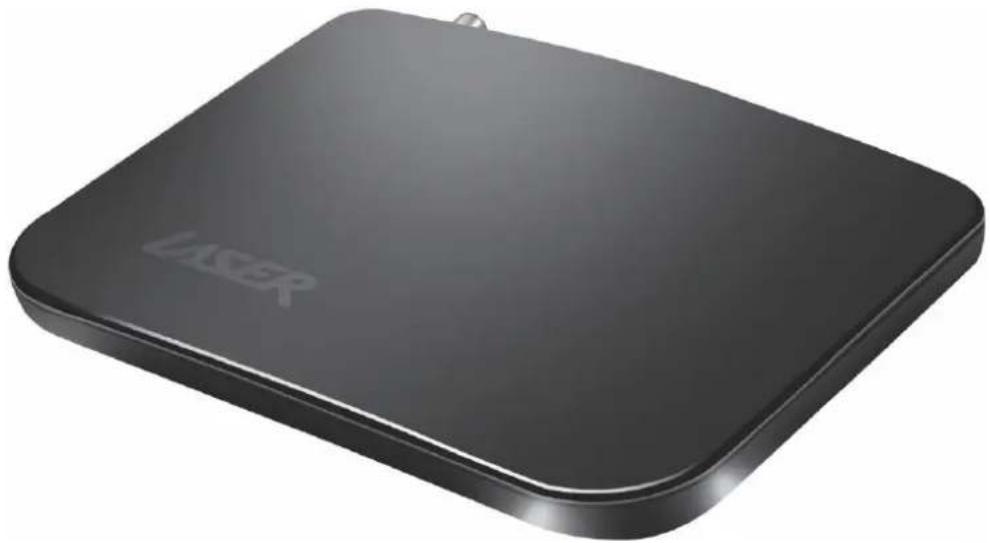
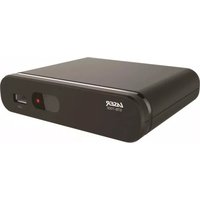
natural_image
Black rectangular electronic device labeled 'LASER' on a plain background (no additional text or symbols visible)Contents
Accessories 1
The Player Outputs 2
Connections....2
Remote 3
Internet Settings 3
Cable Connection .... 4
Wi-Fi Connection....4
App Overview 5
Apps....6
Operating Live TV....6
Trouble shooting....8
Warranty Against Defects 9
Important Safety Instructions and Precautions
- Read all instructions carefully before use.
- Retain manuals for future reference.
- Only use a water-dampened soft-cloth to clean the surface of this product.
- The following will damage this product: any liquid such as water or moisture, extreme heat; cold; humidity, dusty or sandy environments.
- Only place this device on stable surfaces and ensure that any attached cables are secure and will not cause the device to fall.
- Un-authorized attempts to dismantle or repair this product will void product warranty
- Using this device near other electronic devices may cause interference.
Accessories
Android TV box

HDTV Cable

flowchart
graph TD
    A["HDMI"] --> B["Inverter"]
    B --> C["IWH"]
    C --> D["Output"]
    style A fill:#f9f,stroke:#333
    style C fill:#ccf,stroke:#333
User Manual

Power Adapter

natural_image
Simple line drawing of a U-shaped tube connected to a rectangular device (no text or symbols)Remote Control
The Player Outputs

Connections

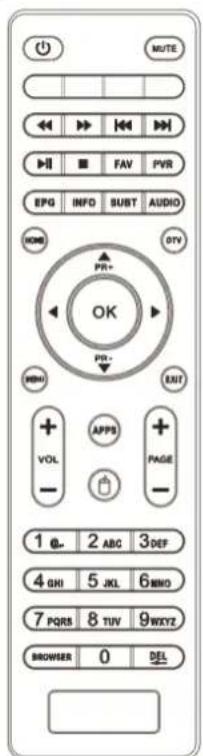
Remote

RED Picture Size (While Watching TV)
Green Channel Information (While Watching TV)
Yellow Multi-Function
Blue Multi-Function
Turn Air Mouse On/Off
Note:
Some subscription-based Apps may require a MOUSE or KEYBOARD for setup and operation. (Mouse and keyboard are not included)
Internet Settings
Cable Connection
- Connect the network cable to the device from your Modem/Router;
- In most cases your Modem/Router will automatically assign network settings to your media player and display the screen below.

Wi-Fi Connection
- Turn on the "Wi-Fi" and choose the source you want to connect to, then enter the password and press the Enter Key on the virtual keyboard.

- To forget a Wi-Fi connection, select and click "Forget Network".

App Overview
04:15




 | File Browser | Explore all the files saved in internal storage and external |
 | App | Go to App list |
 | Setting | Set up the Network and Internet; Manage accounts; Manage Apps; |
 | Web | Web Browser |
Apps
APPS


Clock

Gallery

Music

Settings

Play Store

DTV

YouTube

Aptoide TV

Disney+

FileBrowser

Appinstaller

MoviePlayer

UPDATE

User manual

Netflix
Press Menu Management APP

Chrome
A fast, secure and free browser

Clock
Set up the Alarm, Clock, Timer and Stopwatch

Gallery
Access all the photos on the device

Music
Access all the music on the device

Settings
Set up the Network and Internet; Manage accounts; Manage Apps; Set up Device Preference; Advanced Settings

Play Store
Play Store is Google's official pre-installed app store on Android-certified devices. It provides access to content on the Google Play Store, including apps, books, magazines, music, movies, and television programs.

DTV
Watch and Record all your favourite shows in crystal clear digital quality.

User Manual
Contains the instruction of basic settings

Youtube
Enjoy the videos and music you love, upload original content, and share it all with friends, family, and the world on YouTube.

File Browser
Explore all the files saved in internal storage and external storage

App Installer
Install APK

Aptoide TV
An independent app store for Android TV and set top boxes

Movie Player
A free movie player

Update
To conduct the OTA update or Local Update

Netflix
Stream unlimited movies and TV shows

Disney +
The service primarily distributes films and television series produced by The Walt Disney Studios and Walt Disney Television
Operating Live TV
- Click DTV, select DVB T/T2 standard;
- Choose Auto Search;
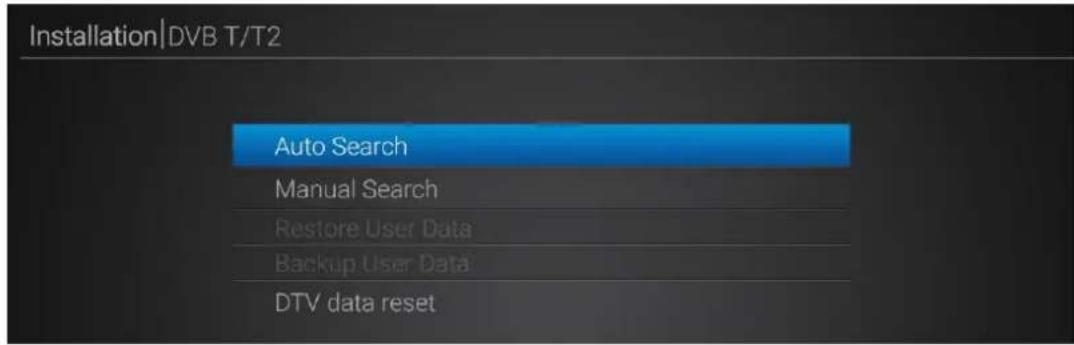
- Select Channel Type: All, FTA Only; and Service Type: All, TV, Radio;
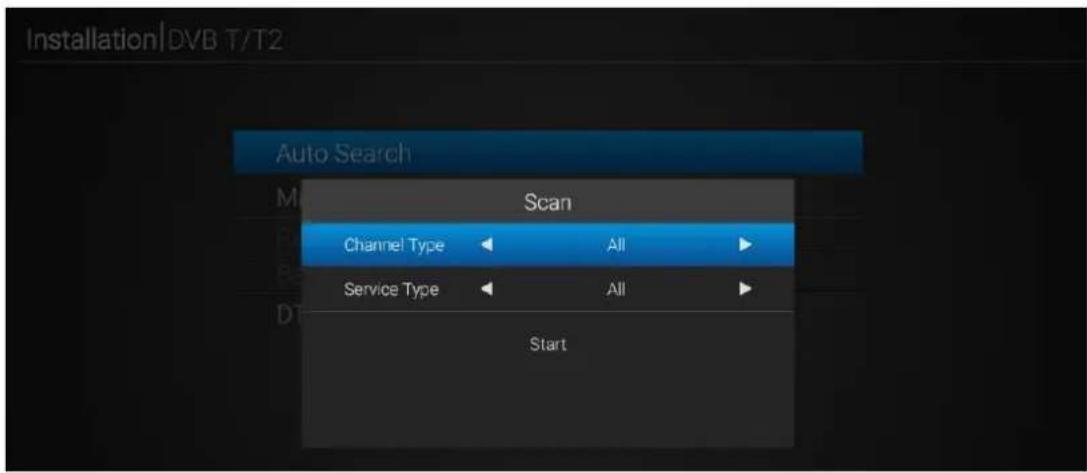
- Once the search starts, the search process will come up;

bar
Channel Search | DVB T/T2 | Channel Search | DVB T/T2 | Channel | Frequency (%) | | :--- | :--- | :--- | :--- | | TV | 032. | ABC | | | TV | 033. | ABCComedy/Kids | | | TV | 034. | ABC ME | | | TV | 035. | ABC | | | TV | 036. | ABC HD | | | Radio | 017. | ABC Classic | | | Radio | 018. | ABC Country | | | Radio | 019. | ABC SYDNEY | | | Radio | 020. | ABC RN | | | Radio | 021. | ABC NewsRadio | | | Channel Search | DVB T/T2 | Channel | Frequency (%) | | :--- | :--- | :--- | :--- | | Progress | 35% | S: | 96% | | Progress | 35% | Q: | 100% | Antenna Power : Off- You can enjoy the TV programs after the searching finishes.
Trouble shooting
1. No video on TV
- Check first if the product is powered on and in operational mode.
- Check if the video cable is properly connected between TV and the device.
- Check the correct SOURCE/INPUT has been selected on TV.
2.No Audio
- Check the volume level of your TV and the box.
- Check if the box or TV is on mute.
3.Poor audio and video quality
- If the antenna is covered or the signal is weakened by heavy rain, the quality of audio and video may become temporarily poor.
4.Remote control problem
- Check if the battery is flat.
- Point the remote control directly toward the box.
- Make sure that nothing blocks the front panel display.
5.Channel search problem
- Make sure if tuner configurations are all correctly made.
- Check if the antenna cable(s) are properly connected.
NOTICE
- Specifications are subject to change without further notice.
- Please note that a new software may change the features of the receiver.
- The manufacturer holds the rights of changes without any further notice.
- For further information of MMC-B19, please visit our website: www.laserco.com.au
Warranty Against Defects
Laser Corporation Pty Ltd (“Laser”) warrants your new product to be free from defects in materials and workmanship for 12 months, from the date of purchase, provided that the product is used in accordance with accompanying recommendations or instructions where provided. The benefit of this warranty is in addition to your rights under the Australian Consumer Law and to other rights and remedies of the consumer under a law in relation to the goods or services to which the warranty relates.
Through a network of retailers and resellers, Laser will provide you with your choice of a repair, exchange (where possible) or refund (within Dead on Arrival period) for this product if it becomes defective within the warranty period.
This warranty will no longer apply where the defect is a result of alteration, accident, misuse, abuse, normal wear and tear, neglect or improper storage. Please retain your receipt as proof of purchase How to make a product warranty claim:
Step 1: Find your receipt which proves the date of purchase. Where the date of purchase cannot be verified, your place of purchase or Laser will make an assessment based on the date of manufacture, the condition of the Laser Product and the type of defect.
Step 2a): Contact your place of purchase. They will assess the nature of the fault and repair, replace or fund the product as per their store refund or warranty policy.
Step 2b): If your place of purchase cannot be contacted, then you can contact Laser. Customer Service with details of your defective Laser Product: Phone: (02) 9870 3388; or Email: support@laserco.com.au or online www.laserco.com.au/warranty (click on “Consumers (End Users)”). Our business address is at 1/6-8 Byfield Street, North Ryde, NSW 2113
Step 3: Laser will issue you with a Return Authorisation (RA) number within 48 hours. When requested, send us the defective Product and a copy of your receipt. Laser will cover the cost of the return delivery.
Step 4: Wait for us to contact you. Once we have received your defective Laser Product for inspection, we will inform you of our assessment of your claim within 7 days. When we contact you, we will firstly let you know whether you have a valid claim under this Warranty, and if so, we will inform you whether your defective Laser Product will be replaced or repaired, together with the number of days you can expect to wait to receive your replaced or repaired Laser Product.
Step 5: For further details on warranty cover and returns, please check Terms and Conditions for Warranty Returns section on http://www.laserco.com.au/warranty
Our goods come with guarantees that cannot be excluded under the Australian Consumer Law. You are entitled to a replacement or refund for a major failure and compensation for any other reasonably foreseeable loss or damage. You are also entitled to have the goods repaired or replaced if the goods fail to be of acceptable quality and the failure does not amount to a major failure.

- Set Top Box with 4K Media Player
- User Manual
- Contents
- Important Safety Instructions and Precautions
- Accessories
- The Player Outputs
- Connections
- Remote
- Turn Air Mouse On/Off
- Note:
- Internet Settings
- Cable Connection
- Wi-Fi Connection
- App Overview
- 04:15
- Apps
- Operating Live TV
- Trouble shooting
- No video on TV
- 2.No Audio
- 3.Poor audio and video quality
- 4.Remote control problem
- 5.Channel search problem
- NOTICE
- Warranty Against Defects
Brand : Laser
Model : MMC-B19
Category : Digital decoder