Riing Quad 12 - Laptop cooler THERMALTAKE - Free user manual and instructions
Find the device manual for free Riing Quad 12 THERMALTAKE in PDF.


| Product Type | Laptop Cooler |
| Brand | Thermaltake |
| Model | Riing Quad 12 |
| Dimensions (W x D x H) | 300 x 250 x 25 mm (estimated) |
| Weight | 700 g (estimated) |
| Material | Plastic, Metal Mesh |
| Power Supply | USB 5V (from laptop or adapter) |
| Fan Size | 120 mm |
| Fan Speed | 500 - 1500 RPM (adjustable) |
| Airflow | ~50 CFM (estimated) |
| Noise Level | 20 - 30 dBA |
| Lighting | Addressable RGB LEDs (4 rings, 8 zones per ring) |
| Control | Software (Thermaltake RGB Plus) or Remote (optional) |
| Compatibility | Laptops up to 15.6 inches |
| Features | Adjustable tilt angles, Anti-slip rubber pads, Dust filter |
| Maintenance | Clean with a soft dry cloth |
| Safety | Place on a stable surface, avoid liquid contact |
| Spare Parts / Repairability | Fan module replaceable; contact Thermaltake support for parts |
Frequently Asked Questions - Riing Quad 12 THERMALTAKE
User questions about Riing Quad 12 THERMALTAKE
0 question about this device. Answer the ones you know or ask your own.
Ask a new question about this device
Download the instructions for your Laptop cooler in PDF format for free! Find your manual Riing Quad 12 - THERMALTAKE and take your electronic device back in hand. On this page are published all the documents necessary for the use of your device. Riing Quad 12 by THERMALTAKE.
USER MANUAL Riing Quad 12 THERMALTAKE
TT RGB Plus x Razer Chroma Synchronization Guide
A. Make sure your Razer devices support Razer Chroma
Make sure your product has a Chroma logo on the website as shown in the picture below.
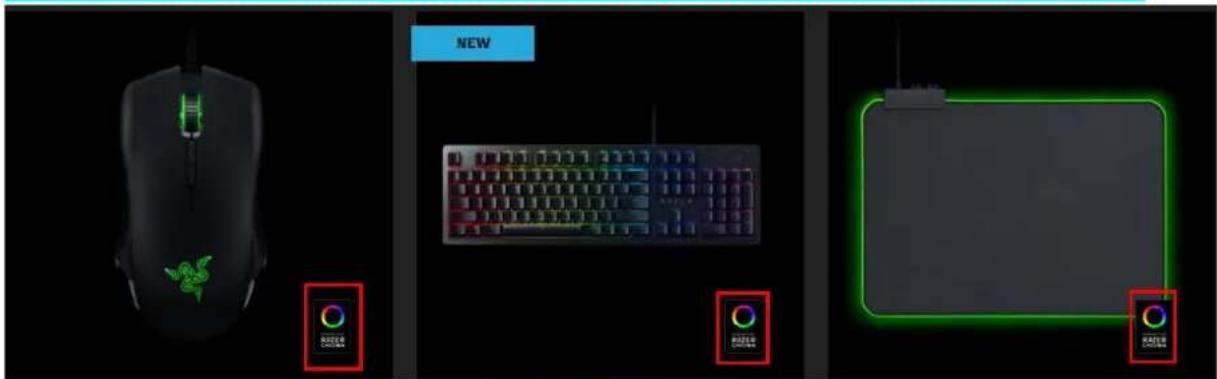
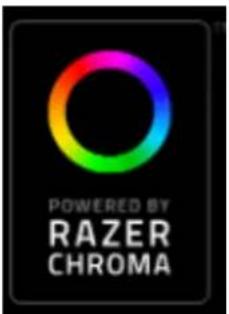
https://www.razer.com/chroma?_ga=2.101672776.812084303.1542784026-
1008358540.1537494711 (Razer products supported list)
B. Open "Razer Synapse" and Enable "TT RGB Plus" Connection
Click "CONNECT" and enable "Thermaltake" label.
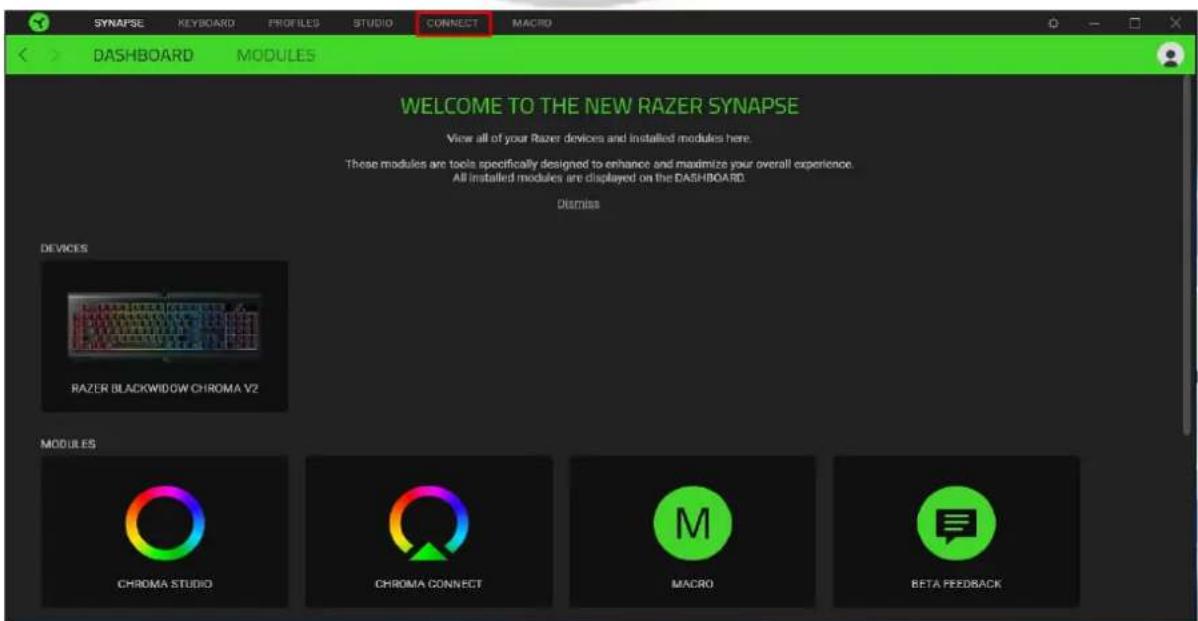
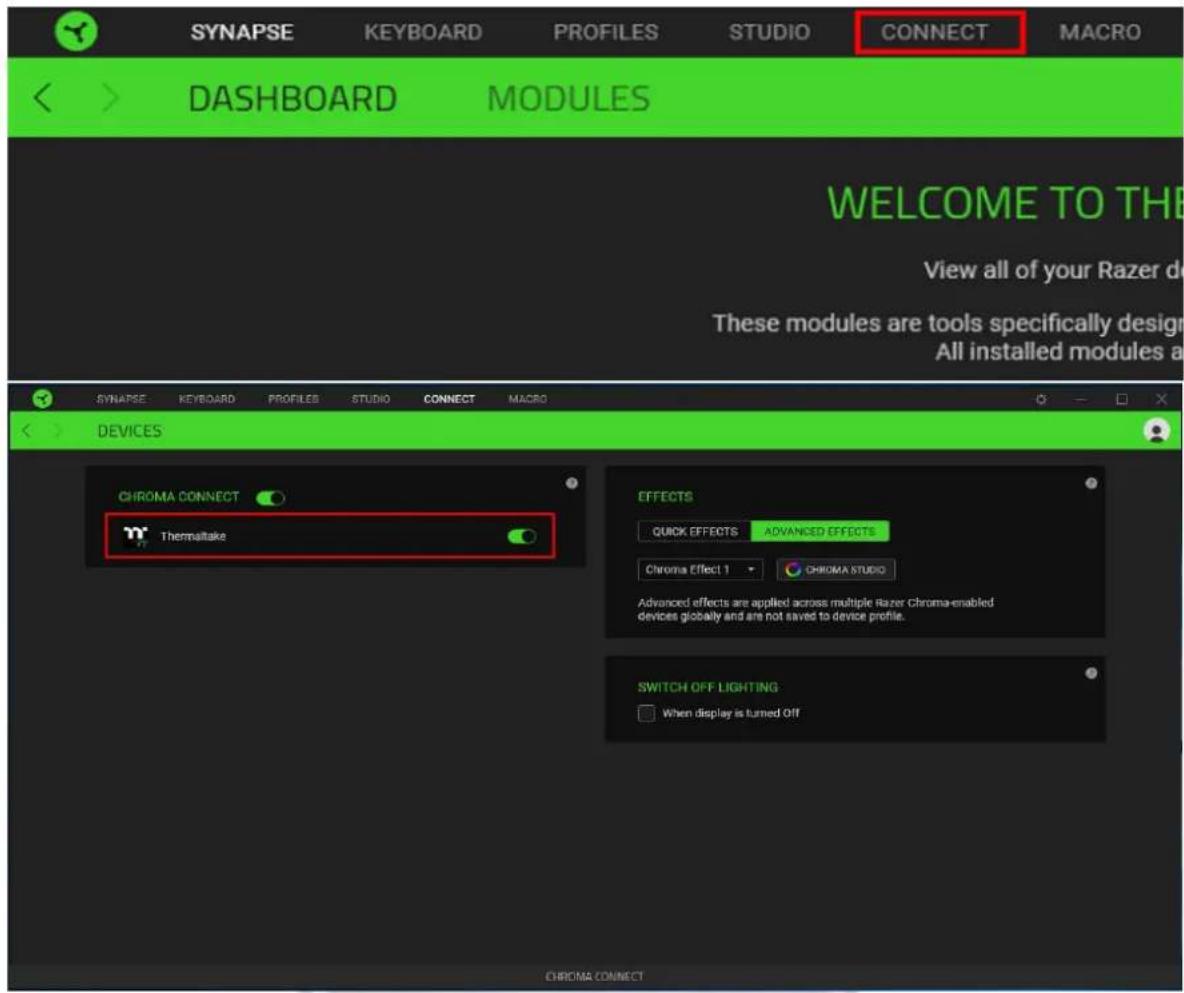
C. Set Your Lighting Effects
Choose a lighting effect.
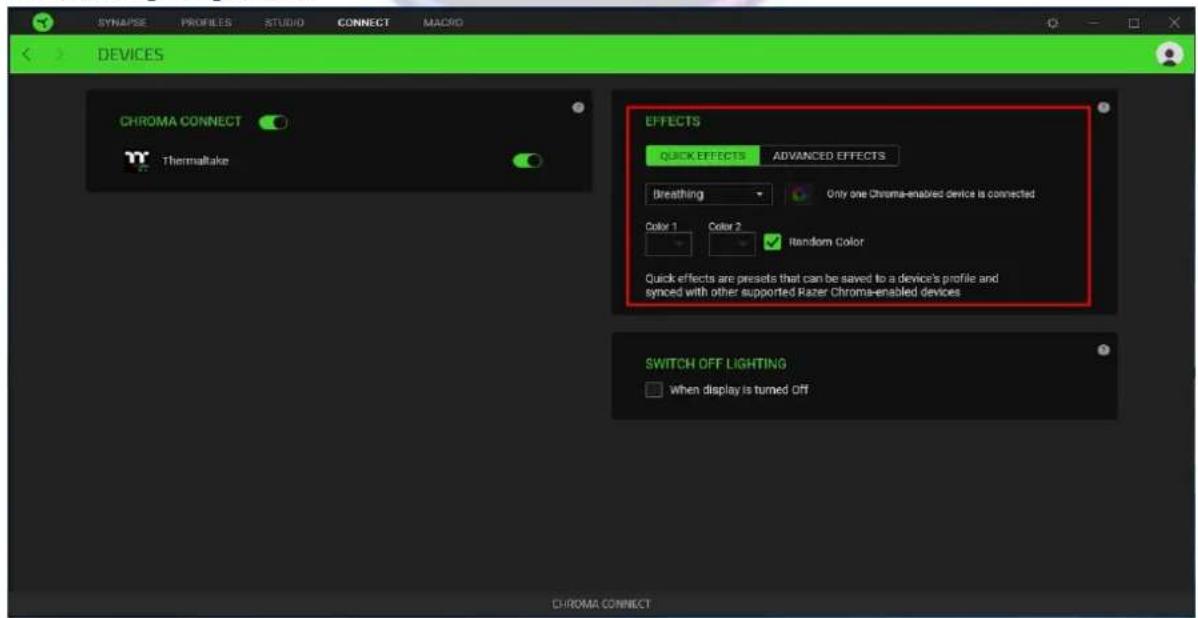
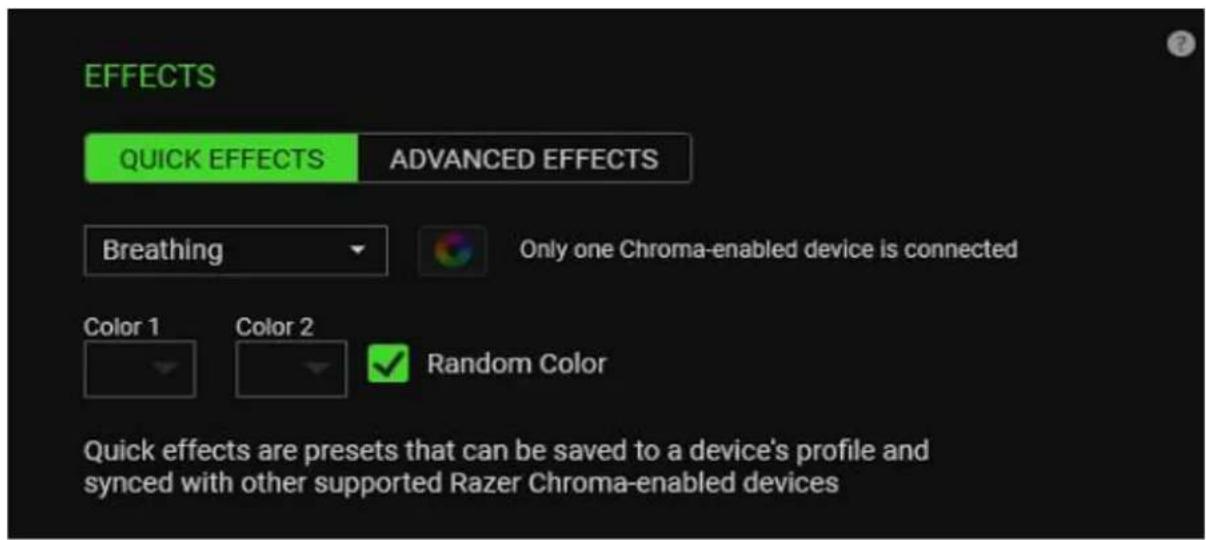
Or also you can customize lighting effects yourself.
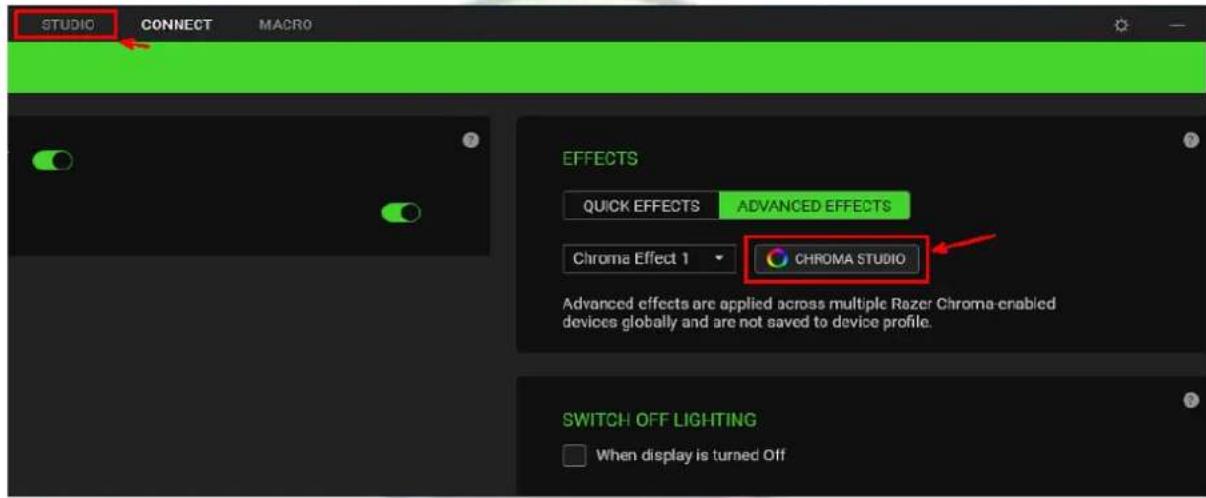
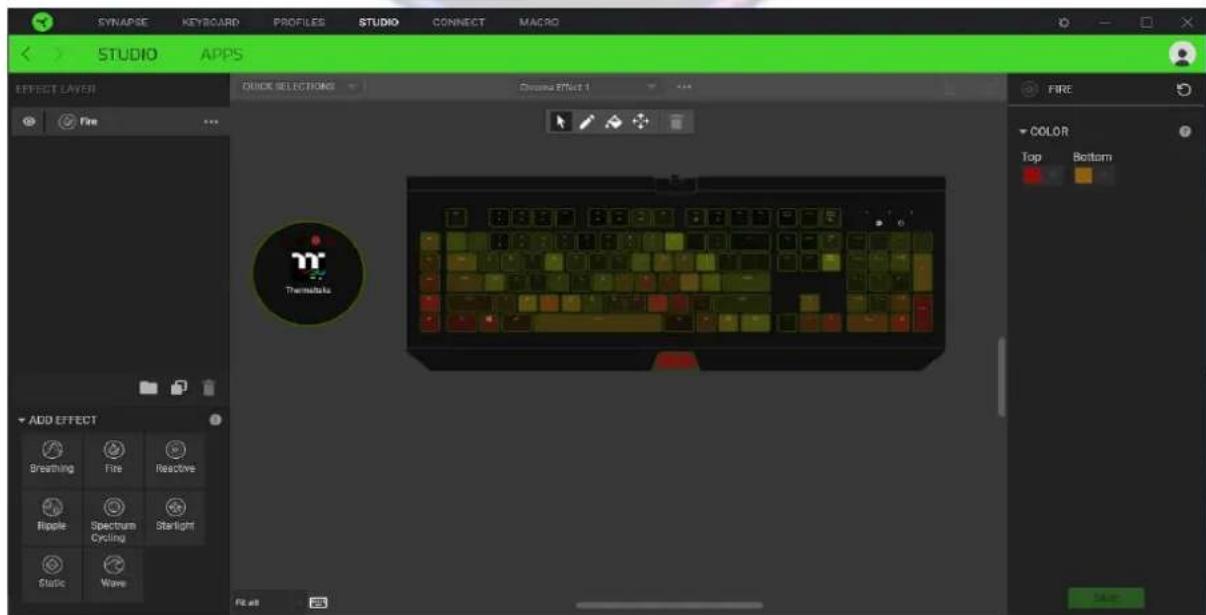
D. Sync "TT RGB Plus" with Razer Chroma Effects
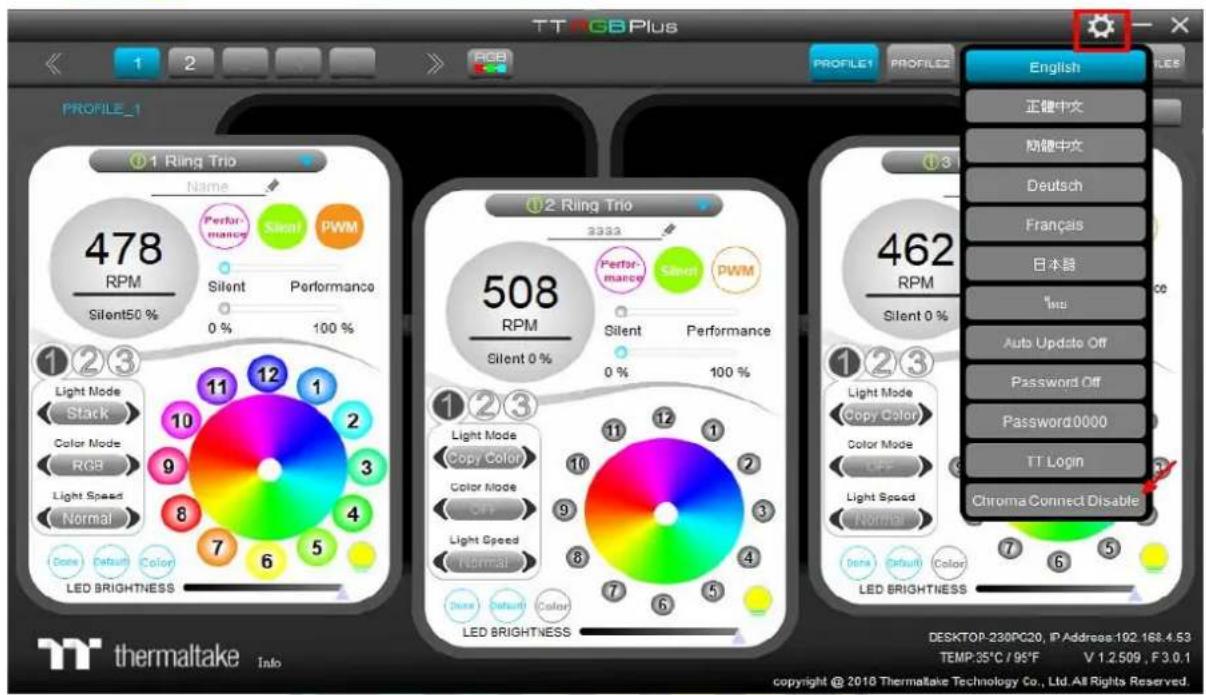
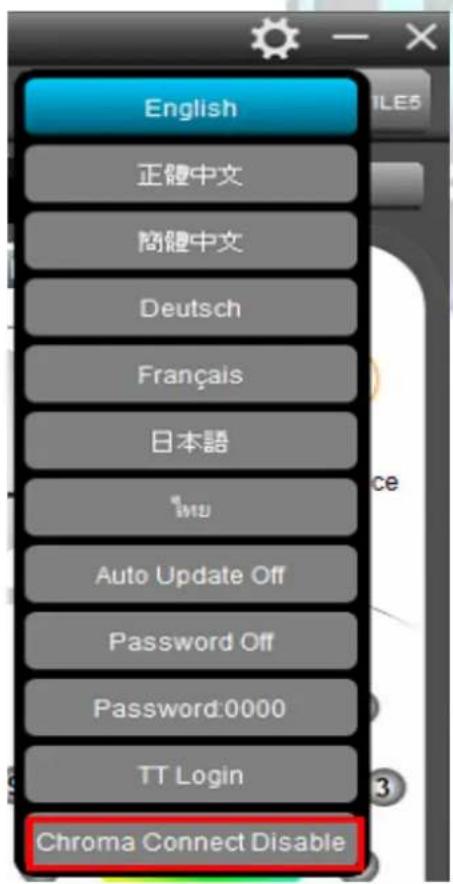
Click "setting", then enable "Chroma Connect"
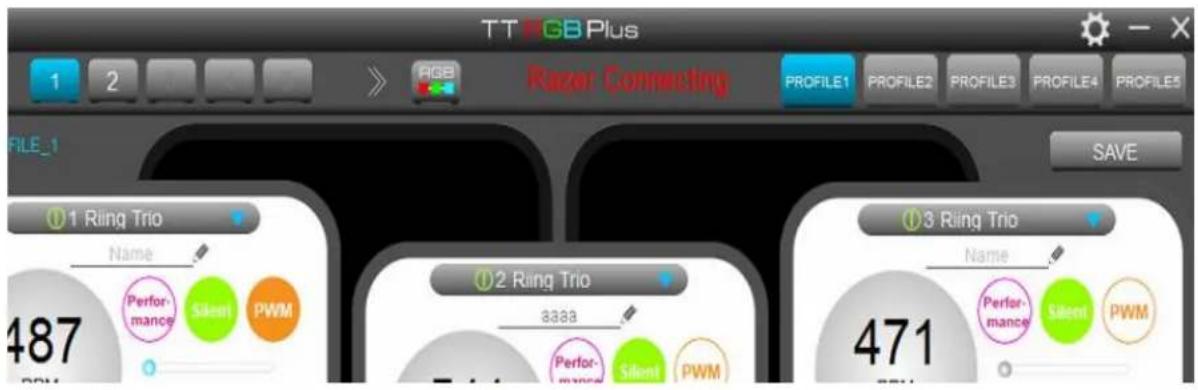
E. If it shows "Razer Connecting" on the screen, it is successfully connected to
Razer Chroma!
FAQ:
- Error message "Could not synchronize Razer Chroma, please check the Razer Chroma is installed and executed."
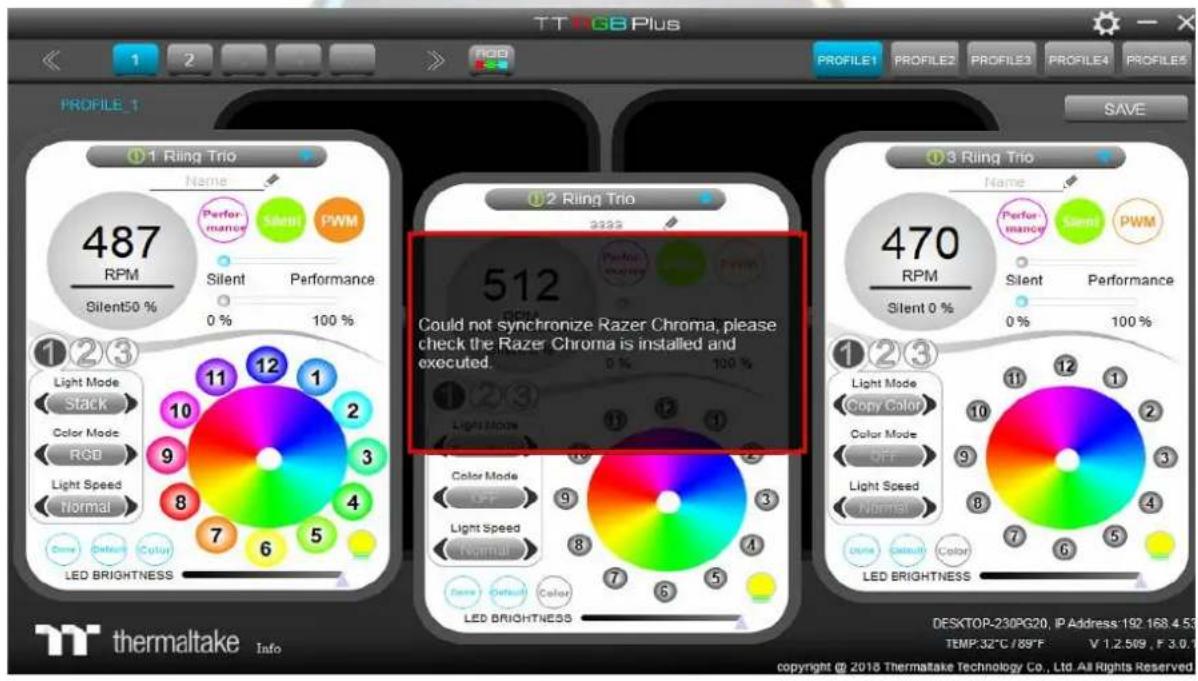
→ Please make sure your "Razer Synapse" has already enabled Thermaltake
- TT RGB Plus x Razer Chroma Synchronization Guide
- Make sure your Razer devices support Razer Chroma
- Open "Razer Synapse" and Enable "TT RGB Plus" Connection
- Set Your Lighting Effects
- Sync "TT RGB Plus" with Razer Chroma Effects
- If it shows "Razer Connecting" on the screen, it is successfully connected to
- Razer Chroma!
- FAQ:
Brand : THERMALTAKE
Model : Riing Quad 12
Category : Laptop cooler