
EC2113 - Câbles pour ordinateurs et périphériques IFM - Free user manual and instructions
Find the device manual for free EC2113 IFM in PDF.


| Product Type | CAN/RS232-USB Interface |
| Model | EC2112 (also referred to as CANfox) |
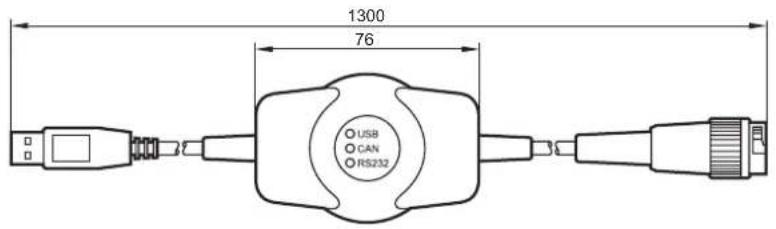
| Dimensions (W x H x D) | 76 x 51 x 25 mm |
| Weight | 0.20 kg |
| Operating Voltage | 5 V DC (via USB) |
| Current Consumption | ≤ 300 mA |
| USB Interface | USB 2.0, full speed, 12 Mbits/s; USB plug type A, cable length approx. 0.75 m |
| CAN Interface | CAN 2.0 A/B, ISO 11898, electrically isolated, baud rate 50 Kbits/s...1 Mbit/s (freely selectable), 11 and 29-bit identifiers |
| RS-232 Interface | Baud rate up to 115200 bits/s |
| Connection to CAN System | 6-pole DIN socket (not CiA compliant), cable length approx. 0.5 m; overall cable length approx. 1.3 m |
| Protection Rating | IP 50 |
| Operating Temperature | -20...60 °C |
| Storage Temperature | -40...85 °C |
| Housing Material | Plastics (ABS, black) |
| Status LEDs | USB (green), CAN (yellow), RS-232 (yellow) |
| Processor | 32-bit microcontroller with USB 2.0, CAN, UART, SPI, GPIOs |
| System Requirements | Microsoft Windows 2000, XP, Vista or Windows 7 |
| Software Support | CoDeSys 2.3, Maintenance Tool, CANexplorer |
| Maintenance | No user maintenance required; clean housing with soft, dry cloth; avoid chemicals |
| Repair | Only by manufacturer |
| Safety | Installation only by qualified electrician; observe EMC and low-voltage directives; tampering not permitted |
| Disposal | In accordance with national environmental regulations |
Frequently Asked Questions - EC2113 IFM
User questions about EC2113 IFM
0 question about this device. Answer the ones you know or ask your own.
Ask a new question about this device
Download the instructions for your Câbles pour ordinateurs et périphériques in PDF format for free! Find your manual EC2113 - IFM and take your electronic device back in hand. On this page are published all the documents necessary for the use of your device. EC2113 by IFM.
USER MANUAL EC2113 IFM
Installation instructions
CAN/RS232-USB interface
CANfox
UK
ecomotion
EC2112
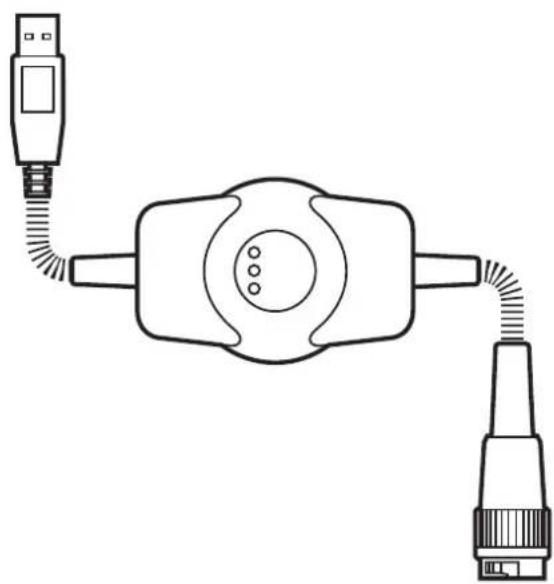
natural_image
Diagram of a device with two connectors and a central connector, no text or symbols presentContents
1 Preliminary note 3
1.1 Symbols used.... 3
1.2 Warning signs used 3
2 Safety instructions 4
2.1 General....4
2.2 Target group 4
2.3 Electrical connection 4
2.4 Tampering with the device 4
3 Functions and features 5
3.1 Features at a glance.... 5
3.2 Block diagram.... 5
3.3 Application example 5
4 Installation....6
5 Electrical connection....6
5.1 General electrical connection 6
5.2 Adapter cables 6
5.3 Wirable adapter cables....6
5.3.1 Wiring of an adapter cable 6
6 Display elements 7
7 Set-up....8
7.1 General notes....8
7.2 Install the CANfox MTAPI driver.... 8
7.3 Interface drivers 10
7.3.1 Installation with the Windows wizard 10
7.3.2 New entries in the system control and task bar. 12
7.4 Function test 12
7.5 CoDeSys communication parameters 13
8 Technical data.... 14
9 Maintenance, repair and disposal. 16
9.1 Maintenance.... 16
9.2 Cleaning the housing surface.... 16
9.3 Repair.... 16
9.4 Disposal 16
10 Approvals/standards 16
This document is the original instructions.
Licences and trademarks
Microsoft ^® , Windows ^® , Windows XP ^® , Windows Vista ^® and Windows 7 ^® are registered trademarks of Microsoft Corporation. All trademarks and company names are subject to the copyright of the respective companies.
1 Preliminary note
This document applies to devices of the type "CANfox" (art. no.: EC2112). It is deemed as a part of the unit.
This document is intended for specialists. These specialists are people who are qualified by their appropriate training and their experience to see risks and to avoid possible hazards that may be caused during operation or maintenance of the device. The document contains information about the correct handling of the device.
Read this document before use to familiarise yourself with operating conditions, installation and operation. Keep this document during the entire duration of use of the device.
Adhere to the safety instructions.
1.1 Symbols used
▶ Instructions
Reaction, result
[...] Designation of pushbuttons, buttons or indications
→ Cross-reference

Important note
Non-compliance can result in malfunction or interference.

Information
Supplementary note
1.2 Warning signs used
WARNING
Warning of serious personal injury.
Death or serious irreversible injuries may result.
CAUTION
Warning of personal injury.
Slight reversible injuries may result.
NOTE
Warning of damage to property.
2 Safety instructions
2.1 General
These instructions contain texts and figures concerning the correct handling of the device and must be read before installation or use.
Observe the operating instructions. Non-observance of the instructions, operation which is not in accordance with use as prescribed below, wrong installation or incorrect handling can seriously affect the safety of operators and machinery.
2.2 Target group
These instructions are intended for authorised persons according to the EMC and low-voltage directives. The device must only be installed, connected and put into operation by a qualified electrician.
2.3 Electrical connection
The connections may only be supplied with the signals indicated in the technical data and/or on the device label and only the approved accessories of ifm electronic may be connected.
2.4 Tampering with the device
In case of malfunctions or uncertainties please contact the manufacturer. Tampering with the device can seriously affect the safety of operators and machinery. It is not permitted and leads to the exclusion of any liability and warranty claims.
3 Functions and features
CANfox is a CAN/RS232 interface for the connection of a CAN fieldbus system to a USB interface. The main applications for the device are to enable the user to do program downloads, online diagnostics and system performance monitoring from the user PC interface via the CAN network.
3.1 Features at a glance
- Operating voltage via USB (5 V DC)
- Interfaces electrically isolated
• CAN baud rate freely selectable
• 11 and 29-bit identifiers - Can be used with CoDeSys (as of 2.3.9.21), Maintenance Tool or CANexplorer
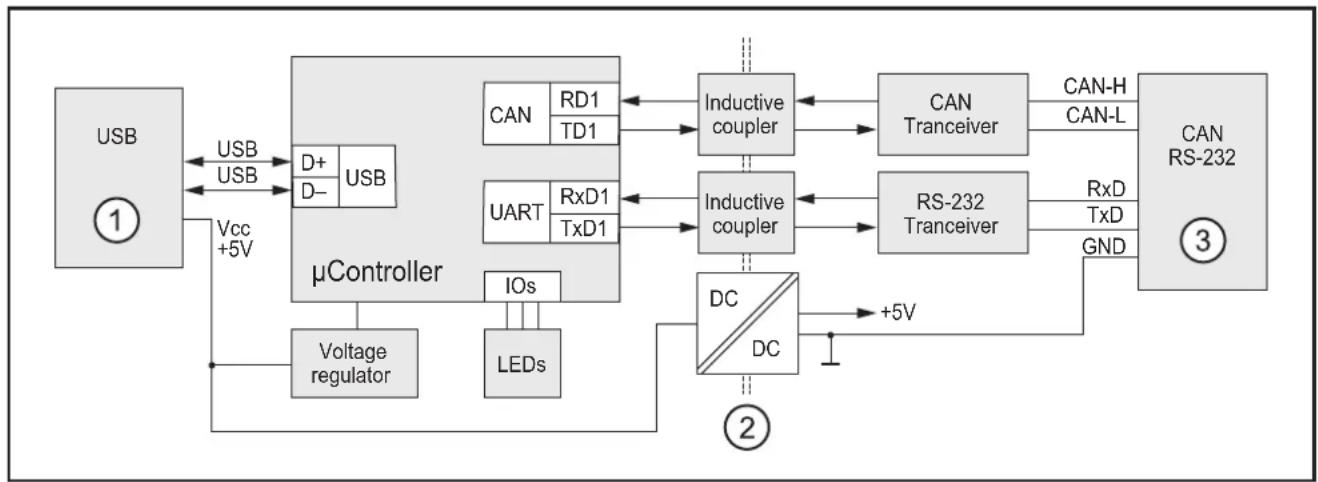
3.2 Block diagram
flowchart
graph TD
    A["USB ①"] -->|USB USB| B["μController"]
    B --> C["Voltage regulator"]
    B --> D["IOs LEDs"]
    B --> E["CAN RD1 TD1"]
    B --> F["UART RxD1 TxD1"]
    B --> G["Inductive coupler"]
    G --> H["CAN Trancever"]
    H --> I["RxD TxD GND"]
    I --> J["RS-232 Trancever"]
    J --> K["RxD CAN-L"]
    K --> L["CAN RS-232 ③"]
    B --> M["DC/DC"]
    M --> N["+5V"]
    B --> O["Vcc +5V"]
    style A fill:#ccc,stroke:#333
    style B fill:#ccc,stroke:#333
    style C fill:#ccc,stroke:#333
    style D fill:#ccc,stroke:#333
    style E fill:#ccc,stroke:#333
    style F fill:#ccc,stroke:#333
    style G fill:#ccc,stroke:#333
    style H fill:#ccc,stroke:#333
    style I fill:#ccc,stroke:#333
    style J fill:#ccc,stroke:#333
    style K fill:#ccc,stroke:#333
    style L fill:#ccc,stroke:#333
1: USB plug of type A
2: Electrical separation
3: 6-pole DIN socket
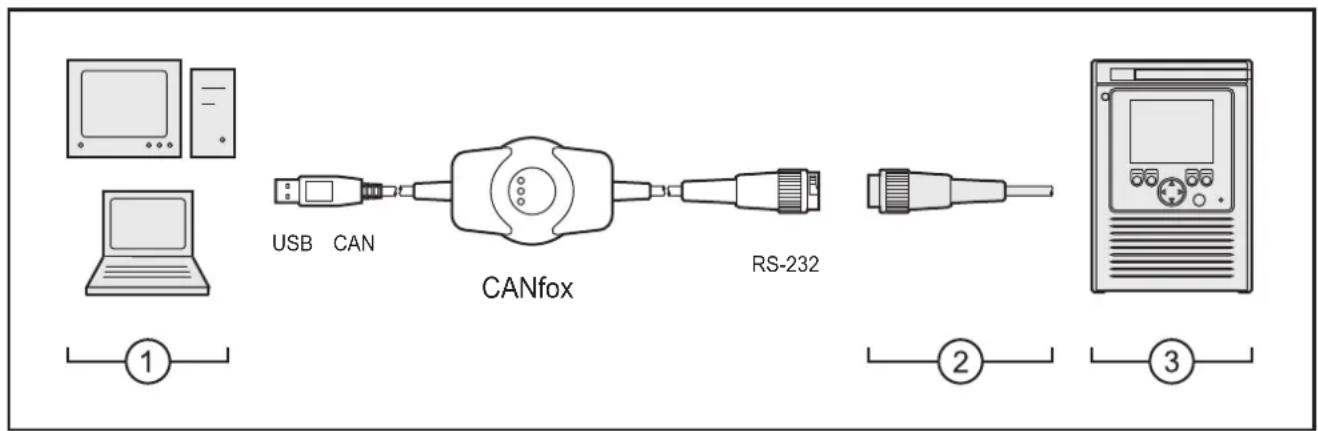
3.3 Application example
flowchart
graph LR
    A["Computer"] -->|USB CAN| B["CANfox"]
    B --> C["RS-232"]
    C --> D["Server"]
    style A fill:#f9f,stroke:#333
    style B fill:#ccf,stroke:#333
    style C fill:#cfc,stroke:#333
    style D fill:#fcc,stroke:#333
1: PC or notebook
2: Adapter cables
3: CAN system (here e.g. BasicController with BasicRelay)
4 Installation
The device is operated without installation.
5 Electrical connection
5.1 General electrical connection
Wiring ( 8 Technical data)

The connection of the device to the CAN system is made via a 6-pole DIN socket. This socket is not compliant with the CiA specification "Cabling and Connector Pin Assignment – CiA Draft Recommendation Proposal 303-1". This type of socket was selected to exclude a confusion with the CiA-compliant pure CAN connections.
5.2 Adapter cables
Information about available wirable adapter cables at:
www.ifm.com → data sheet search → EC2112 → Accessories
5.3 Wirable adapter cables
A 6-pole DIN connector is required for wiring.
Example: Binder cable plug, 6 DIN, plug series 678, order no.: 99-0617-00-06
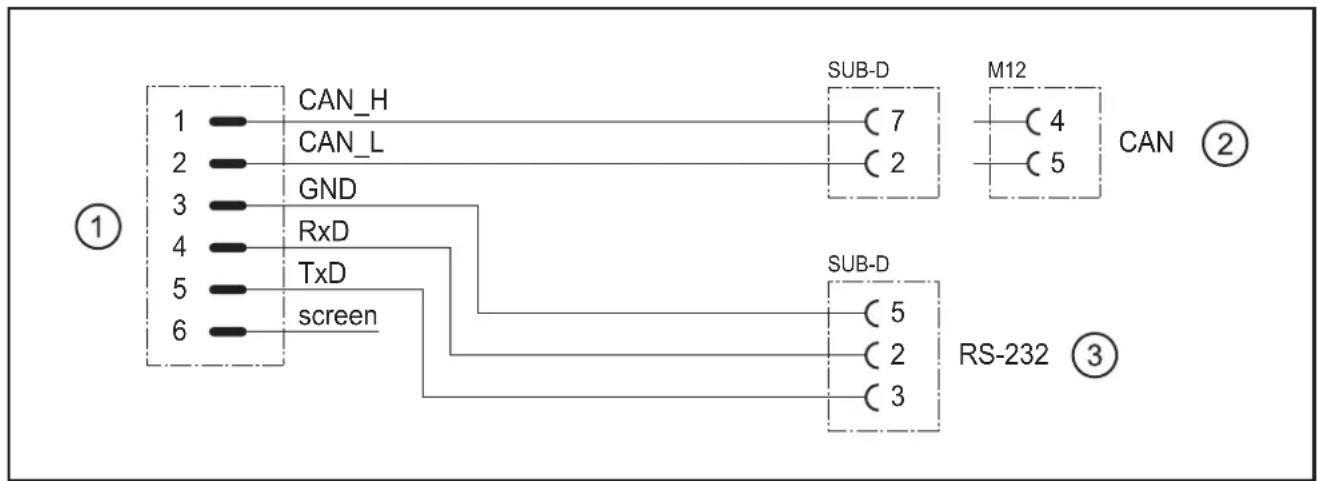
5.3.1 Wiring of an adapter cable
flowchart
graph TD
    A["①"] --> B["CAN_H"]
    A --> C["CAN_L"]
    A --> D["GND"]
    A --> E["RxD"]
    A --> F["TxD"]
    A --> G["screen"]
    H["SUB-D"] --> I["C7"]
    H --> J["C2"]
    K["M12"] --> L["C4"]
    K --> M["C5"]
    N["CAN"] --> O["②"]
    P["RS-232"] --> Q["③"]
    R["SUB-D"] --> S["C5"]
    R --> T["C2"]
    R --> U["C3"]
1: DIN socket, 6 poles
2: SUB-D socket, 9 poles and/or M12 socket, 5 poles
3: SUB-D socket, 9 poles
6 Display elements
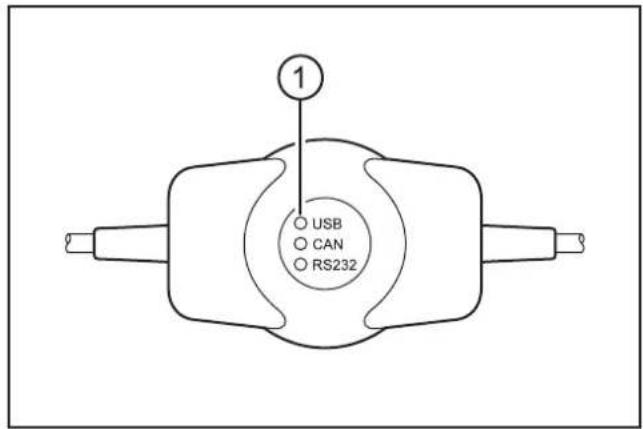
1: Status LEDs
Operating states ( 8 Technical data)

7 Set-up
7.1 General notes
The software require for set-up and use of the device is on the ecomat mobile DVD.
As an alternative, the software is also available on the internet.
www.ifm.com → Service → Download → Control systems

▶ Adhere to the following sequence for the installation of the software.
- Install the CANfox MTAPI driver.
- Then connect the USB plug of the device to the PC or notebook.
- Install the interface drivers.
7.2 Install the CANfox MTAPI driver

The USB plug of the device must not be connected to the PC or notebook when the CANfox MTAPI driver is installed.
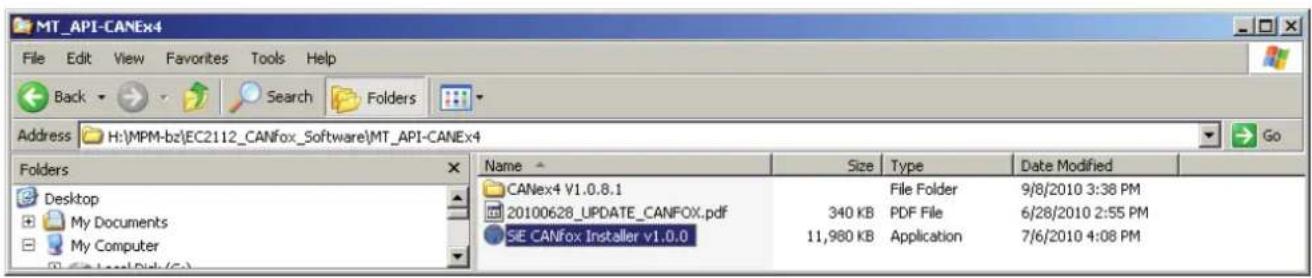
▶ Start the "SIE CANfox Installer v.n.n.n.exe" installation program with a double click.
The installation wizard for CANfox opens
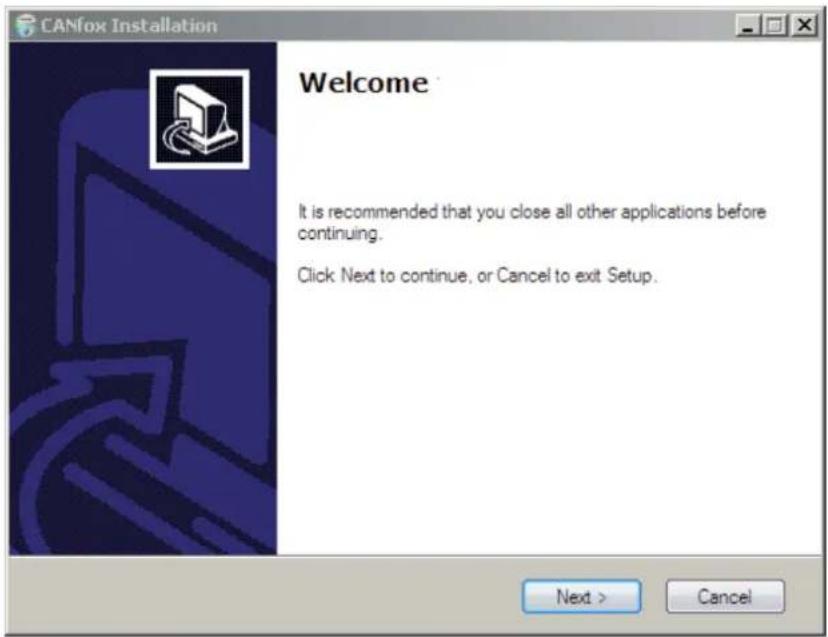
▶ Continue the installation process with [Next].

The results of the system-internal Windows logo test do not have any effect on the functionality of the software.
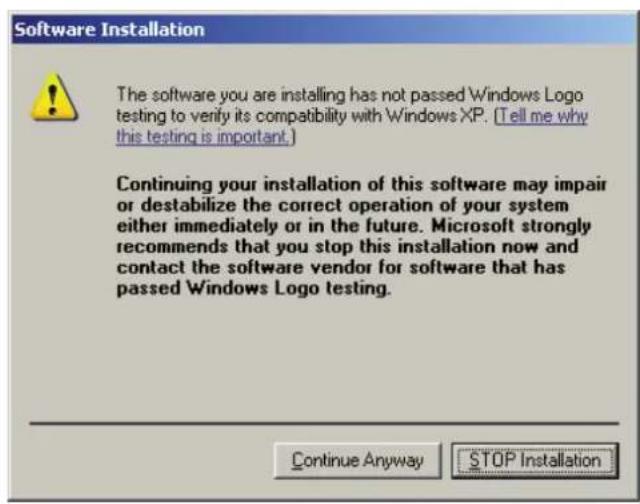

▶ Acknowledge the messages "has not passed Windows logo testing" with [Continue anyway].
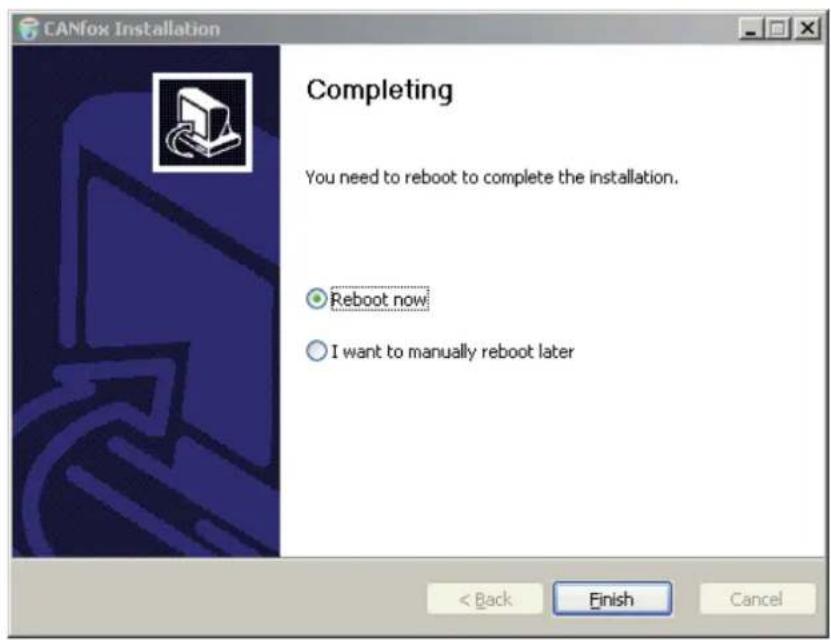
▶ Complete the installation with [Reboot now] and [Finish].
The PC/notebook is restarted.
7.3 Interface drivers
The installation starts automatically when the device is connected to the USB interface of the PC or notebook for the first time.
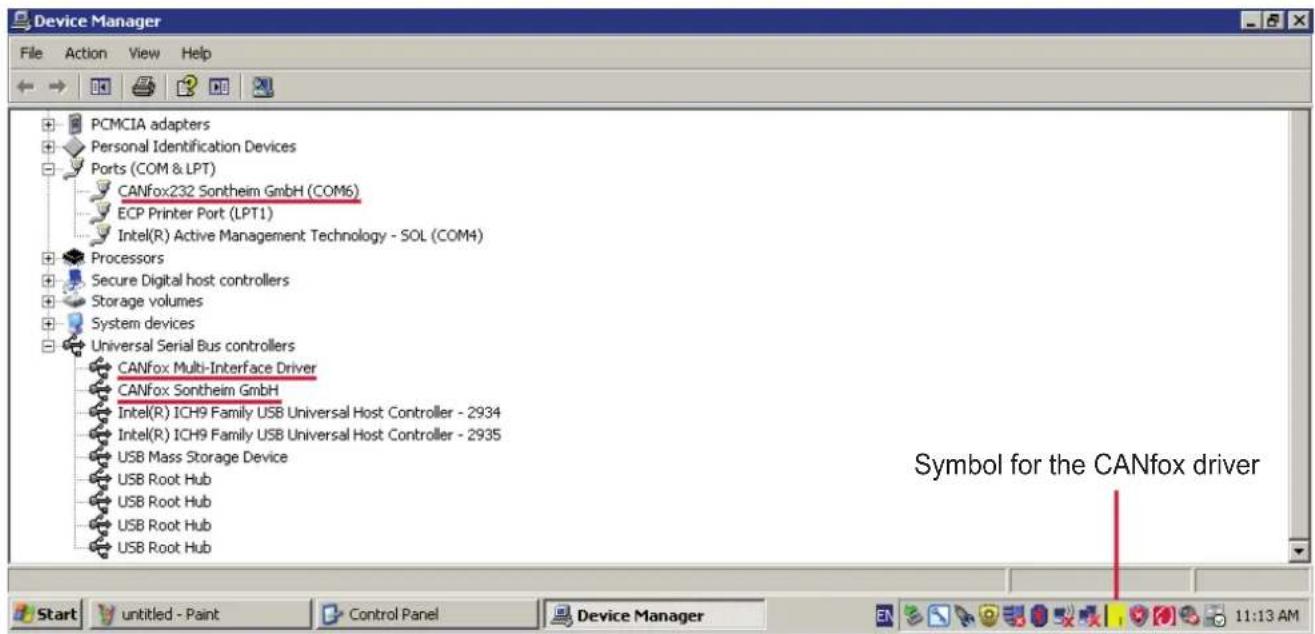
Since the device is a multi-interface, 3 drivers are required and automatically installed one after the other.
• CANfox multi-interface driver
Enables communication with 2 gateways (CAN and RS-232) via the USB interface
• CANfox232 (COMx)
Setting of the RS-232 communication parameters in CoDeSys
- CANfox
CAN interface driver
7.3.1 Installation with the Windows wizard
▶ Connect the USB plug of the device to the PC or notebook.
Windows recognises the new USB device and shows the first dialogue box of the installation wizard.
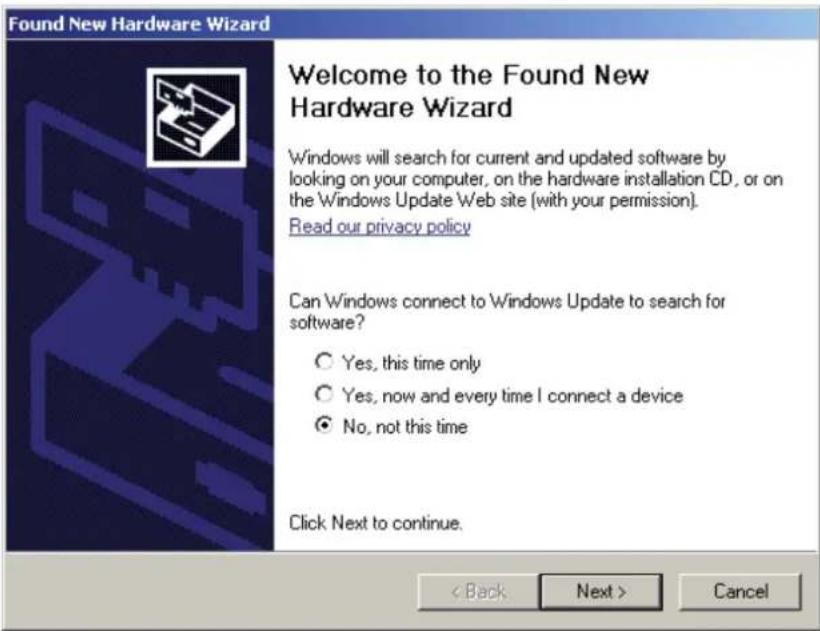
▶ Start the installation with [Next].
▶ In the following dialogue box select [Install the software automatically (Recommended)] and continue the installation with [Next].
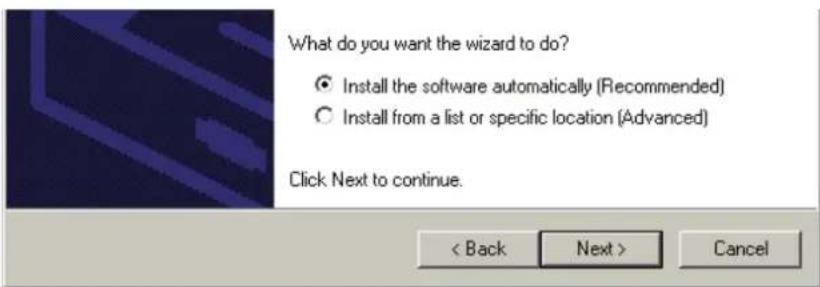

The results of the system-internal Windows logo test do not have any effect on the functionality of the software.
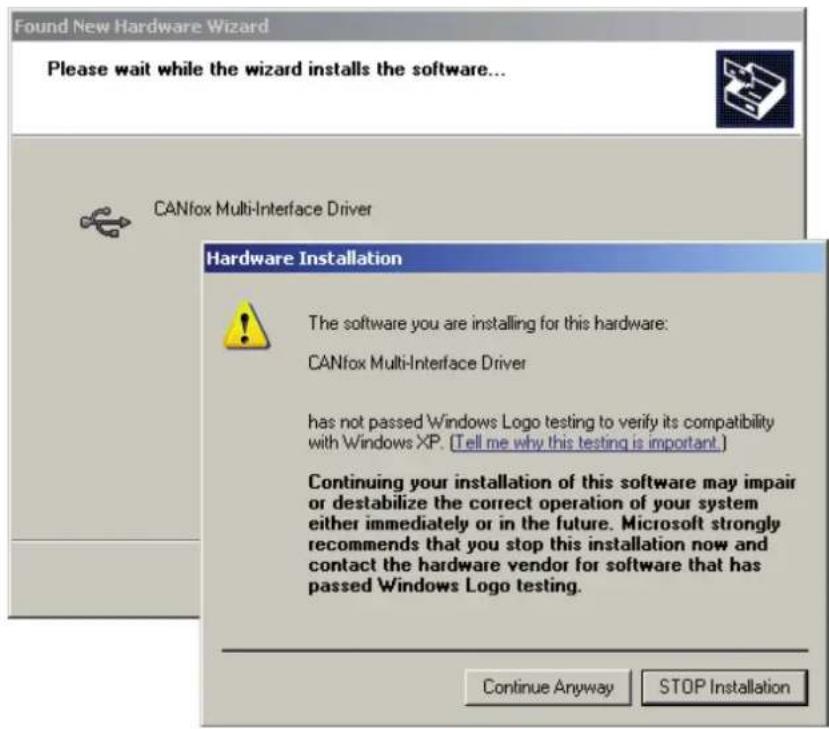

▶ Acknowledge the possible message "has not passed Windows logo testing" with [Continue Anyway].
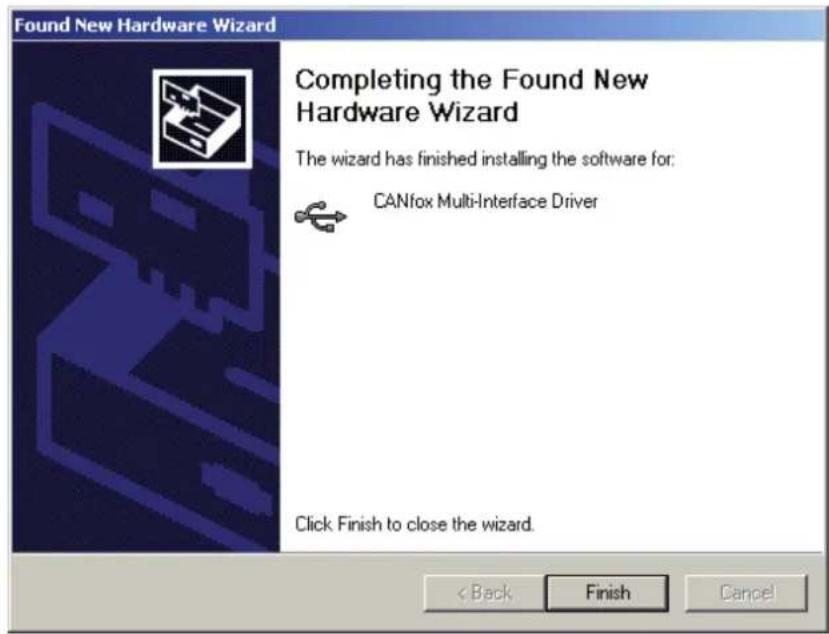
▶ Complete the installation of the first driver with [Finish].
Then the installation wizard for the 2nd driver starts automatically.
▶ Repeat the whole procedure for the 2nd and 3rd drivers.
After the installation the USB status LED (green) is lit.
7.3.2 New entries in the system control and task bar.
7.4 Function test
▶ Click with the right mouse button on the yellow symbol in the task bar and select [About].
The info window for the CANfox driver opens.
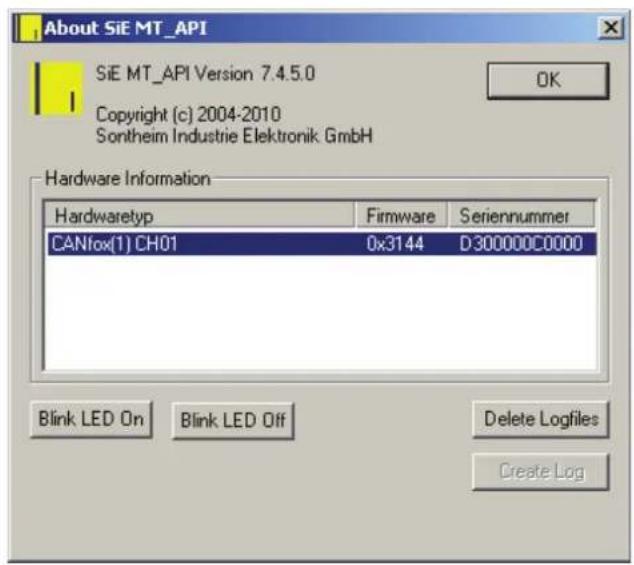
▶ Click on the entry and select [Blink LED On].
The status LEDs are flashing.
The unit is ready for operation.
▶ End the function test with [Blink LED Off] and [OK].

If the status LEDs do not flash, make a Windows restart.
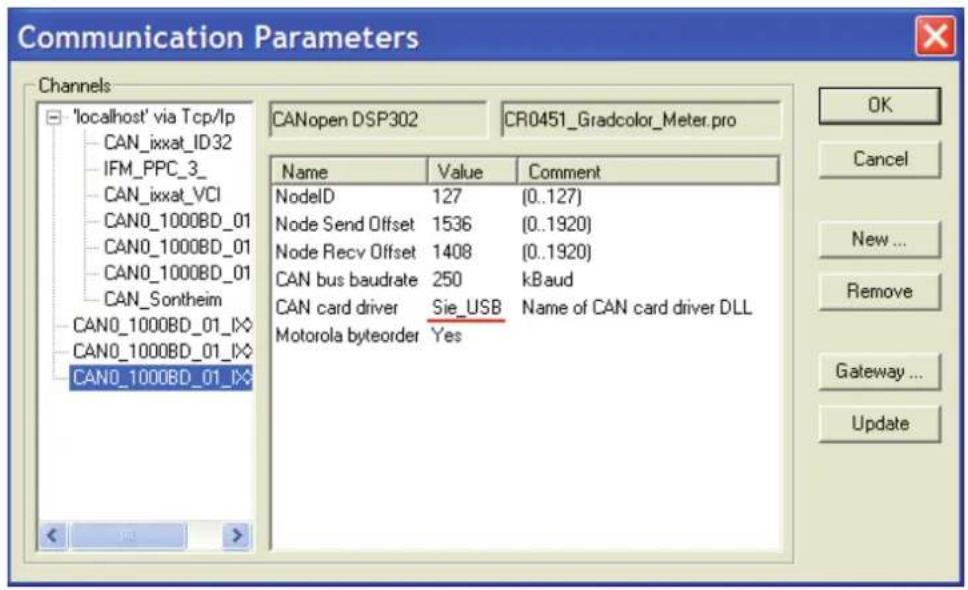
7.5 CoDeSys communication parameters
▶ Enter the value "Sie_USB" in "CAN card driver" in the communication parameters to use CoDeSys.

8 Technical data
EC2112
CANfox
CAN/RS232-USB interface for programming and diagnosing
CAN systems
Operating voltage
5 V DC
(via USB)
C€
Technical data CAN interface for the
Mechanical data
Housing plastics (ABS, black)
Dimensions (W x H x D) 76 x 51 x 25 mm
Connection USB plug, type A, cable length
Protection rating IP 50
Operating temperature -20...60°C
Storage temperature -40...85°C
Weight 0.20 kg
Electrical data
Operating voltage 5 V DC (via USB)
Current consumption ≤ 300 mA
Processor
USB interface
RS-232 interface
CAN interface
System requirements
Software support
Test standards and regulations
CE marking
Accessories
approx. 0.75 m
DIN socket, 6 poles, cable length approx. 0.5 m overall length approx. 1.3 m
32-bit microcontroller with USB 2.0, CAN, UART, SPI, GPIOs
USB 2.0, full speed, 12 Mbits/s
baud rate up to 115200 bits/s
CAN interface 2.0 A/B, ISO 11898
electrically isolated
without terminating resistors
baud rate 50 Kbits/s...1 Mbit/s
incl. 800 Kbits/s and free configuration of the baud rate
Microsoft Windows ^® 2000, XP, Vista or Windows 7
CoDeSys 2.3, Maintenance Tool, CANexplorer
EN 61000-6-2 Electromagnetic compatibility (EMC) Noise immunity (10 V/m)
EN 61000-6-4 Electromagnetic compatibility (EMC) Emission standard
EN 61000-4-2 Noise immunity to static discharge (ESD)
Adapter cable for DIN socket, 6 poles
www.ifm.com → data sheet search → EC2112 → Accessories
EC2112 Technical data
Status LEDs USB, CAN, RS-232
Operating states
| LED Colour | Status Description | |
| USB green | on USB communication active | |
| CAN yellow | on CAN communication active | |
| RS-232 yellow on serial interface active | ||
| off serial interface has not been active since the start | ||
| flashing serial data transmission running | ||
Wiring
| USBPlug type A Pin Potential | ||
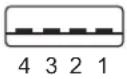 | 1 | +5 V DC |
| 2 | Data - | |
| 3 | Data + | |
| 4 | GND |
| CAN/RS-232DIN socket, 6 poles | Pin | Potential |
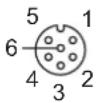 | 1 | CAN_H |
| 2 | CAN_L | |
| 3 | GND | |
| 4 | RS-232 RxD | |
| 5 | RS-232 TxD | |
| 6 | screen |
9 Maintenance, repair and disposal
9.1 Maintenance
The device does not contain any components that need to be maintained by the user.
9.2 Cleaning the housing surface
▶ Disconnect the device.
▶ Clean the device from dust and light dirt using a soft, chemically untreated, dry cloth.
▶ In case of heavy dirt use a damp soft clean cloth.

The following agents are not suited for cleaning the device: chemicals dissolving plastics such as methylated spirit, benzine, thinner, alcohol, acetone or ammonia.

Micro-fibre cloths without chemical additives are recommended.
9.3 Repair
▶ The device must only be repaired by the manufacturer.
Observe the safety instructions ( 2.4 Tampering with the device)
9.4 Disposal
▶ Dispose of the device in accordance with the national environmental regulations.
10 Approvals/standards
Test standards and regulations ( 8 Technical data)
The EC declaration of conformity and approvals can be found at:
www.ifm.com → data sheet search → EC2112 → Approvals
- Contents
- Licences and trademarks
- Preliminary note
- Symbols used
- Warning signs used
- WARNING
- CAUTION
- NOTE
- Safety instructions
- General
- Target group
- Electrical connection
- Tampering with the device
- Functions and features
- Features at a glance
- Block diagram
- Application example
- Installation
- Electrical connection
- General electrical connection
- Adapter cables
- Wirable adapter cables
- Wiring of an adapter cable
- Display elements
- Set-up
- General notes
- Install the CANfox MTAPI driver
- Interface drivers
- Installation with the Windows wizard
- New entries in the system control and task bar.
- Function test
- CoDeSys communication parameters
- Technical data
- EC2112
- Technical data CAN interface for the
- Mechanical data
- Electrical data
- Test standards and regulations
- EC2112 Technical data
- Maintenance, repair and disposal
- Maintenance
- Cleaning the housing surface
- Repair
- Disposal
- Approvals/standards
Brand : IFM
Model : EC2113
Category : Câbles pour ordinateurs et périphériques