
HWC502 - Chime CALIBER - Free user manual and instructions
Find the device manual for free HWC502 CALIBER in PDF.


| Product Type | Wireless Video Doorbell with Chime |
| Model | HWC502 |
| Brand | Caliber |
| Image Sensor | 1/3 inch 1080p CMOS |
| Viewing Angle | 120° |
| Night Vision | IR LED |
| Audio | Two-way audio, full duplex |
| Video Compression | H.264 Main Profile |
| Max Frame Rate | 1-25 fps |
| Network | WiFi 802.11b/g/n, 2.4 GHz only |
| Frequency Range | 2402-2480 MHz |
| Max EIRP | <100 mW / 20 dBm |
| Local Storage | microSD/TF card up to 128 GB (not included) |
| Power Input | 8-16 V AC via power converter |
| Working Temperature | -20°C to 50°C |
| Dimensions (L x W x H) | 45 mm x 26 mm x 115 mm |
| Mounting | Wall mount |
| IP Rating | IP54 |
| Voice Control | Amazon Alexa, Google Assistant |
| App | Caliber Smart Home (iOS/Android) |
| Included Accessories | Mounting material, user manual |
Frequently Asked Questions - HWC502 CALIBER
User questions about HWC502 CALIBER
0 question about this device. Answer the ones you know or ask your own.
Ask a new question about this device
Download the instructions for your Chime in PDF format for free! Find your manual HWC502 - CALIBER and take your electronic device back in hand. On this page are published all the documents necessary for the use of your device. HWC502 by CALIBER.
USER MANUAL HWC502 CALIBER
SmartHome
Instruction manual for HWC 502
natural_image
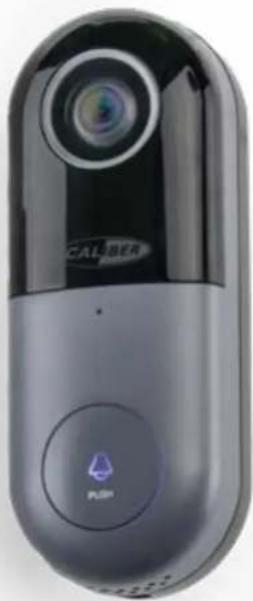
Close-up of a black and white handheld device with a camera lens and a purple 'PUSH' button (no readable text or symbols beyond branding)The pictures/screenshots/illustrations used in this manual are subject to change without notification. Also they may differ in appearance, depending on the device you use, iOS or Android, tablet or phone etc. Product and software update periodically, the number and app interface in this manual are only shown as an example. No extra notification on further changes.

SmartHome
Index:
No. 1 Caliber Smart Home app
No. 2 Register / Login
No. 3 Install device
No. 4 Add device('s)
No. 5 Install Chime
No. 6 Control device
No. 7 Profile
No. 8 Scene's & Automation
No. 9 Voice control
No. 10 Trouble shooting
No. 11 Specifications

Click to jump to
What's in the box
Consult the checklist below for all components.
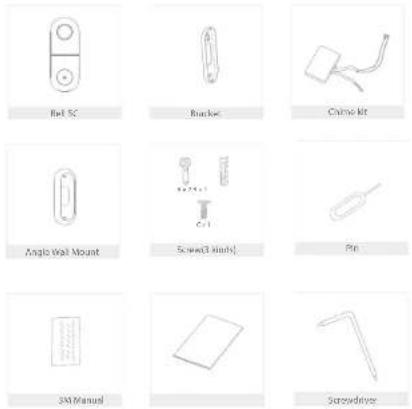
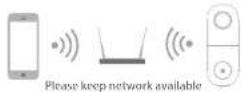
Note: Make sure the camera to be within range of the Wi-Fi network to ensure a successful connection between the camera and router. Supported network: Wi-Fi 2.4GHz only
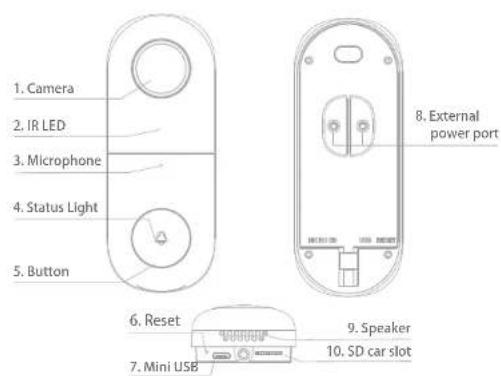
-
Camera - 1080p
-
IR led For night vision
-
Microphone 2 way talk back
-
Status Light
- LED will blink rapidly in RED while searching for a
new connection - LED will blink rapidly in BLUE while reconnecting
- LED will be solid RED while restarting
-
LED will be solid BLUE while ON and connected
-
Button To ring the ball
- Reset button To reset to factory settings
- Micro USB slot Alternative power source 5V DC
- External power port
8-16V AC
9.Speaker - micro SD card slot max. 128GB
Index:
No. 1 Caliber Smart Home app
No. 2 Register / Login
No. 3 Install device
No. 4 Add device('s)
No. 5 Install Chime
No. 6 Control device
No. 7 Profile
No. 8 Scene's & Automation
No. 9 Voice control
No. 10 Trouble shooting
No. 11 Specifications

Click to jump to
The pictures/screenshots/illustrations used in this manual are subject to change without notification. Also they may differ in appearance, depending on the device you use, iOS or Android, tablet or phone etc. Product and software update periodically, the number and app interface in this manual are only shown as an example. No extra notification on further changes.
No. 1
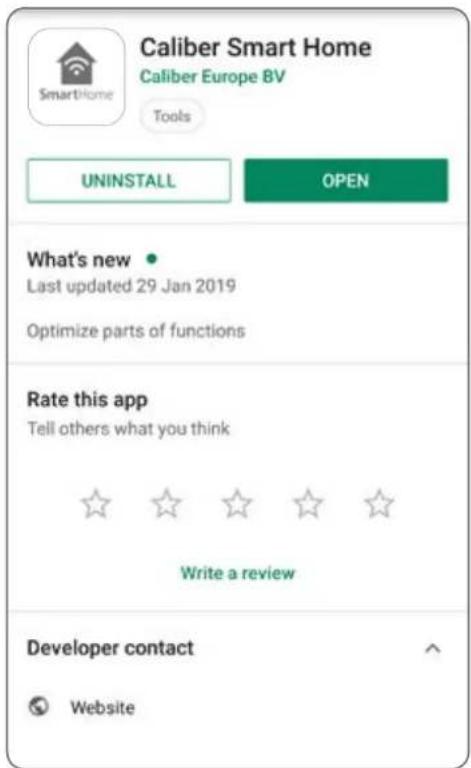
Download and install Caliber Smart Home app

SmartHome
Use your phone to scan the QR code below or search "Caliber Smart Home" in the app Store or Google play to download and install the app

Index:
No. 1 Caliber Smart Home app
No. 2 Register / Login
No. 3 Install device
No. 4 Add device('s)
No. 5 Install Chime
No. 6 Control device
No. 7 Profile
No. 8 Scene's & Automation
No. 9 Voice control
No. 10 Trouble shooting
No. 11 Specifications
CALIBER
No. 2
Register / Login / Request password

SmartHome
Register
Setup an account for 'Caliber Smart Home', or sign-in if you already have an account.
- Tap "Register" in the lower center "img 1"
-
The system automatically determines your country / area. You can also select your country code by yourself.
Enter the cellphone number / E-mail and tap "Obtain verification code" "img 2" note: Change to "register by phone" for using a phone number to register. -
Enter the verification code you received "img 3". If you didn't received the verification code within 30min. please try the previous step again
-
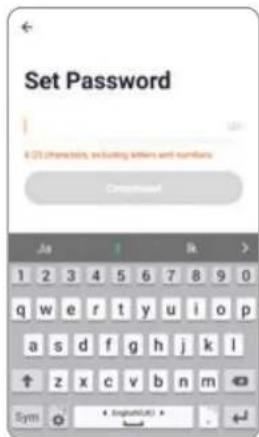
Choose a password for your account "img 4", tap "Completed" to finish your registration.
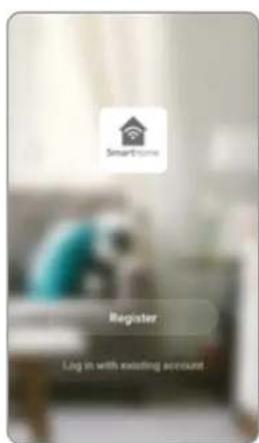
img 1 img 2
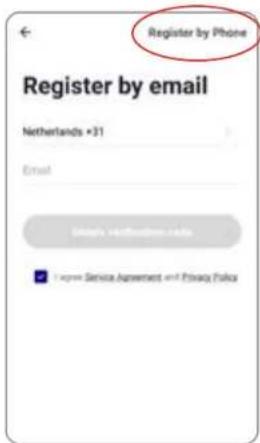
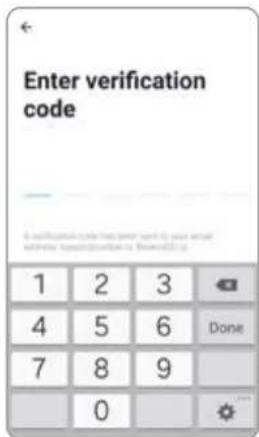
img 3 img 4
Index:
No. 1 Caliber Smart Home app
No. 2 Register / Login
No. 3 Install device
No. 4 Add device('s)
No. 5 Install Chime
No. 6 Control device
No. 7 Profile
No. 8 Scene's & Automation
No. 9 Voice control
No. 10 Trouble shooting
No. 11 Specifications
CALIBER
No. 2
Register / Login / Request password

SmartHome
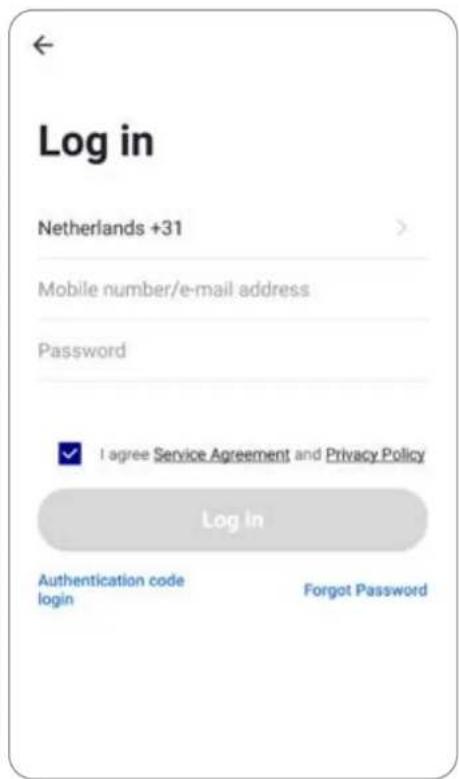
Account+password sign-in
- The system will automatically determine your country / area or you could select manually
- Enter your registered cellphone number or email and password, sign in to the system
Index:
No. 1 Caliber Smart Home app
No. 2 Register / Login
No. 3 Install device
No. 4 Add device('s)
No. 5 Install Chime
No. 6 Control device
No. 7 Profile
No. 8 Scene's & Automation
No. 9 Voice control
No. 10 Trouble shooting
No. 11 Specifications
No. 2
Register / Login / Request password

SmartHome
Forgot password
If you forgot your account of "Caliber Smart Home", you can reset the account password by "Forgot password"
- Tap "Forgot password", as shown in "img 1"
- The system automatically determines your country / area. You can also select your country code by yourself. Enter the cellphone number/E-mail and tap "Obtain verification code", as shown in "img 3"
- Enter the verification code you received "img 3". If you didn't received the verification code within 30min. please try the previous step again.
- Choose a password for your account "img 4", tap "Completed" to finish your registration.
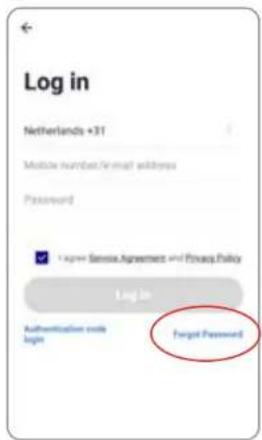
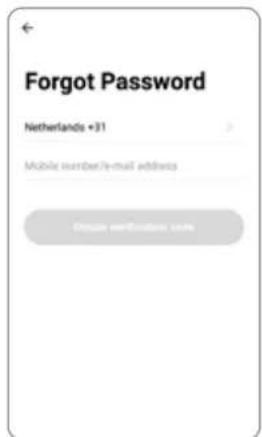
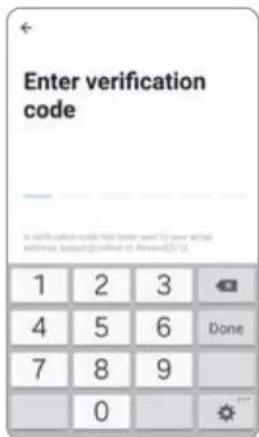
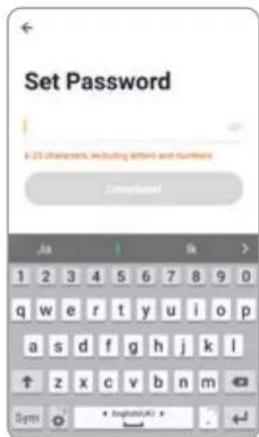
img 2 img 3 img 4 img 1
Index:
No. 1 Caliber Smart Home app
No. 2 Register / Login
No. 3 Install device
No. 4 Add device('s)
No. 5 Install Chime
No. 6 Control device
No. 7 Profile
No. 8 Scene's & Automation
No. 9 Voice control
No. 10 Trouble shooting
No. 11 Specifications
CALIBER
No. 3
Doorbell Installation

SmartHome
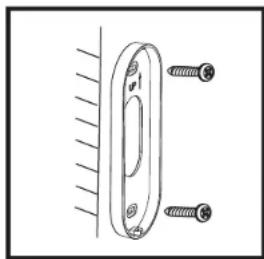
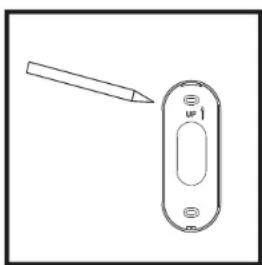
Doorbell Installation
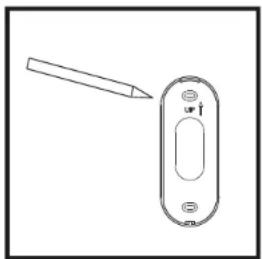
natural_image
Simple line drawing of a tool interacting with a rectangular device (no text or symbols)- Mark screws position
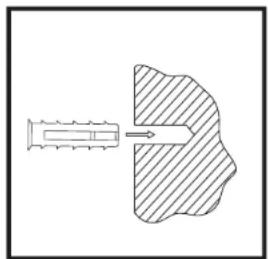
natural_image
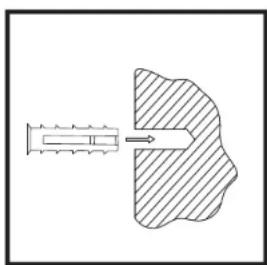
Diagram showing a syringe inserted into a shaded anatomical region (no text or labels)- Nail expansion screw
natural_image
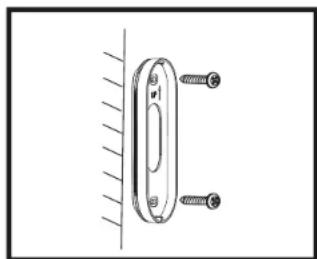
Technical line drawing of a mechanical component with screws and a curved part, no text or symbols present- Fix bracket
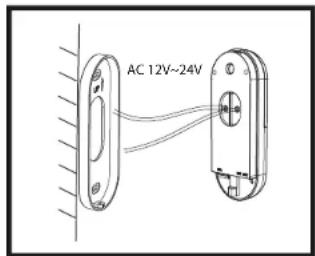
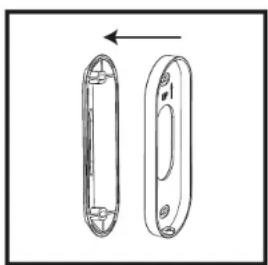
- Install the doorbell into the bracket
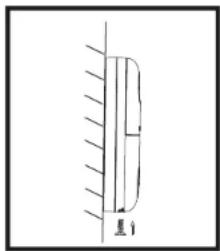
- Install the doorbell into the bracket Fix it with the C screw
Index:
No. 1 Caliber Smart Home app
No. 2 Register / Login
No. 3 Install device
No. 4 Add device('s)
No. 5 Install Chime
No. 6 Control device
No. 7 Profile
No. 8 Scene's & Automation
No. 9 Voice control
No. 10 Trouble shooting
No. 11 Specifications
Doorbell Installation Angle Mount
natural_image
Simple line drawing of a pen and a rectangular device with a handle (no text or symbols)- Mark screws position
natural_image
Diagram showing a syringe inserted into a shaded area with an arrow, no text or symbols present- Nail expansion screw
natural_image
Two views of a cylindrical mechanical component with mounting holes, shown from different angles (no text or symbols)- Fit the mounting bracket to the angle wall mount
natural_image
Technical line drawing of a mechanical component with two screws and a flange, mounted against a vertical wall (no text or symbols)- Fix bracket
- Install the doorbell into the bracket
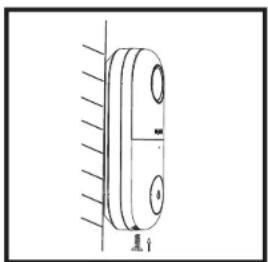
- Angle mounted Fix it with the C screw
Index:
No. 1 Caliber Smart Home app
No. 2 Register / Login
No. 3 Install device
No. 4 Add device('s)
No. 5 Install Chime
No. 6 Control device
No. 7 Profile
No. 8 Scene's & Automation
No. 9 Voice control
No. 10 Trouble shooting
No. 11 Specifications
No. 3
ADD device

SmartHome
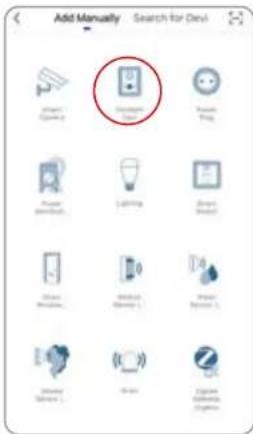
- Go to the app, tap "+" in the upper right of this page to add device's as shown in the picture to the left.
- In this case, select "Doorbell camera"
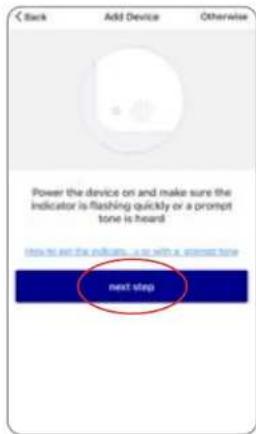
- Please make sure the device's indicator light flashes quickly, tap "Next step" to continue.
- Enter your WiFi-password
- Next the app will show a QR code. Hold it in front of the camera lens until the doorbell-camera makes the confirming sound.
- When successfully added, you can rename the camera and choose where it's located
- Choose your chime setup
Index:
No. 1 Caliber Smart Home app
No. 2 Register / Login
No. 3 Install device
No. 4 Add device('s)
No. 5 Install Chime
No. 6 Control device
No. 7 Profile
No. 8 Scene's & Automation
No. 9 Voice control
No. 10 Trouble shooting
No. 11 Specifications
CALIBER
No. 3
Install Chime

SmartHome
Connecting the HWC502 doorbell camera.
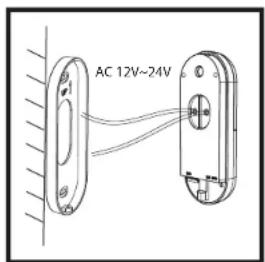
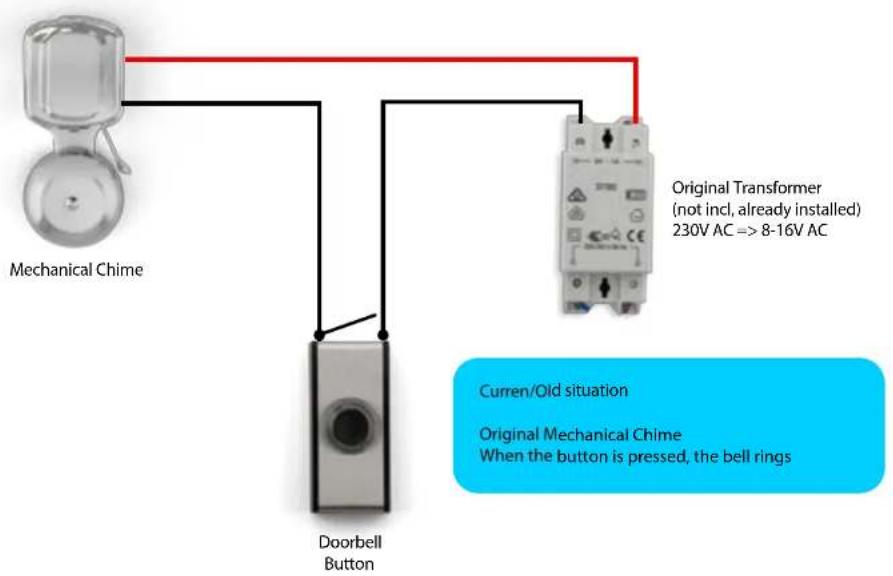
In most cases there will be a doorbell adapter 8-16V AC already in the house. The diagram below shows what it looks like:
1. Current / old situation
Index:
No. 1 Caliber Smart Home app
No. 2 Register / Login
No. 3 Install device
No. 4 Add device('s)
No. 5 Install Chime
No. 6 Control device
No. 7 Profile
No. 8 Scene's & Automation
No. 9 Voice control
No. 10 Trouble shooting
No. 11 Specifications
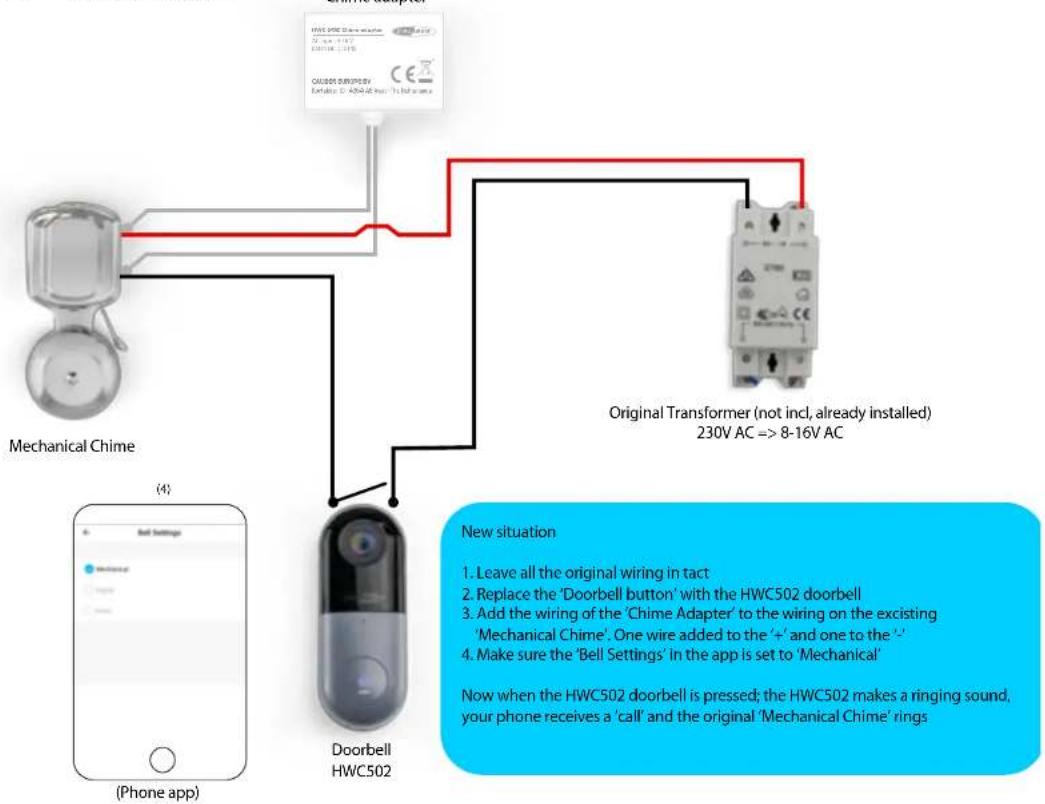
Connecting a mechanical chime.
If you still want the chime to "ring" or "ding dong" like before, please install as described below:
- NEW situation
Index:
No. 1 Caliber Smart Home app
No. 2 Register / Login
No. 3 Install device
No. 4 Add device('s)
No. 5 Install Chime
No. 6 Control device
No. 7 Profile
No. 8 Scene's & Automation
No. 9 Voice control
No. 10 Trouble shooting
No. 11 Specifications
No. 3
Install Chime

SmartHome
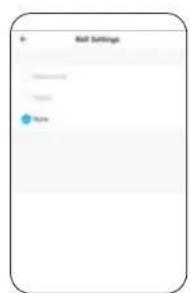
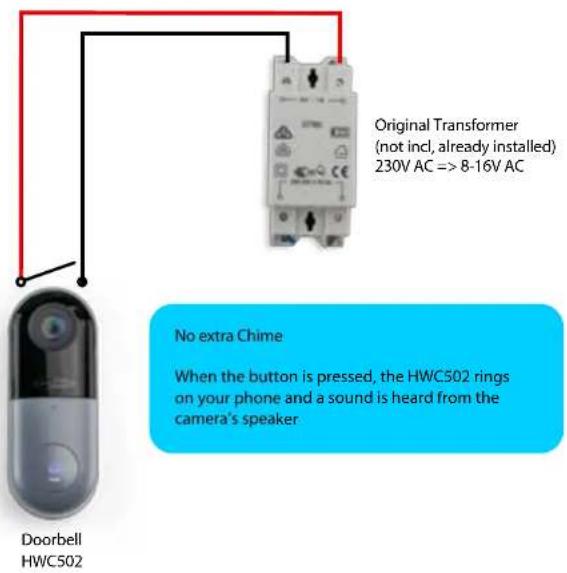
Connecting HWC502 with no extra chime
3. No extra Chime
(Phone app)
Index:
No. 1 Caliber Smart Home app
No. 2 Register / Login
No. 3 Install device
No. 4 Add device('s)
No. 5 Install Chime
No. 6 Control device
No. 7 Profile
No. 8 Scene's & Automation
No. 9 Voice control
No. 10 Trouble shooting
No. 11 Specifications
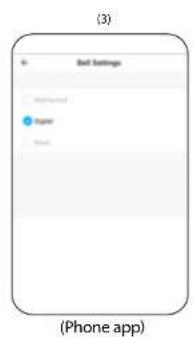
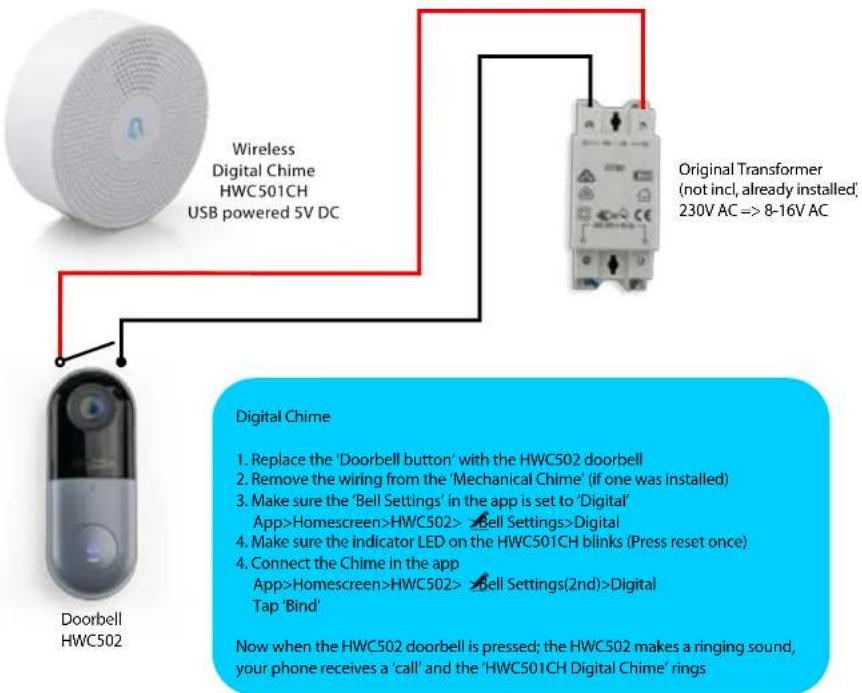
Connecting a digital chime.
If you want a chime to "ring" or "ding dong" on any location within the WiFi range, please install as described below. The HWC501CH is sold separately:
4. Digital Chime

Index:
No. 1 Caliber Smart Home app
No. 2 Register / Login
No. 3 Install device
No. 4 Add device('s)
No. 5 Install Chime
No. 6 Control device
No. 7 Profile
No. 8 Scene's & Automation
No. 9 Voice control
No. 10 Trouble shooting
No. 11 Specifications
No. 4
Control device

SmartHome
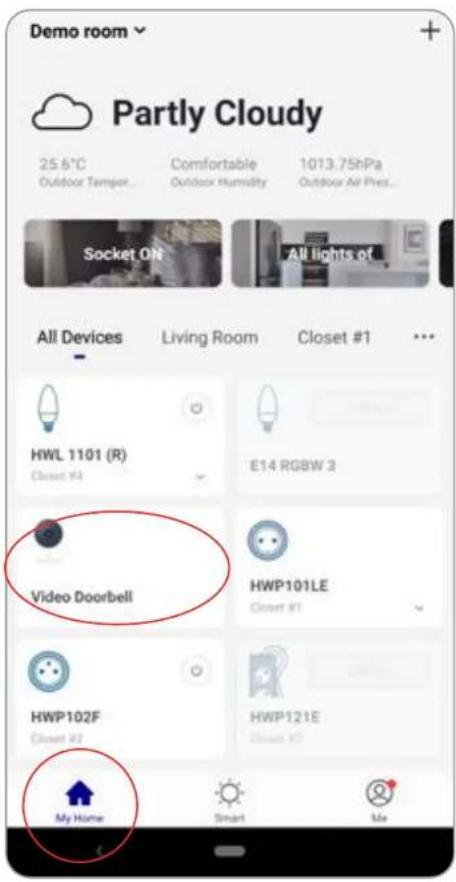
Control device
After the device is connected successfully, tap "My Home" at the bottom. The device name shows in the list. Tap it to enter the control panel of the device (Doorbell cam)
Remarks:
When device is online, operation via shortcuts is supported; When the device is offline, device displays "device is offline" and is greyed out.
Index:
No. 1 Caliber Smart Home app
No. 2 Register / Login
No. 3 Install device
No. 4 Add device('s)
No. 5 Install Chime
No. 6 Control device
No. 7 Profile
No. 8 Scene's & Automation
No. 9 Voice control
No. 10 Trouble shooting
No. 11 Specifications
No. 4
Control device

SmartHome
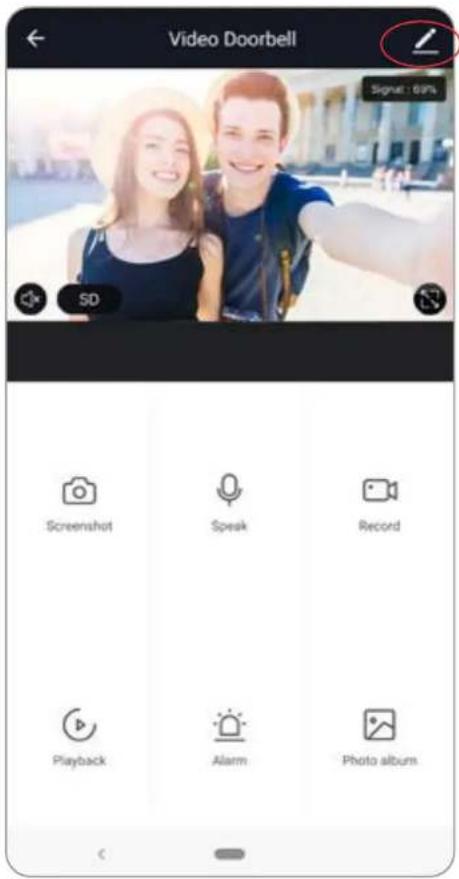
Control device
From this page, all device settings can be altered.
Tap the edit symbol : or to make changes in name, location, share device, Bell Settings, Motion Detection etc.
If there is a firmware update available, check under 'Firmware information' to update the firmware.
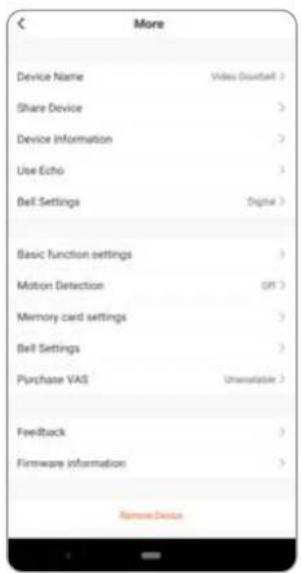
Index:
No. 1 Caliber Smart Home app
No. 2 Register / Login
No. 3 Install device
No. 4 Add device('s)
No. 5 Install Chime
No. 6 Control device
No. 7 Profile
No. 8 Scene's & Automation
No. 9 Voice control
No. 10 Trouble shooting
No. 11 Specifications
CALIBER
No. 4 Control device

SmartHome
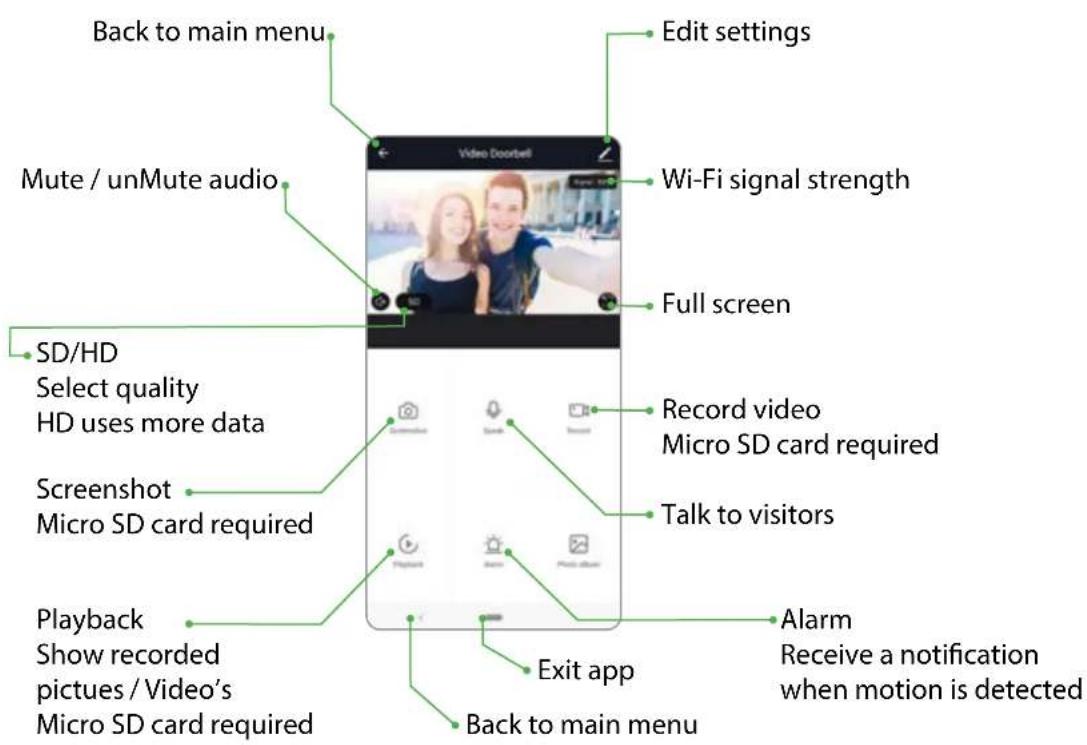
Index:
No. 1 Caliber Smart Home app
No. 2 Register / Login
No. 3 Install device
No. 4 Add device('s)
No. 5 Install Chime
No. 6 Control device
No. 7 Profile
No. 8 Scene's & Automation
No. 9 Voice control
No. 10 Trouble shooting
No. 11 Specifications
No. 5
Profile

SmartHome
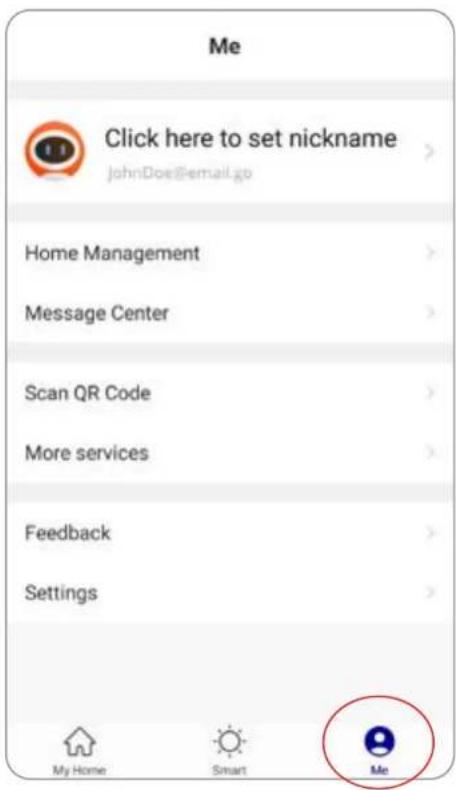
Profile (Me)
In order to make full use of the functionality of this app and your Caliber Smart Home devices, make your home situation match the situation in the app.
- Choose family name
- Manage your rooms
- Set the location, for area automations
- Add members to the family

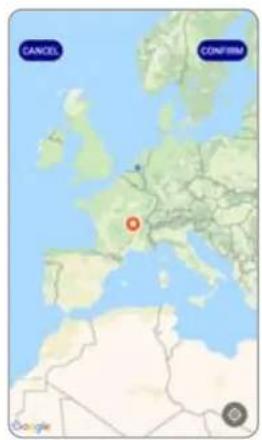
Index:
No. 1 Caliber Smart Home app
No. 2 Register / Login
No. 3 Install device
No. 4 Add device('s)
No. 5 Install Chime
No. 6 Control device
No. 7 Profile
No. 8 Scene's & Automation
No. 9 Voice control
No. 10 Trouble shooting
No. 11 Specifications
CALIBER
No. 6
Scene's & Automation

SmartHome
Scene's
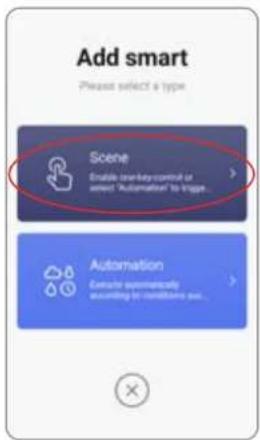
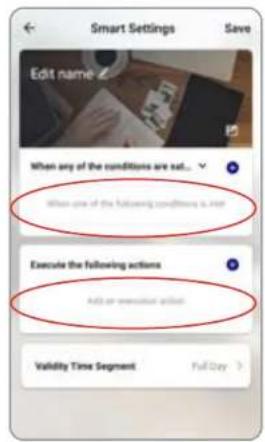
You can combine devices to do 'tasks' in a "scene". Go to Smart (img1)
The next pages describes general information. Some products cannot preform scene's
- Tap“+” in the upper right of the page to create a new smart scene.
- Tap "scene" img 2
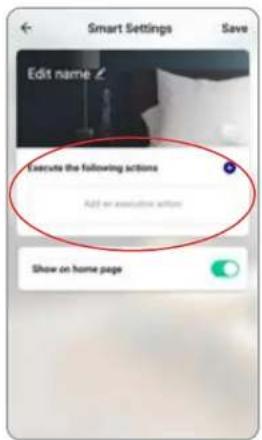
- Enter life scene name, add task, tap "Save", as shown in the picture. A smart scene has been created.
- You can also change the scene you have already created (img1), change scene name, change task or delete smart scene etc.
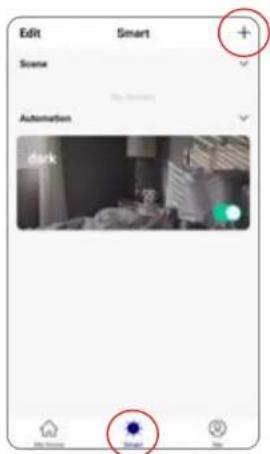
Index:
No. 1 Caliber Smart Home app
No.2 Register/Login
No. 3 Install device
No. 4 Add device('s)
No. 5 Install Chime
No. 6 Control device
No. 7 Profile
No. 8 Scene's & Automation
No. 9 Voice control
No. 10 Trouble shooting
No. 11 Specifications
CALIBER
img 1 img 2 img 3 img 4
No. 6
Scene's & Automation

SmartHome
Automation
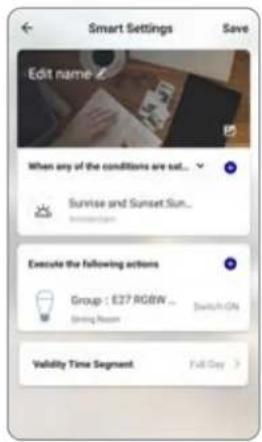
You can execute automations, when conditions are met.
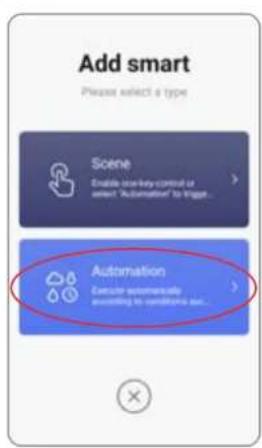
- Tap“+” in the upper right of the page to create a new smart scene
2.Tap"Automation" - Choose which conditions should be met "img3".
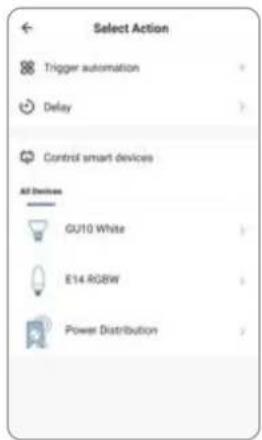
- Choose what 'task /action' should be executed "img3".
- img4 shows an example (This might include a different product). The Smart light group "E27 RGBW" switches ON when the sun sets. For this function you need to set your location, see profile.
More app functions can be found in our support page

Index:
No. 1 Caliber Smart Home app
No.2 Register/Login
No. 3 Install device
No. 4 Add device('s)
No. 5 Install Chime
No. 6 Control device
No. 7 Profile
No. 8 Scene's & Automation
No. 9 Voice control
No. 10 Trouble shooting
No. 11 Specifications
img 1 img 2 img 3 img 4
No. 7
3^RD Party voice control

SmartHome
Voice control
Most of our Smart Home products support 3^rd party voice control. Instructions how to connect can be found in the links below:
Connect with Google Home
Webshop.caliber.nl/media/SmartHome/Caliber_in_GoogleHome.pdf
Connect with Amazon Alexa
Webshop.caliber.nl/media/SmartHome/Caliber_with_Amazon-Alexa.pdf
Index:
No. 1 Caliber Smart Home app
No. 2 Register / Login
No. 3 Install device
No. 4 Add device('s)
No. 5 Install Chime
No. 6 Control device
No. 7 Profile
No. 8 Scene's & Automation
No. 9 Voice control
No. 10 Trouble shooting
No. 11 Specifications
Possible reasons why a device cannot be added:
- The device is not powered on
- WiFi signal is strong and stable, distance between device and router should be not too far
- The smartphone cannot connect to WiFi
- Wifi password not correct
- The device is in configuration state (When a device needs to be added, you need to bring it into WiFi configuration state)
- You selected a 5GHz network (with dual band routers) Devices only support 2.4GHz network
Router issues:
- Encryption mode should be WPA2-PSK type, Authentication type AEX or set to "automatic".
- Wireless mode cannot be 11n only
- Max number of connected devices has reached upper limit of router. Disconnect other devices from WiFi
Index:
No.1 Caliber Smart Home app
No. 2 Register / Login
No. 3 Install device
No. 4 Add device('s)
No. 5 Install Chime
No. 6 Control device
No. 7 Profile
No. 8 Scene's & Automation
No. 9 Voice control
No. 10 Trouble shooting
No. 11 Specifications
No. 9
Specifications

SmartHome
1. PRODUCT DESCRIPTION
WiFi wireless Door/ Window sensor. It can monitor the status of door / window after proper installation with your smart phone. When it is triggered, such as open, close or tampered, a push notification will be reported to your smart phone.
2. FEATURES
• Works with Amazon Alexa
• Works with Google assistant
- Works with IFTTT
• Working in 2.4G wireless Wi-Fi
- Send notification about 'tampered' event
• Detects the battery level
- Low battery level alarm
- Open/Close history record and record clear
Image sensor 1/3inch 1080p CMOS sensor Viewing angle 120°
Compression Format H.264 Main Profile
Night vision IR power LED
Max.Frame rate 1-25fps
Audio Input Two way audio Full duplex
Network Protocol HTTP,DHCP,DNS
WIFI WiFi802.11b/g/n
Freq range: 2402-2480 Mhz
Max
e.r.p:
<100mW/20dBm
Storage mode Local storage
Interface
Micro SD/TF,
support up to 128GB SD
Optional accessories
Wireless chime, mechanical chime
Motion detection
Support motion detection
Power 8-16V AC trough power converter
Working environment Working Temperature -20\~50°C
Camera size 45mm (L) x 26mm (W)x115mm (H)
Installation Wall mounting
IP
rated
IP54
Set consists of: HWC502
Manual
Mounting
material
We are continuously improving / updating our products and product information. It's therefore possible that there is a slight difference between the description in this manual to the operation of the product.
If something is different or not clear; always check our website for the most current manual version. The (app) images and illustrations used are indicative and may vary per device and version
Index:
No. 1 Caliber Smart Home app
No. 2 Register / Login
No. 3 Install device
No. 4 Add device('s)
No. 5 Install Chime
No. 6 Control device
No. 7 Profile
No. 8 Scene's & Automation
No. 9 Voice control
No. 10 Trouble shooting
No. 11 Specifications
All rights reserved
The pictures used in this manual are Android app interface, iOS version is a bit different
Product and software update periodically, the number and app interface in this manual are only shown as an example. No extra notification on further changes.
Wifi Freq range: 2402-2480 Mhz, Max e.r.p: <100mW/20dBm
The Apple logo is a trademark of Apple Inc., registered in the U.S. and other countries.
Tuya word mark and logos are registered trademarks owned by Tuya, Inc. and any use of such marks by Caliber Europe BV is under license. Other trademarks and trade names are those of their respective owners.
Google Play and the Google Play logo are trademarks of Google LLC.
Amazon Alexa logo are trademarks of Amazon Alexa.
IFTTT logo are trademarks of IFTTT.
Index:
No. 1 Caliber Smart Home app
No. 2 Register / Login
No. 3 Install device
No. 4 Add device('s)
No. 5 Install Chime
No. 6 Control device
No. 7 Profile
No. 8 Scene's & Automation
No. 9 Voice control
No. 10 Trouble shooting
No. 11 Specifications
Thank you!
- SmartHome
- Instruction manual for HWC 502
- Index:
- What's in the box
- No. 1
- Download and install Caliber Smart Home app
- No. 2
- Register / Login / Request password
- Register
- Account+password sign-in
- Forgot password
- No. 3
- Doorbell Installation
- Doorbell Installation Angle Mount
- ADD device
- Install Chime
- Connecting the HWC502 doorbell camera.
- Current / old situation
- Connecting a mechanical chime.
- Connecting HWC502 with no extra chime
- No extra Chime
- Connecting a digital chime.
- Digital Chime
- No. 4
- Control device
- Remarks:
- No. 4 Control device
- No. 5
- Profile
- Profile (Me)
- No. 6
- Scene's & Automation
- Scene's
- Automation
- No. 7
- 3RD Party voice control
- Voice control
- Connect with Google Home
- Connect with Amazon Alexa
- Possible reasons why a device cannot be added:
- Router issues:
- No. 9
- Specifications
- PRODUCT DESCRIPTION
- FEATURES
- Thank you!
Brand : CALIBER
Model : HWC502
Category : Chime