Egg - Mobile Phone NGM - Free user manual and instructions
Find the device manual for free Egg NGM in PDF.


| Product Type | Mobile Phone (Feature Phone) |
| Brand | NGM |
| Model | Egg |
| Network | GSM Dual SIM (SIM1 & SIM2) |
| Display | Touchscreen with virtual keypad |
| Camera | Built-in camera for picture capturing |
| Bluetooth | Yes, for audio devices and file transfer |
| Memory Card Slot | MicroSD (required for camera use) |
| Battery | Lithium-ion, rechargeable via Micro USB |
| Charging | Micro USB connector on lower side; also via PC |
| Input Methods | Virtual keypad, T9 predictive text |
| Keypad Lock | Automatic and manual locking; unlock by dragging egg icon |
| Profiles | User profiles with customizable ringtones and vibration |
| Blacklist | Up to 20 numbers; blocks calls with busy tone |
| SAR Value | 1.177 W/kg at ear (max) |
| Compliance | R&TTE Directive 1999/5/EC, CE 0700 |
| Operating Temperature | 0°C to 40°C |
| Maximum Altitude | Less than 2,000 m |
| Cleaning | Do not use liquid or wet cloths with strong detergents |
| Safety | Keep away from water, high/low temperatures, magnetic objects, and children |
| Warranty | Non-original accessories void warranty; do not disassemble |
Frequently Asked Questions - Egg NGM
User questions about Egg NGM
0 question about this device. Answer the ones you know or ask your own.
Ask a new question about this device
Download the instructions for your Mobile Phone in PDF format for free! Find your manual Egg - NGM and take your electronic device back in hand. On this page are published all the documents necessary for the use of your device. Egg by NGM.
USER MANUAL Egg NGM
For your safety and proper use of the mobile phone, please read the following guidelines carefully: Do not switch on the mobile phone when close to a chemical factory, gas staon or other explosive objects.
- When driving, please use the headset for safety; unless in emergency, always stop the car on the roadside to have a call conversaon without the headset.
- Since the use of the mobile phone can cause interference in the aircra, never use the mobile phone on an airplane. The use of the mobile phone on aircras is dangerous and illegal; switch o the mobile phone before boarding.
- Pay special aenon to the use of the mobile phone near heart pacemakers, deaf-aids and other medical equipments, because the mobile phone can cause interference with them.
- The use of non-original factory's accessories and parts will lead to the loss of guarantee.
- Do not dismantle the mobile phone without permission. In case of failure, please contact the supplier as soon as possible.
- Do not plug the charger into the mobile phone and charge without baery. Always power o the
- mobile phone when taking out the baery; otherwise the telephone memory may be damaged.
- When charging the mobile phone, always keep it in the place with good venlaon, on a heat sink and away from ammable and explosive objects.
-
In order to avoid demagnezaon, always keep the mobile phone away from magnec objects such as CDs, credit cards etc.
-
Ensure the mobile phone does not contact any liquid; if such happens, remove the baery and contact the supplier immediately.
- Do not use the mobile phone in an environment at too high or too low temperature, never expose the mobile phone to strong sunshine or too moist environment. The suitable temperature for the phone and accessories is between 0°C and 40°C. The height to use the phone shall be less than 2,000m.
- Do not use liquid or wet cloths with strong detergents to clean the mobile phone.
- This mobile phone has picture capturing funcons, which shall be used following the related laws and regulaons.
- Always keep the mobile phone out of children's reach. Do not throw or vibrate the mobile phone because violent treatment to the mobile phone may damage the inner circuits and precise structures.
- Please do not discard the waste baery into general household garbage. Please deal with the waste baery according to provisions where they are denitely made.
Warning: NGM Italia will not be bear any responsibility for any incompliance with the above guidelines or improper use of the mobile phone. Our company keeps the right to modify any of the content in this user guide without public announcement in advance. The content of this manual may vary from the actual content displayed in the mobile phone. In such case, the laer shall govern.
Seng up
Installing the SIM card

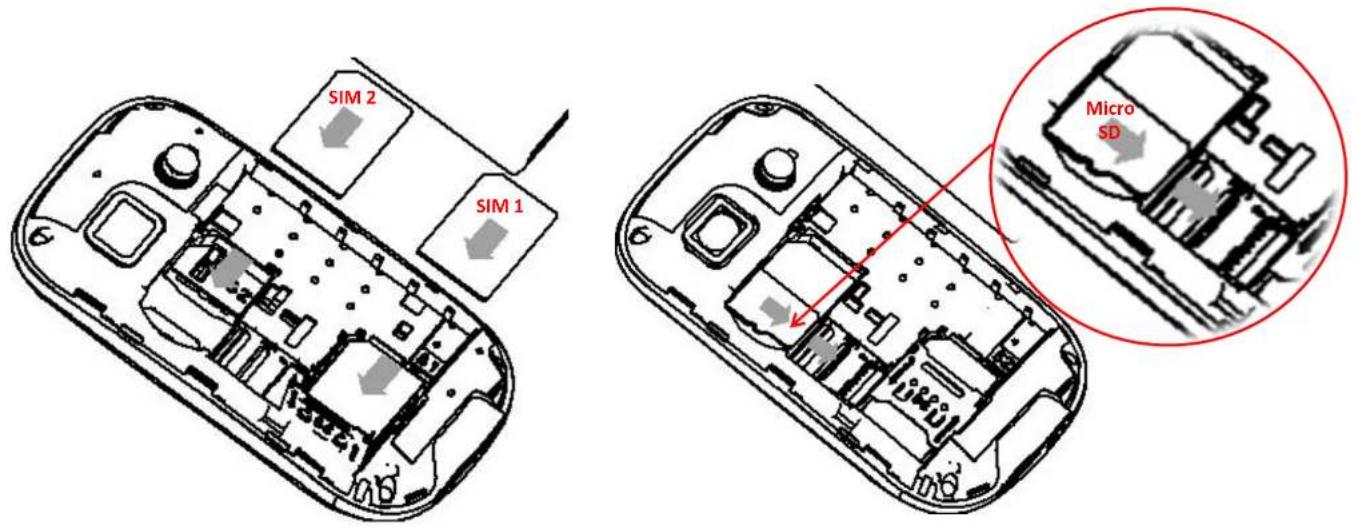
The SIM card contains informaon such as your personal phone number, PIN code, service numbers, contacts and other important details. To remove the cover, use the small split on the upper back side of the phone. The SIM cards have to be inserted into the back side of the phone, under the baery. Insert the SIM2 card with the golden contacts facing downwards into the SIM2 slot. In order to insert SIM1, follow the instrucons describing the inseron of the memory card.
Installing the Memory card
Egg needs a memory card in order to use the camera, as the internal free phone memory is small.
The MicroSD card must be inserted, as for the SIM cards, into the back side of the phone under the baery. The slot for the memory card is placed right in between the two SIM cards. The mechanism for inserting the micro SD card and the SIM1 card are similar. Unlock the slot clap by pushing it towards "Open", then open it and t the memory/SIM1 card into posion, with the golden contacts facing downwards. Then close and lock the clap by pushing it towards "Lock".
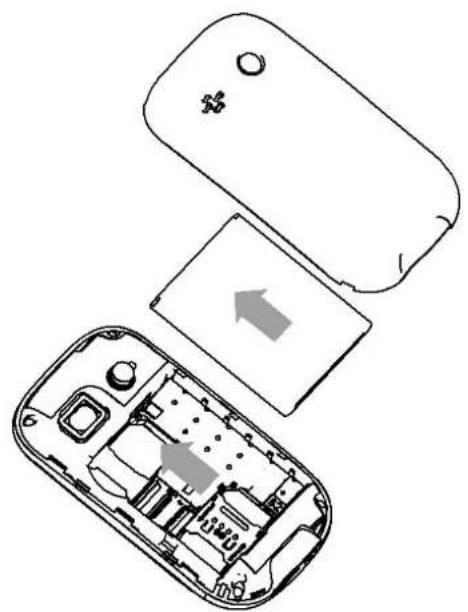
Your device is provided with a lithium-ion baery and is designed to be used exclusively with original NGM baeries and chargers. The baery must be inserted into the backside of the phone. Align the baery contacts with the phone contacts inside the baery tray, and let it slide down into posion. Once the baery is inserted, close the rear cover by gently pushing it back into posion.
natural_image
Exploded view diagram of a mobile phone showing internal components and casing (no text or symbols)Charging the baery
Please charge the baery completely before starng to use the device. First, insert the charger into the wall socket, then connect the USB cable with the phone; use the provided USB cable to connect one end to the provided wall socket adaptor and the other end to the USB connector placed on the lower side of the phone. You can also connect the phone to a PC in order to charge it.
Warning: Never connect the phone to a computer powering on/o to avoid voltage jumps.
While the baery is charging, an animated icon on the screen will show the charging progress. Once the progress bar is full, the phone can be disconnected from the charger.
Note: Use only the provided USB cable for recharging the device. Always charge the baery indoors in a dry and safe environment. A slight warming up during the charging process is normal. The baery will not reach its full capacity until cycled several mes.
Warning:
Charging the mobile phone by improper means can cause to explosion.
Always refer to the related regulaons for the disposal of the baery.

Prole
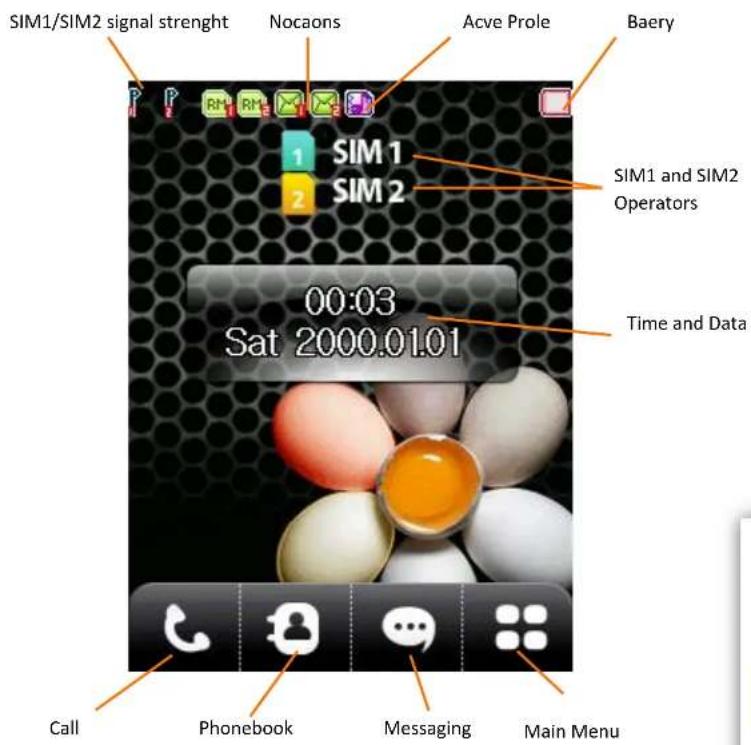
Stand-by screen
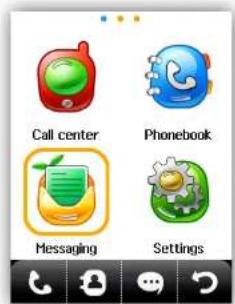
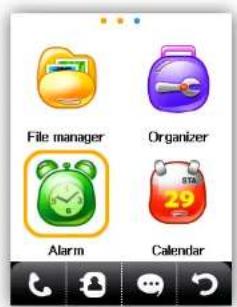
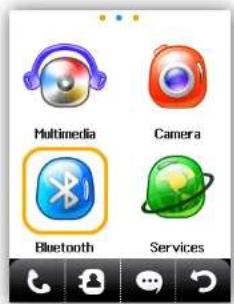
The main menu
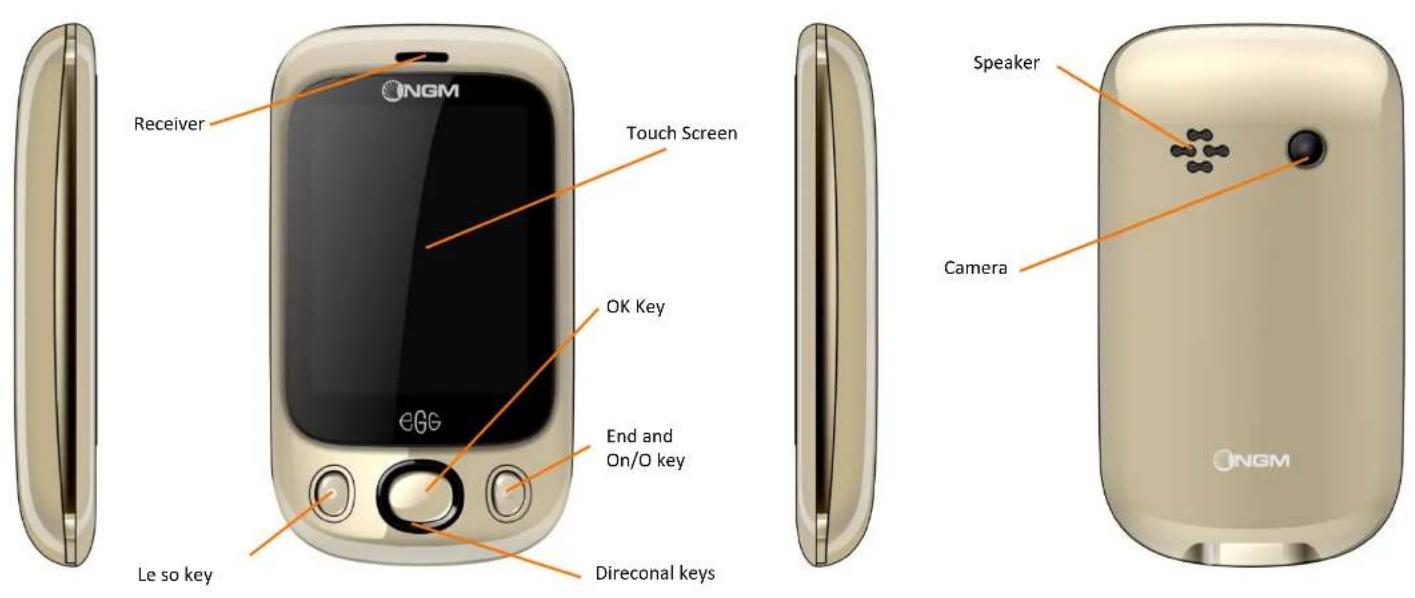
Touch screen: All objects on the screen can be directly selected by touching them or by using the direconal Keys and the central OK key.
To change between the three main menu screens, use the direconal keys or "swipe" the creems le and right with your nger.



Making a phonecall
Voice call
- From the main screen, digit the desired phone number using the virtual keypad opened with the call icon.
- Press either the SIM1 or SIM2 call icon to call the number with the desired SIM card.
- To end the call, press the END key.
Recall a number from the call logs
- From Call screen press the SIM1 or SIM2 call keys key to access the call logs list of both SIM cards separately.
- Select a contact or number from the list, then press Opons > call > from SIM1 or SIM2 to make the call.
Managing contacts
Adding a new contact
- From the main screen, press the Phonebook icon to open the Phonebook.
- Click Add new contact.
- Select the locaon where you want to save the new contact (Phone or SIM1/SIM2).
- Conrm saving.
Add a new contact from the call logs
- From the main screen, press the OK key to open the main menu.
- Choose Call center > Call history and choose the contact number you want to save (scrolling the list including the Missed calls, Dialed calls and Received calls.
- Click Opons, then Save to Phonebook > Add contact > SIM1/2 or Phone, insert the name and conrm saving.
Seng ringtones
Select a ringtone
- From the main screen, select Menu.
- Select Sengs > User Proles > General > Customize > Incoming Call (SIM1 or SIM2 > Change).
- Select the desired ringtone from the list, then click OK.
- It is possible to add a customized ringtone. From the Incoming call menu (SIM1 or SIM2), choose Select from le and choose an audio le from the folders in the phone or memory card memory.
Note: It is possible to use les in .mid, .wav or .mp3 format. The same procedure is of course applicable also to other proles contained in User Proles.
Keypad lock and shortcuts
Locking the screen
To lock the keys, press the END key from the main screen. To unlock, follow the instrucons on the screen, that will ask to drag the egg to the boom of the screen.
To set the automac keylock, choose Sengs > Security sengs > Auto keypad lock and choose the desired ming between the available ones.
Fast acvaon of the vibraon prole
- From the Call screen, press and hold the # key to quickly turn on the Vibraon Prole.
- By pressing and holding the same key again, the previous user prole will be restored.
Rapid access to date and me sengs
- From the main screen, press the box displaying date and me (on the center).
- The me and date can be set on the following screen and the Daylight saving funcon can be set on and o.
Conguraon of both SIM cards
Disabling/enabling Dual SIM
- From the main screen, select menu.
- Select Sengs > Dual SIM sengs.
- Select Only SIM1/2 open, Dual SIM open or Flight mode and conrm.
Text input
Text input using T9
T9 is a predictive text entry method; when wring SMS messages, this method suggests the stascally most used words. T9 mode is set by default, and it is possible to customize the system integrated dictionary by adding new words it.
To change text input method, select Messaging > Write message > Text message > Opons and then Input method: here you can select between several input methods. If you wish to disable T9, select Opons > T9 > On/O.
Send and receive messages
Sending SMS and MMS
- From the main menu, select Messaging > Write Message > Text message or Mutlimedia message.
-
Enter text using the virtual keyboard.
-
Once the message is ready, press OK to choose whether to insert the recipient's number directly or retrieve it from the phone book.
- Select which SIM to use to send out your SMS.
Bluetooth
Connecng to a Bluetooth device
- Turn on the Bluetooth device to which you want to connect. Where necessary, refer to the document on of the device.
- From the Menu, choose Bluetooth. Acvate the Bluetooth state selecng Power on.
- Select My device > Search new device to start searching for Bluetooth devices.
- Select the device name to associate with, and then choose Associate. The phone will try to connect to the device, eventually asking for the pairing code.
- I you wish to pair ad audio device, select Bluetooth > Search audio device and pair/connect the device.
Blacklist
Manage the Blacklist
This opon allows you to set up a list of phone numbers (contacts) that you want to block. If the funcon is acvated, the black-listed caller will hear the tone of “congested line”
(network error) and you will eventually receive an SMS from your operator nofying you of the phone number of the caller.
In Call center > Call sengs > Advanced sengs > Blacklist > Blacklist numbers you can choose up to 20 numbers to insert into the Blacklist.
To acvate/deacvate the Blacklist, choose In Call center > Call sengs > Advanced sengs > Blacklist > Reject number > Blacklist (On/O)
Shortcuts
Rapid access to the favorite funcons
From the main screen, the Up, Down, Le and Right keys have shortcut funcons.
In Sengs > Phone sengs > Dedicated key you can assign shortcuts to the Up, Down, Le and Right keys.
The preset shortcuts are:
Up: Audio Player
Down: Alarm clock
Le: User Proles
Right: Bluetooth
Cercaons
Declaraon of conformity (R&TTE)
We, NGM Italia
declare under our sole responsibility that the product idened as
GSM Mobile Phone : EGG
conforms to the following standards and specicaons:
Health EN 50360, EN 62209-1
Safety EN 60950-1+A11
EMC EN 301 489-1/-7/-17
Radio EN 301 511
EN 300 328
We declare that [all the series of fundamental radio test have been conducted and that] the aforesaid product meets all the essenal requirements of the Direcve 1999/5/EC.
The conformity assessment procedure referred to in Arcle 10 and detailed in Annex IV of Direcve 1999/5/EC has been followed with the involvement of the following need bodies:
CE 0700
PHOENIX TESTLAB GmbH
Königswinkel 10, D-32825 Blomberg, Germany
www.phoenix-testlab.de
All technical documents conserved at NGM Italia S.r.l.
Available on request.
(UE Authorized Representave)
NGM Italia S.r.l.
Via L. Da Vinci, 7 – Poncelli
56020 Santa Maria a Monte (Pi)
S.A.R. (Specific Absorpon Rate)
Informaons on SAR cercaons
Cell phones are radio transceivers. They have been projected not to exceed the radio wave exposion limits recommended by internaonal guidelines. These guidelines have been determined by the independent scienc organizaon ICNRP and include security limits to ensure protecon to all persons, independently from their age and health conditions.
This phone meets European Union (EU) requirements concerning exposure to radio waves coming from telecommunicaon and radio devices. The exposure standard for mobile phones employs a unit of measurement known as SAR (Specific Absorpon Rate). The SAR limit recommended by the EU Council is 2.0 W/kg averaged over ten grams of body issue.
The highest SAR value for this model phone when tested for use at the ear was 1,177 wa/kg ^12 . Although the SAR is determined at the highest cered power level, the actual SAR of the phone while operang can be well below the maximum
value. This is because the phone is designed to operate at multiple power levels so as to use only the power required to reach the network. In general, the closer you are to a base station, the lower the power output of the phone. The Declaraon of Conformity here above proves that the designated product is in compliance with the essenal requirements and other relevant provisions of the R&TTE - Direcve (European Radio & Terminal Telecommunicaons Equipment)1999/5/EC
- These controls have been made according to internaonal guidelines on controls.
- For the use next to the body, this telephone model has been controlled and is conform to the directives for the exposion to RF, also when used with accessories not containing metallic parts or which posion the mobile phone at least at 1,5cm distance from the body.
Warnings
WHO (World Health Organizaon) conrms that the actual scienc informaon does not indicate the necessity to adapt parcular precauons for the use of cell phones.
Nevertheless, for all those users not comforted by these data, NGM advises to limit their own and their children's exposure, for instance by reducing the calling me, or by using earpieces or hands-free devices to keep the mobile phone distant from the body and the head.
For more informaon on the argument, NGM invites to consult the WHO document (Fact sheet N°193, June 2011) entled Electromagnec elds and public health: mobile phones at the following web address:
hp://www.who.int/mediacentre/factsheets/fs193/en/index.html
NGM advises to use mobile devices of any brand or model with moderaon and to keep them at a minimum distance of 1,5cm from the body or to use earpieces or other hands-free devices.
- Seng up
- Installing the SIM card
- Installing the Memory card
- Charging the baery
- The main menu
- Making a phonecall
- Voice call
- Recall a number from the call logs
- Managing contacts
- Adding a new contact
- Add a new contact from the call logs
- Seng ringtones
- Select a ringtone
- Keypad lock and shortcuts
- Locking the screen
- Fast acvaon of the vibraon prole
- Rapid access to date and me sengs
- Conguraon of both SIM cards
- Disabling/enabling Dual SIM
- Text input
- Text input using T9
- Send and receive messages
- Sending SMS and MMS
- Bluetooth
- Connecng to a Bluetooth device
- Blacklist
- Manage the Blacklist
- Shortcuts
- Rapid access to the favorite funcons
- Cercaons
- Declaraon of conformity (R&TTE)
- S.A.R. (Specific Absorpon Rate)
- Informaons on SAR cercaons
- Warnings
Brand : NGM
Model : Egg
Category : Mobile Phone