AR410 - Router Allied Telesis - Free user manual and instructions
Find the device manual for free AR410 Allied Telesis in PDF.


| Product Type | Multi-Service Access Router |
| Brand | Allied Telesis |
| Model | AR410 |
| Dimensions (W x D x H) | 200 x 140 x 40 mm |
| Weight | 0.5 kg |
| Power Supply | 12V DC, 1A |
| Power Consumption | 12W (max) |
| WAN Interface | VDSL2/ADSL2+ |
| LAN Interfaces | 4 x Gigabit Ethernet |
| USB Port | 1 x USB 2.0 |
| Wireless | 802.11b/g/n (optional) |
| VPN Support | IPsec, PPTP, L2TP |
| Firewall | Stateful packet inspection (SPI) |
| QoS | Traffic shaping and priority |
| Management | Web GUI, CLI, SNMP |
| Operating Temperature | 0°C to 40°C |
| Storage Temperature | -20°C to 70°C |
| Humidity | 5% to 90% non-condensing |
| Certifications | CE, FCC |
| Maintenance | Clean with dry cloth; no liquids |
| Safety | Do not disassemble; use only supplied adapter |
| Spare Parts | Power adapter, mounting brackets |
| Reparability | Professional repair only; no user-serviceable parts |
Frequently Asked Questions - AR410 Allied Telesis
User questions about AR410 Allied Telesis
0 question about this device. Answer the ones you know or ask your own.
Ask a new question about this device
Download the instructions for your Router in PDF format for free! Find your manual AR410 - Allied Telesis and take your electronic device back in hand. On this page are published all the documents necessary for the use of your device. AR410 by Allied Telesis.
USER MANUAL AR410 Allied Telesis
natural_image
Abstract geometric pattern with white lines and nodes on a blue gradient background (no text or symbols)AR410
AR440S
AR441S
AR450S
AR400 Series Router User Guide for Software Release 2.7.1 Document Number C613-02021-00 REV F.
Copyright © 2004 Allied Telesyn International Corp. 19800 North Creek Parkway, Suite 200, Bothell, WA 98011, USA.
All rights reserved. No part of this publication may be reproduced without prior written permission from Allied Telesyn.
Allied Telesyn International Corp. reserves the right to make changes in specifications and other information contained in this document without prior written notice. The information provided herein is subject to change without notice. In no event shall Allied Telesyn be liable for any incidental, special, indirect, or consequential damages whatsoever, including but not limited to lost profits, arising out of or related to this manual or the information contained herein, even if Allied Telesyn has been advised of, known, or should have known, the possibility of such damages.
All trademarks are the property of their respective owner.
Contents
CHAPTER 1 Introduction
Why Read this User Guide? 7
Where To Find More Information 8
The Documentation Set .... 8
Technical support 9
Features of the Router 9
Management Features 10
Layer 3 and Other Features .... 10
Special Feature Licences 12
Warning about FLASH memory 12
CHAPTER 2 Getting Started with the Command Line Interface (CLI)
This Chapter 13
Connecting a Terminal or PC 14
Terminal Communication Parameters 14
Logging In 15
Assigning an IP Address 15
Setting Routes 17
Changing a Password 17
Choosing a Password 18
Using the Commands 18
Aliases 19
Getting Command Line Help 19
Enabling Special Feature Licences 20
Setting System Parameters 20
CHAPTER 3 Getting Started with the Graphical User Interface (GUI)
This Chapter 23
What is the GUI? 24
Accessing the Router via the GUI 24
Browser and PC Setup 24
Establishing a Connection to the Router 26
Secure Access 31
System Status and System Hardware Details 33
Using the GUI: Navigation and Features 34
The Quick Start Menu (some models only) 34
The Configuration Menu 34
Using Configuration Pages 35
The Management Menu 38
The Monitoring Menu 38
The Diagnostics Menu 39
Changing the Password 39
Context Sensitive GUI Help 39
Saving Configuration Entered with the GUI 40
Combining GUI and CLI Configuration 40
Configuring Multiple Devices 40
Upgrading the GUI 41
Troubleshooting 42
Deleting Temporary Files 43
Accessing the Router via the GUI 43
Traffic Flow and Network Address Translation (NAT) 44
Firewall 45
IP Addresses and DHCP 47
Traffic Logging and Firewall Alert Messages 48
Time and NTP 48
Loading Software 49
CHAPTER 4 Operating the router
This Chapter 51
User Accounts and Privileges 51
Normal Mode and Security Mode 53
Remote Management 56
Storing Files in FLASH Memory 56
Using Scripts 57
Saving the Router's Configuration 58
Storing Multiple Scripts 59
Loading and Uploading Files 59
File Naming Conventions 59
Loading Files 60
Setting LOADER Defaults 61
Example: Load a Patch File Using HTTP 61
Uploading Files From the Router 62
Example: Upload a Configuration File Using TFTP 62
More information 63
Upgrading Router Software 63
Example: Upgrade to a New Software Release Using TFTP 64
Example: Upgrade to a new patch file 66
Using the Built-in Editor 67
SNMP and MIBs 68
For More About Operations and Facilities 68
CHAPTER 5 Physical and Layer 2 Interfaces
This Chapter 71
Interfaces 73
Naming Interfaces 73
Ethernet Ports 74
Asynchronous Port 75
Asynchronous Call Control (ACC) 76
ADSL and ATM (models with ADSL port) 76
Synchronous Ports (models with PIC bay) 77
Switch Ports 77
Port Speed and Duplex Mode 77
Limiting Switch Traffic (AR410 and AR410S only) 78
Packet Storm Protection (AR440S, AR441S, AR450S only) 79
Virtual LANs 80
Point to Point Protocol (PPP) 81
Dynamic PPP Interfaces and PPP Templates 81
PPPoE 82
Frame Relay (models with PIC bay) 82
Integrated Services Digital Network (ISDN) (models with PIC bay) 85
BRI Versus PRI 85
Configuring the Basic Rate Interface 85
Configuring the Primary Rate Interface 85
Default Setup 86
Testing the BRI or PRI PIC 86
Configuring ISDN (models with PIC bay) 87
Ordering ISDN in the USA and Canada 87
Configuring Basic Rate ISDN 87
Configuring Primary Rate ISDN 90
Configuring ISDN Dial on Demand 92
Configuring ISDN Bandwidth on Demand 93
Installing Port Interface Cards (PICs) (models with PIC bay) 94
Connecting to a Leased Line Circuit (models with PIC bay) 94
Using Trace Route for IP Traffic 96
CHAPTER 6 Routing
This Chapter 99
Configuring an IP Network 99
Before You Start 100
Configuring IP 100
Configuring IP Multicasting 103
Configuring IGMP 104
Multicasting using DVMRP 104
Configuring Dynamic Host Configuration Protocol (DHCP) 109
Configuring a Novell IPX Network 111
Before You Start 111
Configuring IPX 112
Configuring IPX Dial-on-Demand 115
AppleTalk 118
Routing Information Protocol (RIP) 119
Resource Reservation Protocol (RSVP) 119
OSPF 120
Configuring a Basic OSPF Network 121
CHAPTER 7 Maintenance and Troubleshooting
This Chapter 123
How the Router Starts Up 124
How to Avoid Problems 125
What to Do if You Clear FLASH Memory Completely 127
What to Do if the PPP Link Disconnects Regularly 128
What to Do if Passwords are Lost 128
Getting the Most Out of Technical Support 128
Resetting Router Defaults 129
Checking Connections Using PING 129
Troubleshooting IP Configurations 130
Troubleshooting DHCP IP Addresses 132
Troubleshooting IPX Configurations 132
Using Trace Route for IP Traffic 134
Chapter 1
Introduction
Welcome to the AR400 Series router — the optimal solution for your small or medium sized business.
This guide introduces your new router and will guide you through the most common uses and applications. Getting started will not take long—many applications are set up in just a few minutes. If you have any questions about the router, contact your authorised distributor or reseller.
Your router is supplied with default settings which allow you to operate it immediately, without any configuration. Even if this is all you want to do, you should still gain access to the router configuration, if only to change the manager password to prevent unauthorised access.
To change the switching configuration, and to take advantage of the advanced routing features, you will need to enter detailed configuration. The router has both a Command Line Interface (CLI) and a Graphical User Interface (GUI) for configuration and management. Before you can use the GUI, you will need to login to the router and use its CLI to allocate an IP address to at least one interface.
Why Read this User Guide?
Before you use your router in a live network, please read this guide. The guide tells you how to access and use the Command Line Interface (CLI) to configure the router software, and how to access and use the router's Graphical User Interface (GUI). It then introduces a number of common router functions and how to configure them using the CLI. For information on configuration using the GUI, see the context-sensitive online GUI help. For more detailed descriptions of all commands, display outputs, and background information, see the Software Reference.
This user guide is organised into the following chapters:
■ Chapter 1, Introduction gives an overview of the router features and of the documentation supplied with your router.
■ Chapter 2, Getting Started with the Command Line Interface (CLI) describes how to gain access to the command line interface.
■ Chapter 3, Getting Started with the Graphical User Interface (GUI) describes how to access and use the graphical user interface.
■ Chapter 4, Operating the router introduces general operation, management and support features, including loading and installing support files and new releases.
■ Chapter 5, Physical and Layer 2 Interfaces describes how to configure Layer 1 and Layer 2 features, including PPP, ISDN and synchronous interfaces.
■ Chapter 6, Routing describes how to configure routing over IP and other Layer 3 interfaces.
■ Chapter 7, Maintenance and Troubleshooting describes some of the commands you can use to monitor the router and diagnose faults.
Where To Find More Information
Before installing the router and any expansion options, read the important safety information in the Safety and Statutory Information booklet.
Follow the Quick Install Guides' step-by-step instructions for physically installing the router and any expansion options.
The Hardware Reference gives detailed information about the equipment hardware.
The context-sensitive online GUI help gives descriptions of each page and element of the GUI.
Once you are familiar with the basic operations of the router, use the Software Reference for full descriptions of routing features and command syntax.
The Documentation Set
The documentation set for the router includes:
■The printed Safety and Statutory Information booklet
■The printed Quick Install Guide
■The Documentation and Tools CD-ROM, which includes the following PDF documents:
• Safety and Statutory Information
- Quick Install Guide
- This User Guide
- Hardware Reference
- Software Reference
- PIC Quick Install Guide
• PIC Hardware Reference
The CD-ROM also includes:
- Application Notes—a collection of technical and background papers on the application of AR400 router technologies.
- Configuration Examples—a collection of ready-to-use examples of typical network configurations, complete with scripts to download to an AR400 router using AT-TFTP.
- AT-TFTP Server for Windows, for downloading software releases, scripts and other files to or from an AR400 router.
- Adobe Acrobat Reader for Windows for viewing and printing the online documentation in PDF format. Get instant access to information with full-text searching of PDF documents by keyword or phrase.
- Microsoft Internet Explorer
- Demonstration versions of networking utilities, such as AR-Remote File Manager (AR-RFM) from Allied Telesyn and F-Secure's Secure Shell client for Windows.
• Information about other Allied Telesyn routing and switching products.
Technical support
For online support for your AR400 Series router, see our online support page at http://www.alliedtelesyn.co.nz/support/ar400.
This site contains the latest router software releases, patches, GUI resource files and documentation. Download software upgrades from the Allied Telesyn web site to your server, and the use the LOAD command to copy them to the router's FLASH memory. Use the SET INSTALL command to enable the new software (see "Upgrading Router Software" on page 63 for detailed instructions).
If you require further assistance, contact your authorised distributor or reseller.
Features of the Router
The AR400 Series router supports a wide range of network interfaces which allows you to choose the network service that is right for you.
The AR410 base unit supports:
■ four 10/100 Mbps full duplex switched Ethernet LAN ports.
■one 10/100 Mbps full duplex Ethernet WAN port
■one asynchronous serial port
■one Port Interface Card (PIC) Bay
■one internal MAC slot
The AR440S and AR441S base unit supports:
■AR440S: One Asynchronous Digital Subscriber Line (ADSL) Annex A port.
■ AR441S: One Asynchronous Digital Subscriber Line (ADSL) Annex B port.
■Five 10/100 LAN switch ports.
■One asynchronous RS-232 (ASYN0) port.
You can add additional interfaces to these routers by installing a Port Interface Card (PIC) in the PIC bay.
The AR450S base unit supports:
■ five 10/100 Mbps full duplex switched Ethernet LAN ports.
■two 10/100 Mbps full duplex Ethernet WAN port
■two asynchronous serial ports
■one built-in encryption processor
The software support for the AR400 Series router and the expansion options provides wirespeed Layer 2 switching, including support for Virtual LANs. In addition, the router provides a wide array of multiprotocol routing, security and network management features.
Management Features
The following features enhance management of the router:
■A sophisticated and configurable event logging facility for monitoring and alarm notification to single or multiple management centres.
■Triggers for automatic and timed execution of commands in response to events.
■ Scripting for automated configuration and centralised management of configurations.
■ Dynamic Host Configuration Protocol (DHCP) for IP and IPv6. DHCP lets you automatically assign IP addresses and other configuration information to PCs and other hosts on TCP/IP networks.
■ Support for the Simple Network Management Protocol (SNMP), standard MIBs and the Allied Telesyn Enterprise MIB, enabling the router to be managed by a separate SNMP management station.
■Telnet client and server.
■Secure Shell remote management.
■An HTTP client that allows the direct download of files from a web server to the router's FLASH memory.
For complete descriptions of these software features, see the Software Reference.
Layer 3 and Other Features
AR400 Series routers provide efficient and cost-effective multiprotocol routing, terminal serving and integrated network management over wide area networks and LANs. The router can provide multiple functions simultaneously. Different models run different software suites, and the available functionality depends on the model and hardware configuration:
■Wide area networking via Point-to-Point Protocol.
■Wide area networking via Frame Relay, and X.25, operating over synchronous links up to 2Mb/s (models with a PIC bay).
■ Basic Rate and Primary Rate access to Integrated Services Digital Network (ISDN) services, with dial-on-demand and channel aggregation (models with a PIC bay).
■TCP/IP routing.
■Novell® IPX routing.
■DECnet™ routing (Phase IV+ and area).
■AppleTalk routing.
■Generic Routing Encapsulation (GRE) protocols.
■IP multicast routing support, including Internet Group Management Protocol (IGMP), Distance Vector Multicast Routing Protocol (DVMRP) and Protocol Independent Multicast (PIM) Sparse and Dense Modes.
■Ping Polling for determining device reachability and responding when a device or link goes up or down.
■ IPv6 routing support, including stateless address autoconfiguration, RIPv6 and ICMPv6.
■IPv6 multicast routing support, including Multicast Listener Discovery (MLDv2) and Protocol Independent Multicast (PIM) Sparse and Dense Modes.
■OSPF, RIP (IP and Novell®), SAP (Novell®), EGP and BGP routing protocols.
■ ARP, Proxy ARP and Inverse ARP address resolution protocols.
■Sophisticated packet filtering.
■Bridging.
■Van Jacobson's header compression, STAC LZS and Predictor compression, and hardware-based AES (not AR410 or AR410S) and DES encryption.
■Create secure Virtual Private Networks (VPNs) across the Internet or any other public or shared IP network, using AT-VPNet.
■Tunnelling of synchronous (HDLC) data through TCP/IP (models with a PIC bay).
■Terminal serving using Telnet, with local host nicknames.
■ Access to network printers via LPD or TCP streams (AR410 only).
■Resource Reservation Protocol (RSVP) for delivering quality of service to application data streams.
■TPAD support for fast credit card authorisation transactions (models with a PIC bay).
■A fully featured, stateful inspection firewall.
■IPsec-compliant IP security services.
■Integration with a Public Key Infrastructure (PKI).
■Virtual Router Redundancy Protocol (VRRP).
■ Open Systems Interconnection (OSI) Connectionless Network Service (CLNS).
■Border Gateway Protocol version 4 (BGP-4).
■Load Balancing for distributing traffic among multiple resources.
■Software Secure Sockets Layer (SSL).
■Voice over IP (VoIP).
■802.1x port authentication.
Special Feature Licences
You need a special feature licence and password to activate some special features over and above the standard software release. Typically, these special features are covered by government security regulations. Special feature licences and passwords are quite separate and distinct from the standard software release licences and passwords. The features that are available and that require special feature licences depend on region and router model. Some of the software features that require a special feature licence are:
■Triple DES S/W
■DES encryption
■Firewall SW (enabled on the AR410S and AR450S)
■Firewall SMTP Application Gateway (enabled on the AR410S and AR450S)
■Firewall HTTP Application Gateway (enabled on the AR410S and AR450S)
■IPv6
■Resource Reservation Protocol (RSVP)
■BGP-4
■Load balancer
Most software features that require a special feature licence are bundled into one of the following special feature licence packs:
■Advanced Layer 3 Feature Licence
■Security Pack Feature Licence
For more information about purchasing special feature licences, contact your Allied Telesyn authorised distributor or reseller. For information on how to enable special feature licences using the CLI, see “Enabling Special Feature Licences” on page 20.
Warning about FLASH memory
Before you start to configure your router, note that it is possible to enter commands that can impact severely on your router's performance.

DO NOT clear the FLASH memory completely. The software release files are stored in FLASH, and clearing FLASH memory would leave no software to run the router.

While FLASH is compacting, do not restart the router or use any commands that affect the FLASH file subsystem. Do not restart the router, or create, edit, load, rename or delete any files until a message confirms that FLASH file compaction is completed. Interrupting flash compaction may result in damage to files. Damaged files are likely to prevent the router from operating correctly.
For more information, see "How to Avoid Problems" on page 125 and "What to Do if You Clear FLASH Memory Completely" on page 127.
Getting Started with the Command Line Interface (CLI)
This Chapter
This chapter describes how to access the router's CLI, and provides basic information about configuring the router, including how to:
Physically connect a terminal or PC to the router (see "Connecting a Terminal or PC" on page 14 and the Quick Install Guide).
■Set the Terminal Communication parameters to match the router settings (see "Terminal Communication Parameters" on page 14).
■ Log in to the router as a manager (see "Logging In" on page 15).
■Configure IP addresses on the router interfaces over which you will manage the router. This is necessary if you will access the router using the GUI or Telnet (see "Assigning an IP Address" on page 15).
■ Set routes (see "Setting Routes" on page 17)
■ Change the management password to limit unauthorised access to the router configuration (see "Changing a Password" on page 17).
■ Use the command line interface to control the router software, including creating aliases for often used character sequences (see "Using the Commands" on page 18).
■ Set the online help file to gain access to command syntax help (see "Getting Command Line Help" on page 19).
■ Enable any special feature licences (see "Enabling Special Feature Licences" on page 20).
■ Set the name, location and contact details for the router (see "Setting System Parameters" on page 20).
Connecting a Terminal or PC
The first thing to do after physically installing the router is to start a terminal or terminal emulation session to access the router. Then you can use the command line interface (CLI) to configure the router. If you wish to configure the router using the Graphical User Interface, you must first access the CLI and assign an IP address to at least one interface.
You can use a PC running terminal emulation software as the manager console instead of a terminal. Many terminal emulation applications are available for the PC, but the most readily available is the HyperTerminal application included in Microsoft® Windows™ 95, Windows™ 98, and Windows™ 2000. In a normal Windows™ installation HyperTerminal is located in the Accessories group. In Windows™ 2000, HyperTerminal is located in the Start > Programs > Accessories > Communications menu.
The key to successfully using terminal emulation software with the router is to configure the communications parameters in the terminal emulation software to match the default settings of the console port on the router. For instructions on how to configure HyperTerminal, see the Hardware Reference.
To start a terminal session, connect to the router in one of the following ways:
■ Connect a VT100-compatible terminal to the RS-232 Terminal Port (asyn0), set the communications parameters on the terminal (Table 1 on page 14), and press [Enter] a few times until the router login prompt appears; OR
■ Connect the COM port of a PC running terminal emulation software such as Windows Terminal or HyperTerminal to the RS-232 Terminal Port (asyn0), set the communications parameters on the terminal emulation software (Table 1 on page 14), and press [Enter] a few times until the router login prompt appears.
Terminal Communication Parameters
Check that the terminal or modem's communication settings match the settings of the asynchronous port. By default, the asynchronous port (also known as the Console, RS-232, or Config port) on the router is set to the parameters shown in Table 1:
Table 1: Parameters for terminal communication
| Parameter Value | |
| Baud rate 9600 | |
| Data bits 8 | |
| Parity None | |
| Stop bits | 1 |
| Flow control | Hardware |
Refer to the user manual supplied with the terminal or modem for details of how to change the communications settings for the terminal or modem.
If a modem is connected, configure the router to make and/or accept calls via the modem. To set the CDCONTROL parameter to "CONNECT" and the FLOW parameter to "HARDWARE", enter the command:
SET ASYN CDCONTROL=CONNECT FLOW=HARDWARE
If the terminal or modem is used with communications settings other than the default settings, then configure the asynchronous port to match the terminal or modem settings using the SET ASYN command.
See the router's online help or the Interfaces chapter in the Software Reference for more information on how to configure the asynchronous port.
Logging In
When you access the router from a terminal or PC connected to the RS-232 terminal port (asyn0), or via a Telnet or HTTP connection, you must enter a login name and password to gain access to the command prompt. When the router is supplied, it has a manager account with an initial password friend.
Enter your login name at the login prompt:
login: manager
Enter the password at the password prompt:
password: friend
After you log into the manager account you can enter commands from this document and from the Software Reference.
Assigning an IP Address
To configure the router to perform IP routing (for example, to access the Internet) you need to configure IP. You also need to configure IP if you want to manage the router from a Telnet session or with the GUI. For detailed instructions on accessing the router with the GUI, see "Accessing the Router via the GUI" on page 24.
Some router models are preloaded with a basic IP configuration, including an IP address. To check your router's configuration, use the command:
SHOW CONF DYN
To configure IP, first enable it, using the command:
ENABLE IP
Then, add an IP address to each of the router interfaces that you want to process IP traffic. Depending on the router model, these may include:
■the default VLAN (vlan1)
■the DMZ (vlan2, which contains port 3, on the AR410 and AR410S; eth1 on the AR450S)
■the WAN Ethernet port (eth0).
For the default VLAN, use the command:
ADD IP INTERFACE=vlan1 IPADDRESS=ipadd MASK=mask
where:
■ipadd is an unused IP address on your LAN.
■mask is the subnet mask (for example 255.255.255.0)
If IP addresses on your LAN are assigned dynamically by DHCP, you can set the router to request an IP address from the DHCP server, using the commands:
ADD IP INTERFACE=vlan1 IPADDRESS=DHCP
ENABLE IP REMOTEASSIGN
You do not need to set the MASK parameter because the subnet mask received from the DHCP server is used.

If you use DHCP to assign IP addresses to devices on your LAN, and you want to manage the router within this DHCP regime, it is recommended that you set your DHCP server to always assign the same IP address to the router. This will enable you to access the GUI by browsing to that IP address, and will also let you use the router as a gateway device for your LAN. If you need the router's MAC address for this, it can be displayed using the command SHOW SWITCH or SHOW ETH=x MACADDRESS.
Similarly, for the default WAN Ethernet port (eth0) use the command:
ADD IP INTERFACE=eth0 IPADDRESS=ipadd MASK=mask
where ipadd is the globally-unique IP address that your ISP has assigned to you.
For the default DMZ interface on the AR450S, use the command:
ADD IP INTERFACE=eth1 IPADDRESS=ipadd MASK=mask
where ipadd is an unused private or public IP address.
The default DMZ interface on the AR410 or AR410S is vlan2, which contains port 3. Therefore connect your DMZ server/s to the router's switch (network) port 3 and give vlan2 an IP address, using the command:
ADD IP INTERFACE=vlan2 IPADDRESS=ipadd MASK=mask
where ipadd is an unused private or public IP address.

To protect servers on your DMZ (or LAN), you need to configure the firewall (see the Firewall chapter in the Software Reference, especially the Configuration Examples). A special feature licence is required but is enabled by default on the AR410S and AR450S.
To change the IP address for an interface, enter the command:
SET IP INTERFACE=interface IPADDRESS=ipadd MASK=ipadd

When you are configuring the router remotely, if you change the configuration (for example, the VLAN membership) of the port over which you are configuring, the router is likely to break the connection.
For more information about switch ports and Virtual LANs (VLANs), see Chapter 5, Physical and Layer 2 Interfaces in this document, and Switching on the
AR410 and Switching on the AR440S, AR441S and AR450S in the Software Reference. For more information about IP addressing and routing, see Chapter 6, Routing in this document, and the Internet Protocol (IP) chapter in the Software Reference.
Setting Routes
The process of routing packets consists of selectively forwarding data packets from one network to another. Your router makes a decision to send a packet to a particular network on information it learns dynamically from listening to the selected route protocol and on the static information entered as part of the configuration process. In addition, you can configure user-defined filters to restrict the way packets are sent.
Your router maintains a table of routes which holds information about routes to destinations. The route table tells the router how to find a remote network or host. A route is uniquely identified by IP address, network mask, next hop, ifIndex, protocol and policy. A list of routes comprises all the different routes to a destination. The routes may have different metrics, next hops, policy or protocol. A list of routes is uniquely identified by its IP address and net mask.
The routing table is maintained dynamically by using one or more routing protocols such as RIP, EGP and OSPF. These act to exchange routing information with other routers or hosts.
You can also add static routes to the route table to define default routes to external routers or networks and to define subnets.
To add a static route, enter the command:
ADD IP ROUTE=ipadd INTERFACE=interface NEXTHOP=ipadd
[CIRCUIT=miox-circuit] [DLCI=dlci]
[MASK=ipadd] [METRIC=1..16] [METRIC1=1..16]
[METRIC2=1..65535] [POLICY=0..7] [PREFERENCE=0..65535]
To displays the entire routing table, including both static and dynamic routes, enter the command:
SHOW IP ROUTE
For more information about setting IP routes, see the Internet Protocol (IP) chapter in the Software Reference.
Changing a Password
You should change this password to prevent unauthorised access to the router. Enter the command:
SET PASSWORD
The router prompts you for the current password, for the new password, and for confirmation of the new password. The password can contain any printable characters, and must be at least a minimum length, by default six characters. (To change the default minimum length, see the SET USER command in the Operations chapter in the Software Reference.)
Choosing a Password
All users, including managers, should take care in selecting passwords. Tools exist that enable hackers to guess or test many combinations of login names and passwords easily. The User Authentication Facility (UAF) provides some protection against such attacks by allowing the manager to set the number of consecutive login failures allowed and a lockout period when the limit is exceeded.
However, the best protection against password discovery is to select a good password and keep it secret. When choosing a password:
- Do make it six or more characters in length. The UAF enforces a minimum password length, which the manager can change. The default is six characters.
■ Do include both alphabetic (a–z) and numeric (0–9) characters.
■Do include both uppercase and lowercase characters. The passwords stored by the router are case-sensitive, so "bgz4kal" and "Bgz4Kal" are different.
■Do avoid words found in a dictionary, unless combined with other random alphabetic and numeric characters. - Do not use the login name, or the word "password" as the password.
- Do not use your name, your mother's name, your spouse's name, your pet's name, or the name of your favourite cologne, actor, food or song.
■ Do not use your birth date, street number or telephone number.
■Do not write down your password anywhere.

Make sure you remember the new password created as you cannot retrieve a lost password. Recovery of access to the router is complex.
Once you have logged into the manager account you are able to enter commands from this guide and from the Software Reference.
Using the Commands
You control the router with commands described in this document and in the Software Reference. While the keywords in commands are not case sensitive, the values entered for some parameters are (especially passwords). The router supports command line editing and recall. Command line editing functions and keystrokes are shown in Table 2.
Table 2: Command line editing functions and keystrokes
| Function VT100 Terminal Dumb terminal | ||
| Move cursor within command line ←, → | Not available | |
| Delete character to left of cursor [Delete] or [Backspace] [Delete] or [Backspace] | ||
| Toggle between insert/overstrike [Ctrl/O] Not available | ||
| Clear command line | [Ctrl/U] | [Ctrl/U] |
Table 2: Command line editing functions and keystrokes (Continued)
| Function VT100 Terminal Dumb terminal | |
| Recall previous command ↑ or [Ctrl/B] [Ctrl/B] | |
| Recall next command ↓ or [Ctrl/F] [Ctrl/F] | |
| Display command history [Ctrl/C] or | [Ctrl/C] |
| SHOW PORT HISTORY | or SHOW PORT HISTORY |
| Clear command history RESET PORT HISTORY RESET PORT HISTORY | |
| Recall matching command [Tab] or [Ctrl/I] [Tab] or [Ctrl/I] | |
The router assumes that the width of the terminal screen is 80 characters, and performs command line wrapping at the 80th column regardless of the setting of the terminal. To execute a command the cursor does not need to be at the end of the line. The default editing mode is insert mode. Characters are inserted at the cursor position and any characters to the right of the cursor are pushed to the right to make room. In overstrike mode, characters are inserted at the cursor position and replace any existing characters.
Commands are limited to 1000 characters, excluding the prompt. Path names of up to 256 characters, including file names, and file names up to 16 characters long, with extensions of 3 characters, are supported.
Aliases
The command line interface supports aliases. An alias is a short name for an often-used longer character sequence. When the user presses [Enter] to execute the command line, the command processor first checks the command line for aliases and substitutes the replacement text. The command line is then parsed and processed normally. Alias substitution is not recursive—the command line is scanned only once for aliases.
Aliases are created and destroyed using the commands:
ADD ALIAS=name STRING=substitution
DELETE ALIAS=name
Getting Command Line Help
Online help is available for all router commands, via the command:
HELP [topic]
If you do not specify a topic, then a list of available topics is displayed.
The system help file that the help information comes from can be stored in FLASH memory. If you upgrade your software release, you can also upload any associated new help file, then activate it using the command:
SET HELP=helpfile
To display the current help file, enter the command:
SHOW SYSTEM
Also, typing a question mark “?” at the end of a partially completed command displays a list of the parameters that may follow the current command line, with the minimum abbreviations in uppercase letters. The current command line is then re-displayed, ready for further input.
Enabling Special Feature Licences
You must enable the special feature licence you have purchased before you can use the licenced features. You will need the password provided by your authorised distributor or reseller. The advanced upgrade licence and password are different from the standard software release licence and password. The licence cannot be transferred from one router to another.
For software features that require a special feature licence see "Special Feature Licences" on page 12.

You must order passwords for special feature licences from your authorised distributor or reseller. You must specify the special feature licence bundle and the serial number(s) of the router(s) on which the special feature licences are to be enabled.
The password for a special feature licence is a string of at least 16 hexadecimal characters. This password encodes the special feature, or features, covered by the license, and the router serial number. The password information is stored in the router's FLASH memory.
To enable or disable a special feature licence, enter the commands:
ENABLE FEATURE=feature PASSWORD=password
DISABLE FEATURE=feature
To list the current special feature licences, enter the command:
SHOW FEATURE[={featurename|index}]
Setting System Parameters
You can set some general system parameters to ensure the router's compatibility with the public network, and to aid network administration.
Some services, for instance ISDN, use slightly different versions in different countries. To make sure that the router uses protocols consistent with the services it is connected to, set the system territory to the country or region in which your router operates. Enter the command:
SET SYSTEM TERRITORY = {AUSTRALIA | CHINA | EUROPE | JAPAN | KOREA | NEWZEALAND | USA}

In Australia only: to use the Micro service, SET SYSTEM LOCATION=australia; to use the OnRamp service, SET SYSTEM LOCATION=europe.
System name, location and contact parameters can help a remote network administrator identify the router. By convention the system name is the full domain name. Set the name of the router, for example:
SET SYSTEM NAME=nd1.co.nz
the location of the router, for example:
SET SYSTEM LOCATION="Head Office, 3rd floor east"
and a contact name and phone number for the network administrator responsible for the router, for example:
SET SYSTEM CONTACT="Anna Brown 03-456 789"
The name, location, and contact are strings 1 to 80 characters in length of any printable character. If the string includes spaces enclose the string in double quotes.
Set the router's real time clock to the current local time in 24 hour notation (hh:mm:ss), for example:
SET TIME=14:50:00
and to the current date (dd-mmm-yy, or dd-mmm-yyyy), for example:
SET DATE=29-JAN-02
or
SET DATE=29-JAN-2003
Getting Started with the Graphical User Interface (GUI)
This Chapter
This chapter describes how to access the router's HTTP-based Graphical User Interface (GUI), and provides basic information about using the GUI, including:
■What is the GUI?
- an introduction to the Graphical User Interface
■Accessing the router via the GUI:
- browser and PC setup, including interaction with HTTP proxy servers
- establishing a connection to your router, including an example of configuring SSL for secure access
- the System Status page, the first GUI page you see
■Using the GUI: navigation and features:
- an overview of the menus
- using configuration pages, with a description of key elements of GUI pages
- changing your password
• using the context sensitive online help - saving your configuration
• combining GUI and CLI configuration - configuring multiple devices
■Upgrading the GUI
■Troubleshooting
• diagnosing and solving connection problems
- using the GUI to troubleshoot the router's configuration.
The GUI (Graphical User Interface) is a web-based device management tool, designed to make it easier to configure and monitor the router. The GUI provides an alternative to the CLI (Command Line Interface). Its purpose is to make complicated tasks simpler and regularly performed tasks quicker.
The GUI relies on an HTTP server that runs on the router, and a web browser on the host PC. When you use the GUI to configure the router, the GUI sends commands to the router and the router sends the results back to your browser, all via HTTP.
The tasks you may perform using the GUI are not as comprehensive as the command set available on the CLI, but for some protocols, a few clicks of the mouse will perform many commands. A great example of this is the ease with which you can configure an ISDN link.
The GUI is stored on the router in the form of an embedded resource file, with file extension rsc. Resource files are model-specific, with the model and version encoded in the file name.
Accessing the Router via the GUI
To use the GUI to configure the router, you use a web browser to open a connection to the router's HTTP server. Therefore, you need a PC, a web browser and the router. Supported browsers and operating systems, and the settings you need on your PC and browser, are detailed in the following section. Router setup is detailed in "Establishing a Connection to the Router" on page 26.
Browser and PC Setup
The GUI requires a web browser installed on a PC. Table 3 shows supported combinations of operating system and browser.
Table 3: Supported browsers and operating systems
| IE 5.0 IE 5.5 IE 6.0 NS 6.2.2 NS 6.2.3 | ||||
| Windows 95 | √ | |||
| Windows 98 √ | √ | √ | ||
| Windows ME √ | √ | √ | √ | √ |
| Windows 2000 √ | √ | √ | √ | √ |
| Windows XP √ | √ | √ | √ | √ |
JavaScript must be enabled. To enable JavaScript in Internet Explorer:
- From the Tools menu, select Internet Options
- Select the Security tab
- Click on the Custom Level button
- Under the Scripting section, ensure that "Active scripting" is enabled.
To enable JavaScript in Netscape 6.2.x:
- From the Edit menu, select Preference
- Select the Advanced menu option.
- Ensure that the "Enable JavaScript for Navigator" checkbox is checked.
The minimum screen resolution on the PC is 800x600.
Pop-up Windows
Pop-up windows must be allowed. If you are using a toolbar or plug-in on your browser to block pop-ups, disable it while using the GUI. The GUI displays detailed configuration options and information in pop-up windows.
Either turn the toolbar off or specify that pop-ups are allowed for the IP address of the router. To turn off a toolbar on Internet Explorer 6, select Toolbars from the View menu and make sure the toolbar is not checked.
HTTP Proxy Servers
An HTTP proxy server provides a security barrier between a private network's PCs and the Internet. The PCs send HTTP requests (and other web traffic) to the server, which then forwards the requests appropriately. Similarly, the server receives incoming HTTP traffic addressed to a PC on the private network, and forwards it to the appropriate PC. Proxy servers can be used to block traffic from undesirable websites, to log traffic flows, and to disallow cookies.
If your browser is configured to use a proxy server, and the router is on your side of the proxy server, you will need to set the browser to bypass proxy entries for the IP address of the appropriate interface on the router. (See "Establishing a Connection to the Router" on page 26 for information about giving router interfaces IP addresses.)

To ensure that your network's security settings are not compromised, see your network administrator for information about bypassing the proxy server on your system.
To bypass the proxy server on Internet Explorer, if your browser administration does not use a script, and the PC and the router are in the same subnet:
- From the Tools menu, select Internet Options.
- Select the Connections tab and click the LAN Settings button.
- Check the "Bypass proxy server for local addresses" checkbox.
- If necessary, click the Advanced button and enter a list of local addresses.
To bypass the proxy server on Netscape, if your browser does not use a script:
- From the Edit menu, select Preferences
- Click on the Advanced menu option to expand it.
- Select the Proxies menu option
- Enter the router's IP address in the "No Proxy for" list.
Establishing a Connection to the Router
Before you start, consider how the router fits into your network. If you are installing a new router, consider whether you want to configure it before deploying it into the LAN, or want to configure it in situ. If you want to access a router that has already been configured, consider the relative positions of the PC and the router. The flow chart below summarises this process, and the procedures that follow take you through each possibility in detail.
Figure 1: A summary of the process for establishing a connection via the GUI.
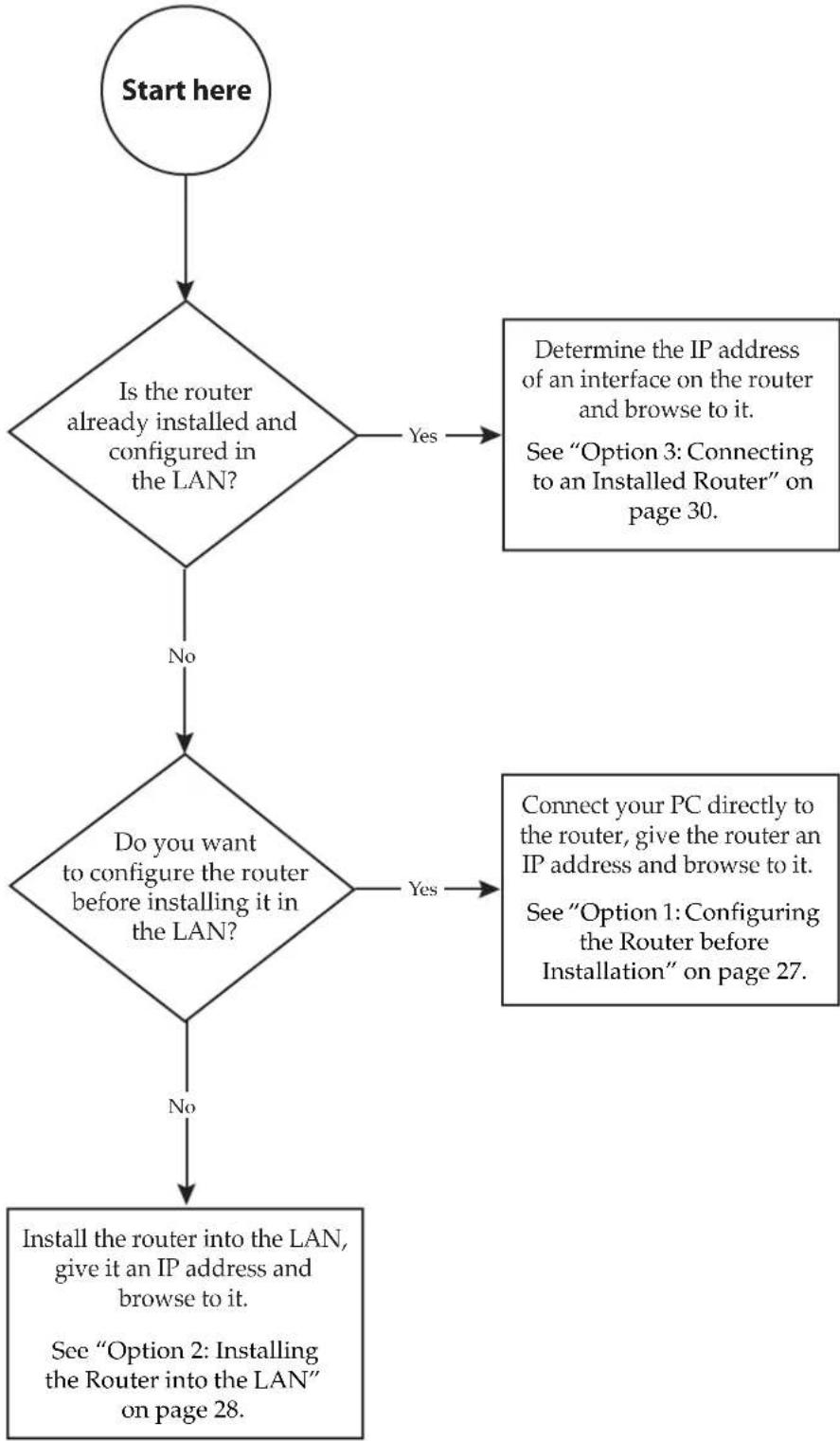
flowchart
graph TD
A["Start here"] --> B{Is the router already installed and configured in the LAN?}
B -->|Yes| C["Determine the IP address of an interface on the router and browse to it.<br>See "Option 3: Connecting to an Installed Router" on page 30."]
B -->|No| D{Do you want to configure the router before installing it in the LAN?}
D -->|Yes| E["Connect your PC directly to the router, give the router an IP address and browse to it.<br>See "Option 1: Configuring the Router before Installation" on page 27."]
D -->|No| F["Install the router into the LAN, give it an IP address and browse to it.<br>See "Option 2: Installing the Router into the LAN" on page 28."]
Option 1: Configuring the Router before Installation
Use this procedure if:
■You want to configure the router before installing it in your LAN.
■ You will be installing the router at a remote office or a customer site and want to configure it first.
■You want a dedicated management PC permanently connected to the router.
1. Select a PC to browse to the router from
You can browse to the router from any PC that is running a supported operating system with a supported browser installed. See “Browser and PC Setup” on page 24 for more information.
You need to know the PC's subnet.
2. Connect the PC to the router
Use a straight-through Ethernet cable to connect an Ethernet card on the PC to any one of the switch ports (see Figure 2).
Figure 2: Connecting a PC directly to the router
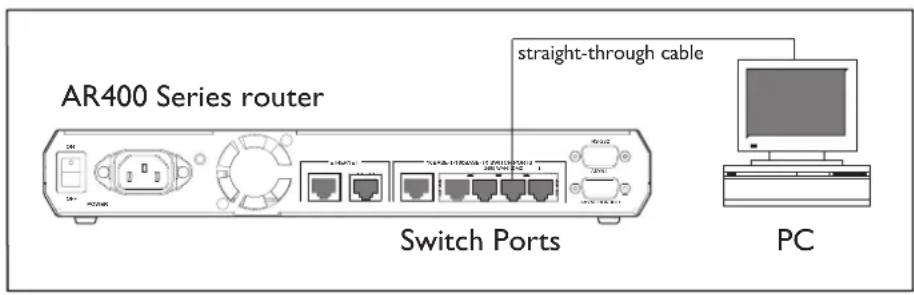

You can browse to the router through any VLAN or ETH port, as long as you give that interface an IP address (see below). The recommended LAN interface is vlan1, and these instructions assume you will use vlan1 as the LAN interface. The switch ports all belong to vlan1 by default.
3. Access the router's command line interface
Access the CLI from the PC, as described in "Connecting a Terminal or PC" on page 14.
4. Enable IP
ENABLE IP
5. Assign the vlan1 interface an IP address in the same subnet as the PC
ADD IP INTERFACE=vlan1 IP=ipaddress MASK=mask
6. Save the configuration and set the router to use it on bootup
CREATE CONFIG=your-name.cfg
SET CONFIG=your-name.cfg
7. On the PC, bypass the HTTP proxy server, if necessary
See "HTTP Proxy Servers" on page 25 for more information.
-
Point your web browser at the LAN interface's IP address
-
At the login prompt, enter the user name and password
The default username is manager:
User Name: manager
Password: friend
The System Status page is displayed (Figure 5 on page 33). Select options from the sidebar menu to configure and manage the router.
Option 2: Installing the Router into the LAN
Use this procedure if:
■You want to install the router into the LAN before you configure it.
- Select a PC to browse to the router from
You can browse to the router from any PC that is running a supported operating system with a supported browser installed, with JavaScript enabled. See "Browser and PC Setup" on page 24 for more information.
You need to know the PC's subnet.
- Plug the router into the LAN
To install the router into the same subnet as the PC:
Use an Ethernet cable to connect one of the switch ports to a device on the LAN segment, for example, a hub, router or switch (see Figure 3). Connect AR410 and AR410S routers through port 4 and ensure that the PC/hub switch is pressed in.
Figure 3: Connecting the router into the same LAN segment as the PC.
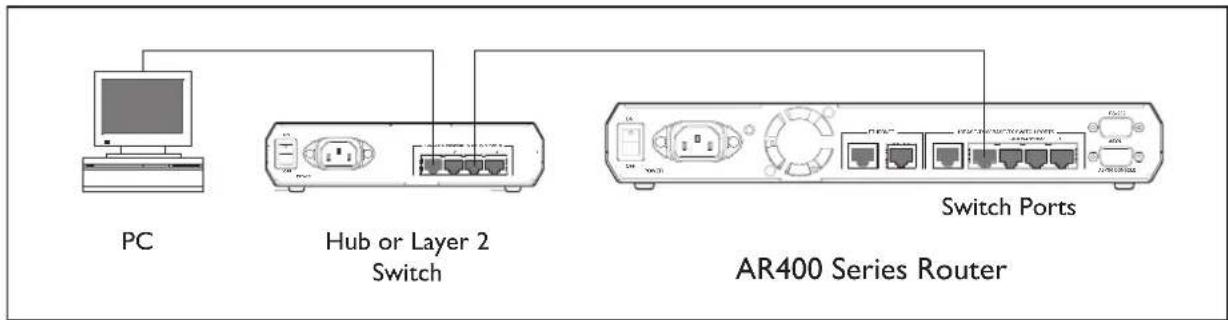
To install the router into a different subnet than the PC:
Use an Ethernet cable to connect any one of the switch ports to a device on the LAN segment in which you require the router to work, for example, a hub, router or switch (see Figure 4). Connect AR410 and AR410S routers through port 4 and ensure that the PC/hub switch is pressed in.
Figure 4: Configuring the router from a PC in another subnet.
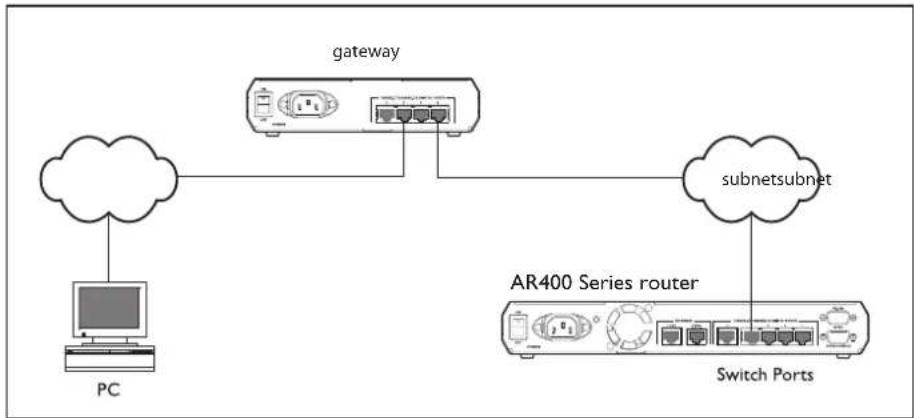
flowchart
graph TD
    PC["PC"] --> Cloud["Cloud"]
    Cloud --> gateway["Gateway"]
    gateway --> subnet["subnetsubnet"]
    subnets --> AR400["AR400 Series router"]
    AR400 --> Switch["Switch Ports"]

You can browse to the router through any VLAN or ETH port, as long as you give that interface an IP address (see below). The recommended LAN interface is vlan1, and these instructions assume you will use vlan1 as the LAN interface. The switch ports all belong to vlan1 by default.
3. Access the router's command line interface
Access the CLI from the PC, as described in "Connecting a Terminal or PC" on page 14.
4. Enable IP
ENABLE IP
5. Assign the vlan1 interface an IP address
ADD IP INTERFACE=vlan1 IP=ipaddress MASK=mask

If you use DHCP to assign IP addresses to devices on your LAN, and you want to manage the router within this DHCP regime, it is recommended that you set your DHCP server to always assign the same IP address to the router. This will enable you to access the GUI by browsing to that IP address, and will also let you use the router as a gateway device for your LAN. If you need the router's MAC address for this, you can display it using the command SHOW SWITCH or SHOW ETH=x MACADDRESS. To set the interface to obtain its IP address by DHCP, use the commands: ADD IP INTERFACE=VLAN1 IPADDRESS=DHCP and ENABLE IP REMOTEASSIGN.
6. If the PC you want to browse from is in a different subnet from the router, give the router a route to the PC
ADD IP ROUTE=PC-subnet INTERFACE=vlan1 NEXTHOP=gateway-ipaddress
where:
- PC-subnet is the IP subnet address of the PC. For example, if the PC has an IP address of 192.168.6.1 and a mask of 255.255.255.0, its subnet address is 192.168.6.0.
- gateway-ipaddress is the IP address of the gateway device that connects the PC's subnet with the router's subnet (Figure 4 on page 29).
7. If you want to be able to browse to the GUI securely, configure SSL (Secure Sockets Layer)
See "Secure Access" on page 31 for more information.
8. Save the configuration and set the router to use it on bootup
CREATE CONFIG=filename.cfg
SET CONFIG=filename.cfg
9. On the PC, bypass the HTTP proxy server, if necessary
See "HTTP Proxy Servers" on page 25 for more information.
10. Point your web browser at the LAN interface's IP address
For normal access, point your web browser to
http://ip-address
For secure access, point your web browser to
https://ip-address
where ip-address is the interface's IP address.
11. At the login prompt, enter the user name and password
The default username is manager:
User Name: manager
Password: friend
The System Status page is displayed (see Figure 5 on page 33). Select options from the sidebar menu to configure and manage the router.
Option 3: Connecting to an Installed Router
Use this procedure if:
■At least one interface on the router already has an IP address, and the router is already installed in a LAN.
1. Find out the IP address of the router's interface
Ask your system administrator. Alternatively, access the CLI, as described in "Connecting a Terminal or PC" on page 14, and enter the command:
SHOW IP INTERFACE

You can browse to the router through any VLAN or ETH port, as long as you give that interface an IP address (see below). The recommended LAN interface is vlan1, and these instructions assume you will use vlan1 as the LAN interface. The switch ports all belong to vlan1 by default.
2. Select a PC
You can browse to the GUI from any PC that:
- has an IP address in the same subnet as the router, or that the router has a route to
• is running a supported operating system - has a supported browser installed, with JavaScript enabled
See "Browser and PC Setup" on page 24 for more information.
3. If necessary, bypass the HTTP proxy server
See "HTTP Proxy Servers" on page 25 for more information.
4. Browse to the router
For normal access, point your web browser to
http://ip-address
where ip-address is the interface's IP address.
To access the router securely if SSL (Secure Sockets Layer) has been configured on the interface, point your web browser to
https://ip-address
For more information about secure access, see "Secure Access" on page 31.
5. At the login prompt, enter the user name and password
The default username is manager:
User Name: manager
Password: friend
The System Status page is displayed (see Figure 5 on page 33). Select options from the sidebar menu to configure and manage the router.

If the Firewall and/or VPN (IPSec) have already been configured on the router using the CLI, this configuration may conflict with the GUI. Do not attempt to modify existing CLI firewall or VPN configuration with the GUI.
Secure Access
You can optionally browse to the router using Secure Sockets Layer (SSL). This means that sensitive data including passwords and email addresses can not be accessed by malicious parties. This section details the required configuration. For information about SSL, refer to the Secure Sockets Layer (SSL) chapter of your Software Reference.

For this configuration to succeed your router must have PKI, ISAKMP, SSH and SSL feature licences. If these licences are not already present on your router, please contact your authorised distributor or reseller.
To secure your router's HTTP Server with SSL for secure router management via the GUI.
1. Create a Security Officer user account

Only a user with Security Officer privilege can enable system security and SSL.
To add a user with the login name "CIPHER", password "sbr4y3", login=yes, and SECURITY OFFICER privilege, use the command:
ADD USER="CIPHER" PASSWORD="sbr4y3" PRIVILEGE=SECURITYOFFICER Login=yes
CREATE CONFIG=ssl.cfg
RESTART ROUTER
2. Login as a Security Officer
To login as the user with Security Officer privilege called "CIPHER", use the command:
LOGIN CIPHER
And then enter the password for "CIPHER", "sbr4y3".
3. Enable system security
To enable system security, use the command:
ENABLE SYSTEM SECURITY
4. Create an RSA key pair for this router.
To create an RSA key pair, use the command:
CREATE ENCO KEY=0 TYPE=RSA LENGTH=1024
5. Set the router's distinguished name.
To set the router's distinguished name to "cn=router1,o=my_company,c=us", use the command:
SET SYSTEM DISTINGUISHEDNAME="cn=router1, o=my_company, c=us"
6. Set the UTC offset.
To set the Universal Coordinated Time to inform the router that the difference between local time and GMT is 7 hours, use the command:
SET LOG UTCOFFSET=7
7. Create a self-signed certificate for the router.
To create a PKI certificate without contacting a CA for browsing to the GUI, use the command:
CREATE PKI CERTIFICATE=cer_name KEYPAIR=0 SERIALNUMBER=12345 SUBJECT="cn=172.30.1.105, o=my_company, c=us"

Using this command creates a certificate that is only suitable for secure router management via the GUI. A pop-up message will appear in the browser window warning that the certificate is not issued by a trusted authority. You should create a certificate via a Certification Authority if you want to use SSL with the Load Balancer. For details, see the Public Key Infrastructure (PKI) chapter of your Software Reference.
8. Load self-signed router certificate
To load the signed router certificate onto the router, use the command:
ADD PKI CERTIFICATE=cer_name LOCATION=cer_name.cer TRUST=YES
9. Enable SSL on the HTTP server
To enable SSL on the HTTP server with previously created SSL Key and the port 443, use the command:
SET HTTP SERVER SECURITY=ON SSLKEY=0 PORT=443
10. Configure an IP interface to run SSL over
To configure an IP interface that SSL will be run over, first enable IP using the command:
ENABLE IP
To make VLAN1 the IP interface, and 172.30.1.105 the interface's IP address, use the command:
ADD IP INTERFACE=vlan1 IP=172.30.1.105
To add an IP route on this interface with a next hop of 172.30.1.254, use the command:
ADD IP ROUTE=0.0.0.0 INTERFACE=vlan1 NEXT=172.30.1.254

For this example to succeed, you would have to log in as "cipher" rather than "manager" when connecting to the router with a web browser.
System Status and System Hardware Details
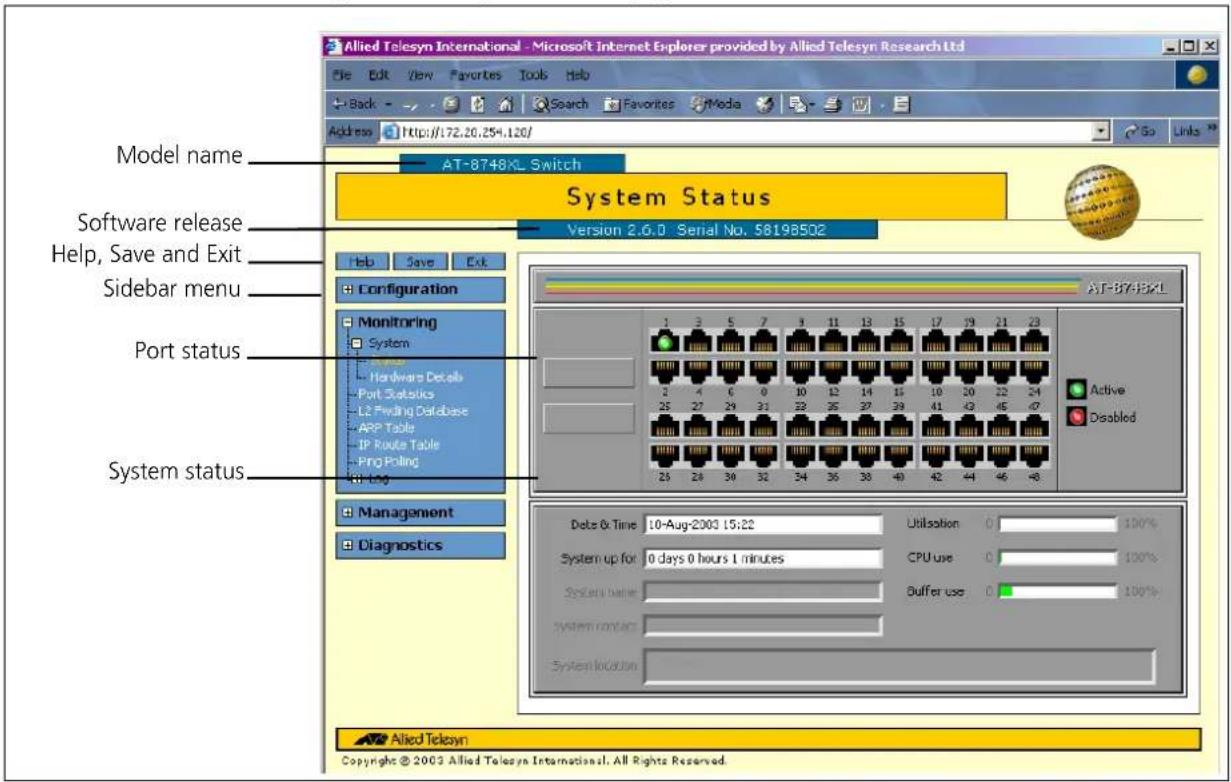
The GUI opens to display the system status (system hardware details for AR410 Series routers). Figure 5 shows the system status page for an AR450S router, and points out key information contained on the page.
Figure 5: The System Status page of the AR450S
Using the GUI: Navigation and Features
The GUI consists of a large number of pages, which you navigate between using the menu on the left of the browser window. This section describes how to use the GUI, and gives an overview of its functionality.
The Quick Start Menu (some models only)
The Quick Start options offer one-page configuration of your WAN or LAN connection.
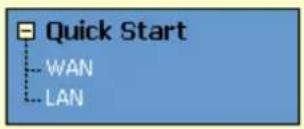
- The WAN option provides a single page to simply specify your WAN interface and choose between a PPPoE connection, a static IP address, or using DHCP to dynamically assign an IP address. Your ISP will supply information about the appropriate settings. You can also enter DNS servers here
- The LAN page lets you change the IP address and/or mask of the default VLAN (vlan1).
- On models with ADSL ports, this menu provides a quick ADSL setup option.
The Configuration Menu
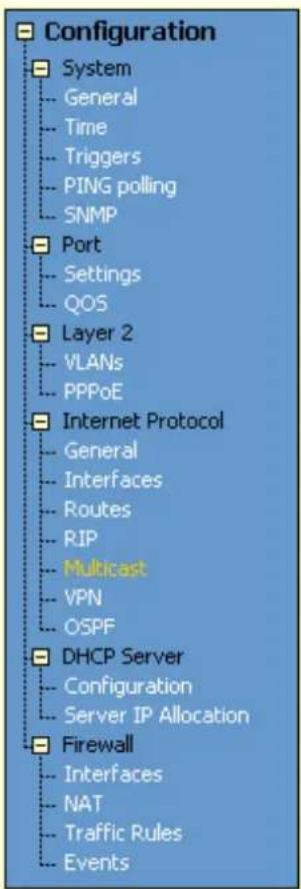
You can use the GUI to configure:
AR450S Router
• the system identity and mail server
• the system time, or NTP (Network Time Protocol)
- triggers, to automatically run scripts at a time you specify or in response to events you specify
- ping polling, to monitor device reachability and respond to changes in reachability
• SNMP (Simple Network Management Protocol)
- switch port settings
- 802.1x port security
• Quality of Service, to prioritise packets and manage bandwidth
• speed and duplex setting of the Eth ports (for models with Eth ports)
- PPPoE connections
- PPP dial-up connections over ISDN, and leased-line connections over synchronous interfaces (on models with an appropriate PIC card installed)
- Internet Protocol: interfaces, static routes, the preferences of dynamic routes, RIP, multicasting, and OSPF
• Virtual Private Networks (VPNs) on AR450S routers, for connecting the router to a central office
- the DHCP server, to dynamically assign IP addresses to hosts in your LAN
• IPX (on AR410 Series routers)
- the firewall on AR450S routers, to protect your LAN and public servers from attack. Firewall configuration includes options for logging and alerts
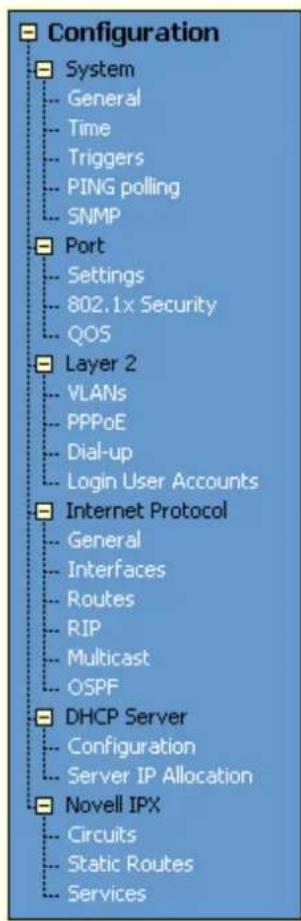
AR410 Router
Using Configuration Pages
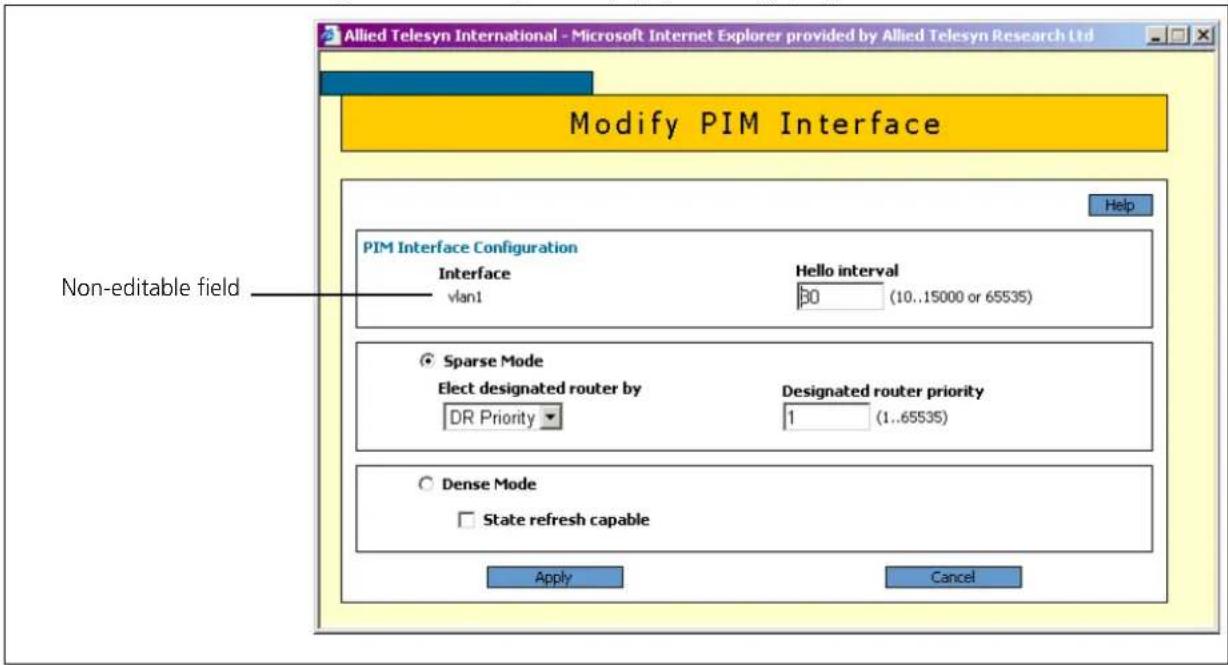
Most protocols are configured by creating or adding an entry - an IP route, a PIM interface, and so on. For such protocols, configuration with the GUI is based on sets of three pages: first you see a "summary" page, and from that you access an "add" page and a "modify" page. Complex protocols are subdivided into different tabs, each with their own summary, add and modify pages.
Only one person can configure a particular router with the GUI at a time, to avoid clashes between configurations. Monitoring and diagnostics pages can be viewed by more than one user at a time.
Use the menus and buttons on the GUI pages to navigate, not your browser's buttons, to ensure that the configuration settings are saved correctly.
The summary page displays a selection table of existing items and information about them (for example, existing PIM interfaces; see Figure 6 on page 36). Below the selection table is a row of buttons, labelled Add, Modify and Remove.
To add a new item, click the Add button. This opens the popup "add" page, which lets you create a new item (for example, configure a new PIM interface; see Figure 7 on page 36).
To modify an existing item, select it by clicking on the option button at the beginning of its entry in the selection table. Then click the Modify button. This opens the popup "modify" page, which lets you expand or change the configuration (for example, change the Hello interval for a PIM interface; see Figure 8 on page 37).
To delete or destroy an item, select it by clicking on the option button at the beginning of its entry in the selection table. Then click the Remove button.
Figure 6: An example of a configuration page with a selection table
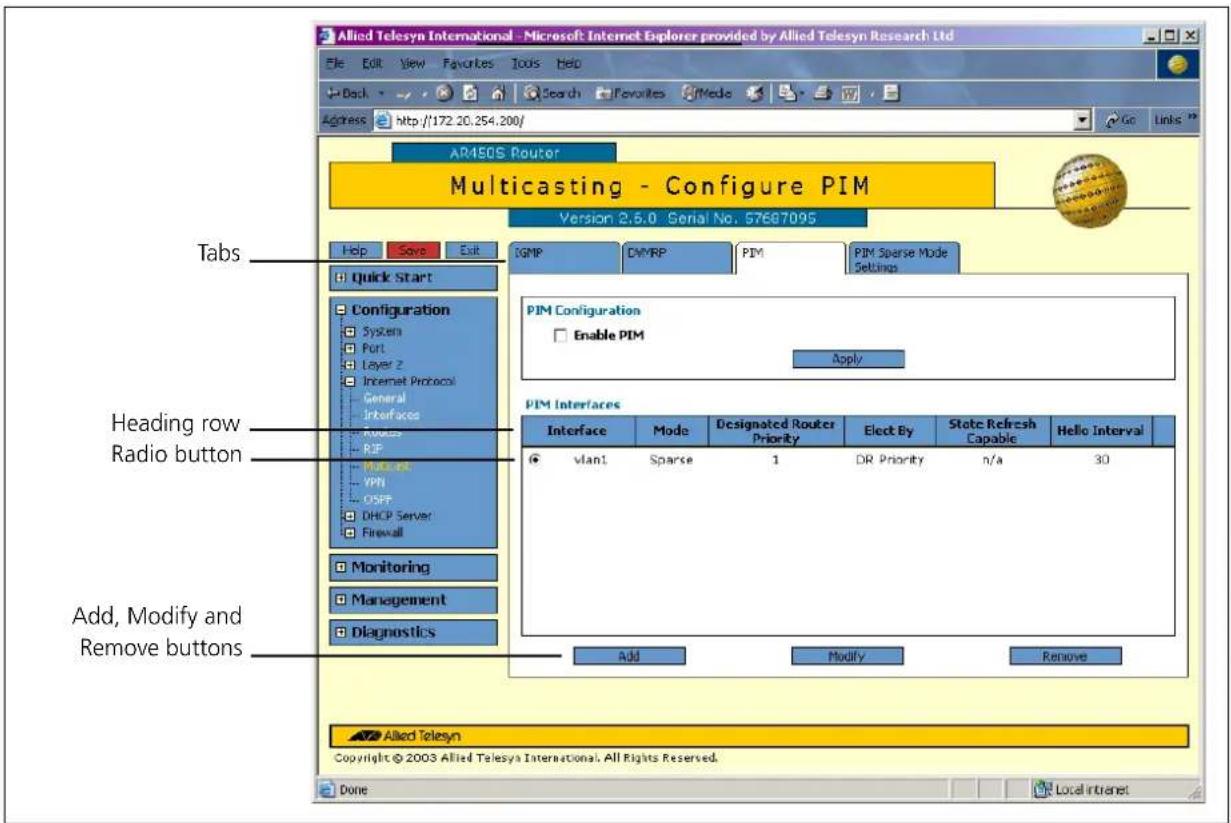
Figure 7: An example of a popup "add" page
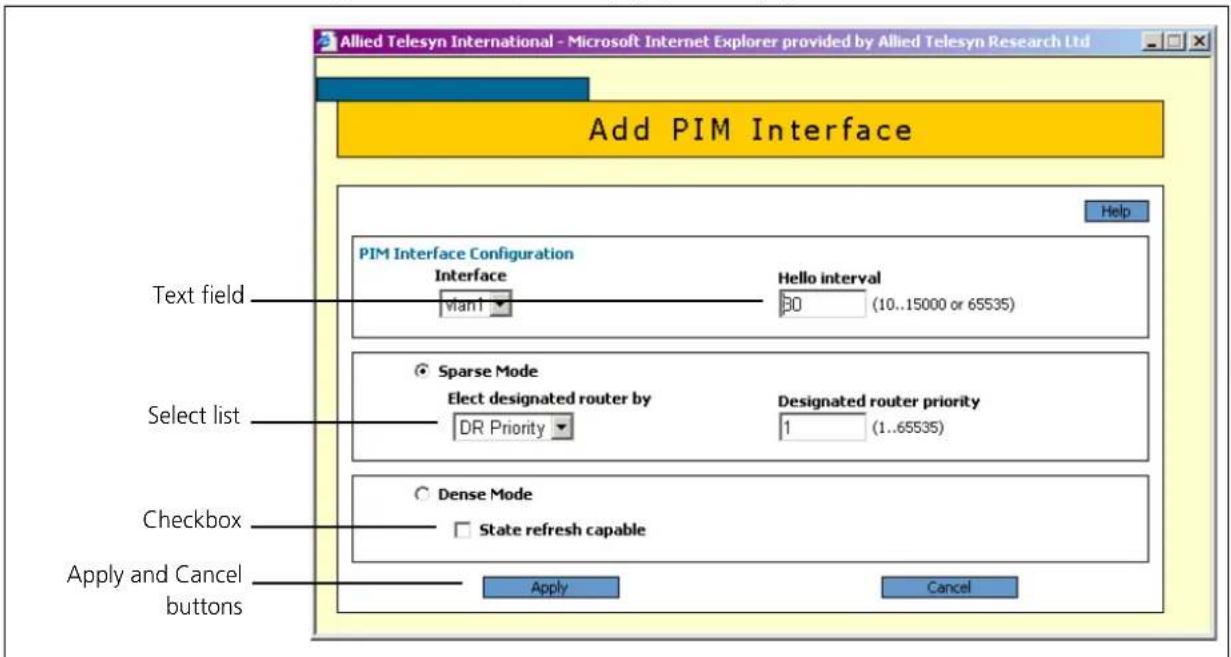
Figure 8: An example of a popup "modify" page
Editable Fields
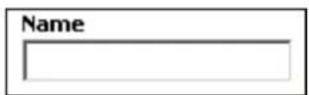
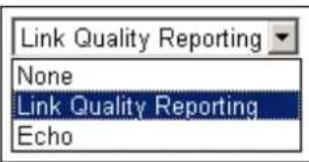
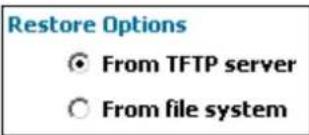
GUI pages allow you to enter values or select options through a range of field types. These include:
Enable port
- text fields, to enter character strings or numbers, especially for fields where there are few limits on the entries (such as names). See the online help for valid characters and field length
- select lists, to select one option from a small number of possibilities. Only valid options are listed. For example, if you are asked to select an IP interface from a drop-down list, the only interfaces displayed will be those you have assigned an IP address to
- radio button lists, to choose one of a set of mutually-exclusive options
- checkboxes, to enable or disable features.
Apply Button
Apply
An Apply button applies the configuration settings on the page or the section of the page. The new settings will take effect immediately, but are not automatically saved. To save the settings after clicking Apply, click the Save button above the menu.
Cancel
Cancel Button
A Cancel button closes a popup page without making any changes to the configuration.
Close Button

A Close button closes a popup page, and conserves any changes that you made to the settings on the page by clicking on buttons like Add, Modify, Remove or Apply. Changes you made to editable fields will not be conserved when you click Close (unless you first clicked Apply).
The Management Menu
You can use the GUI to manage the router itself, including:
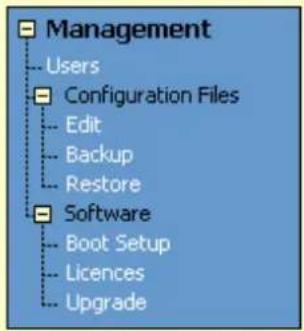
- creating user accounts and enabling system security
- creating and editing files
- backing files up to the router's Flash memory or to a PC or TFTP server
- restoring the router's configuration from backup
- specifying which software and configuration files the router uses on bootup, and displaying the currently-used files
• enabling software release and feature licences - upgrading the router's software
The Monitoring Menu
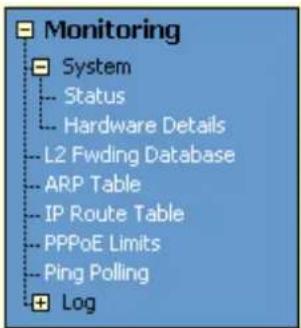
AR450S Router
When you browse to the GUI, the sidebar menu opens to display the monitoring menu, opened at the System > Status (System > Hardware Details for AR410 routers). From this menu, you can also check:
- the Layer 2 Forwarding Database, which shows the MAC addresses that the switch ports have learned, and out which port the router will switch traffic to each MAC address (not on AR410 or AR410S routers)
• information about Address Resolution Protocol (ARP) entries - the I P route table
- the current PPPoE limits. You can also reset limits
• information about the state of ping polling, including counters - the log messages that the router automatically generates. You can also set up filters to determine where messages are saved to and which messages are saved.
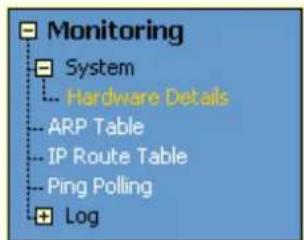
AR410 Router
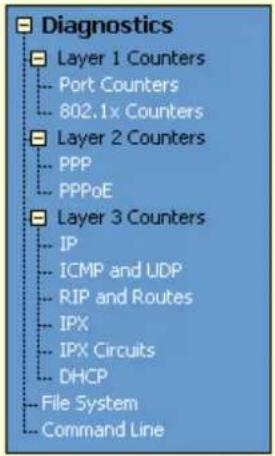
AR450S Router
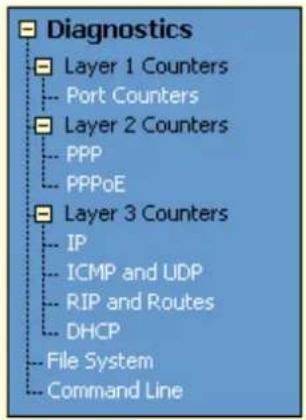
AR410 Router
The Diagnostics Menu
The GUI's diagnostics pages enable you to troubleshoot network problems and observe traffic flow, including:
- displaying the number of good and bad packets received and transmitted over each switch port
- displaying the number of frames related to 802.1x port authentication received and transmitted over each authenticator and supplicant
- displaying the number and type of PPP packets received and transmitted
- displaying the number and type of packets received and transmitted by IP, and discarded by the IP gateway
- displaying the number and type of ICMP and UDP packets received and transmitted
- displaying the number and type of RIP packets received and transmitted; and the octets received and transmitted over each IP route
- displaying the number and type of IPX packets received and transmitted; and the bytes received and transmitted over each IPX route
- displaying the number and type of DHCP messages received and transmitted by the DHCP server
- displaying the contents of the router's file system and how much memory is used and available. You can also delete files
- an interface to the router's command line interface, allowing you to enter CLI commands.
Changing the Password

As a security precaution, change the password as soon as possible.
To change the password of the default Manager account, select Management >Users from the sidebar menu. Select the Manager account and click Modify.
For information about passwords, see "Choosing a Password" on page 18.
Context Sensitive GUI Help
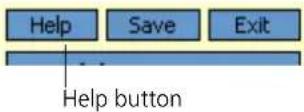
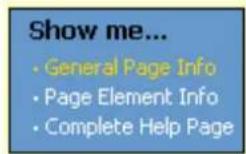
The GUI's context-sensitive help system is displayed in a pop-up window which covers the title of the GUI page. You can move the banner to any part of your screen and/or resize it. To display the help, click on the Help button above the sidebar menu or on the page for which you require assistance. Three types of help are available:
■ Click General Page Info to see brief background and process flow information. The General Page Info displays when you click the Help button.
■ Click Page Element Info and roll your mouse over an element, to see information about that element.
To freeze the banner's display so that the help does not change when you move the mouse, press the [Ctrl] key. To unfreeze, press [Ctrl] again. Note that element information is not available for most entries in tables. To see descriptions of the columns of tables, click Complete Help Page.
- Click Complete Help Page to see all available information, including the element information, in a separate printable window.
Saving Configuration Entered with the GUI
Configuration changes applied using the GUI can be saved to a configuration script by clicking the Save button at the top of the sidebar menu. A pop-up Save window gives you the option of saving to the current configuration file, another existing file, or a new file. You can also choose to use this configuration at bootup.
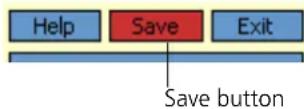
When the Save button is red, this indicates that changes have been made to the configuration and not yet saved. If you attempt to exit the GUI without saving the configuration, a pop-up window will allow you to choose whether or not to save.
Combining GUI and CLI Configuration
On some models the GUI makes it easier to configure several features by using scenario-based wizards. For these features, the GUI requires some configuration parameters to use particular values (for example, firewall policy names). These features should be configured either with the GUI or the CLI, but not both. In particular, you cannot configure these features using the CLI and modify them using the GUI. These features are:
■VPN client
■Firewall
For other features and protocols, you can alternate between the GUI and the CLI without difficulty. Note that GUI pages will not automatically refresh to reflect changes in the CLI configuration; you must reload the relevant page (for example, by clicking the Refresh button on your browser).
Configuring Multiple Devices
If you are configuring a number of routers with similar requirements, you may wish to:
- Configure one device, using either the CLI or the GUI
-
Save that configuration. This creates a configuration file, stored in the router's FLASH memory. The file consists of a sorted list of the CLI commands that make up the configuration
-
Upload that file to a PC, using either the CLI or the GUI
-
Open the file in a text editor, make changes as required, and download the file onto each router you need to configure.
Upgrading the GUI
You can download the latest GUI resource file from the support site at http://www.alliedtelesyn.co.nz/support/ar400.
Before you start, ensure that the router is running the most recent release and patch files. The GUI is not part of the firmware release file, but the most recent resource file will generally only be compatible with the most recent software release. To check which files the router is running, refer to the "Current Install" section of the command:
SHOW INSTALL
If you are updating both the release and the resource file, set the preferred release and restart the router before installing the GUI as described below.
To upgrade the GUI
1. If required, delete the old GUI resource file
If required, you can store more than one GUI resource file on the router at a time. If you want to delete the previous GUI resource file (for example, to save memory), you must first disable the GUI, using the command:
DISABLE GUI
Then delete the GUI resource file, using the command:
DELETE FILE=old-gui.rsc
where:
- old-gui.rsc is the name of the GUI resource file that you are replacing.
Wait until FLASH compaction has finished. This will take several minutes.

Do not interrupt the router's power supply during FLASH compaction, under any circumstances.

If you have multiple valid resource files and releases stored on the router, use the SET INSTALL command to change the release and resource file the router uses (see below).
2. Load the new file onto the router
Download the GUI resource file for your model of router from the website to your TFTP server. Do not rename the file.

Resource files use a fixed naming convention, which includes a product code, a language code and a version code. For example, filenames for the AR450S are of the form d450se01.rsc. If you change the GUI resource file's name, the router will not recognise it as a valid file and you will be unable to use it for configuration.
Load the GUI resource file from your TFTP server to the router, using the command:
LOAD FILE=filename.rsc SERVER=server
where:
- filename is the name of the GUI resource file, as shown on the support site for your router. Do not rename the file.
• server is the IP address of the TFTP server the file is loaded from.
When the router has loaded the file into its RAM, it displays the message "File transfer successfully completed". It then writes the file to FLASH memory, which takes approximately 30 seconds after the message. Once the file has been copied to FLASH, you can enter commands that refer to it.
3. Install the new file as the preferred GUI
If you are updating both the release and the resource file, set the preferred release and restart the router before installing the GUI as described below.
To set the new GUI resource file as the preferred resource file, use the command:
SET INSTALL=preferred GUI=filename.rsc
You can use the GUI to load the new resource file onto the router (Management > Software > Upgrade), but you need to use the CLI to install the new file.
If you disabled the GUI to delete the old resource file, enable it again, using the command:
ENABLE GUI
Check that the new GUI resource file is valid for your device, using the command:
SHOW GUI
If it is not, or if the file was corrupted during the download, disable the GUI, delete the file and try again.
4. Point your web browser at the router's IP address
Your browser may have a local copy of the old GUI file stored. If so, you need to delete these temporary files (see "Deleting Temporary Files" on page 43).
Troubleshooting
The GUI resource file has an 8-digit name, with the file extension rsc (for example, d450se01.rsc). To check which resource files are present on the router, use the command:
SHOW FILE
To see which GUI resource file the router is currently using, and which it will use on bootup, use the command:
SHOW INSTALL
To display information about the GUI resource file that is currently installed, use the command:
SHOW GUI
In particular, this command lets you check the file's validity. If the file is invalid or damaged, download a new file.
To display information about the router's HTTP server, use the commands:
SHOW HTTP SERVER
SHOW HTTP SERVER SESSION
Deleting Temporary Files
Browsers store local copies of web pages as temporary files. If you upgrade to a new GUI resource file, or if you encounter problems in browsing to the GUI, you may need to delete these files (clear the cache). To clear the cache in Internet Explorer:
- From the Tools menu, select Internet Options.
- On the General tab, click the Delete Files button.
- The Delete Files dialog box opens. Click the OK button.
To clear the cache in Netscape 6.2.x:
- From the Edit menu, select Preferences
- Click on the Advanced menu option to expand it.
- Select the Cache menu option
- Click the Clear Memory Cache and Clear Disk Cache buttons.
Accessing the Router via the GUI
Problem You cannot browse to the router.
Diagnosis Check if you can ping the router's interface from your PC. If you get a response, this indicates that the interface's IP address is valid, and that your PC has a route to it. Note that you will not get a response if Respond to ping is unchecked on the Firewall Policy Options page (Configuration > Firewall > Interfaces > Policy options). This option is checked by default.
Solution ■If you cannot ping the router's interface:
- Check that your PC's gateway is correct, so that your PC has a route to the router.
- The IP address of the router's interface may be incorrect. To correct this, access the CLI and use the IPADDRESS parameter of command SET IP INTERFACE
- The IP address of the router's default gateway may be incorrect, so that the router does not have a route back to your PC's gateway. To correct this, access the CLI and use the NEXTHOP parameter of the command ADD IP ROUTE or SET IP ROUTE.
If the router should be dynamically assigned an IP address, check that the DHCP server can reach the router, by pinging the router from the DHCP server. Note that you will not get a response if Respond to ping is unchecked on the Firewall Policy Options page (Configuration > Firewall > Interfaces > Policy options tab). This option is checked by default.
If your PC accesses the Internet through a proxy server, you may need to set your browser to bypass the proxy when browsing to the router's IP address range. See "HTTP Proxy Servers" on page 25 for more information.
If you cannot access the GUI because your username or password fails, check that you are spelling them correctly. The username "manager" will always be valid. Its default password is "friend". Note that passwords are case sensitive.
Problem The GUI is behaving inconsistently, or you cannot access some pages.
Solution
■Delete your browser's temporary files (see "Deleting Temporary Files" on page 43) and try again.
■Check that JavaScript is enabled.
■If you are using a toolbar or plug-in on your browser to block pop-ups, disable it while using the GUI. The GUI displays detailed configuration options and information in pop-up windows.
Either turn the toolbar off or specify that pop-ups are allowed for the IP address of the router. To turn off a toolbar on Internet Explorer 6, select Toolbars from the View menu and make sure the toolbar is not checked.
- Check that you are trying to access the GUI from a supported operating system and browser combination. See “Browser and PC Setup” on page 24 for more information.
Problem The GUI does not seem to configure the router correctly.
Solution
■Use the buttons on the GUI pages to navigate, not your browser's Back, Forward or Refresh buttons. The GUI's navigation buttons perform aspects of the configuration.
■If you have enabled the firewall, check that your firewall access rules are valid.
If you are using a toolbar or plug-in on your browser to block pop-ups, disable it while using the GUI. The GUI displays detailed configuration options and information in pop-up windows.
Either turn the toolbar off or specify that pop-ups are allowed for the IP address of the router. To turn off a toolbar on Internet Explorer 6, select Toolbars from the View menu and make sure the toolbar is not checked.
Traffic Flow and Network Address Translation (NAT)
Problem No traffic is passing through the router to or from the LAN, the DMZ or both.
Solutions
- Check that the router's link to the LAN is functioning, by checking the interface status (Monitoring) and that the link LED is lit. If the LED is not lit, or the appropriate interfaces do not have an status of "active":
- Check that the port is enabled (Configuration > Port > Settings)
- Check that the IP address of the interface is still valid.
- Check that the cables are connected correctly and function correctly.
■If you have enabled the firewall, check that the correct interfaces are attached to the policies (Configuration > Firewall > Interfaces > Interfaces tab) and that your firewall access rules are valid.
- Check the RIP configuration (Configuration > Internet Protocol > RIP).
- Check that the RIP neighbour can reach the router, by pinging the router from the RIP neighbour. Note that you will not get a response if Respond to ping is unchecked on the Firewall Policy Options page (Configuration > Firewall > Interfaces > Policy options tab). This option is checked by default.
- Any password and authentication settings must be configured on the neighbour as well as on this router.
■Check that the router is passing the correct DNS information to hosts on the LAN, if the router is a DHCP server. If the router acting as a DHCP client as well, and therefore is passing on DNS information from another DHCP server, check that this DHCP server is providing the router with the correct information.
Problem A device on the LAN or DMZ can send some traffic out, but cannot receive traffic.
Solution If you are using a static Standard NAT, this problem may indicate that NAT is mapping to an invalid IP address. To check this, select Configuration > Firewall > NAT.
Problem Incoming traffic is sent to the wrong host.
Solution If you are using a static Standard NAT, this problem may indicate that NAT is mapping to a valid IP address, but which belongs to the wrong host. To correct the IP address, select Configuration > Firewall > NAT.
Problem Only one device on the LAN or DMZ can access the Internet.
Solution ■If you are using a static Standard NAT, only one device from the LAN will be able to access the Internet. If you wish to have more than one device access the Internet, use Enhanced NAT instead (Configuration > Firewall > NAT). ■It is also possible that no other device has been configured with the correct gateway.
Firewall
Diagnosis To see information about the traffic that the firewall has denied, use the CLI command SHOW FIREWALL EVENT=DENY To see information about the traffic that the firewall has allowed, use the CLI command SHOW FIREWALL EVENT=ALLOW
Problem Legitimate traffic is not reaching your LAN or DMZ.
Solutions ■ Check that a rule exists to allow the traffic (Firewall > Configuration > Traffic Rules) Activating a DMZ does not provide access to servers on it. Rules must be created for each server on the DMZ. Likewise, by default there is no access to any devices on the private LAN.
■If the rule exists, it may be incorrect or insufficient. Check that:
- Rules intended to allow traffic have an action of "Allow".
- The firewall is processing the rules in the order you expected, and that specific rules (e.g. allow IP address x access to FTP on the server) have lower numbers than general rules (e.g. deny all FTP access).
- The ports, services and protocols are correct.
- The IP addresses the rules apply to are entered correctly, and belong to the specified devices.
- The rules apply to the correct days and time.
- Check the NAT configuration. See "Traffic Flow and Network Address Translation (NAT)" on page 44.
Problem Illegitimate traffic is reaching your LAN or DMZ.
Solutions ■The most likely cause of this problem is an incorrect rule. Check that:
- "Allow" rules are tight enough that only the intended traffic types are allowed through.
- The firewall is processing the rules in the order you expected, and that specific rules (e.g. deny IP address x access to FTP on the server) have lower numbers than general rules (e.g. allow all FTP access).
- Rules intended to block traffic have an action of "Deny".
- The ports, services and protocols are correct.
- The IP addresses the rules apply to are entered correctly, and actually belong to the specified devices.
- The rules apply to the correct days and time.
■Some traffic is allowed through the firewall, to enable the protocols to work correctly. You can specify which ICMP traffic is allowed through on the Firewall Policy Options page (Configuration > Firewall > Interfaces > Policy options tab). For example, if Ping is checked on this page, ping packets addressed to the private LAN will be allowed.
Problem A device on your LAN or DMZ cannot access the Internet.
Solutions ■The most likely cause of this problem is an incorrect outgoing rule. Check that:
- "Deny" rules are not too tight and therefore blocking more traffic than intended.
- The firewall is processing the rules in the order you expected, and that specific rules (e.g. allow IP address x to use FTP) have lower numbers than general rules (e.g. deny all outgoing FTP requests).
- Rules intended to allow traffic have an action of "Allow".
- The rules apply to the correct IP services (by name or port number).
- The IP addresses the rules apply to are entered correctly, and actually belong to the specified devices.
- The rules apply to the correct days and time.
- Check that the device's gateway address is correct.
- Check the NAT configuration. See "Traffic Flow and Network Address Translation (NAT)" on page 44.
If an IP address-based rule exists to allow traffic from this particular device, check that the device has a permanently-assigned IP address. If the router is assigning IP addresses as a DHCP server, you can give the required device a permanent IP address by making it a static entry (Configuration > DHCP Server).
Problem A device on your LAN or DMZ can access a service on the Internet even though it should be blocked.
Solutions ■The most likely cause of this problem is an incorrect outgoing rule. Check that:
- Rules intended to block traffic have an action of "Deny".
- The firewall is processing the rules in the order you expected, and that specific rules (e.g. block IP address x from using FTP) have lower numbers than general rules (e.g. allow all outgoing FTP requests).
- The rules apply to the correct IP services (by name or port number).
- The IP addresses the rules apply to are entered correctly, and actually belong to the specified devices.
- The rules apply to the correct days and time.
If an IP address-based rule exists to block traffic from this particular device, check that the device has a permanently-assigned IP address. If the router is assigning IP addresses as a DHCP server, you can give the required device a permanent IP address by making it a static entry (Configuration > DHCP Server).
IP Addresses and DHCP
Problem You have selected Quick Start > WAN > DHCP, but the router hasn't been given an IP address.
Solution ■Check that the router's domain and host name are correct (Configuration > System > General).
- Check that the DHCP server can reach the router, by pinging the router from the DHCP server. Note that you will not get a response if Respond to ping is unchecked on the Firewall Policy Options page (Configuration > Firewall > Interfaces > Policy options tab). This option is checked by default.
Problem The router is enabled as a DHCP server, but cannot assign an IP address to a host.
Solutions ■Reboot the host machine.
- Check the host's TCP/IP settings, to make sure that the host is set to obtain its IP address dynamically:
In Windows 95/98, click Settings > Control Panel > Network. Select TCP/IP and click Properties. Click Obtain an IP address automatically.
In Windows 2000, click Settings > Control Panel > Network and Dial-up Connections > Local Area Connection > Properties. Select Internet connection (TCP/IP) and click Properties. Click Obtain an IP address automatically.
■Check that the DHCP server has a large enough range of addresses (Configuration > DHCP Server).
- Check that the router's link to the LAN is functioning, by checking the interface status (Monitoring) and that the link LED is lit (see "Traffic Flow and Network Address Translation (NAT)" on page 44).
Traffic Logging and Firewall Alert Messages
Problem Firewall Alert messages are not being emailed.
Solution ■Check that Enable Email Firewall Alerts is checked (Configuration > Firewall > Events > Alarms tab) and that the email address is correct.
- Check that the DNS Server IP is correct (Configuration > Internet Protocol > General).
■Check that a hostname is correctly specified (Configuration > System > General).
■Make sure that the mail server has an account set up for the router.
Problem You are not receiving email notifications of all attacks that the firewall intercepts.
Solution Your alarm thresholds may be set too high (Configuration > Firewall > Events > Alarms tab). Be careful when reducing the thresholds, because if the threshold is too low, your mail service may be flooded.
Problem You are receiving email notifications for "attacks" that actually are not attacks.
Solution Your alarm thresholds may be set too low (Configuration > Firewall > Events > Alarms tab). Be careful when increasing the thresholds, because if the threshold is too high, you may not be warned about actual attack attempts.
Problem The time in log packets is incorrect.
Solution See "Time and NTP" on page 48.
Time and NTP
Diagnosis The router's time is displayed on the Configuration > System > Time tab. It will also be included in log packets.
Problem The router's time does not change, even though you entered the correct time.
Solution Changing the time is a 3-step process. Select Configuration > System > Time. First, enter a time that is very shortly in the future (e.g. 20 seconds later than the current time). Then check Set time. Then wait until precisely the time you have entered, and click Apply.
Problem The router is not assigning the time to devices on the LAN.
Solutions ■Check NTP is enabled (Configuration > System > Time).
- Check that the NTP peer's IP address is entered correctly.
■Check that the NTP peer can reach the router, by pinging the router from the NTP peer. Note that you will not get a response if Respond to ping is unchecked on the Firewall Policy Options page (Configuration > Firewall > Interfaces > Policy options tab). This option is checked by default.
- Check that the router's link to the LAN is functioning. See "Traffic Flow and Network Address Translation (NAT)" on page 44.
Problem The router's clock does not synchronise with the NTP peer.
Solution
The router's clock can only synchronise with the NTP peer if its initial time is similar to the NTP peer's time (after setting the UTC offset). Manually set the router's time so that it is approximately correct, and enable NTP again.
■Check that the UTC offset is correct.
Problem The router's time is incorrect, even though it assigns the correct time to devices on the LAN.
Solution The UTC offset is probably incorrect, or needs to be adjusted for the beginning or end of summer time. To correct this, select Configuration > System > Time and enter the correct offset.
Loading Software
Problem You have attempted to load a new release file onto the router, but the load has failed and you cannot access the router through the GUI.
Solution
- Access the router's CLI (see "Connecting a Terminal or PC" on page 14).
If the router has been switched off or has rebooted since you attempted to load the release file, it will boot up with the default installation. This contains the commands you require to load a file.
Log into the router using the manager account and password.
- Download the release file to the router. See "Example: Upgrade to a New Software Release Using TFTP" on page 64 for an example.
Operating the router
This Chapter
This chapter introduces basic operations on the router, including:
■ "User Accounts and Privileges" on page 51
■ "Normal Mode and Security Mode" on page 53
■ "Remote Management" on page 56
■ "Storing Files in FLASH Memory" on page 56
■ "Using Scripts" on page 57
■ "Loading and Uploading Files" on page 59
■ "Upgrading Router Software" on page 63
■ "Using the Built-in Editor" on page 67
■ "SNMP and MIBs" on page 68
User Accounts and Privileges
The router software supports three levels of privilege for users: USER, MANAGER, and SECURITY OFFICER. By default, the router has one account (manager) defined with manager privilege and the default password friend. The commands that a user can execute depends on the user's privilege level and whether the router is operating in normal or security mode (see "Normal Mode and Security Mode" on page 53). A USER level prompt looks like:
while a MANAGER prompt looks like:
Manager >
and a SECURITY OFFICER prompt looks like:
SecOff >
The MANAGER level has access to the full set of commands when the router is in normal mode. When the router is operating in security mode, users with MANAGER privilege cannot execute a subset of the commands known as the security commands (see "Normal Mode and Security Mode" on page 53).
In normal mode, a user with manager privilege can create and delete accounts for users with any of these privilege levels. Users and passwords are managed by the User Authentication Facility. Users and passwords are authenticated using an internal database called the User Authentication Database, or by interrogation of external RADIUS (Remote Authentication Dial In User Service) or TACACS (Terminal Access Controller Access System) servers.
On the CLI, to use an account with manager privilege, log in to the account by entering the command:
LOGIN
The router prompts you to enter a user name and password. To return to USER mode, enter the command:
LOGOFF
Make sure that you do not leave a manager session unattended. Unauthorised use of a manager session gives access to the User Authentication Database. To reduce the risk of unauthorised activity, a subset of manager commands have a security timer. These commands are shown in Table 4 on page 52. When you enter one of these commands from a manager session, the security timer is started and is then restarted each time you enter another of these commands. If you enter one of these commands after the timer has expired, you are prompted to re-enter the password. The secure delay timer is by default 60 seconds. If the password is not entered correctly the password prompt is repeated a set number of times. If the correct password is still not entered a log message is generated and the session is logged off.
The security timer enables a manager to make successive additions and modifications to the database at one time without having to re-enter the password for every command.

The security timer does not provide a foolproof security mechanism. Managers should always attempt to log out of a manager session before leaving a terminal unattended.
Table 4: Secure commands controlled by the security timer.
| Command Description |
| ADD TACACS SERVER Adds a TACACS server to the list of TACACS servers used for user authentication. |
| ADD USER Adds a user to the User Authentication Database. |
| DELETE TACACS SERVER Deletes a TACACS server from the list of TACACS servers used for user authentication. |
| DELETE USER Deletes a user from the User Authentication Database. |
| PURGE USER Deletes all users except MANAGER from the User Authentication Database. |
| SET MANAGER PORT Assigns a port semipermanent MANAGER privilege. |
| SET USER Modifies a user record in the User Authentication Database. |

If the router is operating in security mode, the manager must also log in to a user account with SECURITY OFFICER privilege in order to execute any of the commands listed in Table 4 on page 52.
See the Operations chapter in the Software Reference for:
■ More information about managing and using accounts with user, manager and security officer privileges
■ A full list of commands that require security officer privilege when the router is in secure mode
■ Information about enabling a remote security officer.
Normal Mode and Security Mode
The router operates in one of two modes, either normal mode or security mode. By default, the router is in normal mode.

When the router is in security mode, the command SHOW DEBUG does not display output of the SHOW FEATURE and SHOW CONFIGURATION DYNAMIC commands, or the current configuration in the SHOW SYSTEM output unless the SHOW DEBUG command is entered by a user with security officer privilege.
If you wish to use the following software features you need to enable security mode:
■IP authentication
■ Secure Shell (see the Secure Shell chapter in the Software Reference)
■ Encryption (see the Compression and Encryption Services chapter in the Software Reference)
■ IPsec (see the IP Security chapter in the Software Reference)
■ Public Key Encryption (PKI) (see the Public Key Infrastructure chapter in the Software Reference)
To enable security mode, first create a user with security officer privilege, then enter the command:
ENABLE SYSTEM SECURITY_MODE
To access secure functionality you will need to log in again as the security officer.
When the router restarts, it restarts in the same normal mode or security mode as it was before restarting. To restore the router to normal operating mode, enter the command:
DISABLE SYSTEM SECURITY_MODE

When security mode is disabled, the router automatically deletes all sensitive data files, including encryption keys.
To display the current operating mode, enter the command:
SHOW SYSTEM
When the router is in security mode, a user with security officer privilege is the only person who can execute commands which affect router security. Table 5 on page 54 lists commands that only a security officer can execute when the
router is in security mode. A complete list of commands limited by security mode are listed in the Operation chapter in the Software Reference.
Table 5: Commands requiring SECURITY OFFICER privilege when the router is operating in security mode.
| Command Specific Parameters |
| ACTIVATE IPSEC |
| ACTIVATE SCR |
| ADD FR DLC ENCRYPTION |
| ADD IP INT |
| ADD IP SA |
| ADD PKI |
| ADD SA |
| ADD SCR |
| ADD SSH |
| ADD USER |
| CREATE CONFIG |
| CREATE ENCO KEY |
| CREATE FR DEFENCRYPTION |
| CREATE IPSEC |
| CREATE ISAKMP |
| CREATE PKI |
| CREATE PPP |
| CREATE PPP TEMPLATE |
| CREATE SA |
| CREATE SNMP COMMUNITY |
| CREATE STAR |
| DEACTIVATE SCR |
| DELETE FILE |
| DELELTE IP SA |
| DELETE PKI |
| DELETE SA |
| DELETE SCR |
| DELETE SSH |
| DELETE USER |
| DESTROY ENCO KEY |
| DESTROY IPSEC |
| DESTROY ISAKMP |
| DESTROY PKI |
| DESTROY SA |
| DESTROY STAR |
| DISABLE FEATURE |
| DISABLE IPSEC |
Table 5: Commands requiring SECURITY OFFICER privilege when the router is operating in security mode (Continued).
Command Specific Parameters
| DISABLE ISAKMP |
| DISABLE PKI DEBUG |
| DISABLE SA |
| DISABLE SSH |
| DISABLE USER |
| DUMP |
| EDIT |
| ENABLE FEATURE |
| ENABLE IPSEC |
| ENABLE ISAKMP |
| ENABLE PKI DEBUG |
| ENABLE PPP DEBUG |
| ENABLE PPP TEMPLATE DEBUG |
| ENABLE SA |
| ENABLE SNMP |
| ENABLE SSH |
| ENABLE STAR MKTTRANSFER |
| ENABLE USER |
| LOAD |
| MODIFY |
| PURGE IPSEC |
| PURGE PKI |
| PURGE USER |
| RENAME FILE |
| RESET ENCO |
| RESET IPSEC |
| RESET USER |
| SET CONFIG |
| SET ENCO KEY |
| SET FR ENCRYPTION, DEFENCRYPTION |
| SET INSTALL |
| SET IP INT |
| SET IPSEC |
| SET PKI |
| SET PPP |
| SET PPP TEMPLATE |
| SET SA |
| SET SCR |
| SET SNMP COMMUNITY |
Table 5: Commands requiring SECURITY OFFICER privilege when the router is operating in security mode (Continued).
| Command Specific Parameters |
| SET SSH |
| SET STAR |
| SET USER |
| SHOW CONFIG |
| SHOW ENCO KEY |
| SHOW FEATURE |
| SHOW FILE |
| SHOW PPP CONFIG |
| SHOW STAR [=id], MKTTRANSFER, NETKEY |
| UPLOAD |
Remote Management
You can manage remote routers as easily as you manage the local router a terminal is connected to. From a terminal connected to any port (with either USER or MANAGER privilege), enter the command:
TELNET ipadd
to Telnet to the remote router, specifying the remote router's IP address.
For information about how to set routes and on how you assign an IP address to your router, see "Setting Routes" on page 17 and "Assigning an IP Address" on page 15.
If the connection is successful, a login prompt from the remote router is displayed. Login using a login name that has been defined with MANAGER privilege (such as the default MANAGER login name), and enter the password.
To return to the local router and terminate the connection, enter the command:
LOGOFF
For more information about using Telnet, see the Terminal Server chapter in the Software Reference.
Storing Files in FLASH Memory
When you purchase the router, the router software release, the online help files, and a default configuration file are stored in FLASH memory, where they are saved even if the router is powered down. You will use the FLASH memory to store updated software releases or patches, and files that record the router's configuration. FLASH memory is like a flat file system, with no subdirectories.
The router also has Random Access Memory (RAM). The router software uses RAM to run the router. When you enter commands to configure the router these commands affect the dynamic configuration in RAM.
FLASH memory is like a flat file system, with no subdirectories.
File names of up to 16 characters long, with extensions of 3 characters (DOS 16.3 format), are supported on the router. However, files on the router are stored in FLASH using the DOS 8.3 format of 8 characters long, with extensions of 3 characters. For example, the file extralongfilenam.cfg may be saved as extral\~1.cfg in the FLASH File System. Therefore, files can be accessed via two file names, either of which can be used for file management.
A translation table, named longname.lfn, converts file names between DOS 16.3 format and DOS 8.3 format. To reconcile file names the router consults the translation table which is synchronised with file contents in memory. For more information about working with files see the Working With Files section in the Operation chapter in the Software Reference.
To display the files in FLASH, enter the command:
SHOW FILE
Figure 9: Example output from the SHOW FILE command.
| Filename | Device | Size | Created | Locks |
| 28-72.pat | flash | 111764 | 05-May-1997 12:41:42 | 0 |
| 28-74ang.rel | flash | 2013756 | 09-May-1997 15:58:55 | 0 |
| 28f72-06.pat | flash | 123268 | 18-Apr-1997 15:58:16 | 0 |
| release.lic | flash | 32 | 08-May-1997 16:43:49 | 0 |
| test.cfg | flash | 1698 | 09-May-1997 10:39:42 | 0 |
| sixteenalongfile.scp | flash | 24 | 30-May-1997 15:10:12 | 0 |

The Locks field indicates the number of concurrent software processes using the file.
The router automatically compacts FLASH memory when a maximum threshold of deleted files is reached. Compaction frees space for new files by discarding garbage. A message will appear when FLASH compaction is activated. Another message appears when FLASH compaction is complete.

While FLASH is compacting, do not restart the router or use any commands that affect the FLASH file subsystem. Do not restart the router, or create, edit, load, rename or delete any files until a message confirms that FLASH file compaction is completed. Interrupting flash compaction may result in damage to files.
Using Scripts
When you start or restart the router, or when it automatically restarts, it executes the configuration commands in the boot script. A boot script is a text file containing a sequence of standard commands that the router executes at startup. The default boot script is called boot.cfg. Commands run from a boot script are limited to 128 characters.
The commands you enter into the router from the command line affect only the dynamic configuration in RAM, which is not retained over a power cycle. The router does not automatically store these changes in FLASH memory. When the router is restarted, it loads the configuration defined by the boot script, or if the router was restarted using the RESTART command, any script file specified in the RESTART command.
In addition to the boot configuration script that the router automatically runs when it restarts, you can run a configuration script manually at any time, by entering the command:
ACTIVATE SCRIPT=filename
You can also set a trigger to automatically execute a configuration script when a specified event occurs.
For more information about how to create and run scripts, see the Scripting chapter in the Software Reference.
For information about creating triggers, see the Trigger Facility chapter in the Software Reference.
Saving the Router's Configuration
To view the router's current dynamic configuration, enter the command:
SHOW CONFIGURATION DYNAMIC
To save any changes made to the dynamic configuration after the router last restarted (booted) across a restart or power cycle, and save the modified configuration as a script file, enter the command:
CREATE CONFIG=filename.scp
To set the router to execute this script file when it restarts, enter the command:
SET CONFIG=filename.scp

The configuration file created by CREATE CONFIG command records passwords in encrypted form, not in cleartext.
You can create a script file from any of the router software commands. These are the same commands that are used to change the router's configuration dynamically. Manually edit a configuration file using the router's built in editor (see "Using the Built-in Editor" on page 67), or upload it to a PC using the UPLOAD command (see the Operation chapter in the Software Reference), edit it using any text editor, and download it again. Give configuration script files an extension of .scp or .cfg.
To display the name of the configuration file that is set to execute when the router restarts, enter the command:
SHOW CONFIG=filename
Storing Multiple Scripts
You can store multiple configuration scripts on the router. This allows you to test new configuration scripts once, before setting them as the default configuration. For example, to test the new configuration script test.cfg, enter the command:
RESTART SWITCH CONFIG=test.cfg
Storing multiple scripts also allows you to keep a backup router with configuration scripts stored on it for every router in the network to speed up network recovery time.
Loading and Uploading Files
When you want to upgrade your router to a new software patch or release, or use a new configuration file, load files onto the router using the router's LOADER module. You can also use the LOADER module to upload files, such as configuration files or log files, from the router onto a host on the network.
File Naming Conventions
The file subsystem provides a flat file system—directories are not supported. Files are uniquely identified by a file name of the form:
[device:] filename.ext
where:
■ device specifies the physical memory device on which the file is stored, FLASH. If device is specified, it must be separated from the rest of the file name by a colon (“:”). device is optional. If device is not specified, the default is FLASH.
- filename is a descriptive name for the file, and may be one to eight characters in length. Valid characters are lowercase letters (a–z), uppercase letters (A–Z), digits (0–9) and the hyphen character (-).
■ ext is a file name extension, one to three characters in length. Some file name extensions are shown in Figure 6 on page 59. Valid characters are lowercase letters (a–z), uppercase letters (A–Z), digits (0–9) and the hyphen character (-). The extension is used by the router to determine the data type of the file and how to use the file (Table 6 on page 59). If ext is specified, it must be separated from the filename portion by a period (“.”)
Table 6: File extensions and file types.
| Extension File type/function | |
| CER Public Key Infrastructure (PKI) certificate file. | |
| FBR Flash Boot software Release. | |
| CFG Configuration or boot script. | |
| CRL PKI Certificate Revocation List file. | |
| CSR PKI Certificate Signing Request file. | |
| GIF (Graphics Interchange Format) graphic image file. | |
| HLP CLI help file. | |
| INS Stores install information created by using the SET INSTALL command. | |
| JPG (Joint Photographic Experts Group) graphic image file. | |
| KEY Public portion of an RSA key. | |
| LIC Licence information. | |
| LOG Log file. | |
| MDS Modem script. | |
| PAT Patch. | |
| PAZ Compressed patch. | |
| REL Software release. | |
| REZ Compressed release. | |
| SCP Script. | |
| SPA | Spam Mail Source files, listing email addresses, identified as spam mail sources, to be blocked by the firewall SMTP proxy, if it is active. |
| SPL VPN client. | |
| TXT Generic text file. | |
| VPF Future VPN client. | |
| LFN Extension used for the long file name translation table | |
You may see files on your router with file name extensions not listed in Table 6 on page 59. If you require more information about file types and file name extensions, contact your authorised distributor or reseller.

Do not change the header in a release or patch file. At best, this will cause the file load or install to fail, at worst the router could be put into a state where it will not boot correctly until field service action is taken.
Loading Files
The LOADER module is responsible for loading and storing releases, patches, PKI certificates and other files into FLASH. The LOADER module uses the Trivial File Transfer Protocol (TFTP), Hypertext Transfer Protocol (HTTP), or ZMODEM over an asynchronous port, to retrieve files from a network host.
You can also load text files without using any of these protocols. For information about using Lightweight Directory Access Protocol (LDAP) to load PKI certificates or certificate revocation lists (CRLs), see the Operation chapter in the Software Reference.
The router's default download method is TFTP. To load a file onto the router from a TFTP server using the TFTP protocol, enter the command:
LOAD [METHOD=TFTP] [DELAY=delay] [DESTFILE=destfilename] [DESTINATION={BOOTBLOCK|FLASH}] [SERVER={hostname|ipadd}] [SRCFILE|FILE=filename]
To load a file onto the router using the HTTP protocol, enter the command:
LOAD [METHOD={HTTP|WEB|WWW}] [DELAY=delay]
[DESTFILE=destfilename] [DESTINATION=BOOTBLOCK|FLASH}]
[HTTPPROXY={hostname|ipadd} [PASSWORD=password]
[PROXYPORT=1..65535]] [SERVER={hostname|ipadd}]
[SERVPORT={1..65535|DEFAULT}] [SRCFILE|FILE=filename]
[USERNAME=username]
The router can only load one file at a time. Wait for the current transfer to complete before initiating another transfer. To display the default configuration of the LOADER module, and the progress of any current transfer, enter the command:
SHOW LOADER
To stop a load at any time, leaving the LOADER module ready to load again, enter the command:
RESET LOADER
Setting LOADER Defaults
You are likely to repeat the process of downloading files onto the router using a similar method each time. You can set defaults for some or all of the LOADER parameters. You can then use or override some or all of these defaults for each particular load.
To set LOADER defaults, enter the command:
SET LOADER [ATTRIBUTE={CERT|CRL|CACERT|DEFAULT}]
[BASEOBJECT={dist-name|DEFAULT}] [DELAY={delay|DEFAULT}]
[DESTFILE=dest-filename] [DESTINATION={FLASH|DEFAULT}]
[HTTPPROXY={hostname|ipadd|DEFAULT}]
[METHOD={HTTP|LDAP|TFTP|WEB|WWW|ZMODEM|NONE|DEFAULT}]
[PASSWORD=password] [PROXYPORT={1..65535|DEFAULT}]
[{SCRFILE|FILE]=filename]
[SERVER={host-name|ipadd|DEFAULT}]
[SERVPORT={1..65535|DEFAULT}] [USERNAME=username]
You can set all parameters except DESTFILE, SCRFILE and FILE back to the factory defaults with the option DEFAULT.
For more information about setting the LOADER defaults on your router, see the Operations chapter in the Software Reference.
Example: Load a Patch File Using HTTP
This example loads a patch file onto the router from a HTTP server on the network. Before following this procedure, make sure:
■The HTTP server is operating on a host with an IP address (for example 192.168.1.1) on the network, and that the patch file is in the server's HTTP directory.
The router has an IP address (for example 192.168.1.2) on the interface connecting it to the HTTP server, and that it can communicate with the server.
■There is enough space in the router's FLASH for the new patch file.
To load a patch file
1. Configure the LOADER.
Set the LOADER module with defaults to make the process of downloading files in future simpler.
SET LOADER METHOD=HTTP SERVER=192.168.1.1
DESTINATION=FLASH
2. Download the patch file.
Download the patch file onto the router, using the defaults set above.
LOAD FILE=52261-01.paz
When the download has completed, check that the file is in FLASH.
SHOW FILE
This shows the file 52261-01.paz is present.
To activate the patch see "To upgrade to a new patch file:" on page 66.
Uploading Files From the Router
The LOADER can upload files from the router to a network host, using TFTP or ZMODEM. Upload files using one of the commands:
UPLOAD [METHOD=TFTP] [FILE=filename]
[SERVER={hostname|ipadd}]
UPLOAD [METHOD=ZMODEM] [FILE=filename] [ASYN=port]
The UPLOAD command uses defaults set with the SET LOADER command, for parameters not specified with the upload command.
You can install Allied Telesyn's Trivial File Transfer Protocol Server (AT-TFTPD on any PC or server running Windows. This will provide a simple way to make files available to all Allied Telesyn routers and layer 3 switches in your network. The TFTP Server, and a readme file describing how to install and use it, are provided on the Documentation and Tools CD-ROM.
Example: Upload a Configuration File Using TFTP
This example uploads a configuration file from the router to a TFTP server on the network. Before following this procedure, make sure:
■ The TFTP server is operating on a host with an IP address (for example 192.168.1.3) on the network.
The router has a valid IP address (for example 192.168.1.2) on the interface connecting it to the TFTP server, and that it can communicate with the server.
■The configuration file is present in the router's FLASH.
To upload a log file:
1. Configure the LOADER.
Set the LOADER module with defaults to make the process of downloading and uploading files in future simpler.
SET LOADER METHOD=TFTP SERVER=192.168.1.3
2. Upload the configuration file.
Upload the configuration file from the router into the TFTP directory of the TFTP server on the network, using the defaults set above.
UPLOAD FILE=filename.cfg
Monitor the load progress.
SHOW LOAD
When the upload is complete, check that the file is in the TFTP directory on the network host.
More information
For more information about loading files onto and uploading files from the router, including using LDAP to load PKI certificate information, see the Operation chapter in the Software Reference.
Upgrading Router Software
When you first start the router, it automatically loads the software release from FLASH memory into RAM, where the CPU uses it to run all the router's software features. The router may also load a patch file to improve the main release. The software release and any patch files are current when the router is produced at the factory.
When Allied Telesyn makes a new patch or release available, you may want to upgrade the software on your router to use a new patch or release file. You can download the latest software patches, full software releases, and CLI help files from the website at: http://www.alliedtelesyn.co.nz/support/ar400.Release and patch files are compressed ASCII files, and consist of a header followed by a sequence of Motorola S-records containing the actual code for the release or patch. The header has a standard format, which provides information about the release or patch to the router.

Do not change the header in a release or patch file. At best, this will cause the file load or install to fail, at worst the router could be put into a state where it will not boot correctly until field service action is taken.
The current release and patch file are set as the preferred install. The router also has a very limited version of the software stored in permanent memory (EPROM). You cannot delete this version as it is the default, or boot install. When you load a new software release or patch, you can set it to run once, the next time the router reboots. This temporary install allows you to test run a new release or patch once, before you make it the preferred install. If the temporary install fails the router will automatically run the preferred install if there is one, or otherwise the default install, the next time the router reboots.
When the router reboots, it checks the install information in a strict order:
- Firstly, the router checks the temporary install. If a temporary install is specified, the router loads it into RAM and runs it. At the same time, it deletes the temporary install information so it will not load a second time. This information is deleted even if the temporary install triggers a fatal condition causing the router to reboot immediately.
- Secondly, if no temporary install is defined, or the install information is invalid, the router checks the preferred install. If present, this install is loaded. The router never deletes the preferred install information.
- Thirdly, if neither a temporary install nor a preferred install is specified, the router loads the default install. The default install is always present in the router because if, for some reason, it is not, the INSTALL module will restore it.

The preferred install should not be set up with an untested release or patch. It is advisable to install new releases or patches as the temporary install, and when the router boots correctly, to then set up the preferred install with the new release or patch.
To change the install information in the router, enter the command:
SET INSTALL = {TEMPORARY | PREFERRED | DEFAULT} [RELEASE = {release-name | EPROM}] [PATCH = patch-name]

For security reasons the SET INSTALL command is only accepted if the user has SECURITY OFFICER privilege.
When you set a patch file as part of a temporary install or permanent install, you must also set the corresponding release file in the same command, if it has not already been set as part of that install. You can set the patch, but not the release (always EPROM), for the default install.
To delete a temporary install or preferred install, enter the command:
DELETE INSTALL= {TEMPORARY | PREFERRED}
If a default install is set, only the patch information is deleted using the DELETE INSTALL command as the release information must always be left intact in the default install.
To display the current install information, including which install is currently running in the router, and how the install information was checked at the last reboot, enter the command:
SHOW INSTALL
For more information about INSTALL commands, see the Operations chapter in the Software Reference.
Example: Upgrade to a New Software Release Using TFTP
To upgrade to a new software release:
- Configure the LOADER.
The LOADER module is set up with defaults to make the process of downloading files in future simpler. All release and patch files in this router are stored in FLASH.
SET LOADER METHOD=TFTP SERVER=172.16.1.1 DEST=FLASH
2. Load the new release file onto the router.
Make sure there is space in FLASH for the new release file. Load the new file onto your router. Make sure the release file matches your router model (see "Upgrading Router Software" on page 63). Load any patch files required, and the help file for the release (see "Loading and Uploading Files" on page 59). To load the release file using your LOADER default settings, enter the command:
Wait for the release to load. This can take several minutes, even if you are loading the file over a high speed link. To see the progress of the load, enter the command:
SHOW LOAD
To check that the files are successfully loaded, enter the command:
SHOW FILE
3. Enter licence information for the release.
Enter the licence password for the software release.
The release licence password is provided by your authorised distributor or reseller and is unique for the release number, the file name and the router's serial number.
Enter passwords for any special feature licences.
ENABLE FEATURE=feature PASSWORD=password
4. Test the release.
Set the new release to run as a temporary install. This sets the router to load the new release once only when it reboots.
If you want to use the current router configuration again, store the dynamic configuration as a configuration script file and set the router to use this configuration when it restarts. Releases are generally backward-compatible, so your current configuration should run with little or no modifications on the later release.
CREATE CONFIG=myconfig.cfg
SET CONFIG=myconfig.cfg
The SET CONFIG information survives the release update.
Reboot the router.
RESTART REBOOT
The router reboots, loading the new release file and the specified configuration. Display the install history, and check that the temporary release was loaded.
SHOW INSTALL
5. Make the release the default (permanent) release.
If the router operates correctly with the new release, make the release permanent.
Every time the router reboots from now on, it loads the new release from FLASH.
Example: Upgrade to a new patch file
Use this procedure to upgrade the software release currently running on the router with a new patch. This example assumes that the Software Release 2.6.1 is set as the preferred release, on an AR410 router. The patch name is this example is 52261-01.paz.
To upgrade to a new patch file:
1. Load the new patch file onto the router.
Load the new file onto your router. See "Loading and Uploading Files" on page 59.
LOAD FILE=52261-01.paz
Check that the file is successfully loaded.
SHOW FILE
2. Test the patch.
Set the release to run as a temporary install, so that it loads the patch once only the next time it reboots.
SET INSTALL=TEMPORARY RELEASE=52-261.rez
PATCH=52261-01.paz
If you want to use the current router configuration again, store the dynamic configuration as a configuration script file, and set the router to use this configuration when it restarts.
CREATE CONFIG=myconfig.scp
SET CONFIG=myconfig.scp
Reboot the router.
RESTART REBOOT
The router reboots, loading the new patch file and the specified configuration. Check that the router operates correctly with the new patch file.
3. Make the patch part of the default (permanent) release.
If the router operates correctly with the new patch, make the release permanent.
SET INSTALL=PREF RELEASE=52-261.rez PATCH=52261-01.paz
Every time the router reboots from now on, it loads the new release and patch from FLASH.

Do not set an untested patch as part of the preferred install.
Using the Built-in Editor
The router has a built-in full-screen text editor for editing script files stored on the router file subsystem. Using the text editor you can run script files manually, or set script files to run automatically at router restart, or on trigger events. Figure 10 on page 67 shows a example screen shot of the text editor. To start the editor with a new file or an existing file, enter the command:
EDIT [filename]
Figure 10: The editor screen layout.
![telnet - 202.36.163.202 [default:0] File Edit Setup Help # Port configuration # set port=0 echo=off secure=off set port=1 echo=off set manager port=0 # ACC configuration # # GRE Configurations # # RADIUS configuration # # BOOTP Configurations # add bootp relay=202.36.163.21 Ctrl+K+H = Help ; File = test.cfg Insert 30:1](/content/2026/05/922967/images/aefbd8f15b84b0233566b8685bbf64b38c7b06c82db9c3ecafa59c1bcf7a5b59.jpg)
The editor uses VT100 command sequences and should only be used with a VT100-compatible terminal, terminal emulation program or Telnet client.
To display editor Help at any time while in the editor press [Ctrl/K,H]; that is, hold down the Ctrl key and press in turn the K key then the H key.
For more information about the inbuilt editor, see the Operation chapter in the Software Reference.
You can remotely monitor some features of the router using Simple Network Management Protocol (SNMP).
For information about the MIBs supported by the router, see Appendix C: SNMP MIBs in the Software Reference.
The SNMP agent is disabled by default. To enable SNMP, enter the command:
ENABLE SNMP
SNMP communities are the main configuration item in the router's SNMP agent, and are defined in terms of a list of IP addresses which define the SNMP application entities (trap hosts and management stations) in the community. To create an SNMP community, enter the command:
CREATE SNMP COMMUNITY=name [ACCESS={READ|WRITE}]
[TRAPHOST=ipadd] [MANAGER=ipadd]
[OPEN={ON|OFF|YES|NO|TRUE|FALSE}]

The community name is a security feature and you should keep it secure.
To enable the generation of authentication failure traps by the SNMP agent whenever an SNMP authentication failure occurs, enter the command:
ENABLE SNMP AUTHENTICATE_TRAP
To enable the generation of link state traps for a specified interface, enter the command:
ENABLE INTERFACE=interface LINKTRAP
where interface is the name of an interface, such as "eth0".
For more information see the Simple Network Management Protocol (SNMP) chapter and the Interfaces chapter in the Software Reference.
To display the current state and configuration of the SNMP agent, enter the command:
SHOW SNMP
For a detailed description of the output from the SHOW SNMP command, see the Simple Network Management Protocol (SNMP) chapter in the Software Reference.
For More About Operations and Facilities
For more detail about operating the router, and for full command syntax definitions, see the Operation chapter in the Software Reference, including:
■How to use the User Authentication Facility, RADIUS, TACACS or TACACS+ for authenticating users who log on to the router, and ensuring that only authorised login accounts are used.
■How to use the HTTP Client, which you can use to download software files onto the router, and the HTTP Server.
■How to use the Mail Subsystem.
■How to use LDAP to load PKI certificates and CRLs onto your router.
■How to use Router Startup Operations
How to use FLASH compaction to regain storage space on the router. Read "Warning about FLASH memory" on page 12 before you attempt to do this.
■ How to set aliases to represent common command strings.
■ How to define a remote security officer, so you can manage the security features remotely via Telnet.
See other chapters in the Software Reference for more information on how to:
■ Use the logging facility to monitor network activity and to select and display the results (see the Logging Facility chapter).
■ Use SNMP to manage the router remotely (see the Simple Network Management Protocol (SNMP) chapter and Appendix C: SNMP MIBs).
■ Use the command line to create, delete and modify configuration scripts (see the Scripting chapter).
■Set up triggers to automatically run specified scripts at specified times, or at specified events (see the Trigger Facility chapter).
■Use NTP to synchronise your router's time clock with those of other network devices (see the Network Time Protocol (NTP) chapter).
■Use software to test whether the router's hardware functions correctly (see the Test Facility chapter).
Physical and Layer 2 Interfaces
This Chapter
This chapter introduces the physical and logical interfaces available on the base unit router and the optional interfaces available as expansion options for the PIC bay. Topics covered are:
■ "Interfaces" on page 73
■ "Naming Interfaces" on page 73
■ "Ethernet Ports" on page 74
■ "Asynchronous Port" on page 75
■ "ADSL and ATM (models with ADSL port)" on page 76
■ "Switch Ports" on page 77
■ "Virtual LANs" on page 80
■ "Point to Point Protocol (PPP)" on page 81
■ "Frame Relay (models with PIC bay)" on page 82
■ "Integrated Services Digital Network (ISDN) (models with PIC bay)" on page 85
■ "Configuring ISDN (models with PIC bay)" on page 87
■ "Installing Port Interface Cards (PICs) (models with PIC bay)" on page 94
■ "Connecting to a Leased Line Circuit (models with PIC bay)" on page 94
■ "Using Trace Route for IP Traffic" on page 96
Once you have configured the Layer 2 interfaces, you can configure a Layer 3 protocol to route traffic between these interfaces. A simple network overview showing the relationship between physical interfaces (except for ADSL), data link protocols, and network routing protocols is shown in Figure 11 on page 72. The relationship for ADSL on router models with an ADSL port is shown in Figure 12 on page 72.
Figure 11: Network overview.
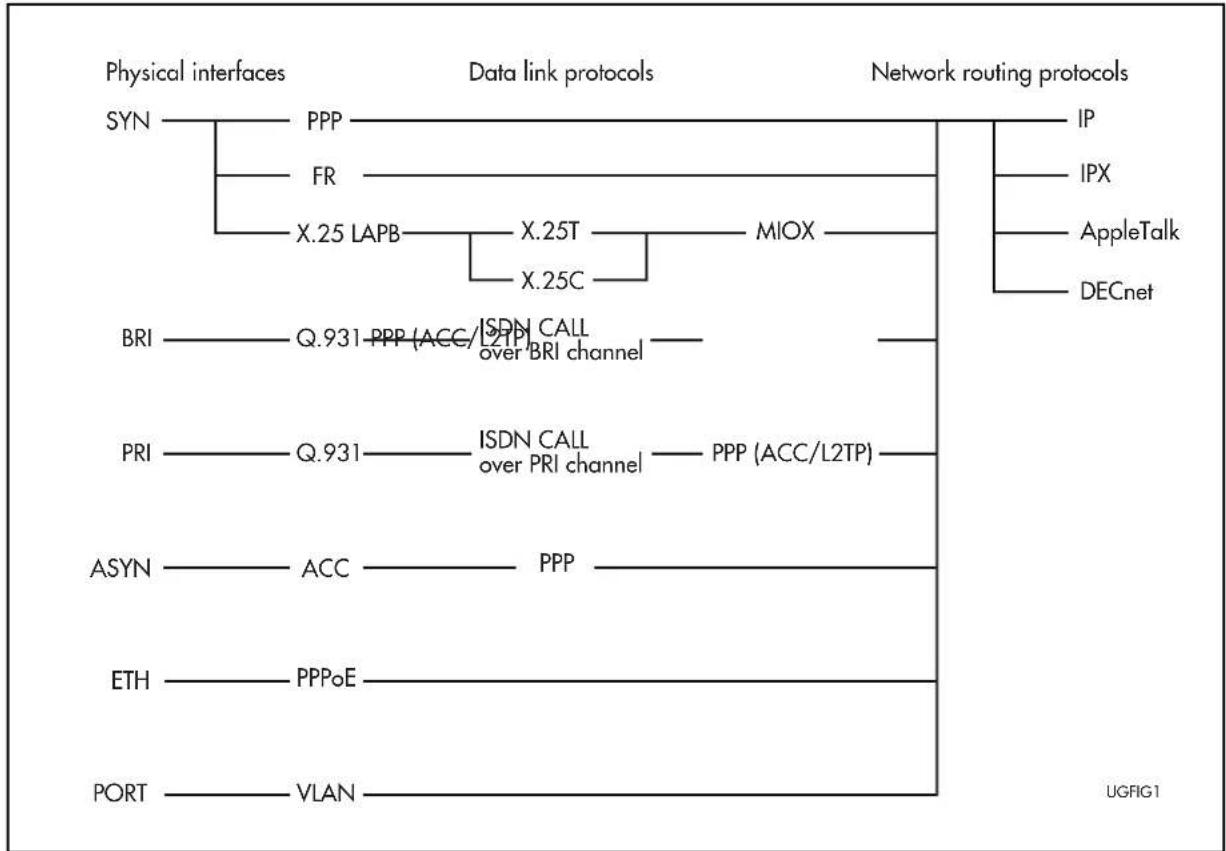
flowchart
graph TD
    A["Physical interfaces"] --> B["Data link protocols"]
    B --> C["Network routing protocols"]
    C --> D["Network routing protocols"]
    A --> E["SYN"]
    A --> F["FR"]
    A --> G["X.25 LAPB"]
    A --> H["X.25T"]
    A --> I["MIOX"]
    C --> J["IP"]
    C --> K["IPX"]
    C --> L["AppleTalk"]
    C --> M["DECnet"]
    A --> N["BRI"]
    A --> O["PRI"]
    A --> P["ASYN"]
    A --> Q["ETH"]
    A --> R["PORT"]
    N --> S["Q.931 PPP (ACC/L2TP)"]
    O --> T["Q.931"]
    P --> U["ACC"]
    Q --> V["PPPoE"]
    R --> W["VLAN"]
    S --> X["ISDN CALL over BRI channel"]
    T --> Y["ISDN CALL over PRI channel"]
    U --> Z["PPP (ACC/L2TP)"]
Figure 12: Protocols configured over ATM and ADSL
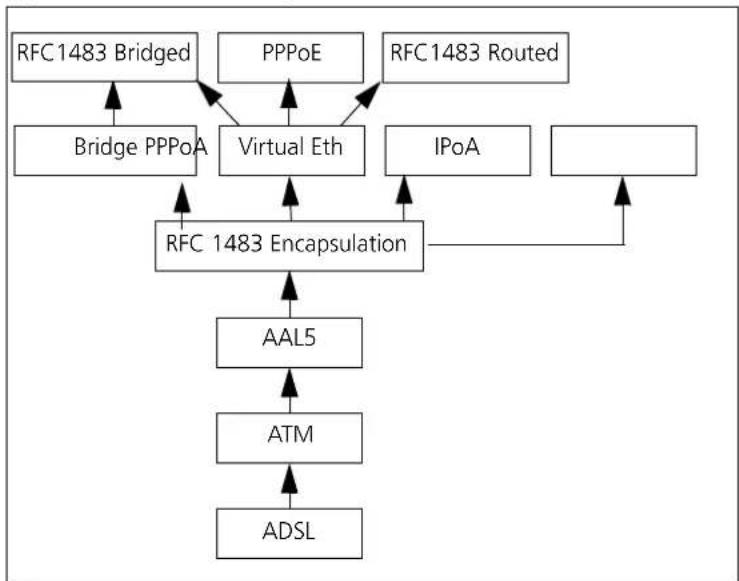
flowchart
graph TD
    A["RFC 1483 Bridged"] --> B["Virtual Eth"]
    C["PPPoE"] --> B
    D["RFC 1483 Routed"] --> B
    E["Bridge PPPoA"] --> B
    F["IPoA"] --> G["RFC 1483 Encapsulation"]
    G --> H["AAL5"]
    H --> I["ATM"]
    I --> J["ADSL"]
    G --> K["-->"]
Interfaces
The physical interfaces on the base unit or expansion option, sometimes called ports, connect the router to the physical network. All data enters and leaves the router via an interface. The interface on the router and the device at the other end of the link must use the same encapsulations for the Layer 2 protocol.
You can use the asynchronous console port on the base unit, asyn0, to configure the router (see "Asynchronous Port" on page 75 and the Interfaces chapter in the Software Reference).
Additional asynchronous ports can also connect terminals, printers and terminal ports on host computers (see the Terminal Server and the Printer Server chapters in the Software Reference).
Switch ports are numbered from 1. By default, all switch ports are enabled and set to autonegotiate. Autonegotiation allows switch ports to adjust their speed and duplex mode to accommodate the devices connected to them (see "Switch Ports" on page 77 and Switching on the AR410 and Switching on the AR440S, AR441S and AR450S in the Software Reference).
Switch ports are grouped into logical interfaces called Virtual LANs (VLANs), numbered from 1. You can create and modify the default VLAN configuration if necessary (see "Virtual LANs" on page 80 and Switching on the AR410 and Switching on the AR440S, AR441S and AR450 in the Software Reference).
Two of the encapsulations supported for synchronous ports (models with a PIC bay only)—Frame Relay and Point-to-Point Protocol—are described in detail in the Point-to-Point Protocol (PPP) and Frame Relay chapters in the Software Reference.
The Basic Rate and Primary Rate ISDN interfaces (models with a PIC bay only) are described in the Integrated Services Digital Network (ISDN) chapter in the Software Reference.
ATM over ADSL interfaces (models with an ADSL port only) are described in the ATM over ADSL chapter in the Software Reference.
Naming Interfaces
When you configure an interface, and configure routing over that interface, you can refer to a physical interface by its simple name or its fully qualified name.
The simple name for an interface is the interface type, followed by the interface number. The interface type is an abbreviation of the full name of the interface (see Table 7 on page 73). The fully qualified name for expansion option ports includes the expansion bay and the number of the interface within the bay.
Table 7: Interface type names.
Type Description
Physical interfaces
PORT Ethernet switch port interface, numbered from 1 (including uplinks)
ASYN Asynchronous interface
Table 7: Interface type names.
| Type | Description |
| BRI Basic Rate ISDN interface | |
| ETH Ethernet interface (excluding switch ports) | |
| PRI Primary Rate ISDN interface | |
| SYN Synchronous interface | |
| Logical interfaces | |
| VLAN Virtual LAN interface over switch ports, numbered from 1 | |
| FR Frame Relay interface | |
| LAPB X.25 LAPB interface | |
| PPP Point-to-Point Protocol interface | |
| X25C X.25 DCE interface | |
| X25T X.25 DTE interface | |
When you use commands with a physical interface as a parameter, you have the option to use either the simple name or the fully qualified name of the interface.
For examples of valid simple names and the equivalent fully qualified names see the Interfaces chapter in the Software Reference.
To display a summary of all the interfaces on the router, enter the command:
SHOW INTERFACE
Ethernet Ports
An Ethernet interface on the router is automatically configured by the software modules when the router starts up. No user configuration of the Ethernet interfaces is required, except to enable other software modules to use the interface. This is achieved by adding a software module interface and using the clause INTERFACE=ethn, where n is the number of the Ethernet interface being configured. For example, to add a logical interface to the IP module, enter the command:
ADD IP INTERFACE=eth0 IPADDRESS={ipadd|DHCP}
To display the modules in the router that are configured to use an Ethernet interface, and the encapsulations used on an interface, enter the command:
SHOW ETH=n CONFIGURATION
where n is the number of the Ethernet interface.
For more information about Ethernet interfaces and encapsulations, see the Interfaces chapter in the Software Reference.
Asynchronous Port
Asynchronous ports are normally used to connect a terminal to the router for configuration purposes. The default values for configurable parameters are modified by entering the command:
SET ASYN=port-number option
The factory default settings for asynchronous ports are shown in Table 8 on page 75.
Table 8: Factory defaults for configurable parameters for asynchronous ports.
| Option Default setting | |
| ATTENTION BREAK | |
| CDCONTROL IGNORE | |
| DATABITS 8 | |
| DEFAULTSERVICE FALSE | |
| DTRCONTROL ON | |
| ECHO ON | |
| FLOW HARDWARE | |
| HISTORY 30 | |
| INFLOW HARDWARE | |
| IPADDRESS NONE | |
| IPXNETWORK NONE | |
| MAXOQLEN | 0 (Unrestricted) |
| MTU | 1500 |
| NAME | Asyn # |
| OUTFLOW | HARDWARE |
| PAGE | 22 |
| PARITY | NONE |
| PROMPT | DEFAULT (CMD>) |
| SECURE | ON |
| SERVICE | NONE |
| SPEED | AUTO |
| STOPBITS | 1 |
| TYPE | VT100 |
For more information about asynchronous ports, see the Hardware Reference or the Interfaces chapter in the Software Reference.
For more information about configuring PPP interfaces across an asynchronous interfaces, see the Point to Point Protocol (PPP) chapter in the Software Reference.
Asynchronous Call Control (ACC)
You can configure the ACC module to answer calls made to a modem connected to an asynchronous port, to validate the user making the call and to configure the port to the mode appropriate for the desired service. Also, you can configure ACC to originate calls by controlling a modem attached to an asynchronous port and to switch the port to the appropriate mode once a connection to the remote device is established.
To assign a user an IP address and MTU (Maximum Transmission Unit) for use with an ACC call, enter the command:
SET USER=login-name IP=ipadd MTU=mtu
To assign an IP address and MTU to the asynchronous port accessed by the ACC call, enter the command:
SET ASYN=asyn-number IP=ipadd MTU=mtu
For more information about ACC, see the Asynchronous Call Control (ACC) chapter in the Software Reference.
ADSL and ATM (models with ADSL port)
The AR440S router supports ADSL Annex A for connection to a POTS line. The AR441S router supports ADSL Annex B for connection to an ISDN line.
The routers support ATM permanent virtual channels (PVCs), AAL5, and a number of higher layer protocols that can be configured over ATM and ADSL on the router as shown in Figure 12 on page 72.
■PPPoE
■PPPoA
IPoA
■RFC 1483 Routed
■RFC 1483 Bridged
For more information about ADSL and ATM, see the ATM over ADSL chapter in the Software Reference. The chapter includes step-by-step configuration instructions and examples for PPPoE over ATM, PPPoA and RFC 1483 Routed (used in the sense of a connection where the subscriber premises device routes packets onto the ADSL link, for a detailed definition see the ATM over ADSL chapter).
Synchronous Ports (models with PIC bay)
You can use the asynchronous console port on the base unit to configure the router. Additional asynchronous ports can also connect terminals, printers and terminal ports on host computers.
Your router supports synchronous interfaces with speeds of up to 2.048 Mbps, also known as E1. The router will automatically generate a clock signal when a DCE transition cable is connected to a synchronous interface (see the Hardware Reference for details of how to construct a cable).
To set the clock speed, enter the command:
SET SYN=n SPEED=speed
For more information about synchronous interfaces, see the Interfaces chapter in the Software Reference.
Switch Ports
A switch port is one of the physical Ethernet interfaces on the base router unit. Each switch port is uniquely identified by a port number.
To display information about switch ports, enter the command:
SHOW SWITCH PORT[={port-list|ALL}]
All switch ports on the router are enabled by default. You can disable and enable a switch port as required. To enable or disable a switch port, enter the commands:
ENABLE SWITCH PORT={port-list|ALL}
DISABLE SWITCH PORT={port-list|ALL}
Port Speed and Duplex Mode
Switch ports can operate at either 10 Mbps or 100 Mbps, in either full duplex or half duplex mode. In full duplex mode a port can transmit and receive data simultaneously. In half duplex mode a port can either transmit or receive data, but not at the same time. This versatility makes it possible to connect devices with different speeds and duplex modes to different switch ports. Such versatility also requires that each switch port knows which speed and mode to use.
Each switch port can be either configured with a fixed speed and duplex mode, or configured to autonegotiate speed and duplex mode with a device connected to it to determine a speed and mode that will allow successful transmission. Setting the switch port to a fixed speed and duplex mode allows the port to support equipment that cannot autonegotiate. Autonegotiation allows the switch ports to adjust their speed and duplex mode to accommodate the devices connected to them. An autonegotiating switch port will adopt the speed and duplex mode required by devices connected to it. If another autonegotiating device is connected to the switch port, they will negotiate the highest possible common speed and duplex mode. When a port at one end of the link is set to a fixed speed (non-autonegotiating) set the port at the other end of the link to operate at the same speed. This is because when autonegotiation is disabled, the link partner is not able to determine the duplex mode of the link and must be forced to use the correct mode.

Except on AR410 and AR410S models, Auto MDI/MDI-X is disabled when a switch port is set to a specific speed and duplex mode.
On routers other than the AR410 or AR410S, it is also possible to require a switch port to operate at a single speed without disabling autonegotiation by allowing the port to autonegotiate, but constrain the speed/duplex options to the desired combination. For example, if one end of a link is set to AUTO and other to 100MFULL then the AUTO end will select 100MHALF operation because without the other end autonegotiating the AUTO end has no way of knowing that the fixed end is full duplex capable. If a particular speed is required it is usually preferable to fix the speed/duplex combination using one of the autonegotiating speed values. Therefore, using 100MFAUTO at one end of a link and will allow the AUTO end to autonegotiate 100MFULL.
On the AR410 or AR410S, to change this setting use the command:
SET SWITCH PORT={port-list|ALL}
SPEED={AUTONEGOTIATE|10MHALF|10MFULL|100MHALF|100MFULL}
The SPEED parameter specifies the configured line speed and duplex mode of the port(s). If AUTONEGOTIATE is specified, the port(s) autonegotiate the line speed and duplex mode with the device attached to the port. If any other option is specified, the port(s) are forced to the speed and duplex mode given. The default is AUTONEGOTIATE.
On routers other than the AR410 or AR410S, to change this setting use the command:
SET SWITCH PORT={port-list|ALL}
SPEED={AUTONEGOTIATE|10MHALF|10MFULL|10MHAUTO|10MFAUTO|10
0MHALF|100MFULL|100MHAUTO|100MFAUTO} [other-options...]
The SPEED parameter specifies the configured line speed and duplex mode of the port(s). If AUTONEGOTIATE is specified, the port(s) will autonegotiate the highest mutually possible line speed and duplex mode with the link partner. If one of 10MFAUTO, 10MHAUTO, 100MFAUTO, or 100MHAUTO is specified, the port will autonegotiate with the link partner, but only accept operation at the specified speed and duplex mode. If one of 10MHALF, 10MFULL, 100MHALF, or 100MFULL is specified, then autonegotiation is disabled and the interface is forced to operate at the specified speed and duplex mode, regardless of whether the link partner is capable of working at that speed. The default is AUTONEGOTIATE.
Limiting Switch Traffic (AR410 and AR410S only)
You can make some choices about how switch ports respond when there is more traffic than the network or the switch ports can handle easily. Any choices you make affect all switch ports on the base router unit.
The default settings for commands that limit traffic are adequate for most situations.
By default, back pressure for flow control for half duplex ports is turned on:
SET SWITCH BACKPRESSURE=ON
By default, flow control using pause frames for full duplex ports is turned on:
SET SWITCH FLOWCONTROL=ON
Once the system resource becomes available the switch transmission by the link partner of the port can resume.
You can set the global retransmission time delay for all switch ports operating in half duplex mode. When the port attempts to transmit a packet and encounters a collision, the switch stops transmission and starts a short delay (backoff) before attempting re-transmission. If AGGRESSIVE is specified, the time delay is shorter. If NORMAL is specified, the time delay is standard. The default is NORMAL.
SET SWITCH BACKOFF={AGGESSIVE|NORMAL}
By default, switch ports will repeat attempts to transmit a packet until they succeed:
SET SWITCH EXCESSIVECOLLISION=RETRY
Packet buffers available in the buffer pool are shared by all switch ports. By default, these are allocated automatically according to the amount of traffic at each port (ADAPTIVE). To limit the number of buffers available for any port, enter the command:
SET SWITCH BUFFERPOOL={EQUAL|ADAPTIVE}
By default, broadcast and multicast packets are discarded if they are in excess of 25% the line rate:
SET SWITCH BROADCASTLIMIT=ON
For more information about limiting switch traffic, see the Switching on the AR410 chapter in the Software Reference.
Packet Storm Protection (AR440S, AR441S, AR450S only)
Using the packet storm protection feature, you can set limits on the reception rate of broadcast, multicast and destination lookup failure packets. Packet storm protection limits are set on a per port basis, beyond which each of the different packet types are discarded.
By default, packet storm protection is set to NONE, that is, disabled. Packet storm protection can be enabled, and each of the limits set, using the command:
SET SWITCH PORT=port-list POLARITY={MDI|MDIX}
[BCLIMIT={NONE|limit}] [DLFLIMIT={NONE|limit}]
[MCLIMIT={NONE|limit}] [other-options...]
Three sets of options are allowed for packet storm protection:
■broadcast limit only (BCLIMIT)
■broadcast limit and multicast limit (BCLIMIT and MCLIMIT)
■broadcast limit, multicast limit, and destination lookup failure limit (BCLIMIT, MCLIMIT, and DLFLIMIT)
The limit specified for each option, i.e the number of kilobytes per second (Kbps), must be the same for all modes of storm protection selected. The limit is set to the most recent limit specified. For example:
SET SWI PORT=1 POLARITY=MDI BCLIMIT=256 MCLIMIT=256
DLFLIMIT=256
To display the packet storm protection settings, use the command:
SHOW SWITCH PORT[={port-list|ALL}]
For more information about limiting switch traffic, see the SET SWITCH PORT command in the Switching on the AR440S, AR441S and AR450S chapter in the Software Reference.
Virtual LANs
A Virtual LAN (VLAN) is a software-defined broadcast domain. The router's VLAN feature allows you to segment a network by software management to improve network performance. You can group workstations, servers, and other network equipment connected to the router according to similar data and security requirements. This is done by allocating the switch ports on the router to VLANs, each of which is a separate broadcast domain.
By default, the router has one VLAN, the default VLAN, with a VLAN Identifier (VID) of 1. All switch ports belong to the default VLAN, and all ports send untagged packets. You cannot delete the default VLAN from the router.
If all you want the router to do is switch traffic on your LAN using the default VLAN configuration, you need not perform any configuration. Simply power up the router and connect devices to the switch ports. Switch learning is enabled by default, and all valid packets are forwarded.
To create a new VLAN on the router, specify a vlanname and VID that are unique in the router. Enter the command:
CREATE VLAN=vlanname VID=2..4094
You cannot delete the default VLAN, but to delete other VLANs if they have no member ports, enter the command:
DESTROY VLAN={vlanname|2..4094|ALL}
Any port in the default VLAN can be added to another VLAN, and is then automatically removed from the default VLAN. Each port can only belong to one VLAN. To add an untagged port to a VLAN, enter the command:
ADD VLAN={vlanname|2..4094} PORT={port-list|ALL}
To return ports to the default VLAN, enter the command:
DELETE VLAN={vlanname|2..4094} PORT={port-list|ALL}
To display the VLANs configured on the router, enter the command:
SHOW VLAN[={vlanname|1..4094|ALL}
To enable communication between ports in different VLANs, you need to configure IP or another Layer 3 protocol over the VLAN interfaces.
For more information about VLANs, see "Virtual Local Area Networks (VLANs)" in the Switching on the AR410 chapter or Switching on the AR440S, AR441S and AR450S chapter in the Software Reference.
Point to Point Protocol (PPP)
The Point-to-Point Protocol (PPP) establishes a connection between the router and a service provider, on demand. PPP provides mechanisms for transmitting data over synchronous connections, ISDN, ACC and L2TP calls, groups of TDM slots, and Ethernet.
Each protocol carried over PPP has an associated Network Control Protocol (NCP) that negotiates options for the protocol and brings up the link for that protocol.
To create or destroy a PPP interface over a synchronous port, an ISDN call, an ACC call, a MIOX circuit, an L2TP call, a TDM group (referred to as a physical layer) or a PPP over Ethernet service, enter the command.
CREATE PPP=ppp-interface OVER=physical-interface
DESTROY PPP=ppp-interface
To add or delete a synchronous port, an ISDN call, an ACC call, a MIOX circuit, an L2TP call, TDM group or a PPP over Ethernet service to the PPP interface, enter the command:
ADD PPP=ppp-interface OVER=physical-interface
DELETE PPP=ppp-interface OVER=physical-interface
where:
■ physical-interface is SYNn, ISDN-callname, ACC-callname, MIOXn-circuitname, TNL-callname, TDM-groupname or ETHn-servicename. For PPP over Ethernet, to specify that any service name is acceptable, use the special service name ANY. Service names may be up to 18 characters in length, and are usually supplied by the ISP providing the service.
There are many configurable parameters for PPP interfaces that you can modify using the SET PPP command.

By default, Allied Telesyn routers and layer 3 switches use Link Quality Reporting (LQR=ON) to determine link quality on PPP links. When connecting to some vendors' routers it may be more suitable to turn LQR (link quality reporting) off on PPP links (LQR=OFF), and instead use LCP Echo Request and Echo Reply messages to determine link quality (ECHO=ON):
SET PPP=ppp-interface ECHO=ON LQR=OFF
For more information about PPP, see the Point to Point Protocol (PPP) chapter in the Software Reference.
Dynamic PPP Interfaces and PPP Templates
A request from a lower layer (ISDN, ACC or L2TP) to create a new PPP interface creates a Dynamic PPP interface. PPP templates are blueprints that enable the full range of configuration options available on static PPP interfaces to apply to dynamic PPP interfaces.
You can use a template to specify any of the parameters configurable on a static PPP interface. Once a template is created, this template can be associated with an ISDN, ACC or L2TP call.
PPPoE
PPP over Ethernet (PPPoE) is defined in RFC 2516 "A Method of Transmitting PPP Over Ethernet". PPPoE is used to run PPP over the Ethernet. The same authentication, billing and transfer systems as for PPP are then available in Ethernet networks.
PPP over Ethernet enables multiple hosts at a remote site to share the same access device, while providing the access control and billing functionality of dial-up PPP connections.
The router behaves as a host, as defined in RFC 2516, creating PPP links over Ethernet to services on remote Access Concentrators.
Frame Relay (models with PIC bay)
Frame Relay is a wide area network service, defined by ITU-T (formerly CCITT), ANSI and vendor standards, to which routers may connect in order to communicate with one another and exchange data. Frame Relay is one of the services that you can purchase from a service provider to link several offices together at high speed. Connections are made via synchronous lines, ISDN calls or G.703 TDM (Time Division Multiplexing) links.
To configure Frame Relay follow these steps
The following steps are required:
- Create the Frame Relay interface.
- Add Static DLCs if required.
-
Add Logical Interfaces if required.
-
Enable routing modules to use the interface.
1. Create the Frame Relay interface
To create and associate the Frame Relay interface with a synchronous interface or an ISDN call, enter the command:
CREATE FR=n OVER=physical-interface
where n is the number of the Frame Relay interface and physical-interface is a synchronous interface such as "syn0" or an ISDN call such as "isdn-Head Office".
To display each Frame Relay interface, the physical interface it uses, and the logical interfaces it provides, enter the command:
SHOW FRAMERELAY
A feature of Frame Relay is the dialogue that the network maintains with the devices connected to it. This dialogue is known as the Local Management Interface (LMI). A LMI is not provided by all Frame Relay networks. Your router supports Frame Relay networks that do not run the LMI by allowing the configuration of static Data Link Connections (DLCs).
Parameters that affect the LMI dialogue are also set with the CREATE command. These parameters, and the values that they can take, are defined in the Frame Relay standards. Default values for the LMI parameters are defined in the standards, and are used when parameters are not suppliedConsult your Frame Relay network provider before making changes to the parameters that affect the LMI dialogue.
Parameters for setting the interface defaults for encryption and compression are also set with the CREATE command. These values are used by all DLCs on the interface unless specifically overridden for a particular DLC.
After the Frame Relay interface is created, to change the LMI parameters, enter the command:
SET FRAMERELAY
You may modify any or all of the parameters on a single command line. However, only ENCAPSULATION, NT1, NN1, NN2 and NN3 parameter changes take effect immediately. All other parameter changes cause the Frame Relay interface to reset automatically before they take effect.
To display the current values of the parameters, enter the command:
SHOW FRAMERELAY CONFIG
2. Add static DLCs if required
If the LMI dialogue is turned off for a Frame Relay interface, the router is not informed about active DLCs. Therefore you must set up static DLCs. To set up static DLCs, enter the command:
ADD FRAMERELAY=fr-interface DLC=dlci
[COMPRESSION={DEFAULT|ON|OFF}]
[ENCAPSULATION={DEFAULT|IETF|CISCO}]
[ENCRYPTION={DEFAULT|ON|OFF}]
To remove static DLCs, enter the command:
DELETE FRAMERELAY DLC
If no encryption or compression parameters are specified when the DLC is added, the interface defaults, which are set via the DEFENCRYPTION and DEFCOMPRESSION parameters of the CREATE FRAMERELAY and the SET FRAMERELAY commands, are used for the DLC.
To set the encryption and compression parameters, and the CIR (Committed Information Rate), of an individual DLC, use the SET FRAMERELAY DLC command. If a parameter is set to a non-default value for a DLC that the router is not informed about by the LMI, a DLC is created to record this information. The DLC is put into the AWAIT_LMI state until the network informs the router via the LMI that the DLC is active.
Obtain the actual values to use for DLCs from the administrators of the Frame Relay network to which your router is connected. Communication across the Frame Relay network will only occur for those DLCs that are statically configured.

If the LMI dialogue is enabled it is not possible to use static DLCs. In this case, DLCs are learned through the LMI dialogue.
3. Add logical interfaces if required
Frame Relay logical interfaces (FRLI) provide a mechanism for organising DLCs into groups. Each FRLI, or group of DLCs, are assigned its own IP address to split the Frame Relay network into subnets. A default FRLI 0 is always created when a Frame Relay interface is created. To create additional FRLI's, enter the command:
ADD FRAMERELAY=fr-interface LI=logical-interface
By default, all DLCs are associated with the default FRLI 0. To associate DLCs with other FRLIs, enter the command:
SET FRAMERELAY=fr-interface DLC=dlci LI=logical-interface
4. Enable routing modules to use the interface
Once a Frame Relay interface is defined and configured, configure routing modules to use the interface. The procedures for achieving this are described in the chapter for the particular routing module.
In general, commands that contain the parameter INTERFACE= can refer to a Frame Relay interface by name. The form of the name is "frn", where n is the instance for the Frame Relay module. Examples of commands that can refer to a Frame Relay interface include:
ADD IP INTERFACE=FRn...
ADD IPX CIRCUIT=circuit INTERFACE=FRn...
SET DNT ADD=INTERFACE INTERFACE=FRn...
One important point concerning the use of Frame Relay interfaces by the IP routing module is the way that the IP routing module maps IP addresses to a Frame Relay DLCI and vice versa. This mapping is an example of Address Resolution Protocol or ARP. Two methods of ARP are supported for Frame Relay interfaces on the router, Inverse ARP and static ARP.
The router supports the Inverse ARP, a protocol specially developed for Frame Relay that involves the exchange of packets between routers connected by a DLC in order to map an IP address to a Data Link Connection Identifier (DLCI). Inverse ARP is described in RFC 1293.
To enable the router to communicate with DTEs that do not support Inverse ARP, static ARP entries are added, by entering the command:
ADD IP ARP=ipadd INTERFACE=FRn DLCI=dlci

The use of static DLCs and static ARP information is not normally required for interoperation of the router with other vendors' equipment. These facilities are provided for interoperation with equipment that does not fully support the Frame Relay standards. Networks that consist purely of routers that support Inverse ARP will not need static ARPs.
Integrated Services Digital Network (ISDN) (models with PIC bay)
To use ISDN connections you need to install the appropriate Port Interface Card (PIC) in the router's PIC bay. Either install an ISDN Basic Rate ISDN (BRI) or Primary Rate ISDN (PRI) PIC. Depending on the PIC installed, the router supports the following types of ISDN connections:
■Basic Rate ISDN (U)
■Basic Rate ISDN (S/T)
■Primary Rate ISDN
BRI Versus PRI
LAPD is the Link Access Protocol for the ISDN D channel, as defined by ITU-T Recommendation Q.921. The major difference between Basic and Primary Rate Interfaces as far as LAPD is concerned is that BRI S/T interfaces use a bus configuration whereas PRI interfaces use a point-to-point configuration.
For more information about ISDN, see the Integrated Services Digital Network (ISDN) chapter in the Software Reference.
Configuring the Basic Rate Interface
The Basic Rate Interface (BRI) software module does not require user configuration for normal ISDN operation, but may require configuration when the interface is used for semipermanent connections.
To display the status of the BRI, enter the command:
SHOW BRI STATE
For more information about configuring BRI, see the Integrated Services Digital Network (ISDN) chapter in the Software Reference.
Configuring the Primary Rate Interface
The Primary Rate Interface (PRI) software module requires minimal user configuration for normal operation. Commands are provided to change user-configurable parameters, show the status of the module, and to examine and reset a number of data and error counters. You can reset the PRI software module, but this should not be necessary during normal operation. The PRI software module requires configuration for E1 and T1 interfaces.
To display the status of the PRI, enter the command:
SHOW PRI STATE
To show the higher layer modules (if any) that are attached to the PRI interface, enter the command:
For more information about configuring PRI, see the Integrated Services Digital Network (ISDN) chapter in the Software Reference.
Default Setup
The standard LAPD configurations are shown in Table 9 on page 86 (Basic Rate Interfaces) and Table 10 on page 86 (Primary Rate Interfaces). These settings suit many situations. However, you can modify these settings as required to suit other network situations (see the Integrated Services Digital Network (ISDN) chapter in the Software Reference).
Table 9: Standard LAPD configuration for an ISDN Basic Rate Interface.
| Mode Auto | |||||||||
| Debug Off | |||||||||
| TEI Provided by the network | |||||||||
| T, N and k values (for each SAPI): | |||||||||
| SAPI Layer 3 T200 T201 T202 T203 N200 N201 N202 k | |||||||||
| 0 | Q.931 Call Control | 10 | 10 | 20 | 100 | 3 | 260 | 3 | 1 |
| 1 | Q.931 Packet Mode | 10 | 10 | 20 | 100 | 3 | 260 | 3 | 3 |
| 16 | X.25 Packet Mode | 10 | 10 | 20 | 100 | 3 | 1024 | 3 | 3 |
| 63 | LAPD Management | 10 | 10 | 20 | 100 | 3 | 260 | 3 | 1 |
Table 10: Standard LAPD configuration for an ISDN Primary Rate Interface.
| Mode nonAuto | |||||||||
| Debug Off | |||||||||
| TEI 0 | |||||||||
| T, N and k values (for each SAPI): | |||||||||
| SAPI Layer 3 T200 T201 T202 T203 N200 N201 N202 k | |||||||||
| 0 | Q.931 Call Control | 10 | N/A | N/A | 100 | 3 | 260 | N/A | 7 |
| 1 | Q.931 Packet Mode | 10 | N/A | N/A | 100 | 3 | 260 | N/A | 7 |
| 16 | X.25 Packet Mode | 10 | N/A | N/A | 100 | 3 | 1024 | N/A | 7 |
| 63 | LAPD Management | 10 | N/A | N/A | 100 | 3 | 260 | N/A | 7 |
Testing the BRI or PRI PIC
To test the ISDN PRI, BRI (U), or BRI (S/T) PIC you need to configure a routing protocol such as IP or IPX to use ISDN.
For more information about configuring ISDN calls and routing protocols, see "Configuring ISDN (models with PIC bay)" on page 87, "Configuring an IP Network" on page 99, and "Configuring a Novell IPX Network" on page 111.
Configuring ISDN (models with PIC bay)
This section describes how to configure ISDN on an ISDN expansion option on your router using the command line interface. If you want to use ISDN, your router must have a PIC bay with the appropriate ISDN Port Interface Card installed. Simple ISDN configurations for Basic Rate ISDN, Primary Rate ISDN, ISDN Dial on Demand and ISDN Bandwidth on Demand are described.
ISDN on the router requires minimal user configuration, other than selecting a territory, creating call definitions and configuring the Point-to-Point Protocol (PPP) to use the ISDN calls. The lower layers of the ISDN protocol stack (BRI, LAPD and Q.931) are automatically configured when the router starts up.

The factory default hardware and software settings described here are correct for European Union (EU) countries. For other countries, contact your authorised distributor or reseller for details of local requirements.
Ordering ISDN in the USA and Canada
In the United States and Canada, Basic Rate ISDN is provided using National ISDN-1, 5ESS or DMS-100 formats, all of which are supported by the router. If National ISDN-1 is available, you can select from a list of "Capability Packages", each providing different features. Contact your ISDN service provider for more information. The router will accept either one or two Service Profile Identifiers (SPIDs).
Configuring Basic Rate ISDN
To connect a router with an AT-AR021(U) PIC installed to a Basic Rate ISDN service the following steps are required:
- Check BRI hardware configuration.
- Select country or territory.
- Set directory numbers and subaddresses (outside USA).
- Set switch type and SPIDs (USA only).
- Create call definitions.
- Create PPP interfaces.

To configure Basic Rate ISDN follow these steps
1. Check BRI hardware configuration
Check that the AT-AR021(U) PIC has the correct termination for the local conditions. The AR410 router can only operate in TE mode and is shipped with the standard 100W termination jumpers removed. This is appropriate for most situations, where the building wiring provides the ISDN termination. Your authorised distributor or reseller can advise you whether or not you should install termination jumpers.
2. Select country or territory.
To select the country in which the router is operated, enter the command:
SET SYSTEM TERRITORY={AUSTRALIA|CHINA|EUROPE|JAPAN|KOREA|NEWZEALAND|USA}
The territory determines which Q.931 profile is used on the ISDN interface. For example, to select the Q.931 profile for the United States, enter the command:
SET SYSTEM TERRITORY=USA

If you are not sure which territory to use, contact your authorised distributor or reseller. Failure to select the correct territory will invalidate the approval of this product with respect to the applicable national standards for the country in which the product is used.
For installations in the USA, go to step 4. For installations in other countries, go to step 3.
3. Set directory numbers and subaddresses (outside USA).
In countries other than the USA, set router's ISDN directory numbers and subaddresses with the command:
SET Q931=0 NUM1=number NUM2=number SUB1=subaddress SUB2=subaddress
This step is only required if the router is sharing the ISDN S/T bus with other ISDN devices. See the Software Reference for more information.
Go to Step 5.
4. Set switch type and SPIDs (USA only).
In the USA, you may need to set the ISDN switch type and SPIDs values. Setting the system territory to USA automatically sets the ISDN switch type to National ISDN-1. This should be correct for all new ISDN installations. If the router is connected to another switch type, set the switch type with the command:
SET Q931=0 PROFILE=DMS-100
for a Northern Telecom DMS-100 switch running custom software, or:
SET Q931=0 PROFILE=5ESS
for a Lucent 5ESS switch running custom software.
If the switch type is not National ISDN-1, enter the SPIDs (supplied by the ISDN service provider) with the command:
SET Q931=0 SPID1=spid SPID2=spid
If the switch type is National ISDN-1 the router will, when first turned on, attempt to obtain the SPIDs itself from the switch using the Auto SPID procedures. To monitor the success of this procedure, enter the command:
SHOW Q931=0 SPID
If the Auto SPID procedure succeeds the router will either select the SPID values to use by itself, or tell the user (in the output of the SHOW Q931=0 SPID command) how to select the SPID values.
If the Auto SPID procedures fail, manually enter the SPIDs with the command:
SET Q931=0 SPID1=spid SPID2=spid
Enter directory numbers and subaddresses with the command:
SET Q931=0 NUM1=number NUM2=number SUB1=subaddress SUB2=subaddress
The ISDN service provider must supply the directory numbers and subaddresses. If the directory number is a full 10 digit number (3 digit area code plus 7 digit number), the router will append the digits "0101" to the number and attempt SPID initialisation with the result. This is known as the Generic SPID procedure. If SPID initialisation has already taken place and SPIDs obtained through the Auto SPID procedure, then either these SPIDs are the same as the Generic SPID and the router will successfully reinitialise, or the SPIDs are not the same as the Generic SPID and the router will not initialise. In this case, the router will revert to using the Auto SPID values.
5. Create call definitions.
Create ISDN call definitions to enable the router to make ISDN calls to other devices on the ISDN network. This is the only step you must complete to configure ISDN on the router. Before a call can be made from one router to another, create call definitions on both routers, by entering the command:
ADD ISDN CALL=name NUMBER=number PRECEDENCE={IN|OUT} options...
For example, a Remote Office router is to be connected to the Head Office router via ISDN. The ISDN number of the Remote Office router is 1234567. The ISDN number of the Head Office router is 9876543. The called party subaddress information element (IE) is used to carry connection information, and PPP interfaces are created explicitly to use the ISDN calls. Either router can initiate the call, but calls from the Remote Office have precedence. On the Head Office router, to create a call to the Remote Office router, enter the command:
ADD ISDN CALL=ROHO OUTSUB=LOCAL SEARCHSUB=LOCAL NUMBER=1234567 PREC=IN
On the Remote Office router, to create a call to the Head Office router, enter the command:
ADD ISDN CALL=ROHO OUTSUB=LOCAL SEARCHSUB=LOCAL NUMBER=9876543 PREC=OUT
Each call has the same name (ROHO), and this name is passed via the called subaddress IE to provide identification to the remote end of the link. Each router will search for this call using the called subaddress IE.
You must set the precedence to ensure that in the event of a call collision (the same call made and answered at the same time), one call is completed and other call is cleared. The direction of precedence is not important, but set precedence to IN at one end of the call and OUT at the other end of the call.
The ISDN number is the exact sequence required to reach the remote router from the local router, including STD access codes and area codes. The number may contain only decimal digits. Hyphens and other characters will result in an error.
Check that the ISDN calls are successfully added with the command:
SHOW ISDN CALL
6. Create PPP interfaces.
Create PPP interfaces to use the ISDN calls. PPP provides the link layer protocol and enables multiple network and transport layer protocols such as IP and Novell® IPX to be carried over the same ISDN link.
For example, on the Head Office router create PPP interface 0 to use the ISDN call ROHO, by entering the command:
$$ \text { CREATE } \quad \mathrm{PPP} = 0 \quad \text { OVER } = \text { ISDN - ROHO } $$
On the Remote Office router, create PPP interface 0 to use the ISDN call ROHO, by entering the command:
$$ \text { CREATE } \quad \mathrm{PPP} = 0 \quad \text { OVER } = \text { ISDN - ROHO } $$
Check the configuration with the commands:
SHOW ISDN CALL
SHOW PPP
The call ROHO should appear in the output of the SHOW ISDN CALL command. The output of the SHOW PPP command should show interface ppp0 over ISDN-ROHO.
ISDN is now ready for use by routing protocols such as IP and IPX.
Configuring Primary Rate ISDN
Your router can operate in either TE or NT mode, using 75W or 120W termination. The router is shipped with jumpers set to TE mode, 75W termination, Tx grounded and Rx grounded via a 100nF capacitor. This is appropriate for most situations. Your authorised distributor or reseller can advise you whether or not to install grounding jumpers.
The following steps are required:
- Check BRI hardware configuration.
- Select the territory.
- Set directory numbers and subaddresses.
- Create call definitions.
- Create PPP interfaces.
To configure Primary Rate ISDN follow these steps
1. Check BRI hardware configuration
Check that the AT-AR021(U) PIC has the correct termination for the local conditions. The AR410 router can only operate in TE mode and is shipped with the standard 100W termination jumpers removed. This is appropriate for most situations, where the building wiring provides the ISDN termination. Your authorised distributor or reseller can advise you whether or not you should install termination jumpers.
2. Select the territory.
To select the country or region in which the router is operated, enter the command:
$$ \begin{array}{c} \text {SET SYSTEM TERRITORY = {AUSTRALIA | CHINA |} \ \text {EUROPE | JAPAN | KOREA | NEWZEALAND | USA }} \end{array} $$
The territory determines which Q.931 profile is used on the ISDN interface. For example, to select the Q.931 profile for New Zealand, enter the command:
SET SYSTEM TERRITORY=NEWZEALAND

If you are not sure which territory to use, contact your authorised distributor or reseller. Failure to select the correct territory will invalidate the approval of this product with respect to the applicable national standards for the country in which the product is used.
3. Set directory numbers and subaddresses.
The router's ISDN directory numbers and subaddresses are set with the command:
$$ \begin{array}{l} \text {SET Q931 = 0 NUM1 = number NUM2 = number SUB1 = subaddress} \ \text {SUB2 = subaddress} \end{array} $$
This step is only required if the router is sharing the ISDN S/T bus with other ISDN devices. See the Software Reference for more information.
4. Create call definitions.
Create ISDN call definitions to enable the router to make ISDN calls to other devices on the ISDN network. This is the only step you must complete to configure ISDN on the router. Before a call can be made from one router to another, create call definitions on both routers, by entering the command:
$$ \begin{array}{l} \text {ADD ISDN CALL = name NUMBER = number PRECEDENCE = {IN|OUT}} \ \text {options...} \end{array} $$
For example, a Remote Office router is to be connected to the Head Office router via ISDN. The ISDN number of the Remote Office router is 1234567. The ISDN number of the Head Office router is 9876543. The called party subaddress information element (IE) is used to carry connection information, and PPP interfaces are created explicitly to use the ISDN calls. Either router can initiate the call, but calls from the Remote Office have precedence. On the Head Office router, to create a call to the Remote Office router, enter the command:
$$ \begin{array}{l} \text {ADD ISDN CALL = ROHO OUTSUB = LOCAL SEARCHSUB = LOCAL} \ \text {NUMBER = 1234567 PREC = IN} \end{array} $$
On the Remote Office router, to create a call to the Head Office router, enter the command:
$$ \begin{array}{l} \text {ADD ISDN CALL = ROHO OUTSUB = LOCAL SEARCHSUB = LOCAL} \ \text {NUMBER = 9876543 PREC = OUT} \end{array} $$
Each call has the same name (ROHO), and this name is passed via the called subaddress IE to provide identification to the remote end of the link. Each router will search for this call using the called subaddress IE.
You must set the precedence to ensure that in the event of a call collision (the same call made and answered at the same time), one call is completed and other call is cleared. The direction of precedence is not important, but
set precedence to IN at one end of the call and OUT at the other end of the call.
The ISDN number is the exact sequence required to reach the remote router from the local router, including STD access codes and area codes. The number may contain only decimal digits. Hyphens and other characters will result in an error.
Check that the ISDN calls are successfully added with the command:
SHOW ISDN CALL
5. Create PPP interfaces.
Create PPP interfaces to use the ISDN calls. PPP provides the link layer protocol and enables multiple network and transport layer protocols such as IP and Novell® IPX to be carried over the same ISDN link.
For example, on the Head Office router create PPP interface 0 to use the ISDN call ROHO by entering the command:
CREATE PPP=0 OVER=ISDN-ROHO
On the Remote Office router, create PPP interface 0 to use the ISDN call ROHO by entering the command:
CREATE PPP=0 OVER=ISDN-ROHO
Check the configuration with the commands:
SHOW ISDN CALL
SHOW PPP
The call ROHO should appear in the output of the SHOW ISDN CALL command. The output of the SHOW PPP command should show interface ppp0 over ISDN-ROHO.
ISDN is now ready for use by routing protocols such as IP and IPX.
Configuring ISDN Dial on Demand
A PPP interface that uses an ISDN call as its physical interface can be configured for dial-on-demand operation. The ISDN call is activated only when data is transmitted, and is disconnected when the link is idle for a period of time.
To configure ISDN dial-on-demand follow these steps
The following steps are required:
-
Configure BRI or PRI ISDN.
-
Create PPP interfaces.
1. Configure BRI or PRI ISDN.
Complete steps 1 to 5 of "Configuring Basic Rate ISDN" on page 87, or steps 1 to 4 of "Configuring Primary Rate ISDN" on page 90.
2. Create PPP interfaces.
Create PPP interfaces to use the ISDN calls and enable the IDLE timer. Using the example in step 6 of "Configuring Basic Rate ISDN" on page 87, on the Head Office router create PPP interface 0 to use the ISDN call ROHO, enter the command:
$$ \text { CREATE } \quad \mathrm{PPP} = 0 \quad \text { OVER } = \text { ISDN - ROHO } \quad \text { IDLE } = \text { ON } $$
On the Remote Office router, to create PPP interface 0 to use the ISDN call ROHO, enter the command:
$$ \text { CREATE } \quad \mathrm{PPP} = 0 \quad \text { OVER } = \text { ISDN - ROHO } \quad \text { IDLE } = \text { ON } $$
Setting the IDLE parameter to ON enables the idle timer and sets the timeout period to 60 seconds. ISDN calls are disconnected no data is transmitted over the link for 60 seconds. To enable the idle timer with a different timeout period, specify a time in seconds instead of the value ON.
PPP interface 0 is now configured for dial-on-demand operation and any routing protocols such as IP and IPX that are configured to use PPP interface 0 will automatically inherit the dial-on-demand functionality.
Configuring ISDN Bandwidth on Demand
You can configure a PPP interface to use up to two B channels on an ISDN Basic Rate interface to provide bandwidth on demand. PPP activates additional ISDN channels when the bandwidth exceeds an upper threshold, and deactivates ISDN channels as bandwidth falls below a lower threshold.
To configure an ISDN connection for bandwidth on demand follow these steps
The following steps are required:
- Configure BRI or PRI ISDN.
- Create a second ISDN call.
- Create PPP interfaces.
1. Configure BRI or PRI ISDN.
Complete steps 1 to 5 of "Configuring Basic Rate ISDN" on page 87, or steps 1 to 4 of "Configuring Primary Rate ISDN" on page 90.
2. Create a second ISDN call.
Create a second ISDN call on each router, identical to the call ROHO but with the name DEMAND.
3. Create PPP interfaces.
Create PPP interfaces to use the ISDN calls, enable the IDLE timer and add a second demand channel. Using the example in step 6 of "Configuring Basic Rate ISDN" on page 87, on the Head Office router create PPP interface 0, enter the command:
$$ \text { CREATE } \quad \mathrm{PPP} = 0 \quad \text { OVER } = \text { ISDN - ROHO } \quad \text { IDLE } = \text { ON } $$
$$ \text { ADD PPP } = 0 \text { OVER } = \text { ISDN - DEMAND TYPE } = \text { DEMAND } $$
On the Remote Office router, to create PPP interface 0, enter the command:
$$ \text { CREATE } \quad \mathrm{PPP} = 0 \quad \text { OVER } = \text { ISDN - ROHO } \quad \text { IDLE } = \text { ON } $$
$$ \text { ADD PPP } = 0 \quad \text { OVER } = \text { ISDN - DEMAND TYPE } = \text { DEMAND } $$
PPP interface 0 is now configured for bandwidth on demand operation and any routing protocols such as IP and IPX that are configured to use PPP interface 0 will automatically inherit the bandwidth on demand functionality.
For more information about ISDN, including LAPD, Q.931, Call control, Call Logging, DNS, AODI, X.25 and Data over voice, see the Integrated Services Digital Network (ISDN) chapter in the Software Reference.
Installing Port Interface Cards (PICs) (models with PIC bay)
Port Interface Cards (PICs) provide you with a cost effective and flexible way to add new or additional network interfaces to your router. If you add or change PICs, you can upgrade network interface capability without having to replace the router.
For information about what PICs are available for your router, see the Hardware Reference.
For information about installing a PIC see the Port Interface Card Quick Install Guide.
For detailed information about PIC hardware see the Port Interface Card Hardware Reference.
Connecting to a Leased Line Circuit (models with PIC bay)
Leased lines are a commonly used for building Wide Area Networks (WANs). A leased line maybe the right solution if you need to connect distant sites across public areas. By installing an AT-AR023 SYN PIC in your router this option is available to you.
To connect your router with an AT-AR023 SYN PIC installed to a synchronous leased line circuit, follow these steps
The following steps are required:
-
Follow the instructions in the Port Interface Card Quick Install Guide on how to install the AT-AR023 SYN PIC.
-
Use the appropriate approved transition cable (RS-232, X.21 or V.35), to connect the synchronous port on the rear panel of the AT-AR023 SYN PIC to the telecommunication service provider's NTU.
-
To check the configuration of the port, enter the command:
SHOW SYN=n
where n is the synchronous port number. Verify that the information displayed is correct. In particular, you should set "State" to "enabled" and "Interface type" should match the transition cable used.
- Configure a data link layer module, such as PPP (Point-to-Point Protocol), Frame Relay or X.25 LAPB, to use the synchronous interface. To create a PPP interface 0 to use synchronous port 0, enter the command:
$$ \text { CREATE } \quad \mathrm{PPP} = 0 \quad \text { OVER } = \mathrm{SYN0} $$
- To check the configuration, enter the commands:
$$ \text { SHOW SYN } = 0 $$
$$ \text { SHOW } \quad \mathrm{PPP} = 0 $$
The output of the SHOW SYN command should show "Active" set to "yes" and "Module" set to "ppp". The output of the SHOW PPP command should show interface ppp0 over syn0 with "LCP" as the control protocol. The Tx and Rx LEDs are lit as data is sent and received on the interface.
1. Check IPX circuit configuration
To check that the IPX circuits are correctly configured on each router repeat steps 1 through 3 above, or enter the command:
$$ \text { SHOW IPX CIRCUIT } $$
Check that there are two circuits, and for each circuit check that the circuit is enabled, uses the correct interface and encapsulation (for Ethernet interfaces), the network number is correct and "On demand" is set to "no". If not, then repeat steps 1 through 3.
2. Contact your authorised distributor or reseller for assistance
If you still have no visible routes to the remote router, contact your authorised distributor or reseller for assistance.
Local Workstations Can Not Access Remote Servers
A number of different events can cause this problem. The following list of events gives the most common:
1. Move workstation to server LAN
Check that when the workstation is moved to the same LAN as the file server, it is able to access the server. If not, the fault lies with the configuration of the workstation or file server. Check with your Novell network administrator.
2. Check NET.CFG file
Take care with the workstation NET.CFG file. Always specify the encapsulation (frame) as different LAN card drivers use different default encapsulations.
3. Check for file server on Remote Office router
Does the file server appear in the IPX service table of the Remote Office router? If the server does not appear in the table, its presence is not advertised to the local LAN. To check this, enter the command:
$$ \text { SHOW IPX SERVICE } $$
This should produce a display like that shown in Figure 13 on page 96. The important point is that the file server must appear in the service table on the Remote Office router and there must be a route to the file server's internal network number. If there is, and it still does not work, contact your authorised distributor or reseller for assistance.
Figure 13: Example output from the SHOW IPX SERVICES command for a basic Novell IPX network
| IPX services | ||||
| Name | Age | |||
| Address | Server type | Circuit | Hops | Defined |
| ACCOUNTS | 0 | |||
| 00007500:00000000001:0451 | 0004:Fileserver | 1 (eth0) | 1 | SAP |
| ACCOUNTS | 0 | |||
| 00007500:00000000001:8104 | 0107:RCconsole | 1 (eth1) | 1 | SAP |
| TYPISTS | 0 | |||
| 00000012:0080488018d8:0451 | 0004:FileServer | 1 (ppp0) | 2 | SAP |
To interpret output from the SHOW IPX SERVICES command see the Novell IPX chapter in the Software Reference.
4. Check route tables
To check the route tables on both routers, enter the command:
SHOW IPX ROUTE
Check for the presence of networks on the remote side of the wide area network. If the remote network is missing from the route table on either router, enter the command:
RESET IPX
which resets the IPX routing software and forces the routers to broadcast their routing and service tables.
Using Trace Route for IP Traffic
You can use trace route to discover the route that packets pass between two systems running the IP protocol. Trace route sends an initial UDP packets with the Time To Live (TTL) field in the IP header set starting at 1. The TTL field is increased by one for every subsequent packet sent until the destination is reached. Each hop along the path between two systems responds with a TTL exceeded packet and from this the path is determined.
To initiate a trace route, enter the command:
TRACE [[IPADDRESS=]ipadd] [MAXTTL=number] [MINTTL=number]
[NUMBER=number] [PORT=port-number] [SCREENOUTPUT={YES|NO}]
[SOURCE=ipadd] [TIMEOUT=number] [TOS=number]
Any parameters not specified use the defaults configured with a previous invocation of the command:
SET TRACE [[IPADDRESS=]ipadd] [MAXTTL=number] [MINTTL=number]
[NUMBER=number] [PORT=port-number] [SCREENOUTPUT={YES|NO}]
[SOURCE=ipadd] [TIMEOUT=number] [TOS=number]
As each response packet is received a message is displayed on the terminal device from which the command was entered and the details are recorded. To display the default configuration and summary information, enter the command:
SHOW TRACE
To halt a trace route that is in progress, enter the command:
STOP TRACE
For more information about trace route, see the Internet Protocol (IP) chapter in the Software Reference.
This Chapter
This chapter introduces some routing protocols supported by the router, including:
■ Internet Protocol (IP) (see "Configuring an IP Network" on page 99).
■ IP Multicasting (see "Configuring IP Multicasting" on page 103).
■ Configuring Dynamic Host Configuration Protocol (see "Configuring Dynamic Host Configuration Protocol (DHCP)" on page 109.)
■ Novell IPX (see "Configuring a Novell IPX Network" on page 111).
■ IPX Dial-on-Demand (see "Configuring IPX Dial-on-Demand" on page 115).
■ AppleTalk (see "AppleTalk" on page 118).
■ Routing Information Protocol (RIP) (see "Routing Information Protocol (RIP)" on page 119).
■ Resource Reservation Protocol (RSVP) (see “Resource Reservation Protocol (RSVP)” on page 119).
■ OSPF (see "OSPF" on page 120).
For a complete description of all protocols supported by the router, see the Software Reference.
Configuring an IP Network
TCP/IP is the most widely used network protocol. The Internet uses TCP/IP for routing all its traffic. TCP/IP provides a range of services including remote login, Telnet, file transfer (FTP), Email and access to the World-Wide Web.
The router routes TCP/IP packets between switch ports in separate VLANs, and across the Wide Area Network using services like ISDN, Frame Relay and leased lines. This enables you to join remote TCP/IP LANs together as a single internet to exchange information.
Before You Start
- Ensure that the routers you want to configure are connected as described in the Quick Install Guide.
- Connect a terminal to the console port (port 0) on each router as described in the Quick Install Guide. Alternatively, you can connect a PC to the console port and use a terminal emulation program like Windows ^™ Terminal.
- Login to the MANAGER account on each router (see "Logging In" on page 15).
Configuring IP
This example (Figure 14 on page 100) illustrates the steps required to configure TCP/IP using the router's command line interface. Two routers running TCP/IP will be connected together using the Point-to-Point Protocol (PPP) over a wide area link. Each router is associated with a VLAN.
Figure 14: Example configuration for an IP network.
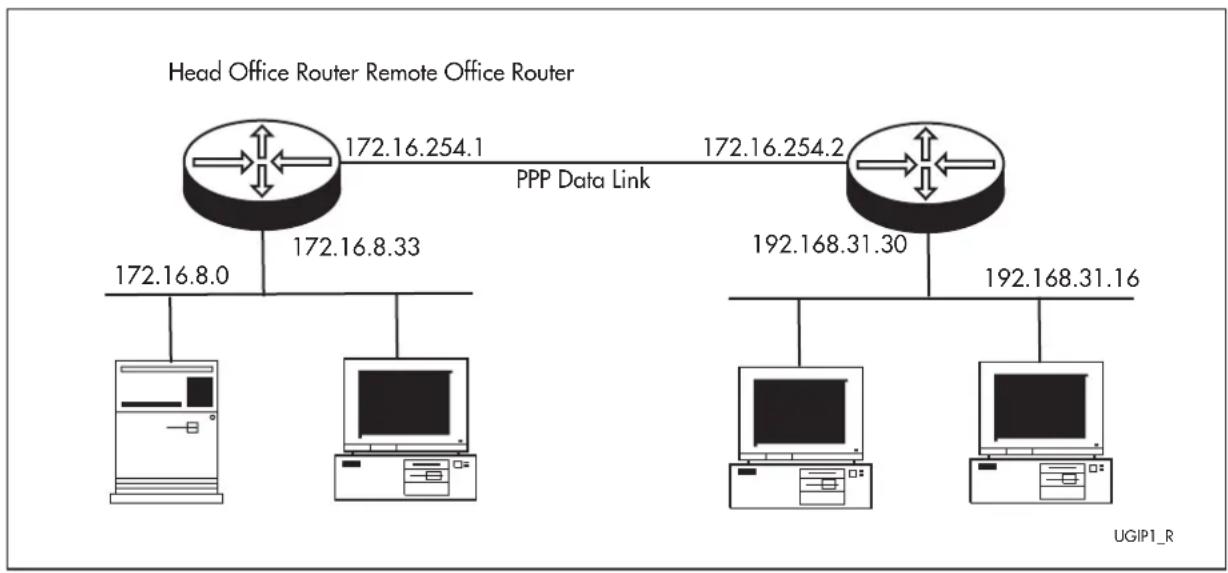
flowchart
graph TD
    A["Head Office Router Remote Office Router"] -->|PPP Data Link| B["Router 1"]
    A -->|PPP Data Link| C["Router 2"]
    A -->|PPP Data Link| D["Client 1"]
    A -->|PPP Data Link| E["Client 2"]
    A -->|PPP Data Link| F["Client 3"]
    A -->|PPP Data Link| G["Client 4"]
    A -->|PPP Data Link| H["Client 5"]
    A -->|PPP Data Link| I["Client 6"]
    A -->|PPP Data Link| J["Client 7"]
    A -->|PPP Data Link| K["Client 8"]
    A -->|PPP Data Link| L["Client 9"]
    A -->|PPP Data Link| M["Client 10"]
    A -->|PPP Data Link| N["Client 11"]
    A -->|PPP Data Link| O["Client 12"]
    A -->|PPP Data Link| P["Client 13"]
    A -->|PPP Data Link| Q["Client 14"]
    A -->|PPP Data Link| R["Client 15"]
    A -->|PPP Data Link| S["Client 16"]
    A -->|PPP Data Link| T["Client 17"]
    A -->|PPP Data Link| U["Client 18"]
    A -->|PPP Data Link| V["Client 19"]
    A -->|PPP Data Link| W["Client 20"]
    A -->|PPP Data Link| X["Client 21"]
    A -->|PPP Data Link| Y["Client 22"]
    A -->|PPP Data Link| Z["Client 23"]
    A -->|PPP Data Link| AA["Client 24"]
    A -->|PPP Data Link| AB["Client 25"]
    A -->|PPP Data Link| AC["Client 26"]
    A -->|PPP Data Link| AD["Client 27"]
    A -->|PPP Data Link| AE["Client 28"]
    A -->|PPP Data Link| AF["Client 29"]
    A -->|PPP Data Link| AG["Client 30"]
    A -->|PPP Data Link| AH["Client 31"]
    A -->|PPP Data Link| AI["Client 32"]
    A -->|PPP Data Link| AJ["Client 33"]
    A -->|PPP Data Link| AK["Client 34"]
    A -->|PPP Data Link| AL["Client 35"]
    A -->|PPP Data Link| AM["Client 36"]
    A -->|PPP Data Link| AN["Client 37"]
    A -->|PPP Data Link| AO["Client 38"]
    A -->|PPP Data Link| AP["Client 39"]
    A -->|PPP Data Link| AQ["Client 40"]
    A -->|PPP Data Link| AR["Client 41"]
    A -->|PPP Data Link| AS["Client 42"]
    A -->|PPP Data Link| AT["Client 43"]
    A -->|PPP Data Link| AU["Client 44"]
    A -->|PPP Data Link| AV["Client 45"]
    A -->|PPP Data Link| AW["Client 46"]
    A -->|PPP Data Link| AX["Client 47"]
    A -->|PPP Data Link| AY["Client 48"]
    A -->|PPP Data Link| AZ["Client 49"]
    A -->|PPP Data Link| BA["Client 50"]
    A -->|PPP Data Link| BB["Client 51"]
    A -->|PPP Data Link| BC["Client 52"]
    A -->|PPP Data Link| BD["Client 53"]
    A -->|PPP Data Link| BE["Client 54"]
    A -->|PPP Data Link| BF["Client 55"]
    A -->|PPP Data Link| BG["Client 56"]
    A -->|PPP Data Link| BH["Client 57"]
    A -->|PPP Data Link| BI["Client 58"]
    A -->|PPP Data Link| BJ["Client 59"]
    A -->|PPP Data Link| BK["Client 60"]
    A -->|PPP Data Link| BL["Client 61"]
    A -->|PPP Data Link| BM["Client 62"]
    A -->|PPP Data Link| BN["Client 63"]
    A -->|PPP Data Link| BO["Client 64"]
    A -->|PPP Data Link| BP["Client 65"]
    A -->|PPP Data Link| BQ["Client 66"]
    A -->|PPP Data Link| BR["Client 67"]
    A -->|PPP Data Link| BS["Client 68"]
    A -->|PPP Data Link| BT["Client 69"]
    A -->|PPP Data Link| BU["Client 70"]
    A -->|PPP Data Link| BV["Client 71"]
    A -->|PPP Data Link| BW["Client 72"]
    A -->|PPP Data Link| BX["Client 73"]
    A -->|PPP Data Link| BY["Client 74"]
    A -->|PPP Data Link| BZ["Client 75"]
    A -->|PPP Data Link| CA["Client 76"]
    A -->|PPP Data Link| CB["Client 77"]
    A -->|PPP Data Link| CC["Client 78"]
    A -->|PPP Data Link| CD["Client 79"]
    A -->|PPP Data Link| CE["Client 80"]
Table 11: Example configuration parameters for an IP network.
| Parameter Head Office Router Remote Office Router | ||
| VLAN interface vlan2 vlan3 | ||
| Ports (untagged) Ports 2-4 Ports 1-3 | ||
| VLAN interface IP address 172.16.8.33 | 192.168.31.30 | |
| VLAN IP subnet address | 172.16.8.0 | 192.168.31.16 |
| Ethernet LAN IP subnet mask | 255.255.255.0 | 255.255.255.240 |
| PPP interface | ppp0 | ppp0 |
| PPP interface IP address | 172.16.254.1 | 172.16.254.2 |
| PPP interface IP subnet address | 172.16.254.0 | 172.16.254.1 |
| PPP interface IP subnet mask | 255.255.255.0 | 255.255.255.0 |
To configure IP follow these steps
The following steps are required:
- Configure the PPP Link.
- Create a VLAN and add untagged ports.
- Configure the IP routing module on both routers.
- Test the configuration.
- Save the configuration.
1. Configure the PPP Link
Refer to other sections of this guide on how to configure PPP interface 0 on each router to use the wide area link.
- See "Point to Point Protocol (PPP)" on page 81 for information about configuring PPP to use a synchronous link.
- See "Configuring ISDN (models with PIC bay)" on page 87 for information about configuring PPP to use an ISDN call.
- If the PPP interface is configured for dial-on-demand operation (see "Configuring ISDN Dial on Demand" on page 92) or bandwidth on demand operation (see "Configuring ISDN Bandwidth on Demand" on page 93), these services are automatically used by the IP routing software.
2. Create VLANs and add untagged ports
Each new VLAN is created with a VLAN name that is unique in the router, and a VLAN Identifier (VID) that uniquely identifies the VLAN on the physical LAN. If the VLAN name begins with "vlan" and ends in a number then the number must be the same as the VID specified. To create VLANs, enter the command:
CREATE VLAN=vlanname VID=2..4094
In this example two VLANs are created by entering the commands:
CREATE VLAN=vlan2 VID=2
CREATE VLAN=vlan3 VID=3
To add untagged ports to vlan2, enter the command:
ADD VLAN=vlan2 PORT=2-4
To add untagged ports to vlan3, enter the command:
ADD VLAN=vlan3 PORT=1-3
See the Switching on the AR410 or Switching on the AR440S, AR441S and AR450S chapter in the Software Reference for more detailed information about creating VLANs and VLAN ports.
3. Configure IP Routing
To clear any pre-existing IP configuration and turn on the IP routing software on each router, enter the commands:
PURGE IP
ENABLE IP
On the Head Office router define two IP interfaces, one for the VLAN and one for the wide area link:
ADD IP INT=VLAN2 IP=172.16.8.33 MASK=255.255.255.0
ADD IP INT=PPP0 IP=172.16.254.1 MASK=255.255.255.0
Repeat this procedure on the Remote Office router, defining one IP interface for the VLAN and one for the wide area link:
ADD IP INT=VLAN3 IP=192.168.31.30 MASK=255.255.255.240
ADD IP INT=PPP0 IP=172.16.254.2 MASK=255.255.255.0
A routing protocol, such as RIP, can be enabled so that the routers can exchange information about routes to all of the IP devices (hosts, PCs, file servers, etc.) on the internet. However, on a dial-on-demand ISDN connection this may result in excessive call charges. So for this example static routes are defined. On the Head Office router enter the command:
ADD IP ROUTE=192.168.31.0 MASK=255.255.255.240 INT=PPPO NEXT=172.16.254.2
Repeat this procedure for the Remote Office router, entering the command:
ADD IP ROUTE=172.16.8.0 MASK=255.255.255.0 INT=PPP0 NEXT=172.16.254.1
The IP routing software is now configured and operational on both routers.
4. Test the configuration.
Check the IP configuration using the following commands and then functionally test the configuration by establishing a Telnet (remote access) connection to the remote router.
To check the routes, enter the command (on either router):
SHOW IP ROUTE
For each router, there should be a route to the LAN and PPP interfaces on the local router and a route to the LAN interface on the remote router.
Test the PPP link between the two routers using the PING command on each router to send ping packets to the router at the remote end of the PPP link. On the Head Office router, enter the command:
PING 192.168.31.30
On the Remote Office router, enter the command:
PING 172.16.8.33
Within a few seconds the router will display a message like:
Echo reply 1 from 172.16.8.33 time delay 20 ms
indicating a response was received from the router at the remote end of the PPP link.
To functionally test the connection between the two routers, use Telnet to establish a connection to the remote router. Enter the following command on the Head Office router to connect to the Remote Office router:
TELNET 192.168.31.30
You will see the login screen for the Remote Office router. To connect from the Remote Office router to the Head Office router, on the Remote Office router, enter the command:
TELNET 172.16.8.33
5. Save the configuration
To save the new dynamic configuration as a script, enter the command:
CREATE CONFIG=IPCONF.SCP
Configuring IP Multicasting
IP multicasting is used to transmit packets to a group of hosts simultaneously on a TCP/IP network or sub-network. Network bandwidth is saved because files are transmitted as one data stream and are split apart by the router to the target stations at the end of the path.
The multicast environment consists of senders (IP hosts), routers and switches (intermediate forwarding devices) and receivers (IP hosts). Any IP host can send packets to a multicast group, in the same way that they send unicast packets to a particular IP host, by specifying its IP address. A host need not belong to a multicast group in order to send packets to the multicast group. Packets sent to a group address are only received by members of the group.
For multicasting to succeed, the router needs to know which of its interfaces are directly connected to members of each multicast group. To establish this, the router uses Internet Group Management Protocol (IGMP) for multicast group management. IGMP is used between hosts and multicast routers and switches on a single physical network to establish hosts' membership in particular multicast groups.
The router uses this information, in conjunction with a multicast routing protocol, to know which other routers to route multicast traffic to. The router maintains a routing table for multicast traffic with Distance Vector Multicast Routing Protocol (DVMRP), Protocol Independent Multicast-Sparse Mode (PIM-SM), or Protocol Independent Multicast-Dense Mode (PIM-DM). You must configure IGMP and one of the multicast routing protocols before the router can forward multicast packets. DVMRP and PIM-Sparse Mode share a separate multicast forwarding table.
When the router receives a packet addressed to a multicast group, it forwards it to the interfaces that have group members connected to them, according to IGMP, and out other interfaces specified by the multicast routing protocol. Membership in a multicast group is dynamic; hosts can join and leave at any time. Multicast groups can be long or short lived, and can have relatively stable or constantly changing membership. There is no limit on the location or number of members in a multicast group. A host can belong to more than one multicast group at a time.
When the router finds out from IGMP that a new host has joined a multicast group on one of its interfaces, the router needs to receive the multicast traffic for this group, so that it can forward it to the host. The router uses the multicast routing protocol (DVMRP, PIM-SM or PIM-DM) to notify routers closer to the sender (upstream) to forward it traffic for the group.
While you can configure different multicasting protocols on different interfaces on the same router, multicasting information is not translated between the different multicast protocols.
Configuring IGMP
By default, IGMP is disabled on the router and on all interfaces. To enable IGMP on the router, enter the command:
ENABLE IP IGMP
You must enable IGMP on an interface before the interface can send or receive IGMP messages. If DVMRP is used for multicast routing, you must also enable IGMP on any interfaces used by DVMRP. To enable IGMP on an interface, enter the command:
ENABLE IP IGMP INTERFACE=interface
IGMP keeps the local group database up to date with current multicast group members by updating it when it hears IGMP Host Membership Reports on an interface. If the router is the IGMP designated router for the subnetwork, it sends out IGMP Host Membership Queries at a Query Interval. If the router does not receive a Host Membership Report for a multicast group on an interface within the Timeout period, it deletes the multicast group from its local group database. The default value of the Query Interval (125 seconds) and of the Timeout (2*(Query Interval + 10) seconds) will suit most networks. You should only change these defaults with caution, and if you have a sound understanding of how they affect interaction with other devices. To change the intervals, enter the command:
SET IP IGMP [TIMEOUT=1.65535] [QUERYINTERVAL=1.65535]
To display information about IGMP and multicast group membership, enter the command:
SHOW IP IGMP
Multicasting using DVMRP
This example (Figure 15 on page 105) allows IP hosts to send data to and receive data from the multicast groups. Multicast group management uses IGMP, and multicast routing between the routers uses DVMRP. The example assumes that each router starts from the default configuration.
Multicast packets are delivered along the shortest path from one host to another. The distance is the sum of metrics along this path. So in this example, the shortest path from IP host A to IP host B is Router A → Router C → Router B. From IP host A to IP host D the shortest path is Router A → Router C → Router D. If IP host B joins the multicast group to which IP host A is a sender, multicast data packets will not be delivered to Router D or IP host D, unless IP host D also joins the same multicast group. Changing the metric on interfaces may change the path by which multicast packets are delivered.
Interfaces with DVMRP enabled must also have IGMP enabled.
Figure 15: Multicast configuration example using IGMP and DVMRP.
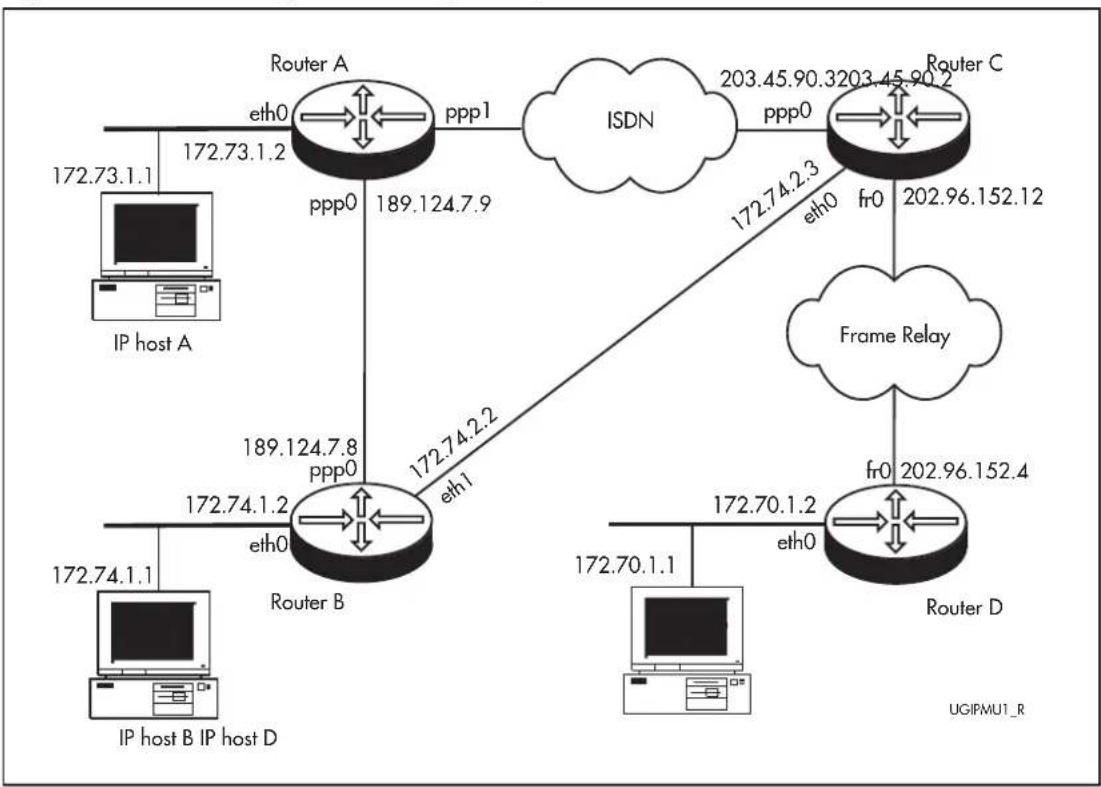
flowchart
graph TD
    subgraph IP Host A
        IP1["IP host A"] -->|172.73.1.1| RouterA["Router A"]
        RouterA -->|189.124.7.9| RouterB["Router B"]
        RouterB -->|172.74.2.2| RouterC["Router C"]
        RouterB -->|189.124.7.8\nppp0| RouterA
    end
    subgraph IP Host B
        IP2["IP host B"] -->|172.74.1.1| RouterB
        RouterB -->|172.74.1.2\neth0| RouterB
    end
    subgraph IP Host D
        IP3["IP host D"] -->|172.70.1.1| RouterD["Router D"]
        RouterD -->|172.70.1.2\neth0| RouterB
    end
    RouterA -->|ppp0| RouterB
    RouterB -->|eth1| RouterA
    RouterC -->|ppp0| RouterA
    RouterD -->|fr0| RouterC
    RouterB -->|fr0| RouterC
    RouterC -->|fr0| FrameRelay["Frame Relay"]
    ISDN["ISDN"] -->|203.45.90.3 203.45.90.2| RouterC
    style ISDN fill:#f9f,stroke:#333
    style FrameRelay fill:#ccf,stroke:#333
    style RouterD fill:#cfc,stroke:#333
To configure multicast routing using DVMRP follow these steps
The following steps are required:
- Configure multicast routing using DVMRP on Router A.
- Configure multicast routing using DVMRP on Router B.
- Configure multicast routing using DVMRP on Router C.
- Configure multicast routing using DVMRP on Router D.
- Confirm multicast routing is working.

Configure multicast routing using DVMRP on Router A.
1. Set the system name.
To set a unique system name for the router, enter the command:
SET SYS NAME=A-dvmrp
2. Configure ISDN.
To set up an ISDN call to Router C for DVMRP multicast traffic, enter the command:
ADD ISDN CALL=DVMRP NUMBER=1234567 PRECEDENCE=OUT OUTSUB=LOCAL SEARCHSUB=LOCAL
3. Configure PPP.
To create PPP interfaces over a synchronous port and the ISDN call, enter the commands:
CREATE PPP=0 OVER=SYN0 CREATE PPP=1 OVER=ISDN-DVMRP IDLE=ON
4. Configure IP.
To enable the IP module, and assign IP addresses to the interfaces, enter the commands:
ENABLE IP
ADD IP INTERFACE=PPP0 IPADDRESS=189.124.7.9
MASK=255.255.0.0
ADD IP INTERFACE=PPP1 IPADDRESS=203.45.90.2
MASK=255.255.255.0
ADD IP INTERFACE=ETH0 IPADDRESS=172.73.1.2
MASK=255.255.255.0
5. Configure IGMP.
To enable IGMP on the router for multicast group management, enter the command:
ENABLE IP IGMP
To enable IGMP on the interfaces that have potential multicast receivers (IP hosts) connected to them, and the interfaces using DVMRP, enter the commands:
ENABLE IP IGMP INTERFACE=ETH0
ENABLE IP IGMP INTERFACE=PPP0
ENABLE IP IGMP INTERFACE=PPP1
6. Configure DVMRP.
To enable DVMRP for multicast routing, enter the command:
ENABLE DVMRP
Enable DVMRP on the interfaces that use DVMRP for multicast routing. Setting the metrics on each of the interfaces influences the path cost and therefore the traffic sent over the interface. (The higher the metric, the higher the path cost, and the lower the traffic over the interface.) Enter the commands:
ADD DVMRP INTERFACE=ETH0 METRIC=1
ADD DVMRP INTERFACE=PPP0 METRIC=6
ADD DVMRP INTERFACE=PPP1 METRIC=3
Configure multicast routing using DVMRP on Router B.
1. Set the system name.
To set a unique system name for the router, enter the command:
SET SYS NAME=B-dvmrp
2. Configure PPP.
To create a PPP interface over a synchronous port, enter the command:
CREATE PPP=0 OVER=SYN0
3. Configure IP.
To enable IP on the router, and assign IP addresses to the interfaces used by DVMRP for multicast routing, enter the commands:
ENABLE IP
ADD IP INTERFACE=PPP0 IPADDRESS=189.124.7.8
MASK=255.255.0.0
ADD IP INTERFACE=ETH0 IPADDRESS=172.74.1.2
MASK=255.255.255.0
ADD IP INTERFACE=ETH1 IPADDRESS=172.74.2.2
MASK=255.255.255.0
4. Configure IGMP.
To enable IGMP on the router, and on the interfaces that have IP host connected to them, so that the router can maintain its group membership data, enter the commands:
ENABLE IP IGMP
ENABLE IP IGMP INTERFACE=PPP0
ENABLE IP IGMP INTERFACE=ETH0
ENABLE IP IGMP INTERFACE=ETH0
5. Configure DVMRP
To enable DVMRP on the router and on each interface over which it is used for multicast routing, enter the commands:
ENABLE DVMRP
ADD DVMRP INTERFACE=ETH0 METRIC=1
ADD DVMRP INTERFACE=ETH1 METRIC=1
ADD DVMRP INTERFACE=PPP0 METRIC=6
Configure multicast routing using DVMRP on Router C.
1. Set the system name.
To set a unique system name for the router, enter the command:
SET SYS NAME=C-dvmrp
2. Configure Frame Relay.
To configure a Frame Relay interface over a synchronous port to Router D, and add a data link circuit to the Frame Relay interface, enter the commands:
CREATE FRAMERELAY=0 OVER=SYN0 LMISCHEME=NONE
ADD FRAMERELAY=0 DLC=20
3. Configure ISDN.
Set up an ISDN call to Router A for DVMRP multicast traffic. This call must have the same name as the ISDN call from Router A, and the opposite precedence. Enter the command:
ADD ISDN CALL=DVMRP OUTSUB=LOCAL SEARCHSUB=LOCAL PRECEDENCE=IN NUM=7654321
4. Configure PPP.
To configure a PPP interface over the ISDN interface, enter the command:
CREATE PPP=0 OVER=ISDN-DVMRP IDLE=ON
5. Configure IP.
To enable the IP module, and assign IP addresses to the interfaces, enter the commands:
ENABLE IP
ADD IP INTERFACE=FR0 IPADDRESS=202.96.152.12
MASK=255.255.255.0
ADD IP INTERFACE=PPP0 IPADDRESS=203.45.90.3
MASK=255.255.255.0
ADD IP INTERFACE=ETH0 IPADDRESS=172.74.2.3
MASK=255.255.255.0
6. Configure IGMP.
To enable IGMP on the router and on the interfaces over which group membership is to be managed, enter the commands:
ENABLE IP IGMP
ENABLE IP IGMP INTERFACE=ETH0
ENABLE IP IGMP INTERFACE=PPP0
ENABLE IP IGMP INTERFACE=FR0
7. Configure DVMRP.
Enable DVMRP on the router, and assign the interfaces over which DVMRP will perform multicast routing. Enter the commands:
ENABLE DVMRP
ADD DVMRP INTERFACE=ETH0 METRIC=1
ADD DVMRP INTERFACE=PPP0 METRIC=3
ADD DVMRP INTERFACE=FR0 DLC=20 METRIC=6
Configure multicast routing using DVMRP on Router D.
1. Set the system name.
To set a unique system name for the router, enter the command:
SET SYS NAME=D-dvmrp
2. Configure Frame Relay.
To create a Frame Relay interface over a synchronous port to Router C, and add a data link circuit to the Frame Relay interface, enter the command:
CREATE FR=0 OVER=SYN0 LMI=NONE
ADD FR=0 DLC=20
3. Configure IP.
To enable IP, and assign IP addresses to the interfaces, enter the commands:
ENABLE IP
ADD IP INTERFACE=ETH0 IP=172.70.1.2 MASK=255.255.255.0
ADD IP INTERFACE=FR0 IP=202.96.152.4 MASK=255.255.255.0
4. Configure IGMP.
To enable IGMP on the router, and on the interfaces over which group membership will be managed, enter the commands:
ENABLE IP IGMP
ENABLE IP IGMP INTERFACE=ETH0
ENABLE IP IGMP INTERFACE=FR0
5. Configure DVMRP.
To enable DVMRP on the router, and on the interfaces over which DVMRP will perform multicast routing, enter the commands:
ENABLE DVMRP
ADD DVMRP INTERFACE=ETH0 METRIC=1
ADD DVMRP INTERFACE=FR0 DLC=20 METRIC=6
Confirm multicasting.
When you have configured the three routers, the IP hosts connected to these interfaces can send and receive multicasts packets.
1. Test multicasting.
Send IP multicast data between hosts connected to each of the routers to test whether IP multicasting is successful.
2. Check the configuration.
To check the configuration on each router, use the commands:
SHOW DVMRP
SHOW IP IGMP
SHOW IP ROUTE MULTICAST
For more information on how to configure IP Multicasting, including PIM-SM and PIM-DM, see the IP Multicasting chapter in the Software Reference.
Configuring Dynamic Host Configuration Protocol (DHCP)
DHCP provides a method for passing configuration information to hosts on a TCP/IP network. DHCP is based on its predecessor Bootstrap Protocol (BOOTP), but adds automatic allocation of reusable network addresses and additional configuration options.
When the router is configured as a DHCP server, it will allocate IP addresses and other IP configuration parameters to clients (hosts), when the client requests them. This enables you to configure your IP network without manually configuring every client. Note that each client must also be configured to receive its IP address automatically.
As well as addresses, a DHCP server can assign a wide range of parameters to clients, including subnet information and mask, domain and hostname, server addresses, keepalive times, MTUs, boot settings, encapsulation settings, time settings, and TCP settings.
On the router, DHCP is based on DHCP policies. Policies are predefined sets of configuration information items. Each policy defines IP configuration information for the clients that are attached to a single IP interface. Each policy has at least one IP address range attached to it. A range is a list of consecutively numbered IP addresses. When the DHCP server uses a policy to supply DHCP information to a client, it assigns the client an unused IP address from the policy's IP address ranges.
DHCP and its predecessor BOOTP are both supported, but are disabled by default.
To configure the router as a DHCP server:
- Enable IP and give the desired interface an IP address and subnet mask. This IP address needs to be in the subnet that you wish to assign to hosts that are connected to that interface. Use the commands:
ENABLE IP
ADD IP INTERFACE
If the interface is a VLAN, you may have to create it first.
- Create a DHCP policy using the command:
CREATE DHCP POLICY=name LEASETIME={lease-time|INFINITY} [INHERIT=name]
- Assign an IP address range to the policy. This range must be in the same subnet as the IP address that you assigned to the interface. Use the command:
CREATE DHCP RANGE=name IP=ipadd NUMBER=number POLICY=name [GATEWAY=ipadd]
- Assign any other desired configuration settings to the policy, using the command:
ADD DHCP POLICY=name [options...]
The server will use that policy on that interface. Repeat this process with as many interfaces and policies as required.
- Enable the DHCP server, using the command:
ENABLE DHCP
For more information on how to configure DHCP, see the Dynamic Host Configuration Protocol (DHCP) chapter in the Software Reference.
Configuring a Novell IPX Network
The router's implementation of the Novell IPX protocol uses the term circuit to refer to a logical connection over an interface, similar to an X.25 permanent virtual circuit (PVC) or a Frame Relay Data Link Connection (DLC). The term interface refers to the underlying physical interface, such as VLAN, Ethernet, Point-to-Point (PPP) and Frame Relay.
Before You Start
- Collect the information that you will need to configure IPX. Pay particular attention to the following points:
- Each network in a Novell internet, including all LANs and WAN links, must be assigned a network number. Novell file servers also have an internal network number. These network numbers must be unique across the Novell internet—no two networks or file servers may use the same network number. All devices attached to a network must use the same network number to refer to the network. Check to see what numbers your file servers are using. Many schemes exist to ensure that numbers are kept unique, for example, using the hexadecimal representation of the IP address or the telephone number of each location.
- All routers, file servers and workstations attached to an Ethernet LAN must use the same Ethernet encapsulation or frame type. Table 12 on page 111 lists the Novell frame type and the equivalent AR400 router encapsulation. You can determine the file server name, internal network number, Ethernet frame type and Ethernet network number used by a Novell file server, by interrogating the file server itself. From the management console attached to the Novell file server, at the system console prompt type the command “config” and record the values of the fields “File server name”, “IPX internal network number”, “Frame type” and “LAN protocol”. You can also access the system console by running the console utility from any workstation logged in as supervisor. For more details, contact your local Novell network administrator or refer to the Novell documentation.
Table 12: Frame type and equivalent router encapsulation.
| Novell Frame Type Router Encapsulation |
| Ethernet_802.3 802.3 |
| Ethernet_802.2 802.2 |
| Ethernet_II EthII |
| Ethernet_SNAP SNAP |
-
Ensure that the routers you want to configure are connected as described in the Quick Install Guide.
-
Connect a terminal to the console port (port 0) on each router as described in the in the Quick Install Guide. Alternatively, you can connect a PC to the console port and use a terminal emulation program like Windows ^TM Terminal.
-
Login to the MANAGER account on each router. (see "Logging In" on page 15)
Configuring IPX
This example (Figure 16 on page 112) illustrates the steps required to configure a pair of AR410 routers to create a Novell® IPX internetwork, using the router's command line interface. In this scenario, PCs at a remote office need access to a Novell file server at the Head Office site. The two sites are connected by a PPP link over a wide area link—either a dedicated leased line or an ISDN call.
Figure 16: Example configuration for an IPX network.
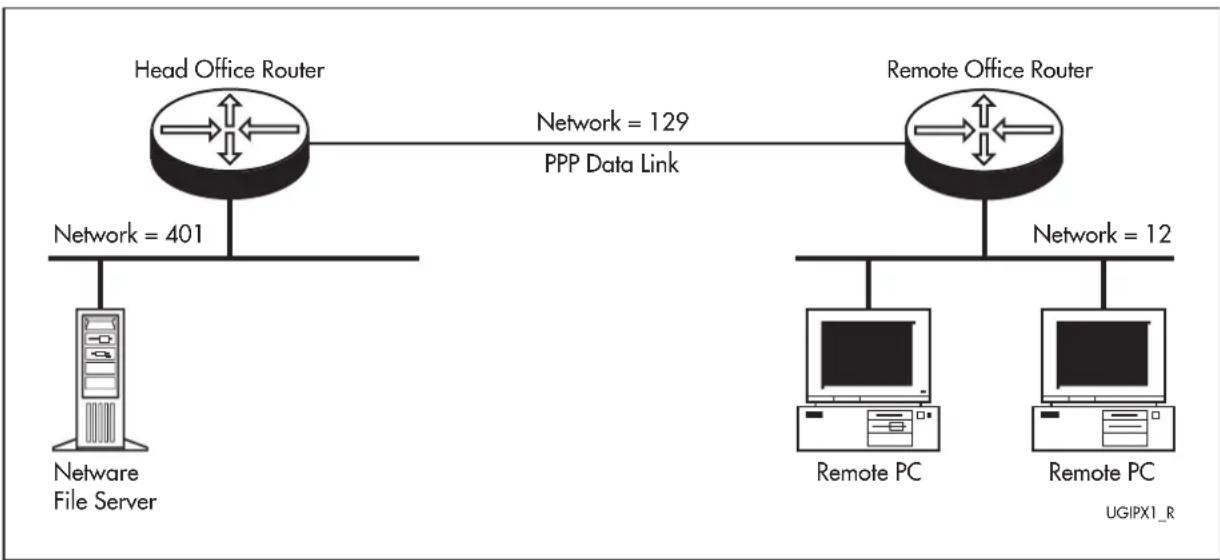
flowchart
graph TD
    A["Head Office Router"] -->|Network = 401| B["Netware File Server"]
    A -->|Network = 129 PPP Data Link| C["Remote Office Router"]
    C -->|Network = 12| D["Remote PC"]
    C -->|Network = 12| E["Remote PC UGIPX1_R"]
Table 13: Example configuration parameters for an IPX network.
| Configuration Parameter Head Office Router Remote Office Router | |
| Ethernet interface eth0 eth0 | |
| Ethernet encapsulation 802.3 802.3 | |
| Novell network number for Ethernet 401 12 | |
| IPX circuit over Ethernet 1 1 | |
| PPP interface ppp0 ppp0 | |
| Novell network number for PPP | 129 129 |
| IPX circuit over PPP | 2 2 |
To configure IPX follow these steps
The following steps are required:
- Configure the PPP link.
- Configure the routers for IPX.
- Test the configuration.
- Save the configuration.
1. Configure the PPP Link
Refer to other sections of this guide on how to configure PPP interface 0 on each router to use the wide area link.
- See "Point to Point Protocol (PPP)" on page 81 for information about configuring PPP to use a synchronous link.
- See "Configuring ISDN (models with PIC bay)" on page 87 for information about configuring PPP to use an ISDN call.
- If the PPP interface is configured for dial-on-demand operation (see "Configuring ISDN Dial on Demand" on page 92) or bandwidth on demand operation (see "Configuring ISDN Bandwidth on Demand" on page 93), these services are automatically used by the IPX routing software.
2. Configure IPX Routing
To purge the IPX static database to clear any pre-existing IPX configuration and enable the IPX routing software on each router, enter the commands:
PURGE IPX
ENABLE IPX
On the Head Office router define two IPX circuits, one for the Ethernet interface and one for the wide area link, by entering the commands:
ADD IPX CIRC=1 INT=ETH0 NETW=401 ENCAP=802.3
ADD IPX CIRC=2 INT=PPP0 NETW=129
To repeat this procedure on the Remote Office router, defining one IPX circuit for the Ethernet interface and one for the wide area link, enter the commands:
ADD IPX CIRC=1 INT=ETH0 NETW=12 ENCAP=802.3
ADD IPX CIRC=2 INT=PPP0 NETW=129
The routers are now configured for IPX and can exchange routes and service information.
3. Test the Configuration
To examine the route table and service table on each router, enter the commands:
SHOW IPX ROUTE
SHOW IPX SERVICE
The route table will contain paths from each Novell device which advertises routes, for example file servers and routers. The service table lists all the services, such as file services and print services, that devices are advertising.

The actual contents of the route table varies with the number and type of file servers present on the network. A route from each router to the other, and all services shown as
local (i.e. via eth0) on one router, should also be visible on the other router, via the PPP link.
Test that a workstation on the Remote Office LAN can login to the file server on the Head Office LAN.
4. Save the Configuration
Save the new dynamic configuration as a script, by entering the command:
CREATE CONFIG=IPXCONF.SCP
To add an IPX circuit over a VLAN
1. Define the IPX interface name
To create IPX circuit 1 with the Novell network number 129 over the admin VLAN, enter the command:
ADD IPX CIRC=1 INTERFACE=vlan11 NETWORK=129 ENCAP=802.3
2. Show the configuration
Show the new configuration by entering the command:
SHOW IPX CIRCUIT
The display should look like that shown in Figure 17. To interpret output from the SHOW IPX CIRCUIT command see the Novell IPX chapter in the Software Reference.
Figure 17: Example output from the SHOW IPX CIRCUIT command.
| IPX CIRCUIT information | |
| Name | Circuit 1 |
| Status | enabled |
| Interface | vlan11 (802.3) |
| Network number | c0e7230f |
| Station number | 0000cd000d26 |
| Link state | up |
| Cost in Novell ticks | 1 |
| Type20 packets allowed | no |
| On demand | no |
| Spoofing information | |
| Keep alive spoofing | no |
| SPX watch dog spoofing | no |
| On SPX connection failure | UPLINK |
| On end of SPX spoofing | UPLINK |
| RIP broadcast information | |
| Change broadcasts | yes |
| General broadcasts | yes |
| General broadcast interval | 60 seconds |
| Maximum age | 180 seconds |
| SAP broadcast information | |
| Change broadcasts | yes |
| General broadcasts | yes |
| General broadcast interval | 60 seconds |
| Maximum age | 180 seconds |
| Filter information | |
| Filters | none |
Configuring IPX Dial-on-Demand
This example (Figure 18 on page 116) illustrates how to set up the router to provide a wide area internet based on Novell's IPX routing protocol with dial-on-demand access. In this scenario, a PC at a remote site periodically accesses the Novell file server at a central site to read Email, transfer files or print documents on a laser printer. The two sites are connected by a PPP link over a wide area link—either a dedicated leased line or an ISDN call.
Figure 18: Example configuration for an IPX dial-on-demand network.
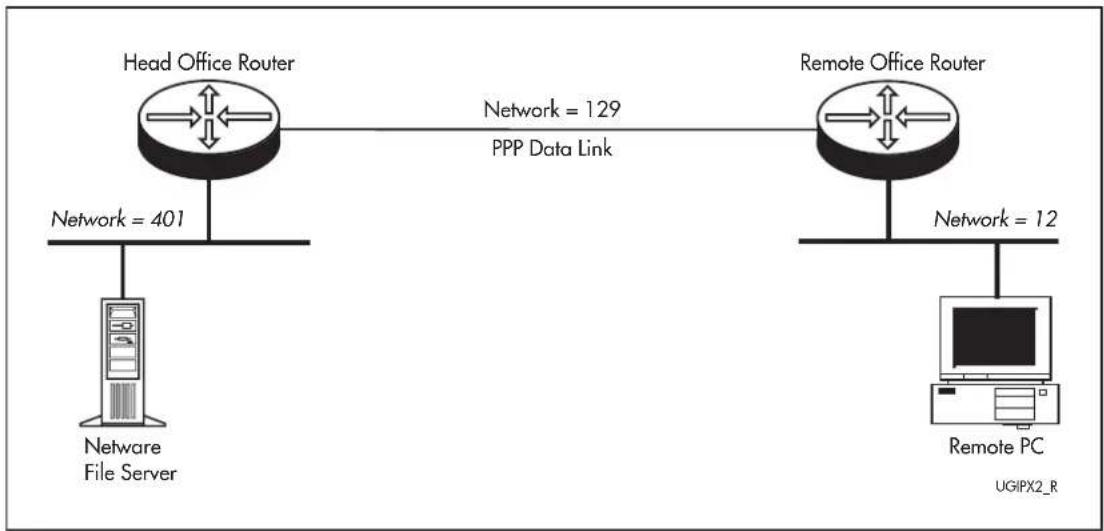
flowchart
graph LR
    A["Head Office Router"] -->|Network = 129\nPPP Data Link| B["Remote Office Router"]
    A -->|Network = 401| C["Netware File Server"]
    B -->|Network = 12| D["Remote PC UGIPX2_R"]
Table 14: Example configuration parameters for IPX dial-on-demand.
| Parameter Head Office Router Remote Office Router | ||
| Ethernet interface eth0 eth0 | ||
| Ethernet encapsulation 802.3 802.3 | ||
| Novell network number for Ethernet 401 12 | ||
| IPX circuit over Ethernet 1 1 | ||
| PPP interface | ppp0 | ppp0 |
| Novell network number for PPP | 129 129 | |
| IPX circuit over PPP | 2 2 | |
To configure IPX dial-on-demand follow these steps
If the PPP link uses an ISDN call configured as a dial-on-demand link (see "Configuring ISDN Dial on Demand" on page 92), then you can configure IPX for IPX dial-on-demand services.
The following steps are required:
- Clear the previous IPX configuration.
- Enable IPX.
- Define the IPX circuits.
- Save the configuration.
1. Clear previous IPX configuration
To purge the IPX static database to clear an preexisting IPX configuration enter the command:
PURGE IPX
2. Enable IPX
To enable the IPX routing software on each router, enter the command:
ENABLE IPX
3. Define IPX circuits
On the Head Office router define two IPX circuits, one for the Ethernet interface and one for the wide area link. To configure the wide area link as a demand link and enable RIP and SAP change broadcasts, enter the commands:
ADD IPX CIRC=1 INT=ETH0 NETW=401 ENCAP=802.3
ADD IPX CIRC=2 INT=PPP0 NETW=129 DEMAND=ON
SET IPX CIRC=2 RIPCHANGE=YES SAPCHANGE=YES
Repeat this procedure on the Remote Office router, defining one IPX circuit for the Ethernet interface and one for the wide area link. To configure the wide area link as a demand link and enable RIP and SAP change broadcasts, enter the commands:
ADD IPX CIRC=1 INT=ETH0 NETW=12 ENCAP=802.3
ADD IPX CIRC=2 INT=PPP0 NETW=129 DEMAND=ON
SET IPX CIRC=2 RIPCHANGE=YES SAPCHANGE=YES
The routers are now configured for IPX dial-on-demand and can exchange routes and service information.
4. Save configuration
Save the new dynamic configuration as a script, by entering the command:
CREATE CONFIG=IPXDOD.SCP
The link is activated (the ISDN call is connected) whenever data is waiting to transmit over the wide area link, and deactivated when no data is transmitted over the link for a period of time. The link is also activated whenever there is a change of route or service information, to allow the exchange of RIP and SAP updates. To improve performance, you can configure RIP and SAP filters on the Head Office router to limit the number and size of broadcasts which activate the ISDN call.
To configure RIP and SAP filters, follow these steps on the Head Office router only:
1. Create RIP filter
To create a RIP filter that only allows information about route changes to the file server's internal network (network number 7500) to be included in RIP broadcasts, enter the command:
ADD IPX RIP=0 NET=7500 ACTION=INCLUDE
2. Create SAP filter
To create a SAP filter that only allows information about the file services provided by the file server (named ACCOUNTS) to be included in SAP broadcasts, enter the command:
ADD IPX SAP=0 SERVICE=ACCOUNTS TYPE=FILE ACTION=INCLUDE
3. Associate RIP and SAP filters with IPX circuit
To associate the RIP and SAP filters with the IPX circuit over the PPP link, enter the command:
SET IPX CIRC=2 RIPCHANGE=YES SAPCHANGE=YES OUTRIP=0 OUTSAP=0
4. Save configuration
To save the new dynamic configuration as a script, enter the command:
CREATE CONFIG=IPXFILT.SCP
AppleTalk
The AppleTalk network architecture provides internetworking of Macintosh computers and other peripheral devices using LocalTalk media. AppleTalk allows seamless access to network services such as file servers and printers from the Macintosh desktop environment. The open nature of the architecture has enabled the AppleTalk network system to extended support to other media types (for example EtherTalk for Ethernet media), and a mixture of both Apple and non-Apple network devices on the same AppleTalk network.
To create an AppleTalk port (interface) associated with the vlan11, enter the command:
ADD APPLE PORT INTERFACE=vlan11
To display information about the ports configured for AppleTalk (Figure 19 on page 118), enter the command:
SHOW APPLE PORT
Figure 19: Example output from the SHOW APPLE PORT command.
| Appletalk Port Details |
| Port Number 1 Interface vlan11 ifIndex 1 Node ID 217 Network Number 22 Network Range Start 22 Network Range End 22 State ACTIVE Seed NO Seed Network Start 0 Seed Network End 0 Hint YES Hint Node ID 179 Hint Network 22 Default Zone - |
| Zone List is Empty |
To interpret output from the SHOW APPLE PORT command see the AppleTalk chapter in the Software Reference.
Routing Information Protocol (RIP)
The Routing Information Protocol (RIP) is a distance vector protocol that is part of the TCP/IP protocol suite used to exchange routing information between routers. RIP determines a route based on the smallest hop count between source and destination.
Routing protocols such as RIPv1 and RIPv2 can be enabled on a VLAN. To enable RIPv2 on the admin VLAN, enter the command:
ADD IP RIP INTERFACE=vlan11 SEND=RIP2 RECEIVE=BOTH
To display information about RIP (Figure 20 on page 119), enter the command:
SHOW IP RIP
Figure 20: Example output from the SHOW IP RIP command.
| Interface | Circuit/DLCI | IP Address | Send | Receive | Demand | Auth | Password |
| vlan11 | - | - | RIP2 | BOTH | NO | NO | |
| ppp0 | - | 172.16.249.34 | RIP1 | RIP2 | YES | PASS | ********** |
To interpret output from the SHOW IP RIP command see the Internet Protocol (IP) chapter in the Software Reference.
Resource Reservation Protocol (RSVP)
The Resource Reservation Protocol (RSVP) is a signalling protocol designed to reserve bandwidth for realtime transmission. RSVP is not a traffic delivery protocol or a routing protocol. RSVP does not deliver the application's traffic to its destination or manage the routing of the data packets; this is left to existing transport and routing protocols.
RSVP enables the receiver of a traffic flow to make the resource reservations necessary to ensure that the receiver obtains the desired Quality of Service (QoS) for the traffic flow.
RSVP is disabled by default. To enable RSVP, enter the command:
ENABLE RSVP
Each IP interface that is to receive and process RSVP messages and accept reservation requests must be enabled. To enable RSVP on the admin VLAN, enter the command:
ENABLE RSVP INTERFACE=vlan11
To display information about the interfaces enabled for RSVP (Figure 21 on page 120), enter the command:
SHOW RSVP INTERFACE
Figure 21: Example output from the SHOW RSVP INTERFACE command.
| RSVP Interfaces | ||||||
| Interface | Enabled | Maximum Bandwidth(%) | Reserved Bandwidth(%) | No. Of Reservations | Debug | Encap |
| Dynamic | No | 75 | 0 | 0 | None | RAW |
| vlan11 | Yes | 75 | 0 | 1 | None | RAW |
| ppp0 | Yes | 75 | 0 | 0 | None | RAW |
To interpret output from the SHOW RSVP INTERFACE command see the Resource Reservation Protocol (RSVP) chapter in the Software Reference.
OSPF
Open Shortest Path First (OSPF) is an Internal Gateway Routing Protocol, based on Shortest Path First (SPF) or link-state technology. OSPF is a routing protocol that determines the best path for routing IP traffic over a TCP/IP network.
These features are supported by OSPF:
■Authentication of routing updates.
■Tagging of externally-derived routes.
■Fast response to topology changes with low overhead.
■Load sharing over meshed links.
OSPF supports three types of physical networks—point-to-point, broadcast and non-broadcast.
When using OSPF to route an IP packet, the router looks up the routing table entry which best matches the destination of the packet. This routing table entry contains the interface and nexthop router to forward the IP packet to its destination. The routing table entry that best matches the destination is determined first by the path type, then the longest (most specific) network mask. At this point there may still be multiple routing entries to the destination; if so then equi-cost multi-path routes exist to the destination. Such equi-cost routes are appropriately used to share the load to the destination.
Configuring a Basic OSPF Network
This example (Figure 22 on page 121) is a simple network of two routers connected together, each with its own local area network. The routers all belong to a single class B network 172.31.0.0, which has further been subnetted using the subnet mask 255.255.255.0.
Figure 22: .A basic OSPF network with an addressless PPP link.
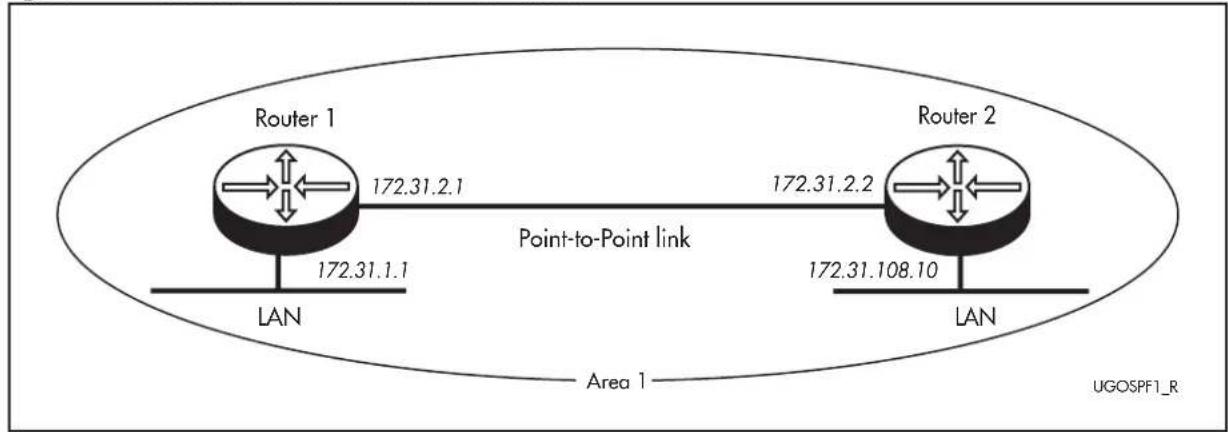
flowchart
graph LR
    A["Router 1"] -->|172.31.2.1| B["Router 2"]
    A -->|172.31.1.1| C["LAN"]
    B -->|172.31.2.2| B
    B -->|172.31.108.10| D["LAN"]
    style A fill:#f9f,stroke:#333
    style B fill:#f9f,stroke:#333
    style C fill:#ccf,stroke:#333
    style D fill:#ccf,stroke:#333

To configure a basic OSPF network follow these steps
The following steps are required:
- Configure the PPP and Ethernet interfaces on router 1.
- Configure router 1 as an OSPF router.
- Configure the PPP and Ethernet interfaces on router 2.
- Configure router 2 as an OSPF router.
1. Configure the PPP and Ethernet interfaces on router 1.
To create IP interfaces to use the PPP and Ethernet interfaces, and assign an OSPF metric to each IP interface, enter the command:
CREATE PPP=0 OVER=SYNO
ENABLE IP
ADD IP INTERFACE=PPP0 IP=172.31.2.1 MASK=255.255.255.0
OSPFMETRIC=1
ADD IP INTERFACE=ETH0 IP=172.31.1.1 MASK=255.255.255.0
OSPFMETRIC=1
2. Configure router 1 as an OSPF router.
To create an OSPF area, assign the IP interfaces to the area, and configure OSPF routing parameters, enter the commands:
ENABLE OSPF
ADD OSPF AREA=0.0.0.1 AUTHENTICATION=PASSWORD
ADD OSPF RANGE=172.31.0.0 AREA=0.0.0.1 MASK=255.255.0.0
ADD OSPF INTERFACE=ETH0 AREA=0.0.0.1 PASSWORD=asecret
ADD OSPF INTERFACE=PPP0 AREA=0.0.0.1 PASSWORD=bsecret
3. Configure the PPP and Ethernet interfaces on router 2.
To create IP interfaces to use the PPP and Ethernet interfaces, and assign an OSPF metric to each IP interface, enter the command:
CREATE PPP=0 OVER=SYN0
ENABLE IP
ADD IP INTERFACE=PPP0 IP=172.31.2.2 MASK=255.255.255.0
OSPFMETRIC=1
ADD IP INTERFACE=ETH0 IP=172.31.108.10 MASK=255.255.255.0 OSPFMETRIC=1
4. Configure router 2 as an OSPF router.
To create an OSPF area, assign the IP interfaces to the area, and configure OSPF routing parameters, enter the command:
ENABLE OSPF
ADD OSPF AREA=0.0.0.1 AUTHENTICATION=PASSWORD
ADD OSPF RANGE=172.31.0.0 AREA=0.0.0.1 MASK=255.255.0.0
ADD OSPF INTERFACE=ETH0 AREA=0.0.0.1 PASSWORD=csecret
ADD OSPF INTERFACE=PPP0 AREA=0.0.0.1 PASSWORD=bsecret
For more information about configuring OSPF, see the Open Shortest Path First (OSPF) chapter in the Software Reference.
Maintenance and Troubleshooting
This Chapter
If you are familiar with networking and router operations, you may be able to diagnose and solve some problems yourself.
This chapter gives tips on how to:
■ start your router (see "How the Router Starts Up" on page 124).
■ avoid problems (see "How to Avoid Problems" on page 125).
■reconfigure your router if you accidentally clear the FLASH memory (see "What to Do if You Clear FLASH Memory Completely" on page 127).
■ troubleshoot a PPP link that disconnects (see "What to Do if the PPP Link Disconnects Regularly" on page 128).
■ reset passwords if they are lost (see "What to Do if Passwords are Lost" on page 128).
■gather information from your router that support personnel need to provide accurate support tailored to your situation (see "Getting the Most Out of Technical Support" on page 128).
■ restart the router at any time with no configuration (see "Resetting Router Defaults" on page 129).
■check whether there is a connection between the router and another routing interface in the network (see "Checking Connections Using PING" on page 129).
■ troubleshoot if no routes exists to the remote router (see "Troubleshooting IP Configurations" on page 130 and "Troubleshooting IPX Configurations" on page 132).
■ troubleshoot problems with DHCP IP addresses if the router is acting as a client or as a server (see "Troubleshooting DHCP IP Addresses" on page 132)
■examine the route that packets pass between two systems running the IP protocol (see "Using Trace Route for IP Traffic" on page 134).
Information gained from the LEDs on the front panel of the router is described in the Hardware Reference.
How the Router Starts Up
The sequence of operations that the router performs when it boots are:
When the router boots, the following sequence of operations is performed:
- Perform startup self tests.
- Perform the install override option.
- Load the FLASH boot release as the INSTALL boot.
- Inspect and check INSTALL information.
- Load the required release as the main boot.
- Start the router.
- Execute the boot script, if one has been configured.
If a terminal is connected to asyn0 , a series of status and progress messages similar to those shown in Figure 23 are displayed during the startup process.
Figure 23: router startup messages.
INFO: Self tests beginning.
INFO: RAM test beginning.
PASS: RAM test, 4096k bytes found.
INFO: BBR tests beginning.
PASS: BBR test, 128k bytes found.
PASS: BBR test. Battery OK.
INFO: Self tests complete
INFO: Downloading router software.
Force EPROM download (Y) ?
INFO: Initial download succeeded
INFO: Executing configuration script <boot.cfg>
INFO: Router startup complete

Manager >
The startup self tests check the basic operation of the router. If your router passes these tests the router should be able to at least proceed far enough to perform the load of the FLASH boot release and to start operating.
The install override option is designed to allow a mandatory router boot from the FLASH boot release. The message:
Force EPROM download (Y)?
is displayed on the terminal connected to asyn0 and the router pauses. If you do not press a key within a few seconds, the startup process will continue and all steps in the sequence are executed. If the [Y], [S] or [Ctrl/D] key on the terminal are pressed immediately after the message is displayed, you can alter the router startup process (Table 15 on page 124).
Table 15: router startup sequence keystrokes.
| Pressing key... Forces the router to... |
| Y Load the FLASH boot release, with no patch, and skip straight to step 6. |
| S Start with the default configuration. Any boot script configuration is ignored. |
| [Ctrl/D] Enter diagnostics mode. |
When you start the router the FLASH boot release is always loaded first. The FLASH boot release contains all the code required to obtain and check the INSTALL information. This first boot is known as the INSTALL boot. The INSTALL information is inspected and the router is setup to perform another load. Even if the actual release required is the FLASH boot release, another load is always performed. At this point, if a patch load is required, it is also performed.
The router startup occurs immediately after the install override option, or after the INSTALL information check. The INSTALL information check performs a full startup of router software and initiates the normal operation of the router.
Finally, if there is a defined boot script, this script is executed.
How to Avoid Problems
If you perform the following procedures you may help reduce the likelihood and impact of some future router events.
Set system territory
Set the system territory to the country or region in which the router is connected to the network. Some protocols are implemented in differently in some countries. To ensure that the router uses variants that will work in the country your router is routing in, enter the command:
SET SYSTEM TERRITORY={AUSTRALIA|CHINA|EUROPE|JAPAN|KOREA|NEWZEALAND|USA}
Backup software files
Store a backup of the current router software. If the router software is accidentally cleared from the router's FLASH memory, you will need to reload the software release and patch files. If your access to the Internet is via the router, then you will need the files on your LAN. You may wish to keep a copy of the current software and patch files on a TFTP server on your network. You can download router software from the website at http://www.alliedtelesyn.co.nz/support/ar400.
Backup configuration script
Store a backup of the latest configuration script, in case the configuration file on the router is accidentally deleted or damaged.
Backup router
If your network has many routers, you may wish to keep a backup router ready to replace any router that malfunctions. When you upgrade the software release or patch on the other routers in the network, upgrade the backup too. Store on it one current config script for each router in your network, so that when it is needed, you need only set the configuration file with which it boots to match the router it replaces.
Configure logging
The logging facility stores log messages for events with a specified severity in a log file. You can change the size of the log file, and the kind of messages recorded. You can configure the router to output log messages in several ways, including to a remote router with a specified IP address, or as an email to a particular email address. The router can also receive log messages from another router. Set the Logging Facility to log and forward the log messages you need to monitor your network (see the Logging Facility chapter in the Software Reference). Inspect the log file from time to time, and if difficulties arise.
Configure Firewall

The firewall facility is enabled with a special feature license. To obtain a special feature license contact an Allied Telesyn authorised distributor or reseller.
Use the Firewall to protect your network from several kinds of unwanted traffic or deliberate attacks (see the Firewall chapter in the Software Reference. A special feature licence is required.
FLASH compaction
If the FLASH memory gets filled beyond a certain level, it will automatically activate FLASH compaction to recover any space that is made available from deleted files. You can also activate FLASH compaction manually if required.

While FLASH is compacting, do not restart the router or use any commands that affect the FLASH file subsystem. Do not restart the router, or create, edit, load, rename or delete any files until a message confirms that FLASH file compaction is completed. Interrupting flash compaction may result in damage to files. Damaged files are likely to prevent the router from operating correctly.
Watch for software updates
From time to time patches may be released to improve the function of your router software, and new software releases make new features available. Watch for patches and new software releases on the website at http://www.alliedtelesyn.co.nz/support/ar400.
What to Do if You Clear FLASH Memory Completely

DO NOT clear the FLASH memory completely. The software release files are stored in FLASH, and clearing it would leave no software to run the router.
If you accidentally do this, you will need to:
1. Boot with default configuration.
Reboot the router from a terminal connected to the asynchronous terminal port (not Telnet). Use the install override to run the default configuration (see "How the Router Starts Up" on page 124).
2. Log in.
Log in to the router using the default password friend for the manager account.
3. Put current software release on server.
Make sure you have the current software release and patch files on a server connected to the router by a switch port or Ethernet port. Current software release and patch files are downloaded from the website at http://www.alliedtelesyn.co.nz/support/ar400.
4. Assign an IP address.
Assign an IP address to the router interface over which the software files are downloaded (see "Assigning an IP Address" on page 15).
5. Load software files onto router.
Load the required software and patch onto the router (see "Loading and Uploading Files" on page 59).
6. Set the install information.
Set the router to use the software installed (see "Upgrading Router Software" on page 63).
7. Reconfigure the router.
If you have a copy of the recent configuration file stored on your network, you can download this onto the router too. Otherwise you will need to re-enter all configuration.

While FLASH is compacting, do not restart the router or use any commands that affect the FLASH file subsystem. Do not restart the router, or create, edit, load, rename or delete any files until a message confirms that FLASH file compaction is completed. Interrupting flash compaction may result in damage to files. Damaged files are likely to prevent the router from operating correctly.
If you accidentally restart the router, or use any commands that affect the FLASH file subsystem, contact your authorised distributor or reseller. You may have to return the router to the factory.
What to Do if the PPP Link Disconnects Regularly
If the device at the other end of the PPP link is not an ATR router or switch but is supplied by another vendor turn LQR (Link Quality Reporting) off on PPP links (LQR=OFF) and instead use LCP Echo Request and Echo Reply messages to determine link quality (ECHO=ON). Enter the command:
SET PPP=ppp-interface ECHO=ON LQR=OFF
What to Do if Passwords are Lost
If a user forgets their password, to reset the password from an account with MANAGER privilege, enter the command:
SET USER=login-name PASSWORD=password
You can reset passwords for accounts with MANAGER privilege with the same command, provided the manager can login to at least one account with MANAGER privilege.
If you require further assistance contact your authorised distributor or reseller.
Getting the Most Out of Technical Support
For online support for your router, see our on-line support page at http://www.alliedtelesyn.co.nz/support/ar400.
If you require further assistance, contact your authorised distributor or reseller. Gather as much of the following information from your router and network as you can. This gives the support personnel as much information as possible to diagnose and solve your problem. They may ask you to send the information to them by email.
Gather this information:
■Your name, organisation and contact details.
■What is the make and model of your router? Enter the command:
SHOW SYSTEM
■Which software release and patch files is your router running? For example, 52-261.rez, 52261-01.paz. Enter the command:
SHOW INSTALL
■ What software configuration is currently running? Enter the command:
SHOW CONF DYN
■ How is the router connected to your network? A diagram showing the physical configuration of the network your router is operating in may be useful.
■To get debugging output, enter the command:
SHOW DEBUG
■ Depending on the problem, the support personnel may also ask you for the output from the following commands (see the Monitoring and Fault Diagnosis section in the Operations chapter of the Software Reference):
SHOW EXCEPTION
SHOW STARTUP
SHOW LOG
SHOW CPU
SHOW BUFFER
Resetting Router Defaults
To restart the router at any time with no configuration, enter the command:
RESTART ROUTER CONFIG=NONE
If boot.cfg has changed, to set it back to the default configuration by saving the default dynamic configuration to the boot.cfg file, enter the command:
CREATE CONFIG=boot.cfg
To set the router to restart with the boot configuration file, enter the command:
SET CONFIG=boot.cfg

DO NOT clear the FLASH memory completely. The software release files are stored in FLASH, and clearing it would leave no software to run the router.
Checking Connections Using PING
If an aspect of the router's configuration dependent on access to a server functions incorrectly, PINGing the server from the router, and the router from the server, is a useful first step in diagnosis.
You can use PING (Packet Internet Groper) to check whether there is a connection between the router and another routing interface in the network. Use the router's extended PING command over IPv4, IPv6, IPX and AppleTalk network protocols. PING sends echo request packets in the chosen format, and displays responses at the terminal. Enter the command:
PING [{[IPADDRESS=]ipadd|[IPXADDRESS=]network:station| [APPLEADDRESS=]network.node}] [LENGTH=number] [NUMBER={number|CONTINUOUS}] [PATTERN=hexnum] [{SIPADDRESS=ipadd|SIPXADDRESS=network:station| SAPPLEADDRESS=network.node}] [SCREENOUTPUT={YES|NO}] [TIMEOUT=number] [TOS=number]
To set PING defaults, enter the command:
SET PING [{[IPADDRESS=]ipadd|[IPXADDRESS=]network:station| [APPLEADDRESS=]network.node}] [LENGTH=number] [NUMBER={number|CONTINUOUS}] [PATTERN=hexnum] [{SIPADDRESS=ipadd|SIPXADDRESS=network:station|SAPPLEADDRESS=network.node}] [SCREENOUTPUT={YES|NO}] [TIMEOUT=number] [TOS=number]
To display the default PING settings and summary information, enter the command:
SHOW PING
The stop a PING that is in progress, enter the command:
STOP PING
If you can PING the end destination, then the physical and layer 2 links are functioning, and any difficulties are in the network or higher layers.
If PING to the end destination fails, PING intermediate network addresses. If you can successfully PING some network addresses, and not others, you can deduce which link in the network is down.

Note that if Network Address Translation (NAT) is configured on the remote router, PINGing devices connected to it may give misleading information.
For more information about using PING, see the Internet Protocol (IP) chapter in the Software Reference.
Troubleshooting IP Configurations
No Route Exists to the Remote Router
1. Wait for RIP update
Wait for at least one minute to ensure that a RIP update has been received (See "Routing Information Protocol (RIP)" on page 119).
2. Try using Telnet to access the remote router.
To Telnet from the local router to the remote router, and from the remote router to the local router, enter the command:
TELNET {ipadd|ipv6add|host}
3. Check PPP link
To check that the PPP link is OPENED for both LCP and IP, enter the command:
SHOW PPP
The display should look like that shown in Figure 24 on page 131. For more information on how to check the PPP link see "Point-to-Point Protocol (PPP)" on page 5-1 in the Point-to-Point Protocol (PPP) chapter in the Software Reference.
Figure 24: Example output from the SHOW PPP command for a basic TCP/IP network.
| Name | Enabled | ifIndex | Over | CP | State |
| ppp0 | YES | 04 | IPCP | OPENED | |
| isdn-roho | LCP | OPENED |
To interpret output from the SHOW PPP command see the Point-to Point (PPP) chapter in the Software Reference.
4. Restart IP
To try restarting the IP routing software (a warm restart), enter the command:
RESET IP
5. Contact your authorised distributor or reseller for assistance
If the route still does not appear, contact your authorised distributor or reseller for assistance.
Telnet Fails
1. If Telnet to router fails
Check that the IP address you used matches the one assigned to the router.
To check that RIP is configured correctly, enter the command:
SHOW IP RIP
To check that the IP Telnet server is enabled on each router, enter the command.
SHOW IP
If the Telnet server is disabled, enable the Telnet server with the command:
ENABLE TELNETSERVER
2. If Telnet to host fails
If Telnet into a host on the remote LAN fails, but works into the remote router, check that the IP address you are using is correct. To check that both routers are gateways, not servers, enter the command:
SHOW IP
The "IP Packet Forwarding" field in the output should be set to "Enabled". Refer to the documentation for the host TCP/IP software for more information about configuring a gateway.
The host's TCP/IP software should be configured to use the Head Office router as its gateway. Refer to the documentation for the host TCP/IP software for more information about configuring a gateway.
3. Contact your authorised distributor or reseller for assistance
If problems persist, contact your authorised distributor or reseller for assistance.
Troubleshooting DHCP IP Addresses
Your router is acting as a DHCP client
If your router is acting as a DHCP client the router should receive its IP address dynamically. If your router is not receiving an IP address, check that the domain name and host name are correct.
Your router is acting as a DHCP server
If your router is not assigning IP addresses to a host, or hosts, on the subnet perform this procedure:
- Reboot the host machine, to force it to re-request IP settings.
- Check the host's TCP/IP settings.
In Microsoft® Windows™ 95/98, click Settings → Control Panel → Network. Select TCP/IP and click Properties. Click Obtain an IP address automatically.
In Microsoft® Windows™ 2000, click Settings → Control Panel → Network and Dial-up Connections → Local Area Connection → Properties. Select Internet connection (TCP/IP) and click Properties. Click Obtain an IP address automatically.
- Check that the DHCP server has a large enough range of addresses. To assign a range, enter the command:
CREATE DHCP RANGE
Troubleshooting IPX Configurations
No Routes are Visible to the Remote Router
1. Check the PPP link
To check that the PPP link is active, enter the command:
SHOW PPP
The display should look like that shown in Figure 25 on page 132. The state of the IPX control protocol (IPXCP) should be "OPENED". If not, then the fault lies with the connection between the two routers, or the PPP configuration at either end of the link.
Figure 25: Example output from the SHOW PPP command for a basic Novell IPX network.
| Name | Enabled | ifIndex | Over | CP | State |
| ppp0 | YES | 04 | isdn-roho | IPXCP | OPENED |
| LCP | OPENED |
To interpret output from the SHOW PPP command see the Point-to-Point (PPP) chapter in the Software Reference.
2. Check IPX circuit configuration
To check that the IPX circuits are correctly configured on each router repeat steps 1 through 3 above, or enter the command:
SHOW IPX CIRCUIT
Check that there are two circuits, and for each circuit check that the circuit is enabled, uses the correct interface and encapsulation (for Ethernet interfaces), the network number is correct and "On demand" is set to "no". If not, then repeat steps 1 through 3.
3. Contact your authorised distributor or reseller for assistance
If you still have no visible routes to the remote router, contact your authorised distributor or reseller for assistance.
Local Workstations Can Not Access Remote Servers
A number of different events can cause this problem. The following list of events gives the most common:
1. Move workstation to server LAN
Check that when the workstation is moved to the same LAN as the file server, it is able to access the server. If not, the fault lies with the configuration of the workstation or file server. Check with your Novell network administrator.
2. Check NET.CFG file
Take care with the workstation NET.CFG file. Always specify the encapsulation (frame) as different LAN card drivers use different default encapsulations.
3. Check for file server on Remote Office router
Does the file server appear in the IPX service table of the Remote Office router? If the server does not appear in the table, its presence is not advertised to the local LAN. To check this, enter the command:
SHOW IPX SERVICE
This should produce a display like that shown in Figure 26 on page 133. The important point is that the file server must appear in the service table on the Remote Office router and there must be a route to the file server's internal network number. If there is, and it still does not work, contact your authorised distributor or reseller for assistance.
Figure 26: Example output from the SHOW IPX SERVICES command for a basic Novell IPX network
| IPX services | ||||
| Name | Age | |||
| Address | Server type | Circuit | Hops | Defined |
| ACCOUNTS | 0 | |||
| 00007500:000000000001:0451 | 0004:Fileserver | 1 (eth0) | 1 | SAP |
| ACCOUNTS | 0 | |||
| 00007500:000000000001:8104 | 0107:RCconsole | 1 (eth1) | 1 | SAP |
| TYPISTS | 0 | |||
| 00000012:0080488018d8:0451 | 0004:FileServer | 1 (ppp0) | 2 | SAP |
To interpret output from the SHOW IPX SEVICES command see the Novell IPX chapter in the Software Reference.
4. Check route tables
To check the route tables on both routers, enter the command:
SHOW IPX ROUTE
Check for the presence of networks on the remote side of the wide area network. If the remote network is missing from the route table on either router, enter the command:
RESET IPX
which resets the IPX routing software and forces the routers to broadcast their routing and service tables.
Using Trace Route for IP Traffic
You can use trace route to discover the route that packets pass between two systems running the IP protocol. Trace route sends an initial UDP packets with the Time To Live (TTL) field in the IP header set starting at 1. The TTL field is increased by one for every subsequent packet sent until the destination is reached. Each hop along the path between two systems responds with a TTL exceeded packet and from this the path is determined. For more information about trace route, see the Internet Protocol (IP) chapter in the Software Reference.
To initiate a trace route, enter the command:
TRACE [[IPADDRESS=]ipadd] [MAXTTL=number] [MINTTL=number]
[NUMBER=number] [PORT=port-number] [SCREENOUTPUT=(YES|NO)]
[SOURCE=ipadd] [TIMEOUT=number] [TOS=number]
Any parameters not specified use the defaults configured with a previous invocation of the command:
SET TRACE [[IPADDRESS=]ipadd] [MAXTTL=number] [MINTTL=number]
[NUMBER=number] [PORT=port-number] [SCREENOUTPUT={YES|NO}]
[SOURCE=ipadd] [TIMEOUT=number] [TOS=number]
As each response packet is received a message is displayed on the terminal device from which the command was entered and the details are recorded. To display the default configuration and summary information, enter the command:
SHOW TRACE
To halt a trace route that is in progress, enter the command:
STOP TRACE
- Contents
- CHAPTER 1 Introduction
- CHAPTER 2 Getting Started with the Command Line Interface (CLI)
- CHAPTER 3 Getting Started with the Graphical User Interface (GUI)
- CHAPTER 4 Operating the router
- CHAPTER 5 Physical and Layer 2 Interfaces
- CHAPTER 6 Routing
- CHAPTER 7 Maintenance and Troubleshooting
- Chapter 1
- Introduction
- Why Read this User Guide?
- Where To Find More Information
- The Documentation Set
- Technical support
- Features of the Router
- Management Features
- Layer 3 and Other Features
- Special Feature Licences
- Warning about FLASH memory
- Getting Started with the Command Line Interface (CLI)
- This Chapter
- Connecting a Terminal or PC
- Terminal Communication Parameters
- Logging In
- Assigning an IP Address
- Setting Routes
- Changing a Password
- Choosing a Password
- Using the Commands
- Aliases
- Getting Command Line Help
- Enabling Special Feature Licences
- Setting System Parameters
- Getting Started with the Graphical User Interface (GUI)
- Accessing the Router via the GUI
- Browser and PC Setup
- Pop-up Windows
- HTTP Proxy Servers
- Establishing a Connection to the Router
- Option 1: Configuring the Router before Installation
- Use this procedure if:
- Select a PC to browse to the router from
- Connect the PC to the router
- Access the router's command line interface
- Enable IP
- Assign the vlan1 interface an IP address in the same subnet as the PC
- Save the configuration and set the router to use it on bootup
- On the PC, bypass the HTTP proxy server, if necessary
- Option 2: Installing the Router into the LAN
- Assign the vlan1 interface an IP address
- If the PC you want to browse from is in a different subnet from the router, give the router a route to the PC
- where:
- If you want to be able to browse to the GUI securely, configure SSL (Secure Sockets Layer)
- Save the configuration and set the router to use it on bootup
- On the PC, bypass the HTTP proxy server, if necessary
- Point your web browser at the LAN interface's IP address
- At the login prompt, enter the user name and password
- Option 3: Connecting to an Installed Router
- Find out the IP address of the router's interface
- Select a PC
- If necessary, bypass the HTTP proxy server
- Browse to the router
- At the login prompt, enter the user name and password
- Secure Access
- To secure your router's HTTP Server with SSL for secure router management via the GUI.
- Create a Security Officer user account
- Login as a Security Officer
- Enable system security
- Create an RSA key pair for this router.
- Set the router's distinguished name.
- Set the UTC offset.
- Create a self-signed certificate for the router.
- Load self-signed router certificate
- Enable SSL on the HTTP server
- Configure an IP interface to run SSL over
- System Status and System Hardware Details
- Using the GUI: Navigation and Features
- The Quick Start Menu (some models only)
- The Configuration Menu
- Using Configuration Pages
- Editable Fields
- Apply Button
- Cancel Button
- Close Button
- The Management Menu
- The Monitoring Menu
- The Diagnostics Menu
- Changing the Password
- Context Sensitive GUI Help
- Saving Configuration Entered with the GUI
- Combining GUI and CLI Configuration
- Configuring Multiple Devices
- Upgrading the GUI
- To upgrade the GUI
- If required, delete the old GUI resource file
- Load the new file onto the router
- Install the new file as the preferred GUI
- Point your web browser at the router's IP address
- Troubleshooting
- Deleting Temporary Files
- Solution
- Traffic Flow and Network Address Translation (NAT)
- Solutions
- Firewall
- Problem Illegitimate traffic is reaching your LAN or DMZ.
- Solutions ■The most likely cause of this problem is an incorrect rule. Check that:
- Problem A device on your LAN or DMZ cannot access the Internet.
- Solutions ■The most likely cause of this problem is an incorrect outgoing rule. Check that:
- IP Addresses and DHCP
- Traffic Logging and Firewall Alert Messages
- Time and NTP
- Loading Software
- Operating the router
- User Accounts and Privileges
- Normal Mode and Security Mode
- Remote Management
- Storing Files in FLASH Memory
- Using Scripts
- Saving the Router's Configuration
- Storing Multiple Scripts
- Loading and Uploading Files
- File Naming Conventions
- Loading Files
- Setting LOADER Defaults
- Example: Load a Patch File Using HTTP
- To load a patch file
- Configure the LOADER.
- Download the patch file.
- Uploading Files From the Router
- Example: Upload a Configuration File Using TFTP
- To upload a log file:
- Upload the configuration file.
- More information
- Upgrading Router Software
- Example: Upgrade to a New Software Release Using TFTP
- Load the new release file onto the router.
- Enter licence information for the release.
- Test the release.
- Make the release the default (permanent) release.
- Example: Upgrade to a new patch file
- To upgrade to a new patch file:
- Load the new patch file onto the router.
- Test the patch.
- Make the patch part of the default (permanent) release.
- Using the Built-in Editor
- Port configuration
- ACC configuration
- GRE Configurations
- RADIUS configuration
- BOOTP Configurations
- For More About Operations and Facilities
- Physical and Layer 2 Interfaces
- Interfaces
- Naming Interfaces
- Type Description
- Physical interfaces
- Ethernet Ports
- Asynchronous Port
- Asynchronous Call Control (ACC)
- ADSL and ATM (models with ADSL port)
- Synchronous Ports (models with PIC bay)
- Switch Ports
- Port Speed and Duplex Mode
- Limiting Switch Traffic (AR410 and AR410S only)
- Packet Storm Protection (AR440S, AR441S, AR450S only)
- Virtual LANs
- Point to Point Protocol (PPP)
- Dynamic PPP Interfaces and PPP Templates
- PPPoE
- Frame Relay (models with PIC bay)
- To configure Frame Relay follow these steps
- Create the Frame Relay interface
- Add static DLCs if required
- Add logical interfaces if required
- Enable routing modules to use the interface
- Integrated Services Digital Network (ISDN) (models with PIC bay)
- BRI Versus PRI
- Configuring the Basic Rate Interface
- Configuring the Primary Rate Interface
- Default Setup
- Testing the BRI or PRI PIC
- Configuring ISDN (models with PIC bay)
- Ordering ISDN in the USA and Canada
- Configuring Basic Rate ISDN
- To configure Basic Rate ISDN follow these steps
- Check BRI hardware configuration
- Select country or territory.
- Set directory numbers and subaddresses (outside USA).
- Set switch type and SPIDs (USA only).
- Create call definitions.
- Create PPP interfaces.
- Configuring Primary Rate ISDN
- To configure Primary Rate ISDN follow these steps
- Select the territory.
- Set directory numbers and subaddresses.
- Create call definitions.
- Create PPP interfaces.
- Configuring ISDN Dial on Demand
- To configure ISDN dial-on-demand follow these steps
- Configure BRI or PRI ISDN.
- Create PPP interfaces.
- Configuring ISDN Bandwidth on Demand
- To configure an ISDN connection for bandwidth on demand follow these steps
- Create a second ISDN call.
- Create PPP interfaces.
- Installing Port Interface Cards (PICs) (models with PIC bay)
- Connecting to a Leased Line Circuit (models with PIC bay)
- To connect your router with an AT-AR023 SYN PIC installed to a synchronous leased line circuit, follow these steps
- Check IPX circuit configuration
- Contact your authorised distributor or reseller for assistance
- Local Workstations Can Not Access Remote Servers
- Move workstation to server LAN
- Check NET.CFG file
- Check for file server on Remote Office router
- Check route tables
- Using Trace Route for IP Traffic
- Configuring an IP Network
- Before You Start
- Configuring IP
- To configure IP follow these steps
- Configure the PPP Link
- Create VLANs and add untagged ports
- Configure IP Routing
- Test the configuration.
- Save the configuration
- Configuring IP Multicasting
- Configuring IGMP
- Multicasting using DVMRP
- To configure multicast routing using DVMRP follow these steps
- Configure multicast routing using DVMRP on Router A.
- Set the system name.
- Configure ISDN.
- Configure PPP.
- Configure IP.
- Configure IGMP.
- Configure DVMRP.
- Configure multicast routing using DVMRP on Router B.
- Configure PPP.
- Configure IP.
- Configure IGMP.
- Configure DVMRP
- Configure multicast routing using DVMRP on Router C.
- Configure Frame Relay.
- Configure ISDN.
- Configure PPP.
- Configure IP.
- Configure IGMP.
- Configure DVMRP.
- Configure multicast routing using DVMRP on Router D.
- Configure DVMRP.
- Confirm multicasting.
- Test multicasting.
- Check the configuration.
- Configuring Dynamic Host Configuration Protocol (DHCP)
- Configuring a Novell IPX Network
- Configuring IPX
- To configure IPX follow these steps
- Configure IPX Routing
- Test the Configuration
- Save the Configuration
- To add an IPX circuit over a VLAN
- Define the IPX interface name
- Show the configuration
- Configuring IPX Dial-on-Demand
- To configure IPX dial-on-demand follow these steps
- Clear previous IPX configuration
- Enable IPX
- Define IPX circuits
- Save configuration
- To configure RIP and SAP filters, follow these steps on the Head Office router only:
- Create RIP filter
- Create SAP filter
- Associate RIP and SAP filters with IPX circuit
- AppleTalk
- Routing Information Protocol (RIP)
- Resource Reservation Protocol (RSVP)
- OSPF
- Configuring a Basic OSPF Network
- To configure a basic OSPF network follow these steps
- Configure the PPP and Ethernet interfaces on router 1.
- Configure router 1 as an OSPF router.
- Configure the PPP and Ethernet interfaces on router 2.
- Configure router 2 as an OSPF router.
- Maintenance and Troubleshooting
- How the Router Starts Up
- How to Avoid Problems
- Set system territory
- Backup software files
- Backup configuration script
- Backup router
- Configure logging
- Configure Firewall
- FLASH compaction
- Watch for software updates
- What to Do if You Clear FLASH Memory Completely
- If you accidentally do this, you will need to:
- Boot with default configuration.
- Log in.
- Put current software release on server.
- Assign an IP address.
- Load software files onto router.
- Set the install information.
- Reconfigure the router.
- What to Do if the PPP Link Disconnects Regularly
- What to Do if Passwords are Lost
- Getting the Most Out of Technical Support
- Gather this information:
- Resetting Router Defaults
- Checking Connections Using PING
- Troubleshooting IP Configurations
- No Route Exists to the Remote Router
- Wait for RIP update
- Try using Telnet to access the remote router.
- Check PPP link
- Restart IP
- Contact your authorised distributor or reseller for assistance
- Telnet Fails
- If Telnet to router fails
- If Telnet to host fails
- Contact your authorised distributor or reseller for assistance
- Troubleshooting DHCP IP Addresses
- Your router is acting as a DHCP client
- Your router is acting as a DHCP server
- Troubleshooting IPX Configurations
- No Routes are Visible to the Remote Router
- Check the PPP link
- Check IPX circuit configuration
Brand : Allied Telesis
Model : AR410
Category : Router