
Green - SSD Drive WESTERN DIGITAL - Free user manual and instructions
Find the device manual for free Green WESTERN DIGITAL in PDF.


| Product Type | Internal Solid State Drive (SSD) |
| Brand | Western Digital |
| Model | Green |
| Form Factor | 2.5-inch SATA |
| Interface | SATA III (6 Gb/s) |
| Interface Speed | SSD Capability: 6 Gb/s; Connection: up to 6 Gb/s |
| Capacity | Various capacities available (e.g., 240GB, 480GB, 1TB) |
| Management Software | Western Digital SSD Dashboard |
| Supported Operating Systems | Windows 7, 8.1, 10 (32/64-bit) |
| Supported Languages | 17 languages including English, French, German, etc. |
| Drive Health Monitoring | S.M.A.R.T. based; Life Remaining percentage; Temperature (color-coded) |
| TRIM Support | Yes, can be scheduled or run manually |
| Firmware Update | Via software, using downloaded file or bootable USB |
| Erase Functions | Secure Erase and Sanitize (permanently destroys data) |
| Diagnostic Tests | Short and Extended S.M.A.R.T. tests |
| Bootable USB Creation | For firmware update and erase operations |
| System Report | Generate CSV and MSINFO files for support |
| Security | Supports security protocols (e.g., TCG Opal 2.0) if drive compatible |
| Performance Monitoring | Real-time transfer speed (MB/s) and IOPS chart |
| Online Support | Access to support website, knowledge base, community forum |
Frequently Asked Questions - Green WESTERN DIGITAL
User questions about Green WESTERN DIGITAL
0 question about this device. Answer the ones you know or ask your own.
Ask a new question about this device
Download the instructions for your SSD Drive in PDF format for free! Find your manual Green - WESTERN DIGITAL and take your electronic device back in hand. On this page are published all the documents necessary for the use of your device. Green by WESTERN DIGITAL.
USER MANUAL Green WESTERN DIGITAL
Western Digital SSD Dashboard™
SSD Dashboard
User Manual
Western Digital ^® SSD Dashboard
Western Digital.
Accessing Online Support
Visit our product support website at http://support.wdc.com and choose from these topics:
■ Downloads — Download software and updates for your Western Digital product
■ Registration — Register your Western Digital product to get the latest updates and special offers at http://register.wdc.com
■ Warranty & RMA Services — Get warranty, product replacement (RMA), RMA status, and data recovery information
■ Knowledge Base — Search by keyword, phrase, or Answer ID
■ Installation — Get online installation help for your Western Digital product or software
■ Western Digital Community — Share your thoughts and connect with other Western Digital users at http://community.wdc.com
Table of Contents
Accessing Online Support....ii
1 Introduction ....1
Minimum System Requirements....1
Supported Operating Systems....1
Supported Languages....1
Installation....2
Usage 3
WD Black Gaming SSD....3
Gaming Mode....4
2 Status....5
Status Section 5
Capacity....6
Volumes....6
Life Remaining....6
Temperature....6
Interface Speed....6
3 Performance....8
Performance Chart....8
Transfer Speed MB/s 8
Transfer IOPS....8
TRIM....9
4 Tools....10
Firmware Update....10
Check for Updates....12
Update Using Bootable USB Drive....13
Update Using File on My Computer....14
Erase Drive—Secure Erase....14
Delete User Data with Secure Erase.... 15
Create a Bootable USB Drive for Secure Erase....15
Sanitize....16
Delete User Data with Sanitize....16
Create a Bootable USB Drive with Sanitize.... 17
Erase Drive (WD Black)....18
Bootable USB Drive for Erase Drive (WD Black).... 19
S.M.A.R.T....20
Diagnostic Short Test....21
Diagnostic Extended Test....21
Drive Details....22
System Details....22
5 Settings....24
Application Update....24
Starting Western Digital SSD Dashboard with Windows Startup....25
Select Language.... 25
6 Help....27
Online Support....27
Generate Report....27
About Western Digital SSD Dashboard.... 28
1
Introduction
This chapter contains the following sections.
■ Minimum System Requirements
■ Usage
■ Supported Operating Systems
■ WD Black Gaming SSD
■ Supported Languages
■ Gaming Mode
■ Installation
Minimum System Requirements
The Western Digital SSD Dashboard is a Microsoft Windows application. Administrative rights are required for installation and execution of the application.
Supported Operating Systems
■ Windows 7 (32/64 bit; requires a KB hotfix to support NVMe, see https://support.microsoft.com/en-us/help/2990941/update-to-add-native-driver-support-in-nvm-express-in-windows-7-and-wi)
■ Windows 8.1 (32/64 bit)
■ Windows 10 (32/64 bit)
Supported Languages
Seventeen languages are supported:
■ Czech
■ Danish
■ Dutch
■ English
■ French
■ German
■ Italian
■ Japanese
■ Korean
■ Polish
■ Portuguese
■ Russian
■ Simplified Chinese
■ Spanish
■ Swedish
■ Traditional Chinese
■ Turkish
Installation
You can download the current version of the Western Digital SSD Dashboard software from http://support.wdc.com.
After the file has been downloaded, follow these steps to install the application.
- Double-click on the WesternDigitalSSDDashboardSetup.exe file icon to launch the installation.
Note: To cancel the installation, click on the X in the upper-right corner of the dialog box.
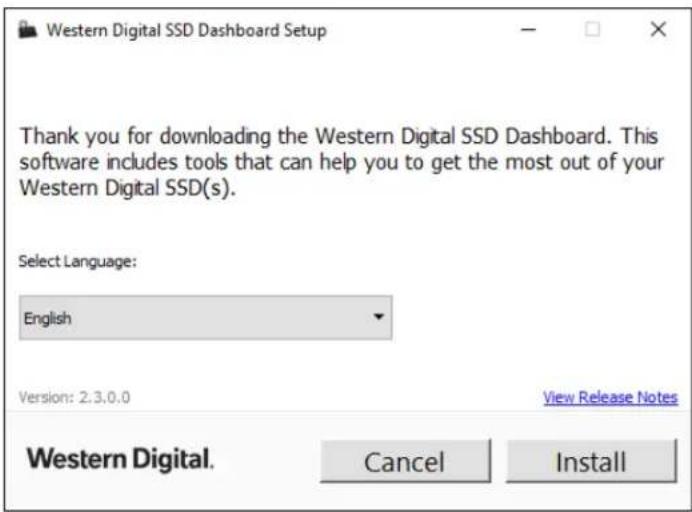
- Select your language and click Install to proceed with the installation.
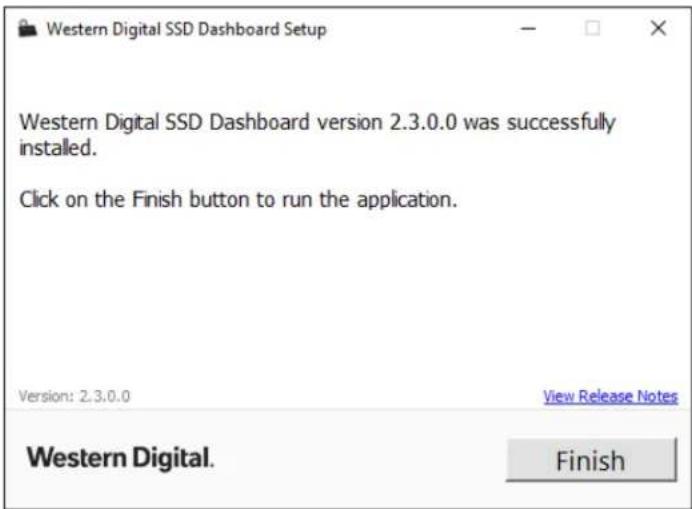
When the installation has completed successfully, click on the Finish button. This will automatically launch the Western Digital SSD Dashboard and load the Status section.
Usage
Upon launching the Western Digital SSD Dashboard, the software automatically scans your computer for Western Digital SSDs, including WD and SanDisk products.
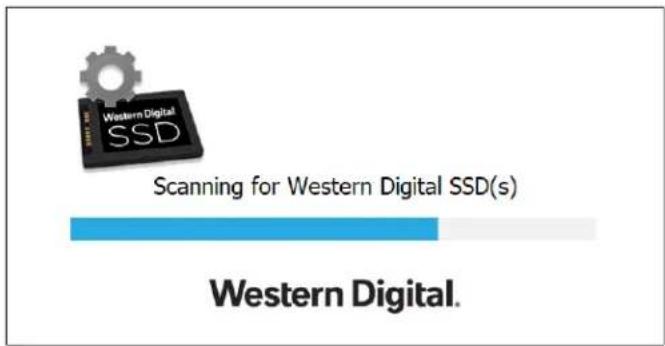
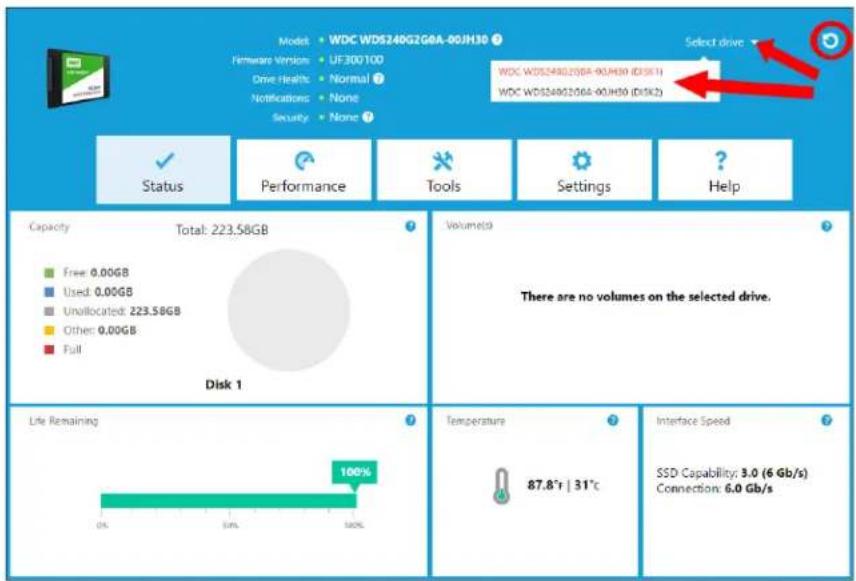
If a Western Digital SSD is connected to the system after Dashboard is launched, the Dashboard will automatically detect the drive. It will add the drive as the current model if this is the only Western Digital drive in the system, or add it to the list of drives in the Select Drive drop-down. If for some reason you do not see the drive, click the Refresh icon in the upper right corner of the screen to rescan the system for Western Digital SSDs.
When all SSD drives have been detected, you can select a specific drive by clicking on the Select drive drop-down menu.
WD Black Gaming SSD
The Western Digital SSD Dashboard automatically changes its appearance (often called a "skin") when a WD Black Gaming SSD is selected. This enhanced, product-specific skin includes gaming-related features, including Gaming Mode.
![Model: WD_Black SN758 NVMe SSD Gaming Mode: Off On Drive Health: Normal Fireware Version: 10200WD Notifications: None Security: Not Activated WD_BLACK STATUS PERFORMANCE TODLS SETTINGS HELP Capacity Total: 931.51GB Free: 711.95GB Used: 24.95GB Unallocated: 195.32GB Other: 8.88GB Full Disk 3 Volume[s] WDBlack1 [+] WDBlack2 [+] WDBlack3 Life Remaining 100% Temperature 105.8°F 41°C Interface Speed SSD Capability: PCIe 3.8 x4 Connection: PCIe 2.8 x4](/content/2026/05/921940/images/9041d831579acce99c7196533a74f3e2ba342700753d860f2a5cdd2517a462ed.jpg)
Gaming Mode
Gaming Mode is a feature exclusive to the SN750 model of WD Black SSD and beyond.
Turning Gaming Mode on will disable low power mode and keep the SSD running at peak levels for longer sustained execution when you want non-stop, consistent high performance.
A system restart is required for the SSD to take effect after changing mode.
2
Status
This chapter contains the following sections.
■ Status Section
■ Capacity
■ Volumes
■ Life Remaining
■ Temperature
■ Interface Speed
Status Section
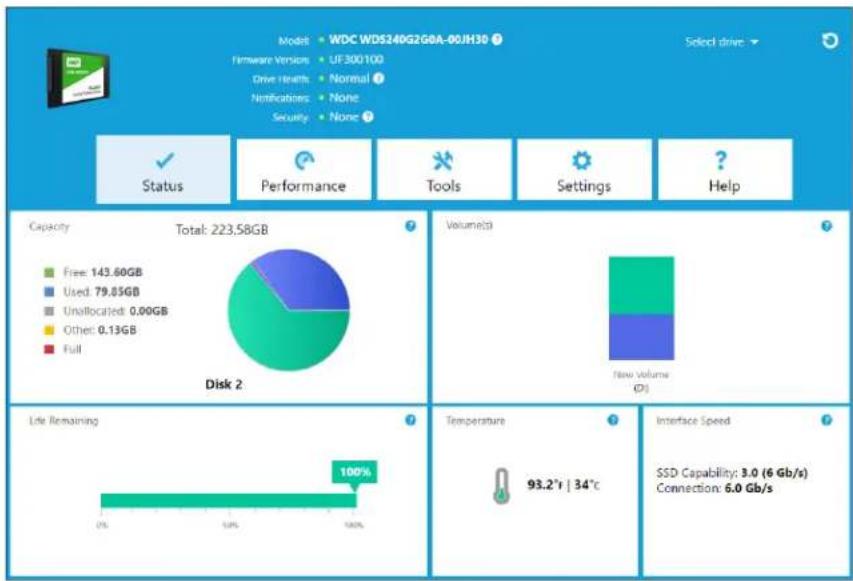
The Status section displays the overall state and health of the selected drive.
Note: To select an SSD drive, click the Select drive drop-down menu.
pie
| Category | Value | |---|---| | Free | 143.60GB | | Used | 79.85GB | | Unallocated | 0.00GB | | Other | 0.13GB | | Full | | | Total: 223.58GB Disk 2 Volume/tp New Volume (Ω) Life Remaining Temperature 93.2°r | 34°C Interface Speed SSD Capability: 3.0 (6 Gb/s) Connection: 6.0 Gb/sThe following information is listed at the top of the Status screen:
■ Model - The product model name of the selected Western Digital SSD.
■ Firmware Version - The version number of the firmware installed on the selected Western Digital SSD.
■ Drive Health - Drive Health summarizes the current condition of the selected SSD based on Self-Monitoring, Analysis and Reporting Technology (S.M.A.R.T.) attributes.
Normal: The drive is in good condition. Poor: The number of spare blocks has reached the minimum threshold or the drive is overheating. In the case of low spare-block count, replace this drive with a new Western Digital SSD.
- Notifications - Notifications, such as software or firmware updates available or S.M.A.R.T. attribute warnings, will be displayed in this area.
■ Security - If the selected drive supports security, this area will be visible.
- "Not Activated" displays if the security protocol is not active.
If the security protocol is active, the name of the active security protocol displays, for example, "TCG Opal 2.0."
Capacity
As used for storage capacity on our packaging and device label, one gigabyte (GB) = one billion bytes and one terabyte (TB) = one trillion bytes. On the Western Digital SSD Dashboard and within Windows folders, total accessible capacity varies depending on operating environment and the capacity displayed is based on the Windows operating system's calculation method for total-reported capacity.
■ Green - Free space
■ Blue - Used space
■ Gray - Unallocated space
■ Yellow - Other
■ Red - Full
Volumes
The chart displays any drive volumes recognized by Windows.
■ Green - Free space
■ Blue - Used space
■ Red - No free space
Life Remaining
The Life Remaining percentage represents the remaining writes the selected drive can perform in its lifetime.
Note: If this feature is not supported by the drive, a "Not Supported" message will be displayed.
Temperature
The temperature reported by the SSD is updated every 30 seconds. The thermometer graphic displays one of two colors, as follows.
■ Green - Normal operation
■ Yellow - The SSD is currently overheating
Interface Speed
■ SSD Capability - The fastest speed supported by the drive.
■ Connection - The port connecting the SSD to the system.
Note: For SATA SSD, the connection speed is the actual speed negotiated with the system. If the connection speed is lower than the SSD Capability
speed, the following message appears in red: For best performance, connect your SSD to a 6.0 Gb/s-capable port.
Performance
This chapter contains the following sections.
■ Performance Chart
■ Transfer Speed MB/s
■ Transfer IOPS
■ TRIM
Performance Chart
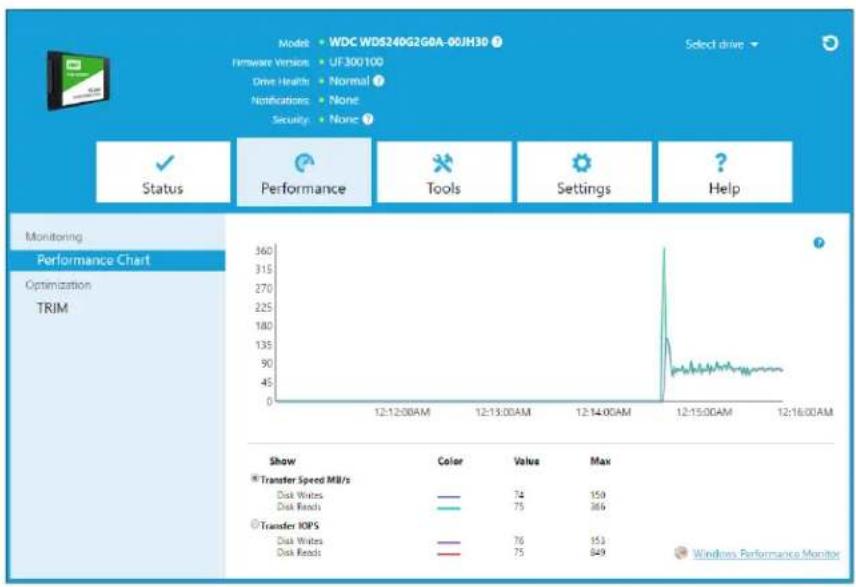
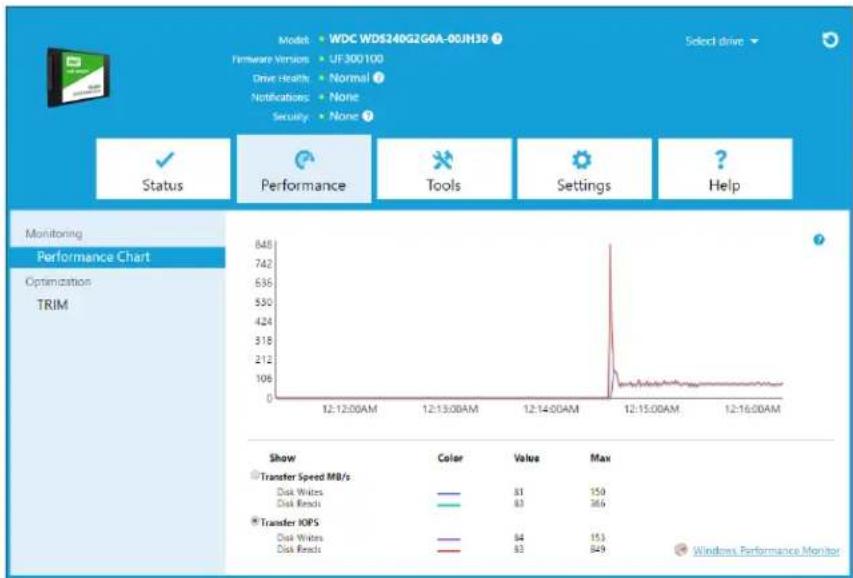
The Performance chart provides two different real time performance metrics: transfer speed MB/s (megabytes per second) and transfer IOPS (I/O operation count per second).
The chart scrolls from right to left and shows moving, 5-minute time line increments on the horizontal axis. The vertical axis of the chart will show either Transfer Speed MB/s or Transfer IOPS.
Transfer Speed MB/s
The SSD MB/s write and read speeds are shown in the chart with blue and green indicators, respectively.
line
| Metric | Value | | :--- | :--- | | Transfer Speed MI/s | 74 | | Disk Writes | 75 | | Disk Reads | 366 | | Transfer IOPS | 76 | | Disk Writes | 153 | | Disk Reads | 849 | | Performance | Tools | | Settings | Settings | | Help | ? | | Select drive | | Status | | Monitoring | | Performance Chart | | Optimization | | TRIM | | Show | Color | Value | Max | | (Data not extractable as discrete values; visual data is only a single vertical spike) | | | |Transfer IOPS
The SSD I/O write and read speeds are shown in the chart with purple and red indicators, respectively.
line
| Time | Value | |------------|-------| | 12:12:00AM | 81 | | 12:13:00AM | 83 | | 12:14:00AM | 84 | | 12:15:00AM | 83 | | 12:16:00AM | 849 |TRIM
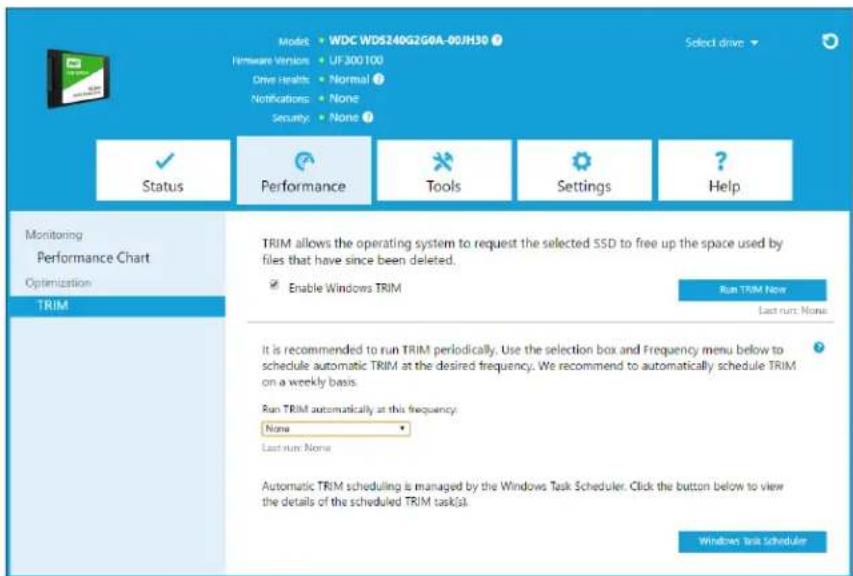
(This feature will be displayed if the operating system supports it.) The TRIM function frees up space on the SSD that was used by files that have been deleted.
Note: Western Digital recommends that TRIM be run on a weekly basis.
- Click the Enable Windows TRIM checkbox to automatically run TRIM.
■ Select Weekly, for the frequency, if available.
■ Click Run TRIM Now to manually run TRIM.
4
Tools
Firmware Update
Check for Updates
Update Using File on My Computer
Erase Drive—Secure Erase
Delete User Data with Secure Erase
Create a Bootable USB Drive for Secure Erase
Sanitize
Delete User Data with Sanitize
Create a Bootable USB Drive with Sanitize
Erase Drive (WD Black)
Bootable USB Drive for Erase Drive (WD Black)
S.M.A.R.T.
Diagnostic Short Test
Diagnostic Extended Test
Drive Details
System Details
Firmware Update
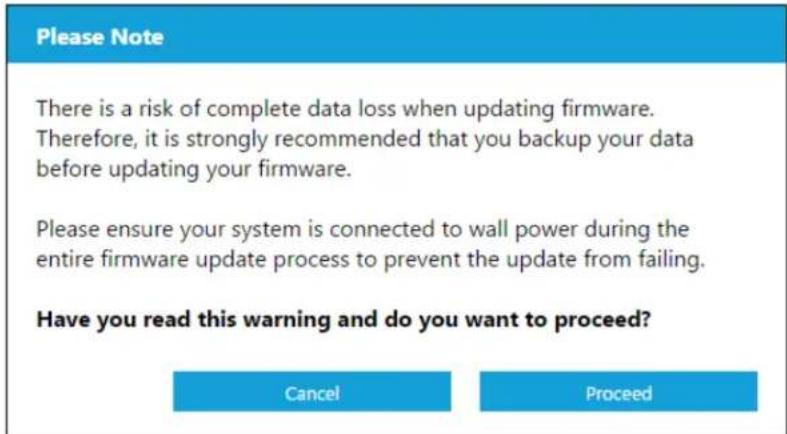
Note: To avoid data loss, it is strongly recommended that you backup your data before updating the firmware.
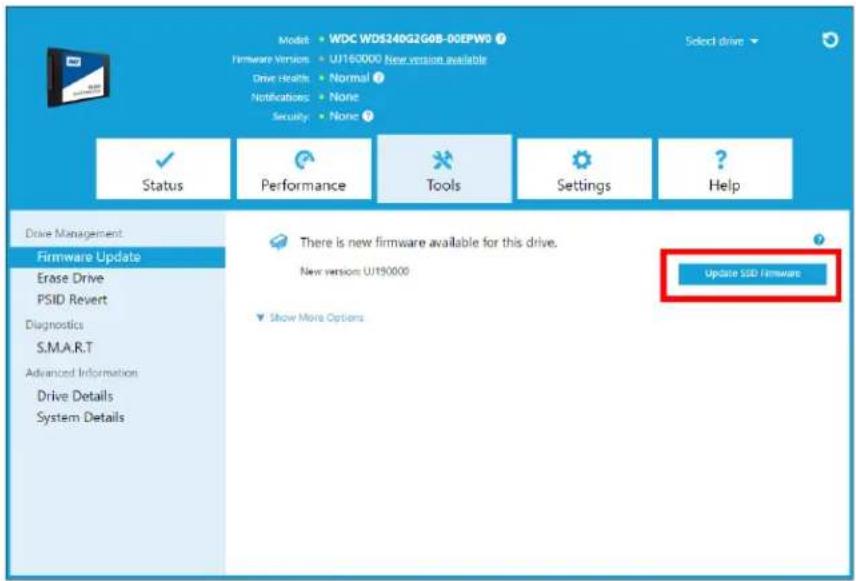
Click Update SSD Firmware to initiate a firmware update, or click on the Show More Options drop-down menu to choose from additional firmware update methods.
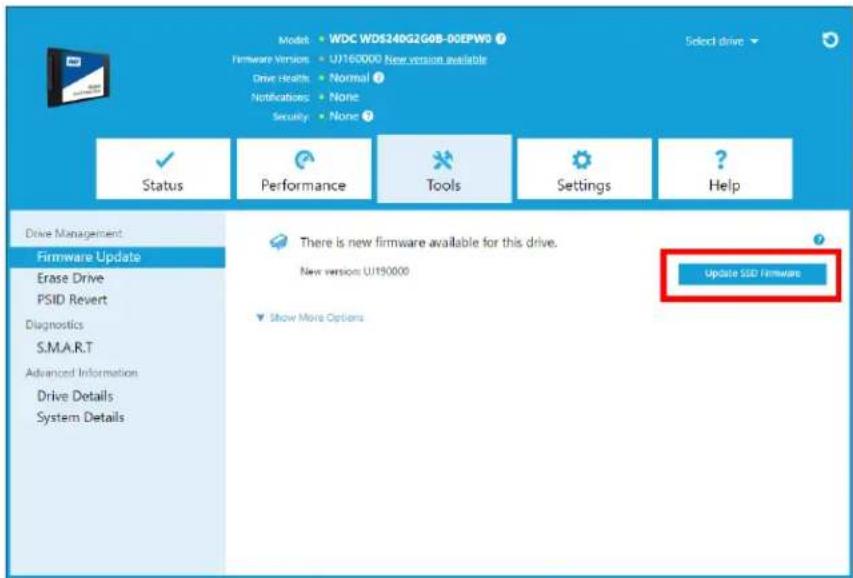
When you click the Update SSD Firmware button, a confirmation dialog box appears.
After the firmware has been downloaded to the SSD, a full-system shutdown is required to complete the firmware update process for SATA SSDs. This is typically done by shutting the computer down, and then turning it back on.
A dialog box appears that provides the option to shut the computer down now, or later.
Please Note
The firmware has successfully been downloaded to the drive. The new firmware will take affect once the power to the drive has been turned off and then turned on again. A simple way to do this is to do a Windows System Shutdown and then turn it back on.
Important: The Firmware update will not take affect on a system restart. A full system shutdown is required.
Shutdown Later
Shutdown Now
Check for Updates
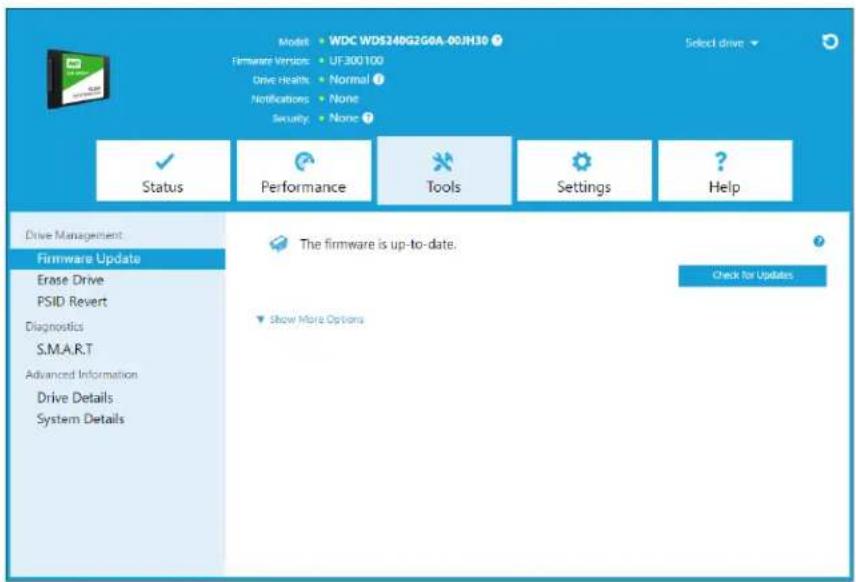
Click Check for Updates to manually check if a firmware update is available for the selected drive.
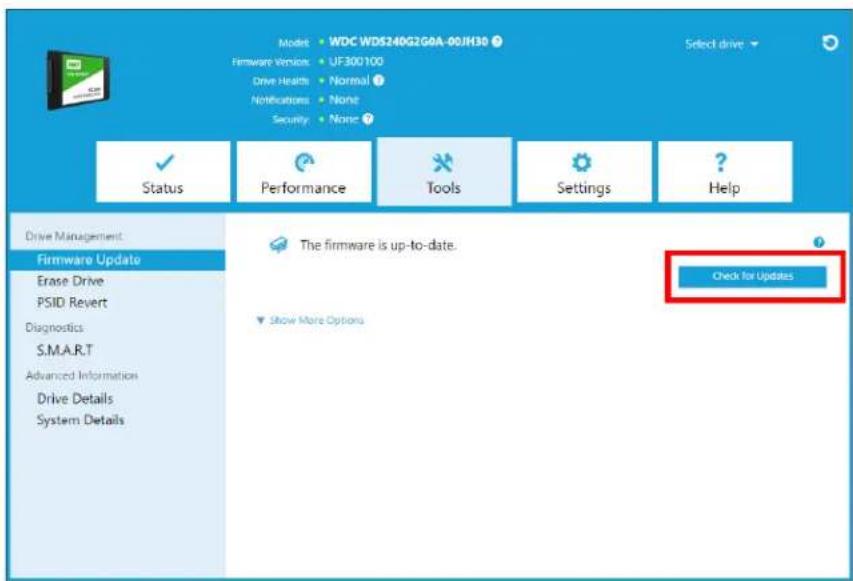
If a firmware update is found, the status message will change to "There is new firmware available for this drive," and the update options will be displayed.
Update Using Bootable USB Drive
Note: The USB must be formatted in order for the Dashboard to recognize it. During USB creation, it will automatically be re-formatted to FAT32. All data will be permanently erased from the USB device.
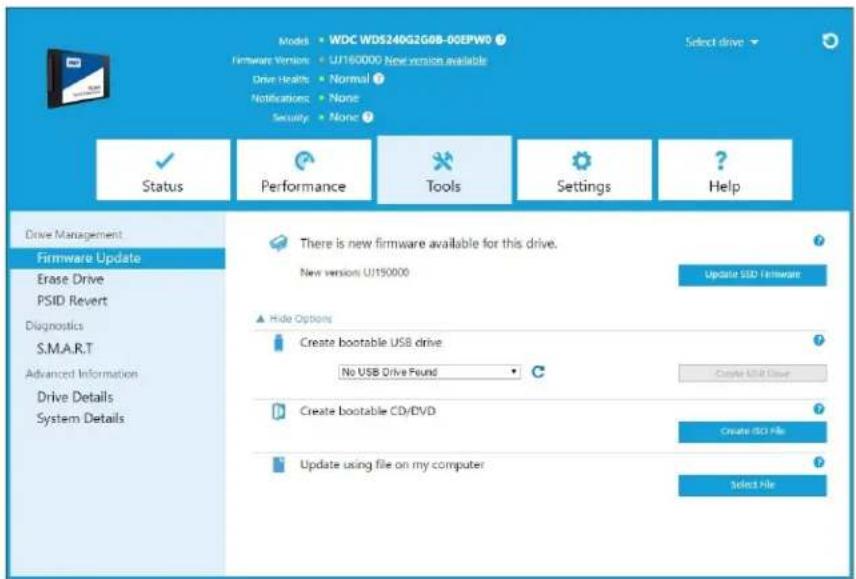
- Insert a formatted USB drive. Click the refresh icon next to the "No USB Drive Found" drop-down.
- Before proceeding, backup any existing data on the USB drive.
- Click the drop-down list to select the USB drive.
Note: If the USB drive is not listed, click the Refresh icon next to the drop-down list to scan for the USB drive.
- Click Create USB Drive.
Update Using File on My Computer
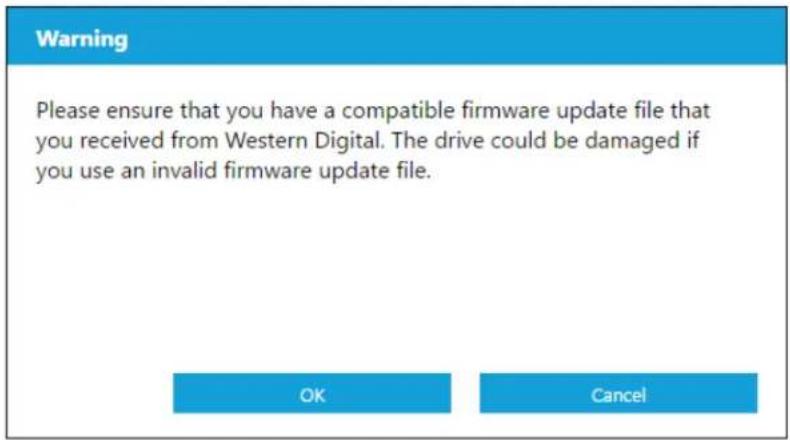
Note: Only use compatible firmware update files for this process.
If you have already downloaded the specific firmware file that should be used for the update, click Select File.
A confirmation dialog box appears.
Erase Drive—Secure Erase
Secure Erase permanently destroys all user data on the selected SSD.
Note: Secure Erase deletes the mapping table on the selected SSD, but it does not erase all blocks that have been written to. This makes Secure Erase a faster "erase" option than the Sanitize function (also see Sanitize).
Secure Erase can only be performed on an SSD that is not the boot drive. However, if the SSD is the boot drive, the Secure Erase function can be performed from a formatted USB. See Create a Bootable USB Drive for Secure Erase.
Delete User Data with Secure Erase
Note: Ensure that the correct SSD is selected on a system with more than one SSD. The Secure Erase function permanently destroys all user data on the selected SSD.
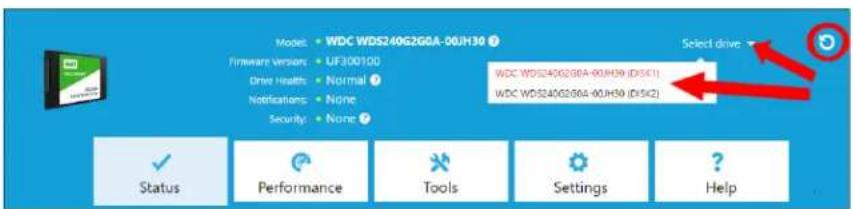
- At the top of the Dashboard, click the Select drive drop-down menu to select the SSD on which all user data will be permanently deleted.
Note: If the SSD to be deleted is not listed, click the Refresh icon next to the Select drive drop-down menu to scan for the SSD.
The name of the selected SSD appears next to Model.
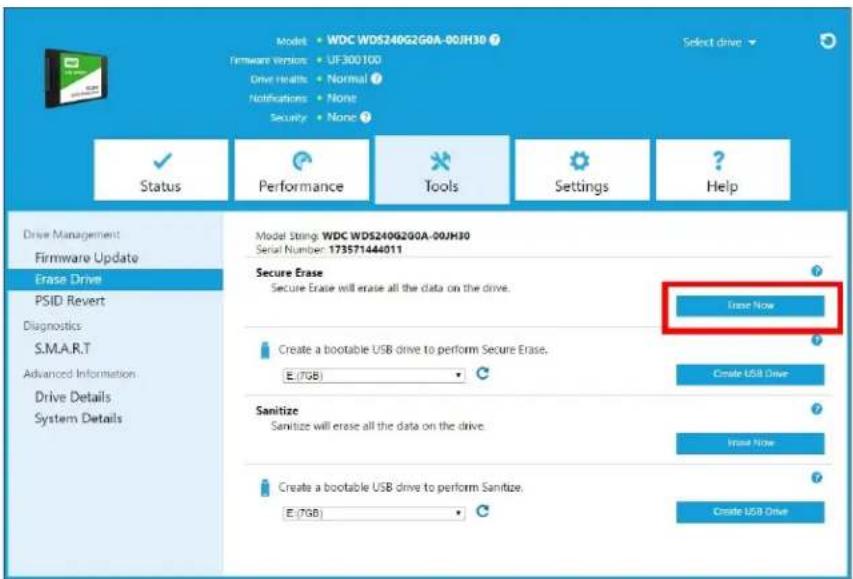
- Click Erase Now next to Secure Erase to delete all user data and leave the drive in an unformatted state.
Create a Bootable USB Drive for Secure Erase
Note: The USB drive must be formatted as a FAT or FAT32 file system.
-
Insert a formatted USB drive.
-
Before proceeding, backup any existing data on the USB drive.
-
Click the drop-down list to select the USB drive.
Note: If the USB drive is not listed, click the Refresh icon next to the drop-down list to scan for the USB drive.
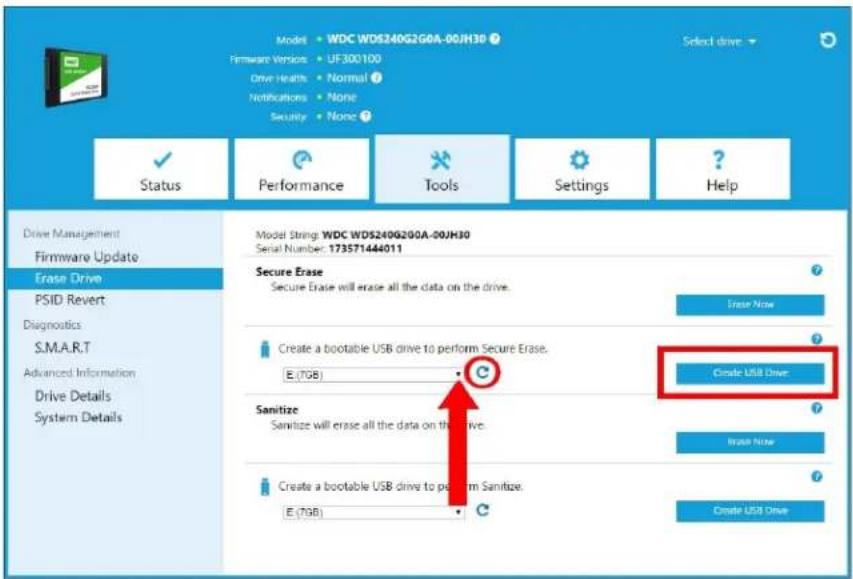
- Click Create USB Drive.
Sanitize
Sanitize permanently destroys all user data on the SSD.
Note: Sanitize deletes the mapping table and erases all blocks that have been written to on the selected SSD. This makes Sanitize a slower "erase" option than the Secure Erase function (also see Secure Erase).
Sanitize can only be performed on an SSD that is not the boot drive. However, if the SSD is the boot drive, the Sanitize function can be performed from a formatted USB. See Create a Bootable USB Drive for Secure Erase.
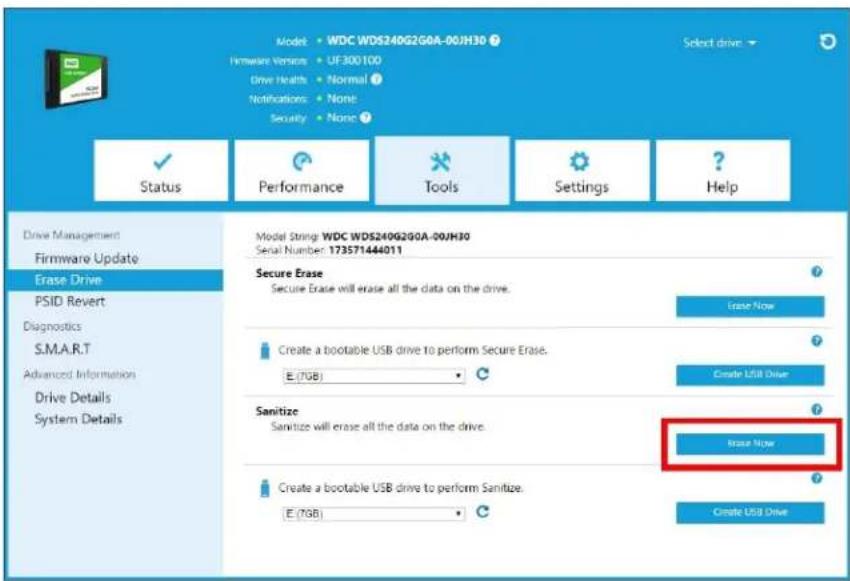
Delete User Data with Sanitize
Note: Ensure that the correct SSD is selected on a system with more than one SSD. The Sanitize function permanently destroys all user data on the selected SSD.
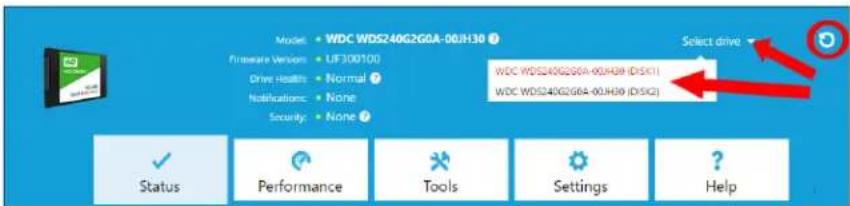
- At the top of the Dashboard, click the Select drive drop-down menu to select the SSD on which all user data will be permanently deleted.
Note: If the SSD to be deleted is not listed, click the Refresh icon next to the Select drive drop-down menu to scan for the SSD.
The name of the selected SSD appears next to Model.
- Click Erase Now next to Sanitize to delete all user data and leave the drive in an unformatted state.
Create a Bootable USB Drive with Sanitize
- Insert a formatted USB drive.
- Before proceeding, backup any existing data on the USB drive.
- Click the drop-down list to select the USB drive.
Note: If the USB drive is not listed, click the Refresh icon next to the drop-down list to scan for the USB drive.
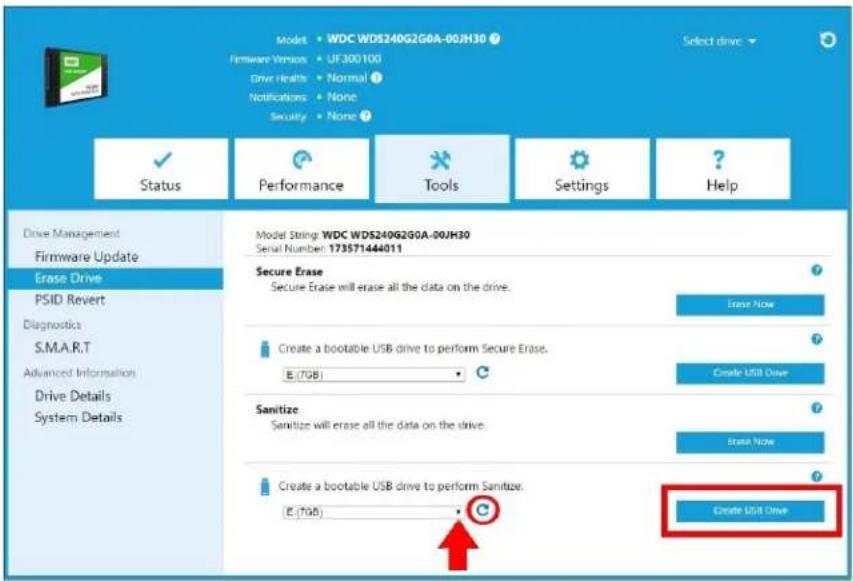
- Click Create USB Drive.
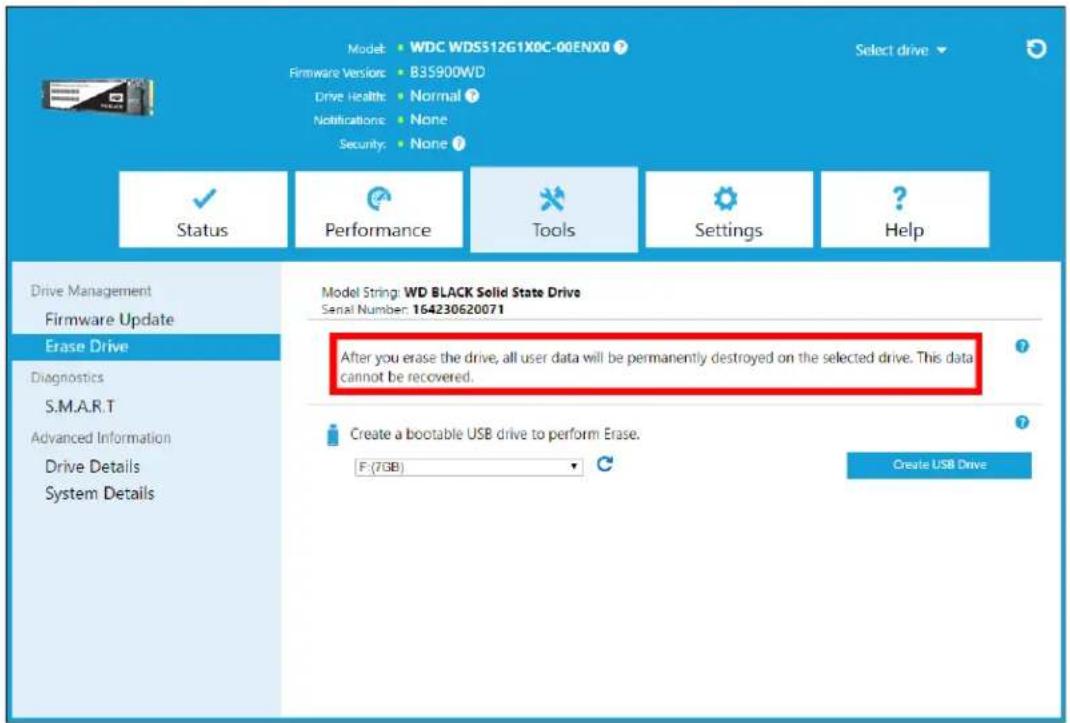
Erase Drive (WD Black)
Erase Drive permanently destroys all user data on the selected SSD. This function currently only supports WD Black PCIe SSD, and it will not be visible unless a WD Black PCIe SSD is connected and detected by the Western Digital SSD Dashboard software.
Note: Erase Drive deletes the mapping table on the selected SSD, but it does not erase all blocks that have been written to.
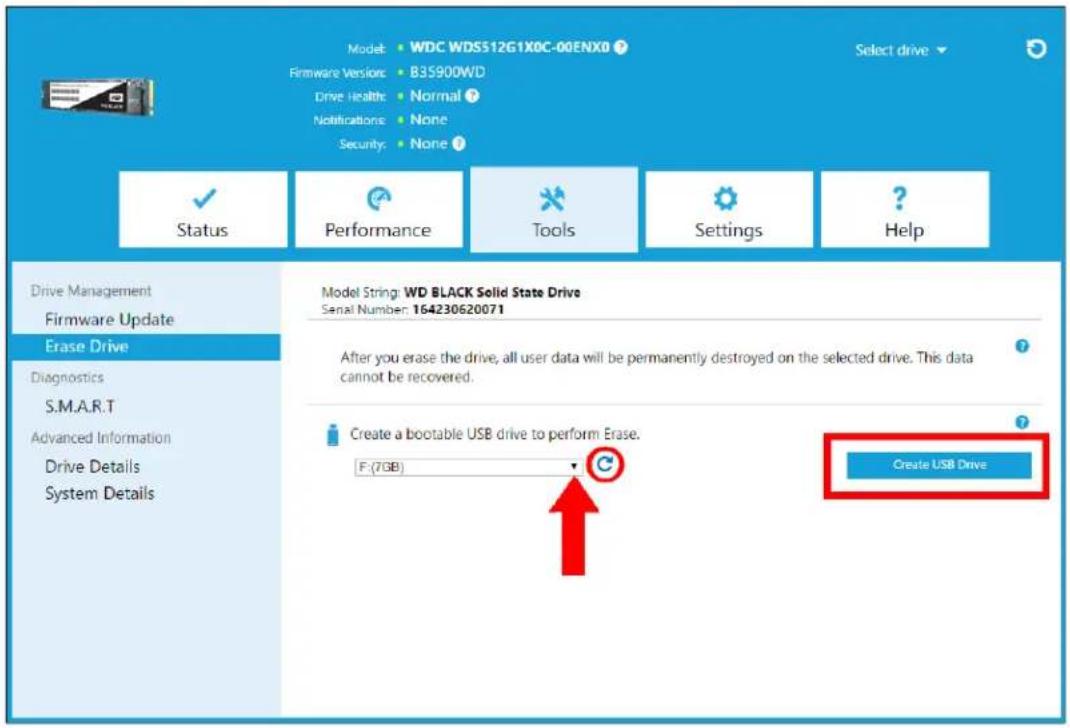
Bootable USB Drive for Erase Drive (WD Black)
Note: The USB drive will be formatted as a FAT32 system.
- Insert a formatted USB drive.
- Before proceeding, backup any existing data on the USB drive.
- Click the drop-down list to select the USB drive. Note: If the USB drive is not listed, click the Refresh icon next to the drop-down list to scan for the USB drive.
- Click Create USB Drive.
S.M.A.R.T.
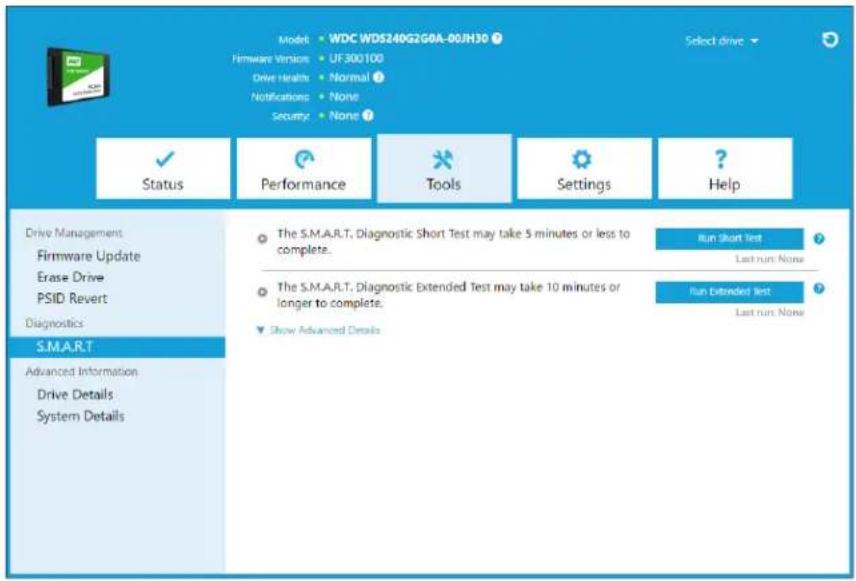
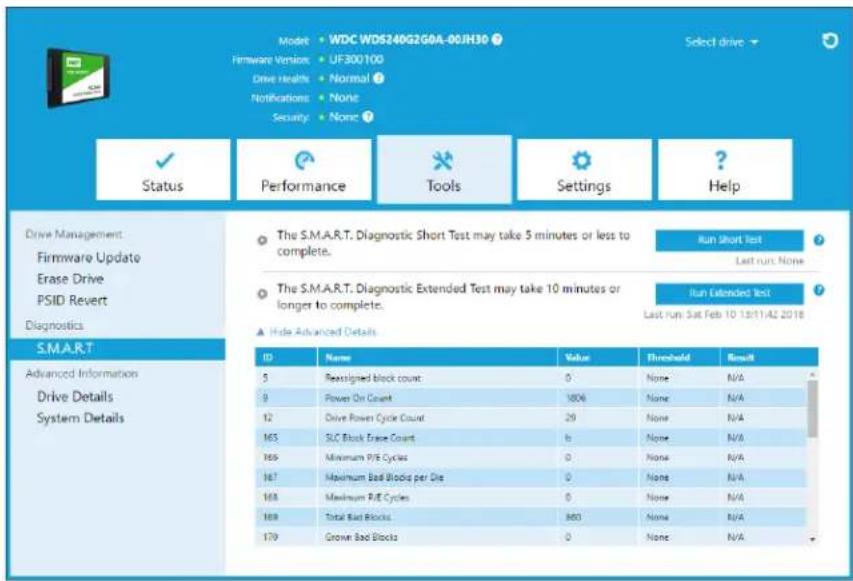
S.M.A.R.T. (Self-Monitoring, Analysis and Reporting Technology) is an industry-standard drive monitoring system. The Western Digital SSD Dashboard application automatically obtains S.M.A.R.T information from the drive upon drive selection.
Diagnostic Short Test
The S.M.A.R.T. Diagnostic Short Test is a quick drive health test as defined by the S.M.A.R.T. specification.
Note: For Western Digital-branded NVMe SSD in systems running certain iRST driver versions, S.M.A.R.T. Diagnostic Short and Extended Tests are not supported due to driver limitations.
Diagnostic Extended Test
The S.M.A.R.T. Diagnostic Extended Test is an extended drive health test as defined by the S.M.A.R.T. specification. The Western Digital SSD Dashboard cannot be used while the test is running. However, you can cancel the test at any time.
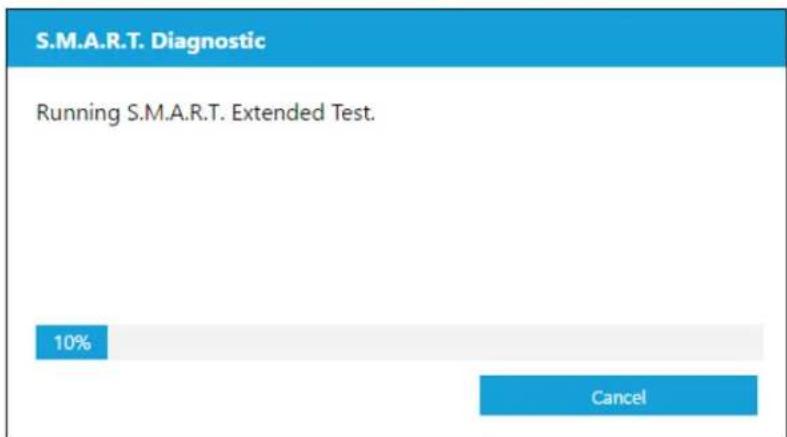
If the test is successful, the progress status changes to a green, test complete message.
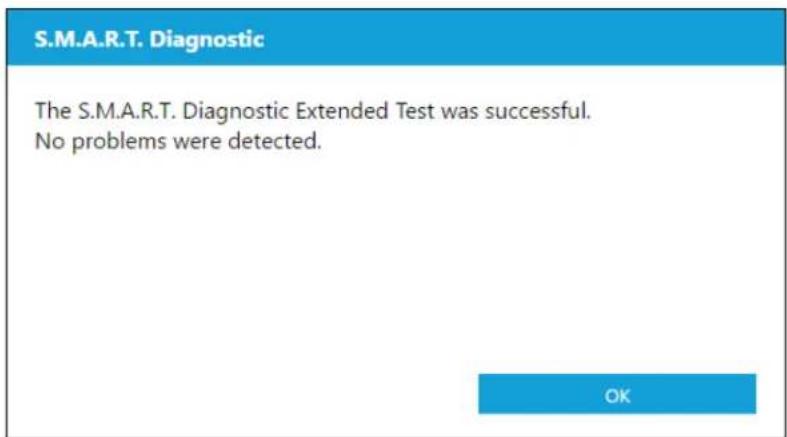
If the test is unsuccessful, click the provided link to go to the test details.
Drive Details
Drive Details displays the following information for the selected drive:
■ Model Name
■ Model String
■ NVMe Revision / SATA Revision
■ NVMe Link Speed / SATA Link Speed
■ Serial Number
■ Maximum LBA
■ World Wide Name (a unique identifier used for storage technologies)
■ 4K Alignment
For additional information, click Show Advanced Details.
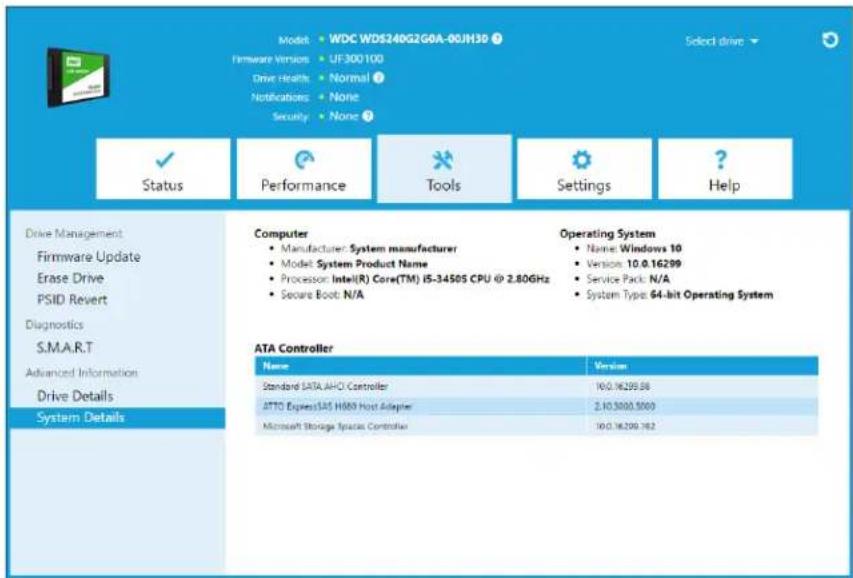
System Details
System Details displays information about the operating system, computer hardware, and ATA controller(s) used in the system on which Western Digital SSD Dashboard is installed.
5
Settings
This chapter contains the following sections.
■ Application Update
■ Select Language
■ Starting Western Digital SSD Dashboard with Windows Startup
Application Update
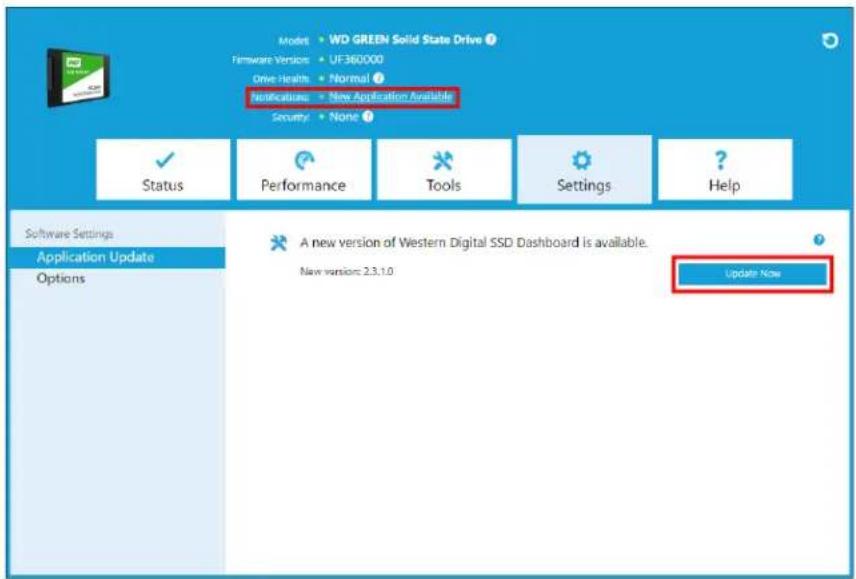
If a newer version of the application is available, a message will be displayed in the Notifications area.
Clicking on the New Application Available link will take you to the Settings section, which will display the number of the new version available. Click on Update Western Digital SSD Dashboard to initiate the update.
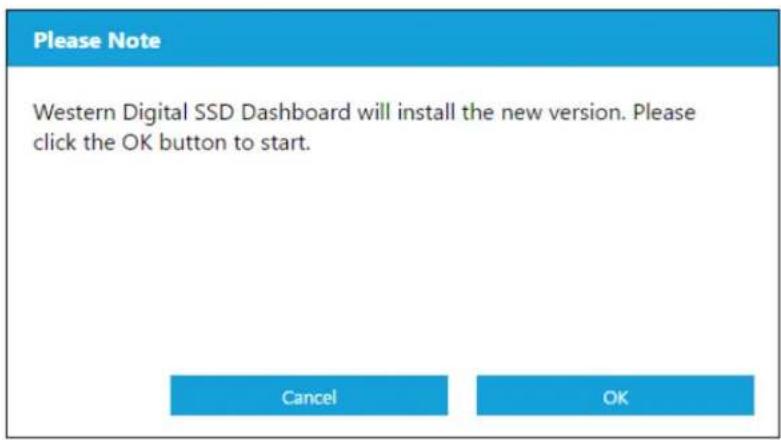
Click OK to confirm and proceed with the application update. After the update has finished downloading, the installation process will begin.
Starting Western Digital SSD Dashboard with Windows Startup
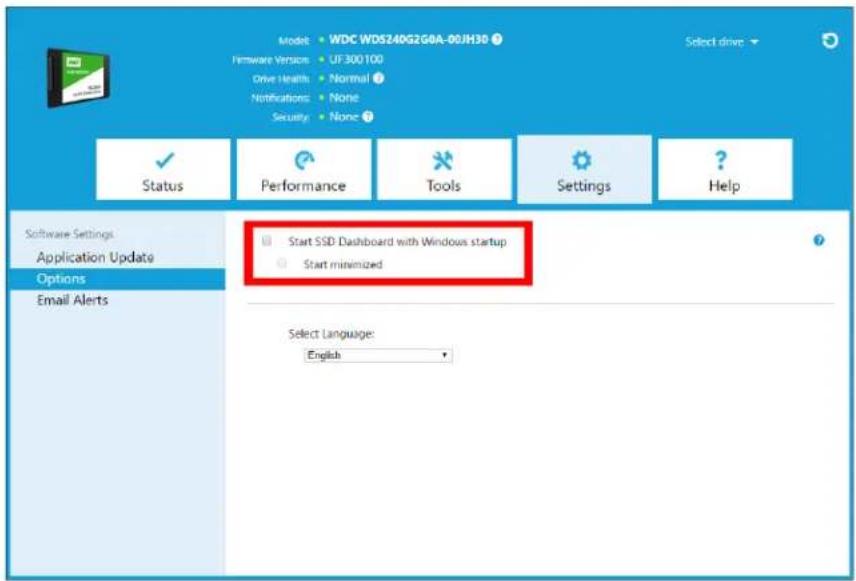
To launch the Western Digital SSD Dashboard at Windows startup, check Start SSD Dashboard with Windows startup.
To open the Western Digital SSD Dashboard in Windows' system tray on the taskbar, check Start minimized.
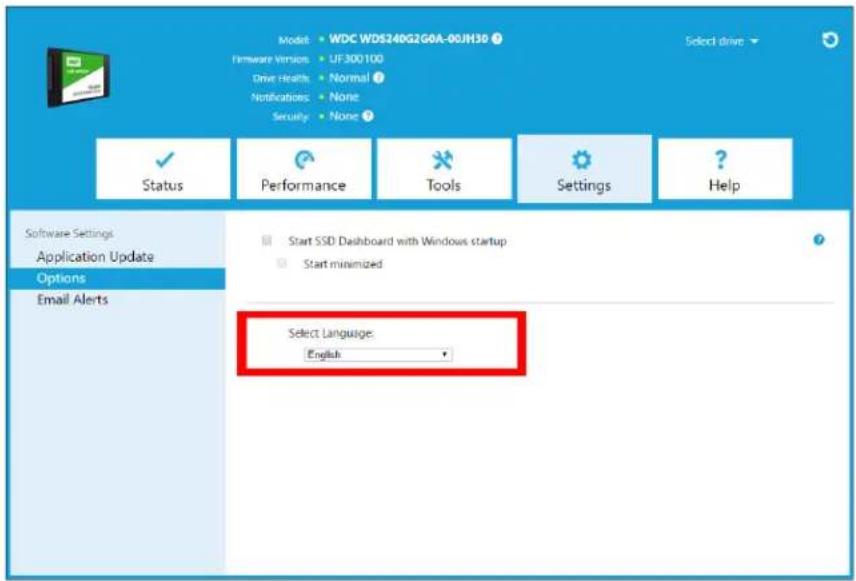
Select Language
Click the Select Language drop-down menu to select the display language of the Western Digital SSD Dashboard.
Help
This chapter contains the following sections.
■ Online Support
■ Generate Report
■ About WD SSD Dashboard
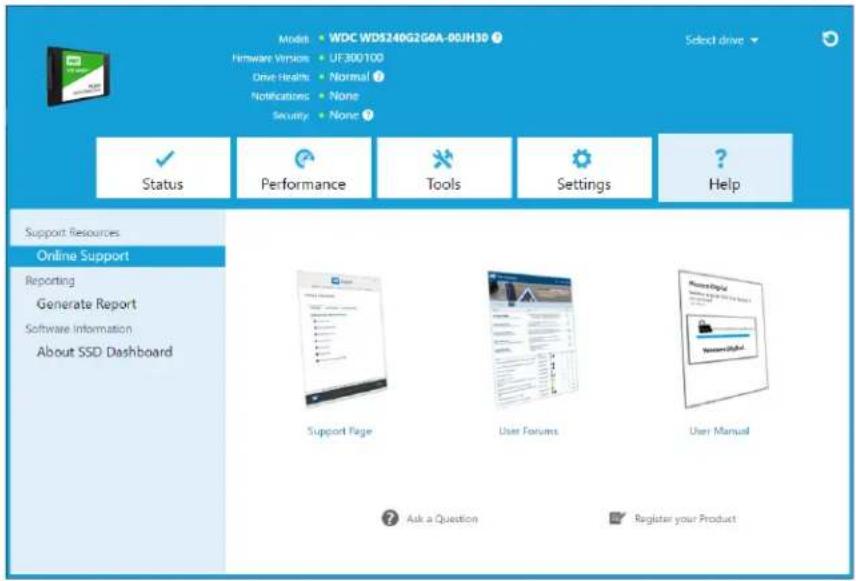
Online Support
The Online Support section contains links to the Western Digital Support website, where you'll find product-specific information and user guides, a searchable Knowledge Base, and the Western Digital Community forum.
The Software & Downloads link takes you to the latest product and application software and firmware versions, and when specialized support is required, use the Get Help - Create a Support Case form.
Generate Report
Click Generate Report to create and save a full system report that provides the detailed information required for certain support cases.
The Generate Report function generates two files:
■ SSD_Dashboard_Report.csv
■ SSD_Dashboard_Report_msinfo.txt.
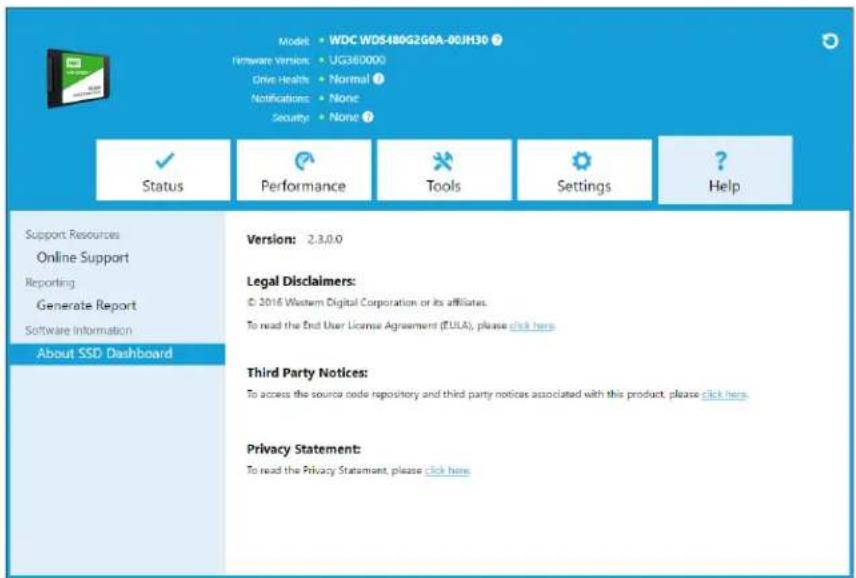
About Western Digital SSD Dashboard
The About SSD Dashboard section contains the current version number of the Western Digital SSD Dashboard software, as well as links to the End User License Agreement (EULA), Third Party Notices, and the Western Digital Privacy Statement.
Western Digital, WD, the Western Digital logo, WD Black, WD Blue and WD Green are registered trademarks or trademarks of Western Digital Corporation or its affiliates in the U.S. and/or other countries. Microsoft and Windows are either registered trademarks or trademarks of Microsoft Corporation in the United States and/or other countries. All other marks that may be mentioned herein are the property of their respective owners. As used for storage capacity, one gigabyte (GB) = one billion bytes and one terabyte (TB) = one trillion bytes. Total accessible capacity varies depending on operating environment. Pictures shown may vary from actual products. Not all products are available in all regions of the world.
© 2019 Western Digital Corporation or its affiliates.
Western Digital
5601 Great Oaks Parkway
San Jose, California 95119 U.S.A

- Western Digital SSD Dashboard™
- Accessing Online Support
- Table of Contents
- Introduction ....1
- Status....5
- Performance....8
- Tools....10
- Settings....24
- Help....27
- 1
- Introduction
- Minimum System Requirements
- Supported Operating Systems
- Supported Languages
- Installation
- Usage
- WD Black Gaming SSD
- Gaming Mode
- 2
- Status
- Status Section
- Capacity
- Volumes
- Life Remaining
- Temperature
- Interface Speed
- Performance
- Performance Chart
- Transfer Speed MB/s
- Transfer IOPS
- TRIM
- 4
- Tools
- Firmware Update
- Please Note
- Check for Updates
- Update Using Bootable USB Drive
- Update Using File on My Computer
- Erase Drive—Secure Erase
- Delete User Data with Secure Erase
- Create a Bootable USB Drive for Secure Erase
- Sanitize
- Delete User Data with Sanitize
- Create a Bootable USB Drive with Sanitize
- Erase Drive (WD Black)
- Bootable USB Drive for Erase Drive (WD Black)
- S.M.A.R.T.
- Diagnostic Short Test
- Diagnostic Extended Test
- Drive Details
- System Details
- 5
- Settings
- Application Update
- Starting Western Digital SSD Dashboard with Windows Startup
- Select Language
- Help
- Online Support
- Generate Report
- About Western Digital SSD Dashboard
Brand : WESTERN DIGITAL
Model : Green
Category : SSD Drive