Passport SR7 - Radar detector Escort - Free user manual and instructions
Find the device manual for free Passport SR7 Escort in PDF.


| Product Type | Radar/Laser Detector (Custom-Installed) |
| Brand | Escort |
| Model | Passport SR7 |
| Detection Bands | X, K, Ka, Laser |
| X-band Frequency | 10.525 GHz ± 25 MHz |
| K-band Frequency | 24.150 GHz ± 100 MHz |
| Ka-band Frequency | 34.700 GHz ± 1300 MHz |
| Laser Wavelength | 900nm, 33 MHz bandwidth |
| Receiver Type | Superheterodyne with GaAs FET VCO, Scanning Frequency Discriminator |
| Digital Processing | Digital Signal Processing (DSP), 4-bit A-to-D Converter |
| Laser Detection | Quantum Limited Video Receiver, Multiple Laser Sensor Diodes (3 front, 3 rear) |
| Display Type | Text/Matrix with 280 AlGaAs LEDs |
| Display Modes | Bar Graph, ExpertMeter, SpecDisplay |
| Brightness Control | Automatic or fixed (Minimum, Medium, Maximum, Dark) |
| Power Requirement | 12V DC, Negative Ground |
| Dimensions (Display/Controller) | 4.2 x 1.4 x 0.55 inches |
| Dimensions (Radar Receiver) | 3.75 x 3.15 x 1.75 inches |
| Dimensions (Front Laser Receiver) | 4.65 x 1.8 x 0.8 inches |
| Dimensions (Rear Laser Receiver) | 6.0 x 1.0 x 0.65 inches |
| Sensitivity Modes | AutoSensitivity, Highway, City (customizable City sensitivity) |
| Audio Features | AutoMute, Mute, Remote Mute/Volume Adjust |
| Safety Warning System | Decodes up to 64 SWS messages |
| Programming | 9 user-selectable EZ-Programming options |
| Installation | Professional installation required |
| Warranty | 1 year limited warranty |
Frequently Asked Questions - Passport SR7 Escort
User questions about Passport SR7 Escort
0 question about this device. Answer the ones you know or ask your own.
Ask a new question about this device
Download the instructions for your Radar detector in PDF format for free! Find your manual Passport SR7 - Escort and take your electronic device back in hand. On this page are published all the documents necessary for the use of your device. Passport SR7 by Escort.
USER MANUAL Passport SR7 Escort

Congratulations and Important Warning
Congratulations
Your new Passport SR7 is the most advanced custom-installed radar/laser detector available.
The Passport SR7 includes long-range X, K, and SuperWide Ka radar capability, improved Digital Signal Processing for superior range and reduced false alarms, our patented Mute and AutoMute, audible and visual band alerts, and all the performance you'd expect from Escort.
In addition, your new Passport SR7 introduces a new level of Radar/Laser defense including:
• Supercharged radar performance, for superior K, and Ka-band sensitivity
- Advanced EZ-Programming lets you instantly set up to 9 customized features
- Exclusive AutoSensitivity™ mode drastically reduces false alarms, plus Highway and City settings
- Ultra-bright alphanumeric display uses 280 LEDs for crystal clear information
- Exclusive ExpertMeter™ tracks and displays up to 8 radar signals
- New SpecDisplay provides numeric frequency for any radar signal
• Detects and decodes up to 64 Safety Warning Systems signals
- Exclusive vertical display option provides maximum installation flexibility
- Standard remote mute button provides one-touch mute, and volume adjustment
- Optional Laser Shifter™ ZR3 compatible
If you've used a radar detector before, a review of the Quick Reference Guide on page 4, and the EZ-Programming information on pages 10 and 11 will briefly explain the new features.
If this is your first detector, please read the manual in detail to get the most out of your new Passport's performance and features.
Please drive safely.
IMPORTANT INSTALLATION WARNING
Your new Passport must be installed by a professional. Car Audio specialists and many car dealers can install Passport for you.
Attempting to install the Passport SR7 without expertise in automotive electronic installations can cause personal injury during the installation, or can damage your Passport or your vehicle. If your vehicle is damaged during installation, its safety systems may be compromised, which could cause personal injury or property damage.
FCC Note:
Modifications not expressly approved by the manufacturer could void the user's FCC granted authority to operate the equipment.
Quick Reference Card

Remove card along perforations

Passport SR7 Quick Reference Card
▶
There are 9 user-selectable options so you can customize your Passport SR7 for your own preferences.
The buttons labeled CITY and MUTE are also used to enter the Program Moda, REVIEW your current program settings, and to CHANGE any settings as desired. The words PROGRAM, REVIEW, and CHANGE are located on the front of the display, and are highlighted in gold graphics.
An example
For example, here is how you would turn Passport's AutoMute feature off.
1 Enter the Program Mode by holding both the CITY and MUTE buttons down for 2 seconds. Passport will keep twice and display Programs.
▼ Remove card along perforations
How to use EZ-Programming
- In enter Program Mode, press and hold both buttons down for 2 seconds. (The unit will beep twice, and will display the word "Program").
2 Then press the REVIEW button to review the current settings. (You can either tap the button to change from item to item, or hold the button to scroll through the items).
- Press the CHANGE button to change any setting. (You can either tap the button to change from setting to setting, or hold the button to scroll through all the options).
4 In leave Program Mode, simply wait 8 seconds without pressing any button. (The unit will display Complete, beep 4 times, and return to normal operation).
- Press and hold the REVIEW button. Purpose will sell through the categories, starting with Pilot Light (Pilot), then Power-on sequence (PorOn), then Signal strength meter (Yelver), and then Autoldate (Afture).
3 Release the REVIEW button when Passport shows the AutoMate item. Since the factory setting is for AutoMate to be on, Passport will display a flu to ON.
(If you accidentally don't release the Review button in time, and Passport goes to the next category, hold the Review button down again, and after Passport rolls through all categories, it will begin again at the top of the list.)
4 Press the CHANGE button to change from acute ON to acute OFF.
5 To complete the Programming, simply wait 8 seconds without pressing any button. Passport will display Complete, beep 4 times, and return to normal operation.
|
1
EZ-Programming Details ▶
Quick Reference Card
Remove card along perforations

Passport SR7 Quick Reference Card
| Press the REVIEW button to go from one category to the next | Press the CHANGE button to change your setting within a category | ||
| DISPLAY | Deep Drip | STD UPRT | Standard degree Vertical degree |
| PILOT LIGHT (Power on indication) | Pilot FLOT | HIVY H | Full word: Highway or Auto or City Lutter: Hor A or C |
| Pilot FLOT | H, > | Better with scanning dot Symbol: - or + or - Symbol with scanning dot | |
| Pilot FLOT | > | Smearing symbol | |
| Pilot FLOT | C2 | Venture voltage | |
| POWER ON SEQUENCE | Pilot FLOT | S10 | Standard power on sequence Fast power on sequence |
| FLOT | FST | ||
| SIGNAL STRENGTH METER | Meter FLOT | STD EXP | Standard signal strength meter Expertmeter Speciopsy |
| Meter FLOT | SPC | ||
| AUTOMUTE | Apple On Apple Off | *AutoMute on AutoMute off | |
| AUDIOTONES | Tone STD Tone LOO | *Standard tone Load lens | |
| Tone LOO | |||
| CITY MODE SENSITIVITY | City STD City HxO | *Standard City mode sensitivity Low X-band sensitivity in City Mouse for X-band consistency in City Mouse | |
| City HxO | |||
| BRIGHTNESS | Snt AUTO | *Brightness adjusts automatically Minimum brightness when turned on | |
| Snt RLIH | Medium brightness when turned on | ||
| Snt HxO | Maximum brightness when turned on | ||
| Snt RNX | Dark Mode when Disrupt turn-on on | ||
| Snt DFX | |||
| BANDS | Bands ALL Bands HD | *All bands arranged One or more bands has been modified | |
| Turn here "Off" or "OFF" by pressing the muta button | |||
2
Table of Contents
| Introduction1 | EZ-Programming | 9-13 |
| Congratulations1 | How to use EZ-Programming | 9 |
| Important Warning1 | Example of Programming | 9 |
| Quick Reference Guide 4 | Overview of Programming | 10 |
| Details of Programming | 11-13 | |
| Controls and Features 5-8 | ||
| Power and Volume Control 5 | Technical Details | 14-19 |
| Power-On Indication 5 | Interpreting Alerts | 14-15 |
| AutoMute 5 | How Radar Works | 16 |
| Mute 5 | How Laser Works | 17 |
| Remote Mute / Volume 5 | How Safety Radar Works | 18-19 |
| Auto / Highway / City Switch 6 | Service | 20-25 |
| Display Brightness 6 | Troubleshooting | 20-21 |
| Audible Alerts 6 | Service | 22 |
| Signal Strength Meter 7 | Warranty | 22 |
| ExpertMeter 7 | Specifications | 25 |
| SpecDisplay | 8 | |
| Optional Laser ShiftersTM | 8 | |
3
Quick Reference Guide
Power/ Volume Control
Rotate the thumbwheel to turn Passport on and set the volume. (We recommend wiring the SR7 to a switched circuit so that it will turn on/off with your vehicles ignition).
City Button
Switches sensitivity modes between Highway, AutoSensitivity, and City settings. In general, we recommend the AutoSensitivity mode. Page 6.
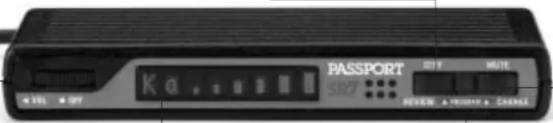
Matrix Display
Passport's display will show "Highway," "Auto," or "City" as its standard power-on indication. Page 5. If you prefer, you can choose other power-on indications. Pages 9-13.
During an alert, the display will indicate the radar band, and a precise bar graph for the signal strength. Page 7.
You can program Passport for ExpertMeter, which displays up to 8 radar signals at once, or choose SpecDisplay mode, which provides the actual numeric radar frequency. Pages 7-8.
The display can also show Safety Radar text messages. Pages 18-19.
EZ-Programming
Passport is ready to go – just turn it on. But you can easily change 9 features for your preferences. Press both buttons to enter the Program Mode, then easily Review or Change your settings. Pages 9-13.
Mute Button
Briefly press this button on the display controller, or the standard remote mute button, to silence the audio for a specific alert. (The audio will alert you to the next encounter.) Page 5.
AutoMute
Passport's patented AutoMute automatically reduces the volume level of the audio alert. Page 5. If you prefer, you can turn AutoMute off. Page 9.
Controls and Features
Power and volume control
To turn Passport on and adjust the alert tone volume level, rotate the thumbwheel on Passport's Display/Controller. Turn the control to the left to increase the audio volume. When you turn Passport on, it goes through a sequence of alerts.
If you prefer, you may program your Passport for a shorter power-on sequence. See the EZ-Programming section for details.
Power-on indication
After Passport's start-up sequence is complete, the matrix display will show "Highway," "City," or "Auto" to show which sensitivity mode is selected.
If you prefer, you can select alternate power-on displays. See the EZ-Programming section for details.
AutoMute
Your Passport has our patented AutoMute feature. After Passport alerts you to a radar encounter at your selected volume level, it automatically mutes the volume to a lower level. This keeps you informed without the annoyance of a continuous full-volume alert
If you prefer, you can turn the AutoMute feature off. See the EZ-Programming section for details.
Mute
The Mute Button, located on Passport's front panel, or the installed Remote Mute Button, allows you to totally silence the audio alert during a radar encounter.
To mute the audio for a single specific signal, briefly press the Mute Button or the installed Remote Mute Button. After that radar encounter has passed, the mute will automatically reset and the audio will alert you to the next encounter.
Remote Mute/ Volume Adjust
The Remote Mute Button, (standard with the SR7) can also be used to change the volume level without accessing the Display Controller. To change the volume level with the Remote Mute Button, simply press and hold. An audible
tone will be generated, and the display will provide a bar graph for the volume level. Once the desired volume level is reached, simply release the Remote Mute Button. This volume setting will be stored in memory.

When the optional Laser Shifter ZR3 is installed, (see EZ-Programming section) the Remote Mute button can be used to manually stop "shifting" once you have corrected your speed. Simply press the Remote Mute Button twice during the "Laser Shifting" message, and the Shifter's will cease to transmit. The Shifter's will automatically reset within one minute. A reset message will be displayed to verify and acknowledge the reset.
Controls and Features Controls and Features
Highway / Auto / City Switch
The "City" button selects Passport's sensitivity. We recommend the "Auto" (AutoSensitivity) mode for most driving.
Passport's exclusive AutoSensitivity mode provides long-range warning, with minimum false alarms. In this mode, Passport's internal computer continuously analyzes all incoming signals and intelligently adjusts the sensitivity – eliminating the majority of false alarms.
You can also select conventional "Highway" and "City" modes. When driving in urban areas where annoying X-band intrusion alarms and door openers are common, City Mode can be engaged to lower X-band sensitivity and reduce X-band alerts. Full sensitivity is maintained on all other bands. You can customize Passport's City Mode sensitivity. See the EZ-Programming section for details.
Display Brightness
Passport's display brightness is automatically adjusted to suit ambient light conditions in your vehicle. (The light sensor is located between the City and Mute buttons on the display controller and may dim the display momentarily when accessing one or both of these buttons).
If you prefer, you can program your Passport for a fixed brightness level (Maximum, Medium, Minimum, or Dark). See the EZ-Programming section for details.
Dark Mode
If you set Passport to its Dark Mode using its EZ-Programming, Passport changes to a very inconspicuous power-on indication: a very dim "AD," "HD," or "CD." (In this display, the A, H, or C indicates Auto, Highway, or City, and the D indicates Dark.)
When Passport is in the Dark Mode, the display will not show visual alerts when Passport detects signals. Only the audible alert will tell you of detected signals.
See the EZ-Programming section for more details.
Audible Alerts
For Radar signals:
Passport uses a Geiger-counter-like sound to indicate the signal strength and type of radar signal being encountered.
When you encounter radar, a distinct audible alert will sound and occur faster as the signal gets stronger. When the signal is very strong, the audible alerts will blend into a solid tone. This allows you to judge the distance from the signal source without taking your eyes from the road. Each band has a distinct tone for easy identification.
X-band = beep tone
K-band = raspy brap tone Ka-band = double-brap tone
For Laser signals:
Since Laser signals are a possible threat no matter how weak, Passport alerts you to all laser signals with a full laser alert.
For Safety signals:
If you have turned on the SWS detection in Passport's programming. Passport will alert you to these signals with a double-beep tone, and a corresponding text message. A complete listing of the text messages is on page 19.
If you haven't programmed your Passport to decode these safety signals (see pages 9, 13, 19), it will still detect them as K-band radar signals.
Signal Strength Meter
Passport's new matrix display consists of 280 individual LED's, to provide an intuitive ultra-bright display of signal strength and text messages.
When Passport detects radar, it displays the band of the radar (X, K, or Ka), and a precise bar graph of signal strength
ExpertMeter
Passport's exclusive ExpertMeter option is an advanced display for experienced detector users. Please use Passport for a few weeks to get fully familiar with its other features before using ExpertMeter.
To use the ExpertMeter instead of the standard bar graph signal strength meter, you must select ExpertMeter in Passport's EZ-Programming (see pages 9-13).
Passport's ExpertMeter simultaneously tracks up to 8 radar signals. It shows you detailed information on up to 2 Ka-band, 2 K-band, and 4 X-band signals.
ExpertMeter can help you spot a change in your normal driving environment; for example, a traffic radar unit being operated in an area where there are normally other signals present.
The ExpertMeter is actually a miniature spectrum analyzer. It shows what band each signal is, its relative frequency within the band, and its signal strength.
kA||k||x||||
Above is the ExpertMeter Display if Passport was detecting 2 strong Ka-band, 2 strong K-band, and 4 strong X-band signals.
As you can see, there are vertical lines after each band designator. Each line shows a signal being detected. The height of each line shows the relative signal strength of that signal. The position of the line shows the relative frequency of the signal within the band.
Note: If you use ExpertMeter, the brief signal shown in the power-on sequence when you turn on your Passport will also be in ExpertMeter: an "X" with a single vertical line.
A few more examples will help you better see how the ExpertMeter works.
K|X||
Here ExpertMeter shows 1 strong K-band signal, and three X-band signals, 2 strong and 1 weak.
Controls and Features
kai
x|||
Here ExpertMeter shows 1 weak Ka-band signal, and 3 weak X-band signals.
×
On very weak signals, there will not be a vertical line at all. This shows a very weak X-band signal.
ExpertMeter Details
The band designators (X, K, Ka) will stay on the display for a few seconds after the signal has passed. This allows you to see what the unit detected, even on very brief signals.
However, the vertical lines representing individual signals continuously change (several times a second) to give you a continuous view of the signal strength of all radar signals present.
SpecDisplay
Passport's new SpecDisplay option is also designed for the advanced detector user. In this mode, Passport will display the actual numeric radar frequency being received.
K 24.150
Display shows a K-band signal at 24.150 GHz
Ka34.700
Display shows a Ka-band signal at 34.700 GHz
X 19.525
Display shows an X-band signal at 10.525 GHz
Note: Even long-time detector users will require a significant amount of time to get familiar with this new level of information.
Optional
ZR3 Laser Shifter™ Configuration
Your Passport SR7 is fully compatible with Escort's ZR3 Laser Shifter. Once added, the integrated Shifters add a new level of laser defense to your SR7 remote – making it the ultimate defense against laser guns.
Once the Laser Shifter's have been connected to Passport's Interface, the internal computer will automatically make changes to the "Bands" programming options. Under the "Laser" option, the Shifters can now be programmed to receive only, or "Shift" (default once connected), an incoming laser signal. Also, during the start-up sequence, the SR7 will acknowledge the new configuration.
During a laser alert, the display will show "Front" "Lsr Shft" when a signal is received from the front, or "Rear" "Lsr Shft" when a signal is received from the rear. This message will be accompanied by the normal Laser alert tone.
For more information on the Laser Shifter ZR3, consult your 12-volt retailer.
How to customize Passport with EZ-Programming
There are 9 user-selectable options so you can customize your Passport for your own preferences. The buttons that are normally used for CITY and MUTE are used to enter the Program Mode, to REVIEW your current program settings, and to CHANGE any settings as desired. Pages11-13 explain each option in more detail.
How to use EZ-Programming
1 To enter Program Mode, press both buttons and hold for 2 seconds. (Passport will beep twice and display "Program." (Brightness is at maximum during programming.)
2 Then press the REVIEW button to review the current settings. (You can either tap the button to change from item to item, or hold the button to scroll through the items.)
3 Press the CHANGE button to change any setting. (You can either tap the button to change from setting to setting, or hold the button to scroll through all the options).
4 To leave the Program Mode, simply wait 8 seconds without pressing any button. (The unit will display "Complete," beep 4 times, and return to normal operation.)
(To quickly return to all of the factory defaults, press and hold the CITY and MUTE buttons while turning on the unit.)
An example
For example, here's how you would turn Passport's AutoMute feature off.
1 Enter the Program Mode by holding both buttons down for 2 seconds. Passport will beep twice and display Program.
2 Press and hold the REVIEW button. Passport will scroll through the categories, starting with Display Disp, then Pilot Light Pilot, then Power-on sequence Per-On, then Signal strength meter Meter, then AutoMute aMute.
3 Release the REVIEW button when Passport shows the AutoMute item. Since the factory setting is for AutoMute to be on, Passport will display a mute ON.
(If you accidentally don't release the Review button in time, and Passport goes to the next category, hold the Review button down again, and after Passport scrolls through all categories, it will begin again at the top of the list.)
4 Press the CHANGE button to change from amute ON to amute OFF.
5 To complete the Programming, simply wait 8 seconds without pressing any button. Passport will display Complete, beep 4 times, and return to normal operation.
Overview of EZ-Programming Options

Details of EZ-Programming Options
Display
Disp STD (Display standard)
This is the standard setting for use when Passport's Display is mounted horizontally.
AUTO
AUTO
DispVERT (Display vertical)
This setting is used when Passport's Display is mounted vertically, for example mounted on the side of a center console. In this setting, Passport's Display is mounted vertically.
Pilot Light (Power-on indication)
Note: When you are using the Dark mode, the display will only show HD, AD, or CD, (Highway-Dark, Auto-Dark, or City-Dark).
PilotHUY (Full description)
In this setting, Passport will display "Highway," "City," or "Auto" as its power-on indication. (factory default)
Pilot H (Letter)
In this setting, Passport will display "H" for Highway, "C" for City, or "A" for Auto.
Pilot H.> (Letter with scanning dot) In this setting, Passport will display "H" for Highway, "C" for City, and "A" for Auto. Also, a single dot will continuously scroll across the display.
Pilot+ (Symbol)
In this setting, Passport will display “+” for Highway, “.” for Auto, and “−” for City.
Pilot+.> (Symbol with scanning dot) In this setting, Passport will display “+” for Highway, “.” for Auto, and “−” for City. Also, a single dot will continuously scroll across the display.
Pilot+> (Scanning symbol)
In this setting, Passport will display “+” for Highway, “.” for Auto, and “−” for City. Each will continuously scroll across the display.
Pilot U (Vehicle voltage)
In this setting, Passport will display "H" for Highway, "C" for City, and "A" for Auto, and the vehicle's voltage. If the vehicle's voltage drops below 10.5 volts, a low voltage warning will be displayed, followed by an audible alert. A high voltage warning is also given when the vehicle's voltage goes above 16.5 volts.
Details of EZ-Programming Options
Power-on Sequence
PurOnSTD (Standard)
In this setting, each time you turn on Passport, it will display "Passport," "SR7," "LASER," "Ka-band," "K-band," "X-band," followed by a brief X-band alert. It then confirms communications to the front radar receiver, and front and rear laser receivers. If a communications error occurs, the appropriate error message will be displayed (see page 21 for error messages)
Note: If there is a problem with the front laser receiver or wiring after the initial start-up sequence, Passport will briefly display "LsrF ERR." If there is a problem with the rear laser receiver or wiring after the initial start-up sequence, Passport will briefly display "LsrR N/A."
In both cases, Passport will continue to receive radar signals, but will not receive laser signals. If there is a problem with the front radar receiver or wiring g after the initial start-up sequence, Passport will display "Front N/A," and will then continue to display "Check," "Receiver," "Wiring." Passport will not operate in this condition. Please contact your installer if this occurs.
PurOnFST (Fast power-on)
This setting shortens Passport's start up sequence to single beep, eliminating the words "Passport," "SR7," "LASER." "Ka-band," "K-band," "X-band," from the start-up sequence.
Signal Strength Meter
MeterSTD (Standard meter)
The meter displays the band, and bar graph showing signal strength. (factory default)
MeterEXP (ExpertMeter)
The meter simultaneously tracks up to 2 Ka-band, 2 K-band, and 4 X-band signals.
MeterSPC (SpecDisplay)
The meter displays the actual numeric frequency of the radar signal being received. Note: See more details on pages 7-8.
AutoMute
aMute ON (AutoMute on)
In this setting, Passport's audio alerts will initially be at the volume you set, but after a few seconds, Passport will automatically reduce the volume level, to keep you informed, but not annoyed. (factory default)
aMuteOFF (AutoMute off)
With AutoMute off, Passport's audio alerts will remain at the volume you set for the duration of the radar encounter.
Audio Tones
Tone STD (Standard tones)
This setting uses more pleasing tones. (factory default)
ToneLÜÜÜ (Loud tones)
This setting uses tones that are more piercing, and easier to hear in a louder vehicle.
Details of EZ-Programming Options
City Mode Sensitivity
City STD (Standard)
In this setting, when you put Passport in the City mode, X-band sensitivity is significantly reduced, to minimize annoyance from X-band intrusion alarms and motion sensors. (factory default)
City LoX (Low X-band sensitivity)
In this setting, when you put Passport in the City mode, X-band sensitivity is reduced more than the standard setting. This will reduce X-band alarms from other sources even further, but also significantly reduces range to X-band traffic radar.
City NoX (No X-band sensitivity)
In this setting, when you put Passport in the City mode, Passport will not respond to any X-band signals. WARNING: Only choose this setting if you are absolutely certain that there are no X-band traffic radar units where you drive.
Note: These settings only apply when Passport is operated in City mode. X-band sensitivity is not affected when used in "Auto" or "Highway" modes.
Brightness
Br t AUTO (Auto)
Display brightness automatically adjusted to suit the ambient lighting in your vehicle.
Brit MIN (Minimum)
Sets display to minimum brightness.
Br t MED (Medium)
Sets display to medium brightness.
Brit MAX (Maximum)
Sets display to maximum brightness.
Br t DARK (Dark)
In this setting, Passport will only display a very dim HD, AD, or CD for the power-on indication, and will not show any visual alerts when signals are detected.
Bands
RandeALL
In this setting, all radar, laser, and SWS frequencies are monitored. This is the factory default setting, and it is highly recommended that you use your Passport in this mode.
BandsH00
In this setting, Passport will warn you with an audible alert and a text message, that one or more bands have been turned off in programming (i.e. "SWS OFF"). This warning is displayed during the start-up sequence (standard or fast).
WARNING: Do not disable a radar or laser band unless you are certain it is not used for speed measurement in your area.
Interpreting Alerts Interpreting Alerts
Although Passport has a comprehensive warning system and this handbook is as complete as we can make it, only experience will teach you what to expect from your Passport and how to interpret what it "tells" you. The radar alerts you receive are affected by the specific type of radar being
used, the type of transmission (continuous or instant-on) and the location of the radar source.
The following examples will give you an introduction to understanding Passport's warning system for radar, laser and safety alerts.
Alert
Passport begins to sound slowly, then the rate of alert increases until the alert becomes a solid tone. The Signal Meter ramps accordingly.
Explanation
You are approaching a continuous radar source aimed in your direction.
Passport emits short alerts for a few seconds and then falls silent only to briefly alert and fall silent again.
An instant-on radar source is being used ahead of you and out of your view.
Passport suddenly sounds a continuous tone for the appropriate band received. All segments in the Signal Strength Meter are lit.
An instant-on radar source or laser source is being used nearby. This kind of alert requires immediate attention!
A brief laser alert.
Laser is being used in the area. Because laser is inherently difficult to detect, any laser alert may indicate a source very close by.
Passport receives weak signals. These signals may be a little stronger as you pass large, roadside objects. The signals increase in frequency.
A moving patrol car with continuous radar is overtaking you from behind. Because these signals are reflected (reflections are increased by large objects), they may or may not eventually blend into a solid tone even when the patrol car is directly behind you.
Alert
Passport alerts slowly for awhile and then abruptly jumps to a strong alert.
Passport alerts intermittently. Rate and strength of alerts may be consistent or vary wildly.
Passport alerts intermittently. Rate and strength of signal increases with each alert.
Passport gives an X-band alert intermittently.
Explanation
You are approaching a radar unit concealed by a hill or an obstructed curve.
A patrol car is travelling in front of you with a radar source aimed forward. Because signals are sometimes reflected off of large objects and sometimes not, the alerts may seem inconsistent.
A patrol car is approaching from the other direction, sampling traffic with instant-on radar. Such alerts should be taken seriously.
You are driving through an area populated with radar motion sensors (door openers, burglar alarms, etc.). Since these transmitters are usually contained inside buildings or aimed toward OR away from you, they are typically not as strong or lasting as a real radar encounter.
CAUTION: Since the characteristics of these alerts may be similar to some of the preceding examples, overconfidence in an unfamiliar area can be dangerous. Likewise, if an alert in a commonly traveled area is suddenly stronger or on a different band than usual, speed radar may be set up nearby.
How Radar Works How Laser Works
How Radar Works
Traffic radar, which consists of microwaves, travels in straight lines and is easily reflected by objects such as cars, trucks, even guardrails and overpasses. Radar works by directing its microwave beam down the road. As your vehicle travels into range, the microwave beam bounces off your car, and the radar antenna looks for the reflections. Using the Doppler Principle, the radar equipment then calculates your speed by comparing the frequency of the reflection of your car to the original frequency of the beam sent out.
Traffic radar has limitations, the most significant of these being that it typically can monitor only one target at a time. If there is more than one vehicle within range, it is up to the radar operator to decide which target is producing the strongest reflection. Since the strength of the reflection is affected by both the size of the vehicle and its proximity to the antenna, it is difficult for the radar operator to determine if the signal is from a sports car nearby or a semi-truck several hundred feet away.
Radar range also depends on the power of the radar equipment itself. The strength of the radar unit's beam diminishes with distance. The farther the radar has to travel, the less energy it has for speed detection. Because intrusion alarms and motion sensors often operate on the same frequency as X-Band radar, your Passport will occasionally receive non-police radar signals. Since these X-Band transmitters are usually contained inside of buildings or aimed toward the ground, they will generally produce much weaker readings than will a true radar encounter. As you become familiar with the sources of these pseudo alarms in your daily driving, they will serve as confirmation that your Passport's radar detection abilities are fully operational.
How Laser (Lidar) Works
Laser speed detection is actually LIDAR (Light Detection And Ranging). LIDAR guns project a beam of invisible infrared light. The signal is a series of very short infrared light energy pulses which move in a straight line, reflecting off your car and returning to the gun. LIDAR uses these light pulses to measure the distance to a vehicle. Speed is then calculated by measuring how quickly these pulses are reflected given the known speed of light.
LIDAR (or laser) is a newer technology and is not as widespread as conventional radar; therefore, you may not encounter laser on a daily basis. And unlike radar detection, laser detection is not prone to "false" alarms. Because LIDAR transmits a much narrower beam than does radar, it is much more accurate in its ability to distinguish between targets and is also more difficult to detect. As a result, even the briefest laser alert should be taken seriously.
There are limitations to LIDAR equipment. LIDAR is much more sensitive to weather conditions than RADAR, and a LIDAR gun's range will be decreased by anything affecting visibility such as rain, fog, or smoke. A LIDAR gun cannot operate through glass and it must be stationary in order to get an accurate reading.
Because LIDAR must have a clear line of sight and is subject to cosine error (an inaccuracy which increases as the angle between the gun and the vehicle increases) police typically use LIDAR equipment parallel to the road or from an overpass. LIDAR can be used day or night.
How Safety Radar Works SWS Safety Radar Text Messages
How Safety Warning Systems Works
Safety Warning Systems, or SWS, is a modified K-band radar signal used to transmit important driving related information.
From the factory, your Passport is programmed with SWS turned ON. If SWS is not used in your area, you can simply turn SWS reception OFF by using Passport's EZ-Programming feature.
The SWS system has 64 possible messages (60 allocated). The SWS messages your Passport can decode and display are listed on the facing page.
Note: Some of the safety messages have been condensed, so each message can be displayed on one or two screens on Passport's eight character display.
Since Safety radar technology is relatively new and the number of transmitters in operation is not yet widespread, you will not receive Safety signals on a daily basis and should not be surprised to encounter emergency vehicles, road hazards and railroad crossings that are unequipped with these transmitters and, therefore, fail to provide a signal. As Safety transmitters become more prevalent (the number of operating transmitters is growing every day), these Safety radar signals will become more common.
For more information and details about SWS safety radar, visit their web site at www.swslc.com.
SWS Text Messages
1 WorkZone
2 Road Closed
3 Bridge Closed
4 WorkCrew Highway
5 WorkCrew Utility
6 Detour
7 Truck Detour
8 MustExit
9 Rtlane Closed
10 CntrLane Closed
11 LeftLane Closed
12 Future Use
13 Police
14 Train
15 Low Overpass
16 BridgeUp
17 Bridge Wt Limit
18 RockSlid Area
19 School Zone
20 Road Narrows
21 Sharp Curve
22 Croswalk
23 Deer Crossing
24 Blind or Deaf Kid
25 SteepUse LowGear
26 Accident
27 PoorRoad Surface
28 Loading ScholBus
29 Don'tPass
30 Dangerous Intrsect
31 Emergency Vehicle
32 Future Use
33 HighWind
34 Severe Weather
35 HeavyFog
36 Flooding
37 BridgIce
38 RoadIce
39 Dust Blowing
40 Sand Blowing
41 Blinding Snow
42 Future Use
43 RestArea
44 RestArea w/servic
45 24hrFuel
46 Insp Stn Open
47 Insp Stn Closed
48 Reduced Speed
49 Speed Enforced
50 HazMatls Exit
51 Expect Delay
52 10 Min Delay
53 20 Min Delay
54 30 Min Delay
55 1 Hour Delay
56 Traffic TunRadio
57 Pay Toll
58 Trucks ExitRight
59 Trucks ExitLeft
60 Future Use
61 Emerg Ueh Mung
62 Police Pursuit
63 Oversize Vehicle
64 SloMoung Vehicle
Troubleshooting Troubleshooting
Problem
Passport beeps briefly at the same location every day, but no radar source is in sight.
Passport does not seem sensitive to radar or laser.
Passport did not alert when a police car was in view.
Passport did not provide a Safety signal while within range of an emergency vehicle.
Passport's audible alerts are less loud after the first few alerts.
Passport's power-on sequence reoccurs while you are driving.
Your 14-year old son has changed all 9 of the EZ-Programming options.
Passport will not turn on.
Passport's Display feels warm.
Solution
- An X-band motion sensor or intrusion alarm is located within range of your route. With time, you will learn predictable patterns of these signals.
• Passport may be in City Mode. - Radar band(s) are turned off in programming.
- VASCAR, (Visual Average Speed Computer And Recorder) a stopwatch method of speed detection, may be in use. Officer may not have radar or laser unit turned on.
- Safety transmitters may not be commonly used in your area.
- Passport is in AutoMute Mode. See page 5 for details.
- A loose power connection can cause Passport to be briefly disconnected, and will retrigger the power-on sequence.
- You can return all of the programming options to the factory defaults by holding down the City and Mute buttons while you turn Passport on.
- Check that volume control is ON.
- Check that vehicle ignition is ON.
- Check all connections.
- It is normal for Passport to feel warm.
Explanation of Displays
LsrF ERR
There is a problem with the front Laser Receiver. There could be an unplugged connection, damaged wiring, or a problem with the front Laser Receiver. After Passport alerts you to this, it will then resume operation with the front radar receiver and rear laser only.
LsrR N/A
There is a problem with the rear Laser Receiver. It could be an unplugged connection, damaged wiring, or a problem within the rear Laser Receiver itself. After Passport alerts you to this, it will then resume operation with the front radar and Laser Receiver only.
Check
There is a problem with the front receiver. It could be an unplugged connection, damaged wiring, or a problem within the front receiver itself. Passport will continue to display this message, and will not operate until the problem has been repaired.
Receiver
Sensitivity control is in Highway mode, display is in Dark Mode (page13) Sensitivity control is in Auto mode, display is in Dark Mode (page13) Sensitivity control is in City mode, display is in Dark Mode (page13)
Wiring
HD
AD
CD
PilotHWY
One of the many programming messages (pages 9-13)
WorkZone
One of the many Safety Radar messages (page 19)
xi,or ki
Passport has been programmed in the ExpertMeter Mode (pages 7-8)
or KA I, etc.
Self Cal
Passport is running a self-calibration test.
Rcvr ERR
Passport's radar receiver has failed to calibrate. Contact your Dealer for repair.
ShiftOFF
Optional Laser Shifters were manually shut off during a laser alert.
Comm ERR
Serial communications between the interface and the display have been interrupted. Contact your dealer for repair.
Service
Service Procedure
If your Passport ever needs service, please follow these steps:
1 Check the troubleshooting section of this manual. It may have a solution to your problem.
2 Contact your installing dealer. They will evaluate your unit and arrange repairs if necessary.
Parts
Replacement parts are available from your installing dealer.
Accessories
The following accessories are available through your local dealer:
• 12-volt Amplified External Speaker.
ESCORT One Year Limited Warranty
ESCORT warrants your Passport against all defects in materials and workmanship for a period of one (1) year from the date of the original purchase, subject to the following terms and conditions:
The sole responsibility of ESCORT under this Warranty is limited to either repair or, at the option of ESCORT, replacement of the Passport detector. There are no expressed or implied warranties, including those of fitness for a particular purpose or merchantability, which extend beyond the face hereof. Some states do not allow limitations on how long an implied warranty lasts, so the above limitations may not apply to you.
This warranty does not cover installation, removal or reinstallation charges. ESCORT is not liable for any incidental or consequential damages arising from the use, misuse, installation, or mounting of the Passport. Some states do not allow the exclusion or limitation of incidental or consequential damages, so the above limitation or exclusion may not apply to you.
This Warranty gives you specific rights. You may have other legal rights which vary from state to state. This Warranty does not apply if the serial number on the housing of the Passport has been removed, or if your Passport has been subjected to physical abuse, improper installation, or modification.
Register
online:
@www.
escortradar.com
▲ Remove card along partitions ▲
ESOCRIT
ESORT PRODUCT REGISTRATION CARD
If you purchased your detector directly from Escort, you do not need to fill this out.
If you did not purchase your detector directly from Escort, please fill out this section and return to us; or register online at our web address: www.escotradar.com.
- First Name: Middle Initial Last Name
Address
City
Phone Number (in case we have a question).
| 2. Product Purchased | Model | Serial Number |
| 3. Place of Purchase | Date | Price |
| 4. Primary reason for purchasing this ESCOPT product | ||
WEST CHESTER OH 45069-9789
640 WEST CHESTER
ESCORT INC
ATTN CUSTOMER SERVICE
POSTAGE WILL BE PAID BY ADDRESS
FIRST-CLASS MAIL PERMIT NO 300 WEST CHESTER OH BUSINESS REPLY MAIL
UNITED STATES
IN THE
IF Mailed
NECESSARY
NO POSTAGE
(No text)
▲ Remove card along partitions
Specifications
Features and Specifications
Operating Bands
• X-band 10.525 GHz ± 25 MHz
• K-band 24.150 GHz ± 100 MHz
• Ka-band 34.700 GHz ± 1300 MHz
• Laser 900nm, 33 MHz bandwidth
Radar Receiver / Detector Type
• Superheterodyne, GaAs FET VCO
- Scanning Frequency Discriminator
• Digital Signal Processing (DSP)
• 4-bit High-Resolution A-to-D Converter
Laser Detection
• Quantum Limited Video Receiver
• Multiple Laser Sensor Diodes (3F, 3R)
Display Type
• Text/Matrix 280 AlGaAs LED
• Bar Graph or ExpertMeter
• Automatic Brightness Control
Power Requirement
• 12VDC, Negative Ground
Programmable Features
• Display (Horizontal or Vertical)
• Power-On Indication
• Power-On Sequence
• Signal Strength Meter
• AutoMute
- Audio Tones
• City Mode Sensitivity
• Display Brightness
- Bands
Sensitivity Control
- AutoSensitivity
- Highway
• City
Auto Calibration Circuitry
Complete VG2 Immunity
Dimensions (Inches)
• Display/Controller: 4.2 x 1.4 x .55
• Radar Receiver: 3.75 x 3.15 x 1.75
• Front Laser Receiver: 4.65 x 1.8 x 0.8
• Rear Laser Receiver: 6.0 x 1.0 x .65
Patented Technology
Passport is covered by one or more of the following US patents.
6.400,305 6.249,218 6.069,580 5.600,132
5,587,916 5,668,554 5,559,508 5,365,055
5,347,120 5,446,923 5,402,087 5,305,007
5.206,500 5.164.729 5.134.406 5.111.207
5,079,553 5,049,885 5,049,884 4,961,074
4,954,828 4,952,937 4,952,936 4,939,521
4,896,855 4,887,753 4,862,175 4,750,215
4,686,499 4,631,542 4,630,054 4,625,210
4,613,989 4,604,529 4,583,057 4,581,769
4,571,593 4,313,216 D314,178 D313,365
D310,167 D308,837 D296,771 D288,418
D253,752
Passport is also covered by one or more of the following Canadian patents:
1,295,715 1,295,714 1,187,602 1,187,586
Other patents pending.
- Congratulations and Important Warning
- Congratulations
- IMPORTANT INSTALLATION WARNING
- FCC Note:
- Quick Reference Card
- Passport SR7 Quick Reference Card
- Table of Contents
- Quick Reference Guide
- Power/ Volume Control
- City Button
- Matrix Display
- EZ-Programming
- Mute Button
- AutoMute
- Controls and Features
- Power and volume control
- Power-on indication
- Mute
- Remote Mute/ Volume Adjust
- Controls and Features Controls and Features
- Highway / Auto / City Switch
- Display Brightness
- Dark Mode
- Audible Alerts
- Signal Strength Meter
- ExpertMeter
- ExpertMeter Details
- SpecDisplay
- Optional
- ZR3 Laser Shifter™ Configuration
- How to customize Passport with EZ-Programming
- How to use EZ-Programming
- An example
- Overview of EZ-Programming Options
- Details of EZ-Programming Options
- Display
- AUTO
- Pilot Light (Power-on indication)
- Power-on Sequence
- Audio Tones
- City Mode Sensitivity
- Brightness
- Bands
- Interpreting Alerts Interpreting Alerts
- Alert
- Explanation
- How Radar Works How Laser Works
- How Radar Works
- How Laser (Lidar) Works
- How Safety Radar Works SWS Safety Radar Text Messages
- How Safety Warning Systems Works
- SWS Text Messages
- Troubleshooting Troubleshooting
- Problem
- Solution
- Explanation of Displays
- Service
- Service Procedure
- Parts
- Accessories
- ESCORT One Year Limited Warranty
- ESOCRIT
- ESORT PRODUCT REGISTRATION CARD
- Specifications
- Features and Specifications
Brand : Escort
Model : Passport SR7
Category : Radar detector