Codemaster+ - Uncategorized Sommer - Free user manual and instructions
Find the device manual for free Codemaster+ Sommer in PDF.


| Product Type | Transmitter management device for SOMloq 2-compatible radio systems |
| Brand | Sommer |
| Model | Codemaster+ |
| Dimensions (without power supply) | 102 x 80 x 28 mm |
| Power Supply Input | 100-240 V, 50/60 Hz |
| Power Supply Output | 5 V, 1 A |
| Codemaster+ Input | 5 V DC, 1 A |
| WiFi Standard | 2.4 GHz |
| Radio Frequency (EU model) | 868.95 MHz |
| Radio Frequency (US/Canada model) | 922.5 MHz |
| Main Functions | Central management of handheld transmitters, WiFi interface, web server, no internet required, object/device/transmitter management, remote programming |
| Compatibility | SOMloq 2-compatible transmitters and receivers from SOMMER; compatible products list at www.sommer.eu |
| Memory Module (Memo) | Required for adding transmitters and transmitter series; plugs into Memo slot |
| Software | SOMMERsuite for firmware updates and data backup/restore |
| Maintenance and Cleaning | Use only in dry rooms; clean only with a dry cloth |
| Safety and Compliance | EU Declaration of Conformity (RED 2014/53/EU), FCC Part 15 (US), IC (Canada); intended use only; do not open housing or modify hardware |
| Scope of Delivery | Codemaster+, power supply unit, brief instructions |
| Data Privacy | All data processed and saved locally; no transmission to external servers |
| Hotline | 0900 1800 150 (0.14 €/min from German landlines; mobile rates may vary) |
Frequently Asked Questions - Codemaster+ Sommer
User questions about Codemaster+ Sommer
0 question about this device. Answer the ones you know or ask your own.
Ask a new question about this device
Download the instructions for your Uncategorized in PDF format for free! Find your manual Codemaster+ - Sommer and take your electronic device back in hand. On this page are published all the documents necessary for the use of your device. Codemaster+ by Sommer.
USER MANUAL Codemaster+ Sommer
natural_image
3D rendering of a red electronic component with two metallic pins inserted (no text or symbols visible)Manual
Contents
Notes 4
Notes on the correct use of the Codemaster+ 4
Legal information 5
Intended use 5
Links 5
Declaration of Conformity (EU) 6
FCC / IC Statement (USA / Canada) 7
Product information 8
Functional description 8
Compatibility 9
Technical information 10
Technical data 10
Interfaces and LEDs 11
Flashing codes 12
Scope of delivery 13
Initial operation 14
Preparing the Codemaster+ for operation 14
Establishing WiFi connection 15
Accessing the user interface 16
Transmitter management 17
Home page 17
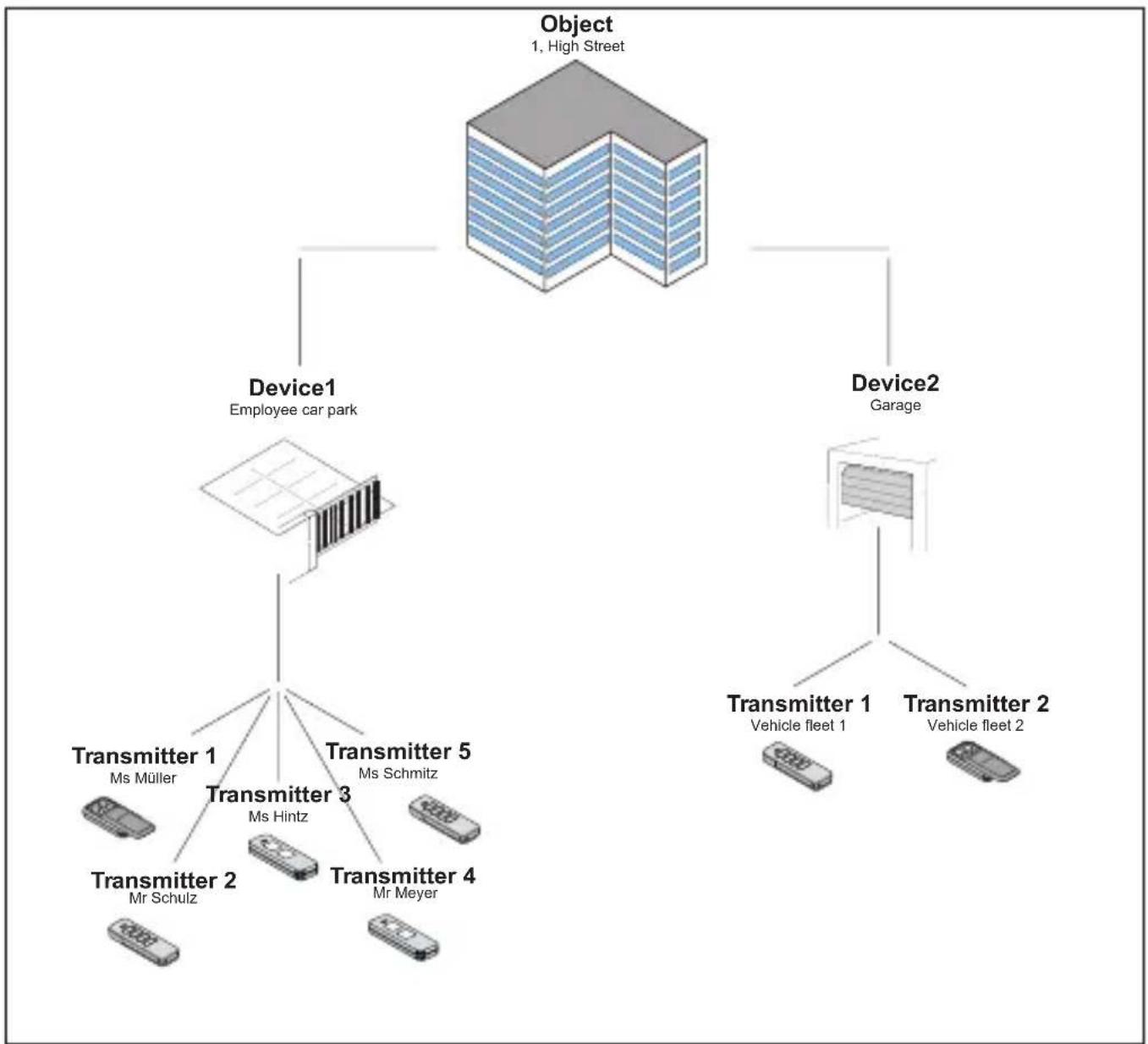
Definitions: 17
Operating the user interface 19
Program structure 20
Load using Memo 21
Import device 21
Add transmitter 21
Edit transmitter 22
Delete transmitter 22
Contents
Add transmitter remotely 23
Add a further command remotely 23
Add transmitter to further device remotely 24
Replace transmitter remotely 25
Add transmitter series 26
Plugging the Memo into the Codemaster+ 26
SOMMERsuite 27
Description 27
Requirements 27
Installation 27
Updater 28
Create backup 29
Notes
Notes on the correct use of the Codemaster+

NOTE
• Use only in dry rooms
• Clean only with a dry cloth
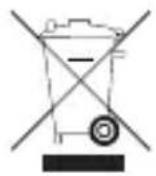
- Dispose of the unit in accordance with local regulations
Legal information
Intended use
The Codemaster+ is designed for transmitter management with SOMloq 2-compatible radio transmitters and receivers from SOMMER Antriebs- und Funktechnik GmbH. A WiFi connection is established between the Codemaster+ and an end device on which any up-to-date Internet browser is installed. The local address of the Codemaster+ is accessed via the browser, thus opening the interface for transmission management. Communication between the Codemaster+ and the radio transmitters takes place via a radio connection. Transmitter management is carried out within the user interface. An additional memory module (Memo) is required for the transmission of specific configurations created on the Codemaster+.
Improper use
Any use above and beyond that listed in the section “Intended use” is deemed to be improper. Opening the housing and modifications to the hardware are also deemed to be improper use.
Links
SOMMER website www.sommer.eu
Installation and Operating Manuals www.som4.me/man
SOMMERsuite www.som4.me/sommersuite
Legal information
Declaration of Conformity (EU)
Item No.: S11342-00001 / 868.95MHz
EU Declaration of Conformity
declares that, if used as intended, the product described below complies with the fundamental essential requirements of Directive 2014/53/EU (Radio Equipment Directive) and that the standards listed below have been applied.
Applied standards (where applicable): Date:
• EN 62368-1 2016-05
• EN 62479:2010 2011-09
• EN 300 220-1 2017-05
• EN 300 220-2 2017-05
• EN 301 489-1
• EN 301 489-3 2013-12
• EN 300 328 2017-02
Product Item Number Frequency
Codemaster+ S11489-00001 868.95 MHz
The company SOMMER Antriebs – und Funktechnik GmbH bears sole responsibility for issuing the Declaration of Conformity.
The undersigned is responsible for compilation of the technical documents.
Kirchheim, 4
September 2018

Legal information
FCC / IC Statement (USA / Canada)
Item No.: S11489-00001 / 922.5 MHz
This device complies with FCC rules part 15. The operation of this device is subject to the following conditions:
1) This device may not cause harmful interference, and
2) This device must accept any interference received, including interference that may cause undesired operation!
Product information
Functional description
Codemaster+ allows central organisation and management of objects with a large number of handheld transmitters.
There is no need to program or delete handheld transmitters on site.
The device is equipped with a radio module, an internal WiFi module and a web server with a user interface which can be accessed directly from the end device. This means that an Internet connection is not required.
As all data are processed and saved in the Codemaster+ and the additional memory, there is no data transmission to external servers.
Objects managed with the Codemaster+ are locked against conventional programming of transmitters, so that the operator of the unit retains complete control.
Product information
Compatibility
A list of compatible products can be viewed online at:
www.sommer.eu
Technical information
Technical data
| Power supply input | |
| Rated voltage 100 - 240 V | |
| Rated frequency 50 / 60Hz | |
| Power supply output | |
| Rated voltage 5 V | |
| Rated current 1 A | |
| Codemaster+ input | |
| Rated voltage 5 V / DC | |
| Rated current 1 A | |
| Further data | |
| Dimensions (without power supply unit) 102 x 80 x 28 mm | |
| WiFi standard 2.4 GHz | |
Technical information
Interfaces and LEDs
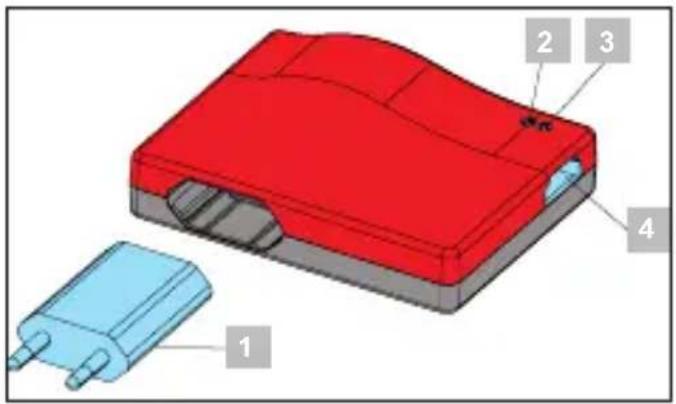
| 1 | Power supply unit |
| 2 | Status LED |
| 3 | WiFi LED |
| 4 | Memo slot |
Technical information
Flashing codes
| Status LED Meaning | |
Lights up red  | No Memo connected |
Lights up green  | Memo connected and ready for data storage |
| WiFi LED Meaning | |
Lights up gre  | Connected to WiFi |
Blinks green  | Device communicating via WiFi |
| Lights up red [G0Z2] | No WiFi connection |
Scope of delivery
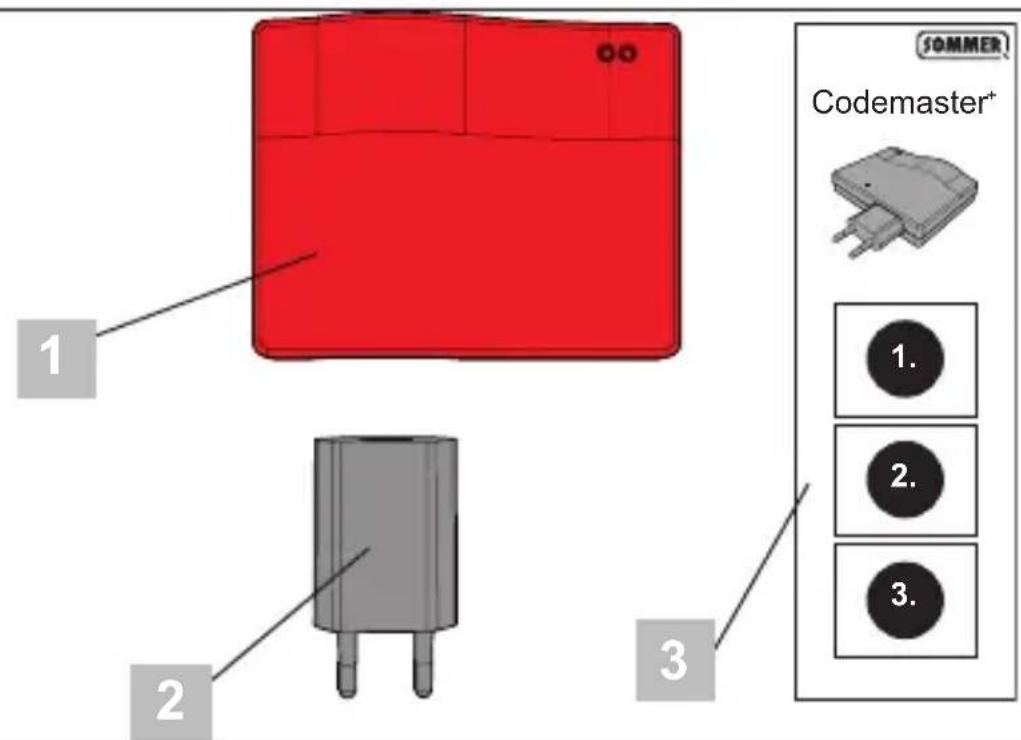
| 1 | Codemaster+ |
| 2 | Power supply unit |
| 3 | Brief instructions |
Initial operation
Preparing the Codemaster+ for operation
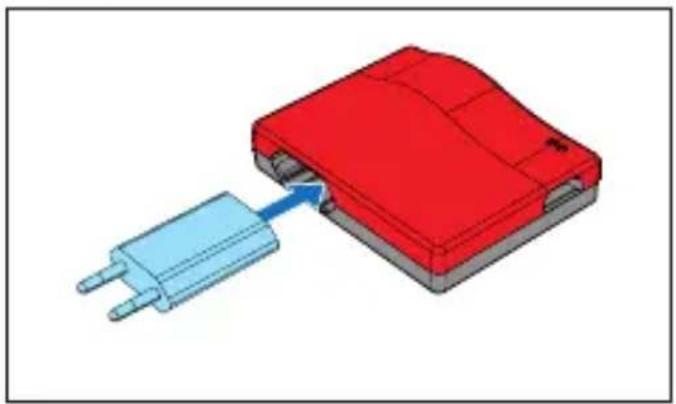
natural_image
3D diagram of a red electronic component with a blue connector, showing internal structure and connection point (no text or symbols)- Connect Codemaster+ and power supply unit.
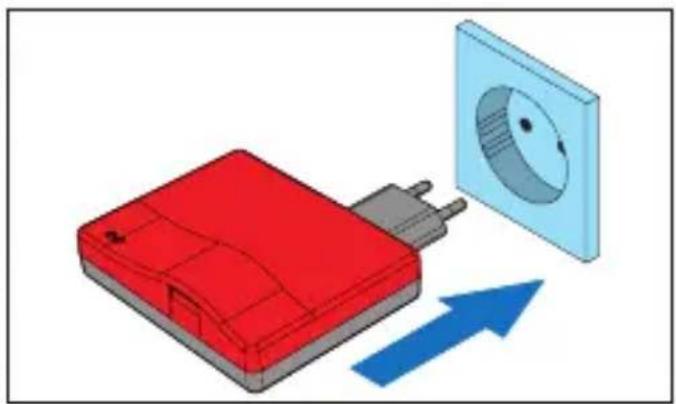
natural_image
3D diagram of a red plastic enclosure with a circular component and blue directional arrow (no text or symbols)- Switch on voltage supply.
⇒ Check whether WiFi LED lights up red
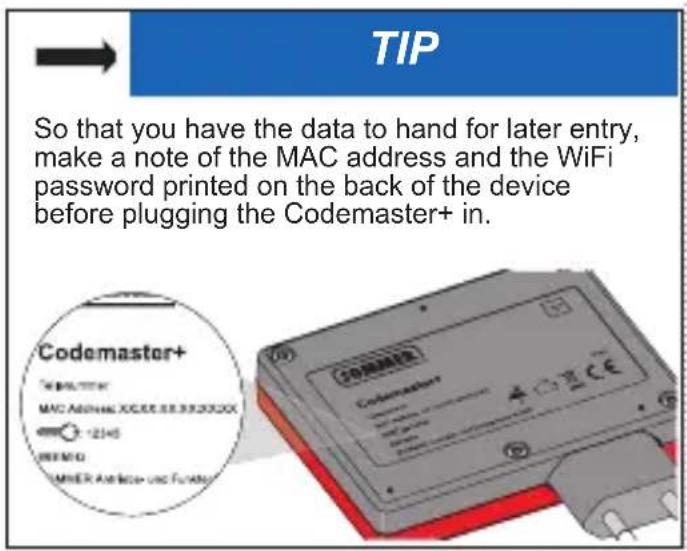
Initial operation
Establishing WiFi connection
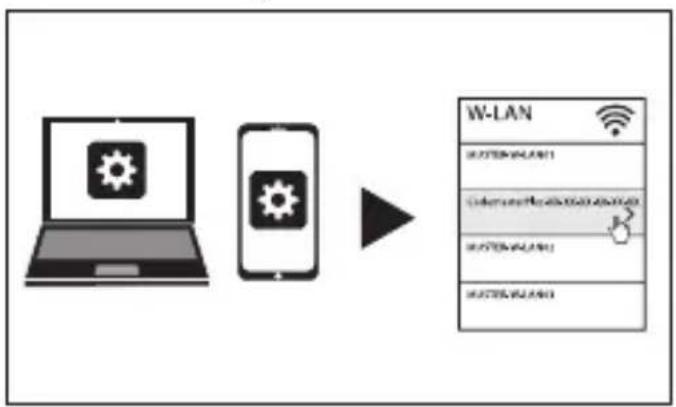
flowchart
graph LR
    A["Laptop with security icon"] --> B["Smartphone with security icon"]
    B --> C["W-LAN Interface with Wi-Fi settings"]
- Open the network options menu of the end device.
→ The WiFi network of the Codemaster+ is displayed in the list. The network name comprises the word CodemasterPlus and the MAC address of the device
- Select the WiFi network.
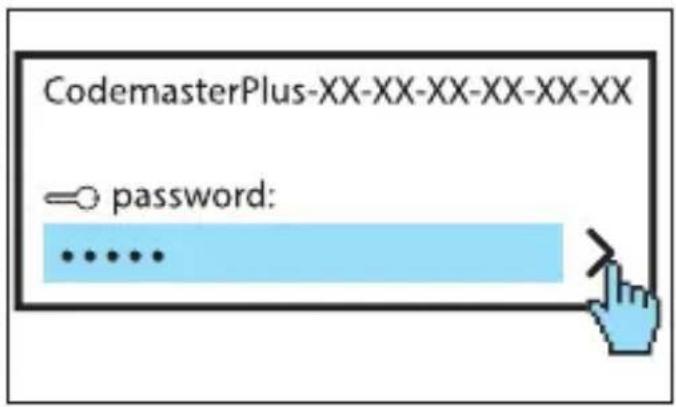
- Enter the password you have noted down and confirm, see page 14
⇒ WiFi LED switches from red to green
Initial operation
Accessing the user interface
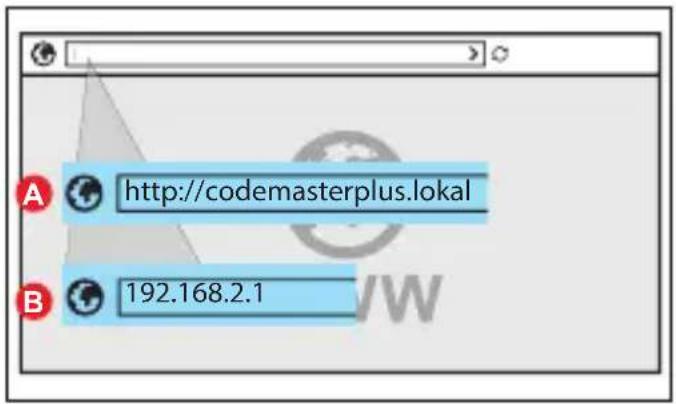
- Open the browser on the end device and access the Codemaster+ user interface.
⇒ Option A:
Enter http://codemasterplus. lokal
in the address line and confirm
⇒ Option B:
Enter 192.168.2.1
in the address line and confirm

TIP
If you create a bookmark in the browser, you will be able to access the user interface more quickly in future.
Transmitter management
Home page
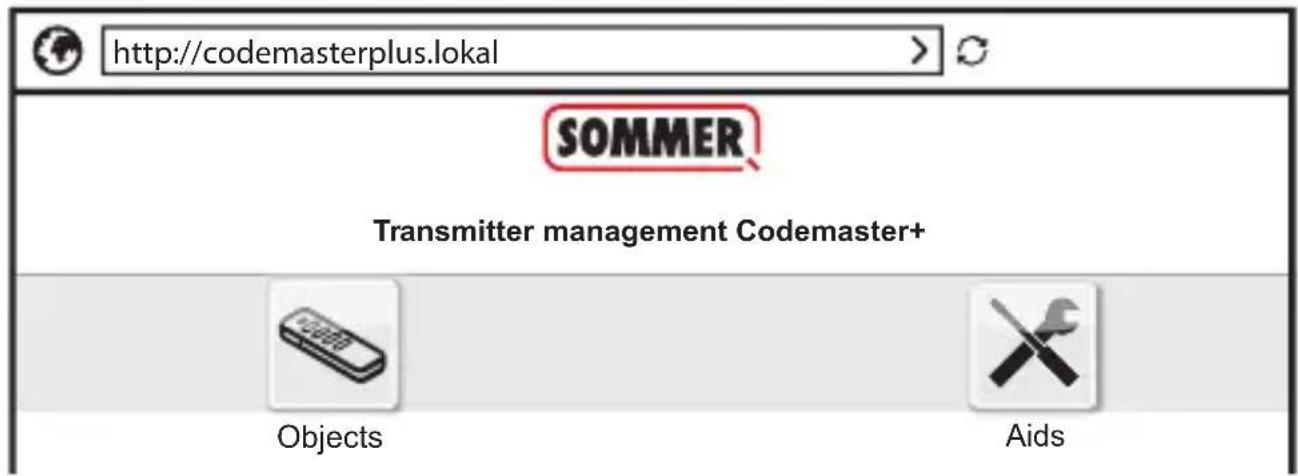
Definitions:
| Object A unit managed via the Codemaster+ and which may contain several devices (operators or receivers) |
| Device An operator or receiver which is assigned to an object and managed via the Codemaster+ |
| Transmitter A radio transmitter which transmits commands to a device and is managed via the Codemaster+ |
Transmitter management
flowchart
graph TD
    A["Object\n1, High Street"] --> B["Device1\nEmployee car park"]
    A --> C["Device2\nGarage"]
    B --> D["Transmitter 1\nMs Müller"]
    B --> E["Transmitter 3\nMs Hintz"]
    B --> F["Transmitter 5\nMs Schmitz"]
    B --> G["Transmitter 2\nMr Schulz"]
    B --> H["Transmitter 4\nMr Meyer"]
    C --> I["Transmitter 1\nVehicle fleet 1"]
    C --> J["Transmitter 2\nVehicle fleet 2"]
Transmitter management
Operating the user interface
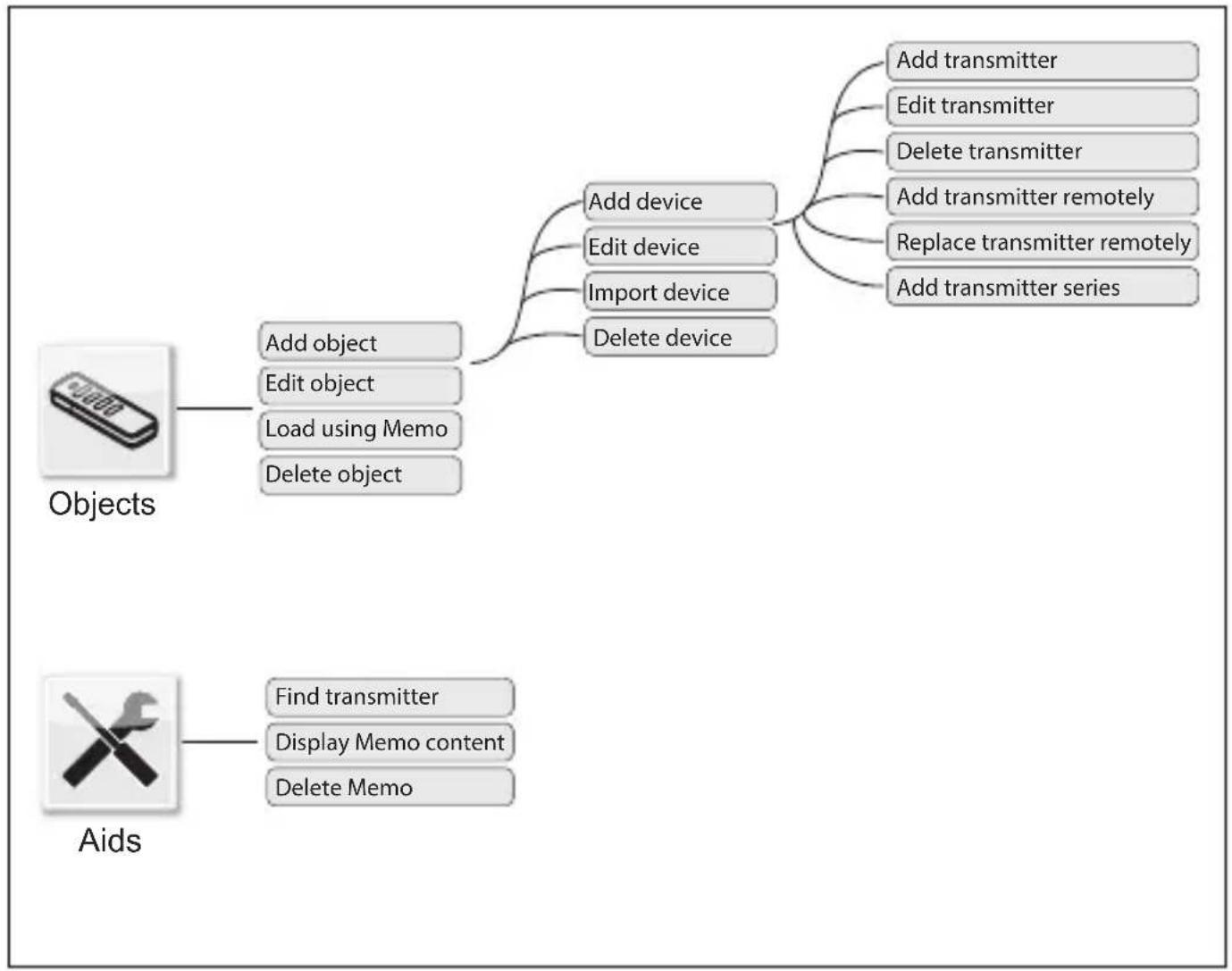
Operation of the user interface is intuitive and self-explanatory. The various program sequences for configuration and management of the transmitters can be carried out simply by following the instructions and specifications of the program. The individual steps, for example for creating a new object, are therefore not described here step-by-step. Only points and terminology that may not be self-explanatory or familiar to every user are explained on the following pages.
If you encounter any problems when using the Codemaster+, please contact your specialist dealer or the technical hotline of SOMMER Antriebs- und Funktechnik GmbH.
" Techn. hotline:
0900 1800 150 (0.14 euros/minute from land line telephones in Germany, mobile prices may vary)
Transmitter management
Program structure
flowchart
graph TD
    A["Objects"] --> B["Add object"]
    A --> C["Edit object"]
    A --> D["Load using Memo"]
    A --> E["Delete object"]
    F["Aids"] --> G["Find transmitter"]
    F --> H["Display Memo content"]
    F --> I["Delete Memo"]
    J["Add device"] --> K["Edit device"]
    J --> L["Import device"]
    J --> M["Delete device"]
    N["Add transmitter"] --> O["Edit transmitter"]
    N --> P["Delete transmitter"]
    N --> Q["Add transmitter remotely"]
    N --> R["Replace transmitter remotely"]
    N --> S["Add transmitter series"]
Transmitter management
Load using Memo
Opens the device assigned to the Memo connected to the Codemaster+ with one click.
Import device
Devices not previously managed via Codemaster+ can be imported subsequently so that they can be managed via Codemaster+ in future.
Add transmitter

NOTE

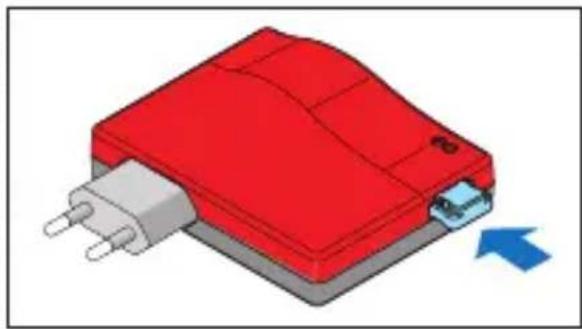
▶ A Memo is required in order to add a transmitter. Plug the Memo into the Codemaster+, see page 26
▶ To add a transmitter, an object must be created and a device added
Add a transmitter to a device.
- Open object.
- Open device.
- Plug the Memo into the Codemaster+.
- Select Add transmitter.
⇒ The further procedure depends on the desired configuration of the transmitter and can be carried out step by step following the options offered in the user interface.
Transmitter management
Edit transmitter
Edits an already programmed transmitter by, for example, programming an additional button or using a further radio channel, etc.
-
Open object.
-
Open device.
-
Highlight the desired transmitter

- Select Edit transmitter.
⇒ The further procedure depends on the desired configuration of the transmitter and can be carried out step by step following the options offered in the user interface
Delete transmitter
Deletes a specific transmitter from a device
-
Open object.
-
Open device.
-
Highlight the desired transmitter

- Select Delete transmitter.
Transmitter management
Add transmitter remotely
Adds a further transmitter to a device without you having to be on site at the object.
- Open object.
- Open device.
- Select Add transmitter remotely.
⇒ The further procedure depends on the desired configuration of the transmitter and can be carried out step by step following the options offered in the user interface.
- Select Transfer data to transmitter.
⇒ If no further command is to be added remotely
-
Send transmitter to the operator of the device.
-
Press any button on the transmitter on site (within the reception range of the device).
⇒ New transmitter is programmed on the desired device
Add a further command remotely

NOTE
A maximum of 4 commands per transmitter can be added remotely.
Assign an additional transmitter button to a channel.
- Highlight device

- Select Add further command remotely.
Transmitter management
⇒ The further procedure depends on the desired configuration of the transmitter and can be carried out step by step following the options offered in the user interface
- Select Transfer data to transmitter.
⇒ If no further command is to be added remotely.
If the transmitter is to be added remotely to more than one device, the option Add transmitter to further device remotely can be selected.
Add transmitter to further device remotely

NOTE
A maximum of 4 commands per transmitter can be added remotely.
-
Select Add transmitter to further device remotely.
-
Open object.
-
Open device.
⇒ The further procedure depends on the desired configuration of the transmitter and can be carried out step by step following the options offered in the user interface
- Select Transfer data to transmitter.
⇒ If no further command is to be added remotely.
Transmitter management
Replace transmitter remotely
Replaces a programmed transmitter on a device because, for example, the previous owner did not return it to building management on moving out.
As when “adding a transmitter remotely,” it is not necessary to be on site at the object.
-
Open object.
-
Open device.
-
Highlight the desired transmitter

-
Select Replace transmitter remotely.
-
Highlight devices on which the transmitter is to be replaced remotely (if the transmitter is assigned to several devices).

NOTE
A transmitter can be replaced remotely in a maximum of 4 devices.
- Select Transfer data to transmitter.
⇒ If the transmitter is not to be replaced remotely in any further device
-
Send transmitter to the operator of the device.
-
Press any button on the transmitter on site (within the reception range of the device).
New transmitter is programmed on the desired device
⇒ Old transmitter is deleted from the device
Transmitter management
Add transmitter series

NOTE

A Memo is required in order to add a transmitter series. Plug the Memo into the Codemaster+, see page 26
To add several transmitters to a device without having to carry out configuration for each transmitter separately.
- Open object.
- Open device.
- Plug the Memo into the Codemaster+ page 26.
- Select Add transmitter series.
⇒ The further procedure depends on the desired configuration of the transmitters and can be carried out step by step following the options offered in the user interface
- Save data to the Memo.
- Unplug the Memo.
natural_image
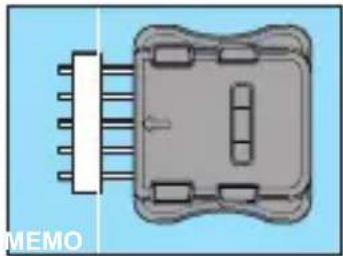
Diagram of a device with pins and a central connector, labeled 'MEMO' at bottom left (no other text or symbols)- Plug the Memo into the device.
- Put the device into operation.
⇒ Transmitters are ready for use
Plugging the Memo into the Codemaster+
natural_image
3D illustration of a red electronic device with a blue arrow indicating direction (no text or symbols)SOMMERsuite
Description
The SOMMERsuite is a software program for the management of the SOMMER products SOMlink and Codemaster+.
The following options are available for both devices:
Updater
- Checks whether a firmware update is available for the product
• Downloads updates to the computer
• Transfers updates to the respective product
Backup

NOTE

The operator of the Codemaster+ is responsible for creating data backup. We recommend that you create backup copies of the data at regular intervals.
- Create backup function:
Creates a backup copy of the object data stored on the Codemaster+ and saves it to the computer. - Restore backup function:
Restores previously created data backups on the Codemaster+.
Requirements
The following criteria must be fulfilled in order to install and use SOMMERsuite:
- WiFi-compatible end device with MS Windows 7 or higher
- Internet connection
Installation
som4.me/sommersuite
- Click the link and download SOMMERsuite.
- Install SOMMERsuite.
SOMMERsuite
Updater
- Start SOMMERsuite.
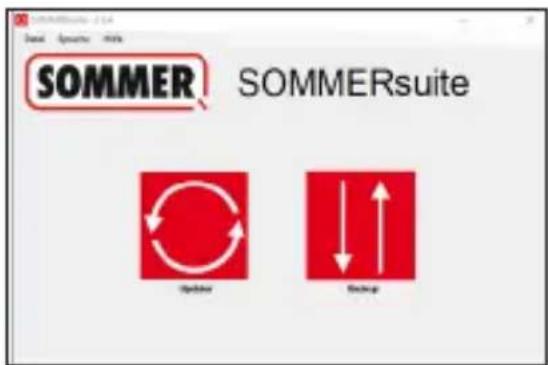
- Select the "Updater" button.
i Internet connection must be established!
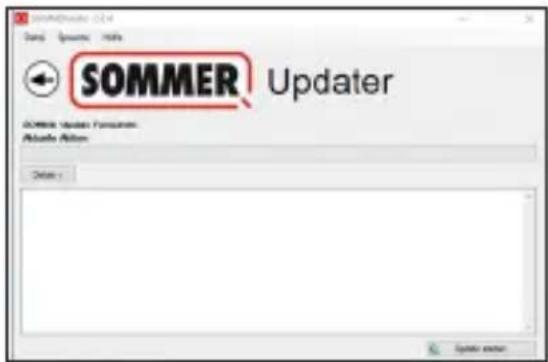
- Click "Start Update."
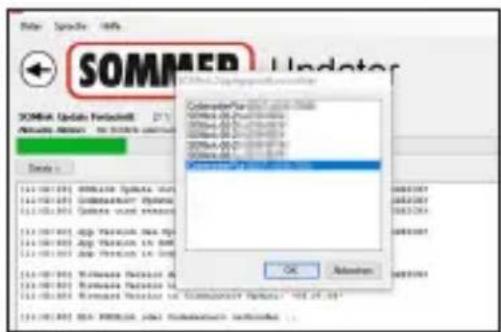
- Select the device on which the update is to be installed.
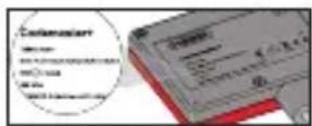
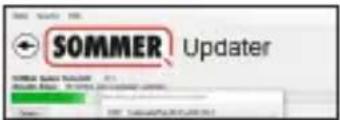
- Where applicable, enter password and confirm with "OK."
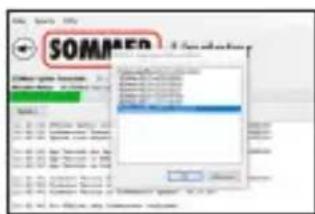
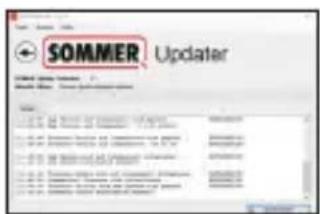
⇒ The update process runs automatically
SOMMERsuite
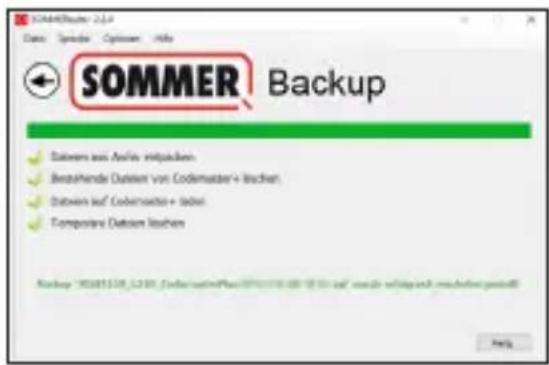
Create backup
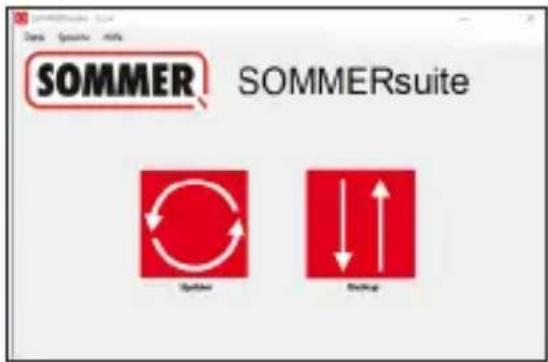
- Select the "Backup" button.
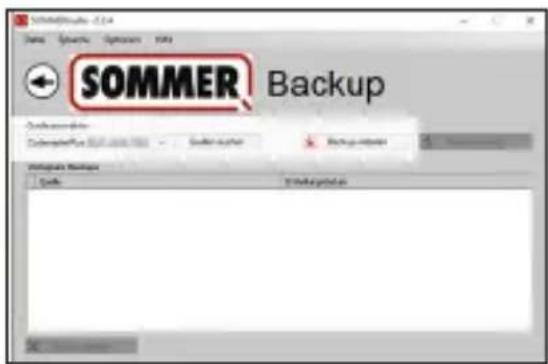
- Select the device for which data backup is to be performed.
- Click "Create backup."
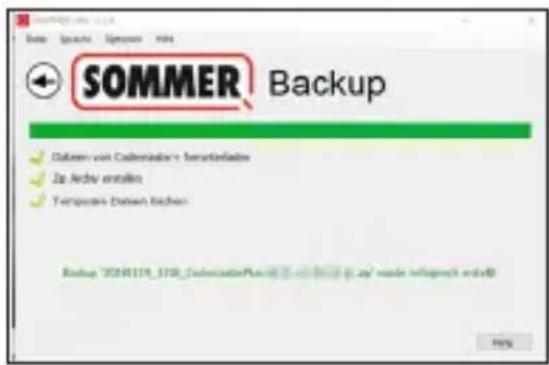
⇒ The backup process runs automatically
⇒ Data set appears in the list
SOMMERsuite
Restore backup
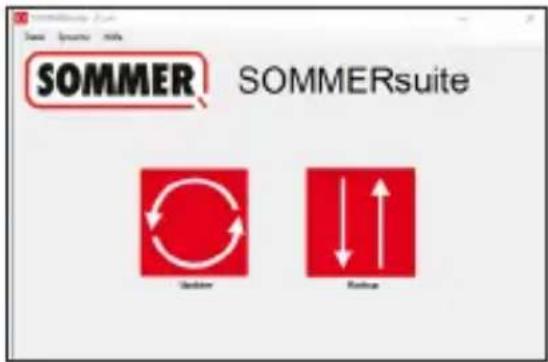
- Select the "Backup" button.
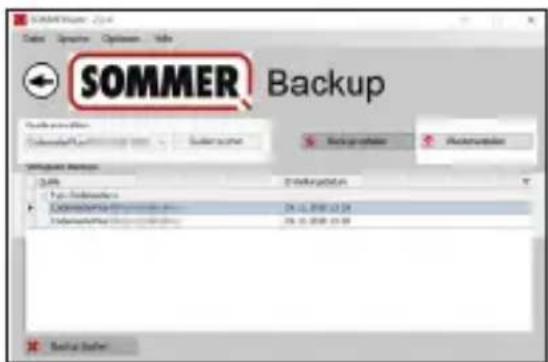
- Select the device for which data recovery is to be performed.
- Select the desired data set from the list.
- Click "Restore."
⇒ Data are transferred to the device.
© Copyright 2018 All rights reserved
- Contents
- Notes 4
- Legal information 5
- Product information 8
- Technical information 10
- Scope of delivery 13
- Initial operation 14
- Transmitter management 17
- SOMMERsuite 27
- Notes
- Notes on the correct use of the Codemaster+
- NOTE
- Legal information
- Intended use
- Improper use
- Links
- Declaration of Conformity (EU)
- EU Declaration of Conformity
- Applied standards (where applicable): Date:
- FCC / IC Statement (USA / Canada)
- Product information
- Functional description
- Compatibility
- Technical information
- Scope of delivery
- Initial operation
- Preparing the Codemaster+ for operation
- TIP
- Transmitter management
- Home page
- Definitions:
- Operating the user interface
- Load using Memo
- Import device
- Add transmitter
- Edit transmitter
- Delete transmitter
- Add transmitter remotely
- Add a further command remotely
- Add transmitter to further device remotely
- Replace transmitter remotely
- Add transmitter series
- Plugging the Memo into the Codemaster+
- SOMMERsuite
- Description
- Updater
- Backup
- Requirements
- Installation
- Create backup
Brand : Sommer
Model : Codemaster+
Category : Uncategorized