
KNX-USB - Home Automation Satel - Free user manual and instructions
Find the device manual for free KNX-USB Satel in PDF.


| Product Type | KNX USB Interface for home automation |
| Brand | Satel |
| Model | KNX-USB |
| Dimensions (approx.) | 50 × 30 × 15 mm |
| Weight (approx.) | 50 g |
| Power Supply | USB bus-powered (5 V DC) |
| KNX Bus Connection | Via screw terminals (red/black) for bus voltage |
| Interface Type | USB 2.0 type A plug |
| Supported KNX Medium | Twisted Pair (TP1-256) |
| LED Indicators | Power (green), Bus activity (yellow) |
| Main Functions | Programming, debugging, and monitoring KNX networks with ETS software |
| Operating Temperature | 0 °C to 45 °C |
| Storage Temperature | -10 °C to 55 °C |
| Compatibility | ETS5, ETS6 (Windows) |
| Driver Requirement | Standard USB HID driver (no additional driver required) |
| Maintenance | Keep dry; clean with a soft, dry cloth; avoid solvents |
| Safety Precautions | Do not expose to water, extreme temperatures, or mechanical stress |
| Spare Parts / Repairability | No user-serviceable parts; dispose as e-waste |
| General Information | This device is a non-configurable USB interface for KNX bus access. Use only with compatible ETS versions. |
Frequently Asked Questions - KNX-USB Satel
User questions about KNX-USB Satel
0 question about this device. Answer the ones you know or ask your own.
Ask a new question about this device
Download the instructions for your Home Automation in PDF format for free! Find your manual KNX-USB - Satel and take your electronic device back in hand. On this page are published all the documents necessary for the use of your device. KNX-USB by Satel.
USER MANUAL KNX-USB Satel
Firmware version 1.00 knx-usb_en 11/19
Changes, modifications or repairs not authorized by the manufacturer shall void your rights under the warranty.
SATEL aims to continually improve the quality of its products, which may result in changes in their technical specifications and software. Current information about the changes being introduced is available on our website.
Please visit us at:
http://www.satel.eu
The declaration of conformity may be consulted at www.satel.eu/ce
The following symbols may be used in this manual:

- note;

- caution.
The KNX-USB interface enables communication between the KNX bus and a computer for programming and monitoring devices on the bus by using the ETS program (version 5.5 or newer).
Furthermore, the KNX-USB interface can work in the bus logging mode, in which the history of events generated on the KNX bus is saved to the interface non-volatile memory. The KNX-USB Soft program allows you to enable / disable the bus logging mode and manage the interface memory. Information saved in the KNX-USB interface memory allows you to reproduce the telegram traffic on the KNX bus in off-line mode.
i
You can download the "KNX-USB Soft" program from www.satel.eu.
1. Features
- Communication with the KNX bus via integrated bus connector.
- Power supply from the KNX bus or from the computer USB port.
• Galvanic isolation of the KNX system and computer. - Data transmission between the interface and the computer acc. to USB 2.0 standard.
• LEDs indicating the device status. - Easy to connect and use.
2. Description

- green LED indicating connection to the KNX bus:
ON - OK,
flashing – data exchange in progress.
- green LED indicating connection to the computer:
ON - OK,
flashing – data exchange in progress.
- red LED indicating power supply and operation in bus logging mode:
ON - power supply OK,
flashing – bus logging mode enabled.
Flashing of all LEDs indicates interface failure. The failure should be reported to the service.
② mini USB type B connector.
③ terminal for connecting the KNX bus.
3. Connecting
![graph LR A["Power bank"] --> B["USB typ A"] B --> C["USB mini B"] C --> D["KNX-EIB-BUS"] E["ETS KNX-USB Soft"] --> F["USB typ A"] F --> G["USB mini B"] G --> H["KNX-EIB-BUS"]](/content/2026/05/914150/images/6cb0ab0751a7edb9c7c89dc79e736f2372c5ed370ccd0e143e9c882f08539e12.jpg)
- Using the connection terminal, connect the KNX bus cable to the interface (Fig. 3).
- Use the included USB cable to connect the computer USB port to the interface mini USB port. The device will be automatically detected and installed in the computer's operating system (Microsoft Windows). In the ETS program, the interface will be added to the list of devices connected to the bus (Bus \ Connections \ Interfaces), where you can change its individual address.
4. KNX-USB Soft program
The KNX-USB Soft program allows you to switch the KNX-USB interface to the bus logging mode, in which the log of events generated on the KNX bus is saved to the non-volatile memory of the device. All events are saved to the memory, which enables the bus to be monitored in the same way as in the “Bus monitor” function of the ETS program.

The KNX bus power loss and restore events are also saved to the non-volatile memory of the KNX-USB interface. The history of these events can be restored by exporting data from the interface memory to a CSV or XML file.
If several KNX-USB interfaces are connected to the computer, the KNX USB Soft program will select the first one that is not used by another program.
In the bus logging mode, the interface does not support communication with the ETS program.
After switching to the bus logging mode, you can disconnect the interface from the computer. For protection against power failure, you can connect a power bank to the mini USB port of the interface. If a bus power failure occurs, the interface will remain in the bus logging mode instead of being shut down, and the bus loss and restore events will be saved to the interface non-volatile memory.
i
A history of up to 350,000 events can be saved to the non-volatile memory of the KNX-USB interface (the value was calculated for a telegram type 1.001 Switch). Reaching this value does not stop logging. Information about events with the oldest date is overwritten with information about events that are currently generated on the KNX bus.
A power loss turns off the bus logging mode.
The interface powered from the KNX bus does not charge the energy bank connected to it.
In order to restore data that are saved in the non-volatile memory of the KNX-USB interface, they must be exported to a CSV (Microsoft Excel format) or XML (ETS program format) file.
i
If you want to change the separator used in the CSV file, you can do it in the Windows "Control Panel".
4
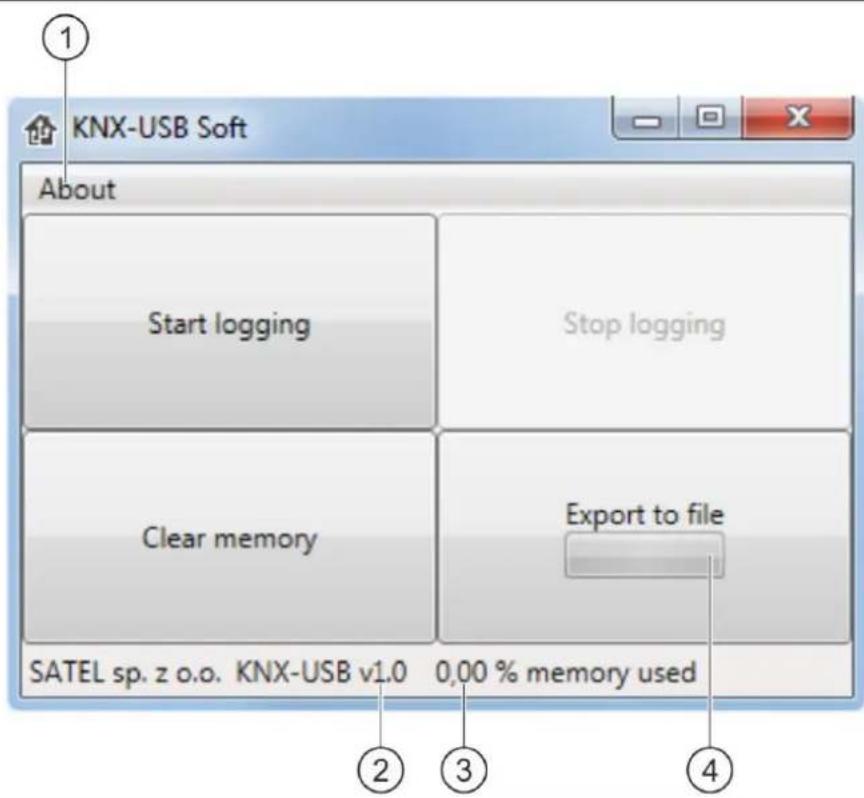
① click to open the window with information about the KNX-USB Soft program.
② information about the firmware version of the KNX-USB interface.
③ information about the amount of the interface non-volatile memory used by the data.
④ information on the progress of writing data from interface non-volatile memory to a file.
Buttons
Start logging – click to enable bus logging mode in the interface.
Stop logging – click to disable bus logging mode in the interface.
Clear memory - click to clear the non-volatile memory of the interface.
Export to file – click to start exporting data from the non-volatile memory of the interface to a file. The window will open in which you can give a name and choose the format (CSV or XML) and file location.
5. Specifications
Power supply
USB voltage 5 VDC
Maximum power consumption from USB 0.3 W
Type of USB connector ....mini USB type B
KNX bus voltage 20..30 VDC
Maximum power consumption from KNX bus 0.6 W
Other parameters
Maximum length of USB cable....5 m
Operating temperature range....-5°C...+45°C
Storage/transport temperature range....-25°C...+70°C
IP code IP20
Enclosure dimensions.... 67 x 34 x 21 mm
Weight....108 g

Brand : Satel
Model : KNX-USB
Category : Home Automation