
Bus EXCITER-104 - Uncategorized Arturia - Free user manual and instructions
Find the device manual for free Bus EXCITER-104 Arturia in PDF.


| Product Type | Digital Audio Plug-in (AU, AAX, VST2, VST3) |
| Platform | Windows 10+ / macOS 10.13+ (Apple Silicon compatible) |
| Plugin Formats | Audio Unit, AAX, VST2, VST3 |
| Main Features | Big Bass (parallel compression), Exciter (harmonic enhancement), Output EQ (low/high shelf) |
| Advanced Controls | Resonance, Polarity, Saturation, Slope, Stereo Width, Mono Summing |
| Visualizer | Real-time spectrum display with input/output overlay |
| Oversampling | Studio (low CPU) and Render (high quality) |
| Preset Management | Browser with tags (Type, Style, Bank), favorites, undo/redo, A/B slots |
| Mix Lock | Keep wet/dry mix constant when changing presets |
| Wet Only Mode | Listen to processed signal only (ideal for sends) |
| Resize Window | From 50% to 200% with keyboard shortcuts |
| CPU Meter | Real-time load display with panic button |
| Undo/Redo | Full history for A and B settings |
| Tutorials | Interactive in-app tutorials |
| Safety | Warning about high sound levels and epilepsy risk; not a physical device |
| Developer | Arturia SA, France |
| Version | 1.0.0 (June 2024) |
| Documentation | PDF manual (41 pages) included |
Frequently Asked Questions - Bus EXCITER-104 Arturia
User questions about Bus EXCITER-104 Arturia
0 question about this device. Answer the ones you know or ask your own.
Ask a new question about this device
Download the instructions for your Uncategorized in PDF format for free! Find your manual Bus EXCITER-104 - Arturia and take your electronic device back in hand. On this page are published all the documents necessary for the use of your device. Bus EXCITER-104 by Arturia.
USER MANUAL Bus EXCITER-104 Arturia
DIGITAL SIGNAL PROCESSING
Kevin Arcas (lead) Marius Lasfargue
DSP LIBRARIES
| Samuel Limier (lead) | Hugo Caracalla | Loris De Marco | Cyril Lépinette |
| Marc Antigny | Andrea Coppola | Geoffrey Gormond | Fanny Roche |
| Kevin Arcas | Mauro De Bari | Rasmus Kürstein | Pierre-Hugo Vial |
| Yann Bourdin | Alessandro De Cecco | Marius Lasfargue |
SOFTWARE DEVELOPMENT
Davide Gioiosa (lead) Corentin Comte (lead)
SOFTWARE LIBRARIES
| Pierre-Lin Laneyrie (lead) | Gonçalo Bernardo | Raynald Dantigny | Mathieu Nocenti |
| Alexandre Adam | Valentin Bonhomme | Davide Gioiosa | Marie Pauli |
| Stéphane Albanese | Violaine Burlet | Nathan Graule | Patrick Perea |
| Pauline Alexandre | Yann Burrer | Samuel Lemaire | |
| Baptiste Aubry | Corentin Comte | Fabien Meyrat |
DESIGN
| Maxence Berthiot (lead) | Clément Bastiat | Morgan Perrier |
| Callum Magill | Shaun Ellwood |
SOUND DESIGN
| Lily Jordy (lead) | Florian Marin | Cubic Spline |
| Jean-Michel Blanchet | Martin Rabiller |
QUALITY ASSURANCE
| Félix Roux (lead) | Bastien Hervieux | Arthur Peytard | Enrique Vela |
| Germain Marzin | Anthony Le Cornec | Roger Schumann | |
| Matthieu Bosshardt | Aurélien Mortha | Nicolas Stermann |
USER MANUAL
Stephen Fortner (author) Jimmy Michon
IN-APP TUTORIAL
Gustavo Bravetti
BETA TESTING
| Andrew Macaulay | Chuck Zwicky | Jay Janssen | Marco "Koshdukai" Correia |
| Gary Morgan | Raphael Cuevas | Fernando Manuel | James Lovie |
| Olivier Malhomme | Terry Marsden | Rodrigues | Yann SNK |
| Paolo Negri | Mat Herbert | Kirke Godfrey | Mateo Relief vs. Mister X5 |
| Bastiaon Barth (Solidtrax) | Davide Puxeddu | George Ware |
© ARTURIA SA - 2024 - All rights reserved.
26 avenue Jean Kuntzmann
38330 Montbonnot-Saint-Martin
FRANCE
www.arturia.com
Information contained in this manual is subject to change without notice and does not represent a commitment on Arturia's part. The software described in this manual is provided under the terms of a license agreement or non-disclosure agreement. The software license agreement specifies the terms and conditions for its lawful use. No part of this manual may be reproduced or transmitted in any form or by any purpose other than purchaser's personal use without the written permission of ARTURIA S.A.
All other products, logos or company names quoted in this manual are trademarks or registered trademarks of their respective owners.
Product version: 1.0.0
Revision date: 10 June 2024
Thank you for purchasing Bus EXCITER-104!
This manual covers the features and operation of Arturia's Bus EXCITER-104, a faithful emulation of the once revered Aphex Aural Exciter type C2, model 104. In its time, the Aural Exciter was perceived to perform miracles, adding air, detail, and definition to audio that may have otherwise sounded muted or lifeless. With a few simple knob twists, it was employed to conduct sonic rescues that might have taken hours of work using tools such as conventional EQ and dynamics processing.
Be sure to register your software as soon as possible! When you purchased Bus EXCITER-104, you were sent a serial number and an unlock code by e-mail. These are required during the online registration process.
Special Messages
Specifications Subject to Change:
The information contained in this manual is believed to be correct at the time of printing. However, Arturia reserves the right to change or modify any of the specifications without notice or obligation to update the hardware or software that has been purchased.
IMPORTANT:
The software, when used in combination with an amplifier, headphones or speakers, may be able to produce sound levels that could cause ear damage or even permanent hearing loss. DO NOT operate for long periods of time at a high level or at a level that is uncomfortable.
If you encounter any hearing loss or ringing in the ears, you should consult an audiologist.
EPILEPSY WARNING - please read before using Bus EXCITER-104
Some people are susceptible to epileptic seizures or loss of consciousness when exposed to certain flashing lights or light patterns in everyday life. This may happen even if the person has no medical history of epilepsy or has never had any epileptic seizures. If you or anyone in your family has ever had symptoms related to epilepsy (seizures or loss of consciousness) when exposed to flashing lights, consult your doctor prior to using this software.
Discontinue use and consult your doctor immediately if you experience any of the following symptoms while using this software: dizziness, blurred vision, eye or muscle twitches, loss of consciousness, disorientation, or any involuntary movement or convulsion.
Precautions to take during use
- Do not stand too close to the screen
- Sit a good distance away from the screen
- Avoid using if you are tired or have not had much sleep
• Make sure that the room is well lit - Rest for at least 10 to 15 minutes per hour of use
Introduction
Congratulations on your purchase of Arturia Bus EXCITER-104
As with all of our products, we believe in offering the best of both the software and hardware worlds in a single package and letting you choose how you want to use it. In Bus EXCITER-104, those two worlds are a faithful re-creation of the original hardware on one hand, and on the other, additional sound processing and workflow features in Arturia's inimitable fashion.
We hope Bus EXCITER-104 will give your music that extra special something that makes listeners wonder, "How did they do that?"
Peace, love, and music,
The Arturia team
Be sure to visit the www.arturia.com website for information about all of our other great hardware and software instruments. They have become indispensable, inspiring tools for musicians around the world.
Table Of Contents
1. WELCOME TO BUS EXCITER-104 2
1.1. The hardware Exciter 3
1.2. Bus EXCITER-104 feature summary.... 3
2. ACTIVATION AND FIRST START 4
2.1. Compatibility 4
2.2. Download and install 4
2.2.1. Arturia Software Center (ASC) 4
2.3. Working with Bus EXCITER-104 as a plug-in.... 5
2.3.1. Audio and MIDI settings.... 5
3. THE BUS EXCITER-104 MAIN PANEL 6
3.1. Common behaviors 6
3.1.1. Value pop-ups....6
3.1.2. Parameter descriptions....7
3.1.3. Parameter adjustment 7
3.1.4. Double-click for default 7
3.2. Big Bass 7
3.3. Exciter 8
3.4. Output 8
3.5. Visualizer and advanced controls.... 10
3.5.1. On/Off and Solo 10
3.5.2. Big Bass advanced controls.... 11
3.5.3. Exciter advanced controls 13
3.5.4.Interpreting the Visualizer....15
4. THE TOOLBARS 16
4.1. Upper Toolbar.... 17
4.1.1 Main Menu.... 17
4.1.2. Preset Browser access and Name Pane 20
4.1.3. Dual settings and copy 21
4.2. Lower Toolbar 21
4.2.1. Parameter Descriptions 21
4.2.2. Oversampling Quality 22
4.2.3.Wet Only 22
4.2.4. Bypass 22
4.2.5. Undo, Redo, and History.... 23
4.2.6. CPU Meter 24
4.2.7. Resize handle 24
5. SELECTING PRESETS 25
5.1. Preset Name Pane 25
5.1.1. The Arrows.... 25
5.1.2. Preset quick access 26
5.2. The Preset Browser 27
5.3. Searching Presets 27
5.3.1. Using Tags as a filter 28
5.3.2. Banks 30
5.4. The Results Pane 30
5.4.1. Sorting Presets.... 30
5.4.2. Liking Presets 31
5.4.3.Shuffle button 31
5.4.4. Featured factory Presets.... 31
5.5. Preset Info Section 32
5.5.1.Preset Info quick menu 33
5.5.2. Edit Style 34
5.5.3. Editing info for multiple Presets 34
6. SOFTWARE LICENSE AGREEMENT.... 35
1. WELCOME TO BUS EXCITER-104
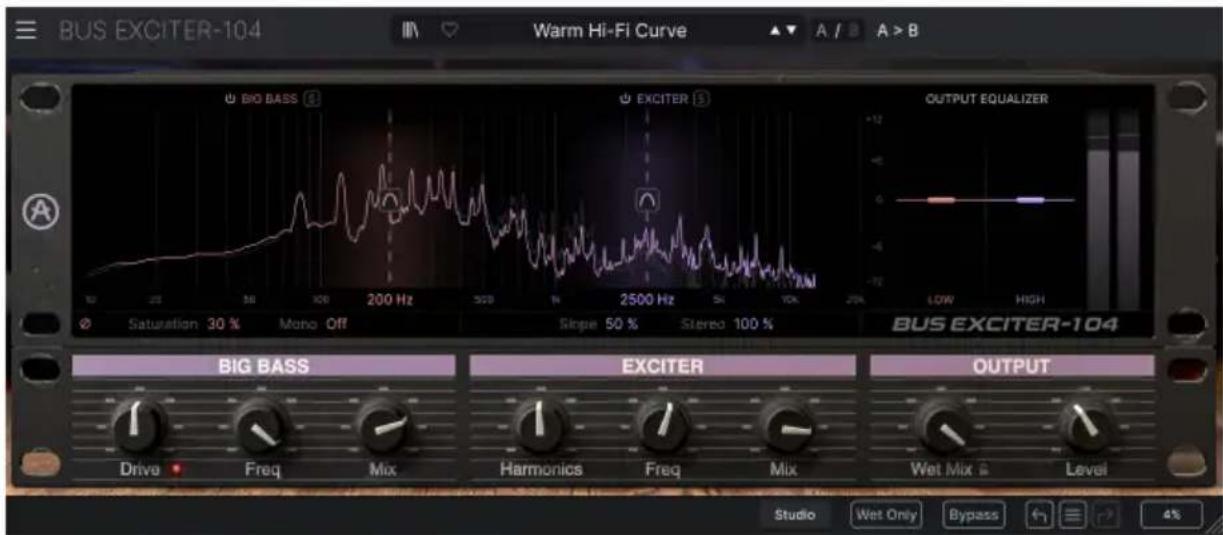
Bus EXCITER-104 is based upon the most widely used model of the Aphex Aural Exciter, the Type C2, model 104. Introduced in 1993, it built upon the Exciter concept the manufacturer first introduced in 1975 and became the best-selling and most popular model among effects of its type.
We began with an exacting study of the original hardware's behavior down to the circuit level. After modeling this, we added features to increase its flexibility and usefulness in today's digital music production environments. Bus EXCITER-104 takes its place in our FX Collection alongside many other virtual versions of classic hardware effects.
The Aural Exciter was meant to add harmonics, transient detail, and air to recordings – all without affecting the level of the signal from input to output. The "Big Bottom" module in the C2-1O4 then applied parallel compression to extend bass without increasing gain.
In small doses, the Exciter could impart an "X-factor" to an already good mix. Used more aggressively, it could restore dull and lifeless recordings. These included cassettes that had been played or copied too many times, which would have worn the magnetic particles off of the tape. Some people overused the Exciter, leaning on it as a fix-all for tracks that should have been recorded more carefully to begin with. But those who understood its purpose aimed for moderation and achieved predictably better results. Exciters were employed on the album Rumours by Fleetwood Mac and the hit song "Band on the Run" by Paul McCartney and Wings. Artists such as Jackson Browne, The Four Seasons, Neil Diamond, Linda Ronstadt, James Taylor, credited the equipment in their album liner notes.
Notably, the worse the condition of the input signal, the more benefit the Exciter conveyed. Bus EXCITER-104 lets you add this unforgettable piece of recording history to your own toolkit.
1.1. The hardware Exciter

The Aphex type C2 Aural Exciter, model 104. Image courtesy of Sweetwater.
The Exciter's origin story holds that inventor Kurt Knoppel was assembling a stereo amplifier from Heathkit, a manufacturer of build-it-yourself electronics kits popular with enthusiasts in the 1970s. He wired one of the two channels incorrectly, such that its vacuum tubes received far less than the specified voltage. This created distortion, but when a small amount of this signal was mixed with that from the correctly-built channel, the overall result sounded clearer and livelier.
The next years would involve making that happy accident more intentional and precise, until the first marketable concept debuted in 1975 and company president Marvin Caesar joined the team to develop and market future products. The C2-104 was in fact introduced in the early 1990s; type C2 (as opposed to just C) added the "Big Bottom" bass enhancement. This applied a compressor with a high ratio to bass frequencies, then combined the compressed signal with the original. The intended result was punchier bass with no increase in gain.
The model 104 was an entirely analog effect. It became hugely influential. Today, we take it for granted that you can technically distort an audio waveform for purposes other than musical distortion, i.e. to make it sound better or interestingly different. This principle shows up in many Arturia effects and instruments in the form of waveshaping, wavefolding, the subtler algorithms in our Dist COLDFIRE plug-in, the Metalizer in our Brute synthesizers, and elsewhere. But when the Aural Exciter was new, this phenomenon truly was a "secret sauce."
1.2. Bus EXCITER-104 feature summary
In fact, we encourage you to use Bus EXCITER-104 like a sauce – just the right amount will enhance your musical meal, but too much may mean that sauce is all you taste. Then again, you might be looking to overwhelm or mangle the harmonic profile of a mix or track, and the Exciter process can do that in a way that is different from any other effect. Here is a list of key features.
- Perfectly accurate model of Exciter process of original hardware
- Big Bass enhances low end via parallel compression, as on C2 model 104
- Adjustable low-pass frequency and resonance for Big Bass
- Adjustable high-pass frequency and resonance for Exciter
- Big Bass or all frequencies below low-pass cutoff can be summed to mono for added sonic density
- Big Bass Saturation can add overdriven character if desired
• Output EQ with low and high shelving bands - Adjustable stereo width of Exciter process
- Interactive Preset browser
- Diverse factory Presets tailored to a broad range of musical applications
- Mix Lock keeps dry/wet mix the same even when changing Presets
Are you excited yet? We are! Let's see how Bus EXCITER-104 works.
2. ACTIVATION AND FIRST START
2.1. Compatibility
Bus EXCITER-104 works with Windows 10 or later, or macOS 10.13 or later. It is compatible with the latest Apple Silicon M-series processors. You can use it as an Audio Unit, AAX, VST2, or VST3 plug-in within your favorite recording software.




2.2. Download and install
You can download Bus EXCITER-104 directly from the Arturia Products Page by clicking either the Buy Now or Get Free Demo options. The free demo is limited to 20 minutes of operation.
If you have not already done so, now is a good time to create an Arturia account by following the instructions on the My Arturia webpage.
Once you install Bus EXCITER-104, the next step is to register the software. This is a simple process that involves a different software program, the Arturia Software Center.
2.2.1. Arturia Software Center [ASC]
If you haven't installed ASC yet, please go to this web page: Arturia Downloads & Manuals.
Look for Arturia Software Center near the top of the page, and then download the installer version for the system you're using (Windows or macOS). ASC is a remote client for your Arturia account, letting you conveniently manage all your licenses, downloads, and updates from one place.
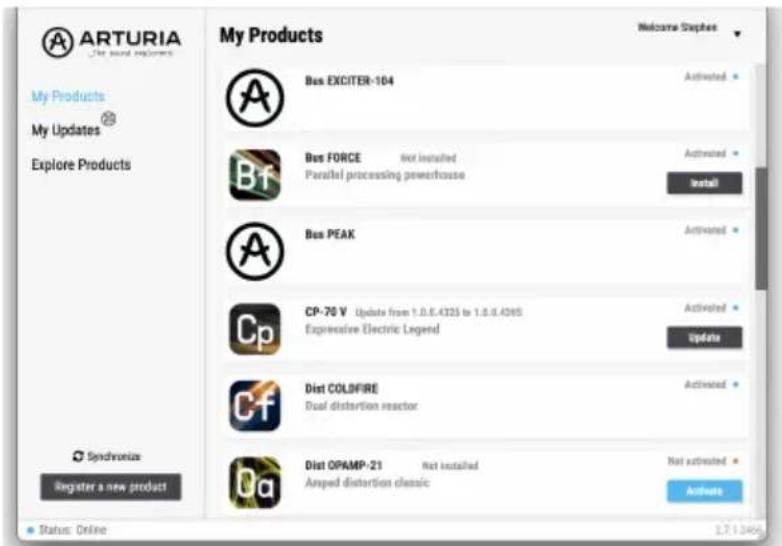
After you complete the installation, do the following:
- Launch the Arturia Software Center (ASC).
- Log into your Arturia account from ASC's interface.
- Scroll down to the 'My Products' section of ASC.
- Click on the 'Activate' button next to the software you want to start using (in this case, Bus EXCITER-104).
It's as simple as that!
2.3. Working with Bus EXCITER-104 as a plug-in
Bus EXCITER-104 can be used as a plug-in within all major Digital Audio Workstation (DAW) programs including Cubase, Digital Performer, Live, Logic, Pro Tools, Reaper, Studio One, and more.
Plug-ins have numerous advantages over hardware, including:
- You can use as many instances on different tracks as your computer can handle (though as the name implies, Bus EXCITER-104 is intended for use on master buses and sends).
- You can automate the plug-in's settings via your DAW's automation feature.
- All settings and changes are saved with your DAW project, letting you pick up right where you left off.
2.3.1. Audio and MIDI settings
Since Bus EXCITER-104 is a plug-in, settings for audio and MIDI routing are handled in your recording software or DAW. They are generally located in some type of Preferences menu, either at the global or project level, and each product does things a bit differently. So, consult your recording software's documentation for information on how to select your audio interface, activate outputs, set the sample rate, assign MIDI ports, set project tempo, adjust buffer size, and the like.
3. THE BUS EXCITER-104 MAIN PANEL
The interface of Bus EXCITER-104 consists of two halves. The lower half resembles the hardware unit and is all you need for quick operation. The upper half combines a frequency spectrum visualizer with a handful of advanced controls for further sound sculpting. Here is an integrated diagram of both.
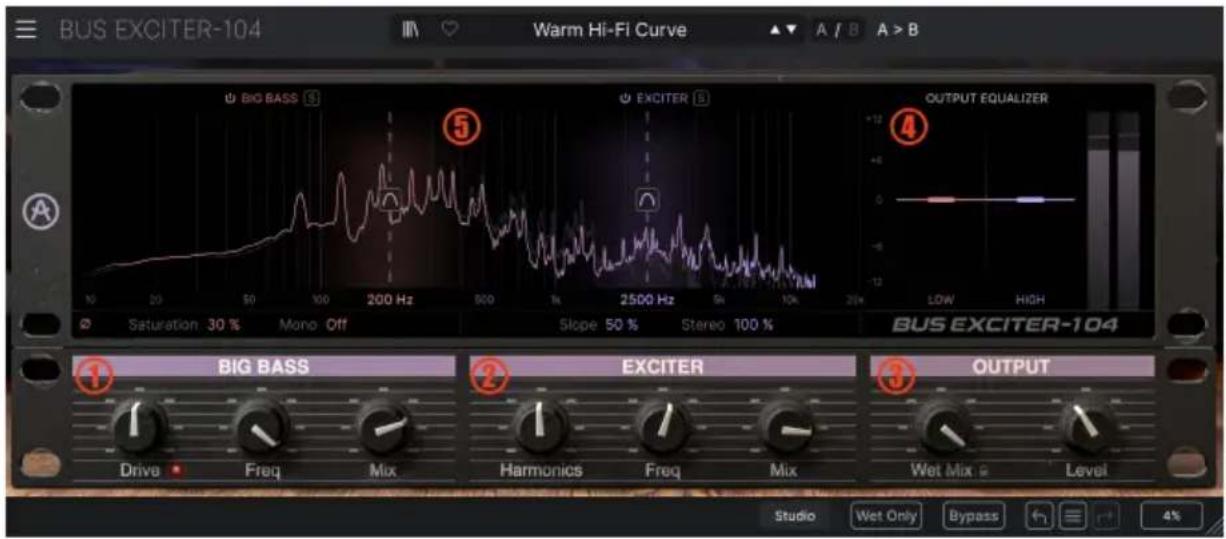
| Number Area Description | ||
| 1. Big Bass [p.7] | Controls the low-end harmonic enhancement, impact, and saturation | |
| 2. Exciter [p.8] Controls the main harmonic enhancement | ||
| 3. Output [p.8] Controls overall wet/dry mix and level | ||
| 4. | Output EQ [p.9] | Two-band high and low shelf EQ for the final output stage |
| 5. | Visualizer and advanced controls [p.10] | Spectrum display and fine controls for Big Bass and Exciter modules |
3.1. Common behaviors
All Arturia FX Collection plug-ins share some common control behaviors to make editing sounds easier.
3.1.1. Value pop-ups
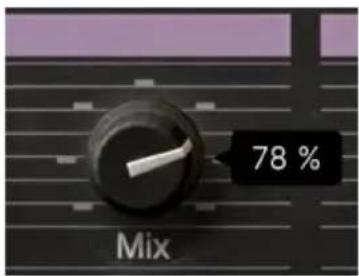
Move or hover on any control and a pop-up banner or "tool tip" will display its value.
3.1.2. Parameter descriptions
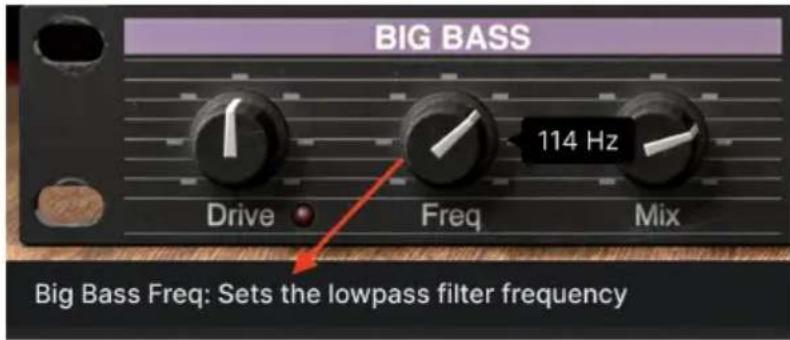
Operating or hovering on any control also displays its name and a brief description of its function in the left corner of the lower toolbar [p.21].
3.1.3. Parameter adjustment
Hold the right mouse button or Control key while dragging on either Frequency knob (in the Big Bass or Exciter sections) to adjust it more slowly. This helps when you want to dial in precise values. If your mouse is equipped with a wheel, you can hold the Control key (Windows) or Command key (macOS) and use the wheel to fine-tune as well.
For parameters with linear mapping – such as dB, percentages, or abstract units – one click of the scroll wheel (without holding any key) changes the value in predictable steps: 0.5dB for levels, 2% for percentages, and 0.5 for abstract units.
3.1.4. Double-click for default
Double-click on any knob to return it to its factory default setting.
3.2. Big Bass
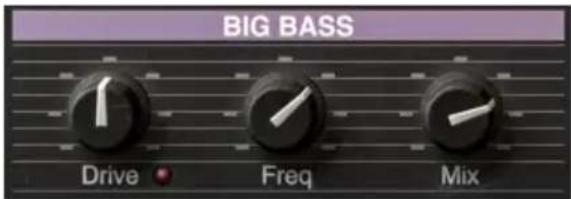
Big Bass replicates the hardware Exciter's "Big Bottom" function, which used parallel compression – meaning it combined a compressed signal with the original – to enhance low frequencies.
Its main controls are:
- Drive: Fine-tunes the input signal, which in turn affects the amount of compression applied.
- Frequency: Determines the cutoff frequency of the low-pass filter; frequencies below this cutoff are affected by the Big Bass process.
• Mix: Adjusts the amount of processed signal fed back into the original signal
Generally, the Drive control should be set so that the adjacent red LED is slightly pulsing along with the loudest bass peaks in your mix or track. If it does not pulse at all, the Big Bass effect isn't working hard enough. If it is mainly steady-on, you're likely overdriving the signal. Frequency is a more matter of taste. A good guideline is that you want it high enough to hear above the sub-bass range, but low enough that Big Bass is not capturing low-mid and midrange frequencies more aptly handled by the Exciter. Setting the Frequency too high can cause a muddy sound.
3.3. Exciter
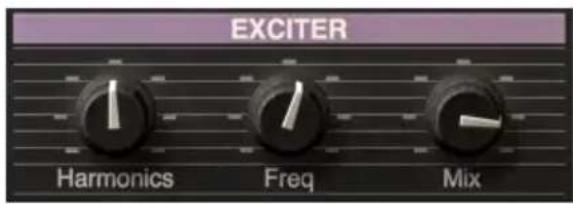
Here is the main attraction of Bus EXCITER-104. It adds harmonics and a substantial high-frequency boost to the signal as described in the introduction [p.3] without adding gain to the throughput signal.
- Harmonics: Controls the amount of harmonics added to the signal, in terms of both their amplitude and frequency (higher value = higher harmonics).
- Frequency: Determines the cutoff frequency of a high-pass filter; frequencies above this cutoff are affected by the Exciter process.
- Mix: Adjusts the amount of processed signal fed back into the original signal.
i The Harmonics knob adds content to the signal even at the lowest setting, which is why its minimum value is 1.0 instead of zero. The original hardware had two settings, normal and high, which correspond to 1.0 and 10.0 values of the knob here.
3.4. Output
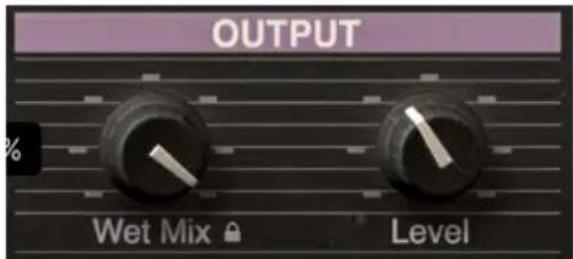
The primary controls of the Output section are very simple.
- Wet Mix: Adds processed signal to the original signal.
- Level: Adjusts the final output level of Bus EXCITER-104.
The Wet Mix adjusts the level of processed sound from both the Big Bass and Exciter stages, assuming both are turned on. It is different from a standard dry/wet mix because due to the nature of the effect, the dry signal is always at 100% – unless the Wet Only [p.22] option is activated in the Lower Toolbar.
3.4.1. Mix Lock
Click the padlock icon below the Wet Mix knob. When it is in locked position, the Wet Mix setting remains the same even if you change Presets. This is useful for auditioning different Presets without hearing any unnatural jumps in the amount of processing applied.
3.4.2. Output EQ
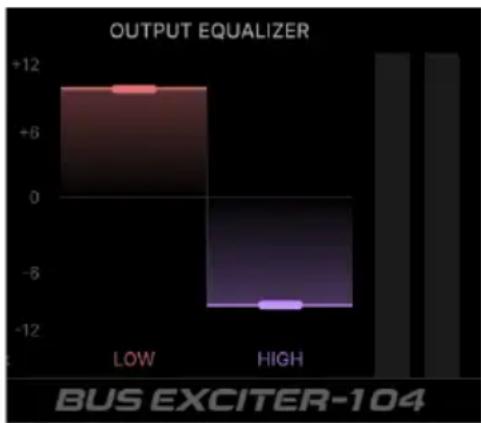
bar
| Category | Value | | -------- | ----- | | LOW | +10 | | HIGH | -10 |This screenshot exaggerates the low and high settings so the color bands are fully visible.
Bus EXCITER-104 includes an Output Equalizer, which consists of high and low shelves with ranges of +/- 12dB. This EQ is downstream of the Wet Mix control, meaning it affects the processed and unprocessed signals. However, the frequency of each shelf (where it begins to boost or cut material) is the same as the Big Bass section's Frequency for the low shelf, and the Exciter's Frequency control for the high shelf.
The low and high EQ shelves are synchronized to the Big Bass and Exciter frequency values, respectively. This lets you exaggerate or balance the tonal content. For example, you could use the high shelf to "overcook" an already harmonically rich post-Exciter sound, or bring it down to rebalance the highs without removing all the new harmonics.
3.5. Visualizer and advanced controls
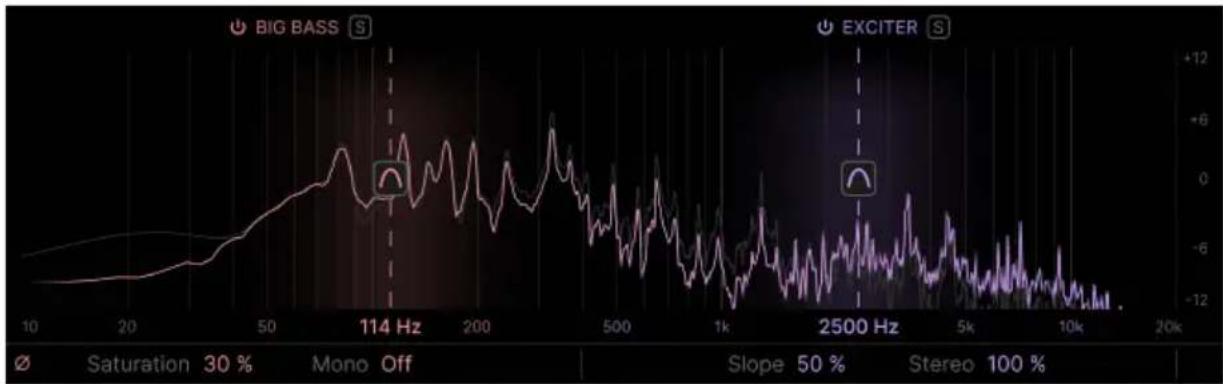
line
| Frequency | Value | | --------- | ----- | | 114 Hz | ~0 | | 2500 Hz | ~-6 |The upper area of Bus EXCITER-104 contains a frequency spectrum visualizer and a handful of controls that, while numbering just a few, allow significantly more precise control over the processing than on the original hardware.
3.5.1. On/Off and Solo

Both the Big Bass and Exciter sections have On/Off toggles as well as Solo buttons.
- On/Off: Simply turns either section on or off while retaining all its other settings.
- Solo: Lets you listen to only the parallel signal added by either section.
The two controls are interrelated. You can turn either or both modules on and off, but you cannot solo a module that has been turned off. On the other hand, soloing a module automatically turns the other off, and you cannot turn it back on until you un-solo the active module. Each module's Solo is also affected by its Mix setting; for example, if a module's Mix is at minimum, soloing it will produce silence.
3.5.2. Big Bass advanced controls
Advanced controls for the Big Bass module reside in the Visualizer above its main controls. Red is the signature color of the Big Bass section.
3.5.2.1. Frequency
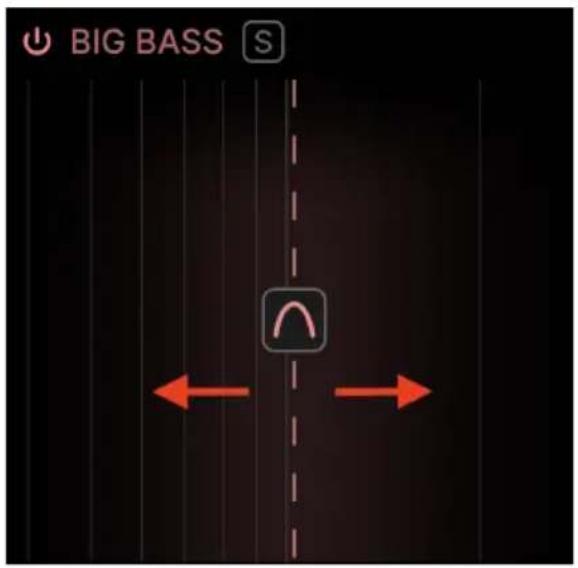
Slide the dotted red vertical line left or right. This duplicates the function of the Big Bass Frequency knob, but you may find this movement more precise. It sets the cutoff frequency of a low-pass filter. Material below the cutoff gets processed by the Big Bass, with the dry signal retained in parallel.
3.5.2.2. Resonance
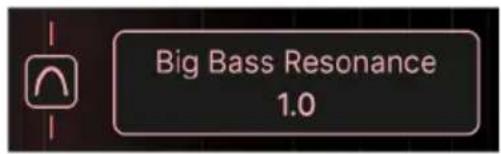
Hover over the Big Bass section's Resonance to see the value displayed to the right.
The arch-shaped icon in the middle of the frequency bar is the Resonance control for the Big Bass low-pass filter. Drag up or down on it to adjust the value, and the shape of the arch will change to reflect the bandwidth of the resonance peak. A narrower arch also means a higher amplitude in the emphasis range.
Just as a resonant filter in a synthesizer emphasizes frequencies close to the cutoff, the Resonance here emphasizes Big Bass processing at the cutoff. So, in addition to the overall Big Bass process, you could use Resonance to accentuate a bass frequency you think is too faint or upstaged in your mix.
3.5.2.3. Polarity

Clicking the Polarity icon reverses the polarity of the processed Big Bass signal relative to the parallel dry signal. Depending on the mix or track, you may find this increases the desired effects of Big Bass.
3.5.2.4. Saturation
Saturation 30 %
Where the Drive [p.7] knob is meant to optimize the input to fully use the Big Bass process, Saturation is more for creating an intentionally overdriven sound. It does not reach anything close to fuzz-pedal levels, however. Under the hood, it works similarly to the drive of the op-amp (operational amplifier) circuit in the hardware, but at an increased level so that desired overdrive is heard more readily.
3.5.2.5. Mono
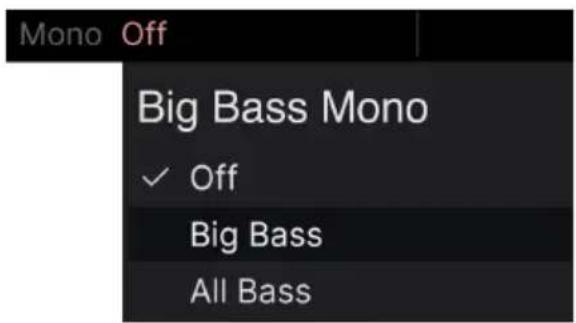
This drop-down menu gives you the option to sum either all bass (below the Frequency setting) to mono, or just the results of the Big Bass effect. This is provided because bass frequencies in mono often lends a sense of grounding and solidity to a mix – and can be useful for club sound and vinyl cutting.
- Off: No frequencies are summed to mono.
• Big Bass: Big Bass signal is summed to mono. - All Bass: In addition to the Big Bass summing, the stereo sides are high-pass (low cut) filtered, placing all bass frequencies in the center.

If Bus EXCITER-104 is used on a mono track (as a mono or mono-to-stereo plug-in), this option is not present. Since the signal originates as mono, there is nothing to sum to mono in the first place.
3.5.3. Exciter advanced controls
Advanced controls for the Big Bass module reside in the Visualizer above its main controls. Violet is the signature color of the Big Bass section.
3.5.3.1. Frequency
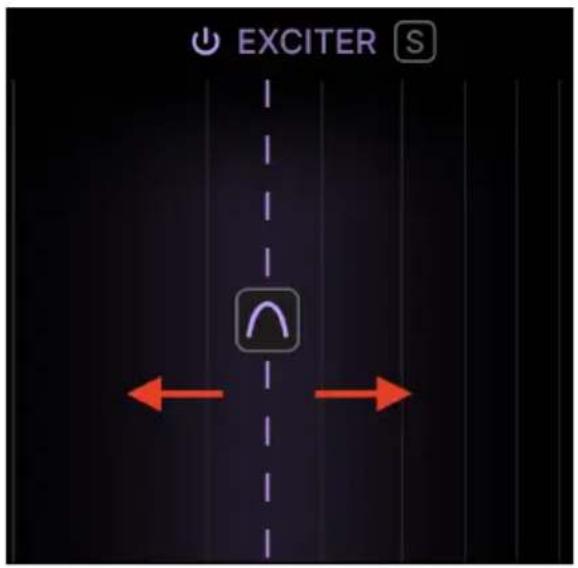
Slide the dotted violet vertical line left or right. This duplicates the function of the Exciter module's Frequency knob, but you may find this movement more precise. It sets the cutoff frequency of a high-pass filter. Material above the cutoff gets processed by the Exciter, with the dry signal retained in parallel.
3.5.3.2. Resonance
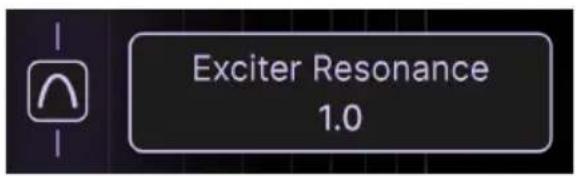
Hover over the Exciter section's Resonance to see the value displayed to the right.
The arch-shaped icon in the middle of the frequency bar is the Resonance control for the Exciter's high-pass filter. Drag up or down on it to adjust the value, and the shape of the arch will change to reflect the bandwidth of the resonance peak. A narrower arch also means a higher amplitude in the emphasis range.
Similarly to the Big Bass module, you would increase the resonance to focus extra attention from the Exciter on a particular frequency band you find lacking in clarity or detail. Since Resonance is located at the input of the Exciter signal, it will emphasize harmonic generation around the set Frequency.
3.5.3.3. Slope
Slope 50%
There are two things going on in the Exciter section: The signal's high-frequency content is spotlighted by the high-pass filtering, and harmonics are added via a rectifier. These are actually two parallel signals that the Exciter then mixes back together. Slope adjusts the rectifier behavior from half-wave (as on the hardware) to full-wave, at values from 50% to 100%, respectively. Drag up or down on the number to adjust the value.
A rectifier is a type of distortion circuit. It takes a waveform that is symmetrical in its positive and negative cycles, then makes it asymmetrical by shaving off all or part of either the positive or negative cycles (but not both). Increasing the Slope past 50% will exceed the behavior of the model 104 hardware, adding even more harmonics. Full-wave rectifiers sound more aggressive than half-wave, and are ideal for adding air or grunge to atonal transients such as snare hits. For pitched or melodic sources, half-wave generally sounds better, though full-wave can produce interesting results on simple monophonic lines.
3.5.3.4. Stereo
Stereo 100 %
Drag up or down on the Stereo value to adjust the stereo width. A value of zero is monaural, 100% is the default, and 200% represents an exaggerated stereo spread. This only affects the processed portion of the signal output by the Exciter module.
If Bus EXCITER-104 is used on a mono track (as a mono or mono-to-stereo plug-in), the Stereo parameter is not present.
3.5.4. Interpreting the Visualizer
line
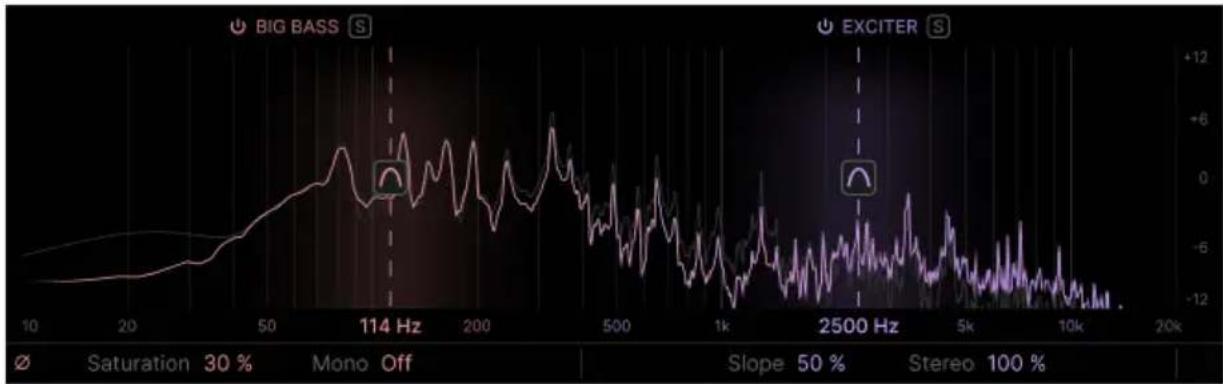
| Frequency | Value | | --------- | ----- | | 114 Hz | ~0 | | 2500 Hz | ~-6 |When Bus EXCITER-104 is actively processing signal, the Visualizer shows an animated spectrum display of dancing peaks, representing the real-time frequency content of the signal. The faint grey outline represents the pre-processing input signal. The colored line, morphing from red to violet as frequency ascends, represents the results of all active processes at once, including the Output EQ [p.9] shelves.
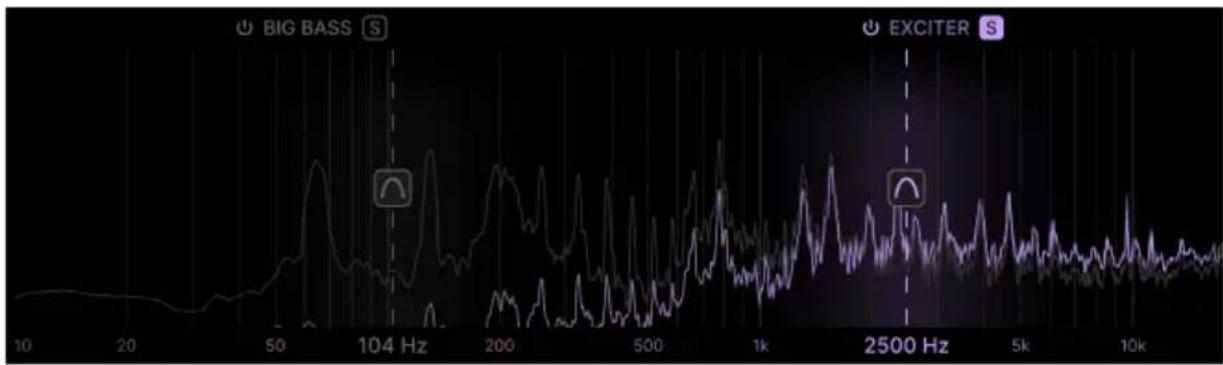
line
| Frequency | Signal Amplitude | | --------- | ---------------- | | 104 Hz | High | | 2500 Hz | Medium |The Visualizer with the Big Bass module turned off
If you turn either the Big Bass or Exciter module off (or solo the opposite module), its entire spectrum range turns grey. In the above screenshot, though, notice that the action of the Exciter extends well into the bass range.
4. THE TOOLBARS
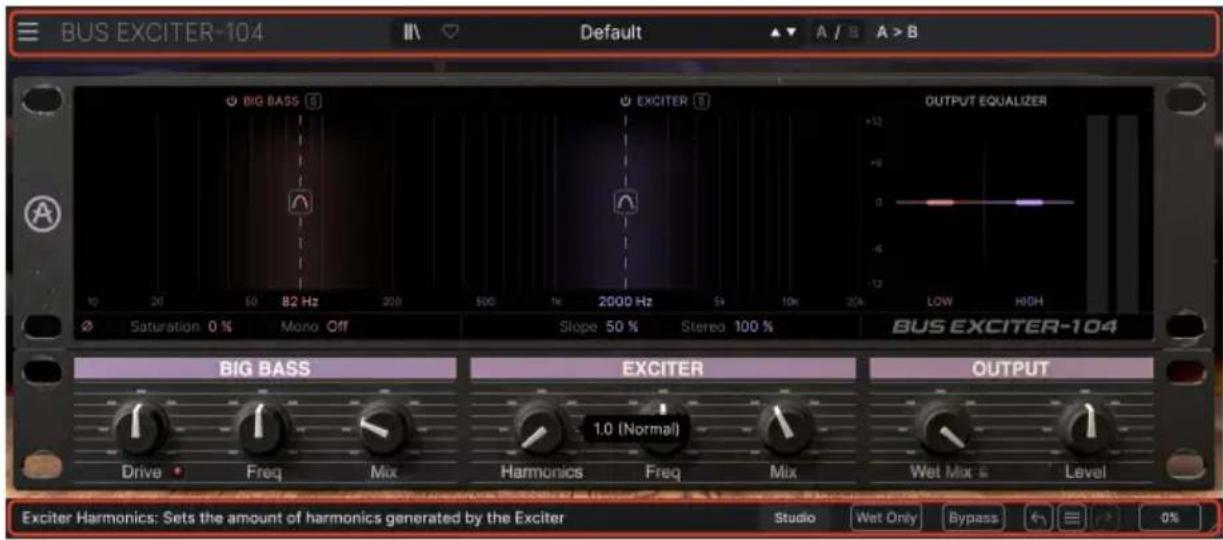
The toolbars above and below the main control area of Bus EXCITER-104 contain a number of important functions for Preset selection, housekeeping, and other utility settings.
The Upper Toolbar includes:
• The Main Menu [p.17]
• The Preset Name Pane and Preset Browser [p.27] access button
- Switching and copy options for A and B settings [p.21]
The Lower Toolbar includes:
• The parameter description area [p.21]
- A button to select the Oversampling Quality [p.22] of the plug-in's processing engine
• The Wet Only [p.22] button to isolate the processed signal
• A Bypass button [p.22]
- Undo, Redo, and History [p.23]
• The CPU Meter [p.24] and Panic [p.24] functions
• A corner grab handle [p.24] for resizing the Bus EXCITER-104 window
4.1. Upper Toolbar
Let's start with the Upper Toolbar, covering its functions from left to right.

4.1.1. Main Menu
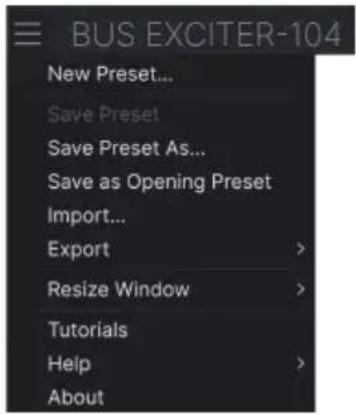
Clicking the "hamburger" icon (three horizontal lines) in the top left corner of the upper toolbar opens the Main Menu, a drop-down menu that lets you access a number of useful functions related to Preset management and more.
4.1.1.1. New Preset
Creates a new Default Preset with initialized settings for all parameters.
Overwrites the current Preset with any changes you have made. This applies only to user presets, so this option is greyed out for factory presets.
This option saves the current settings of Bus EXCITER-104 under a new Preset name in the User bank. (Factory Presets cannot be overwritten or lost.) Clicking this option reveals a window where you can name your Preset and enter more detailed information about it:
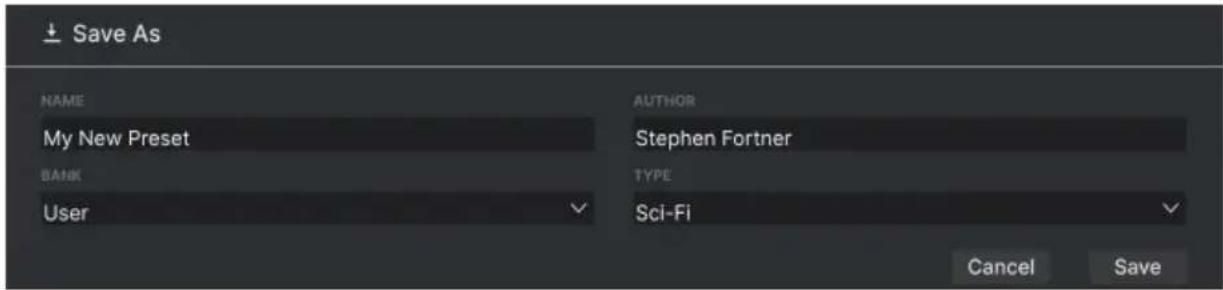
i Information entered for the Bank, Author, and Type fields are all useful when searching for Presets in the Preset Browser [p.27]. You can also type a name into the Bank field, which will create a new user bank that will then be available in subsequent Save As operations. You can't write into the Factory bank, but you can create multiple user banks!
4.1.1.4. Save as Opening Preset

This option specifies the current Preset (Factory or User) as the one that will open when Bus EXCITER-104 is first placed on a track or bus in your DAW project. If you choose a factory Preset, it will open with factory settings.
4.1.1.5. Import...
This command lets you import a Preset file or entire Bank stored on your computer. It opens a navigation window in your computer's OS to find the proper files.
4.1.1.6. Export...
You can export Presets to your computer in two ways: as a single Preset, or as a Bank. In either case, an OS-level navigation window lets you specify where to save the file(s). Both individual Presets and Banks have the filename extension .104x. By default, filenames include a time and date stamp.

- Export Preset...: Exporting a single Preset is handy for sharing a preset with someone else. The saved preset can be reloaded using the Import menu option.
- Export Bank: This option exports an entire Bank of Presets, which is useful for backing up or sharing many Presets at once. Saved Banks can be reloaded using the Import menu option.
4.1.1.7. Resize Window
| Zoom Out |
| Zoom In |
| 50% |
| 60% |
| 70% |
| 80% |
| 90% |
| 100% |
| 120% |
| 140% |
| 160% |
| 180% |
| √ 200% |
Bus EXCITER-104 can be resized from 50% to 200% of its default size (100%) without any visual artifacts. On a smaller screen, such as a laptop, you may want to reduce the interface size so it doesn't dominate the display. On a larger screen or a second monitor, you can increase the size to get a better view of the controls and graphics.
You can also perform this operation using keyboard shortcuts: every time you press CTRL-(Windows) or CMD-(macOS), the window will shrink by one size increment, and every time you press CTRL+(Windows) or CMD+(macOS), the window will grow by one size increment.
In addition, you can click-drag the resize handle [p.24] at the right of the lower toolbar to make the Bus EXCITER-104 window any size in the menu.
4.1.1.8. Tutorials

Bus EXCITER-104 comes with interactive tutorials that walk you through different features of the plug-in. Clicking this option opens a pane on the right side of the window where the tutorials appear. Select one to access step-by-step descriptions that highlight the relevant controls and walk you through the process. Click "Exit Tutorials" at the bottom of this pane to end the tutorial and collapse the plug-in window to its previous size.
4.1.1.9. Help
Get more help by visiting links to this user manual and Frequently Asked Questions pages on Arturia's website. You will need an internet connection to access these pages.
4.1.1.10. About
Here you can view the software version and developer credits. Click again anywhere on the screen (outside the About window but inside the plug-in) to make this pop-up window disappear.
4.1.2. Preset Browser access and Name Pane

The Preset Name Pane
Clicking the "books on a shelf" button opens the Preset Browser [p.27], which offers a myriad of ways to browse, sort, and organize Presets in Bus EXCITER-104.
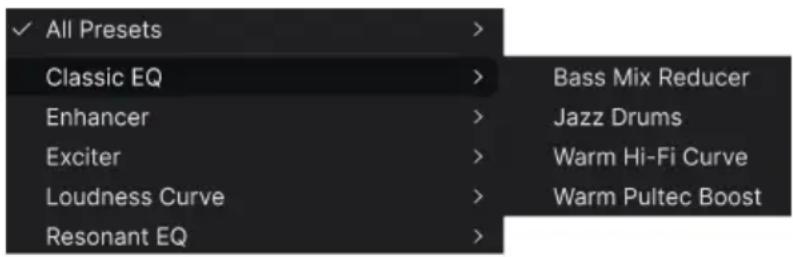
Clicking on the Preset name also opens up s quick drop-down menu for selecting Presets outside of the Browser, as shown above. You can select a category to look at lists of Presets organized by purpose, as shown above, or look at All Presets at once.

The categories/purposes on the left of the drop-down correspond to Subtypes [p.28], a specific level Tag found in the Preset Browser.
Everything you need to know about managing Presets, is covered in detail in the next chapter [p.27]. This includes working with Favorites, which are tagged by clicking the heart icon you can see to the left of the Preset name.

Note: An asterisk just after the name in the Preset Name Pane (*) indicates that you've made changes to that Preset, even if you haven't saved them. If you want to keep them, be sure to do a Save Preset As operation and name your Preset.
4.1.3. Dual settings and copy
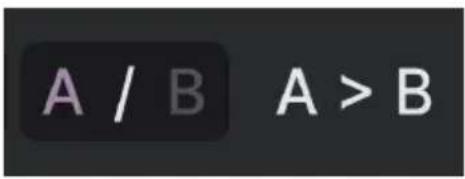
Preset state A active with the option to copy settings to B
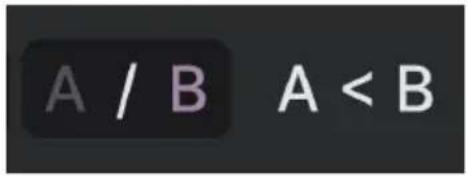
Preset state B active with the option to copy settings to A
Each Preset is actually two Presets in one! Using the A and B buttons, you can switch between two completely different sets of control settings. These are saved within each Preset.
When A is active, clicking A > B will copy the A settings to B. When B is active, clicking A < B will copy the B settings to A.
When you edit settings in a Preset and close your DAW project without saving the Preset, the changes will be remembered when you reopen it – but they will be recalled in Slot A. That means that editing settings in Slot B and closing your DAW without saving them will move those settings over to Slot A when you reopen the project – and Slot B will be blank. Save often!
4.2. Lower Toolbar
The Lower Toolbar of the Bus EXCITER-104 interface can be thought of in terms of left and right halves. On the left is the parameter description display, and on the right are buttons for several useful utility functions.
4.2.1. Parameter Descriptions
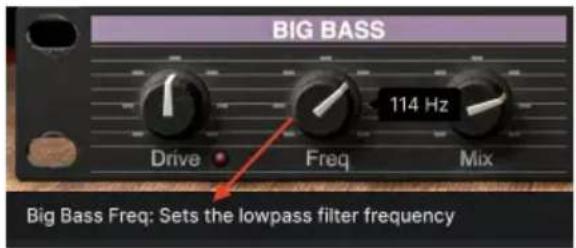
Control description shown for the Big Bass filter frequency
Operate or hover on any knob, button, icon, or other control, and a brief description of what it does appear in the lower left-hand corner.
4.2.2. Oversampling Quality
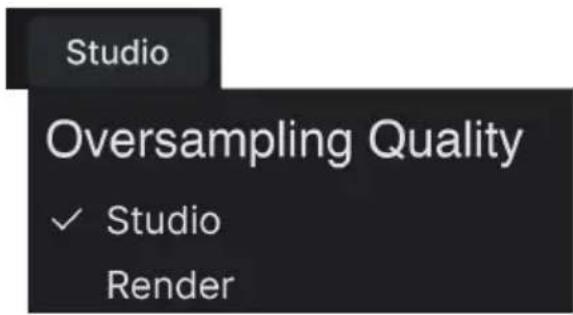
Select studio or render quality oversampling in this menu
This button in the Lower Toolbar helps you balance audio quality and CPU resources.
- Studio: Ideal for tracking, mixing, and working with Bus EXCITER-104 alongside other plug-ins such as virtual instruments.
- Render: Ideal for final mixdown.
This is a good-better difference. Studio quality is more than enough for composing and mixing; Render quality is ideal for printing or bouncing your final mix.
4.2.3. Wet Only

Click this button to hear only the processed signal.
For a quick way to listen to all the processing Bus EXCITER-104 is performing with none of the input signal, click Wet Only. Note that this is interdependent with the Wet Mix [p.8] knob; the drier the mix is set, the less volume you will hear in the wet-only sound. If the mix is turned all the way dry, clicking Wet Only will cause silence.

Importantly, the Wet Only setting should be activated when Bus EXCITER-104 is used on a send bus, you can then adjust its overall amount using send-and-return controls in your DAW.
4.2.4. Bypass
The Bypass button bypasses the Bus EXCITER-104 plug-in entirely. Among its uses are doing a quick comparison of dry versus processed signal without having to bypass the plug-in at the DAW level.
4.2.5. Undo, Redo, and History

natural_image
Three white directional icons on dark background: left-turn arrow, three lines with equals sign, and right-pointing arrow (no text or symbols)When editing a plug-in, it's all too easy to overshoot the sweet spot for one or more controls, and then wonder how to get back to where you were. Like all Arturia plug-ins, Bus EXCITER-104 offers comprehensive Undo, Redo, and History functions so that you always have a safe way back.
Use the arrows to go back and forward one control movement at a time.
4.2.5.1. Undo
Click the left arrow to revert to the state before the most recent edit you made. You may click repeatedly to undo several edits in reverse time order.
4.2.5.2. Redo
Click the right arrow to redo the most recent edit you undid. If you have undone several, you may click repeatedly to redo them in forward time order.
4.2.5.3. History
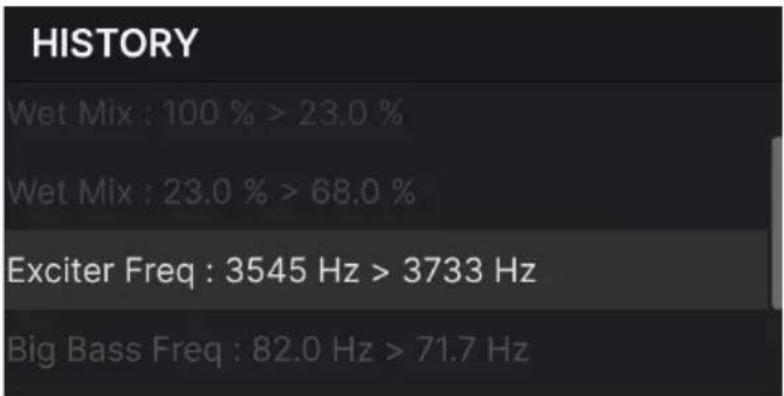
Click the center "hamburger" (three lines) button to open the History window, as shown above. This provides a step-by-step account of every move you have made in Bus EXCITER-104. Clicking on an item in the list not only re-executes that move – it returns the plug-in to the overall state it was in when you first made that move.

Note that the A and B controls settings within a Preset have separate Undo histories.
4.2.6. CPU Meter
At far right is the CPU Meter, which displays the overall load Bus EXCITER-104 is placing in your computer CPU. Since it deals only with this plug-in, it is not a substitute for the resource metering tools in your DAW.
4.2.6.1. Panic

Mousing over the CPU Meter accesses the Panic button.
Mouse over the CPU Meter, and it will display the word PANIC. Click to send an all-sounds-off command that silences any sound processed through Bus EXCITER-104. This is a momentary command, so sound will resume if your DAW is still playing.
In the event of serious runaway audio (say, from an unrelated delay effect that has gone into a feedback loop), stop your DAW playback and disable the plug-in causing the problem.
4.2.7. Resize handle

Grab and drag the diagonal lines to the right of the CPU meter to resize the plug-in window. When you release the mouse button, the window will snap to the nearest increment available in the Resize Window [p.19].
4.2.7.1. Max View button

Sometimes, you may see the above button with two diagonal arrows appear over the resize handle. This happens when, for some reason, the window size is not displaying all of the controls of Bus EXCITER-104. Click it to restore a full view of the open controls.
5. SELECTING PRESETS
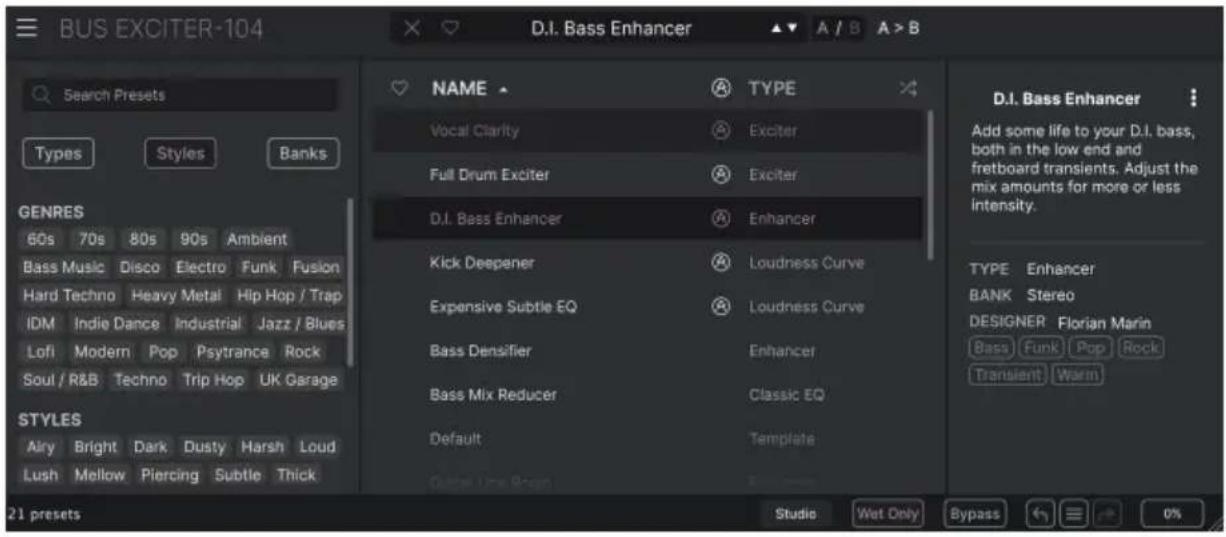
Bus EXCITER-104 lets you browse, search, and select Presets from a browser-like interface inside the plug-in. You can also create and save your own Presets in the User Bank. Of course, the state of any instance of the plug-in – including the current Preset – is automatically saved when you save your DAW project, so you can always pick up where you left off.
First, we will cover Preset functions from the Upper Toolbar in more depth.
5.1. Preset Name Pane

The name pane at top center is always displayed whether you're in the main controls view or the Preset Browser. It reads out the name of the current Preset, obviously, but also offers further ways to browse and load Presets. A filled-in heart icon indicates a liked Preset.
5.1.1. The Arrows
The up and down arrows to the right of the Preset name step serially through Presets. This is limited by the results of any currently active search, i.e. the arrows will only step through the search results. So, make sure any searches are cleared if you simply want to step through all available Presets until you find something you like.
5.1.2. Preset quick access
As mentioned briefly in the previous chapter, you can click on the Preset name in the center of the upper tool bar to bring up a drop-down Quick Browser for Presets. The first option in this menu is called All Presets, and it brings up a submenu of literally every Preset in the current Bank:
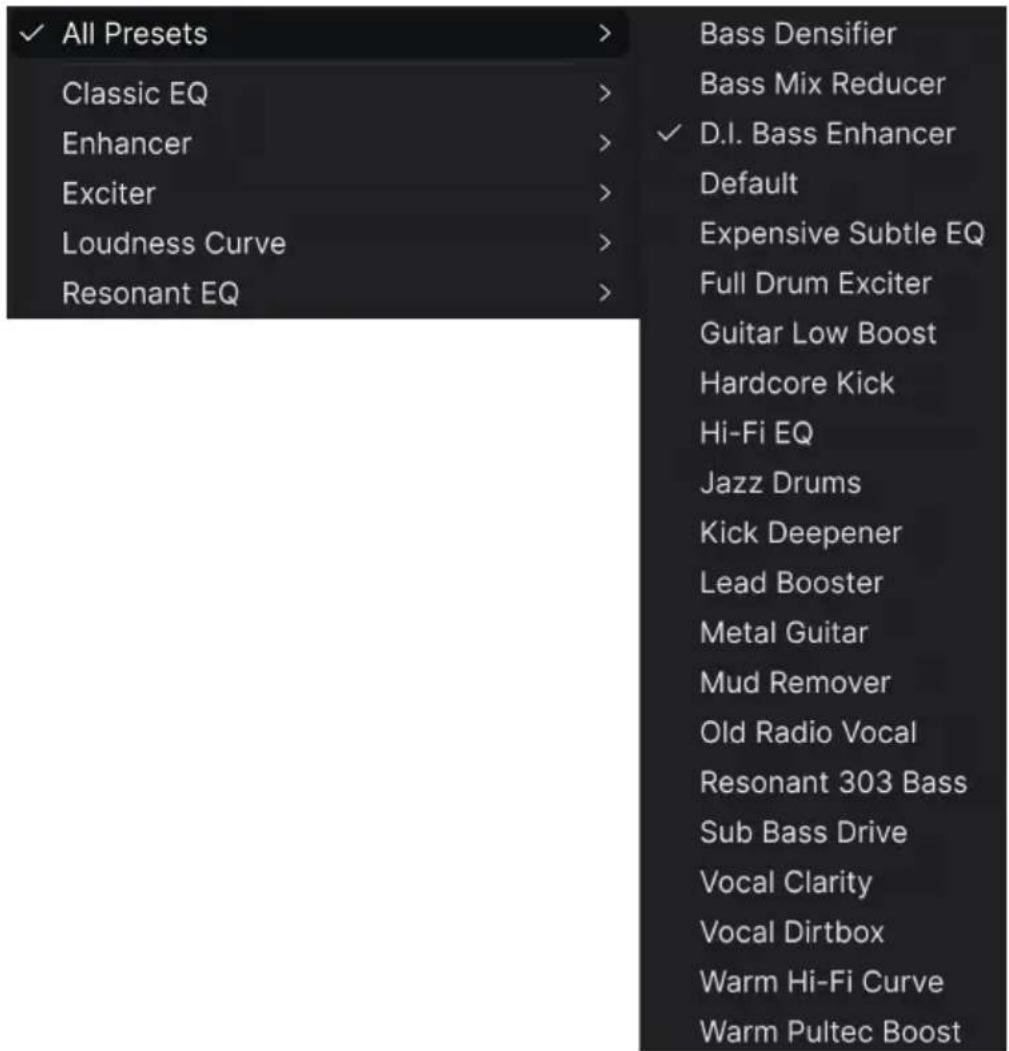
All presets
Below "All Presets" are category options for different applications: classic EQ, enhancer, etc. These correspond to the Subtypes [p.28] in the plug-in's library of Tags. Each of these brings up a submenu of Presets that are appropriate for the specified purpose. One useful aspect is that in the Tags area [p.28], which Subtypes are visible depends upon the parent Type selected. But in the above menu, all Subtypes are always displayed.
Unlike the up and down arrows, the "All Presets" submenu is independent of search criteria – it simply shows you every Preset available. Likewise for the choices below the line, which always include all Presets within that Type.
5.2. The Preset Browser
Click the "books on a shelf" icon (four vertical and tilted lines) in the Upper Toolbar to access the Preset Browser. When the Preset Browser is open, the icon becomes a large X, and is used to close the Browser when you're done.
The three main areas of the Preset Browser are as follows:
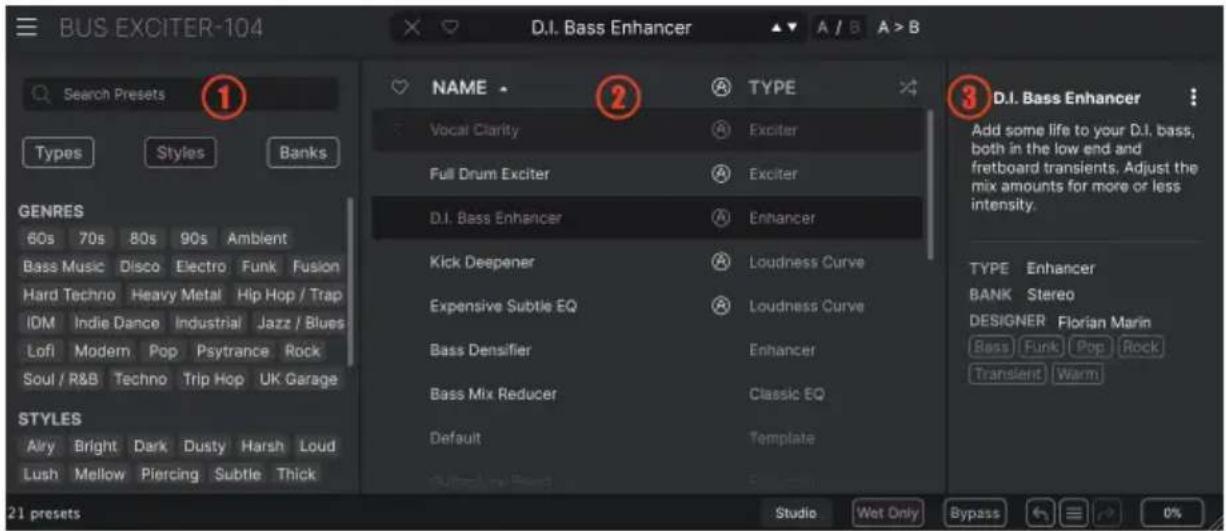
| Number Area Description | ||
| 1. Search [p.27] | Searches for Presets by text entry with tag-based filters for Type, Style, and Bank | |
| 2. | Results Pane [p.30] | Displays search results, or all Presets if no search criteria are active |
| 3. | Preset Info [p.32] | Displays Preset Details; can edit details for Presets in User Bank |
5.3. Searching Presets
Click on the Search field at the top left and enter any search term. The browser will filter your search in two ways: First, simply by matching letters in the Preset name. Second, If your search term is close to that of a Type or Style [p.28] it will include results fitting those tags as well.
The Results Pane will show all Presets that fit your search. Click the Clear All text to clear your search terms along with all tags
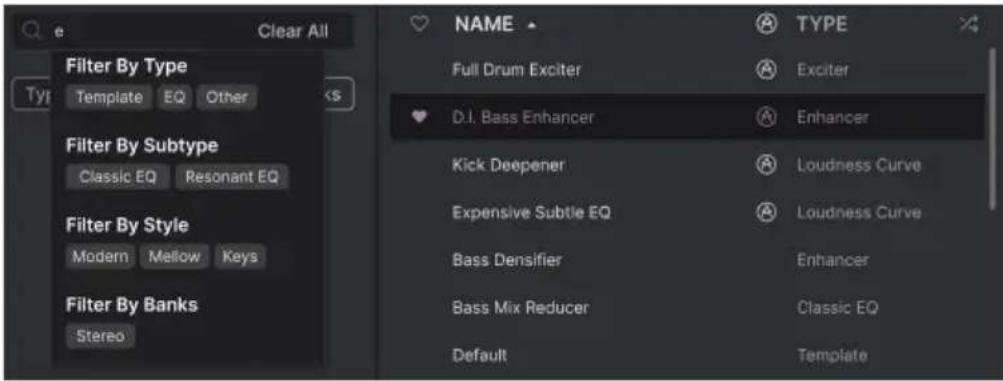
Some of the results that appear upon simply typing the letter E
Notice the pop-up at left, which has appeared in response to beginning to type only the letter E in the search bar. This offers the options to filter results not just by the text but also by tags (see below) and banks. This box will offer fewer options, or disappear altogether, as you type more into your search phrase.
5.3.1. Using Tags as a filter
You can narrow (and sometimes expand) your search using different tags. There are two broad kinds of tags: Types and Styles. You can filter by one, the other, or both.
5.3.1.1. Types and Subtypes
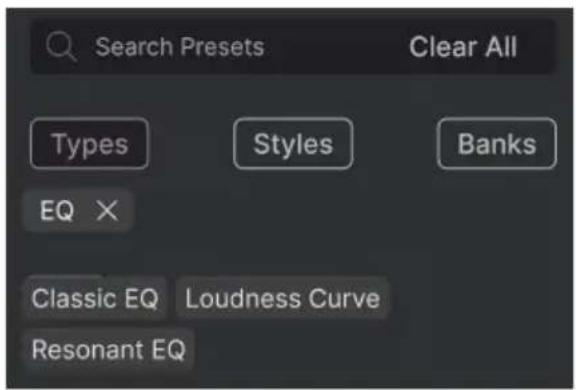
The main type, EQ, is in the upper row of tags; its subtypes are in the second row
Types in Bus EXCITER-104 are tags that correspond to applications: EQ, Template, and Other. With a clear search bar, click the Types drop-down to bring up the list of types. Types sometimes include Subtypes. In the above example, EQ is the main Type, and the second row of subtypes is Classic EQ, Loudness Curve, and Resonant EQ.
You can specify the Type and Subtype when saving a Preset [p.17], using the contextual Type menu. That Preset will then show up in searches where you've selected that Type. The categories of Presets in the quick drop-down menu [p.26] correspond to Subtypes, i.e. specific purposes or musical goals for the plug-in's processing.
5.3.1.2. Styles
Styles are, well ... exactly that. Accessed by the Styles button, this area has three further subdivisions:
- Genres: Identifiable musical genres such as 8Os, Ambient, Bass Music, Industrial, etc.:
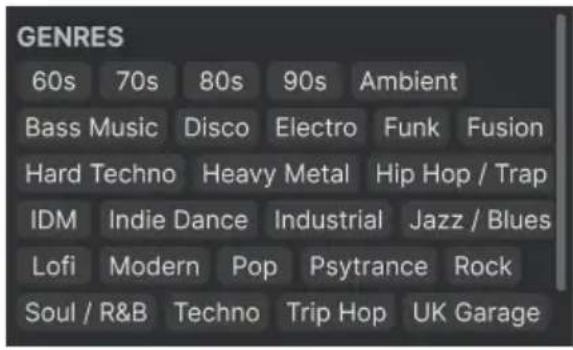
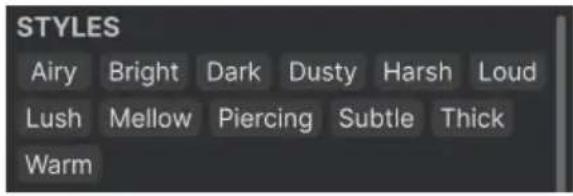
- Styles: More accurately called substyles in this context, these represent general "vibe" such as Airy, Bright, Dark, etc.:
- Characteristics: Even more detailed audio qualities. In Bus EXCITER-104, these are either intended material on which to use the plug-in (Drums, Piano, etc.) or targeted sonic traits (Resonant, Transformer, etc.).
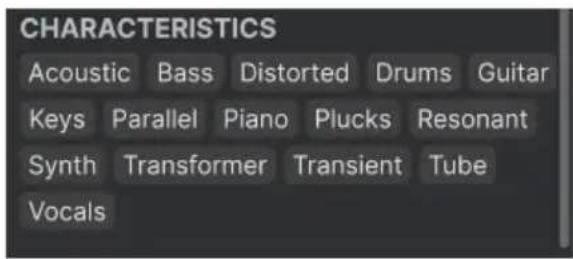
Click any tag in any of these categories, and the results will show only Presets that match that tag. Notice that when you select any tag, several other tags usually grey out and become unavailable. This is because the browser is narrowing your search by a process of elimination.

Note that this is the opposite of how selecting multiple Types broadens your search.
Deselect any tag to remove it and widen the search without having to start all over again. You can also clear the tag by clicking the X to the right of its text, which appears at the top.
Note that you can search by a string of text, Types and Styles, or both, with the search becoming narrower as you enter more criteria. Clicking Clear All in the search bar will remove all Type and Style filters as well as any text entry.
5.3.2. Banks
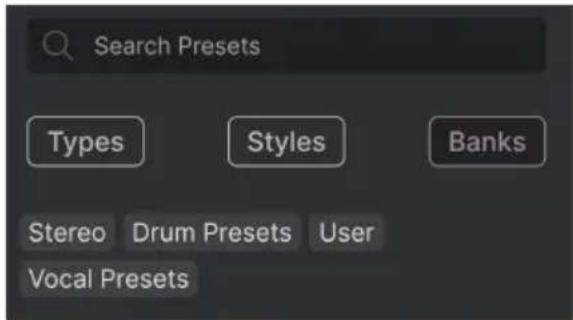
Four banks are shown: the factory bank (Stereo), plus three user-created banks: User, Drum Presets, and Vocal Presets
To the right of the Types and Styles drop-downs is the Banks drop-down, which lets you do your search (using all the methods above) within the Factory or User Banks. When you perform a Save Preset As operation, you can type in a custom name in the Bank field. This will create a new User bank that will then be available in the menu the next time you Save Preset As. So you're not confined to a single, boringly named "user" bank.
5.4. The Results Pane
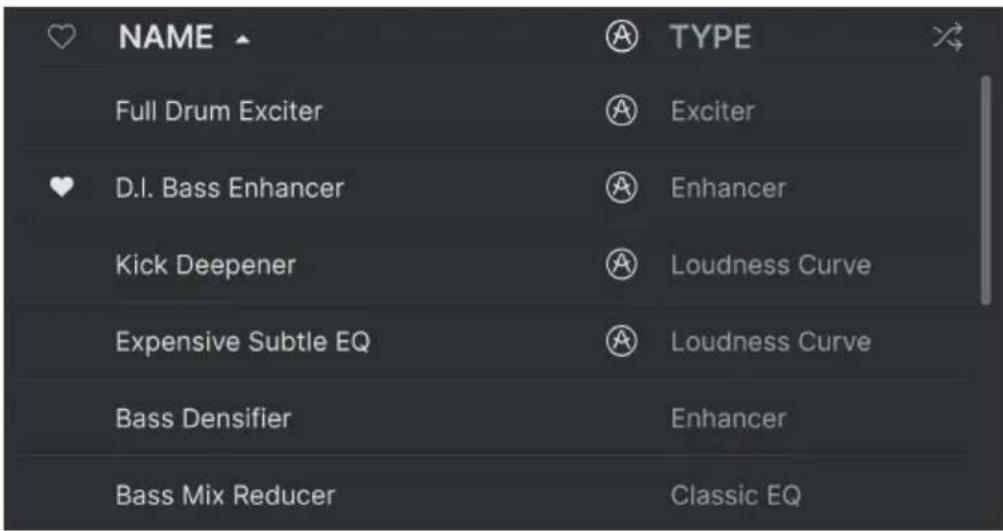
The central area of the browser shows search results, or simply a list of all Presets in the Bank if no search criteria are active. Simply click on a Preset name to load it.
5.4.1. Sorting Presets
Click the NAME header in first column of the Results list to sort the results list of Presets in ascending or descending alphabetical order.
Click the TYPE header in the second column to do the same thing by Type.
5.4.2. Liking Presets
As you explore and create Presets you can mark them as Liked by clicking the heart icon next to their names. This icon also appears in the Upper Toolbar's Preset Name Pane [p.25].
Clicking on the heart icon makes all of your liked Presets show up at the top of the results list, as shown here:
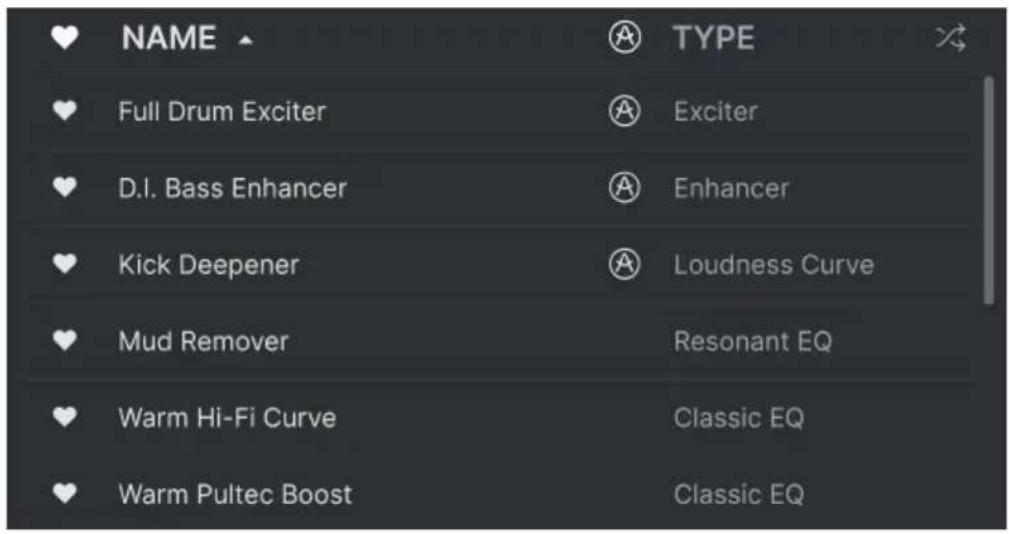
A filled-in heart icon indicates a Liked Preset. An outline indicates a Preset that has not yet been Liked. Click the heart at the top of the list again to return the list to its previous state.
5.4.3. Shuffle button

This button randomly reorders the Preset list. Sometimes it can help you find the sound you're looking for more quickly than scrolling through the entire list.
5.4.4. Featured factory Presets
Presets accompanied by the Arturia logo are factory creations we think really showcase the capabilities of Bus EXCITER-104.
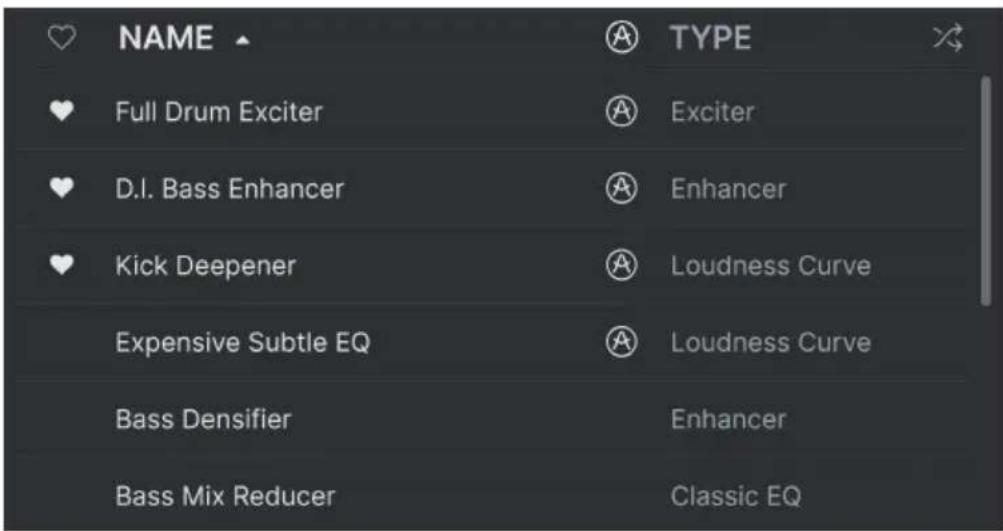
Clicking the Arturia logo icon at the top of the Results pane sorts all featured Presets to appear at the top of the list.
i Sorting by Liked presets takes priority over sorting by factory-featured ones. So, if the top heart icon is engaged, the results will show all liked Presets first, but the first among these will be featured Presets. Non-liked featured Presets may appear lower on the list.
5.5. Preset Info Section
The right side of the browser window shows specific information about each Preset.
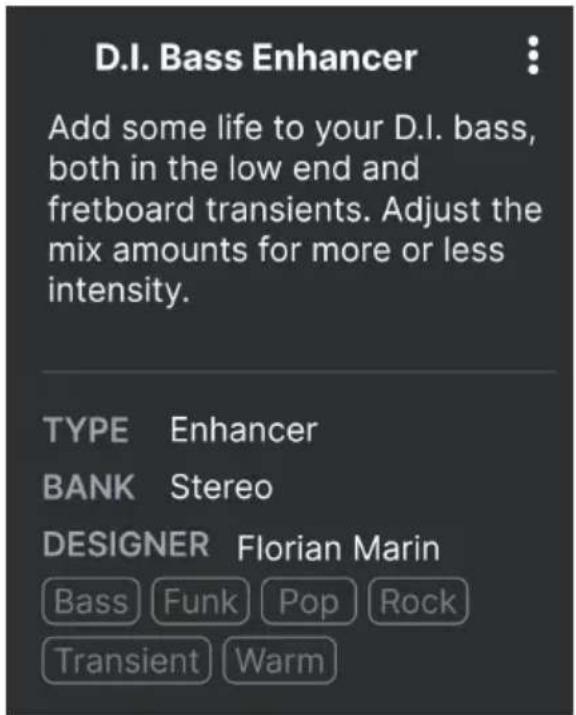
For Presets in a User bank (as the result of a Save Preset As operation), you can enter and edit the information in the Preset Info Section and it will update in real time. This includes the Bank, designer, Type, all Style tags, and even a custom text description at the top.
To make the desired changes, you can type directly in the text fields or use one of the pull-down menus to change the Bank or Type. As shown here, you can also use a hierarchical menu to select the Type or even create a new Type or Subtype.
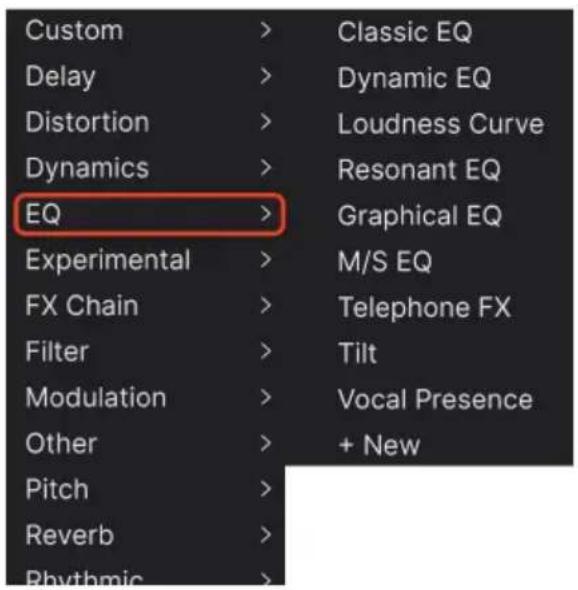

Types and Styles changes you make here are reflected in searches. If you remove a given Style from a Preset and then save that Preset, it will not show up in future searches for Presets bearing t tag. Note that we provide a huge range of Types and Subtypes meant to work across the entire FX election. Not all of these apply straightforwardly to Bus EXCITER-104.
5.5.1. Preset Info quick menu
Clicking the icon with three vertical dots brings up a quick menu for Save, Save As, and Delete Preset operations:
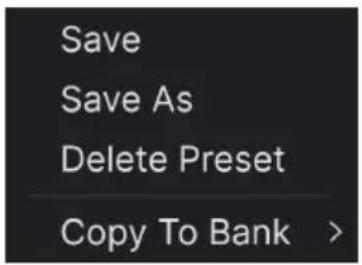
For sounds in Factory banks, only Save As and Copy To Bank are available. If you're working with a user Preset and "Save" is greyed-out, it means you haven't yet changed anything about the Preset.
5.5.2. Edit Style
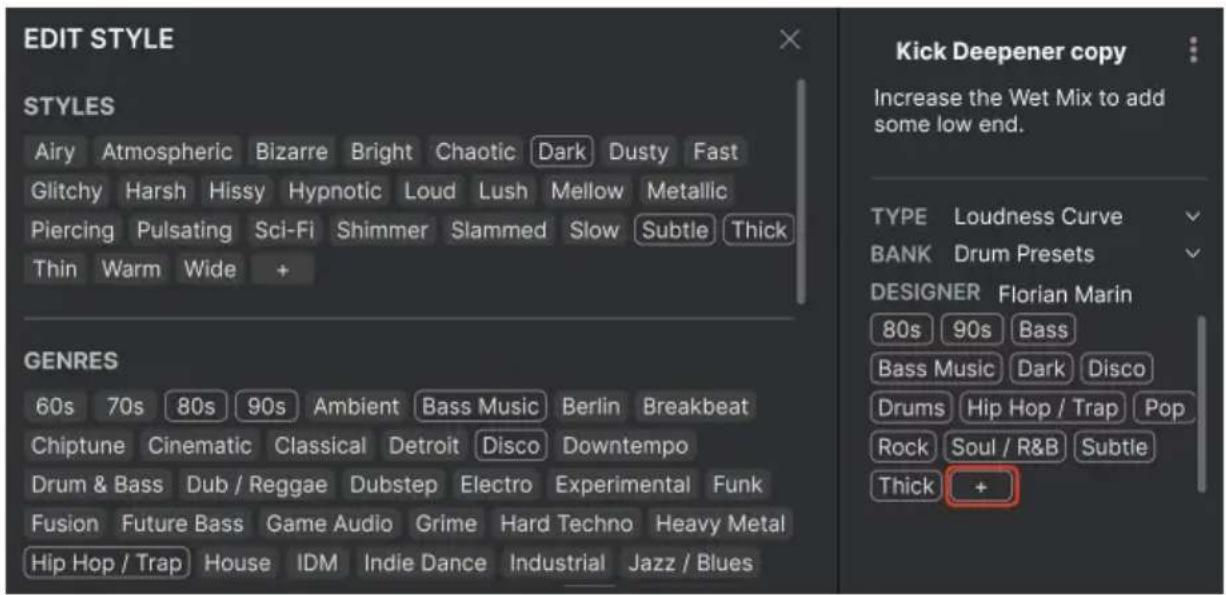
You can also create your own Style tags to help refine searches according to criteria that matter most to you. Clicking on the + icon in the list in the Preset Info pane opens the Edit Style pane, where you can create as many new tags as you'll ever need:
5.5.3. Editing info for multiple Presets
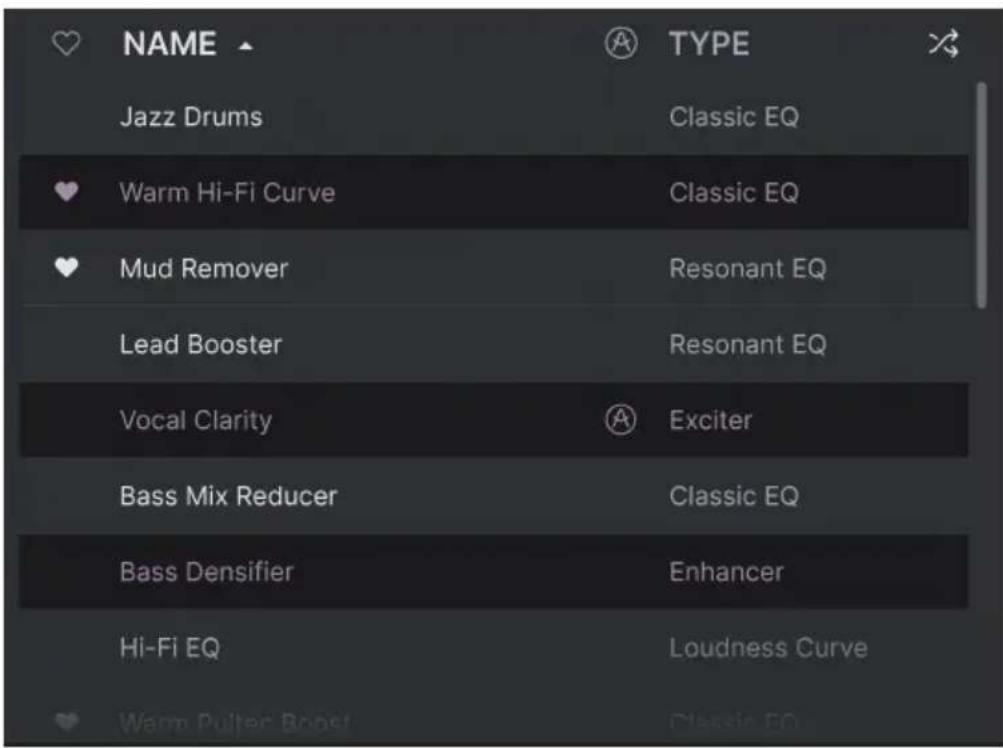
It's easy to edit information such as Types, Styles, designer name, and text description for several presets at the same time. Simply hold CMD (macOS) or CTRL (Windows) and click the names of the Presets you want to change in the Results list. Then enter the comments, change the Bank or Type, etc., and save. You can also hold SHIFT to select a contiguous range of Presets.
6. SOFTWARE LICENSE AGREEMENT
In consideration of payment of the Licensee fee, which is a portion of the price you paid, Arturia, as Licensor, grants to you (hereinafter termed "Licensee") a nonexclusive right to use this copy of the SOFTWARE.
All intellectual property rights in the software belong to Arturia SA (hereinafter: "Arturia"). Arturia permits you only to copy, download, install and use the software in accordance with the terms and conditions of this Agreement.
The product contains product activation for protection against unlawful copying. The OEM software can be used only following registration.
Internet access is required for the activation process. The terms and conditions for use of the software by you, the end-user, appear below. By installing the software on your computer you agree to these terms and conditions. Please read the following text carefully in its entirety. If you do not approve these terms and conditions, you must not install this software. In this event give the product back to where you have purchased it (including all written material, the complete undamaged packing as well as the enclosed hardware) immediately but at the latest within 30 days in return for a refund of the purchase price.
-
Software Ownership Arturia shall retain full and complete title to the SOFTWARE recorded on the enclosed disks and all subsequent copies of the SOFTWARE, regardless of the media or form on or in which the original disks or copies may exist. The License is not a sale of the original SOFTWARE.
-
Grant of License Arturia grants you a non-exclusive license for the use of the software according to the terms and conditions of this Agreement. You may not lease, loan or sub-license the software. The use of the software within a network is illegal where there is the possibility of a contemporaneous multiple use of the program.
You are entitled to prepare a backup copy of the software which will not be used for purposes other than storage purposes.
You shall have no further right or interest to use the software other than the limited rights as specified in this Agreement. Arturia reserves all rights not expressly granted.
- Activation of the Software Arturia may use a compulsory activation of the software and a compulsory registration of the OEM software for license control to protect the software against unlawful copying. If you do not accept the terms and conditions of this Agreement, the software will not work.
In such a case the product including the software may only be returned within 30 days following acquisition of the product. Upon return a claim according to § 11 shall not apply.
- Support, Upgrades and Updates after Product Registration You can only receive support, upgrades and updates following the personal product registration. Support is provided only for the current version and for the previous version during one year after publication of the new version. Arturia can modify and partly or completely adjust the nature of the support (hotline, forum on the website etc.), upgrades and updates at any time.
The product registration is possible during the activation process or at any time later through the Internet. In such a process you are asked to agree to the storage and use of your personal data (name, address, contact, email-address, and license data) for the purposes specified above. Arturia may also forward these data to engaged third parties, in particular distributors, for support purposes and for the verification of the upgrade or update right.
-
No Unbundling The software usually contains a variety of different files which in its configuration ensure the complete functionality of the software. The software may be used as one product only. It is not required that you use or install all components of the software. You must not arrange components of the software in a new way and develop a modified version of the software or a new product as a result. The configuration of the software may not be modified for the purpose of distribution, assignment or resale.
-
Assignment of Rights You may assign all your rights to use the software to another person subject to the conditions that (a) you assign to this other person (i) this Agreement and (ii) the software or hardware provided with the software, packed or preinstalled thereon, including all copies, upgrades, updates, backup copies and previous versions, which granted a right to an update or upgrade on this software, (b) you do not retain upgrades, updates, backup copies and previous versions of this software and (c) the recipient accepts the terms and conditions of this Agreement as well as other regulations pursuant to which you acquired a valid software license.
A return of the product due to a failure to accept the terms and conditions of this Agreement, e.g. the product activation, shall not be possible following the assignment of rights.
- Upgrades and Updates You must have a valid license for the previous or more inferior version of the software in order to be allowed to use an upgrade or update for the software. Upon transferring this previous or more inferior version of the software to third parties the right to use the upgrade or update of the software shall expire.
The acquisition of an upgrade or update does not in itself confer any right to use the software.
The right of support for the previous or inferior version of the software expires upon the installation of an upgrade or update.
-
Limited Warranty Arturia warrants that the disks on which the software is furnished is free from defects in materials and workmanship under normal use for a period of thirty (30) days from the date of purchase. Your receipt shall be evidence of the date of purchase. Any implied warranties on the software are limited to thirty (30) days from the date of purchase. Some states do not allow limitations on duration of an implied warranty, so the above limitation may not apply to you. All programs and accompanying materials are provided "as is" without warranty of any kind. The complete risk as to the quality and performance of the programs is with you. Should the program prove defective, you assume the entire cost of all necessary servicing, repair or correction.
-
Remedies Arturia's entire liability and your exclusive remedy shall be at Arturia's option either (a) return of the purchase price or (b) replacement of the disk that does not meet the Limited Warranty and which is returned to Arturia with a copy of your receipt. This limited Warranty is void if failure of the software has resulted from accident, abuse, modification, or misapplication. Any replacement software will be warranted for the remainder of the original warranty period or thirty (30) days, whichever is longer.
-
No other Warranties The above warranties are in lieu of all other warranties, expressed or implied, including but not limited to, the implied warranties of merchantability and fitness for a particular purpose. No oral or written information or advice given by Arturia, its dealers, distributors, agents or employees shall create a warranty or in any way increase the scope of this limited warranty.
-
No Liability for Consequential Damages Neither Arturia nor anyone else involved in the creation, production, or delivery of this product shall be liable for any direct, indirect, consequential, or incidental damages arising out of the use of, or inability to use this product (including without limitation, damages for loss of business profits, business interruption, loss of business information and the like) even if Arturia was previously advised of the possibility of such damages. Some states do not allow limitations on the length of an implied warranty or the exclusion or limitation of incidental or consequential damages, so the above limitation or exclusions may not apply to you. This warranty gives you specific legal rights, and you may also have other rights which vary from state to state.
- DIGITAL SIGNAL PROCESSING
- SOFTWARE DEVELOPMENT
- USER MANUAL
- IN-APP TUTORIAL
- Thank you for purchasing Bus EXCITER-104!
- Special Messages
- Specifications Subject to Change:
- IMPORTANT:
- EPILEPSY WARNING - please read before using Bus EXCITER-104
- Precautions to take during use
- Introduction
- Congratulations on your purchase of Arturia Bus EXCITER-104
- The Arturia team
- Table Of Contents
- WELCOME TO BUS EXCITER-104 2
- ACTIVATION AND FIRST START 4
- THE BUS EXCITER-104 MAIN PANEL 6
- THE TOOLBARS 16
- SELECTING PRESETS 25
- SOFTWARE LICENSE AGREEMENT.... 35
- WELCOME TO BUS EXCITER-104
- The hardware Exciter
- Bus EXCITER-104 feature summary
- ACTIVATION AND FIRST START
- Compatibility
- Download and install
- Arturia Software Center [ASC]
- Working with Bus EXCITER-104 as a plug-in
- Audio and MIDI settings
- THE BUS EXCITER-104 MAIN PANEL
- Common behaviors
- Value pop-ups
- Parameter descriptions
- Parameter adjustment
- Double-click for default
- Big Bass
- Exciter
- Output
- Mix Lock
- Output EQ
- Visualizer and advanced controls
- On/Off and Solo
- Big Bass advanced controls
- Frequency
- Resonance
- Polarity
- Saturation
- Saturation 30 %
- Mono
- Exciter advanced controls
- Frequency
- Resonance
- Slope
- Slope 50%
- Stereo
- Stereo 100 %
- Interpreting the Visualizer
- THE TOOLBARS
- Upper Toolbar
- Main Menu
- New Preset
- Save as Opening Preset
- Import...
- Export...
- Resize Window
- Tutorials
- Help
- About
- Preset Browser access and Name Pane
- Dual settings and copy
- Lower Toolbar
- Parameter Descriptions
- Oversampling Quality
- Wet Only
- Bypass
- Undo, Redo, and History
- Undo
- Redo
- History
- CPU Meter
- Panic
- Resize handle
- Max View button
- SELECTING PRESETS
- Preset Name Pane
- The Arrows
- Preset quick access
- The Preset Browser
- Searching Presets
- Using Tags as a filter
- Types and Subtypes
- Styles
- Banks
- The Results Pane
- Sorting Presets
- Liking Presets
- Shuffle button
- Featured factory Presets
- Preset Info Section
- Preset Info quick menu
- Edit Style
- Editing info for multiple Presets
- SOFTWARE LICENSE AGREEMENT
Brand : Arturia
Model : Bus EXCITER-104
Category : Uncategorized