smart:deess - Audio software Sonible - Free user manual and instructions
Find the device manual for free smart:deess Sonible in PDF.


| Product Type | AI-Powered Audio Plugin (De-esser) |
| Supported Plugin Formats | VST, VST3, AU, AAX |
| Operating Systems | Windows 10+ (64-bit), macOS 10.14+ |
| Minimum CPU | Intel Core i5 or Apple M1 |
| Minimum RAM | 4 GB |
| Graphics Requirement | OpenGL 3.2+ |
| Licensing Options | Machine-based (2 computers) or iLok USB dongle (Gen 2+) |
| Key Feature | Real-time phoneme detection for sibilants (S, Z, Sh, Ch) and plosives (P, T, K) |
| Key Feature | Voiceprint analysis adapts processing to each speaker/singer |
| Key Feature | Spectral de-essing and plosive reduction with Suppression, Color, and Shaping controls |
| Key Feature | Full Range and Split Band processing modes |
| Key Feature | Up to 8 States for comparing settings |
| Key Feature | Preset management with sharing (.spr files) |
| Key Feature | Gain Reduction limiter (Max GR) and Mix control |
| Installation (Windows) | Extract zip and run installer; default folders for VST3, VST, AAX |
| Installation (macOS) | Open .dmg and run .pkg installer; default folders for AU, VST, VST3, AAX |
| Internet Connection | Required only during trial period and initial license activation |
| Trial Version | Full-featured for limited days; purchase required after expiry |
| Developer | sonible GmbH, Austria |
Frequently Asked Questions - smart:deess Sonible
User questions about smart:deess Sonible
0 question about this device. Answer the ones you know or ask your own.
Ask a new question about this device
Download the instructions for your Audio software in PDF format for free! Find your manual smart:deess - Sonible and take your electronic device back in hand. On this page are published all the documents necessary for the use of your device. smart:deess by Sonible.
USER MANUAL smart:deess Sonible
Instinctual sibilance and plosive removal
Contents
Welcome to smart:deess 3
Install 4
Authorization 5
User interface 6
Getting started with smart:deess 7
Working with Sibilants 8
Working with Plosives 9
Processing Mode and Fine-Tuning 10
Presets & States 12
Settings 13
3Wel
smart:deess is an AI powered de-esser, combining plosive reduction with advanced spectral de-essing.
The finely nuanced composition of the human voice needs handling on a granular level. While conventional de-essers just reduce volume, smart:deess goes far deeper for a more natural, better balanced sound. The plug-in unites spectral processing and a real-time phoneme detection network to automatically improve sibilants and plosives with supreme precision, making it an essential for the two most common problems with vocal recordings.
Thanks to its AI-powered processing, the plugin only needs to be loaded on a track to start fixing a vocal recording in a way that's tailored precisely to your source audio's characteristics.
System requirements
CPU
Intel Core i5
Apple M1
RAM
4GB
Operating systems
Windows 10+ (64 bit)
Mac OS 10.14+
Graphics
OpenGL Version 3.2+

You will need admin privileges to successfully install the smart:deess plug-in.
Mac OSX
To start the installation process, please open the disk image sonible_smartdeess_osx_x.x.x.dmg. This will mount the image and open a finder window showing the content of the installation package.
To install smart:deess on your system, run the installation file smartdeess.pkg.
The installer will now guide you through the necessary steps to install smart:deess on your computer. smart:deess will automatically be installed in the default locations for audio plug-ins.
Default folders:
Audio Unit
/library/audio/Plug-Ins/Components/
VST
/Library/Audio/Plug-Ins/VST/
VST3
/Library/Audio/Plug-Ins/VST3/
AAX
/Library/Application Support/Avid/Audio/Plug-Ins/
Windows
To start the installation process, extract the downloaded zip-file sonible_smartdeess_win_x.x.x.zip onto your hard disk and run the installer.
The installer will now guide you through the necessary steps to install smart:deess on your computer. smart:deess will automatically be installed in the default locations for audio plug-ins.
Default folders:
VST3
C:\Program Files\Common Files\VST3\
VST
C:\Program Files\Common Files\VST\
AAX
C:\Program Files\Common Files\Avid\Audio\Plug-ins
Licensing system
You can select between two licensing systems: machine-based or iLok (USB dongle).
By creating a user account on www.sonible.com and registering your products – if they are not already visible in your Dashboard, you can manage your plug-in activations.
Machine-based
Each license key allows you to install smart:deess on two computers with unique system IDs. These system IDs are computed during license activation.
The same license can be used by multiple users, but each user has to individually unlock the full version of smart:deess under their account.
In case a system-ID is changed (e.g. replacement of the hard drive), you can revoke/activate the plug-in next to the respective system-ID in the Dashboard of your sonible user account.
iLok
If you want to transfer one activation to your iLok, just make sure the plug-in is registered in your sonible user account. Click on the button „transfer to iLok“ next to the plug-in in your Dashboard and follow the instructions.
Note: 1st gen iLok dongles and the iLok Cloud are currently not supported.
Unlocking
If you purchased a license for smart:deess online, you receive your license key via email.
Machine-based unlocking
When opening smart:deess for the first time, a notification window will be displayed asking you to unlock smart:deess with a valid license key.
Please make sure that your computer is connected to the internet before starting the registration process. Enter your license key and click „register." The plug-in will now communicate with our server to check if the license is valid. If it is – enjoy! :)
iLok
If you transferred your license to an iLok, simply attach the iLok to your computer. The plug-in will then be automatically registered – enjoy!
If you don't receive the email within minutes please check your junk folder first before contacting our support (support@sonible.com).
Trial version
To run smart:deess in demo-mode, simply click "Iry" and you will then be able to use smart:deess for a couple of days without any limitations. (Please refer to our website to find out more about the current demo period of smart:deess)
When the demo period expires, you will need to purchase a full license in order to continue using the plug-in.
Internet connection requirements
sonible plug-ins only needs an internet connection during the trial period and for initial license activation. During the trial period, the plug-in needs to go online every time it is used. Once the license of your plug-in has successfully been activated, an internet connection is no longer needed.

| Product | License Key | Type | Description | Status | Date | Action |
| smart:deess Download | XXXX-XXXX-XXXX-XXXX | not activated | transfer to iLok . |
All parameters or visualizations on the user interface related to sibilants are marked in green, while elements related to plosives are marked in blue.
Reanalyze Voice
smart:deess learns a custom voiceprint for each speaker or singer. Always reanalyze the signal when working with a new speaker or singer to adapt the processingaccordingly.
States
Use up to 8 different states to easily compare settings. You can also use the states to store different voiceprints for different speakers or singers.
Spectrogram
The spectrogram shows the frequency spectrum of the input signal.
Highlighted sections indicate areas where sibilants or plosives were processed.

Spectral Shaping
The spectral shaping panel shows the frequency dependent filtering of sibilants and plosives. In Split Band mode, the frequency range for the modification of sibilants and plosives can be limited.
Gain Reduction Meter
Monitor the gain reduction applied to sibilants and plosives and set a maximum allowed gain reduction.
Input & Output Signal & Gain Reduction
- Highlighted sections indicate detected sibilants and plosives.
- Darker and lighter colors show the input (dark) and processed output (light) signal.
- The top signal shows the gain reduction applied to sibilants and plosives, respectively.
Sibilant & Plosive Processing
Control the main parameters for processing sibilants and plosives. You can enable/disable the processing of both sections and listen to the respective phonemes.
Output Section
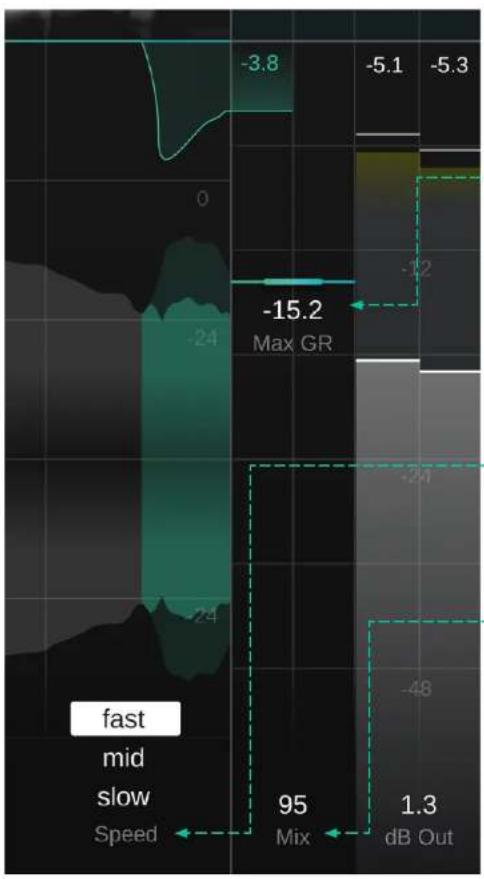
Monitor the output level (RMS & peak meter), set an output gain and control the mix between the processed (wet) and unprocessed (dry) signal
7Gett

1. Analyzing the Input Signal
Setting up smart:deess is literally a push of a button. When opening the plug-in, smart:deess asks you to playback some audio to learn a short voiceprint from your signal. This analysis allows smart:deess to adapt its processing to the characteristics of your speaker or singer.
INFO: What is a voiceprint and why does smart:deess need to learn that for each speaker? smart:deess analyzes the signal's actual content – not just the level of one frequency band – to make decisions. A 'voiceprint' of the input voice signal is like a fingerprint of the vocal characteristics of a singer or speaker. This vocal fingerprint – we call it voiceprint – is analyzed by smart:deess and the internal processing is adapted to match the observed characteristics.

natural_image
Abstract digital waveform visualization with green and black waveforms against a dark background (no text or symbols)2. Processing Sibilants and Plosives
Once a signal has been analyzed has been learned, smart:deess is ready for processing. Sibilants are highlighted in green and plosives are highlighted in blue in the input signal. Your job now is to review the analysis and refine the results (see next section), spending time on getting the sound you want, not correcting the sound you don't.
Sibilant
Plosive

Reanalyze Voice
3. Reanalyzing Voice
When working with a new speaker or singer, you should always reanalyze the signal to make sure that the processing of smart:deess adapts accordingly.
smart:deess identifies specific sibilants (e.g. S, Z, Sh, Ch) in real time, determining the exact start and end point of these phonemes. So, the entire sibilant is processed, rather than just the loudest part, making the processing sound very natural.
While the processing itself will be natural, different users may have different ideas about how and "S" should sound like. Also, the character of sibilants always depends on the context in which they are used (e.g. lead vocal, backing vocal, podcast, etc.). To accommodate these user- and application-dependent goals, smart:deess offers several options for fine-tuning the processing of sibilants.

1. Suppression
The (Sibilant) Suppression parameter controls the overall target level of sibilants. The higher the suppression, the more annoying or loud sibilants are tamed.
After learning a voiceprint, smart:deess will always suggest an initial suppression strength of 50. This setting typically leads to balanced sibilants that are well embedded into the overall level of adjacent phonemes.
Smaller suppression values help to preserve the liveliness of sibilants while larger values guarantee a very homogeneous level of all sibilants.
2. Color
The Color control tunes the sibilant character (soft, balanced or sharp) to get the desired sibilant sound. This can help to tame harsh sibilants or revive dull and lisping sibilants thanks to spectral processing.
- soft: The soft color leads to soft, unobtrusive sibilants. This can be great to smooth vocals or background vocals.
- balanced: The balanced color tries to preserve the natural color of an observed sibilant. Only problematic resonances or spectral imbalances are corrected.
- sharp: The sharp color allows to create very present and clear sibilants that stick out without smashing the overall phoneme balance.
3. Shaping
The shaping parameter controls the amount of spectral shaping towards the chosen target color.
After learning a voiceprint, smart:deess will always suggest an initial shaping strength of 100. This setting will typically lead to natural sounding sibilants that are moderately shaped towards the chosen target.
Higher shaping values may significantly change the character of all sibilants and lead to very homogeneous sibilant sounds.
Low values for the shaping parameter leave the shape of the sibilants more or less untouched.
HINT: When the Shaping parameter is set to zero, no spectral processing is applied. This can help, if you only want to apply a broadband gain reduction to all sibilants.
smart:deess identifies specific plosives (e.g. P, T, K) in real time, determining the exact start and end point of these phonemes.

1. Controlling the level of plosives
The (Plosive) Suppression parameter controls the overall target level of plosives. The higher the suppression, the more disturbing and loud plosives are tamed.
After learning a voiceprint, smart:deess will always suggest an initial suppression strength of 50. This setting will typically lead to well-balanced plosives that are embedded into the overall level of neighboring phonemes.
Smaller suppression values help to preserve the liveliness of sibilants while larger values guarantee a very homogeneous level of all sibilants.
2. Shaping
The shaping parameter controls the amount of spectral processing for plosives. Other than for sibilants, smart:deess does not use a target color for plosives, but simply balances out spectral problems like harsh resonances or boomy low ends of plosives.
After learning a voiceprint, smart:deess will always suggest an initial shaping strength of 100. This setting will typically lead to well-balanced plosives with a natural articulation.
Higher shaping values can help to create very smooth sounding plosives for a subtle and homogeneous sound.
Low values for the shaping parameter leave the shape of the plosives more or less untouched.

Processing Mode
In Full Range mode, the whole spectrum is processed. In Split Band mode, only the chosen frequency ranges are spectrally processed.
- Full Range: In most situations it is recommended to use Full Range mode as this mode typically generates the most natural results. In Full Range mode, the whole spectrum is processed, meaning that the broadband gain reduction (reduction of the level of phonemes) is combined with the spectral processing (enhancing the shape of phonemes) across the whole frequency range.
When setting the two Shaping values for sibilants and plosives to zero, processing in full range mode is equivalent with simply turning down the level of sibilants and plosives.
- Split Band: In Split Band mode, the processing ranges for sibilants and plosives can be limited to specific frequency ranges. For sibilants, an upper and lower threshold can be set; for plosives, only an upper threshold can be set as the low end should always be processed.
Working in Split Band mode can help to leave certain frequency ranges completely untouched. This can help if you are processing very dense signals, where you only want to process the most characteristic frequencies for sibilants or plosive. Outside the chosen frequency ranges, no gain reduction is applied to the respective phonemes. You can also monitor this frequency limited processing in the spectrogram.
The chosen frequency ranges for sibilants and plosives can be soloed by clicking the corresponding headphone icon.
Diff. Signal
Listen to the difference between the input and the output signal. When the Diff. Signal mode is active, the signal history will highlight the delta signal.
line
| Metric | Value | | ------------ | ------ | | Max GR | -15.2 | | Max GR | -24 | | Max GR | -24 | | Max GR | -24 | | Max GR | -24 | | Max GR | -24 | | Max GR | -24 | | Max GR | -24 | | Max GR | -24 | | Max GR | -24 | | Max GR | -24 | | Max GR | -24* | | Max GR | -24* | | Max GR | -24* | | Max GR | -24* | | Max GR | -24* | | Max GR | -24* | | Max GR | -24* | | Max GR | -24* | | Max GR | -24* | | Max GR | -24* |Max Gain Reduction
The max gain reduction makes sure that no sibilant or plosive is suppressed more than the set value. It's like a safety net that avoids over-processing of sibilants or plosives that shall continue to stand-out in terms of level.
It is important to keep in mind that a low value for the max gain reduction will significantly restrict the overall processing impact. Therefore, it's recommended to leave enough room for processing and to only catch "outliers" with the max gain reduction safety net.
Speed
The Speed parameter controls the overall reaction speed for the sibilant and plosive processing. The higher the speed value, the faster smart:deess reacts to a detected phoneme.
Mix
Control the mix between the processed and the unprocessed signal. At 100 you will only hear the processed signal.
Preset
A preset saves the settings of the plug-in, including all currently loaded reference tracks. This means that a preset can be used to compare multiple different tracks (e.g. of an album) against the same custom references.
- To save a preset, click "save" next to the preset drop-down.
- To load a saved preset, choose the respective preset name from the dropdown.
- To delete a preset or change its name, go to the preset folder in your local file explorer.
You can easily share your presets among different workstations. All presets are saved with the file extension ".spr" in the following folders:
Preset Folders
OSX: --/Library/Audio/Presets/sonible/smartdeess Windows: My Documents\Presets\sonible\smartdeess

States
You can use states to store multiple parameter settings. States allow for easy comparing between different settings (similar to the A/B feature of most plug-ins)
Working with states
- Each state is initially empty (default parameters settings of smart:gate).
- Select a state by clicking the respective state button.
- You can easily copy one state to another state via drag and drop. This may be useful if you want to compare different changes to a certain setting.
- To clear a state, hover over the number and click the trash can icon that will appear below.
To visit the settings page, click the cogwheel in the upper right corner.
Auto-analyze on Startup
Start audio analysis automatically when loading the plug-in.
Show tooltips
Enable/Disable tooltips on hover.
Use OpenGL
OpenGL might cause rendering issues on certain computer hardware. Use this option to disable OpenGL.
Share anonymous user data with sonible \_\_\_\_
Enable to share fully anonymous user data with sonible and help us improve our plug-ins.
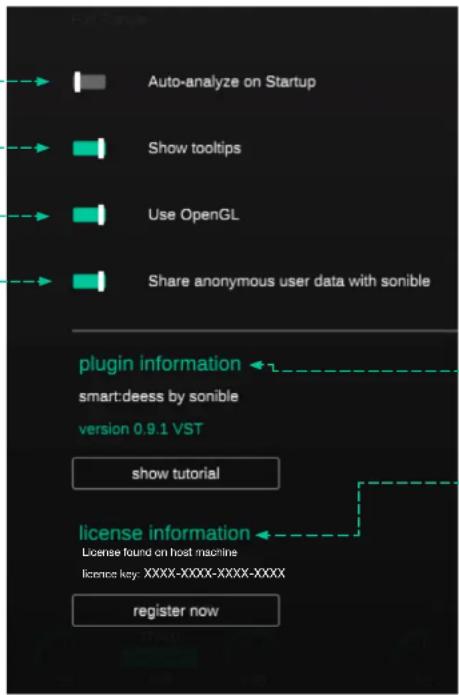
Plug-in Information
Here you can find the name and version of your plug-in. Start the welcome tour – a quick overview of the plug-in – features by clicking on "show tutorial".
License Information
This will display your license state and number (when not licensed via iLok)
Update notice
When a new version of the plug-in is available, you'll receive a notification here and it's also indicated by a little dot on the cogwheel in the main view of smart:deess. Click on the green text to download the latest version.

smart:de ess
sonible
www.sonible.com/smartdeess
All specifications are subject to change without notice.
©2023, sonible GmbH. All rights reserved. Engineered & designed by sonible in Austria.
sonible GmbH
Haydngasse 10/1
8010 Graz
Austria
contact@sonible.com
www.sonible.com
- Contents
- System requirements
- CPU
- RAM
- Operating systems
- Graphics
- Mac OSX
- Audio Unit
- VST
- VST3
- AAX
- Windows
- Licensing system
- Machine-based
- iLok
- Unlocking
- Machine-based unlocking
- Trial version
- Internet connection requirements
- Reanalyze Voice
- States
- Spectrogram
- Spectral Shaping
- Gain Reduction Meter
- Input & Output Signal & Gain Reduction
- Sibilant & Plosive Processing
- Output Section
- Analyzing the Input Signal
- Processing Sibilants and Plosives
- Reanalyzing Voice
- Suppression
- Color
- Shaping
- Controlling the level of plosives
- Shaping
- Processing Mode
- Diff. Signal
- Max Gain Reduction
- Speed
- Mix
- Preset
- Auto-analyze on Startup
- Show tooltips
- Use OpenGL
- Share anonymous user data with sonible \_\_\_\_
- Plug-in Information
- License Information
- Update notice
Brand : Sonible
Model : smart:deess
Category : Audio software