
P2DD46A22-KVM-SWITCH - Switch StarTech.com - Free user manual and instructions
Find the device manual for free P2DD46A22-KVM-SWITCH StarTech.com in PDF.


| Product Type | 2-Port Dual Monitor KVM Switch |
| Brand | StarTech.com |
| Model | P2DD46A22-KVM-SWITCH |
| Video Interface | DisplayPort |
| Maximum Resolution | 4K @ 60Hz |
| Number of Computers Supported | 2 |
| Control Methods | Hotkey, On-Screen Display (OSD), Serial (RS232) |
| Audio Support | Yes, with binding/unbinding option |
| RS232 Support | Yes, with binding/unbinding option |
| Hotkey Prefix Options | Scroll Lock, Caps Lock, Num Lock, Left Ctrl, Right Ctrl |
| Autoscan Function | Yes, with configurable delay (10-100 seconds) |
| Serial Baud Rate | 115200 bps |
| Power Requirements | Standard DC adapter (not specified, typical 5V or 12V) |
| Dimensions (approx.) | Typical desktop KVM: 20 x 10 x 4 cm (estimate) |
| Weight (approx.) | 0.5 kg (estimate) |
| Maintenance | Keep dry, clean with soft cloth, avoid dust |
| Safety | Use only supplied power adapter, avoid liquids, do not disassemble |
| Reparability | No user-serviceable parts; contact support for repairs |
Frequently Asked Questions - P2DD46A22-KVM-SWITCH StarTech.com
User questions about P2DD46A22-KVM-SWITCH StarTech.com
0 question about this device. Answer the ones you know or ask your own.
Ask a new question about this device
Download the instructions for your Switch in PDF format for free! Find your manual P2DD46A22-KVM-SWITCH - StarTech.com and take your electronic device back in hand. On this page are published all the documents necessary for the use of your device. P2DD46A22-KVM-SWITCH by StarTech.com.
USER MANUAL P2DD46A22-KVM-SWITCH StarTech.com
2-Port Dual Monitor KVM Switch - DisplayPort - 4K 60Hz - Serial Control
Product IDs
P2DD46A22-KVM-SWITCH
Product Information
For the latest software, manuals, product information, technical specifications, and declarations of conformance, please visit: www.StarTech.com/P2DD46A22-KVM-SWITCH
Hotkey Commands
Hotkey commands are keystroke sequences that initiate computer/device functions and can be used to initiate KVM Switch functions. A hotkey command sequence must be initiated by the HK_LCode (HotKey Leading Code), followed by 1-2 additional keystrokes. Successful hotkey command inputs result in a high-pitched beep. Unsuccessful hotkey command inputs result in a low-pitched beep.
Notes:
- All keystroke combinations must be entered in rapid succession.
- Press and release the indicated keys, unless otherwise specified.
HK\_LCode
Option 1.1
- Scr Lck + Scr Lck
Option 1.2
To change the HK_LCode:
- HK_LCode + H + CapsLk, NumLk, Left Ctrl or Right Ctrl
• Alternatively, press and hold the front Host Selection Button for PC2, until 2 beeps are emitted, then press the desired leading hotkey of CapsLk, NumLk, Left Ctrl or Right Ctrl
Hotkey Command Chart
| Hotkey Command Function | |
| HK_LCode + Space • Bring up the On Screen Display (OSD) Menu. | |
| HK_LCode + 1 ~ 2 or HK_LCode + F1 ~ F2 | • Select PC 1 or PC 2. |
| HK_LCode + W | • Disable the binding between PC (USB/Video) and Audio when switching between PC 1 or PC 2.• Allows switching of PC Ports USB and Video functions, while Audio does not switch. |
| HK_LCode + Q | • Enable the binding of PC (USB/Video) and Audio switching. (Enabled by default)• Audio will switch with the PC Ports USB and Video functions. |
| HK_LCode + F5 ~ F6 | • Audio Unbound: Selects only the audio and mic source between PC 1 or PC 2, does not switch USB and Video.• Audio Bound: Select PC 1 or PC 2 and their respective USB/Video/Audio Ports. |
| HK_LCode + V | Disable the binding between PC (USB/Video) and Serial when switching between PC 1 or PC 2.Allows switching of PC Ports USB and Video functions, while Serial does not switch. |
| HK_LCode + C | Enable the binding of PC (USB/Video) and Serial switching. (Enabled by default)Serial will switch with the PC Ports USB and Video functions. |
| HK_LCode + F9~F10 | Serial Unbound: Selects only the Serial source between PC 1 or PC 2, does not switch USB and Video.Serial Bound: Select PC 1 or PC 2 and their respective USB/Video/Serial Ports. |
| HK_LCode + Up Arrow KeyorHK_LCode + DownArrow Key | Select the next/previous PC Port.If Audio is unbound, the audio will not switchIf Serial is unbound, the serial ports will not switch |
| HK_LCode + B | Enable or Disable the Beep that indicates HotKey Command Inputs. (Enabled by default) |
| HK_LCode + H + 0~9 | Start Autoscan and set time delay."x" = 1 - 10sec, 2 - 20sec, 3 - 30sec, 4 - 40sec, 5 - 50sec, 6 - 60sec, 7 - 70sec, 8 - 80sec, 9 - 90sec, 0 - 100secPress any key to stop Autoscan |
| HK_LCode + R · Reset all | Hotkey Commands to factory defaults |
Serial Commands
The following Serial Commands are intended to be used with the KVM Serial Connection Port, allowing control over the function of the KVM Switch. The Host Device that controls the KVM Switch requires the following parameters:
Baudrate: 115200bps
Parity: None
Data Bits: 8
Stop Bits: 1
| Serial Command Function | |
| sw 1~2 · Switch the active PC Port | |
| audio 1~2 · Switch the active Audio Port | |
| com 1~2 · Switch the active RS232 Port | |
| bind 2~3 | · Bind selected peripheral with the active PC Port· 2 = Audio· 3 = RS232 |
| unbind 2~3 | · Unbind selected peripheral from the active PC Port· 2 = Audio· 3 = RS232 |
| hotkey 0~4 | · Change the hotkey prefix· 0 = ScrLk· 1 = CapsLk· 2 = NumLk· 3 = Left Ctrl· 4 = Right Ctrl |
| osdtime 1~7 | • Set the OSD displayed time• 1 = 10• 2 = 20• 3 = 30• 4 = 40• 5 = 50• 6 = 60• 7 = Manual |
| titletime 0~7 | • Set the title bar timeout duration• 0 = off• 1 = 5• 2 = 10• 3 = 15• 4 = 20• 5 = 25• 6 = 30• 7 = Always On |
| setname 1~2 [name] | • Set the PC Port name• Max of 16 characters |
| version • Show the Firmware version | |
| help [command] • Show the format of the command | |
| list • List all available commands | |
| default • Set the KVM to factory defaults | |
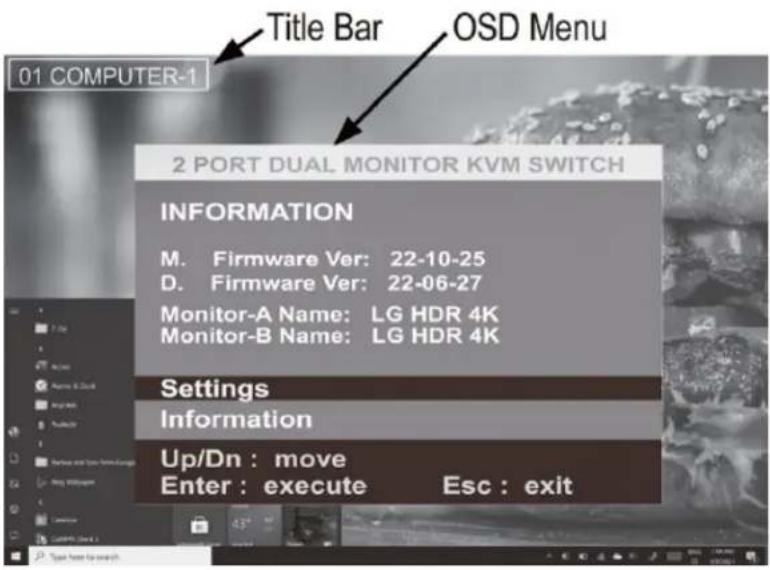
Onscreen Display Menu
Bring up the Onscreen Display (OSD) by using the keyboard shortcut HK_LCode + Space. The OSD provides the ability to modify settings, switch host ports, and perform other actions.
OSD Main Menu
The Main Menu of the OSD displays the names of the connected Computers, along with the status of Audio and RS232 (COM) binding. Settings and device information are accessible from this menu.
| 2 PORT DUAL MONITOR KVM SWITCH | ||
| MAIN PAGE | ||
| PC | NAME | DEVICE STATUS |
| 01 | COMPUTER-1 | AUDIO COM |
| 02 | COMPUTER-2 | |
| Settings | ||
| Information | ||
| Up/Dn: move | Ins: rename | |
| Enter: execute | Esc: exit | |
OSD Settings Menu
The OSD Settings enable the modification of the primary hotkey, OSD timeout, titlebar timeout, or restore the KVM Switch to its factory default settings.
| 2 PORT DUAL MONITOR KVM SWITCH | |
| SETTINGS | |
| HOT-KEY | ScrLk |
| OSD Timeout | 10 |
| TitleBar Timeout | 20 |
| Rstore Default | |
| Main Page Information | |
| Up/Dn: move | </>: change |
Example Screenshot
Brand : StarTech.com
Model : P2DD46A22-KVM-SWITCH
Category : Switch