
K4V2 TKL - Keyboard Cherry - Free user manual and instructions
Find the device manual for free K4V2 TKL Cherry in PDF.


| Product Type | Mechanical Keyboard (TKL) |
| Brand | Cherry |
| Model | K4V2 TKL |
| Dimensions (approx.) | 14.1 x 5.1 x 1.4 inches (358 x 130 x 35 mm) |
| Weight (approx.) | 1.1 lbs (500 g) |
| Connection Type | USB-C (USB 2.0/3.0 compatible) |
| Cable Length | 6 ft (1.8 m) detachable braided cable |
| Key Rollover | N-key rollover |
| Backlighting | RGB per-key illumination with multiple effects |
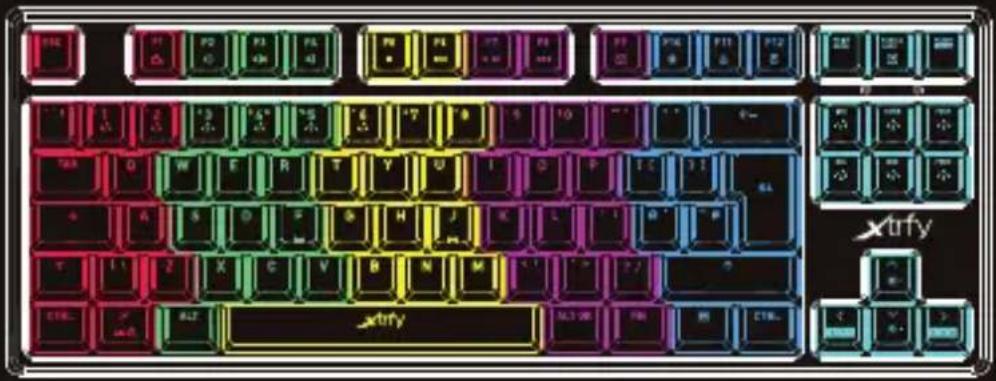
| Customizable Zones | 6 color zones user-configurable |
| Special Keys | FN key for secondary functions, media controls, shortcuts |
| OS Compatibility | Windows, macOS (limited), Linux (basic) |
| Software | No dedicated software required; all settings on keyboard |
| Power | USB bus-powered (5V DC) |
| Maintenance | Clean with soft, dry cloth; avoid liquids |
| Safety | No specific safety warnings; use with standard USB ports |
| Spare Parts & Repairability | Not user-serviceable; contact support for issues |
| Design Origin | Designed in Sweden |
| Warranty | 2 years limited warranty |
Frequently Asked Questions - K4V2 TKL Cherry
User questions about K4V2 TKL Cherry
0 question about this device. Answer the ones you know or ask your own.
Ask a new question about this device
Download the instructions for your Keyboard in PDF format for free! Find your manual K4V2 TKL - Cherry and take your electronic device back in hand. On this page are published all the documents necessary for the use of your device. K4V2 TKL by Cherry.
USER MANUAL K4V2 TKL Cherry
K4 KEYBOARD SERIES - MANUAL
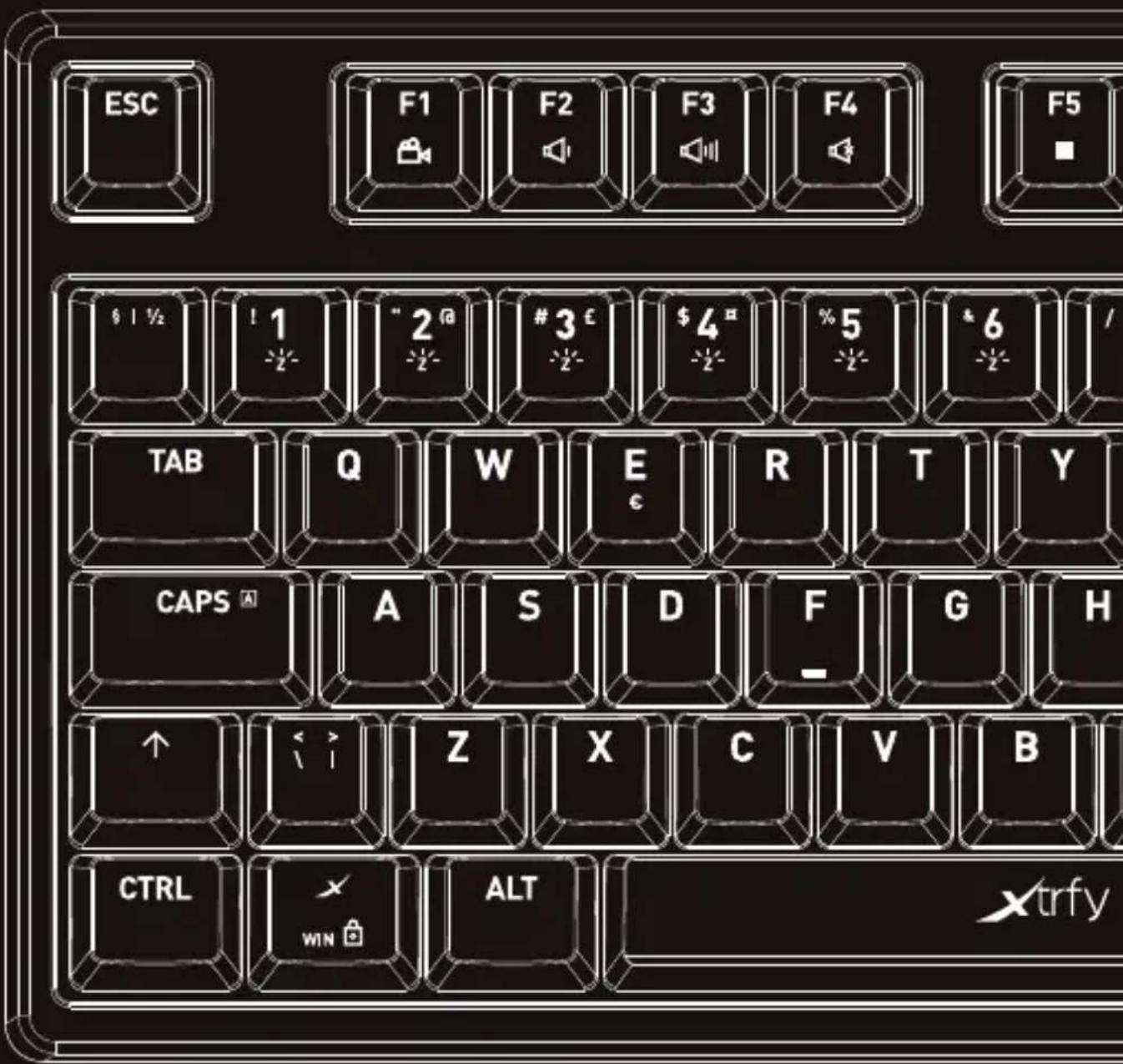
PLUG-AND-PLAY
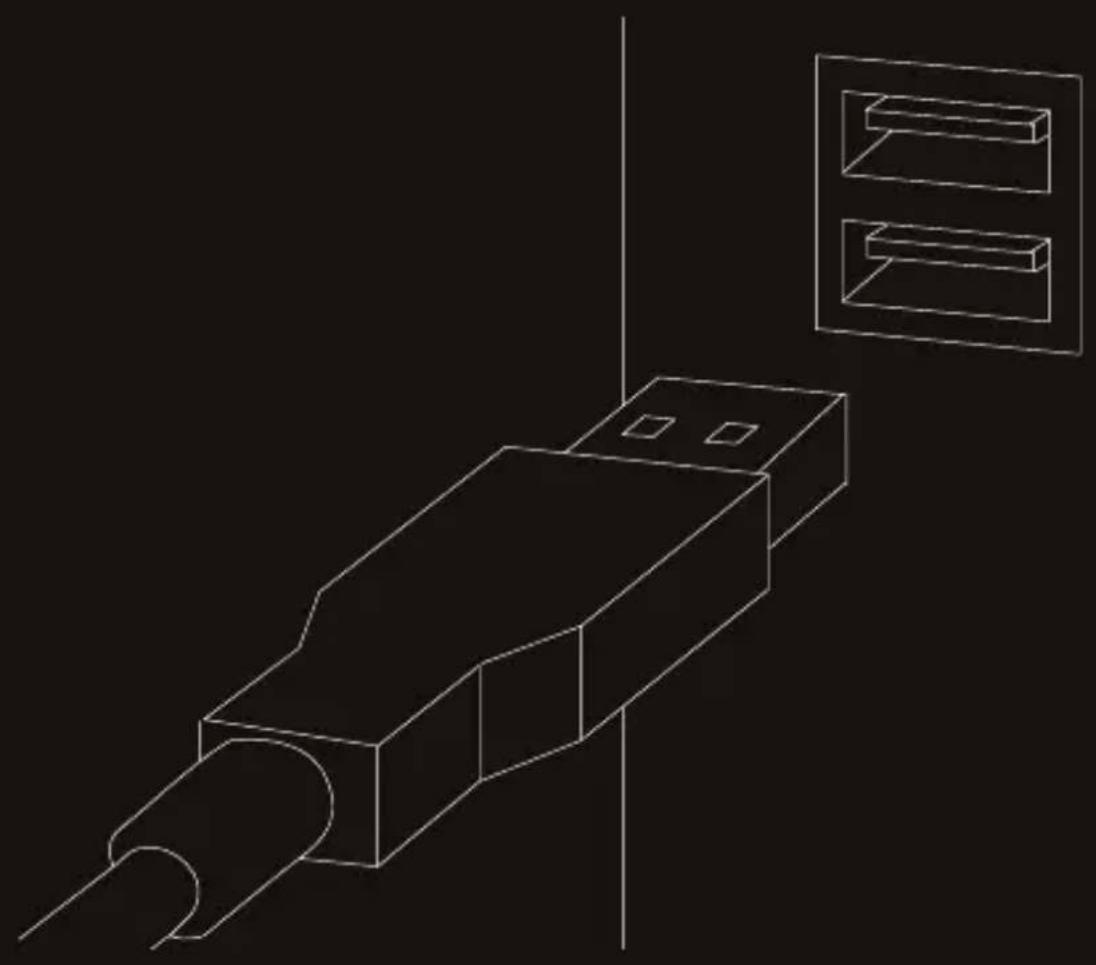
Connect the K4 to the USB port. Driver installation starts automatically.
natural_image
Line drawing of a USB connector with two rectangular compartments on top (no text or symbols)SETTINGS AND FUNCTIONS
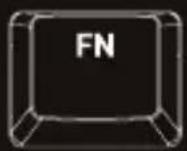
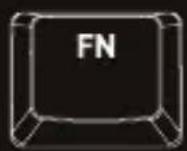
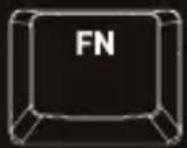
The K4 features a range of customization options and convenient quick keys. All settings are made directly on the keyboard, by pressing the FN key + the desired setting key.
RGB ILLUMINATION
BACKGROUND COLOR CYCLE
Press FN + INS to start a cycle of shifting backlight colors.
FIXED BACKGROUND COLORS
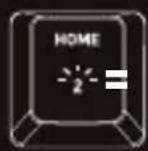
Press FN + HOME repeatedly to switch between 7 different background colors.
CUSTOM COLOR ZONES
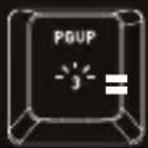
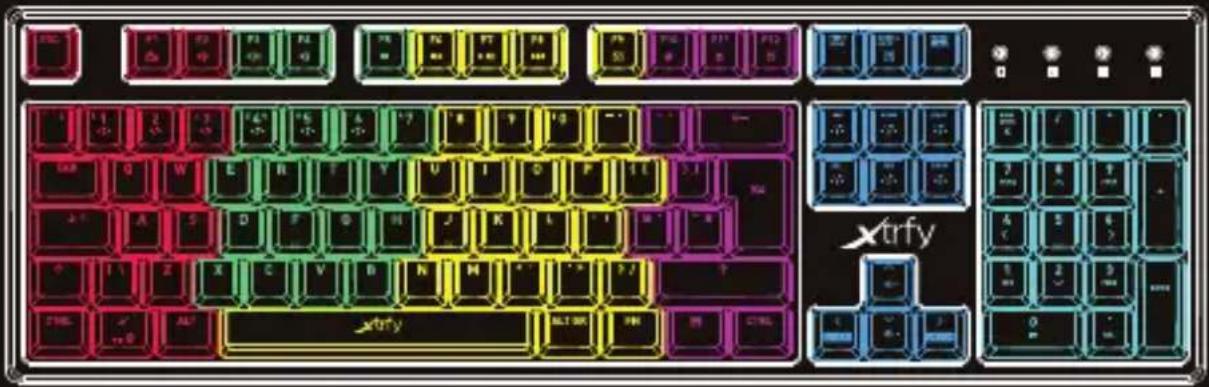
Press FN + PGUP for LED illumination in 6 color zones. To set the color of each zone, press FN + PGUP again. When the NUM, CAPS and SCROLL lights in the upper right corner blink, press FN + the numbers 1–6 repeatedly to adjust the colors. When you're done, press FN + PGUP again.
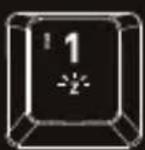
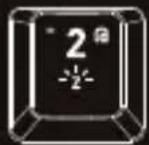
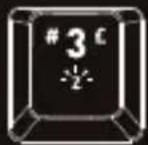
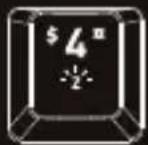
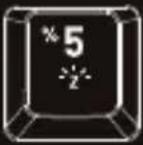
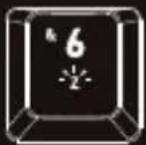
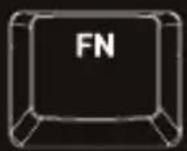
+
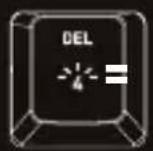
WAVE EFFECTS
Press FN + DEL repeatedly to switch between two different wave effects.
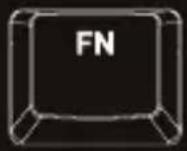
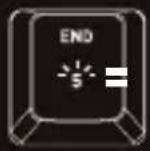
BREATHING EFFECT
Press FN + END once to start the 7-color breathing effect cycle, and twice to lock the breathing effect at the current color.
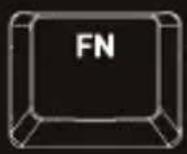
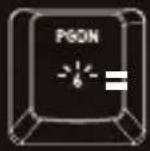
TYPING EFFECT
Press FN + PGDN to start a multi-color typing effect. (Visible when typing.)
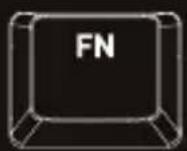
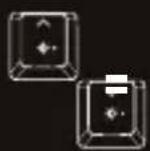
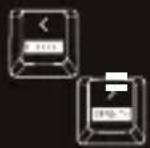
Press FN + the up/down arrow keys to increase/decrease the brightness of the LED lighting.
ADJUST LED EFFECT SPEED
Press FN + the left/right arrow keys to decrease/increase the speed of the LED effects.
OTHER USEFUL KEYS AND SHORTCUTS
FN + X = Lock Windows key
FN + F1-F8 = Media controls
FN + F9 = E-mail
FN + F10 = Web browser
FN + F11 = Lock all keys
FN + F12 = Calculator
TROUBLESHOOTING
» Make sure the K4's USB connector is firmly attached to your computer's USB port.
» Connect to another USB port.
» Connect to another computer.
» Factory reset the keyboard by pressing and holding the FN key + backspace for 10 seconds.
NEED BACKUP?
If you have any questions, we're never more than an email away. Contact us at support@xtrfy.com
CHECK OUT MORE XTRFY PRODUCTS AT XTRFY.COM
DESIGNED IN SWEDEN

natural_image
Flag of Sweden with yellow and blue crosses (no text or symbols)- K4 KEYBOARD SERIES - MANUAL
- €
- PLUG-AND-PLAY
- SETTINGS AND FUNCTIONS
- RGB ILLUMINATION
- BACKGROUND COLOR CYCLE
- FIXED BACKGROUND COLORS
- CUSTOM COLOR ZONES
- WAVE EFFECTS
- BREATHING EFFECT
- TYPING EFFECT
- ADJUST LED EFFECT SPEED
- OTHER USEFUL KEYS AND SHORTCUTS
- TROUBLESHOOTING
- NEED BACKUP?
- CHECK OUT MORE XTRFY PRODUCTS AT XTRFY.COM
- DESIGNED IN SWEDEN
Brand : Cherry
Model : K4V2 TKL
Category : Keyboard