
271 - Uncategorized MERIDIAN - Free user manual and instructions
Find the device manual for free 271 MERIDIAN in PDF.


| Brand | Meridian |
| Model | 271 |
| Product Type | Audio Preamplifier / DAC |
| Dimensions (W x H x D) | 44.0 x 8.0 x 30.0 cm |
| Weight | 6.5 kg |
| Power Supply | 100-240 V AC, 50/60 Hz |
| Power Consumption | 30 W standby / 150 W max |
| Inputs | 2x RCA, 1x XLR balanced, 1x AES/EBU, 1x Toslink, 1x USB |
| Outputs | 1x RCA, 1x XLR balanced, 1x headphone jack |
| Supported Audio Formats | PCM up to 192 kHz/24-bit, DSD64/128 |
| Frequency Response | 20 Hz - 20 kHz ±0.1 dB |
| Total Harmonic Distortion + Noise | < 0.0005% |
| Signal-to-Noise Ratio | > 120 dB |
| Chassis Material | Brushed Aluminum |
| Remote Control | Infrared (included) |
| Warranty | 2 years |
| Operating Temperature | 5°C to 35°C |
| Accessories Included | Power cable, remote control, user manual |
Frequently Asked Questions - 271 MERIDIAN
User questions about 271 MERIDIAN
0 question about this device. Answer the ones you know or ask your own.
Ask a new question about this device
Download the instructions for your Uncategorized in PDF format for free! Find your manual 271 - MERIDIAN and take your electronic device back in hand. On this page are published all the documents necessary for the use of your device. 271 by MERIDIAN.
USER MANUAL 271 MERIDIAN
Important safety instructions
- Read the instructions.
- Keep these instructions.
- Follow all instructions.
- Do not use this apparatus near water.
- Clean only with a dry cloth.
• Install only in accordance with the manufacturer's instructions.
• Refer all servicing to approved service personnel.
WARNING: TO REDUCE THE RISK OF FIRE OR ELECTRIC SHOCK, DO NOT EXPOSE THIS APPARATUS TO RAIN OR MOISTURE.
This apparatus has been designed with Class 1 construction and must be connected to a mains socket outlet with a protective earthing connection (the third grounding pin).
This apparatus does not include a power switch. The apparatus may be isolated from mains power either by unplugging the power connector from the rear of the unit, or by unplugging the connector at the opposing end of the power cord or cable from its supply outlet. As a result, either or both of these connectors should remain accessible.
Safety warnings

WARNING! RISK OF ELECTRIC SHOCK – DO NOT OPEN ATTENTION!

NE PAS OUVRIR - RISQUE DE DÉCHARGE ÉLECTRIQUE
Caution: to reduce the risk of electric shock, do not remove cover. No user serviceable parts inside. Refer servicing to qualified service personnel.

The lightning flash with arrowhead symbol, within an equilateral triangle, is intended to alert the user to the presence of uninsulated “dangerous voltage” within the product’s enclosure that may be of sufficient magnitude to constitute a risk of electric shock to persons.

The exclamation point within an equilateral triangle is intended to alert the user to the presence of important operating and maintenance (servicing) instructions in the literature accompanying the appliance.
Meridian 271 Digital Theatre Controller User Guide
Climate
The equipment has been designed for use in moderate climates and in domestic situations.

Only use at an altitude not exceeding 2000m.
Safety warnings
- Do not expose the unit to dripping or splashing.
- Do not place any object filled with liquid, such as a vase, on the unit.
- Do not place naked flame sources, such as lighted candles, on the unit.
To avoid overheating
- Do not position the product in direct sunlight.
- Do not position the product near heat sources, such as a radiator.
- Do not position the product on a soft surface such as a carpet.
- Leave at least 10cm around the product to ensure sufficient ventilation.
To avoid interference
- Do not position the unit near strong electrical or magnetic radiation, such as near a power amplifier.
Radio interference
FCC Warning: This equipment generates and can radiate radio frequency energy and if not installed and used correctly in accordance with our instructions may cause interference to radio communications or radio and television reception. It has been type-tested and complies with the limits set out in Subpart J, Part 15 of FCC rules for a Class B computing device. These limits are intended to provide reasonable protection against such interference in home installations.

EEC: This product has been designed and type-tested to comply with the limits set out in EN55032:2015 and EN55024:2010 + A1:2015.
iv Meridian 271 Digital Theatre Controller User Guide
Copyright and acknowledgements
Sales and service in the UK
Meridian Audio Ltd, Latham Road, Huntingdon, Cambridgeshire, PE29 6YE, England.
Tel (01480) 445678
Fax (01480) 445686
Sales and service in the USA
MAI, 351 Thornton Road, Suite 108, Lithia Springs, GA, 30122, United States.
Tel 404-344-7111
Fax 404-346-7111
Designed and manufactured in the UK
Meridian Audio Ltd, Latham Road, Huntingdon, Cambridgeshire, PE29 6YE, England.
Visit us on the Web
www.meridian-audio.com
Copyright © 2018-2019 Meridian Audio Ltd.
Part no: P88474
MHR: this product incorporates copyright protection technology covered by certain patent applications and intellectual property of Meridian Audio Ltd. This technology is provided for the express purpose of securely containing copyright audio within the Meridian System only. Reverse engineering or circumvention of this protection is strictly prohibited.
BoothroydlStuart Meridian, Meridian, and Sooloos are registered trademarks of Meridian Audio Ltd.
This guide was produced by:
Human-Computer Interface Ltd, www.interface.co.uk
Product registration
Register your Meridian 271 Digital Theatre Controller at:
www.meridian-audio.com
Meridian 271 Digital Theatre Controller User Guide
Contents
Introduction 1
Specifications 3
Unpacking 4
Applications 6
Configuring the 271 Digital Theatre Controller 10
Controlling the 271 Digital Theatre Controller 18
Index 20
Introduction
The Meridian 271 Digital Theatre Controller allows you to integrate Meridian DSP loudspeakers with a variety of AV systems to create a digital or analogue theatre that takes advantage of Meridian's authentic, natural sound.
Designed to work with any processor on the market, the 271 is a High Resolution interface that allows you to design and build high performance theatre systems with 20 or more channels.
The 271 is rack-mountable and can be stacked to give 40 or even 60 audio output channels, all with Meridian's (MHR) High Resolution Audio output and a simple IP control interface.
Audio inputs
The 271 supports 16 channels of analogue audio on either single-ended or balanced input connections (RCA or 2 x 8 channel DB25 connectors).
It also provides balanced digital input options available to support 16 channels of digital audio fed from Trinnov, Datasat and Storm Audio processors (2 x RJ45 and 1 x DB25).
The 271 includes a SpeakerLink input for connecting a Meridian source to the main left and right loudspeakers.
Audio outputs
The 271 provides 16 + 4 digital audio outputs on SpeakerLink connections for use with Meridian DSP loudspeakers using high precision 96kHz/24-bit analogue to digital conversion.
The digital outputs support Meridian High Resolution (MHR) encoding which improves audio quality compared to a standard digital audio stream by improving jitter characteristics within the associated electronic circuitry.
The 271 also provides 16 + 4 analogue audio outputs on unbalanced RCA connectors to allow the use of passive loudspeakers.
Inputs 1 to 16 are mapped in parallel to both sets of 16 outputs, analogue and digital, providing support for mixed systems using combinations of analogue and Meridian DSP loudspeakers.
The two sets of four additional outputs (four digital and four analogue) can be independently configured to duplicate any of the 16 input channels to provide feeds for a wide range of combinations of loudspeakers and subwoofers.
2 Meridian 271 Digital Theatre Controller User Guide
System integration
The 271 Digital Theatre Controller is designed to be both configured and controlled via its Ethernet socket.
The 271 can be configured simply by entering the product's IP address into a standard web browser; this then gives access to the range of setup and operational options.
Trigger input and output connections allow coordinated switching of components within systems using a mix of speaker types, such as enabling a power amplifier.
The 271 supports Meridian Comms so it can be controlled from a DSP loudspeaker using a MSR+ remote or a product connected to the SpeakerLink input of the 271.
Ethernet control
The 271 can also be controlled via the Ethernet connection using the Automation Protocol, which allows full control of all runtime settings of the unit including source selection, volume, and audio menus.
Installers can integrate the Automation Protocol into an automation system; for details contact Meridian support.
The Automation Protocol can also be accessed directly via a tablet or smartphone running the Meridian IP Control app; see Controlling the 271 Zone Controller, page 18. This is a free
application for iOS devices; search for Meridian in the Apple App Store to download it.
Paralleling 271 Digital Theatre Controllers
In theatre systems with more than 16 channels of audio to distribute, multiple 271 Digital Theatre Controllers can be used in parallel to provide coordinated operation for the whole speaker array. We recommend contacting Meridian Support for the relevant technical information.
Accessories
The following accessories are available for the 271:
- A Meridian G12 remote eye to receive infra red signals.
- A Meridian MSR+ or AC200 remote to control the 271 via the G12.
• An 8-channel balanced XLR to DB25 cable.
Meridian 271 Digital Theatre Controller User Guide
Specifications
Audio outputs
• 20 unbalanced analogue outputs on RCA phono connectors.
• 20 SpeakerLink digital outputs.
Audio inputs
• 16 unbalanced analogue inputs on RCA phono connectors.
• 16 balanced analogue inputs on twin DB25 connectors
Analogue inputs are converted to digital audio at 96kHz/24bit.
- One SpeakerLink input for direct, bit-perfect, pass-through of two-channel digital audio.
- Digital 16-channel input on DB25 connector (Trinnov pin configuration).
- Digital 16-channel AES input on twin RJ45 connector (Datasat and Storm Audio pin configuration).
Digital inputs can accept sample rates from 44.1kHz to 192kHz, up to 24-bit precision.
Control signals
- Ethernet connection for IP Control/control driver support for third party control systems.
-
One IR input, compatible with the Meridian G12 remote IR sensor.
-
Trigger input on 3.5mm jack to enable remote on/off switching.
- Trigger output on 3.5mm jack to allow use in-line between a processor and power amplification in system featuring passive speakers.
Controls and indicators
- Front panel button for turning on or off.
- Front panel indicator for standby state and analogue clipping indicator.
Physical
- Dimensions: 440mm x 88mm x 358mm (17.3" x 3.5" x 14.1") (W x H x D without feet or connectors).
• Weight: 5.5kg (12.0lb).
• Housed in a rack-mountable 2U case.
Power
- Advanced linear power supply: 100V AC 50-60Hz, 110–120V AC 50-60Hz, or 220–240V AC 50–60Hz.
- 40W max.
4 Meridian 271 Digital Theatre Controller User Guide
Unpacking
The 271 Digital Theatre Controller is supplied with:
- A power cord.
• Four self-adhesive feet. - Quick Start Guide
Please contact your retailer if the power cord has the wrong plug for your territory.
The feet can be fixed to the base of the product, which is printed with circles as a guide. The feet will not be needed if you are mounting the unit in a rack
Back panel
The following diagram gives details of the back panel connections:
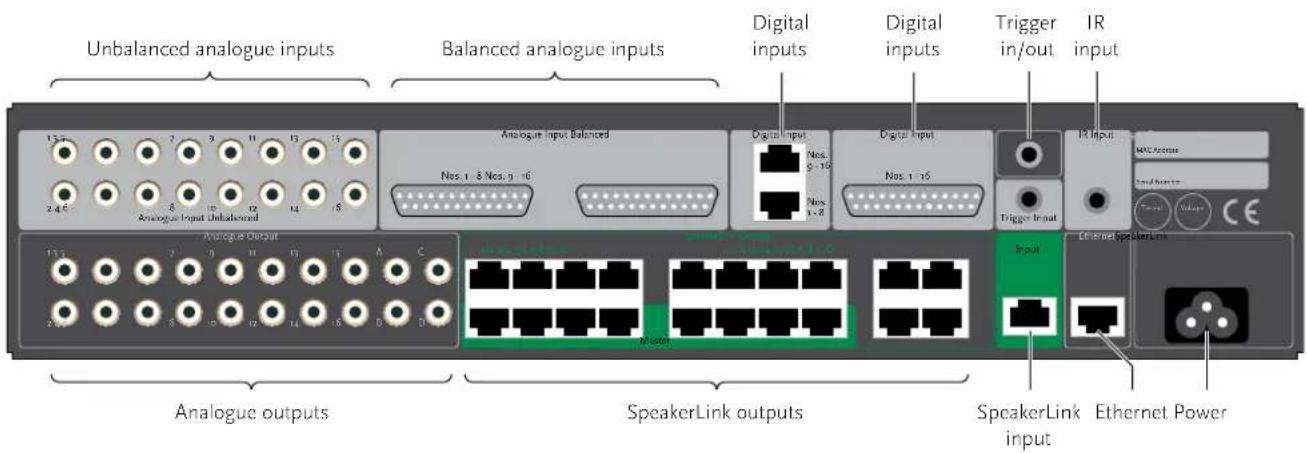
Meridian 271 Digital Theatre Controller User Guide
Audio inputs
Use this input To connect to this
| Analogue Input Unbalanced 1–16. | The unbalanced analogue outputs of an AVR system, using RCA phono cables. |
| Analogue Input Balanced 1–8 and 9–16 (DB25). | The balanced analogue outputs of an AVR system, using XLR to DB25 cables. |
| Digital input 1–8 and 9–16. | The digital outputs of an AV system, using RJ45 leads. |
| Digital input 1–16 (DB25) | The digital outputs of an AV system, using an AES DB25 cable. |
| SpeakerLink Input A Meridian source such as the 218 Zone Controller, using a SpeakerLink cable. | |
Audio outputs
Use this output To connect to this
| Analogue Output 1–16 and A–D | Power amplifiers or active analogue speakers, using RCA phono cables. |
| Speakerlink Output 1/2 to 15/16, A/B, and C/D | Meridian DSP loudspeakers, using SpeakerLink cables. |
Control signals
Use this connection To connect to this
| Ethernet An IP control system. |
| IR Input A Meridian infra-red eye. |
| Trigger Input A controller for remote on/off switching, using a 3.5mm mono jack plug. |
| Trigger Output A power amplifier for remote on/off switching, using a 3.5mm mono jack plug. |
Meridian 271 Digital Theatre Controller User Guide
Applications
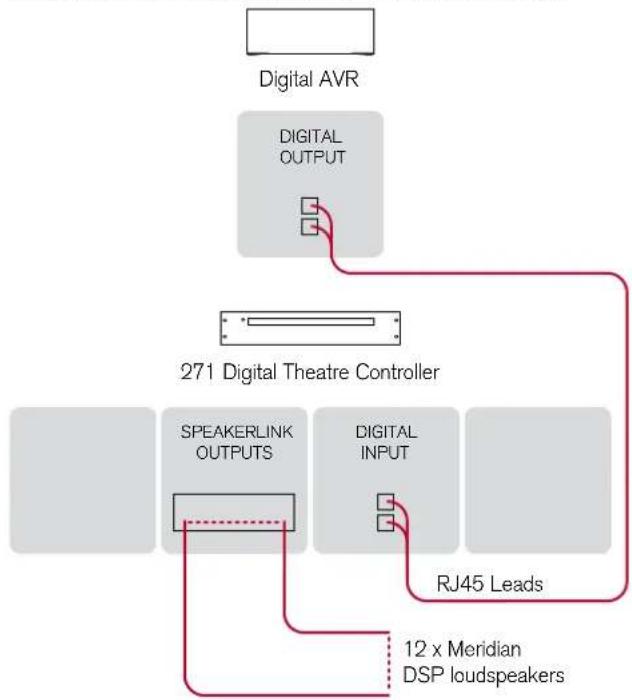
Digital AVR and Meridian Digital Theatre
flowchart
graph TD
    A["Digital AVR"] --> B["271 Digital Theatre Controller"]
    B --> C["SPEAKERLINK OUTPUTS"]
    B --> D["DIGITAL INPUT"]
    C --> E["RJ45 Leads"]
    D --> E
    E --> F["12 x Meridian DSP loudspeakers"]
    B --> G["DIGITAL OUTPUT"]
This is a superb 12-channel Meridian Digital Theatre using a 271 in conjunction with a digital AVR system.
- Connect the digital outputs from the digital AVR system to the RJ45 Digital Inputs on the 271, using two RJ45 cables.
- Connect the Meridian DSP loudspeakers to the SpeakerLink outputs on the 271.
A suggested configuration is:
• Front left and right: 2 x Meridian DSP7200.
• Centre: Meridian DSP7200HC.
- Subwoofer: Meridian DSW.
• Sides: 2 x Meridian DSP640.
• Rears: 2 x Meridian DSP5200.
• Ceiling: 4 x Meridian DSP320.
Meridian 271 Digital Theatre Controller User Guide
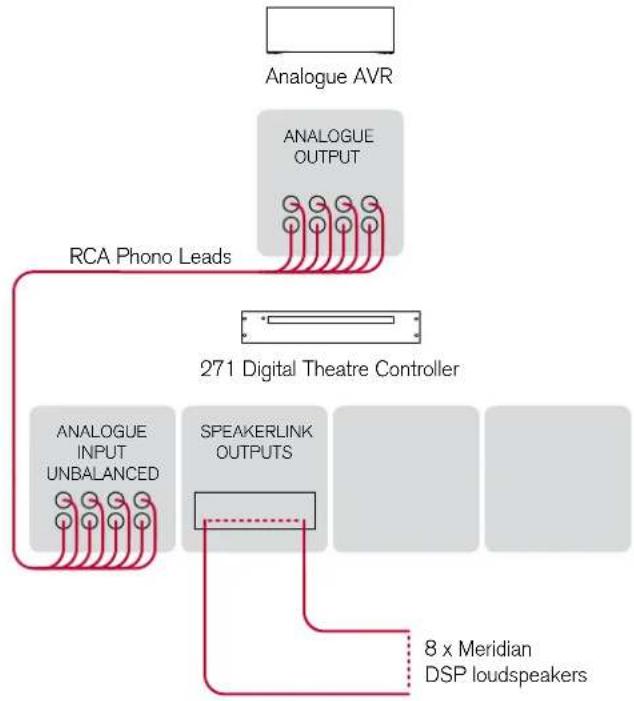
Analogue AVR and DSP in-wall theatre 7.1
flowchart
graph TD
    A["Analogue AVR"] --> B["ANALOGUE OUTPUT"]
    B --> C["RCA Phono Leads"]
    C --> D["271 Digital Theatre Controller"]
    D --> E["ANALOGUE INPUT UNBALANCED"]
    D --> F["SPEAKERLINK OUTPUTS"]
    F --> G["8 x Meridian DSP loudspeakers"]
This is a 7.1 system based on a 271 in conjunction with an analogue AVR system.
- Connect the unbalanced analogue outputs from the Analogue AVR system to the unbalanced analogue inputs on the 271, using eight RCA phono cables.
- Connect the Meridian DSP loudspeakers to the SpeakerLink outputs on the 271.
A suggested configuration is:
- Front left, right, and centre: 3 x Meridian DSP640.
- Subwoofer: Meridian DSW.
• Sides and rears: 4 x Meridian DSP320.
Meridian 271 Digital Theatre Controller User Guide
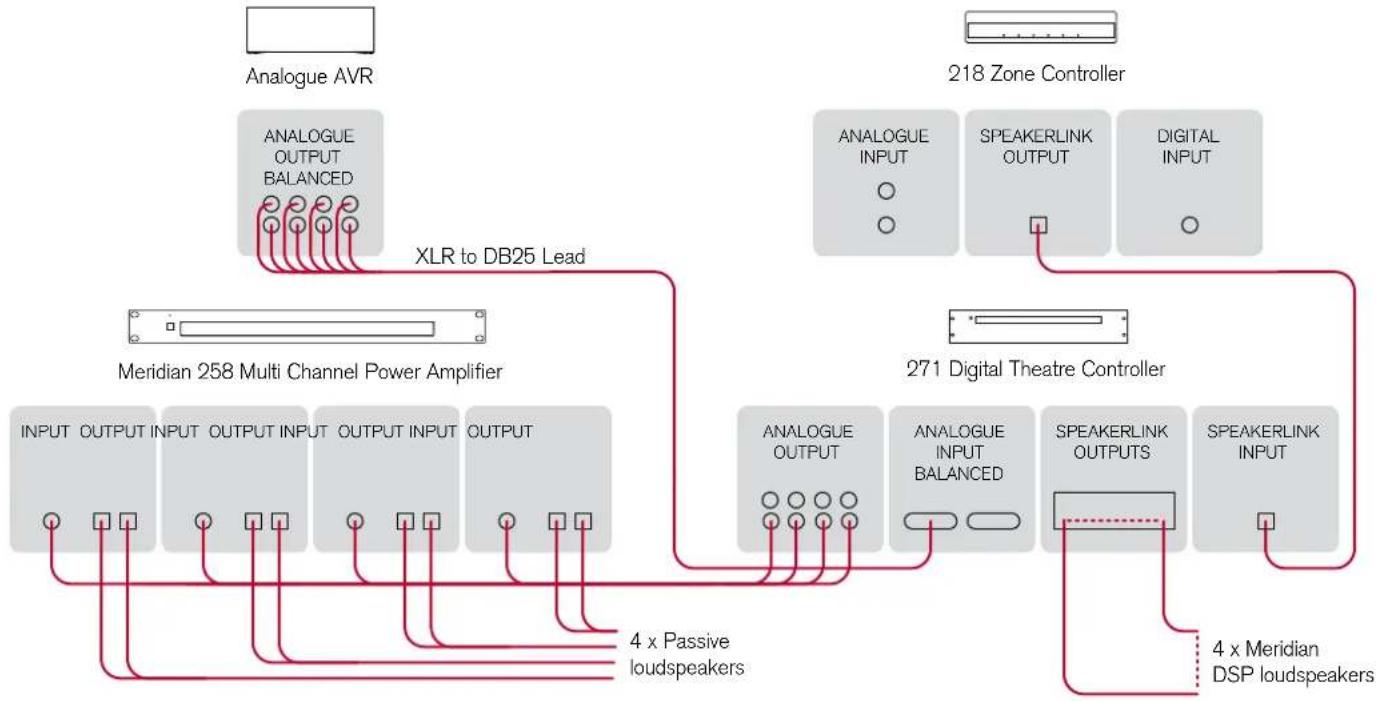
Balanced analogue AVR and mixed DSP/analogue theatre 7.1
flowchart
graph TD
    A["Analogue AVR"] --> B["XLR to DB25 Lead"]
    B --> C["Meridian 258 Multi Channel Power Amplifier"]
    C --> D["ANALOGUE OUTPUT BALANCED"]
    C --> E["ANALOGUE INPUT"]
    C --> F["ANALOGUE OUTPUT"]
    C --> G["ANALOGUE INPUT BALANCED"]
    C --> H["SPEAKERLINK OUTPUT"]
    C --> I["SPEAKERLINK OUTPUT"]
    C --> J["SPEAKERLINK INPUT"]
    K["218 Zone Controller"] --> L["ANALOGUE INPUT"]
    K --> M["SPEAKERLINK OUTPUT"]
    K --> N["DIGITAL INPUT"]
    O["271 Digital Theatre Controller"] --> P["ANALOGUE OUTPUT"]
    O --> Q["ANALOGUE INPUT BALANCED"]
    O --> R["SPEAKERLINK OUTPUTS"]
    O --> S["SPEAKERLINK INPUT"]
    T["4 x Passive loudspeakers"] --> U["4 x Meridian DSP loudspeakers"]
Meridian 271 Digital Theatre Controller User Guide
This is a 7.1 system based on a 271 in conjunction with an AVR system with balanced analogue outputs. It uses Meridian DSP loudspeakers for the front channels and the subwoofer, and passive loudspeakers for the side and rear channels; these are powered by four channels of a Meridian 258 Eight Channel Amplifier.
In addition, this system uses a Meridian 218 to provide two-channel analogue and digital inputs. The 218 can also be connected via Ethernet to a Meridian Sooloos system, allowing access to music in the theatre.
- Connect the balanced analogue outputs from the Analogue AVR system to the balanced analogue inputs on the 271, using a balanced XLR to DB25 cable.
Even though all audio paths through the 271 are equivalent, we recommend that the main left and right signals are connected on XLR inputs 1 and 2. This is because the SpeakerLink input will always be routed to outputs 1 and 2, which should be the main left and right loudspeakers.
- Connect four Meridian DSP loudspeakers to the main (1 and 2), centre (3), and subwoofer (4) SpeakerLink outputs on the 271.
- Connect analogue outputs 5, 6, 7, and 8 from the 271 to the inputs of four channels on the Meridian 258 Eight Channel Amplifier.
- Connect the outputs from the corresponding channels on the 258 to the side and rear passive loudspeakers.
A suggested configuration is:
- Front left and right: 3 x Meridian DSP5200.
• Front centre: Meridian DSP5200HC.
- Subwoofer: Meridian DSW.
- Sides and rears: passive loudspeakers.
In this mixed system the AVR should be used to change the bass and treble, since the 271 will not affect these settings on the analogue outputs. The 271 should be used for volume adjustments and specific DSP loudspeaker features such as Centre Elevation.
If you are using an Ethernet-based automation system, for best results connect it to the Network socket on the 271 (rather than the 218).
Configuring the 271 Digital Theatre Controller
The 271 contains a built-in web interface, allowing it to be configured via the Ethernet connection using a standard web browser.
Displaying the 271 configuration page
To display the 271 configuration page
- Connect the 271 to a network.
- Identify the IP address assigned to the 271 (see below).
- Type this address into the address bar of a standard web browser running on a computer or tablet on the same network.
You should then see the Meridian 271 configuration page. This allows you to see or change the 271 settings, or reset them to their defaults, and also gives access to an online version of this user guide.
Full details of each of the groups of settings are given in the following sections.
To store the settings
After changing any settings click the Store Settings button below the settings panels.
Restoring settings
- Click the menu button at top left of the Meridian 271 configuration page.
- Click Restore Settings.
For more information see Restore Settings, page 16.
Discovering the IP address of the 271
To discover the IP address of the 271 you can use any of the following methods:
- The IP Control app (see IP Control app, page 18) will automatically discover the 271 and link directly to the 271 configuration page.
- On a Touch:PC it can be found using the Device Manager.
- Log in to the network router and view the list of attached devices.
- Use a network IP scanner to 'ping' a list of addresses on the network.
Meridian 271 Digital Theatre Controller User Guide
Identification
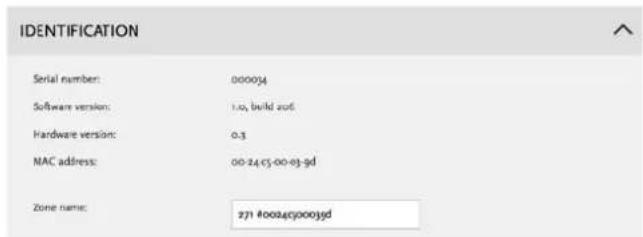
Identifies the product software version, network MAC address, and Zone Name.
Zone name: This identifies the product in the appropriate control interface such as Touch:PC, Control:15, and Control:PC. It is initially set to a unique string, but would normally be set to a meaningful label such as Kitchen or Study.
Source configuration
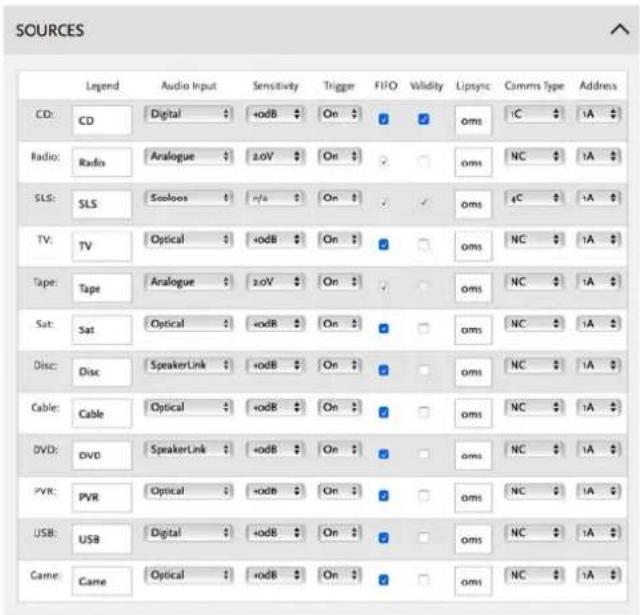
Allows you to configure the 12 Meridian sources.
Legend: A string of up to 5 characters which will be displayed on the Automation interface, and on DSP loudspeakers.
12 Meridian 271 Digital Theatre Controller User Guide
Audio input: Each of the 12 logical sources can be assigned to any of the audio inputs: Analogue-RCA, Analogue-DB25, Digital-RJ45, Digital-DB25, or SpeakerLink.
Alternatively any source can be set to Last Valid, which changes the other settings but leaves the input unchanged, or Off, which makes the source unavailable.
Trigger: Can be set to On, Off, or LV (Last Valid) to control the trigger output. Note that the trigger is always off in standby.
Validity: Some sources, such as the Meridian CD players, use the Validity flag in the S/PDIF audio stream to indicate that the audio should not be played. Setting this may reduce unwanted noises in some situations.
Comms Type: For Comms-connected systems, ensures that the appropriate set of commands is sent to the product. The following categories are available:
1C = CD player, 2C = Radio, 3C = DVD player, 4C = Sooloos All others should be set to NC (No Comms).
Address: If there are two or more products of each type then the address should be 1A for the first, 2A for the second, etc.
Startup
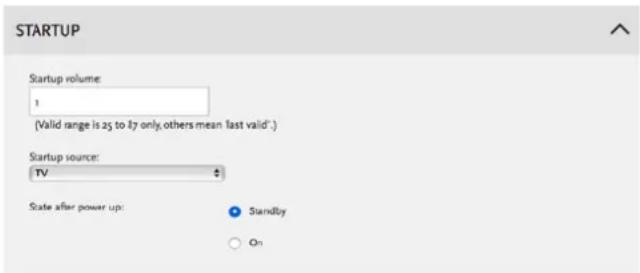
Startup volume: Specifies the initial volume for the outputs. The start volume is set when the 271 is first powered up, and a few seconds after going into standby.
By default the 271, and the DSP loudspeakers, start at volume 65 and retain the last volume setting when they enter or leave standby.
Startup source: Specifies the source that the 271 will start with if the user has a Source key on their chosen user interface. This will also be the source that is selected when the user presses the front panel button.
State after power up: Specifies whether the 271 should start in Standby or On when powered up.
Channel duplication
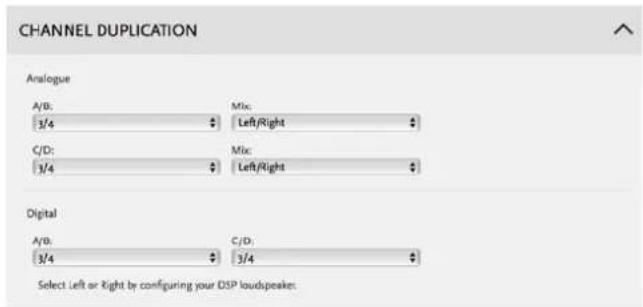
Allows you to specify which pair of channels 1/2 to 15/16 are duplicated to the analogue outputs A/B and C/D, and the digital outputs A/B and C/D.
For the analogue channels you can also specify that the output pair should be: left and right (ie as they were input), both left, or both right, allowing multiple duplication of individual channels.
To achieve the same multiple duplications of digital outputs, configure individual DSP loudspeakers as left or right in order to select which of the pair to play back.
Audio menus
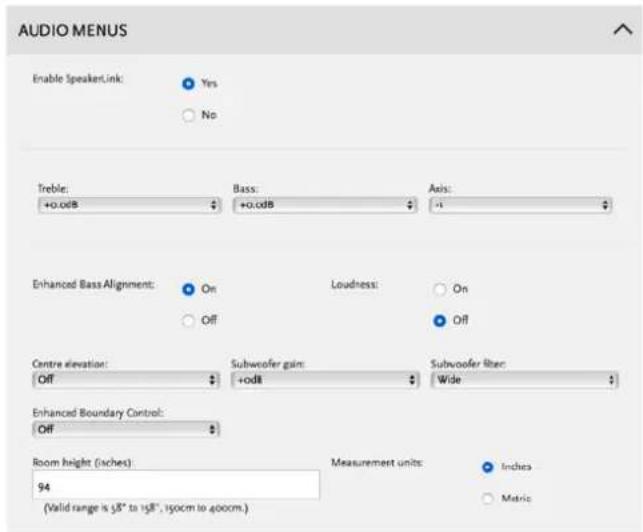
The options on the Audio menus page allow you to specify the default values of settings on DSP loudspeakers when the 271 is powered up, and change the settings when the loudspeakers are being used.
Enable SpeakerLink: Specifies whether the SpeakerLink output is on or off.
Meridian 271 Digital Theatre Controller User Guide
Treble, Bass, and Axis
These settings can be controlled either by SpeakerLink or by Meridian Comms. The default values can only be set via SpeakerLink. To use these controls via SpeakerLink the
Enable SpeakerLink option should be set to On.
These settings do not affect the analogue outputs, so in a mixed analogue/digital theatre you should use the adjustments available on the AVR.
Treble: Tilts the frequency of the response over the entire frequency range to make the sound brighter or dimmer. It can be adjusted between ±10 db in 0.5dB steps.
Bass: Adjusts the bass response in the room by ±5dB in 0.5dB steps.
Axis: Allows you to adjust the optimum listening height of the loudspeakers, like a balance control operating in the vertical plane.
SpeakerLink controls
These controls only affect DSP loudspeakers connected via SpeakerLink. To use them the Enable SpeakerLink option should be set to On.
The effect of these options depends on the capabilities of the DSP loudspeakers in the system; see the individual loudspeaker user guide for more information.
Enhanced Bass Alignment: improves the bass alignment in DSP loudspeakers that support it. Note that the extra processing adds a time delay, so it may need to be disabled for video sources.
Loudness: Alters the loudspeaker response for listening at low volume levels.
Centre elevation: Can be set to Max, Med, or Min to raise the image projected by the centre speaker. This creates a much more involving movie experience, with superior image integration across the whole width of the audio presentation.
Subwoofer gain: Allows you to adjust the gain of the subwoofer(s) by from -15dB to +15dB.
Subwoofer filter: Adjusts the subwoofer crossover frequency. The options are Wide (subwoofer plays the full range of audio frequencies), Sub2 (120Hz crossover), Sub1 (80Hz crossover), or Off (subwoofer off).
Enhanced Boundary Control: Compensates for reflective room surfaces. Choose between Off (unreflective), Min, Med, or Max (highly reflective).
Room height: Used for Enhanced Boundary Control calculations in loudspeakers with downward-firing drive units, such as the M6 or DSW, to compensate for reflections with the room ceiling. Can be varied between 150cm (58in) and 400cm (158in) in steps of 5cm (2in). If the room height is outside this
Meridian 271 Digital Theatre Controller User Guide
range set the nearest available value.
Measurement units: Changes the units used for specifying the room height: Inches for inches, or Metric for cm.
Comms
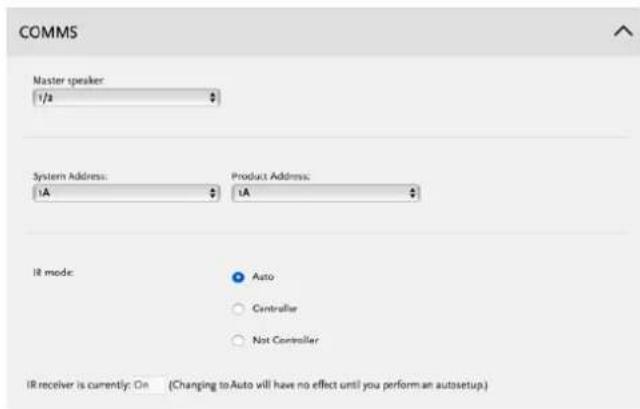
Master speaker: Specifies which pair of loudspeakers are the Master speakers. These should be Meridian DSP loudspeakers.
System Address: If an installation contains multiple zones that are connected together with Meridian Comms, each one needs a different System Address if they are to have
independent source selection and volume controls. If the installation uses LAN connections then this can be left at its default, 1A.
Product Address: If there are two or more Meridian sources in the same category on the same Comms-connected system then each unit must have a different Product Address. The setting does not apply to IP connected systems and should be left at its default, 1A.
IR mode: The IR mode is only relevant if a G12 has been connected to the 271. In this setup the installer should set the mode to Controller to ensure that the unit functions as the system controller.
IR receiver is currently: Shows the state of the IR receiver.
Meridian 271 Digital Theatre Controller User Guide
Ethernet
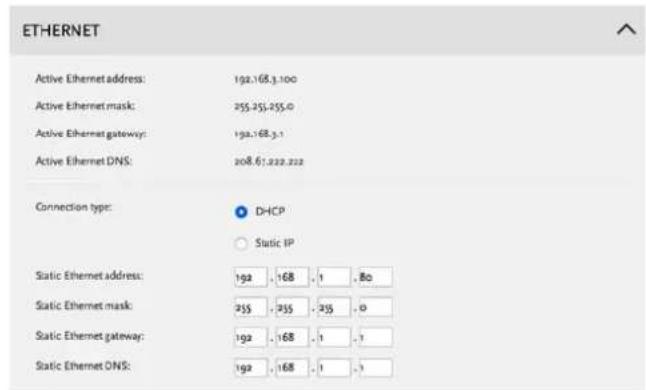
Allows you to change the Ethernet configuration. Note that incorrect settings may make the 271 unreachable via the web page.
Restore Settings
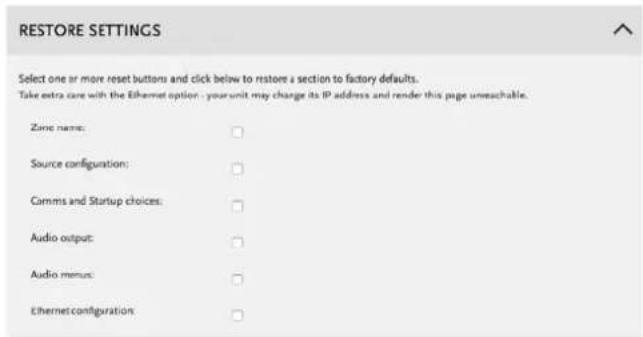
Allows you to restore one or more groups of settings to their factory defaults. Note that restoring the Ethernet settings will enable DHCP, which may change the IP address of the 271, and you may have to find the new address as described below.
- Select the checkboxes corresponding to the settings you want to restore.
- Click Reset Selected at the bottom of the page.
Zone name: This is used by the Automation Interface to identify the unit. The factory default uses a combination of the product name and MAC address.
Meridian 271 Digital Theatre Controller User Guide
Audio output: Returns the A/B & C/D channel duplications to their defaults.
Audio menus: Resets the settings on the Audio menus page.
Source configuration: Restores the source legends, their associated audio inputs and Comms configurations; see Sources, page 11.
Comms and startup choices: Returns the startup state to standby and volume to last valid.
Ethernet configuration: Removes any static IP selection and re-enables DHCP. If this box is ticked then the unit will begin the process of getting a new IP address automatically. It may be given a new address by the DHCP server, in which case you will have to find the new address; see Discovering the IP address of the 271, page 10.
Controlling the 271 Digital Theatre Controller
The Meridian 271 can be controlled using the following options:
• Via Meridian Comms from another product such as a Meridian CD Player.
• Via the Ethernet connection using the Automation Interface.
- Via Infra Red, using the optional G12 remote IR sensor and either the MSR, MSR+, or AC200 remote controls.
IP Control app
Meridian provide a free app for iOS called IP Control that uses the Automation Interface of the 271. Search for Meridian in the Apple App Store to download it.
Ethernet connection
A LAN connection is required to configure the 271 Powered Zone Controller. Also, various aspects of the update and support systems require that the LAN allows Link Local addressing and multicast transmission as well as UDP and TCP traffic. Simple unmanaged switches will always pass this traffic but Wireless Access Points should be selected carefully and managed switches must be configured correctly to pass this traffic.
Third-party IR inputs
The Meridian G12 IR sensor has the following pinout:
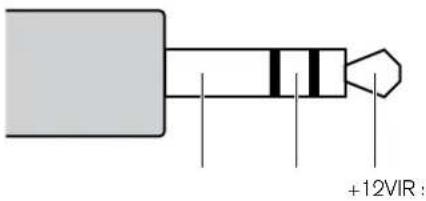
Third-party IR receivers with the same pinout may be compatible but their operation is not guaranteed.
Many home automation/control systems feature outputs suitable for feeding IR emitter devices (also referred to as "IR blasters"). These signals differ from those derived from infra-red receivers in that they are modulated with a carrier frequency. The 271 will automatically detect this and extract the underlying IR signal. Use only the Ring and Sleeve connections for these devices; the Tip (12V) should be left unconnected.
For details of the Automation Interface and the IR control codes see the Meridian website:
www.meridian-audio.com
Meridian 271 Digital Theatre Controller User Guide
Trigger input and output
The trigger input and output are both designed to use mono 3.5mm jack plugs. The input circuitry is optically coupled, so works for either polarity of signal across tip and ring. The output presents a +12V signal on tip and ground on ring:
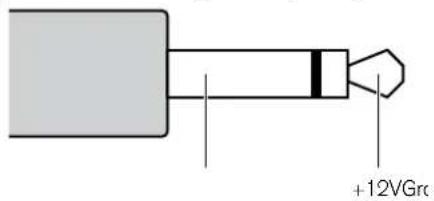
Trigger input
By default the 271 will respond to rising or falling edges on the trigger to mean on and off respectively. The product will leave and enter standby in the same manner as if the front panel button has been pressed.
Trigger output
Each logical source has a configurable trigger setting, when that source is selected the trigger level will either:
- Turn on
- Remain at the current level (Last Valid)
- Turn off
The trigger will always go off when the product is in standby.
Meridian 271 Digital Theatre Controller User Guide
Index
A
accessories 2
Address option 12
Analogue AVR and DSP in-wall theatre 7.1 7
analogue inputs and outputs 5
applications
Analogue AVR and DSP in-wall theatre 7.1 7
Balanced analogue AVR and mixed DSP/analogue theatre 7.1 8
Digital AVR and Meridian Digital Theatre 6
Audio input option 12
audio inputs 1
Audio menus panel 13
audio outputs 1
Automation Interface 18
Automation Protocol 2
auxiliary output 4
Axis option 14
B
back panel connections 4
Balanced analogue AVR and mixed DSP/analogue theatre 7.1 8
Bass option 14
C
Centre elevation option 14
Channel duplication panel 13
Comms panel 15
Comms Type option 12
communications connections 5
configuration 10
configuration page 10
controlling 18
D
Digital AVR and Meridian Digital Theatre 6 digital inputs 5
E
Enable SpeakerLink option 13
Enhanced Bass Alignment control 14
Enhanced Boundary Control option 14
Ethernet connection 5, 18
Ethernet control 2
Ethernet panel 16
|
Identification panel 11
inputs 5
IP address, discovering 10
IP Control application 18
IR input 5
IR mode option 15
Meridian 271 Digital Theatre Controller User Guide
IR receiver is currently option 15
IR sensor pinout 18
L
Legend option 11
loudspeaker outputs 4
M
Master speaker option 15
Measurement units option 15
0
optical input 5
outputs 5
P
panels
Audio menus 13
Channel duplication 13
Comms 15
Ethernet 15
panels (continued)
Identification 11
Restore Settings 16
Source configuration 11
Startup 12
paralleling 271 Digital Theatre Controllers 2
Phono output option 13
Product Address option 15
R
registration iv
Restore Settings panel 16
restoring settings 10
Room height option 14
S
safety warnings iii
Source configuration panel 11
SpeakerLink controls 14
Centre Elevation 14
Enhanced Bass Alignment 14
SpeakerLink controls (continued)
Enhanced Boundary Control 14
Loudness 14
Room height 14
Subwoofer Gain 14
SpeakerLink input 5
SpeakerLink outputs 5
specifications 3
Startup panel 12
Startup source option 12
Startup volume option 12
State after power up option 12
storing settings 10
Subwoofer filter option 14
Subwoofer gain option 14
System Address option 15
system integration 2
T
Treble option 14
trigger input 5, 19
22 Meridian 271 Digital Theatre Controller User Guide
Trigger option 12
trigger output 5, 19
V
Validity option 12
Z
Zone name option 11
- Important safety instructions
- Safety warnings
- Meridian 271 Digital Theatre Controller User Guide
- Climate
- To avoid overheating
- To avoid interference
- Radio interference
- iv Meridian 271 Digital Theatre Controller User Guide
- Copyright and acknowledgements
- Sales and service in the UK
- Sales and service in the USA
- Designed and manufactured in the UK
- Visit us on the Web
- Product registration
- Contents
- Introduction
- Audio inputs
- Audio outputs
- Meridian 271 Digital Theatre Controller User Guide
- System integration
- Ethernet control
- Paralleling 271 Digital Theatre Controllers
- Accessories
- Specifications
- Control signals
- Controls and indicators
- Physical
- Power
- Meridian 271 Digital Theatre Controller User Guide
- Unpacking
- Back panel
- Applications
- Configuring the 271 Digital Theatre Controller
- Displaying the 271 configuration page
- To display the 271 configuration page
- To store the settings
- Restoring settings
- Discovering the IP address of the 271
- Identification
- Source configuration
- Meridian 271 Digital Theatre Controller User Guide
- Treble, Bass, and Axis
- SpeakerLink controls
- Ethernet
- Restore Settings
- Controlling the 271 Digital Theatre Controller
- IP Control app
- Ethernet connection
- Third-party IR inputs
- Trigger input and output
- Trigger input
- Trigger output
- Index
- A
- B
- C
- D
- E
- |
- L
- M
- 0
- P
- R
- S
- T
- Meridian 271 Digital Theatre Controller User Guide
- V
- Z
Brand : MERIDIAN
Model : 271
Category : Uncategorized