
APMTR-0624 - Monitor Bauhn - Free user manual and instructions
Find the device manual for free APMTR-0624 Bauhn in PDF.


| Product Type | 15.6" Portable Monitor |
| Model | APMTR-0624 |
| Screen Size | 15.6 inches (diagonal) |
| Resolution | 1920 x 1080 (Full HD) |
| Panel Type | IPS |
| Refresh Rate | 60Hz |
| Contrast Ratio | 1000:1 |
| Aspect Ratio | 16:9 |
| Speakers | 2 x 1W |
| Power Supply Input | 5V ⎓ 3A (15W) |
| Power Delivery Support | Up to 60W (20V=3A) via USB-C |
| Input Ports | Mini HDMI, USB-C (signal & power), USB-C (power only) |
| Audio Output | 3.5mm headphone jack |
| Weight (without case) | 0.8 kg |
| Weight (with case) | 1.1 kg |
| Dimensions (W x H x D) | 357 x 224 x 11.7 mm |
| Included Accessories | Foldable case/stand, USB-A to USB-C cable, USB-C to USB-C cable, HDMI to Mini HDMI cable, warranty card, safety guide, user manual |
| Stand Type | Foldable magnetic protective case/stand |
| Menu Features | Brightness, Contrast, Black Level, ECO, DCR, Sharpness, Aspect Ratio, Color Temp (RGB), OSD Settings (Language, Position, Timer, Transparency), Auto Power Down, HDCR, Signal Source, Low Blue Light, Volume, Mute, FreeSync |
| Warranty | 1 year |
| Compatibility | Laptops, PCs, smartphones with USB-C (video output) or HDMI output |
| Power Indicator | Red (power connected), Blue (working), Blue blinking (no signal) |
| Control | Control wheel (press/scroll) and power button |
Frequently Asked Questions - APMTR-0624 Bauhn
User questions about APMTR-0624 Bauhn
0 question about this device. Answer the ones you know or ask your own.
Ask a new question about this device
Download the instructions for your Monitor in PDF format for free! Find your manual APMTR-0624 - Bauhn and take your electronic device back in hand. On this page are published all the documents necessary for the use of your device. APMTR-0624 by Bauhn.
USER MANUAL APMTR-0624 Bauhn
15.6" Portable Monitor
MODEL: APMTR-0624
User Manual

natural_image
Black tablet device displaying a turquoise aerial landscape with winding water patterns, placed on a wooden surface (no text or symbols visible on the device itself)AFTER SALES SUPPORT

AUS
1300 002 534

tempo.org/support
MODEL: APMTR-0624 PRODUCT CODE: 715884 06/2024
Welcome
Congratulations on your purchase!
This manual tells you all you need to know about using your new BAUHN® product.
Please take special note of any important safety and usage information presented with the ⚠ symbol.
All products brought to you by BAUHN ^® are manufactured to the highest standards of performance and safety and, as part of our philosophy of customer service and satisfaction, are backed by our comprehensive 1 Year Warranty.
Domestic use only: This product is intended for indoor domestic use only. It is not suitable for commercial, industrial or outdoor use. Do not use this product for anything other that its intended purpose, and only use it as described in this manual.
We hope you will enjoy using your purchase for many years to come.
Contents
Welcome 2
Contents 3
Product Overview 4
Controls & Connections 5
Operation 6
Troubleshooting 11
Specifications 12
Compliance and Responsible Disposal 13
Warranty Information 14
Product Overview
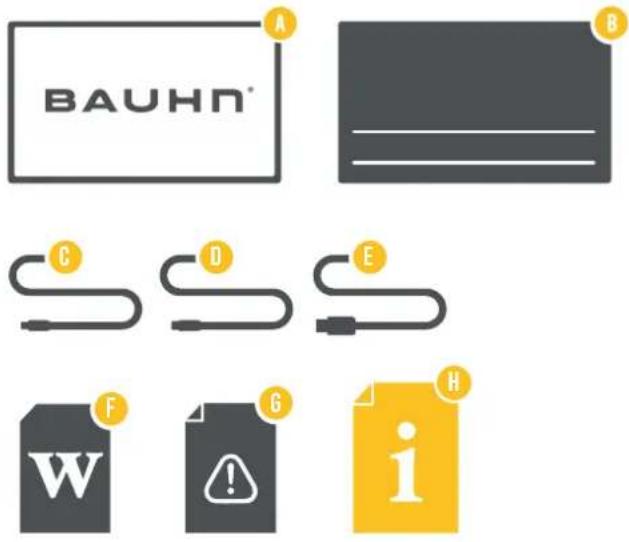
What's in the box
Before setting up your new product, check you have everything:
A. 15.6" Portable Monitor
B. Foldable Case/Stand
C. USB-A to USB-C Cable
D. USB-C to USB-C Cable
E. HDMI to Mini HDMI Cable
F. Warranty Certificate
G. General Safety Warnings
H. User Manual
Controls and Connections
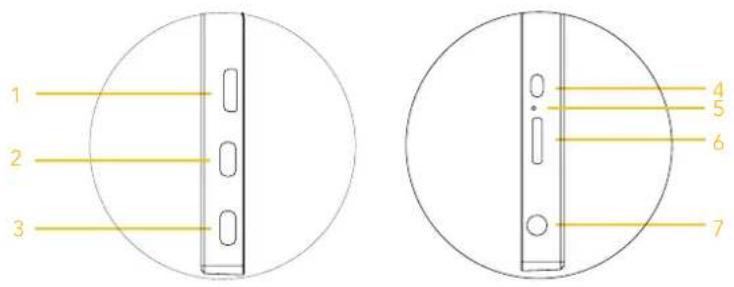
- Mini HDMI port
- USB-C Port: Signal Input and/or Power Input/Output
- USB-C Port: Power Input only
- Power button: Press and hold to turn the monitor on. Press and hold again to turn the monitor off. Press to exit menu/selection.
- Power Indicator: Light will be off when the monitor has disconnected from the power supply. The light will be red when the monitor is connected to the power supply. The light will be blue when the monitor is working, the light will blink blue when signal is disconnected.
- Control wheel: Press the button to display the menu or confirm the selection. Roll the control wheel upwards/downwards to select the menu option or adjust the value.
- 3.5mm headphone jack
Operation
Connect and power on
Connect and power on the supplied USB cable to the USB-C port on the monitor and the other end to an external power supply (not supplied).
- Press and hold the power button to turn the monitor on.

USB-C to USB-C Power/Signal cable
natural_image
Blank white rectangle with a thin border and no visible text, symbols, or markings.- Connect the monitor and PC/laptop via the supplied USB-C to USB-C cable. Ensure you connect to the middle USB-C port (See page 5, port 2)

Mini HDMI to HDMI Cable External Power Supply USB-C to USB-A
- Connect the monitor to external power supply (not included) via supplied USB-C to USB-A cable - Connect the monitor and PC/laptop via the supplied mini HDMI to HDMI cable (Note: the HDMI port cannot be used for charging)

- Not all devices with USB-C port can work with the monitor. Check whether the USB-C port of your device supports audio and visual signal transmission.


natural_image
Blank white rectangle with a thin border and no visible text, symbols, or markings.
- Please use external power supply greater than 15W (not included).
- Connect the monitor to external power supply (not included) via supplied USB-C to USB-A cable
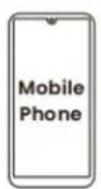
- Connect the phone via the supplied USB-C to USB-C cable or the relevant cable for your phone.
Ensure you connect to the middle USB-C port. (See page 5, port 2)
Note: PD (Power Delivery) from the external power supply is supported via the correct USB-C cables and devices.
If you want to charge your computer or mobile phone while using this portable monitor in USB-C mode. Please choose PD (Power Delivery) and use a supported USB-C cable (not included) and external power supply (not included). The PD will be limited to maximum 60W (20V=3A).
This feature may not work properly depending on your connected device's specifications.
Using the Magnetic protective case and stand


natural_image
Simple line drawing of a rectangular box with a central square (no text or symbols)
natural_image
Line drawing of a mechanical component or bracket with no visible text or symbolsPortable Mode - side view
- Folded back
Stand Mode - rear view
- Folded back with stand kicked out.
Stand Mode - side view
- Folded back with stand kicked out.
Display Mode Settings
- Once you have connected the monitor to your PC/laptop, select screen resolution/display settings on your PC/laptop.
- Choose the desired display mode.


- For Windows 10 computers, you can also press the keyboard + "P" button to quickly choose the display mode.
- Images are for reference only. Your PC/laptop version may look different to the above image.
Menu Settings
- When the monitor is connected and powered on, press the control wheel to enter the menu settings. Roll the control wheel upwards/downwards to switch between the menu options.
- Press the control wheel to enter the submenu, and press the button again to adjust the values. To exit the menu settings, press the power button.
Picture Setting
- Brightness
- Black Level
- Contrast
• ECO
• DCR (Dynamic Contrast Ratio) - Sharpness
Image
- Aspect
Colour Temperature
- Colour temp
- Red/Green/Blue
OSD Setting
- Language
- OSD H.POS
- OSD V.POS
- OSD Timer
- Transparency
General
- Reset
- Auto Power down
- HDCR Mode
Other
- Signal Source
- Low Blue Light
• Volume - Mute
- FreeSync
Troubleshooting
If you have problems with the product, check below for advice. If you don't find a solution here, contact After Sales Support on 1300 886 649.
| Problem Solution | |
| Monitor screen is not showing anything/black | Press the power button to ensure the monitor is turned on.Ensure the power supply is connected to the monitor and power source properly.If using a HDMI cable, ensure it is plugged into the port properly.Connect the monitor to a difference device. |
| Monitor screen is flickering | Check whether the connection cable between the monitor and device is securely connected.Connect to a larger external power source.Set the refresh rate to 60Hz on your device. |
| No sound when using headphone port | Ensure that the plug is fully inserted into the headphone port.Ensure monitor or app is not muted.Turn up the volume. |
Specifications
| Resolution 1920 x 1080 | |
| Panel Type IPS | |
| Refresh Rate 60Hz | |
| Contrast Ratio 1000:1 | |
| Aspect Ratio 16:9 | |
| Speaker 2 x 1W | |
| Power Supply 5V | ==3A |
| Net Weight | without protective case: 0.8kgwith protective case: 1.1kg |
| Dimensions 357 x 224 x 1 | 1.7mm (W x H x D) |
For Technical and Warranty Support
1300 002 534
tempo.org/support
Distributed by Tempo (Aust) Pty Ltd,
PO Box 132, Frenchs Forest NSW 1640
12 | SPECIFICATIONS
Compliance and Responsible Disposal

Packaging
The packaging of your product has been selected from environmentally friendly materials and can usually be recycled. Please ensure these are disposed of correctly. Plastic wrapping can be a suffocation hazard for babies and young children, please ensure all packaging materials are out of reach and are safely disposed of. Please recycle these materials rather than throwing them away.

Product
At the end of its working life, do not throw this product out with your household rubbish. An environmentally friendly method of disposal will ensure that valuable raw materials can be recycled. Electrical and electronic items contain materials and substances which, if handled or disposed of incorrectly, could potentially be hazardous to the environment and human health.

National Television and Computer Recycling Scheme
The careful disposal of e-waste is important because many televisions and computers contain materials which are hazardous to people and the environment. There are no fees for householders or small businesses disposing of e-waste at a scheme collection service.
Individuals can contact their local council for information on local e-waste management services, find scheme services listed on Planet Ark's website at www.recyclingnearyou.com.au, or call Planet Ark on 1300 733 712.
Compliance
This product complies with the Australian Safety Standard AS/NZS 62368.1 to ensure the safety of the product.

BAUHN®
Warranty Information
The product is guaranteed to be free from defects in workmanship and parts for a period of 12 months from the date of purchase. Defects that occur within this warranty period, under normal use and care, will be repaired, replaced or refunded at our discretion, solely at our option with no charge for parts and labour. The benefits conferred by this warranty are in addition to all rights and remedies in respect of the product that the consumer has under the Competition and Consumer Act 2010 and similar state and territory laws.
Our goods come with guarantees that cannot be excluded under the Australian Consumer Law. You are entitled to a replacement or refund for a major failure and to compensation for any other reasonably foreseeable loss or damage. You are also entitled to have the goods repaired or replaced if the goods fail to be of acceptable quality and the failure does not amount to a major failure.

BAUHN®
Repair and Refurbished Goods or Parts Notice
Unfortunately, sometimes faulty products are manufactured, which need to be returned to the supplier for repair.
Please be aware that if your product is capable of retaining user-generated data (such as files stored on a computer hard drive, telephone numbers stored on a mobile telephone, songs stored on a portable media player, games saved on a games console or files stored on a USB memory stick) during the process of repair, some or all of your stored data may be lost. We recommend you save this data elsewhere prior to sending the product for repair.
You should also be aware that rather than repairing goods, we may replace them with refurbished goods of the same type or use refurbished parts in the repair process.
Please be assured though, refurbished parts or replacements are only used where they meet ALDI's stringent quality specifications.
If at any time you feel your repair is being handled unsatisfactorily, you may escalate your complaint. Please telephone us on 1300 002 534 or write to us at:
Tempo (Aust) Pty Ltd ABN 70 106 100 252
PO Box 132, Frenchs Forest, NSW 1640
Telephone: 1300 002 534 (Aust) Fax: (02) 8977 3765
Tempo Help Desk: 1300 002 534 (Aust)
(Operating Hours: Mon-Fri 8:30am-6pm; Sat 9am-6pm AEST)
Email: tempo.org/support
Online support
Visit bauhn.com.au for the latest User Manual.
Warranty returns
Should you for any reason need to return this product for a warranty claim, make sure to include all accessories with the product.
Product does not work?
If you encounter problems with this product, or if it fails to perform to your expectations, please contact our After Sales Support Centre on 1300 002 534.

natural_image
Purple icon showing a person reading a document with an exclamation mark, no text or symbols present.Please read the manual
It will help you get the best out of your product.
Still have questions?
Call After Sales Support
1300 002 534
Or visit tempo.org/support
ALDI guarantees that our products are developed to our stringent quality specifications. If you are not entirely satisfied with this product, please return it to your nearest ALDI store within 60 days from the date of purchase for a full refund or replacement, or take advantage of our after sales support by calling the supplier's Customer Service Hotline.
AFTER SALES SUPPORT


AUS 1300 002 534

tempo.org/support
MODEL: APMTR-0624 PRODUCT CODE: 715884 06/2024
1
YEAR WARRANTY

- Welcome
- Contents
- Product Overview
- What's in the box
- Controls and Connections
- Operation
- Connect and power on
- Using the Magnetic protective case and stand
- Portable Mode - side view
- Stand Mode - rear view
- Stand Mode - side view
- Display Mode Settings
- Menu Settings
- Picture Setting
- Image
- Colour Temperature
- OSD Setting
- General
- Other
- Troubleshooting
- Compliance and Responsible Disposal
- Packaging
- Product
- National Television and Computer Recycling Scheme
- Compliance
- BAUHN®
- Warranty Information
- Repair and Refurbished Goods or Parts Notice
- Online support
- Warranty returns
- Product does not work?
Brand : Bauhn
Model : APMTR-0624
Category : Monitor