TM-4011DP - Monitor Posiflex - Free user manual and instructions
Find the device manual for free TM-4011DP Posiflex in PDF.


| Product Type | POS Monitor |
| Model | TM-4011DP |
| Brand | Posiflex |
| Display Size | 10.1 inches |
| Panel Type | TFT LCD |
| Resolution | 1280 x 800 (WXGA) |
| Active Area | 216.96 mm (H) x 135.60 mm (V) |
| Viewing Angle | 85° / 85° / 85° / 85° (U/D/L/R) |
| Contrast Ratio | 800:1 |
| Response Time | 25 ms |
| Brightness | 400 cd/m² |
| Touch Type | P-CAP (Projected Capacitive) |
| Touch Interface | USB Type B |
| Video Inputs | 1x VGA, 1x DisplayPort |
| Power Input | 12V DC via terminal VGA port or DC jack |
| Power Cable Included | Yes |
| DP Cable Included | Yes |
| USB Cable Included | Yes (Type B) |
| Mounting | VESA mount (screw holes on rear) |
| Package Contents | Monitor, power cable, DP cable, USB cable, mounting kits |
| Regulatory Approvals | FCC Class A, CE Class A |
| Weight (Estimated) | Approx. 1.5 kg (3.3 lbs) |
| Dimensions (Estimated) | 270 x 190 x 40 mm (10.6 x 7.5 x 1.6 in) |
Frequently Asked Questions - TM-4011DP Posiflex
User questions about TM-4011DP Posiflex
0 question about this device. Answer the ones you know or ask your own.
Ask a new question about this device
Download the instructions for your Monitor in PDF format for free! Find your manual TM-4011DP - Posiflex and take your electronic device back in hand. On this page are published all the documents necessary for the use of your device. TM-4011DP by Posiflex.
USER MANUAL TM-4011DP Posiflex
natural_image
Black rectangular electronic device with a blank screen, no visible text or symbolsPackage Contents
√ POS Monitor .....(x1)
√ Power Cable....(x1)
√ DP Cable....(x1)
√ USB (Type B) Cable.....(x1)
(For touch monitor and camera only)
√ Mounting Kits ....(x1)
Views of LM-4010DP/TM-4010DP/LM-4011DP/TM-4011DP
Front View
Camera (Optional)
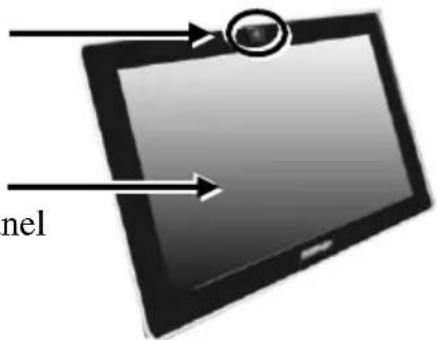
LM-401XDP LCD Panel
TM-401XDP P-CAP Touch Panel
Rear View
VESA-Mount Screw Holes
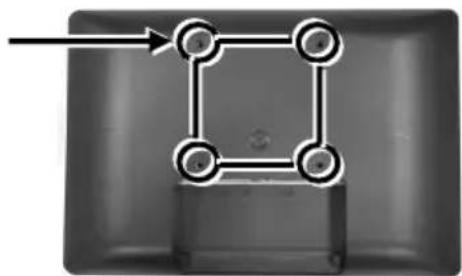
flowchart
graph TD
    A["Top"] --> B["Square"]
    B --> C["Circle 1"]
    B --> D["Circle 2"]
    B --> E["Circle 3"]
Bottom View
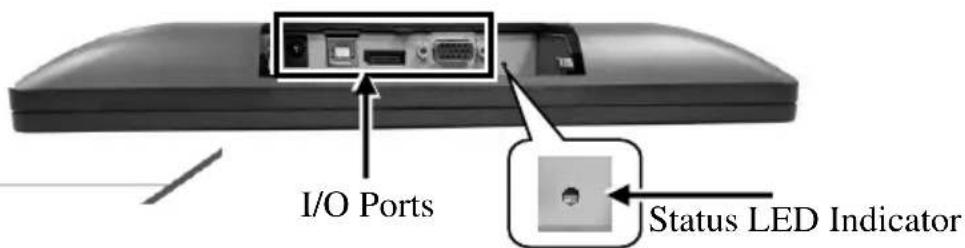
TM/LM-401xDP Ver. A0
FCC NOTES
This system meets industry & government requirements and applicable standards. This equipment generates, uses, and can radiate radio frequency energy and, if not installed and used in accordance with the instructions manual, may cause interference to radio communications. It has been tested and found to comply with limits for a Class A digital device pursuant to subpart B of Part 15 of FCC Rules, which are designed to provide reasonable protection against interference when operated in a commercial environment. Operation of this equipment in a residential area is likely to cause interference in which case the user at his own expense will be required to take whatever measures to correct the interference.
This device complies with part 15 of the FCC Rules. Operation is subject to the following two conditions: (1) This device may not cause harmful interference, and (2) this device must accept any interference received, including interference that may cause undesired operation.
CE CLASS A WARNING
This equipment is compliant with Class A of CISPR 32. In a residential environment this equipment may cause radio interference.
AVERTISSEMENT CE CLASSE A
Warranty will terminate automatically when the machine is opened by any person other than the authorized technicians. The user should consult his/her dealer for the problem happening. Warranty voids if the user does not follow the instructions in application of this merchandise. The manufacturer is by no means responsible for any damage or hazard caused by improper application.
LIMITES DE GARANTIE
This equipment is not suitable for use in locations where children are likely to be present.
CONSIGNES DE SÉCURITÉ
Introduction to the I/O Ports
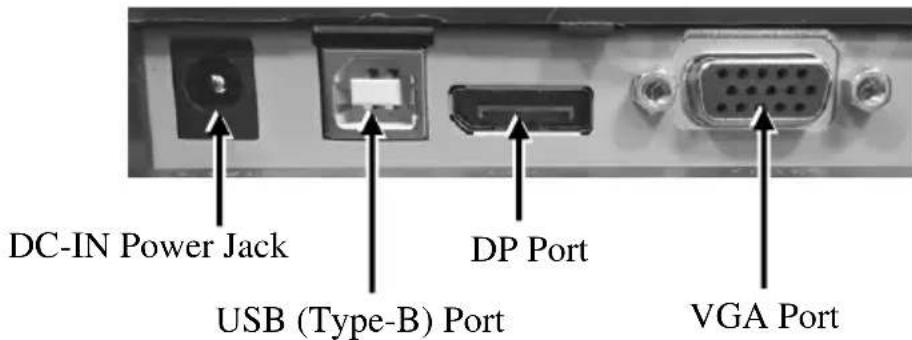
Connecting your Monitor to a RT-series POS Terminal
Before connecting your POS monitor to a RT-series POS terminal, please enable the power supply from the POS terminal to your POS monitor by setting up the jumper of the POS terminal. It is suggested that professional technicians implement the POS terminal jumper setting. To get more detailed information on jumper setting, contact directly your local service center.
During connection, please ensure the terminal is properly turned off and disconnected from the power sources to avoid potential hazards.
Power Cable
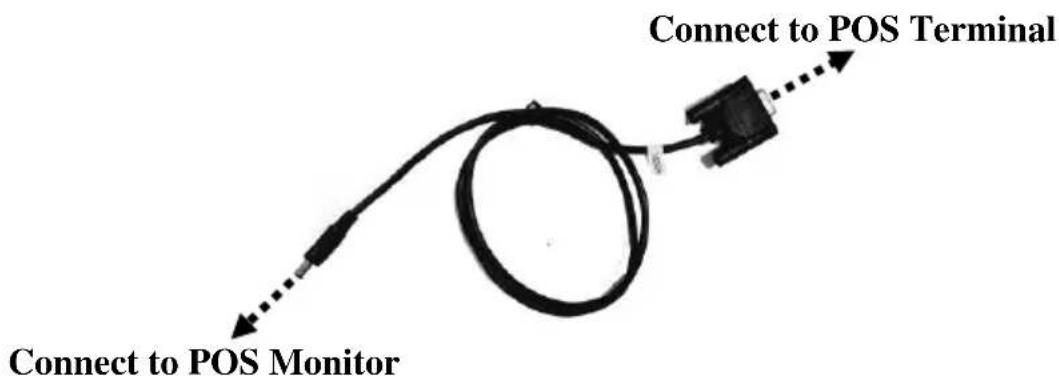
DP Cable
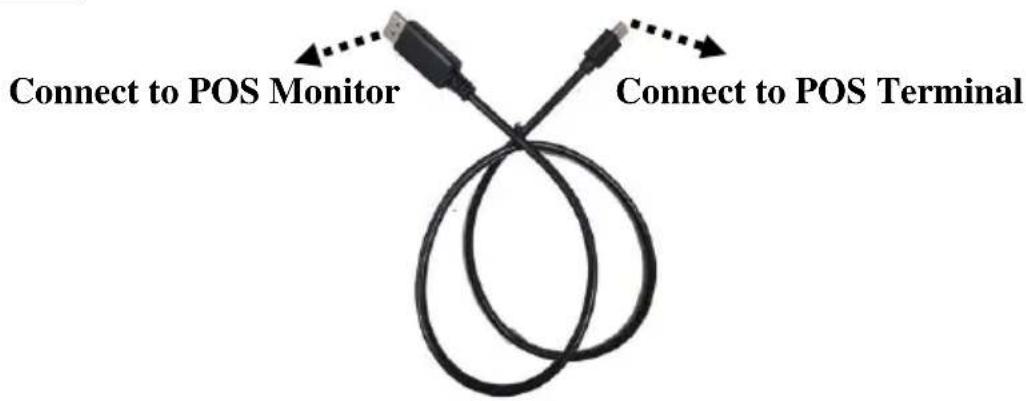
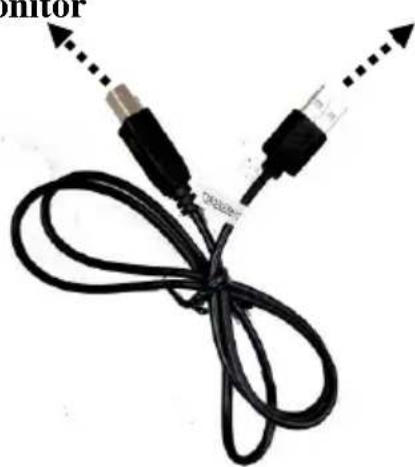
USB (Type B) Cable
(For touch monitor and camera only)
Connect to POS Monitor
natural_image
Coiled black cable with two connectors and dotted arrows indicating direction (no text or symbols)Connect to POS Terminal
Identifying your Monitor as Secondary Touchscreen Monitor in Extended Mode
In the following section, the related descriptions will be offered to help you set up TM series as the extended monitor when you attempt to extend the desktop across multiple monitors
For TM-4010DP/4011DP Models with P-CAP Touchscreen
If your monitors are TM-4010DP/TM-4011DP models, you may configure the display settings from Control Panel in Microsoft Windows to identify the monitor as the secondary touchscreen monitor. Please go through the below steps to complete configuration.
- Make sure that the monitor is well connected to your POS terminal.
-
Go to Control Panel>Display Settings, change your display settings to extended mode.
-
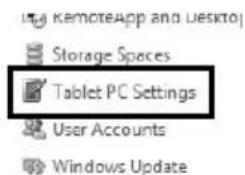
Go to Control Panel, and then click on Tablet PC Settings item.
-
In Tablet PC Settings dialogue box, click on Setup button.
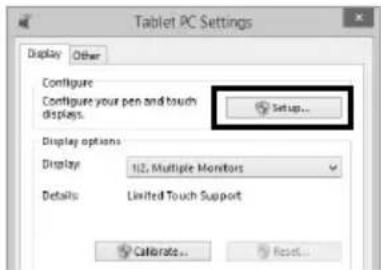
- Following the instruction shown on the screen, click on the screen that you want to identify as the primary touchscreen display.
Touch this screen to identify it as the touchscreen.
If this is not the Tablet PC screen, press Enter to move to the next screen. To close the tool, press Esc
- Press Enter button to proceed the configuration.
Press Enter to proceed to the next step to complete your configuration
- Click on the screen you want to use as the secondary touchscreen display.
Touch this screen to identify it as the touchscreen.
If this is not the Tablet PC screen, press Enter to move to the next screen. To close the tool, press Esc
Powering ON/OFF your Monitor
To start up LM/TM-401XDP, please make sure that the monitor is well connected to the POS terminal and the power is supplied to the monitor through POS terminal.
Installing Drivers
Please visit Posiflex official website to download and install the related drivers. http://download.posiflex.com/en-global/Download/download)
Setting up Display Resolution for Your Monitor
The below chart defines the list of recommended display settings for LM/TM-401XDP. Improper display configuration will prevent the monitor from properly displaying the image and lead to a warning message of “out of range” prompted on the screen.
9.7" LM/TM-4010DP
| Display Resolution | Horizontal Frequency (KHz) | Refresh Rate (Hz) |
| 640 x 400 | 37.9 | 70 |
| 640 x 480 | 31.5 | 60 |
| 37.9 | 72 | |
| 37.5 | 75 | |
| 720 x 400 | 37.9 | 70 |
| 800 x 600 | 35.137.9 | 5660 |
| 48.1 | 72 | |
| 46.9 | 75 | |
| 1024 x 768 | 48.4 | 60 |
10.1" LM/TM-4011DP
| Display Resolution | Horizontal Frequency (KHz) | Refresh Rate (Hz) |
| 640 x 480 | 31.5 | 60 |
| 37.9 | 72 | |
| 37.5 | 75 | |
| 800 x 600 | 37.9 | 60 |
| 48.1 | 72 | |
| 46.9 | 75 | |
| 1024 x 768 | 48.4 | 60 |
| 1280 x 720 | 45.0 | 60 |
| 1280 x 800 | 49.7 | 60 |
Specification
| LM/TM-4011DP | LM/TM-4010DP | |
| Display | ||
| LCD Panel | 10.1" TFT LCD | 9.7" TFT LCD |
| Resolution | 1280(H) x 800 (V) | 1024(H) x 768 (V) |
| Active Area | 216.96mm (H) x 135.60mm (V) | 196.61mm (H) x 147.46mm (V) |
| Pixel Arrangement | R.G.B. Vertical Stripe | |
| Viewing Angle | 85/85/85/85 degree (U/D/L/R) | 70/60/70/70 degree (U/D/L/R) |
| Contrast Ratio | 800 : 1 | 500 : 1 |
| Response Time | 25ms | 20ms |
| Brightness | 400 cd/m2 | 350 cd/m2 |
| Display Interface | VGA Port / DP Port | |
| Power Supply | 12V from Posiflex terminal VGA Port | |
| Touch | ||||
| Touch type | P-CAP | N/A | P-CAP | N/A |
| Interface | USB | N/A | USB | N/A |
| I/O Ports | ||||
| DP Port | 1 Port | |||
| VGA Port | 1 Port | |||
| USB Port | 1 Port (Type B) | |||
| DC-Jack | 12V DC-IN | |||
※ The product information and specifications are subject to change without prior notice.
- Package Contents
- Views of LM-4010DP/TM-4010DP/LM-4011DP/TM-4011DP
- Front View
- Rear View
- Bottom View
- FCC NOTES
- CE CLASS A WARNING
- AVERTISSEMENT CE CLASSE A
- LIMITES DE GARANTIE
- CONSIGNES DE SÉCURITÉ
- Introduction to the I/O Ports
- Connecting your Monitor to a RT-series POS Terminal
- Power Cable
- DP Cable
- USB (Type B) Cable
- Identifying your Monitor as Secondary Touchscreen Monitor in Extended Mode
- For TM-4010DP/4011DP Models with P-CAP Touchscreen
- Powering ON/OFF your Monitor
- Installing Drivers
- Setting up Display Resolution for Your Monitor
Brand : Posiflex
Model : TM-4011DP
Category : Monitor