Studio Strings - Audio software AIR - Free user manual and instructions
Find the device manual for free Studio Strings AIR in PDF.


| Product Type | Audio Software (Virtual Instrument Plugin) |
| Brand | AIR Music Technology |
| Model | Studio Strings |
| Category | Orchestral Strings Plugin |
| Format | VST, AU, AAX (compatible with MPC Software) |
| Operating Systems | Windows, macOS |
| System Requirements | Visit airmusictech.com for details |
| Installation Method | Download .exe (Windows) or .pkg (macOS), sign in, activate with serial key |
| Main Engine | Advanced four-part sample-based string ensemble |
| Sample Sets | Orchestral, chamber, and solo strings (Violin, Viola, Cello, Bass) |
| Legato Engine | Intelligent legato with adjustable speed and velocity splits |
| Built-in Effects | Flavor (timbre, flutter, monofy), Vinyl (distortion, noise), EQ (4-band), Delay (with resonance), Reverb (6 modes) |
| Polyphony | Up to 50 voices |
| String Styles | Sustain, Marcato, Staccato (down/up), Pizzicato (1+2), Tremolo |
| Controls | Setup, Players, Sound, Legato, Effects sections with virtual keyboard and tap tempo |
| Pitch Bend Range | 0-12 semitones, also 12Q, Harm, 24 |
| Envelope | Attack (0 ms - 32 s), Decay (0 ms - 32 s), Sustain (0-100%), Release (0 ms - 32 s) |
| Filter | Cutoff (0-100%), Cutoff Velocity (0-127) |
| Modulation | Modwheel and Aftertouch control Volume and Vibrato |
| Presets | Factory presets included; user can load/save custom presets |
| Activation | Up to three devices per serial key; 10-day free trial available |
| Dimensions (Physical) | Not applicable (software) |
| Weight | Not applicable (software) |
| Power Supply | No external power required (powered by computer) |
| Cleaning & Maintenance | Not applicable (software) |
| Safety Warnings | None (software) |
| Spare Parts & Repairability | Not applicable (software) |
Frequently Asked Questions - Studio Strings AIR
User questions about Studio Strings AIR
0 question about this device. Answer the ones you know or ask your own.
Ask a new question about this device
Download the instructions for your Audio software in PDF format for free! Find your manual Studio Strings - AIR and take your electronic device back in hand. On this page are published all the documents necessary for the use of your device. Studio Strings by AIR.
USER MANUAL Studio Strings AIR
Thank you for purchasing the AIR Studio Strings plugin instrument. AIR Studio Strings is the brand-new orchestral strings instrument, bringing the rich and elegant sounds of orchestral, chamber, and solo strings inside your MPC. Create beautifully articulated masterpieces from a powerful sampled library featuring combined and individual strings, including Violin, Cello, Bass, and Viola.
This instrument includes:
- Advanced four-part, sample-based string ensemble engine.
- Orchestral, chamber, and solo sample sets.
- Unique, intelligent legato engine.
• Four built-in AIR effects: Flavor, EQ, Delay, and Reverb.
This user guide explains how to use your plugin instrument. For more information on using other parts of the MPC software or hardware, please consult the respective MPC Software User Guide and MPC hardware User Guide.
System Requirements & Product Support
For complete system requirements and compatibility information, visit airmusictech.com.
For technical support, visit support.airmusictech.com.
Installation
- Double-click the .exe (Windows) or .pkg (macOS) file you downloaded. Follow the on-screen instructions to install the software.
- Open the plugin application.
- Click Sign In to sign into your inMusic Brands Profile using your Internet browser. If you do not have an inMusic Brands Profile yet, you will be prompted to create one.
- Once you have signed in, click Activate in the plugin window to enter your serial key to unlock the plugin. You can unlock each plugin on up to three devices at a time.
- If you do not have a serial key, you can click Try Unlicensed to explore the plugin with intermittent audio alerts. You can also click 10-Day Trial to initiate a free, fully featured trial of the plugin for 10 days.
If you would like to purchase a serial key, click the link to purchase a license at profile.inmusicbrands.com.
Operation
Overview
Setup Section
Global Controls, Players Controls

Sound Controls

Legato Controls

Effects Controls

Setup Section

-
Keyboard: Click this icon to enable or disable the virtual keyboard. When enabled, you can click these keys to input notes, or view notes being played on an external MIDI device.
-
Tempo: Displays the current plugin tempo. To change the tempo:
-
Click the number and use your keyboard to input a new value.
- Click and drag the tempo value up or down using your cursor.
-
Click the Tap button at regular intervals.
-
Settings: Click this icon to open the Settings window, where you can set the following parameters:
-
Output: Click this drop-down menu to select an audio hardware driver in your computer system. Click the Test button to play a test tone for checking your audio output settings. (Careful! You should lower the volume on your audio system beforehand.)
- Sample Rate: Click this drop-down menu to select the desired sample rate for your project. This depends on the available sample rates of the type of MPC hardware you are using or of your audio interface (i.e., select 96000 Hz only if your interface allows a 96 kHz sample rate).
- Audio Buffer Size: Click this drop-down menu to set your audio system's latency. Lower values result in a more immediate playing response but also more CPU consumption. If you are working with larger projects, this may cause audible clicks and pops. Higher values are more CPU-friendly but can produce more delay between pressing a pad and hearing the corresponding sound. The ideal audio buffer size also depends on your computer's CPU performance. Experiment with this to find the best setting for your system.
- Active MIDI Inputs: Displays available MIDI input devices. To enable a device, check the box next to its name.
-
Bluetooth MIDI: Click this icon to open your system's Bluetooth settings menu, where you can select a Bluetooth-enabled MIDI device to control the plugin.
-
Menu: Click this icon to open the menu, where you can find the following options:
-
Scale: Click here to select a value to scale the plugin window to a new size.
- Load Preset: Click here to load a saved preset.
- Save Preset: Click here to save the current preset.
- Open User Guide: Click here to open this User Guide.
-
About: Click here to view plugin version information.
-
Preset: Click this drop-down menu to view the list of included plugin presets. You can also click the up and down arrows next to this field to move to the previous or next preset.
Players
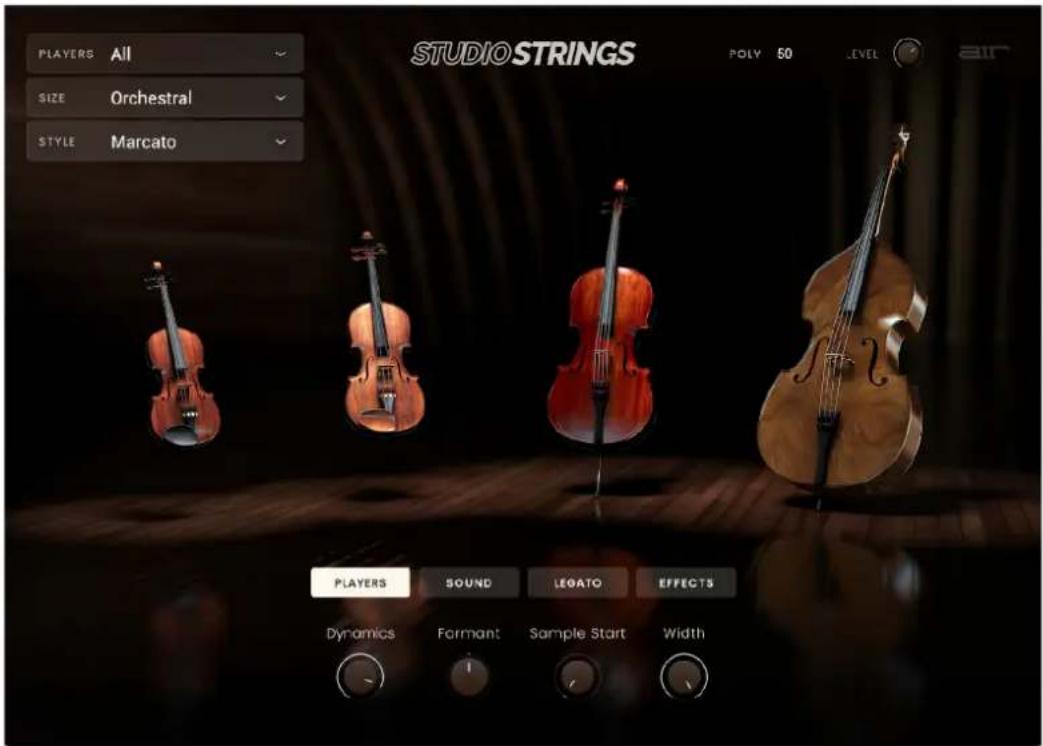
All parameters in this view except Size and Style can be adjusted in any other plugin view.
| Parameter | Description | Value | Range |
| Players Type of string instrument sound or sounds. All, Violin, Viola, Cello,Bass | |||
| Size Number of instruments emulated. Orchestral, Chamber,Solo | |||
| Style Style of string playing. Sustain, Marcato,Staccato Down+Up,Staccato Down, Staccato Up, Pizzicato 1+2,Pizzicato 1, Pizzicato 2,Tremolo | |||
| Poly Number of available voices. 1-50 | |||
| Level Overall volume level of the plugin. -inf - 0.0 - +6.0 dB | |||
| Dynamics Adjust the dynamic range between soft and loud notes. At low values, the dynamic range is reduced;at high values, the dynamic range is expanded. | 0-100% | ||
| Formant Decreases or increases resonant frequencies toadjust the timbre of the sound. | -12 - 0 - +12 | ||
| Sample Start | Starting point of the sample. | 0-100% | |
| Width | Stereo width of the sound. | 0-100% | |
Sound

| Parameter | Description | Value | Range |
| Pitch Bend Range | Number of semitones shifted up or down when pitch bend if applied. Select 12Q to apply distinct notes up and down an octave when using the pitch wheel. Select Harm to apply distinct harmonic notes up and down when using the pitch wheel. | 0-12, 12Q, Harm, 24 | |
| Vibrato Speed | Rate of vibrato modulation. 0-100% | ||
| Envelope Attack | Length of time for the note to reach full level. 0 ms - 32.00 s | ||
| Decay | gth Left time for the note to reach sustain level. 0 ms - 32.00 s | ||
| Sustain Level | of the sound while the note is held. 0-100% | ||
| Release | gth Right time for the note to dissipate when released. 0 ms - 32.00 s | ||
| Modwheel Volume | Amount of influence the mod wheel has on volume control. At 0, the mod wheel has no control over volume. At 100, the volume will be all the way down at the mod wheel center and increase as you move it up or down. | 0-100% | |
| Vibrato | Amount of vibrato applied by the mod wheel. | 0-100% | |
| Aftertouch | Volume | Amount of control aftertouch has on volume control. At 0, aftertouch has no control over volume. At 100, the volume will be all the way down when aftertouch is 0 and increase as aftertouch is increased. | 0-100% |
| Vibrato | Amount of vibrato applied by aftertouch. 0-100% | ||
| Filter | Cutoff | Filter cutoff frequency. | 0-100% |
| Cutoff Velo | Velocity level up to which the filter cutoff is applied. | 0-127 | |
Legato

| Parameter | Description | Value |
| Legato Enables or disables legato, which blends one note to the next. When enabled, the parameters below become available. | Off, On | |
| Slow Legato Length of legato time between notes below the Velocity level. | 0 ms – 1.00 s | |
| Fast Legato Length of legato time between notes above the Velocity level. | 0–200 ms | |
| Speed Velocity | Note-of-speed velocity level at which legato/glide time is split into a slow and fast ranges.You can also adjust this by dragging the Speed slider. | 0–127 |
| Legato Note | Lowest State at which legato is applied. C-2 – G8 | |
| Portamento Velocity | Note-on velocity level below which portamento glide is enabled.When set to Always, portamento glide is enabled for all velocities.You can also adjust this by dragging the Porta slider. | 0–127, Always |
| Slow Portamento | Length of pitch gliding between notes below the Speed Split Velocity level. | 0 ms – 1.00 s |
| Fast Portamento | Length of pitch gliding between notes above the Speed Split Velocity level. | 0–360 ms |
| Max Up Maximum number of semitones above original note where portamento is enabled. | 1–36 | |
| Max Down Maximum number of semitones below original note where portamento is enabled. | 1–36 | |
| Crossfade Applies a fade-in-fade-out between the original note and the glide note. | Off, On | |
Effects

Parameter
Description
Value
Range
| Flavor Use the button in the upper-left corner of this section to enable or disable the flavor effect. | Off, On | |
| Timbre Selects an emulation type to color the sound. | Varies | |
| Timbre Depth Amount of timbre emulation applied to the sound. 0–100% | ||
| Flutter Amount of speed fluctuation of the sound playback. 0–100% | ||
| Monofy Reduces the stereo spread of the sound to mono. 0–100% | ||
| Vinyl Distortion Amount of vinyl distortion noise applied to the signal. | 0–100% | |
| Vinyl Noise Amount of vinyl noise such as clicks and pops applied to the signal. | 0–100% | |
| EQ Use the button in the upper-left corner of this section to enable or disable the EQ effect. | Off, On | |
| Low | Amount of attenuation or boost applied to the low frequency band. | -12.0 – 0.0 – +12.0 dB |
| Low Mid | Amount of attenuation or boost applied to the low-mid frequency band. | -20.0 – 0.0 – +20.0 dB |
| High Mid | Amount of attenuation or boost applied to the high-mid frequency band. | -20.0 – 0.0 – +20.0 dB |
| High | Amount of attenuation or boost applied to the high frequency band. | -12.0 – 0.0 – +12.0 dB |
| Parameter | Description | Value | Range |
| Delay Use the button in the upper-left corner of this section to enable or disable delay. | Off, On | ||
| Time Amount of time between the dry signal and the delayed signal. | 1/16 – 16/4 | ||
| Mix Wet/dry amount of the delay effect. 0–100% | |||
| L|R | Re Ratio the delay Time in either the Left or Right stereo field. This is useful for creating offset, panned delays. | 50:100 – 100:100 – 100:50 | |
| Feedback | Amount of signal fed back into the delay line. 0–100% | ||
| Reso LP Freq | Low pass frequency for feedback resonance. 100 – 16000 Hz | ||
| Reso Bell Freq | Center frequency for feedback resonance. 100 – 16000 Hz | ||
| Reso | Amount gain applied to Chain resonant frequency. | 0–100% | |
| Reverb | Use the button in the upper-left corner of this section to enable or disable the spring reverb effect. | Off, On | |
| Mode | Type of reverb effect applied. | Soft, Bright, Studio, Chamber, Hall, Ambient | |
| Time | Length of reverb tail. | 0.3 – 60.00 s | |
| Mix Wet/dry amount of the reverb effect. | 0–100% | ||
Trademarks and Licenses
AIR Music Technology is a trademark of inMusic Brands, Inc., registered in the U.S. and other countries. macOS is a trademark of Apple Inc., registered in the U.S. and other countries.
Windows is a registered trademark of Microsoft Corporation in the United States and other countries.
All other product or company names are trademarks or registered trademarks of their respective owners.
airmusictech.com
Brand : AIR
Model : Studio Strings
Category : Audio software