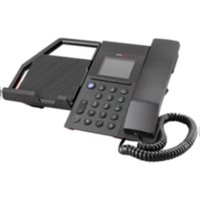
Elara 60 - Headphones HP - Free user manual and instructions
Find the device manual for free Elara 60 HP in PDF.


| Product Type | Wireless headset with base station (mobile phone station) |
| Bluetooth Version | Bluetooth (version not specified) |
| Active Noise Canceling (ANC) | Yes, toggle on/off |
| OpenMic | Yes, allows ambient sound passthrough when idle |
| Smart Sensors | Yes, auto answer, mute, pause/resume media based on wearing |
| DeepSleep Mode | Yes, conserves battery after 7 days out of range |
| Wireless Charging (Phone) | Yes, Qi compatible? (Supports wireless charging for phones) |
| Headset Charging | Via base cradle |
| Battery Type | Rechargeable (headset) |
| Microsoft Teams Integration | Yes, dedicated button and notification |
| Multi-Device Pairing | Yes, up to 8 Bluetooth devices, 1 active connection |
| Kensington Lock Slot | Yes, on base |
| Microphone Boom | Rotatable for right or left wear |
| Audio Controls | Volume wheel, mute, play/pause, call button on headset |
| Base Controls | Softkeys, volume +/-, media button, Teams button |
Frequently Asked Questions - Elara 60 HP
User questions about Elara 60 HP
0 question about this device. Answer the ones you know or ask your own.
Ask a new question about this device
Download the instructions for your Headphones in PDF format for free! Find your manual Elara 60 - HP and take your electronic device back in hand. On this page are published all the documents necessary for the use of your device. Elara 60 by HP.
USER MANUAL Elara 60 HP
Pair your headset to the base 4
OPTIONAL Dual pair your headset 4
Charge 5
Charge your phone 5
Charge your headset 5
Basics 6
Headset and base controls 6
Power on your headset 6
Make, answer, end calls 6
Volume 7
Connect/Disconnect 7
Switch audio 7
Switch users 7
Stream media 7
Change base language, date and time 7
Use Microsoft Teams 7
Video conference 7
Base menu and settings 9
About the base menu and softkeys 9
Navigate the base menu 9
Change settings 9
Headset Features 10
Wear on the right or left 10
ANC 10
OpenMic 10
Use sensors 10
DeepSleep Mode 10
Troubleshooting 12
Support 13
Set up and power
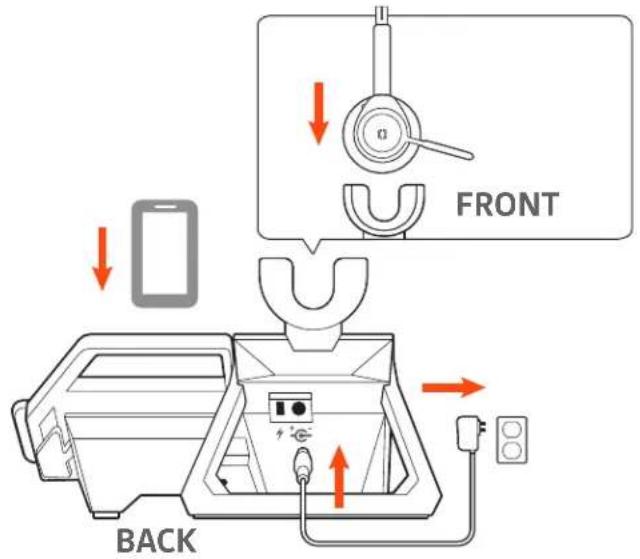
1 Using the illustration, set up the mobile phone station. Ensure the power cord is not under the foot of the base.
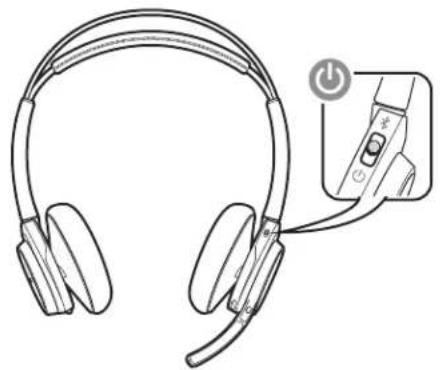
2 Next, slide the switch on your headset and power it on.
natural_image
Line drawing of a pair of headphones with earbuds and a power button inset (no text or symbols)3 OPTIONAL: Install a Kensington lock (port on the back) for security.
Pair
Pair your phone
The mobile phone station comprises three devices: 1) the base 2) the headset 3) your phone. The base and headset are already paired if purchased together. To use the base with your phone, pair your phone to the base.
The base can pair with up to 8 Bluetooth devices, maintaining 1 active connection.
To pair your mobile phone to the base, place your phone on the charge pad and press the "Pair" softkey.
NOTE To pair a another Bluetooth device or to pair your phone again, go to Settings > Bluetooth > Devices > Add New.
2 Go to Bluetooth settings on your mobile phone/Bluetooth device and select Poly Elara 60 Series. Follow the on-screen directions to finish pairing.
TIP If you have trouble pairing/connecting, forget prior Elara connections in your device's Bluetooth settings and retry.
Pair your headset to the base
Pairing your headset to the base only needs to be done if your headset and mobile base station were purchased separately or if you need to pair the headset to the base again.
1 To pair your headset to the base, use the base softkeys to go to Settings > Bluetooth > Headset Pairing > Add New.
2 Put your headset in pair mode by pressing and holding the power button towards the Bluetooth icon until you hear "pairing" and the headset LEDs flash red and blue.
3 Press Next and follow the on-screen instructions.
OPTIONAL Dual pair your headset
OPTIONAL If you want to continue a call or streaming audio on your headset away from the range of the base, you can also pair your phone to the headset.
1 Press and hold the headset Power button towards the Bluetooth icon until you hear "pairing" and the headset LEDs flash red and blue.

natural_image
Line drawing of a multi-band headphones with an inset showing a close-up of the ear (no text or symbols present)2 Go to Bluetooth settings on your mobile phone and select PLT Focus. Once successfully paired, you hear "pairing successful" and the LEDs stop flashing.
3 Use your phone's menu to switch the audio from the base to the headset if you want to walk away from the base and keep using your headset.
Charge
Charge your phone
The wireless charger is designed to support mobile phone wireless charging (landscape or portrait mode).
Wireless charging: If your mobile phone supports wireless charging, align the phone (vertically or horizontally) to the left edge of the charge pad.

natural_image
Line drawing of a telephone receiver with an orange lightning bolt on the door (no text or symbols)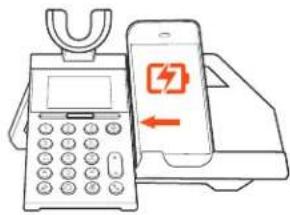
Wired charging: For wired charging, connect a charge cable (not provided) as shown. Connection provides power only.

natural_image
Diagram of a printer connected to a mobile phone, showing wiring and connection points (no text or symbols)Charge your headset
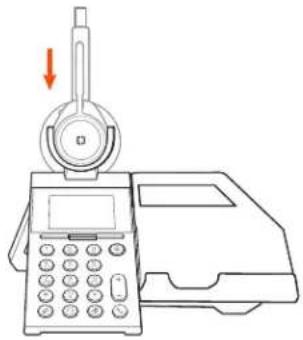
Charge your headset by placing it in the base cradle.
natural_image
Line drawing of a handheld electronic device with a speaker and keypad (no text or symbols)Basics
Headset and base controls
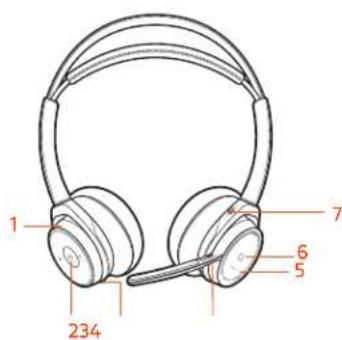
1 Volume wheel Rotate volume wheel to adjust volume
2 Play/pause music, track forward/backward Press to play music
3 ANC (Active Noise Canceling) Toggle on/off
4 Mute (active call) and Open Mic (idle) button During a call, press to mute/unmute When not on a call, press Open Mic on/off
5 Headset LEDs Flash when in use
6 Call button Press to answer/end a call
7 Power and Bluetooth button Toggle power on/off; press towards Bluetooth icon for pairing
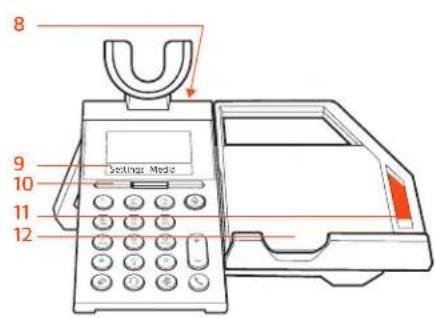
8 Charge port USB charge port for wired charging
9 Softkey labels Text above a softkey, indicating function
10 Softkeys Keys below the base display that have variable function
11 Platform release lever Releases the platform from a vertical position
12 Wireless charge platform Requires phone that supports wireless charging
Power on your headset
Make, answer, end calls
To turn on the headset, slide the Power button on the bottom of the earcup to reveal green.
Make a call
To make a call, dial a number from your phone or the base and press the Call button. NOTE After you have dialed a number, use the "Line" softkey to toggle between a cell call and Microsoft Teams call (requires active Teams connection).
Answer a call
To answer a call, do one of the following:
- put on the headset (headsets with sensors only)
- press the Call button on the base or headset
- press the "Accept" softkey
End a call
To end a call, press the Call button on the base, phone or headset or press the "End call" softkey.
Redial
To redial the last outgoing call, tap the base Call button or double press the headset Call button.
Volume
Press the + / - buttons on the base or rotate the volume wheel ^+ forward (+) or backward (-) on the headset to control the volume.

natural_image
Line drawing of a person wearing a headband, hand holding the ear (no text or symbols)Connect/Disconnect
Connect: If your phone is paired to the base and you walk out of range of the base with your phone, then the base disconnects from your phone. To connect again when you come back in range, press the "Connect" softkey.
NOTE If more than one phone is paired to the base, a "Device" softkey appears instead to offer the ability to choose which phone to connect.
Disconnect: If you would like to disconnect the Bluetooth connection between the base and your phone, press the "Disconnect" softkey.
Switch audio
To switch audio to the speakerphone or headset press the corresponding button on the base.
Switch users
If the base is shared, pair your phone to the base (it can pair up to 8 devices with 1 active connection) and switch between phones by pressing the "Device" softkey and selecting your phone.
Stream media
To stream media, open the app on your phone and select the "Media" softkey on the base.
Change base language, date and time
Automatic language, time and date synchronization is triggered by opening the Poly Elara or Microsoft Teams app on your phone.
Use Microsoft Teams
Download and open the Microsoft Teams app on your phone. Press the dial pad Teams button to launch.
TIP First use on Android, launch the Teams app and then disconnect and reconnect Bluetooth to initiate.
The base Microsoft Teams button pulses when various notifications are available (missed calls, voice mails, etc). Customize how Microsoft teams interacts with the base by going to Settings > Microsoft Teams.
Video conference
Tilt the charge platform for a better video conference experience.

natural_image
Illustration of a desktop computer with a hand holding a tablet and a red button, no text or symbols present.2 To release the charge platform, pull the orange lever forward.
Base menu and settings
About the base menu and softkeys
Use the base menu to adjust and customize settings.
- Settings > General: Change display brightness, headset sensor settings, time and date; restore factory defaults; restart station
- Settings > Bluetooth: Pair devices to the base; switch between paired devices
- Settings > Microsoft Teams: Adjust how the base interacts with Microsoft Teams
• Media: Plays music from your phone
Navigate the base menu
Use the base keys and softkeys to navigate the base menu.
- Settings menu navigation Use the softkey arrows or the volume up/down buttons to navigate between choices in the base menu.
- Return home: Press the base Call button to return to the home screen when navigating through the base display.
Change settings
Settings can be changed from the base menu and the Poly Elara app (available at the Apple App Store or Google Play Store).
| Elara base menu Poly Elara app | |
| Change language X* | |
| Adjust headset sensor settings X X | |
| Set time, date, language X** X** | |
| Update firmware X | |
| Microsoft Teams settings X X | |
| Media player settings X X | |
| View user guide X |
*To change your headset language or settings, download Plantronics Hub here.
**Automatic language/time/date sync is triggered by opening the Poly Elara app on your phone. Opening the app overrides any base menu settings.
Headset Features
Wear on the right or left
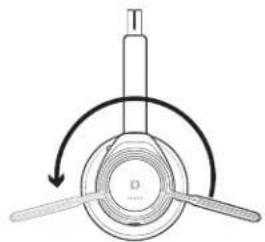
To position the microphone on the right or left side, rotate the microphone boom up and over. Adjust the boom so it points to the corner of your mouth.
natural_image
Diagram of a mechanical component with two blades and a central hub, showing rotational motion (no text or symbols)TIP Your headset senses when you change the microphone boom from one side to the other and syncs the audio and controls specific to each side.
ANC
Active Noise Canceling (ANC) reduces external noise and enhances your music and sound quality.
Your headset ships with ANC on. To turn ANC off, slide the switch away from "ANC."
OpenMic
While not on a call, tap the red Mute button to activate OpenMic and hear your surroundings. Control the level of ambient noise you hear by adjusting the volume wheel.
Use sensors
Smart sensors respond when you put on or take off your headphones.
With active sensors putting on the headset will: taking off the headset will:
Call answer the call mute the headset
Music/media resume music/media (if playing previous to taking off)*
pause music/media (if playing)*
Mute unmute if on an active call mute if on an active call
NOTE *Functionality varies by application. Does not function with web-based apps.
Reset sensors
You may need to reset the sensors if they are not working as expected.
There are two ways to reset the headset sensors. Choose:
- With your headset powered on, charge your headset on the charge stand for 10 seconds
- Press and hold both the Mute and Play/pause buttons for more than 4 seconds until the LEDs flash purple twice, being careful to not touch the earcup padding or allow it to come in contact with surfaces
Disable sensors
You can disable your headset smart sensors several ways:
- Manage sensors through Plantronics Hub software
- Hold both the Mute & and Call \buttons for more than 4 seconds until the LED flashes purple then red. Repeat to reactivate; the LED flashes purple then blue
NOTE Sensors cannot be disabled while streaming audio.
DeepSleep Mode
If you leave your headphones powered on but out of range of your paired phone or USB adapter for more than 7 days, your headset conserves its battery power by entering into DeepSleep mode.
Once back in range with your phone or USB adapter, press the Call control button to exit DeepSleep mode.
Troubleshooting
In the event of an electrostatic event The wireless charger resets within 45 seconds.
When I use the media player with Elara and YouTube, the media player freezes.
This is a known issue for iOS phones.
Known issues with iPhone 5s
- When an iPhone 5s is paired to Elara, with two calls, both are terminated when the call button is pushed
- Calls cannot be swapped with iPhone 5s
- Conference calls that include an iPhone 5s require the call to be ended on the iPhone
Support
NEED MORE HELP?
plantronics.com/support
| Plantronics, Inc. | Plantronics B.V. |
| 345 Encinal Street | Scorpius 171 |
| Santa Cruz, CA 95060 | 2132 LR Hoofddorp |
| United States | Netherlands |
© 2019Plantronics, Inc. All rights reserved. Poly, the propeller design, and the Poly logo are trademarks of Plantronics, Inc. Bluetooth is a registered trademark of Bluetooth SIG, Inc. and any use by Plantronics, Inc. is under license. All other trademarks are the property of their respective owners.
215338-06 09.19

- Set up and power
- Pair
- Pair your phone
- Pair your headset to the base
- OPTIONAL Dual pair your headset
- Charge
- Charge your phone
- Charge your headset
- Basics
- Make a call
- Answer a call
- End a call
- Redial
- Volume
- Connect/Disconnect
- Switch audio
- Switch users
- Stream media
- Change base language, date and time
- Use Microsoft Teams
- Video conference
- Base menu and settings
- About the base menu and softkeys
- Navigate the base menu
- Change settings
- Headset Features
- Wear on the right or left
- ANC
- OpenMic
- Use sensors
- Reset sensors
- Disable sensors
- DeepSleep Mode
- Troubleshooting
- Support
- NEED MORE HELP?
Brand : HP
Model : Elara 60
Category : Headphones