
KL-8 - Hand blender Radial Engineering - Free user manual and instructions
Find the device manual for free KL-8 Radial Engineering in PDF.


| Product Type | Immersion Blender / Hand Blender |
| Brand | Radial Engineering |
| Model | KL-8 |
| Power Consumption | 300 W |
| Voltage | 120 V / 60 Hz |
| Speed Settings | Variable speed with trigger control |
| Blade Material | Stainless steel |
| Shaft Material | Stainless steel |
| Handle Material | Plastic with rubberized grip |
| Dimensions (L x W x H) | 40 cm x 6 cm x 8 cm |
| Weight | 1.2 kg |
| Attachments Included | Whisk, chopper bowl, measuring cup |
| Functions | Blending, pureeing, chopping, whisking |
| Cleaning | Detachable shaft and attachments are dishwasher safe; handle wipe with damp cloth |
| Safety Features | Auto shut-off after 1 minute of continuous use, thermal protection |
| Spare Parts | Blending shaft, whisk, chopper bowl available separately |
| Warranty | 2 years limited warranty |
Frequently Asked Questions - KL-8 Radial Engineering
User questions about KL-8 Radial Engineering
0 question about this device. Answer the ones you know or ask your own.
Ask a new question about this device
Download the instructions for your Hand blender in PDF format for free! Find your manual KL-8 - Radial Engineering and take your electronic device back in hand. On this page are published all the documents necessary for the use of your device. KL-8 by Radial Engineering.
USER MANUAL KL-8 Radial Engineering
Getting Started ....5
Headphones and Cue Switches 6
Stereo Insert for Volume Pedals & Effects 6
Auxiliary Send and Receive....7
Aux Return Assign Switch 7
Digital Connections....8
Switching Between Redundant USB Devices 8
Recording Mode vs. Live Mode 9
MIDI In and Out 10
Linking Multiple KL-8 units....11
Specifications 12
Warranty Back Cover
INTRODUCTION
Thank you for purchasing the KL-8, a powerful rackmount mixer specifically designed to provide complete control over a professional keyboard setup, both on-stage and in the studio.
We encourage you to read through this manual to familiarize yourself with the many features available on the KL-8, allowing you to get the most out of this versatile mixing station. If you have any questions, please visit www.radialeng.com to find more resources including frequently asked questions, how-to videos, and updated drivers for use with Windows computers. You can also submit your own questions if you are still in need of additional information and we will do our best to respond promptly.
OVERVIEW
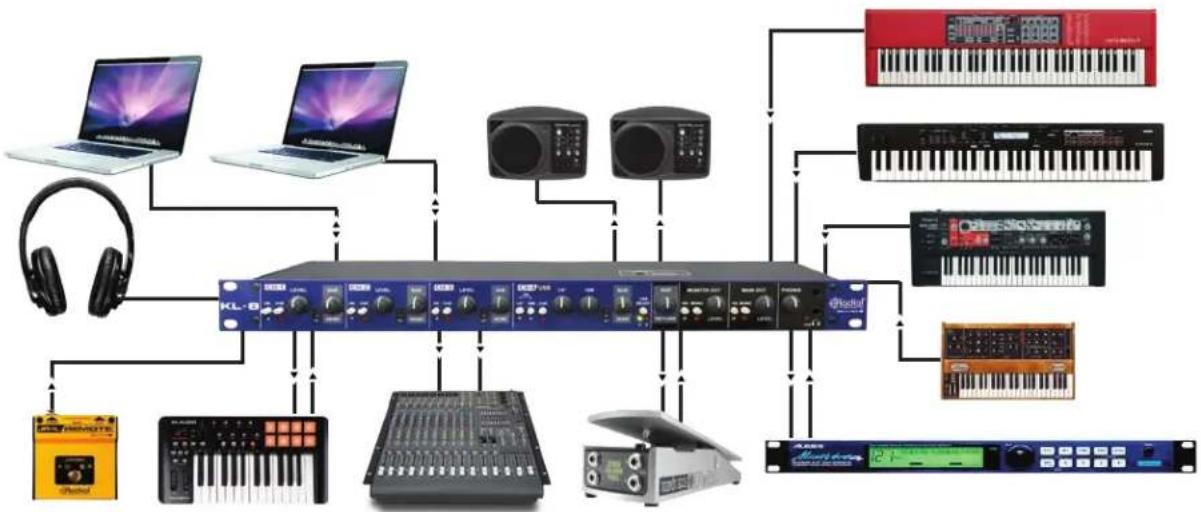
The KL-8 is a powerful mixing station created with pro keyboard players in mind, with a number of features designed specifically to streamline and enhance any keyboard setup.
You can connect up to four keyboards in mono or stereo, each with their own with level controls and LED indicators, along with the ability to bring them in and out of the signal path to keep noisy keyboards muted until they are needed.
A stereo aux send/receive channel is available to feed rackmount reverbs and delays or effects pedals. It can also be used as an additional input for a fifth keyboard, or reconfigured to allow an alternative audio source such as a click track to feed the headphones and stage monitors.
Both the Main outputs and Monitor outputs are provided over transformer-isolated balanced XLRs, with ground lift switches to eliminate hum and buzz from ground loops. The Main outputs are also transformer-isolated to further reduce noise. Both sets of outputs can also be summed to mono for use with systems that have limited channel availability.
Dual 1/4" headphone outputs are also included for local monitoring and testing. A cue system allows any keyboard input to be muted from the overall mix and fed directly to the headphones to silently check patch settings without feeding signal to the audience.
The KL-8 is also a powerful digital interface, with MIDI and USB connections that make it easy to control a laptop soft-synth, utilizing high quality 24bit/192kHz digital audio converters. Redundant USB connections mean that you can have a backup laptop plugged in and ready to go should your primary source fail; this is especially helpful for keyboard players who are also controlling playback for backing tracks during the performance. An optional JR1-L remote footswitch can be employed to switch between the USB inputs at a moments notice.
Finally, stereo insert points on the KL-8 allow a single volume pedal to control all of your keyboard outputs, and a link feature can be used to connect multiple units together and expand the KL-8 inputs to suit even the largest keyboard rigs.
flowchart
graph TD
    A["Audio System"] --> B["KT-8"]
    B --> C["Laptop"]
    B --> D["Laptop"]
    B --> E["Laptop"]
    B --> F["Laptop"]
    B --> G["Laptop"]
    B --> H["Laptop"]
    B --> I["Laptop"]
    B --> J["Laptop"]
    B --> K["Laptop"]
    B --> L["Laptop"]
    B --> M["Laptop"]
    B --> N["Laptop"]
    B --> O["Laptop"]
    B --> P["Laptop"]
    B --> Q["Laptop"]
    B --> R["Laptop"]
    B --> S["Laptop"]
    B --> T["Laptop"]
    B --> U["Laptop"]
    B --> V["Laptop"]
    B --> W["Laptop"]
    B --> X["Laptop"]
    B --> Y["Laptop"]
    B --> Z["Laptop"]
    B --> AA["Laptop"]
    B --> AB["Laptop"]
    B --> AC["Laptop"]
    B --> AD["Laptop"]
    B --> AE["Laptop"]
    B --> AF["Laptop"]
    B --> AG["Laptop"]
    B --> AH["Laptop"]
    B --> AI["Laptop"]
    B --> AJ["Laptop"]
    B --> AK["Laptop"]
    B --> AL["Laptop"]
    B --> AM["Laptop"]
    B --> AN["Laptop"]
    B --> AO["Laptop"]
    B --> AP["Laptop"]
    B --> AQ["Laptop"]
    B --> AR["Laptop"]
    B --> AS["Laptop"]
    B --> AT["Laptop"]
    B --> AU["Laptop"]
    B --> AV["Laptop"]
    B --> AW["Laptop"]
    B --> AX["Laptop"]
    B --> AY["Laptop"]
    B --> AZ["Laptop"]
    B --> BA["Laptop"]
    B --> BB["Laptop"]
    B --> BC["Laptop"]
    B --> BD["Laptop"]
    B --> BE["Laptop"]
    B --> BF["Laptop"]
    B --> BG["Laptop"]
    B --> BH["Laptop"]
    B --> BI["Laptop"]
    B --> BJ["Laptop"]
    B --> BK["Laptop"]
    B --> BL["Laptop"]
    B --> BM["Laptop"]
    B --> BN["Laptop"]
    B --> BO["Laptop"]
    B --> BP["Laptop"]
    B --> BQ["Laptop"]
    B --> BR["Laptop"]
    B --> BS["Laptop"]
    B --> BT["Laptop"]
    B --> BU["Laptop"]
    B --> BV["Laptop"]
    B --> BW["Laptop"]
    B --> BX["Laptop"]
    B --> BY["Laptop"]
    B --> BZ["Laptop"]
Utilizing the many connectivity options available on the KL-8
FRONT PANEL FEATURES

REAR PANEL FEATURES

GETTING STARTED
Before connecting to the KL-8, it is always best to turn your audio system levels down in order to prevent plug-in transients that could damage more sensitive components such as high frequency drivers.
The KL-8 is powered with a 4-pin locking power supply to prevent accidental disconnection. There is no power switch on the KL-8, once it is connected to a power source it will be active and ready for use.

Once the KL-8 is powered, begin by connecting your first keyboard to the inputs of CH-1 using standard 1/4" instrument cables. If using a keyboard with only one output, connect to the left/mono input only, as the KL-8 will automatically reconfigure this channel to mono.
The outputs of the KL-8 are designed to feed a PA system, recording interface, or a set of powered speakers via balanced XLR cables. Connect the MAIN OUTPUTS to your primary audio system, and the MONITOR OUTPUTS to a pair of powered speakers for local playback on stage. Should you encounter noise through the PA or your stage monitors, engage the ground lift switches on the rear of the KL-8 to help eliminate the problem.
Start with the Main and Monitor outputs set to around 2 o'clock, and the level control on CH-1 turned down to around 9 o'clock. Engage the ON switches to activate the first input and both outputs and slowly turn up the level on CH-1 until you reach the desired output level for your first keyboard. Repeat the process on CH 2-4 with your remaining keyboards, using the input level controls on each channel to adjust the balance between all four keyboards. Once you have achieved this balance between your keyboards, you can adjust the Main and Monitor output levels as needed to control the overall volume on stage or through the PA system.

flowchart
graph TD
    A["Power"] --> B["MECK"]
    B --> C["USB"]
    C --> D["FAIR OUTPUT"]
    D --> E["FAIR OUTPUT"]
    E --> F["FAIR OUTPUT"]
    F --> G["FAIR OUTPUT"]
    G --> H["FAIR OUTPUT"]
    H --> I["FAIR OUTPUT"]
    I --> J["FAIR OUTPUT"]
    J --> K["FAIR OUTPUT"]
    K --> L["FAIR OUTPUT"]
    L --> M["FAIR OUTPUT"]
    M --> N["FAIR OUTPUT"]
    N --> O["FAIR OUTPUT"]
    O --> P["FAIR OUTPUT"]
    P --> Q["FAIR OUTPUT"]
    Q --> R["FAIR OUTPUT"]
    R --> S["FAIR OUTPUT"]
    S --> T["FAIR OUTPUT"]
    T --> U["FAIR OUTPUT"]
    U --> V["FAIR OUTPUT"]
    V --> W["FAIR OUTPUT"]
    W --> X["FAIR OUTPUT"]
    X --> Y["FAIR OUTPUT"]
    Y --> Z["FAIR OUTPUT"]
HEADPHONES AND CUE SWITCHES
The headphone outputs and the cue select switches on the KL-8 are designed to allow you to silently monitor your overall mix, or select individual inputs and listen to them without feeding the outputs on stage. This is helpful when testing your connections, checking patch settings on individual keyboards, or adjusting a digital soft synth.
When the red CUE LED beside the headphone level control is flashing, this means that one of more of the CUE switches has been engaged on CH 1-4. Pressing a cue switch on any channel will reroute that input directly to the headphones, while also muting the output of that channel so that it will not feed the MAIN, MONITOR, or AUX outputs.
Once all of the cue switches have been disengaged, the red CUE LED will turn off, and the headphone outputs will be fed a copy of the overall mix, so you can hear what will feed the Monitor outputs. If you turned up the headphone level when testing an input with the CUE switch, ensure that you turn back down before disengaging the CUE to protect your hearing.

STEREO INSERT FOR VOLUME PEDALS & EFFECTS
The KL-8 is equipped with a stereo insert point that will allow you to control the overall output of the KL-8 using an external volume pedal, bus compressor or effects device. This gives you the ability to control all of your keyboards with a single pedal, or feed them all through a particular stereo effects unit. To connect to the INSERT SEND and RECEIVE jacks, use insert cables wired with 1/4" TRS to 2x TS connectors.
Any device connected across the insert points will affects the MAIN OUTPUTS, MONITOR OUTPUTS, and the USB audio feed to your computer. Note that when the KL-8 is set to RECORDING mode, any audio output from your computer over USB will not be affected by these insert points.

AUXILIARY SEND AND RECEIVE
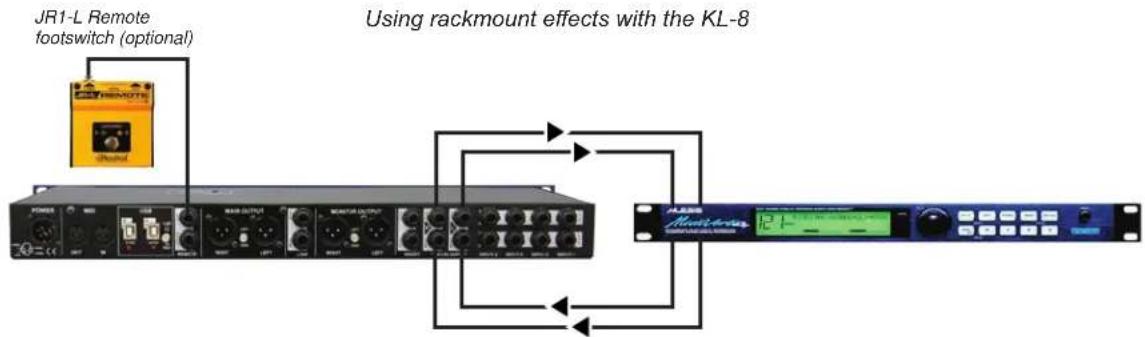
The KL-8 is equipped with a stereo AUXILIARY send and return to allow you to share external effects units across all of your connected keyboards. This feature can be used with both mono and stereo effects, as well as with pedals or rackmount equipment. When connecting to mono effects devices, only use the LEFT SEND and RECEIVE connections.

Using effects pedals with the KL-8

natural_image
Front view of a black electronic device with multiple ports and an orange control unit connected to it (no visible text or symbols)If the optional JR1-L latching footswitch is used, you can activate or deactivate the AUX connections with the press of a footswitch, giving you the ability to quickly add in a reverb or delay without any break in the performance. Use standard 1/4" instrument cables when connecting the KL-8 to the JR1-L remote.
flowchart
graph TD
    A["JR1-L Remote footswitch (optional)"] --> B["Device 1"]
    C["Using rackmount effects with the KL-8"] --> D["Device 2"]
    B --> E["Output"]
    D --> E
Each channel on the KL-8 features its own AUX SEND control which will determine how much signal from each keyboard is fed to the AUX outputs. These are post-fader sends, meaning you first need to turn up the LEVEL control on each channel before any signal will feed the AUX outputs.
A single AUX RETURN control allows you to adjust the return level from your effects devices. Start with this control set at 2 o'clock, then adjust the AUX SEND controls on each channel until you have the desired balance of effects between each keyboard. Once this balance is achieved, adjust the AUX RETURN to raise or lower the overall amount of effects present at the outputs of the KL-8.
AUX RETURN ASSIGN SWITCH
The top panel of the KL-8 features a switch that sets the function of the Aux return. Under normal operation, this is set to ALL OUTPUTS, meaning that whatever feeds the Aux return will be mixed into the MAIN, MONITOR, and headphone outputs. Use this setting when connecting external effects to the Aux channel.
Should you need to mix in an additional audio feed that you don't want to feed to the PA system (such as a click track), you can set this switch to the MONITOR AND HEADPHONES ONLY setting, which will prevent the Aux return from feeding the MAIN outputs. This allows you to monitor a signal locally through the KL-8 without sending it out to the audience.

DIGITAL CONNECTIONS
The KL-8 features two Type-B USB connections, and requires a USB 2.0 cable to connect to your computer or laptop. If using with a Mac, the KL-8 is plug-and-play, with no drivers required. Upon first use, if your audio software does not immediately recognize the KL-8, try restarting your Mac with the KL-8 connected. For users running Windows, please visit www.radialeng.com to download the latest drivers for the KL-8. Install these drivers before connecting the KL-8 to your Windows computer via USB.


TYPE A USB
Fits most laptops and computers


TYPE B USB
Used to connect to the KL-8
Once connected to your computer via USB, the KL-8 will appear in the list of available audio devices in your system settings/control panel. The KL-8 functions as a 2-input/2-output audio interface, so you can set it as your audio input device (for recording audio into your digital audio workstation), and as an audio output device (for playing back audio from your computer through the KL-8).
When playing back audio from your computer, the USB LEVEL control affects how much of this signal is mixed in with your keyboards to feed the MAIN and MONITOR outputs. Test this output with the USB LEVEL turned down, then slowly increase the level until you reach a good balance between your computer's output and any keyboards connected to CH 1-4. Note that on CH-4, the USB playback and the fourth keyboard input have their own ON switches and LEVEL controls, but they will share a single CUE switch and AUX SEND control.
SWITCHING BETWEEN REDUNDANT USB DEVICES
The KL-8 features two USB connections so a primary and a backup laptop can be connected at the same time to seamlessly switch from one computer to another in case of a failure during a live performance. Connect your primary laptop to USB A and the backup laptop to USB B. Only one of these connections will be active at any given time, this is determined by the front panel USB SELECT switch. Pressing this switch will instantly and silently switch between your connected devices. You can also use an external JR1-L footswitch to control this feature remotely; when the JR1-L is connected it will disable the USB SELECT switch on the KL-8, but the LEDs on the front panel will still indicate which USB connection is active.
Using redundant laptops with the KL-8


Front panel USB Select switch. Note that this switch will be inactive when an external footswitch is connected.
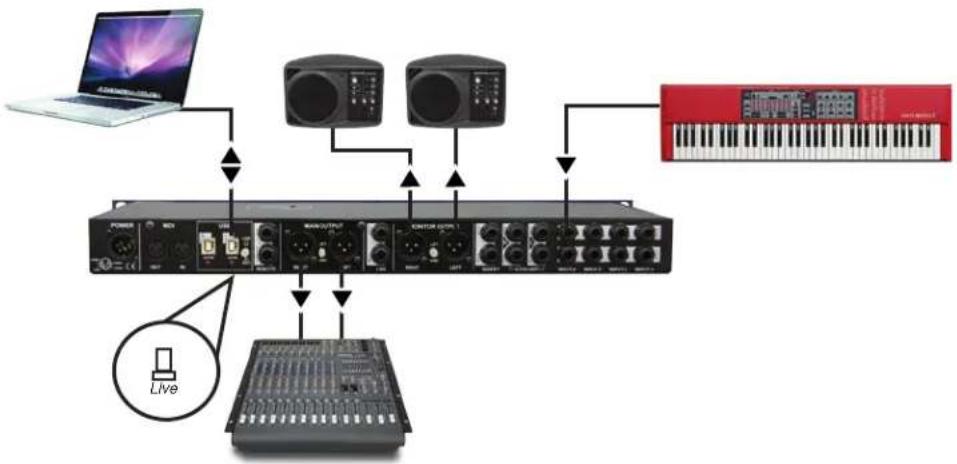
The KL-8 has two modes, set via the USB ASSIGN switch beside the USB connections on the back of the unit. When this switch is disengaged the KL-8 is set to LIVE mode. This means the USB audio from a connected laptop is treated like any other keyboard input; you can send it to the AUX outputs, blend it with the other keyboard inputs, and control it with an external volume pedal using the stereo insert points. Most players will keep the KL-8 in LIVE mode for the majority of the time, especially when using the mixer during a performance.
Using the KL-8 in LIVE mode for a performance
flowchart
graph TD
    A["Laptop"] --> B["Audio Device"]
    C["Audio Device"] --> B
    D["Audio Device"] --> B
    E["Audio Device"] --> B
    F["Audio Device"] --> B
    G["Audio Device"] --> B
    H["Audio Device"] --> B
    I["Audio Device"] --> B
    J["Audio Device"] --> B
    K["Audio Device"] --> B
    L["Audio Device"] --> B
    M["Audio Device"] --> B
    N["Audio Device"] --> B
    O["Audio Device"] --> B
    P["Audio Device"] --> B
    Q["Audio Device"] --> B
    R["Audio Device"] --> B
    S["Audio Device"] --> B
    T["Audio Device"] --> B
    U["Audio Device"] --> B
    V["Audio Device"] --> B
    W["Audio Device"] --> B
    X["Audio Device"] --> B
    Y["Audio Device"] --> B
    Z["Audio Device"] --> B
    AA["Audio Device"] --> B
    AB["Audio Device"] --> B
    AC["Audio Device"] --> B
    AD["Audio Device"] --> B
    AE["Audio Device"] --> B
    AF["Audio Device"] --> B
    AG["Audio Device"] --> B
    AH["Audio Device"] --> B
    AI["Audio Device"] --> B
    AJ["Audio Device"] --> B
    AK["Audio Device"] --> B
    AL["Audio Device"] --> B
    AM["Audio Device"] --> B
    AN["Audio Device"] --> B
    AO["Audio Device"] --> B
    AP["Audio Device"] --> B
    AQ["Audio Device"] --> B
    AR["Audio Device"] --> B
    AS["Audio Device"] --> B
    AT["Audio Device"] --> B
    AU["Audio Device"] --> B
    AV["Audio Device"] --> B
    AW["Audio Device"] --> B
    AX["Audio Device"] --> B
    AY["Live Audio System"]
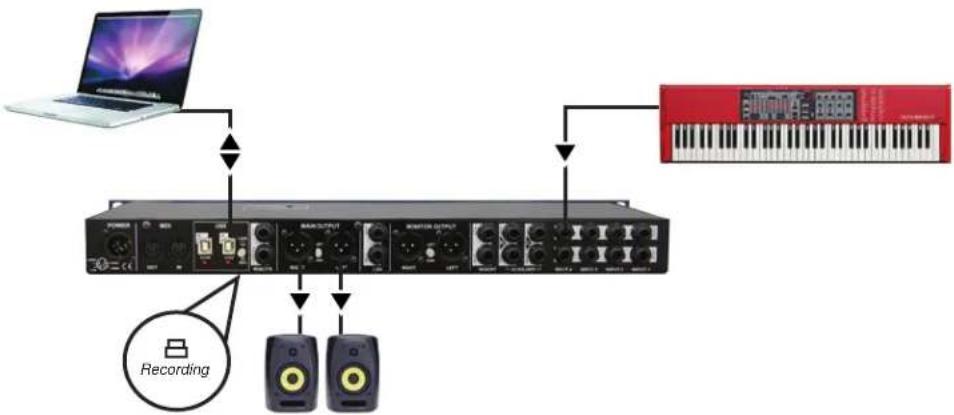
When the USB ASSIGN switch is engaged, the KL-8 is in RECORDING mode, and the USB audio output from the computer is sent directly to the MAIN and MONITOR outputs. This configures the KL-8 for use as a USB recording interface for tracking and overdubbing keyboards, allowing you to listen to pre-recorded tracks without having them affect the USB output of the KL-8. In this mode you can use an external volume pedal to control your performance without affecting the backing tracks you are playing along to, and audio from your computer will not feed the KL-8 AUX outputs.
Using the KL-8 in RECORDING mode for tracking and overdubbing
flowchart
graph TD
    A["Laptop"] --> B["Audio Recorder"]
    B --> C["Audio Output Stage"]
    C --> D["Audio Record"]
    D --> E["Audio Display"]
    F["Keyboard"] --> G["Audio Record"]
    H["Recording"] --> I["Audio Display"]
MIDI IN AND OUT
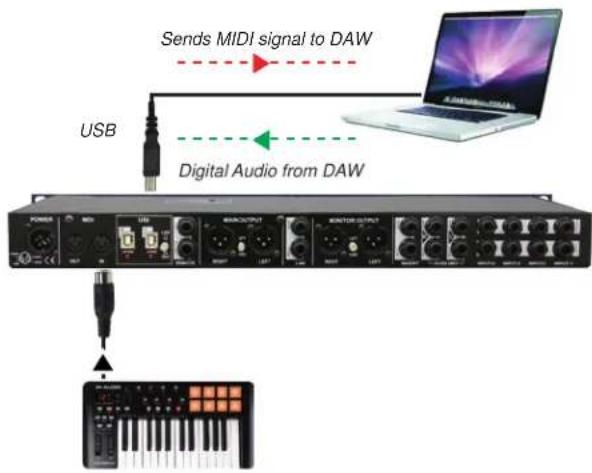
The KL-8 can send and receive MIDI information over USB, allowing you to use a controller to play a soft-synth on your laptop, or record and play back MIDI using a digital audio workstation (DAW) on your computer. The KL-8 doesn't generate MIDI information on its own, nor can it be controlled via MIDI; it simply transmits the information between the 5-pin MIDI and USB connections.
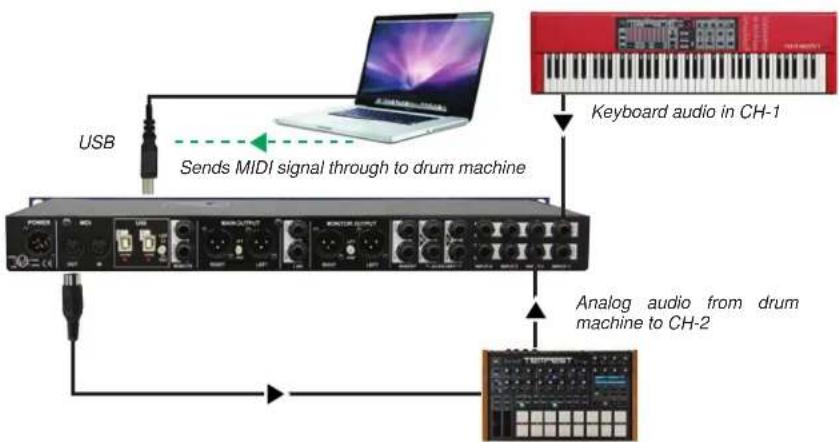
To send MIDI to your DAW to control a soft-synth, connect the MIDI output of your keyboard to the MIDI IN on the KL-8 using a standard MIDI 5-pin DIN connector. Please refer to your DAW's manual for instructions on how to set up a MIDI record/playback track or soft-synth. To play back MIDI information from your computer to control an external device, connect the MIDI OUT on the KL-8 to the MIDI input on your keyboard or other MIDI-enabled device.
Using a controller to send MIDI to your DAW
Using a laptop as the MIDI source to control an external drum machine
flowchart
graph TD
    A["USB"] --> B["Sends MIDI signal through to drum machine"]
    B --> C["Keyboard audio in CH-1"]
    B --> D["Analog audio from drum machine to CH-2"]
LINKING MULTIPLE KL-8 UNITS TOGETHER
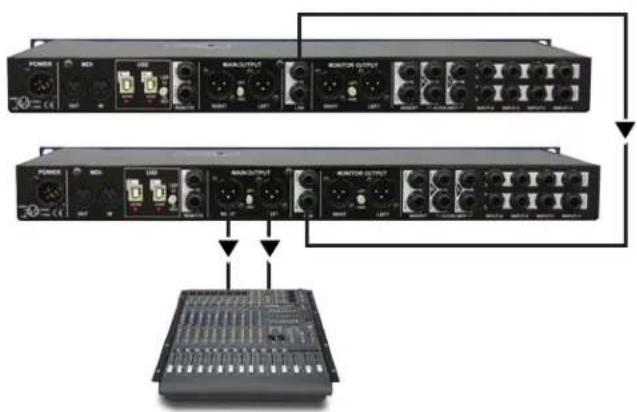
You can easily expand the KL-8 system using the LINK SEND and RECEIVE jacks, accommodating for larger setups that require more than four keyboards. To link two or more KL-8s, connect a 1/4" TRS cable from the LINK SEND of the first unit to the LINK RECEIVE of the next KL-8. The last KL-8 in the signal chain will act as the master, with all your keyboard signals present at the MAIN and MONITOR outputs.
Using the LINK connections to create an expanded KL-8 system
flowchart
graph TD
    A["Power"] --> B["100 MHz"]
    B --> C["100 MHz"]
    C --> D["100 MHz"]
    D --> E["100 MHz"]
    E --> F["100 MHz"]
    F --> G["100 MHz"]
    G --> H["100 MHz"]
    H --> I["100 MHz"]
    I --> J["100 MHz"]
    J --> K["100 MHz"]
    K --> L["100 MHz"]
    L --> M["100 MHz"]
    M --> N["100 MHz"]
    N --> O["100 MHz"]
    O --> P["100 MHz"]
    P --> Q["100 MHz"]
    Q --> R["100 MHz"]
    R --> S["100 MHz"]
    S --> T["100 MHz"]
    T --> U["100 MHz"]
    U --> V["100 MHz"]
    V --> W["100 MHz"]
    W --> X["100 MHz"]
    X --> Y["100 MHz"]
    Y --> Z["100 MHz"]
KL-8 SPECIFICATIONS\*
ANALOG INPUTS 1-4
Maximum Input: ....+18 dBu (+16dBV) Input Impedance: ....14.3 to 20k Ω (input level max / input level min) Input Gain Range: ....-80 to +18 dB
AUXILIARY INPUTS
Maximum Input: ....+11 dBu Input Impedance: ....33k Ω Input Gain Range: ....-80 to +25 dB
AUXILIARY OUTPUTS
Maximum Output: ....+18 dBu Output Impedance: ....2.2k Ω Input Gain Range: ....-80 to +2 dB
MAIN & MONITOR OUTPUTS
Maximum Output: +28 dBu Output Impedance: 1.1k Ω Input Gain Range: -80 to +18 dB Dynamic Range: 90 dB referred to +28 dBu, 102 dB A-Weighted THD+N: 0.01% (100Hz to 20kHz @ 0 dBu) (-80 dB)
HEADPHONE OUTPUTS
Maximum Output: 0.4 W into 15 Ω (8.3 VRMS max) Output Impedance: 51 Ω Input Gain Range: -80 dB to +10 dB
USB DIGITAL CONNECTION
Bit Depth / Sample Rate: 24bit / 44.1, 88.2, 176.4, or 192kHz
GENERAL
Frequency Response, All Outputs: 20Hz to 20kHz +/- 0.5 dB Size (L x W x D): 19" x 7" x 1.62" (48.26mm x 17.8mm x 4.13mm) Weight: 6.25lbs (2.83kg) Shipping Size (L x W x D): 22" x 10.375" x 4.5" (55.9mm x 26.4mm x 11.4mm) Shipping Weight: 8.9lbs (4.04kg) Conditions: For use in dry locations only between 5°C and 40°C Power: 100V to 240V, locking 4-pin XLR Conformity: CE, FCC Warranty: Radial 3-year, transferable
*Specifications are subject to change without notice.
Notes
Notes
RADIAL ENGINEERING LTD. 3 YEAR TRANSFERABLE WARRANTY
RADIAL ENGINEERING LTD. ("Radial") warrants this product to be free from defects in material and workmanship and will remedy any such defects free of charge according to the terms of this warranty. Radial will repair or replace (at its option) any defective component(s) of this product (excluding finish and wear and tear on components under normal use) for a period of three (3) years from the original date of purchase. In the event that a particular product is no longer available, Radial reserves the right to replace the product with a similar product of equal or greater value. To make a request or claim under this limited warranty, the product must be returned prepaid in the original shipping container (or equivalent) to Radial or to an authorized Radial repair center and you must assume the risk of loss or damage. A copy of the original invoice showing date of purchase and the dealer name must accompany any request for work to be performed under this limited and transferable warranty. This limited warranty shall not apply if the product has been damaged due to abuse, misuse, misapplication, accident or as a result of service or modification by any other than an authorized Radial repair center.
THERE ARE NO EXPRESSED WARRANTIES OTHER THAN THOSE ON THE FACE HEREOF AND DESCRIBED ABOVE. NO WARRANTIES WHETHER EXPRESSED OR IMPLIED, INCLUDING BUT NOT LIMITED TO, ANY IMPLIED WARRANTIES OF MERCHANTABILITY OR FITNESS FOR A PARTICULAR PURPOSE SHALL EXTEND BEYOND THE RESPECTIVE WARRANTY PERIOD DESCRIBED ABOVE OF THREE YEARS. RADIAL SHALL NOT BE RESPONSIBLE OR LIABLE FOR ANY SPECIAL, INCIDENTAL OR CONSEQUENTIAL DAMAGES OR LOSS ARISING FROM THE USE OF THIS PRODUCT. THIS WARRANTY GIVES YOU SPECIFIC LEGAL RIGHTS, AND YOU MAY ALSO HAVE OTHER RIGHTS, WHICH MAY VARY DEPENDING ON WHERE YOU LIVE AND WHERE THE PRODUCT WAS PURCHASED.
CAUTION: The KL-8 is equipped with a high output headphone amplifier that is able to drive headphones with impedances that can range from 8 Ohms to 400 Ohms. Prolonged exposure to high sound pressure levels can cause tinnitus or even permanent hearing damage. As the KL-8 is intended to be used by professionals, it is understood that the user is responsible for proper use. Please consult your local health authority guidelines to ensure you do not put yourself at risk. Radial Engineering Ltd. shall not be held responsible for misuse.
To meet the requirements of California Proposition 65, it is our responsibility to inform you of the following:
WARNING: This product contains chemicals known to the State of California to cause cancer, birth defects or other reproductive harm.
Please take proper care when handling and consult local government regulations before discarding.
All trademarks belong to their respective owners. All references to these are for example only and are not associated with Radial.

Radial Engineering Ltd.
1588 Kebet Way, Port Coquitlam BC V3C 5M5
tel: 604-942-1001 • fax: 604-942-1010
email: info@radialeng.com • web: www.radialeng.com
Radial KL-8™ Owner's Manual - Part # R870 1044 00 / 01-2019
Specifications and appearance are subject to change without notice.




- INTRODUCTION
- OVERVIEW
- GETTING STARTED
- HEADPHONES AND CUE SWITCHES
- STEREO INSERT FOR VOLUME PEDALS & EFFECTS
- AUXILIARY SEND AND RECEIVE
- AUX RETURN ASSIGN SWITCH
- DIGITAL CONNECTIONS
- SWITCHING BETWEEN REDUNDANT USB DEVICES
- MIDI IN AND OUT
- LINKING MULTIPLE KL-8 UNITS TOGETHER
- KL-8 SPECIFICATIONS\*
- ANALOG INPUTS 1-4
- AUXILIARY INPUTS
- AUXILIARY OUTPUTS
- MAIN & MONITOR OUTPUTS
- HEADPHONE OUTPUTS
- USB DIGITAL CONNECTION
- GENERAL
- Notes
- RADIAL ENGINEERING LTD. 3 YEAR TRANSFERABLE WARRANTY
Brand : Radial Engineering
Model : KL-8
Category : Hand blender