FLIR Boson+ - Camcorder

Boson+ - Camcorder FLIR - Free user manual and instructions

Find the device manual for free Boson+ FLIR in PDF.

📄 12 pages English EN Download 💬 AI Question 10 questions ⚙️ Specs
Notice FLIR Boson+ - page 1
Pick your language and provide your email: we'll send you a specifically translated version.
Product Type Thermal Camera Module (Camcorder)
Brand Teledyne FLIR
Model Boson+
Resolution 320 x 256 or 640 x 512 (depending on variant)
Pixel Pitch 12 µm
Thermal Sensitivity < 50 mK (typical)
Frame Rate Up to 60 Hz
Spectral Band 8-14 µm (LWIR)
Output Modes Radiometric T-linear/T-stable, post-colorized via USB
Interface USB 2.0, GPIO for external sync
Power Consumption < 1.5 W (typical)
Dimensions 21 x 21 x 19 mm (approx.)
Weight < 30 g (approx.)
Operating Temperature -40°C to +80°C
Storage Temperature -55°C to +95°C
Software Boson GUI 3.0 (Windows 10 64-bit)
Key Features Isotherms, Spot Meter, Radiometry, Frame Sync, Configurable Settings
Maintenance Clean optical window with lens tissue; avoid scratches. Keep dry and dust-free.
Safety Do not direct at high-intensity sources (e.g., lasers). Use in accordance with regulations.
Spare Parts / Reparability Not user-serviceable. Contact FLIR for repair or replacement.
General Information Part of Teledyne Imaging Group. Designed for OEM integration.

Frequently Asked Questions - Boson+ FLIR

Is the Boson+ compatible with my computer?
The Boson+ connects via USB 2.0 and is compatible with Windows 10 64-bit systems. Use the supplied Boson GUI 3.0 software for configuration and control.
How do I connect the Boson+ to external sensors?
The GPIO pins allow external sync and trigger inputs. Refer to the datasheet for pin assignments and timing requirements.
What is the difference between T-linear and T-stable output?
T-linear provides temperature-linear output (Kelvin = 0.01 × pixel value) for radiometric measurements. T-stable is flux-linear and not recommended for most use cases.
How do I configure isotherms?
Use the Boson GUI to set isotherm temperature ranges and colorization options (e.g., linear RGB, HSV). Ensure gain mode matches temperature range (low gain for high temperatures).
How can I improve radiometric accuracy?
Adjust environmental parameters (emissivity, reflected temperature, humidity, etc.) in the GUI. Allow the camera to stabilize for best results. The spot meter accuracy indicator helps assess stability.
What is the Spot Meter ROI?
The Spot Meter ROI is a movable region (purple box) that measures temperature or counts in that area. You can resize and reposition it via the GUI.
How do I sync the Boson+ with other devices?
External sync can be configured via the GPIO pins and the Frame Sync tab in the GUI. Options include frame skip and averager for custom timing.
Can I update the firmware?
Firmware update procedures are provided by FLIR. Contact support for the latest firmware and instructions. Improper updates may void warranty.
What is the warranty period?
Standard warranty is typically 1 year for defects. Extended options may be available. Check with FLIR for your region.
How do I clean the optical window?
Use a soft, lint-free cloth (e.g., lens tissue) with isopropyl alcohol if needed. Avoid abrasive materials to prevent scratches.

User questions about Boson+ FLIR

0 question about this device. Answer the ones you know or ask your own.

Ask a new question about this device

The email remains private: it is only used to notify you if someone responds to your question.

No questions yet. Be the first to ask one.

Download the instructions for your Camcorder in PDF format for free! Find your manual Boson+ - FLIR and take your electronic device back in hand. On this page are published all the documents necessary for the use of your device. Boson+ by FLIR.

USER MANUAL Boson+ FLIR

© Teledyne FLIR LLC. All Rights Reserved. Does not contain export-controlled information.

BOSON GUI 3.0

FLIR Boson+ - BOSON GUI 3.0 - 1

TELEDYNE FLIR

The Boson GUI 3.0 provides developers key command capabilities that simplify and streamline development and testing with the Boson thermal camera module.

FLIR Boson+ - BOSON GUI 3.0 - 2

Operates on Windows 10 64-Bit

FLIR Boson+ - BOSON GUI 3.0 - 3

Isotherms with colorization bar and highly-configurable settings

FLIR Boson+ - BOSON GUI 3.0 - 4

Spot meter with statistics and temperature bar

FLIR Boson+ - BOSON GUI 3.0 - 5

External sync with additional sensors to enable data fusion

FLIR Boson+ - BOSON GUI 3.0 - 6

Radiometry settings including t-linear, environmental parameters, emissivity, and more.

RADIOMETRIC OUTPUT

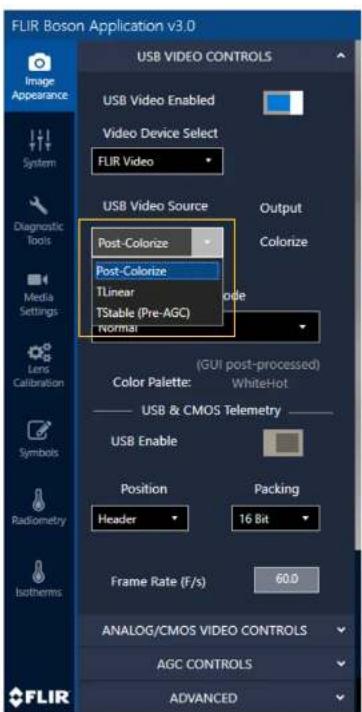
  • Connect to COMs to access t-linear/t-stable options
    • T-linear: The temperature linear output for most radiometric use cases

- Conversion to temperature: Temperature (Kelvin) = 0.01 * pixel value

• T-stable: A flux linear output and should not be used in most cases
• Post-colorize: The standard colorized output that supports isotherms and symbols
FLIR Boson+ - RADIOMETRIC OUTPUT - 1

FLIR Boson Application v3.0 USB VIDEO CONTROLS USB Video Enabled Video Device Select FLIR Video USB Video Source Post-Colorize Post-Colorize TLinear TStable (Pre-AGC) normal Output Colorize Color Palette: (GUI post-processed) WhiteHot USB & CMOS Telemetry USB Enable Position Header Packing 16 Bit Frame Rate (F/s) 60.0 Analog/CMOS VIDEO CONTROLS AGC CONTROLS ADVANCED FLIR

FLIR Boson+ - RADIOMETRIC OUTPUT - 3

TELEDYNE FLIR

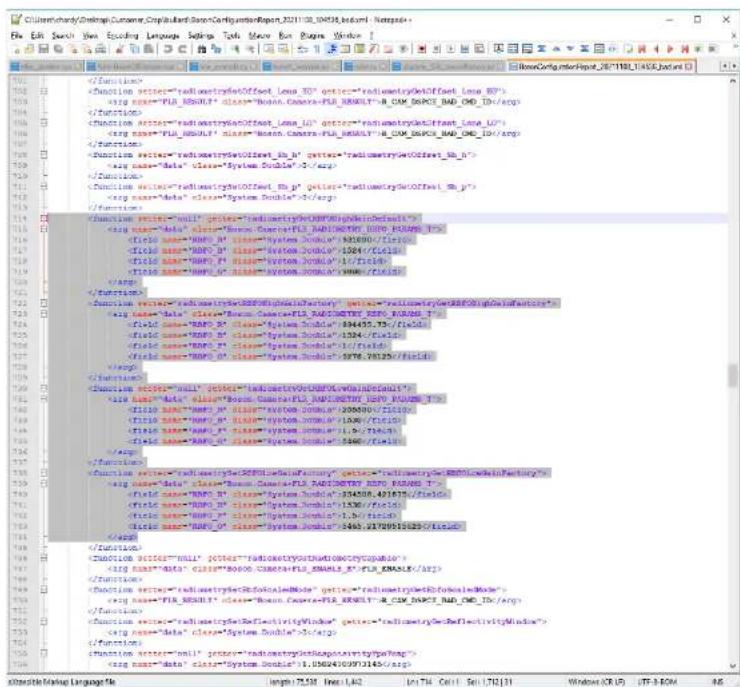
- Configuration reports are useful for changing settings (or reading them) not accessible in the GUI.

  • Allows easy configuration uploads to other cameras.
  • Make sure to delete unnecessary entries within config .xml files before uploading.

- While using radiometric cameras, delete fields that denote RBFO to avoid radiometric calibration corruption.

- To view files properly, use NotePad++ and install the XML Tools Plugin. Under the Plugins dropdown, select pretty print while viewing the .xml file.
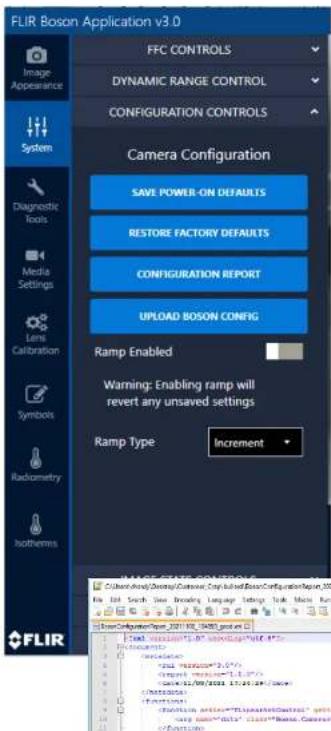
FLIR Boson Application v3.0 FFC CONTROLS DYNAMIC RANGE CONTROL CONFIGURATION CONTROLS Camera Configuration SAVE POWER-ON DEFAULTS RESTORE FACTORY DEFAULTS CONFIGURATION REPORT UPLOAD BOSON CONFIG Ramp Enabled Warning: Enabling ramp will revert any unsaved settings Ramp Type Increment FLIR

FLIR Boson+ - RADIOMETRIC OUTPUT - 5

TELEDYNE FLIR

Delete these fields from config .xml reports if you plan on uploading them to another camera using radiometry. They will corrupt the RBFO terms (radiometric calibration terms) used on the camera.

FLIR Boson+ - RADIOMETRIC OUTPUT - 6

TELEDYNE FLIR

class="Basic_Camera-FIA_RESULT">COW_DEPCE_BAD_ID class="Basic_Camera-FIA_RESULT">COW_DEPCE_BAD_ID class="System_Double">/ - /reg> class="System_Double">/ - /reg> class="Basic_Camera-FIA hundreds@BHP_DHA@_T20"> 356980//file> 12047//file> 10776/3120//file> class="Basic_Camera-FIA hundreds@BHP_DHA@_T20"> 356980//file> 12047//file> 11076//file> 356980//file> class="Basic_Camera-FIA hundreds@BHP_DHA@_T20"> 356980//file> 12047//file> 11076//file> 356980//file> class="Basic_Camera-FIA hundreds@BHP_DHA@_T20"> 356980//file> 12047//file> 11076//file> 356980//file> class="Basic_Camera-FIA hundreds@BHP_DHA@_T20"> 356980//file> 12047//file> 11076//file> 356980//file> class="Basic_Camera-FIA hundreds@BHP_DHA@_T20"> 356988,42167//file> 12047//file> 11076//file> 356988,42167//file> class="Basic_Camera-FIA hundreds@BHP_DHA@_T20"> 356988,42167//file> 12047//file> 11076//file> 356988,42167//file>

SPOT METER REGION OF INTEREST (ROI)

  • The Spot Meter ROI is the purple box in the middle of the screen.
  • Change the Spot Meter ROI with this tab.
  • Spot Meter can use either temperature or counts.
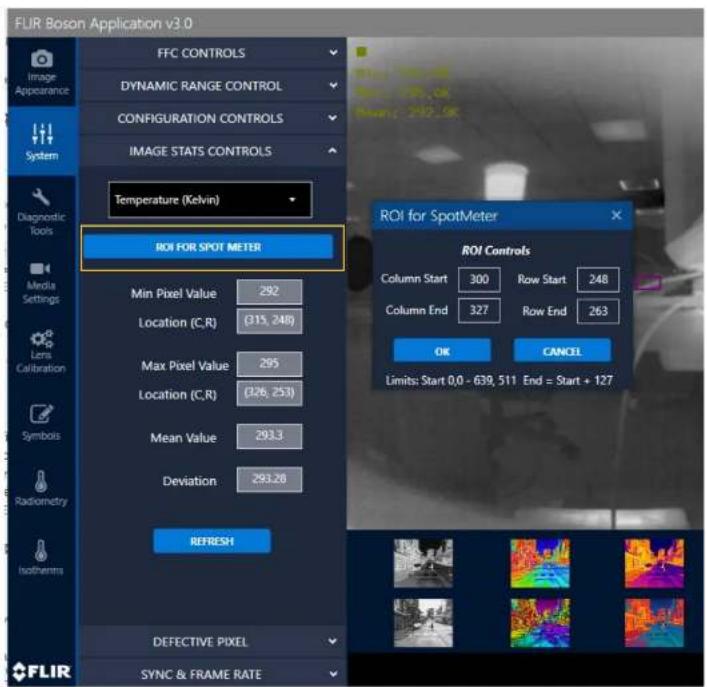
FLIR Boson Application v3.0 FFC CONTROLS DYNAMIC RANGE CONTROL CONFIGURATION CONTROLS IMAGE STATS CONTROLS Temperature (Kelvin) ROI FOR SPOT METER Min Pixel Value 292 Location (C,R) (315, 248) Max Pixel Value 295 Location (C,R) (326, 253) Mean Value 293.3 Deviation 293.28 REFRESH DEFECTIVE PIXEL SYNC & FRAME RATE ROI for SpotMeter ROI Controls Column Start 300 Row Start 248 Column End 327 Row End 263 OK CANCEL Limits: Start 0.0 - 639, 511 End = Start + 127

FLIR Boson+ - SPOT METER REGION OF INTEREST (ROI) - 2

TELEDYNE FLIR

SPOT METER ACCURACY INDICATOR

Measures stability to determine if radiometric accuracy is ideal
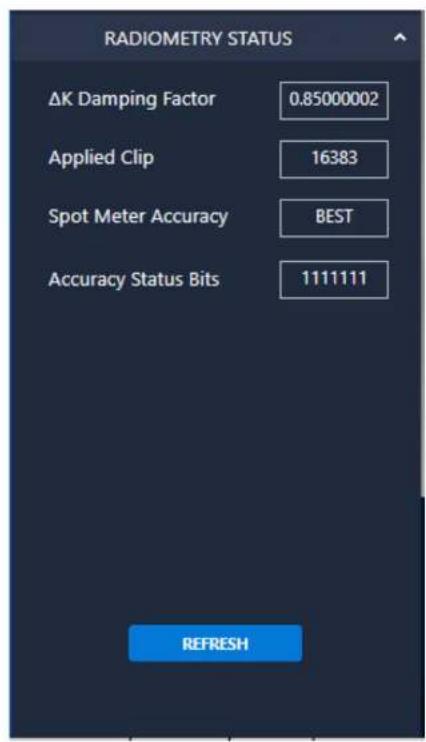
RADIOMETRY STATUS ΔK Damping Factor 0.85000002 Applied Clip 16383 Spot Meter Accuracy BEST Accuracy Status Bits 1111111 REFRESH

FLIR Boson+ - SPOT METER ACCURACY INDICATOR - 2

TELEDYNE FLIR

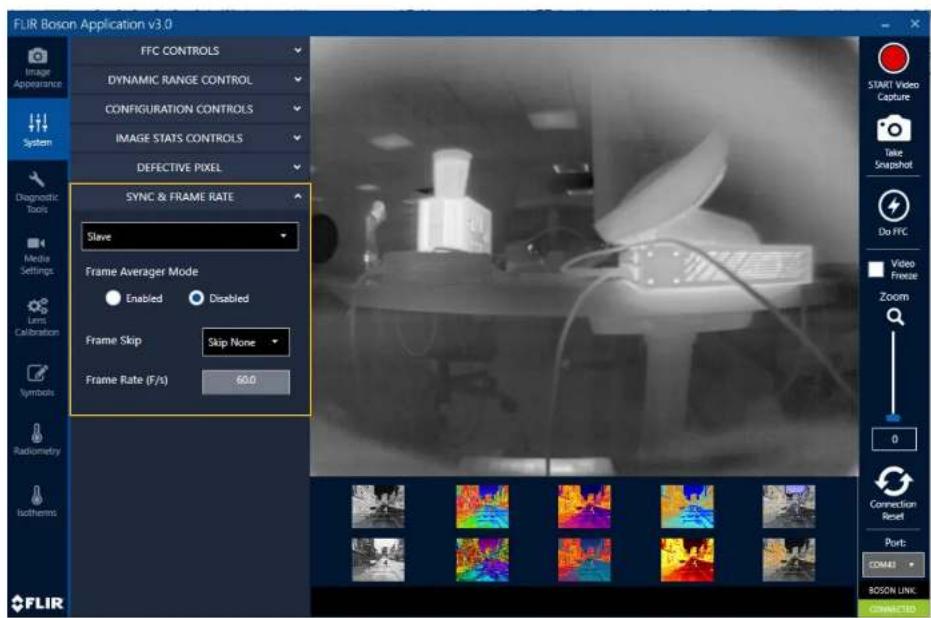
FRAMERATE AND SYNC CONTROL

Refer to datasheet for explanation of each parameter below.

  • External Sync options
  • Frame skip options
  • Averager enable/disable options

FLIR Boson+ - FRAMERATE AND SYNC CONTROL - 1
TELEDYNE FLIR

FLIR Boson Application v3.0 FFC CONTROLS DYNAMIC RANGE CONTROL CONFIGURATION CONTROLS IMAGE STATS CONTROLS DEFECTIVE PIXEL SYNC & FRAME RATE Slave Frame Averager Mode Enabled Disabled Frame Skip Skip None Frame Rate (F/s) 60.0 Start Video Capture Take Snapshot Do FFC Video Freeze Zoom 0 Connection Reset Port: COMEXI BOSON LINK CONNECTED Diagnostic Tools Media Settings Larm Calibration Symbols Radiometry Isotherms FLIR

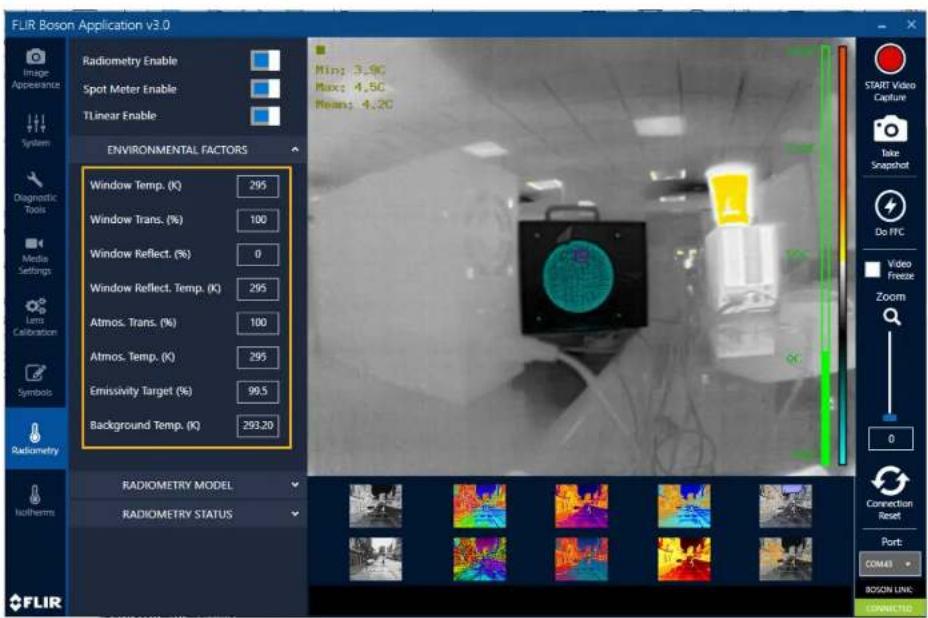
RADIOMETRIC T-LINEAR ENVIRONMENTAL FACTORS

  • Tune to increase temperature measurement accuracy.
    • Refer to datasheet for explanation of each parameter.

FLIR Boson+ - RADIOMETRIC T-LINEAR ENVIRONMENTAL FACTORS - 1
TELEDYNE FLIR

FLIR Boson Application v3.0 Image Appearance Radiometry Enable Spot Meter Enable TLinear Enable System Diagnostic Tools Media Settings Lens Calibration Symbols Radiometry Radiometry MODEL Radiometry STATUS ENVIRONMENTAL FACTORS Window Temp. (K) 295 Window Trans. (%) 100 Window Reflect. (%) 0 Window Reflect. Temp. (K) 295 Atmos. Trans. (%) 100 Atmos. Temp. (K) 295 Emissivity Target (%) 99.5 Background Temp. (K) 293.20 Min: 3.90 Max: 4.50 Mean: 4.20 START Video Capture Take Snapshot Do PFC Video Freeze Zoom 0 Connection Reset Port: COM481 BOSON LINK: CONNECTED

ISOTHERMS

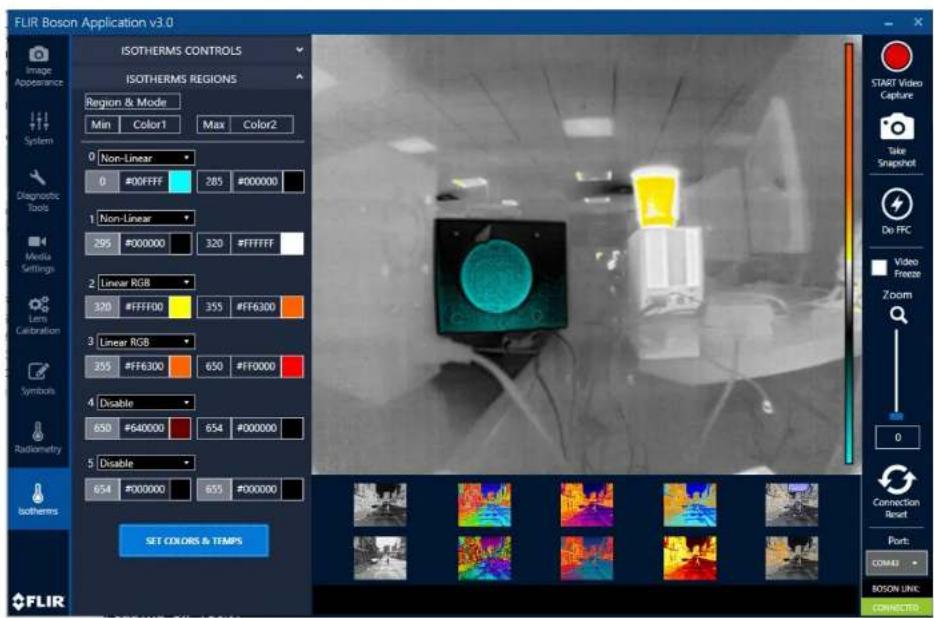
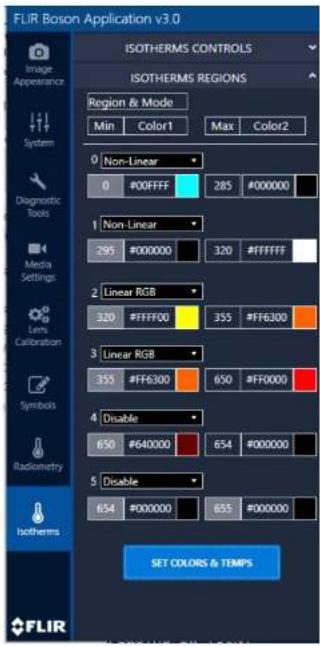
Isotherms allows configuration of ranges of temperatures or % to have customized colorization.

This can be used for highlighting objects of certain temperatures with radiometric cameras, while still using the 8-bit colorized output.

FLIR Boson+ - ISOTHERMS - 1

TELEDYNE FLIR

FLIR Boson Application v3.0 ISOTHERMS CONTROLS ISOTHERMS REGIONS Region & Mode Min Color1 Max Color2 0 Non-Linear 0 #00FFFF 285 #000000 1 Non-Linear 295 #000000 320 #FFFFFF 2 Linear RGB 320 #FFFF00 355 #FF6300 3 Linear RGB 355 #FF6300 650 #FF0000 4 Disable 650 #640000 654 #000000 5 Disable 654 #000000 655 #000000 SET COLORS & TEMPS FLIR START Video Capture Take Snapshot De FFC Video Freeze Zoom 0 Connection Reset Port: COMES BOSON UNIC CONNECTED

ISOTHERM OPTIONS

• Non-linear: Contrast optimized mapping of color region not linearly correlated to temperature or flux
- Linear RGB: RGB ≥ RGB linear interpolation between colors
- Disable: Exclude from Isotherm regions
- Single color: No interpolation
• Linear HSV: Linear HSV interpolation between two colors
- Standard: Standard AGC output using current AGC colorization LUT

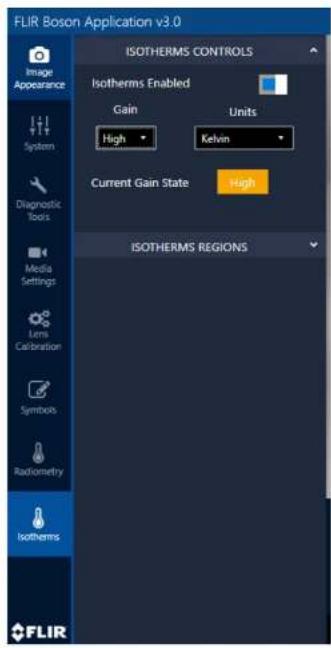
Isotherm controls need to be set to proper temperature units and the correct gain mode; i.e.: low gain is for high temperature measurement.

FLIR Boson+ - ISOTHERM OPTIONS - 1
TELEDYNE FLIR

FLIR Boson Application v3.0 ISOTHERMS CONTROLS Image Appearance Isotherms Enabled Gain Units High Kelvin Current Gain State High ISOTHERMS REGIONS Media Settings Lens Calibration Symbols Radiometry Isotherms FLIR

FLIR Boson Application v3.0 ISOTHERMS CONTROLS ISOTHERMS REGIONS Region & Mode Min Color1 Max Color2 0 Non-Linear 0 #00FFFF 285 #000000 1 Non-Linear 295 #000000 320 #FFFFFF 2 Linear RGB 320 #FFFF00 355 #FF6300 3 Linear RGB 355 #FF6300 650 #FF0000 4 Disable 650 #640000 654 #000000 5 Disable 654 #000000 655 #000000 SET COLORS & TEMPS Image Appearance System Diagnostic Tools Media Settings Lens Calibration Symbols Radiometry Isotherms FLIR

FLIR Boson+ - ISOTHERM OPTIONS - 4

TELEDYNE

FLIR

Everywhereyoulook™

Part of the Teledyne Imaging Group

Manual assistant
Powered by Anthropic
Waiting for your message
Product information

Brand : FLIR

Model : Boson+

Category : Camcorder