
AVN-GMCOS - Équipement électronique professionnel Sonifex - Free user manual and instructions
Find the device manual for free AVN-GMCOS Sonifex in PDF.


| Product Type | IEEE1588 PTP Grandmaster Clock with GPS Receiver |
| Brand | Sonifex |
| Model | AVN-GMCOS |
| Dimensions (Raw) | 4.4 cm (H) x 48.3 cm (W) x 17.8 cm (D) (1U) |
| Weight (Net/Gross) | 1.5 kg / 2.2 kg |
| Power Supply | AC: 85-264 VAC, 47-63 Hz, max 10W; DC: 12V, 10.3-13.2V, 500mA |
| Power Connectors | IEC mains input (AC) + KPJX-45 DC input |
| Timing Protocol | PTPv2 (IEEE1588-2008), TAI timebase |
| Timing Accuracy | 8 ns resolution |
| Holdover Drift (OCXO) | < 900 μs over 24 hours at constant temperature |
| GPS Receiver | 50-channel, 1575.42 MHz L1 band |
| Clock Outputs | Word Clock (BNC, 32-192 kHz), AES-3id (BNC), Variable PPS (BNC, 1 Hz-1 MHz) |
| Sync Input | BNC, Wordclock (32-192 kHz) or 10 MHz |
| GPS Antenna Input | SMA socket (active/passive) |
| Ethernet Port | RJ45, 100BASE-T, with webserver |
| GPIO | 9-way D-sub female, 4 outputs (open collector) + 4 inputs |
| Supported PTP Profiles | Default, AES Media, SMPTE, AES-SMPTE, Custom |
| Network Configuration | DHCP, Auto IP, Static IP; mDNS Bonjour |
| Display | Front panel OLED monochrome with spinwheel and navigation buttons |
| Warranty | 2 years extended upon online registration |
| Operating Temperature | 0°C to 50°C |
| Compliance | CE, UKCA, WEEE |
| Accessories | IEC mains lead, handbook, warranty card; optional AVN-DC150 150W DC supply |
Frequently Asked Questions - AVN-GMCOS Sonifex
User questions about AVN-GMCOS Sonifex
0 question about this device. Answer the ones you know or ask your own.
Ask a new question about this device
Download the instructions for your Équipement électronique professionnel in PDF format for free! Find your manual AVN-GMCOS - Sonifex and take your electronic device back in hand. On this page are published all the documents necessary for the use of your device. AVN-GMCOS by Sonifex.
USER MANUAL AVN-GMCOS Sonifex
DBC IEEE1588 PTP Grandmaster Clock
with GPS Receiver

Manufacturers of Audio Products for AV,
Installed Sound, Broadcast Radio & Broadcast TV
SONIFEX
AVN-GMC Handbook
For the latest Sonifex handbook information please visit Sonifex website at www.sonifex.co.uk
This handbook is for use with the following product:
IEEE1588 PTP Grandmaster Clock with GPS Receiver
AW10735, Stock Code: 30-294
Revision 1.17, September 2022
©Sonifex Ltd, 2022
All Rights Reserved
Sonifex Ltd, 61, Station Road, Irthlingborough,
Northants, NN9 5QE, England.
Tel: +44 (0)1933 650 700
Fax: +44 (0)1933 650 726
Email: sales@sonifex.co.uk
Website: https://www.sonifex.co.uk
Information in this document is subject to change without notice and does not represent a commitment on the part of the vendor. Sonifex Ltd shall not be liable for any loss or damage whatsoever arising from the use of information or any error contained in this manual.
No part of this manual may be reproduced or transmitted in any form or by any means, electronic or mechanical, including photocopying, recording, information storage and retrieval systems, for any purpose other than the purchaser's personal use, without the express written permission of Sonifex Ltd. Unless otherwise noted, all names of companies, products and persons contained herein are part of a completely fictitious adaptation and are designed solely to document the use of Sonifex product.
Contents
Product Warranty - 2 Year Extended i
Sonifex Warranty & Liability Terms & Conditions i
-
Definitions i
-
Warranty i
Unpacking Your Product ii
Repairs & Returns iii
CE/UKCA Conformity iii
Safety & Installation of Mains Operated Equipment iii
Voltage Setting Checks iii
Power Cable & Connection iii
WEEE Directive iv
Atmosphere/Environment iv
- AVN-GMC IEEE1588 PTP Grandmaster Clock with GPS Receiver
Introduction 1
Front Panel Display & Indicators 2
Front Panel Indicators 2
Display & Spinwheel 3
Power Button 3
GPS Operation 3
Rear Panel Connectors 4
Front Panel Menu Navigation 5
AVN-GMC Menu Tree 6
- Webserver & Unit Discovery 8
Bonjour Network Discovery 8
Standard Webpage Layout 9
Status Page 10
Status Indication 10
Device Status 11
Webpage Parameter Details - Device Information
Contents continued... Figures
Device Information 12
Network Information 12
GPS Satellite Information 12
Network Settings 13
Network Settings 13
PTP Profiles 14
PTP Profiles 15
Device Settings 16
Device Settings 16
Time Settings 17
Time Settings
Misc Settings
Misc Settings
Auto Save on Page Exit
Factory Defaults
System
Update Firmware
-
Grandmaster Clocks, AVN, RAVENNA & AES67 20
-
Technical Specification For AVN-GMC 21
Fig 1-1: The AVN-GMC Front Panel 1
Fig 1-2: Front Panel Indicators 2
Fig 1-3: Display & Spinwheel 3
Fig 1-4: Default Screen Display 3
Fig 1-5: AVN-GMC Rear Panel 4
Fig 1-6: AVN-GMC Menu Tree (V2.1) 7
Fig 2-1: Standard Webpage Layout 9
Fig 2-2: AVN-GMC Status Screen 10
Fig 2-3: AVN-GMC Device Information Screen 12
Fig 2-4: AVN-GMC Network Settings Screen 13
17 Fig 2-5: AVN-GMC PTP Profile Screen 14
18 Fig 2-6: AVN-GMC Device Settings Screen 16
18 Fig 2-7: AVN-GMC Time Settings Screen 17
18Fig 2-8: AVN-GMC Misc Settings Screen 18
18 Fig 2-9: AVN-GMC System Screen 19
Warranty Registration
SONIFEX
Register Online for an Extended 2 Year Warranty
As standard, Sonifex products are supplied with a 1 year back to base warranty.
If you register the product online, you can increase your product warranty to years and we can also keep you informed of any product design improvements or modifications.
Serial No: 2
Product: ____
To register your product, please go online to www.sonifex.co.uk/register
Product Warranty - 2 Year Extended
As standard, Sonifex products are supplied with a 1 year back to base warranty. In order to register the date of purchase and so that we can
'the Contract' means the quotation, these Conditions of Sale and any other document incorporated in a contract between the Company and the Purchaser.
you informed of any product design improvements or modifications, it is This is the entire Contract between the parties relating to the subject important to complete the warranty registration online. Additionally, if you matter hereof and may not be changed or terminated except in writing in register the product on the Sonifex website, you can increase your product accordance with the provisions of this Contract. A reference to the consent, warranty to 2 years. Go to the Sonifex website at: www.sonifex.co.uk/ acknowledgement, authority or agreement of the Company means in register to apply for your 2 year warranty. writing and only by a director of the Company.
Note: For your own records the product serial number is recorded on the CE certification page of this handbook.
the 2. Warranty
Sonifex Warranty & Liability Terms & Conditions
1. Definitions
'the Company' means Sonifex Ltd and where relevant includes companies within the same group of companies as Sonifex Limited.
'the Goods' means the goods or any part thereof supplied by the Company and where relevant includes: work carried out by the Company on items supplied by the Purchaser; services supplied by the Company; and software supplied by the Company.
'the Purchaser' means the person or organisation who buys or has agreed to buy the Goods.
'the Price' means the Price of the Goods and any other charges incurred by the Company in the supply of the Goods.
'the Warranty Term' is the length of the product warranty which is usually 12 months from the date of despatch; except when the product has been registered at the Sonifex website when the Warranty Term is 24 months from the date of despatch.
a. The Company agrees to repair or (at its discretion) replace Goods which are found to be defective (fair wear and tear excepted) and which are returned to the Company within the Warranty Term provided that each of the following are satisfied:
i. notification of any defect is given to the Company immediately upon its becoming apparent to the Purchaser;
ii. the Goods have only been operated under normal operating conditions and have only been subject to normal use (and in particular the Goods must have been correctly connected and must not have been subject to high voltage or to ionising radiation and must not have been used contrary to the Company's technical recommendations);
iii. the Goods are returned to the Company's premises at the Purchaser's expense;
iv. any Goods or parts of Goods replaced shall become the property of the Company;
v. no work whatsoever (other than normal and proper maintenance) has been carried out to the Goods or any part of the Goods without the Company's prior written consent;
Warranty
vi. the defect has not arisen from a design made, furnished or specified by the Purchaser;
vii. the Goods have been assembled or incorporated into other goods only in accordance with any instructions issued by the Company;
viii. the defect has not arisen from a design modified by the Purchaser;
ix. the defect has not arisen from an item manufactured by a person other than the Company. In respect of any item manufactured by a person other than the Company, the Purchaser shall only be entitled to the benefit of any warranty guarantee provided by such manufacturer to the Company.
b. In respect of computer software supplied by the Company the Company does not warrant that the use of the software will be uninterrupted or error free.
c. The Company accepts liability:
(i) for death or personal injury to the extent that it results from the negligence of the Company, its employees (whilst in the course of their employment) or its agents (in the course of the agency);
(ii) for any breach by the Company of any statutory undertaking as to title, quiet possession and freedom from encumbrance.
d. Subject to conditions (a) and (c) from the time of despatch of the h. Goods from the Company's premises the Purchaser shall be responsible for any defect in the Goods or loss, damage, nuisance or interference whatsoever consequential economic or otherwise or wastage of material resulting from or caused by or to the Goods. In particular the Company shall not be liable for any loss of profits or other economic losses. The Company accordingly excludes all liability for the same.
e. At the request and expense of the Purchaser the Company will test the Goods to ascertain performance levels and provide a report of the results of that test. The report will be accurate at the time of the test, to the best of the belief and knowledge of the Company, and the Company accepts no liability in respect of its accuracy beyond that set out in Condition (a).
f. Subject to Condition (e) no representation, condition, warranty or other term, express or implied (by statute or otherwise) is given by the Company that the Goods are of any particular quality or standard or will enable the Purchaser to attain any particular performance or result, or will be suitable for any particular purpose or use under any or specific conditions or will provide any particular capacity, notwithstanding that the requirement for such performance, result or capacity or that such particular purpose or conditions may have been known (or ought to have been known) to the Company, its employees or agents.
g. (i) To the extent that the Company is held legally liable to the Purchaser for any single breach of contract, tort, representation or other act or default, the or the Company's liability for the same shall not exceed the price of the Goods.
(ii) The restriction of liability in Condition (g)(i) shall not apply to any liability accepted by the Seller in Condition (c).
h. Where the Goods are sold under a consumer transaction (as defined by the Consumer Transactions (Restrictions on Statements) Order or 1976) the statutory rights of the Purchaser are not affected by these Conditions of Sale.
or Unpacking Your Product
Each product is shipped in protective packaging and should be inspected for damage before use. If there is any transit damage take pictures of the
product packaging and notify the carrier immediately with all the relevant details of the shipment. Packing materials should be kept for inspection also for if the product needs to be returned.
The product is shipped with the following equipment so please check ensure that you have all of the items below. If anything is missing, p contact the supplier of your equipment immediately.
Item Quantity
Product unit 1
IEC mains lead fitted with moulded mains plug 1
Handbook and warranty card 1
If you require a different power lead, please let us know when order product.
Repairs & Returns
Please contact Sonifex or your supplier if you have any problems with Sonifex product. Email technical.support@sonifex.co.uk for the repair/upgrade/returns procedure, or for support & questions regarding the product operation.
Safety & Installation of Mains and Operated Equipment
There are no user serviceable parts inside the equipment. If you should never need to look inside the unit, always disconnect the mains supply before removing the equipment covers. The cover is connected to earth by means of the fixing screws. It is essential to maintain this earth/ground connection to ensure a safe operating environment and provide electromagnetic shielding.
Voltage Setting Checks
Ensure that the machine operating voltage is correct for your mains power supply by checking the box in which your product was supplied. The voltage is shown on the box label. The available voltage settings are 115V, or 230V. Please note that all products are either switchable between 115V and 230V, or have a universal power supply.
Power Cable & Connection
An IEC power connector is supplied with the product which has a moulded plug attached.
The mains plug or IEC power connector is used as the disconnect device. The mains plug and IEC power connector shall remain readily operable to disconnect the apparatus in case of a fault or emergency.
The mains lead is automatically configured for the country that the product is being sent to, from one of:
Safety & Installation
Territory Voltage IEC Lead Type Image
| UK & Middle East 230V UK 3 pin to IEC lead |  | |
| Europe 230V | European Schuko round 2 pin to IEC lead | [X626] |
| USA, Canada and South America | 115V 3 flat pin to IEC lead |  |
| Australia & New Zealand | 230V Australasian 3 flat pin to IEC lead |  |
Connect the equipment in accordance with the connection details and before applying power to the unit, check that the machine has the correct operating voltage for your mains power supply.
This apparatus is of a class I construction. It must be connected to a main socket outlet with a protective earthing connection.
Important note: If there is an earth/ground terminal on the rear panel of the product then it must be connected to Earth.
CE and UKCA conformity
The products in this manual comply with the essential requirements of the relevant UK and European health, safety and environmental protection legislation. The technical justification file for this product is held at Sonifex Ltd. Relevant declarations of conformity can be found at:
https://www.sonifex.co.uk/declarations
WEEE Directive

Directive 2012/19/EU of the European Parliament and of the Council of 4th July 2012 lays down measures to protect the environment and human health by preventing or reducing the adverse impacts of the generation and management of waste from electrical and electronic equipment (WEEE).
The policy of Sonifex Ltd is to comply with all applicable laws of all jurisdictions having authority over Sonifex's business, including the WEEE directive. Accordingly, Sonifex has implemented a rigorous program designed to ensure compliance of its products with the WEEE directive. The latest statements can be found at:
https://www.sonifex.co.uk/company/recycling
Atmosphere/Environment
This apparatus should be installed in an area that is not subject to excessive temperature variation ( <0°C , >50°C ), moisture, dust or vibration.
This apparatus shall not be exposed to dripping or splashing, and no objects filled with water, such as vases shall be placed on the apparatus.
1. AVN-GMC IEEE1588 PTP Grandmaster Clock with GPS Receiver Introduction

Fig 1-1: The AVN-GMC Front Panel
The AVN-GMCS is a PTPv2 grandmaster clock for use with AoIP applications. IEEE1588-2008 PTPv2 (precision time protocol) is used to synchronise all the nodes within a network. To achieve this one of the nodes must become the master clock and distribute time packets to the others. The AVN-GMCS is designed to perform this role simply and accurately, enabling sub micro second synchronisation between all nodes
The AVN-GMCS supports the Default Profile and in normal operation, the unit has PTPv2 time stamping resolution to 8nsec. The AVN-GMCS uses combination of a GPS receiver, a PLL (phase lock loop) and a specialist board clock device to create the precise, low jitter clock signals require drive the physical transceiver's time stamping circuitry, also providing holdover if the GPS signal is lost.
The specialist on board clock, which is used to sustain the PTP clock GPS signal is lost, is available in three different types:
TCXO, OXCO and CSAC (Chip Scale Atomic Clock, Caesium), which vary both price and accuracy:
AVN-GMCS - TCXO Temperature Compensated Oscillator accurate to 1 per million (worst case 1 sec gain/loss every 11.5 days). *
AVN-GMCOS - OCXO Oven Controlled Oscillator accurate to 0.1 parts p million (worst case 1 sec gain/loss every 115 days). *
AVN-GMCCS - SAC Quantum Atomic Clock accurate to 0.00050 parts p million (worst case 1 sec gain/loss every 63 years). *
An external sync clock input can act as an alternative reference source to GI Clock outputs, driven from the physical transceiver, can be used to provide media clocks for external equipment local to the AVN-GMC when it is in bot e'master' and 'slave' states. The clock outputs are available as a single AES-3i output and two outputs which can be selected as either word clock or svariable PPS. The wordclock can operate at 32, 44.1, 48, 96, 176.4 and
192kHz. When set as a variable PPS output, the unit can act as a clock mas he to distribute a reference frequency to test and measurement equipment.
The front panel of the unit shows the PTP timebase as standard, which is always set to International Atomic Time (TAI). It can be reconfigured to display UTC or 'Local Time' instead. Local time allows a fixed time offset from UTC be applied (useful for time zones) and the accommodation of automatic daylight saving time changes by entering Spring Forward and Fall Back dates. If the
The built-in webserver, or front panel OLED display, can be used to configure in the unit. Front panel LEDs show the synchronisation status, reference lock status and the status of the AC and DC power supply inputs.
The brightness of the OLED display and LED indicators can be adjusted for I or high lighting conditions
e4 general purpose outputs indicate critical states for the unit using a 9 way type connector mounted on the rear panel. Pull down when active pins are supplied for reference source, reference lock status, AC power present and D or power present.
* This figure represents the holdover accuracy should the GPS signal be lost - this is an approximation based on 1st year stability figures.
1 AVN-GMC IEEE1588 PTP Grandmaster Clock with GPS Receiv
The unit has a front panel power button and dual power connectors - synEOn
mains input and a 12V DC input, which allows the AVN-GMCS to be used for unit is using the external input as the primary synchronisation source, both studio and mobile installations. Moreover this allows for a second this LED is illuminated green.
power source to reduce the effect of power down events. In any case, the
unit monitors the status of both power sources and displays this on the front
panel.
GPS Mode:
Green - The GPS receiver has locked to 4 or more satellites.
The unit can be put into a low-power sleep mode when not in use, with yellow - The GPS receiver has locked to 3 satellites.
instant start when power is re-applied. In power off situations, a super Red - The GPS receiver has locked to 2 or fewer satellites.
capacitor is used to keep the GPS receiver powered in a low power mode for
more than 20 hours, enabling the receiver to regain lock immediately rather Ext Sync Mode:
than having to 'cold' start. A Real-Time Clock (RTC) is fitted to hold the time Green - The input sync clock is valid.
Red - The input sync clock is invalid or disconnected.
Front Panel Display & Indicators
Front Panel Indicators
Ethernet
An indication of network link status. This LED green when an Ethernet link is established or red when the link is down.
GPS
If the unit is using GPS as its primary synchronisation source, this LED is illuminated green.
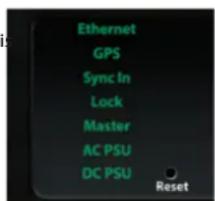
Fig 1-2: Front Panel Indicators
Master
Green - This means that the PTP state of the unit is set to Master.
Yellow - This shows that the unit is in another PTP state other than Master or Slave.
Red - This means that the PTP state of the unit is set to Slave.
AC PSU & DC PSU
The colour of these LEDs show the state of each power input:
Green - This means that the cable is plugged in and is providing the correct voltage level, within the range 11V to 13V.
Yellow - This means that the cable is plugged in but the voltage level is in a warning state, within the ranges of either 10V to 11V or 13V to 14V.
Red - This means that the cable is unplugged or the voltage level is out of specification (less than 10V or more than 14V).
Display & Spinwheel

Fig 1-3: Display & Spinwheel
Power Button
This puts the unit in and out of standby mode.
Standby Mode - Power button is red
Normal Powered Mode - Power button is green
On applying power to the AC mains or DC power inputs, the button is illuminated red, meaning that it is in standby mode. In standby mode, all operation is halted. A momentary press of the power button restarts the unit into normal power mode.
The front panel contains an OLED monochrome display which is normally to put the unit into standby mode, press and hold the button for two used to show unit statuses and settings. The display is used with the seconds, then release it. The current mode is remembered through a power spinwheel and directional buttons to navigate, select and edit parameters and the standby mode can also be disabled through the webserver. settings via the menu structure.

Fig 1-4: Default Screen Display
From the top, left column:
Device ID
Active PTP profile
Number of Satellites detected
Average Signal Strength - Each bar represents 10dBHz
From the top, right column:
Time displayed in 24 hour, hh:mm:ss format and the selected time base
Date displayed in the selected date format.
External sync input frequency
Selected word clock output frequency
Selected VarPPs output frequency
Resetting the unit then holding down the power button puts the unit into boot loader mode.
GPS Operation
The unit will begin collecting GPS information as soon as an antenna is connected. The number of satellites found is displayed on the front panel, along with the average signal strength. More in depth lock information is included on the web server 'Device Info' page. On boot up, the unit can take a few minutes to deliver the first GPS fix. After this, the on-board super capacitor will enable the receiver to store the data required to perform a quick start on power up. The super capacitor will power the receiver's memory for more than 20 hours.
1 AVN-GMC IEEE1588 PTP Grandmaster Clock with GPS Receiv
Rear Panel Connectors
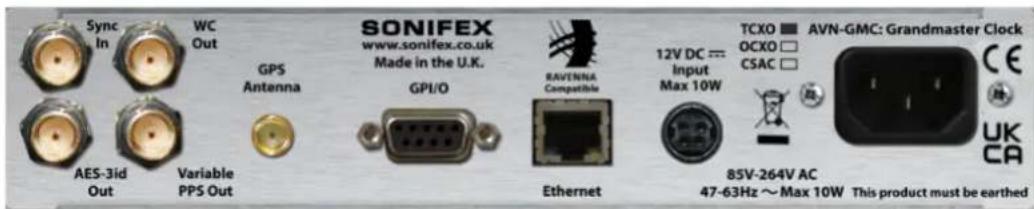
Fig 1-5: AVN-GMC Rear Panel
Sync Input
This is a 75Ω input used to connect an external synchronisation source to wordclock or Variable PPS Outputs. This is selected from the front panel or drive the internal PTP clock. Connect a wordclock to this input and from through the webserver.
menu select Device Settings> Reference Input> External Sync Input to enable it and select the sample rate. This allows the distribution of an existing station wordclock through the network. Supported sample rates 32, 44.1, 48, 88.2, 96, 176.4, 192kHz and 10MHz.
WC (Wordclock) Output
This is a 50Ω TTL level wordclock output which is synchronised to the onboard PTP clock. The rate is selectable from the front panel menu (Settings>Wordclock) or the webserver. Selectable sample rates are 32, 44.1, 48, 88.2, 96, 176.4, and 192kHz.
AES-3id Output
This is a 75Ω AES-3id digital audio signal, with muted audio, that is synchronised to the onboard PTP clock. The rate is selectable from the panel menu (Device Settings> AES-3id) or the webserver. Selectable samp rates are 32, 44.1, 48, 88.2, 96, 176.4, and 192 kHz.
Variable PPS (Pulse Per Second) Output
This 50Ω output is synchronised to the onboard PTP clock and the rate selectable through the front panel menu (Device Settings> Variable PPS) and webserver. Selectable rates are 1Hz, 10, 100, 1kHz, 10k, 100k & 1M
Note: The Wordclock and Variable PPS Outputs can both provide either
tWordclock or Variable PPS Outputs. This is selected from the front panel or through the webserver.
GPS Antenna
An SMA socket is used for connection to an active or passive GPS antenna.
GPI/O Remote Input/Output Connector
A 9 way D-type female connector contains 4 open-collector outputs and 4 active low inputs. The 4 outputs provide alarms/indicators for:
| Pin # | Type Function Action | ||
| 1 | Output | GPS or External Sync Open | collector to ground when GPS selected |
| 2 | Output | Lock indication Open collector | to ground when selected reference (GPS or External) is locked. (Follows Lock LED). |
| 3 | Output | AC Power status Open collector | to ground when AC present |
| 4 | Output | DC Power status Open | collector to ground when DC present |
| 5 | Ground | Ground reference | |
| 6 | Input | Not used | |
| 7 | Input | Not used | |
| 8 | Input | Not used | |
| 9 | Input | Not used | |
AVN-GMC IEEE1588 PTP Grandmaster Clock with GPS Receiver
Ethernet
This is a standard 100BASE-T CAT5 Ethernet RJ45 connector to connect unit to the network. The connector has two LEDs that indicate data throughput and link status. The unit can be controlled remotely over the Ethernet connection using the built-in webserver.
12V DC Power Input
This 12V power input provides a secondary power source on a KPJX-45. It accepts voltages in the range of 11.5V - 13.2V and must be able to 500mA. Both mains and DC power sources can be connected at the sa time, so the DC input can act as an alternative redundant power suppl
IEC Mains Input
Power is applied via a standard three-pin IEC male socket. Mains voltages between 85V and 264V AC and frequencies between 47 and 63Hz are accepted without adjustment. The Earth pin MUST be connected to ensure safety.
Front Panel Menu Navigation

The menu is entered by holding the centre button (the 'OK' button) of the rotational a directional spinwheel.
Use the four UP, DOWN, LEFT and RIGHT directional buttons at the outer edge of spinwheel to move within the menu.
Once entered a number of pages can be chosen by moving the highlight using the directional buttons, or by rotating the spinwheel (Clockwise = DOWN, Anti Clockwise = UP).
Select a Page - Use the OK button, or the RIGHT button
Exit a Page - Use the BACK menu item or the LEFT button.
Exit the Menu Structure - Use the CLOSE menu item, usually at the bottom.
the
Each dialog page contains a number of options in one of the following
control formats:
String Entry/Edit - Move the cursor highlight to the character that you want to edit/alter. Use the spinwheel to cycle through the available characters. A push of the centre OK button changes the character to its default value which is 'A'. To move to the next character press the RIGHT button. source
To end the entry, press the DOWN button and then LEFT/RIGHT directional buttons to highlight the 'OK' screen box to confirm or the 'CANCEL' box to ignore the new string and return to the previous one. Press the OK button to action your choice. Please note, the first and last characters cannot be a
IP Address Edit - Move the highlight to one of the 4 IP numbers using the ure directional LEFT/RIGHT buttons. These are 3 digit strings which will cycle from 000 to 255 (and back around), using the spinwheel. Once you have entered the 4 numbers, use the DOWN button to move to either the 'OK' c 'CANCEL' screen options and press the OK button.
Number Edit - Use the spinwheel to change the number. The number range is set according to which option has been selected. Once you have finished, move to either the 'OK' or 'CANCEL' screen options and press the OK button.
Scale Edit - Use the spinwheel to change the position of the scale bar. Once you have finished, move to either the 'OK' or 'CANCEL' screen options and press the OK button.
Select List Option - Move the cursor highlight to the desired list item and press the OK button to select it. A tick appears next to the selected option.
1 AVN-GMC IEEE1588 PTP Grandmaster Clock with GPS Receiv
AVN-GMC Menu Tree
Main Menu
- Device Information -> Info about the device, Serial Number, Firmware Versions, Network Info & Voltages
- Network Settings
Host Name → Dialog to set Bonjour host name
IP Address → Dialog to set Static IP address of system
Subnet Mask → Dialog to set Subnet Mask of system
Gateway → Dialog to set Gateway address of system - Network Mode → List selection from Static IP Mode, or Auto IP or DHCP with failover to Static IP Address or to Auto-IP
DSCP → List selection from DSCP method from 22 available
TTL→Dialog to set the PTP TTL value from 1 to 255
Active Profile → List selection from Default, AES media, SMPTE, AES-SMPTE and Custom
| Delay Mechanism → List selection from E2E or P2P mechanisms
Announce Interval → List selection from Interval of 1 to 16 seconds
Announce Timeout → Dialog to set Timeout from 2 to 10 announce intervals
Sync Interval → List selection from Interval of 1/2 to 2 seconds
Del Req Interval → List selection from Interval of 1 to 32 seconds
PDel Req Interval → List selection from Interval of 1/2 to 16 seconds
Priority 1 → Dialog to Set Priority 1 level between 0 to 255
Priority 2 → Dialog to Set Priority 2 level between 0 to 255
Domain → Dialog to set Domain between 0 to 127
Delay Mechanism → List selection from E2E or P2P mechanisms
Announce Interval → List selection from Interval of 1 to 16 seconds
Announce Timeout → Dialog to set Timeout from 2 to 10 announce intervals
Sync Interval → List selection from Interval of 1/10 to 2 seconds
Del Req Interval → List selection from Interval of 1/8 to 32 seconds
PDel Req Interval → List selection from Interval of 1/2 to 16 seconds
Priority 1 → Dialog to Set Priority 1 level between 0 to 255
Priority 2 → Dialog to Set Priority 2 level between 0 to 255
Domain · Dialog to set Domain between 0 to 255
| Delay Mechanism → List selection from E2E or P2P mechanisms
Announce Interval → List selection from Interval of 1/8 to 2 seconds
Announce Timeout · Dialog to set Timeout from 2 to 10 announce intervals
Sync Interval → List selection from Interval of 1/16 to 1/2 second
Del Req Interval → List selection from Interval of 1/16 to 1/2 second
PDel Req Interval → List selection from Interval of 1/2 to 16 seconds
Priority 1 → Dialog to Set Priority 1 level between 0 to 255
Priority 2 → Dialog to Set Priority 2 level between 0 to 255
Domain → Dialog to set Domain between 0 to 127
PTP Profiles
Default
Reset to Defaults
AES Media
Reset to Defaults
- SMPTE
Reset to Defaults
PTP ProfilesMain Menu
AES-SMPTE
Delay Mechanism → List selection from E2E or P2P mechanisms
Announce Interval → List selection from Interval of 1 to 2 seconds
Announce Timeout → Dialog to set Timeout from 2 to 10 announce intervals
Sync Interval → List selection from Interval of 1/2 seconds
Del Req Interval → List selection from Interval of 1 to 16 seconds
PDel Req Interval → List selection from Interval of 1/2 to 16 seconds
Priority 1 → Dialog to Set Priority 1 level between 0 to 255
Priority 2 → Dialog to Set Priority 2 level between 0 to 255
Domain → Dialog to set Domain between 0 to 127
Reset to Defaults
Custom
- Delay Mechanism → List selection from E2E or P2P mechanisms
Announce Interval → List selection from Interval of 1/8 to 64 seconds
Announce Timeout → Dialog to set Timeout from 2 to 10 announce intervals
Sync Interval → List selection from Interval of 1/16 to 64 seconds
Del Req Interval → List selection from Interval of 1/16 to 64 seconds
PDel Req Interval → List selection from Interval of 1/2 to 16 seconds
Priority 1 → Dialog to Set Priority 1 level between 0 to 255
Priority 2 → Dialog to Set Priority 2 level between 0 to 255
Domain → Dialog to set Domain between 0 to 255
Reset to Defaults
Device Settings
Device ID → Dialog to enter Unit name for user identification
- Reference Input → Select the time reference Source between GPS and External Sync Input
WC Out Source → Select Word Clock output from Word Clock and VarPPS
- VarPPS Out Source → Select VarPPS output from Word Clock and VarPPS
Word Clock → Select the rate of the External Wordclock output from 32 to 192kHz
Variable PPS → Select the rate of the Variable PPS output from 1Hz to 1MHz
Standby Mode → Select to enable or disable standby button
Display Settings
LED Brightness → Set the brightness of the indicator LEDs and the SONIFEX logo
Screen Timeout → Set a time in minutes between 1 and 9
Screen Saver → Set unit's screen saver to a blank screen or a big clock display
Screen Contrast → Set the level of screen contrast to suit different viewing angles and ambient lighting conditions
Time Settings
- Display Time → Select the Time displayed between TAI, UTC, or Local time
- Date Format → Select between D/M/Y, M/D/Y and Y/M/D format
- Local Offset → Set the local time offset from UTC
- DST (Daylight saving) Offset → Set DST offset between 0h and 2h:30 in 30 minute increments
- DST Toggle Time → Set the time of day at which the offset will toggle
- DST Toggle Date → Set the date on which the offset will toggle
- DST Toggle → Set whether the toggle is enabled
- Force Time → Set unit PTP time if running from an external sync input
- Force Date → Set unit PTP date if running from an external sync input
Fig 1-6: AVN-GMC Menu Tree (V2.1)
2 AVN-GMC Webserver & Webpage Parameter Details
2. Webserver & Unit Discovery
The AVN-GMC uses the Zeroconf networking methodology to allow the unit to be a "plug and play" device. Just simply connect it to the network and use it. The unit is assigned an IP address using a DHCP server, or a self-assigned address using AutolP when one isn't available.
Once the unit has been connected to the network it will try to obtain an IP address from a DHCP server on the network, if none is found then the unit will use Auto-IP to assign itself an IP address.
If you're using the AVN-GMC for the first time, it is configured with a static IP address of 192.168.0.92 so is accessible by network connecting it to a PC (or similar device) and entering the following IP address in a browser's address bar:
http://192.168.0.92
The Mozilla Firefox and Google Chrome browsers are preferred.
Bonjour Network Discovery
Using a Bonjour discovery application or browser plug-in, the unit can be discovered and connected to with relative ease. Bonjour is available as standard on MAC OS and as plug-in for Internet Explorer for the Bonjour for windows download. You can also use the discovery application provided by Sonifex and available from the download page on the Sonifex website.
Standard Webpage Layout
AVN-GMC Webserver & Webpage Parameter Details 2
Webpages include a title bar, which includes the company logo, the device family logo, the product name and a brief description of the product.
Under the title bar there is a menu to select which page is displayed. To select a page, hover the mouse pointer over a heading so that it becomes highlighted and click the primary mouse button. If more than one page is associated with a heading (for example, 'configuration'), a drop down menu will appear. The currently displayed page is highlighted blue.
The page display area is divided into two, where the left hand side contains the content and the right hand side contains the help information associated with the content.
The page footer contains the company contact information.
The pages are designed to be resized for tablets and mobile phones. In cases where horizontal space becomes limited, the menu will collapse into a single 'menu' heading, from which all pages can be selected. The help boxes will fall beneath their associated content boxes.
Fig 2-1: Standard Webpage Layout
2 AVN-GMC Webserver & Webpage Parameter Details
Status Page
Status Indication
Source -> GPS:

Source -> Ext Sync:

Lock State:

Master:

AC Power:

DC Power

Device Status
Selected Profile: Default
Number Of Satellites: 8
Average Signal Strength: 28dBHz
Incoming Wordclock: 32kHz
Outgoing Wordclock: 44.1kHz
VarPPS: 1Hz
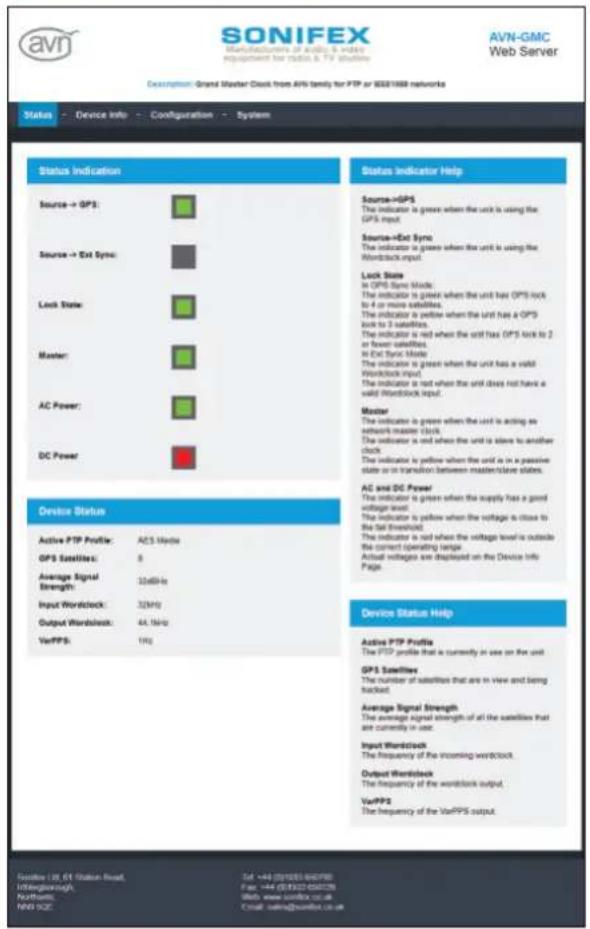
Fig 2-2: AVN-GMC Status Screen
Status Indication
The status indication area shows coloured boxes which mirror the front panel indication LEDs, updated live.
Source->GPS
The indicator is green when the unit is using the GPS input.
Source->Ext Sync
The indicator is green when the unit is using an External Sync input.
Lock
In GPS Sync Mode:
The indicator is green when the unit has GPS lock to 4 or more satellites.
The indicator is yellow when the unit has a GPS lock to 3 satellites.
The indicator is red when the unit has GPS lock to 2 or fewer satellites.
In Ext Sync Mode:
The indicator is green when the unit has a valid Wordclock input.
The indicator is red when the unit does not have a valid Wordclock input.
Master
The indicator is green when the unit is acting as network master clock. The indicator is red when the unit is a slave to another GMC or PTP clock generator.
The indicator is yellow when the unit is in transition between slave and master.
AC and DC Power
The indicator is green when the supplies have a good voltage level.
The indicator is yellow to indicate that the voltages are close to the fail thresholds.
The indicator is red to indicate that the voltage levels are outside the correct operating range.
The indicator is off to show that no voltage is being detected.
Actual voltages are displayed in the Device Info Page.
Device Status
The device status box mirrors the information that is available on the front panel display during normal operation.
Selected Profile
The PTP profile that is currently assigned to the unit.
Number Of Satellites
The number of satellites that are being used to determine the time.
Average Signal Strength
The average signal strength of all the satellites that are currently in use.
Incoming Wordclock
The frequency of the incoming wordclock.
Outgoing Wordclock
The frequency of the outgoing wordclock.
VarPPS
The frequency of VarPPS output.
2 AVN-GMC Webserver & Webpage Parameter Details
Webpage Parameter Details - Device Information Device Information
Device information
| Device ID: | AVN-GMC-0 |
| Host Name: | AVN-GMC-73805 |
| Serial Number: | 0073805 |
| Firmware Version: | 1.5.197.166 |
| Base Version: | 2.13 |
| Front Panel Version: | V58 |
| AC to DC Voltage: | 11.8V |
| DC Input Voltage: | 0.0V |
| System Up Time: | 18 hrs 21 mins |
| System Time: | 11:09:58 10/01/2019 (UTC) |
| Oscillator: | TCXO |
Network Information
| Hardware Address: | D0:A4:B1:00:03:1E |
| Actual IP Address: | 10.0.200.28 |
| Actual Subnet Mask: | 256.255.256.0 |
| Actual Gateway IP: | 0.0.0.0 |
| Addressing Mode: | Static |
GPS Satellite Information
| Satellite 1: | 2, 30dBHz, 36deg, 236deg |
| Satellite 2: | 4, 19dBHz, 57deg, 74deg |
| Satellite 3: | 5, 40dBHz, 52deg, 38deg |
| Satellite 4: | 6, 0dBHz, 0deg, 0deg |
| Satellite 5: | 7, 29dBHz, 64deg, 95deg |
| Satellite 6: | 9, 27dBHz, 36deg, 79deg |
| Satellite 7: | 13, 23dBHz, 19deg, 255deg |
| Satellite 8: | n/a |
| Satellite 9: | n/a |
| Satellite 10: | n/a |
| Satellite 11: | n/a |
| Satellite 12: | n/a |
| Satellite 13: | n/a |
| Satellite 14: | n/a |
| Satellite 15: | n/a |
| Satellite 16: | n/a |
The device information box contains important information about the unit such as Device ID, Host name, serial number, firmware version numbers, voltage figures, system up time an approximate PTP time reading with time base and fitted oscillator type.
Network Information
The network information box contains the MAC address, actual IP address, actual subnet mask, actual gateway IP and the addressing mode.
GPS Satellite Information
This page displays a snap shot of the satellite data for any detected satellites (up to 16).
Each satellite displays the following parameters:
The identification number of the satellite
Signal Strength (Carrier-to-noise-density ratio)
Elevation Angle
Azimuth angle
Press the Refresh Info button to update the values
Fig 2-3: AVN-GMC Device Information Screen
AVN-GMC Webserver & Webpage Parameter Details 2
Network Settings
Accessible by selecting Config > Network Settings on the web page.
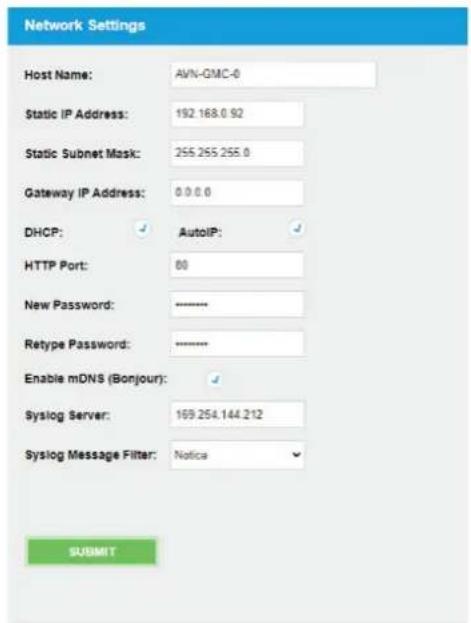
Fig 2-4: AVN-GMC Network Settings Screen
Network Settings
IP Address
Enter the static IP address that you wish to assign to this unit. This IP password, simply enter a new password in the New Password entry box and address will be used if DHCP is disabled or if no DHCP server is detected. The default IP address is 192.168.0.92
Subnet Mask
Enter the subnet mask of the network you wish to connect to. The default subnet mask is 255.255.255.0
Gateway IP Address
Enter the gateway IP address of your router.
The default gateway is 0.0.0.0
DHCP
Enable DHCP to allow the unit to acquire its IP address automatically from a DHCP server. Disable DHCP to use the static IP address entered on this page. DHCP is initially enabled, the unit will automatically default to static network settings after 45 seconds if no DHCP server is detected.
Auto IP
Enabling Auto IP allows the unit to configure its own IP address without the need of a router in the form 169.254.X.Y, where X and Y are numbers between 0 and 255. Ensure the connecting device has Auto IP enabled. If both DHCP and Auto IP are enabled, DHCP takes precedence.
Changing network details may require a browser refresh and in some cases (IE), a close and reopen. If accessing via IP address rather than host name, an address bar change may be required to reconnect.
HTTP Port
Configures the port which the webserver listens on. This can be set to port 80, or a number between 1024 and 65535. The unit must be restarted for this setting to take effect.
Password
It is possible to setup password access to the unit's webserver. To add a password, simply enter a new password in the New Password entry box and re-type it in the Retype Password entry box. The password should be between 4 and 8 characters in length and contain only letters and numbers.
2 AVN-GMC Webserver & Webpage Parameter Details
After submission, the user will be required to enter this password to gain PTP Profiles
access to the device. The password can be removed by clearing both entry
boxes and clicking Submit. The username is always admin.
mDNS (Bonjour)
Enabling mDNS allows the unit to be discovered using the Sonifex Service Discovery application. If this isn't required then it is recommended to disable mDNS to reduce the network traffic going to the unit. The unit r be restarted for this setting to take effect.
Syslog
This setting enables the remote logging of the AVN-GMC with the aid of a remote Syslog server. Specify the server IP address in the Syslog Server entry box and set the message filter accordingly.

Fig 2-5: AVN-GMC PTP Profile Screen
AVN-GMC Webserver & Webpage Parameter Details 2
PTP Profiles
Profile Select
Select from a list of stored profiles including Default, AES Media, SMPTE. The PTP domain on which the GMC operates.
AES-SMPTE and Custom. The active profile button is checked if this is the profile is being used by the unit. As to which ranges are available for each parameter in each profile, please refer to the AVN-GMC menu tree on pages 6 and 7.
Reset to Defaults
Select this checkbox and press submit to reset the current selected profDSCP
to the default set for that profile.
Delay Mechanism
Select between E2E and P2P Delay mechanisms.
Announce Interval
The rate at which the Announce message is sent. One per the selected time.
Announce Timeout
Multiple of announce intervals. This is the time the unit will wait for a response to an announce message.
Sync Interval
The rate at which the Sync message is sent. One per the selected time.
Delay Request Interval
The rate at which the master allows Delay Requests - only valid for E2E delay mechanism.
Peer Delay Request Interval
The rate at which the master allows Peer Delay Requests - only valid for P2P delay mechanism.
Priority 1 and 2
Position in an ordered set of clocks, used by Best Master Clock Algorithm.
Priority 2 provides 'fine grain' ordering.
Domain
The PTP domain on which the GMC operates.
As to which ranges are available for each parameter in each profile, please refer to the AVN-GMC menu tree on pages 6 and 7.
This is a single parameter for all profiles to set the Diffserv method for outgoing packets.
TTL
This is a single parameter for all profiles to set the TTL value in the outgoing PTP messages.
2 AVN-GMC Webserver & Webpage Parameter Details
Device Settings
Device Settings
Device ID:
AVN-GMC-0
Reference Selection:
GPS

WC Output Source:
Wordclock

VarPPS Output Source:
VarPPS

Word Clock:
44.1k

Variable PPS:

Standby:

Enable

Disable
SUBMIT
Fig 2-6: AVN-GMC Device Settings Screen
Device Settings
Device ID
Name used to identify unit. Can be used as a description field.
Reference Selection
Choose between GPS and External sync from which to sync the internal PTP clock.
WC and VarPPS Output Source
The unit's WC (Wordclock) and VarPPS can be routed to each output, or either can be routed to both.
Wordclock
Select the rate of the wordclock output. The rate can be selected as 32, 44.1, 48, 88.2, 96, 176.4 or 192 kHz.
Variable PPS
Select the rate of the PPS output. This can be selected as 1, 10, 100, 1000, 10,000, 100,000 or 1,000,000 Hz.
Standby
The front panel power/standby button can be enabled or disabled here.
Time Settings

Fig 2-7: AVN-GMC Time Settings Screen
AVN-GMC Webserver & Webpage Parameter Details 2
Time Settings
Display Time
Select whether the display shows TAI, UTC or Local Time. Local time is UTC time +/- Local offset and DST offset.
Date Format
Select the preferred date format for the unit. Choices are D/MY, M/D/Y and Y/M/D.
Display Time Offset
Adjust the display time by a set amount when displaying Local Time, in hours and minutes. Useful for time zones, for example
Daylight Saving
The amount of time to adjust when daylight saving is applied, in hours and minutes.
Apply Daylight Saving
Toggle daylight saving. Clear = off, checked = on
Daylight Saving Toggle Time and Date
Use this feature to set a time at which the daylight saving setting will automatically toggle, in hours and minutes for the time and day. month, year for the date.
Toggle Enabled
Enable or Disable the daylight saving toggle feature. Clear = disabled, checked = enabled
2 AVN-GMC Webserver & Webpage Parameter Details
Misc Settings

Fig 2-8: AVN-GMC Misc Settings Screen
Misc Settings
Force Time & Force Date
Force Time & Force Date allows the time and date to be set if the unit is running from an external input, rather than GPS. This setting affects both the PTP timebase and the front panel display. If set to run from GPS, the force time setting is ignored.
Auto Save on Page Exit
Enabling 'Auto Save on Page Exit' enables you to automatically submit and save changes on leaving a webpage.
Factory Defaults
Click the 'Reset Settings' button to return the unit to factory default settings.
Enable 'Network Reset' to reset the network settings as well, otherwise they will remain unchanged.
System
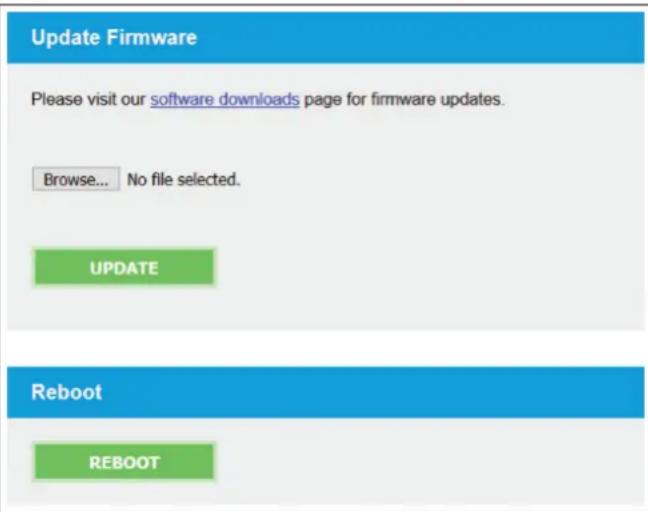
Fig 2-9: AVN-GMC System Screen
AVN-GMC Webserver & Webpage Parameter Details 2
Update Firmware
This page allows you to update the firmware running on the unit. New versions of the firmware can be found on the appropriate product page on the Sonifex website.
Procedure
Use the 'Choose File' button to open a browse window and navigate to an AVN-GMC firmware file. File selection is protected by a filter which detects correct file name and type. Once selected, click update. The front panel of the unit should display that a file upload is in progress and then whether it succeeded or failed. A webpage will also confirm this.
Once the upload is complete, the unit will reset. If the upload succeeded, the unit will proceed to install the new firmware. This is indicated by a series of green power button flashes (one flash, followed by two flashes, followed by three). Then the unit will boot. It is possible that the front panel code will also be updated. In this case, shortly after the power button LED sequence, a progress bar will be displayed. An error condition in the installation or boot up process is indicated by the power button flashing red and green. In this case, contact Sonifex technical support for advice on how to proceed.
Reboot
Click the reboot button to immediately reboot the unit. This will take approximately 25 seconds during which a status bar will be displayed. Once complete, the status webpage will be displayed.
3. Grandmaster Clocks, AVN, RAVENNA & AES67
Sonifex joined the Ravenna group in 2012 and the AVN product range is the result of our R&D in the area of audio over IP. If a Sonifex product starts with the letters 'AVN', then it's part of the family of products which can send audio to each other over an IP network (AoIP).
RAVENNA (of which AES67 is a subset) allows for the distribution of audio across a network. For this to be possible, each of the nodes needs to be time synchronised with one another. Ravenna uses PTP (Precision Time Protocol, as defined by IEEE1588-2008v2) time stamping to achieve this, which both distributes the network time and also works out the latency involved in the delivery and adjusts the time at each node accordingly. Unit configuration is achieved easily either with the front panel controls or the webserver, including the setup of the PTP profile. A Grandmaster Clock (GMC) is a source of all the networks' time and should be synchronised to GPS.
AVN and other manufacturers RAVENNA products will use the time distributed by the AVN-GMC to create internal audio clocks that are all highly synchronous to one another, so that audio derived from one unit will playout at precisely the same rate when sent to another.
AES67 is a standard released by the Audio Engineering Society to enable interoperability of Audio over IP devices from different manufacturers and there is a specific subset of RAVENNA that will implement the methods and protocols as required.
4. Technical Specification For AVN-GMC
Timing Specification
| Profile Support: Default profile |
| Timing Protocol: PTPv2, IEEE1588-2008, TAI timebase |
Timing Accuracy: PTP time stamping resolution 8ns
| Holdover Drift: |
| TCXO: <90ms |
| OCXO: <900μs |
| CSAC: <45μs |
| These figures are over 24 hours at constant temperature |
| GPS Performance: 50 channel GPS receiver |
| GPS Frequency: 1575.42MHz, L1 band |
Clock Specification
| Word Clock Sync 75ΩImpedance: |
Word Clock Output <50Ω Impedance:
| VAR PPS Output Impedance: | <50Ω |
| AES-3id Output Impedance: | <75Ω |
| Antenna Impedance: | 50Ω |
Connections
| Clocking Input: | BNC female TTLWordclocks (32kHz to 192kHz) and 10MHz |
| Clocking Outputs: BNC | female AES-3id @ 32, 44.1, 48, 96, 176.4 & 192kHz.BNC female Wordclock Out (32kHz to 192kHz) TTLBNC female Variable PPS Out (1Hz to 1MHz) TTL |
| GPS Input: | SMA socket |
| GPIO: | 9 way D-Type female |
| Ethernet Port: | RJ45 socket, 100BASE-T |
| Mains AC Input: | Universal filtered IEC socket, continuously rated 85-264 VAC @47-63Hz, max 10W |
| DC Input: | 1 x 12V, KPJX-45 socket, positive pins 1 and 3 |
| Maximum Operating Range (DC): | 10.3V to 13.2V DC, 500mA |
Equipment Type
| AVN-GMCS: | Grandmaster clock for PTP systems, GPS, IP, TCXO, 1ppm, rackmount |
| AVN-GMCOS: | Grandmaster clock for PTP systems, GPS, IP, OCXO, 0.1ppm, rackmount |
| AVN-GMCCS: | Grandmaster clock for PTP systems, GPS, IP, CSAC, 0.0005ppm rackmount |
Physical Specification
| Dimensions: (Raw) | 4.4cm (H) x 48.3cm (W) x 17.8cm (D) (1U) |
| 1.8" (H) x 19" (W) x 7" (D) (1U) | |
| Dimensions (Boxed): | 6.8cm (H) x 58.8cm (W) x 27cm (D) |
| 2.7" (H) x 23" (W) x 10.6" (D) | |
| Weight: | Nett: 1.5kg Gross: 2.2kg |
| Nett: 3.2lbs Gross: 4.8lbs |
Accessories
| AVN-DC150: | 150W DC power supply with KPJX-4S plug |
Notes
Notes
SONIFEX
www.sonife
t:+44 (0)1933 650 700
f:+44 (0)1933 650 726
sales@sonifex.co.uk
x . c o . u k
- AVN-GMC HANDBOOK
- FOR THE LATEST SONIFEX HANDBOOK INFORMATION PLEASE VISIT SONIFEX WEBSITE AT WWW.SONIFEX.CO.UK
- CONTENTS
- CONTENTS CONTINUED... FIGURES
- SONIFEX
- REGISTER ONLINE FOR AN EXTENDED 2 YEAR WARRANTY
- PRODUCT WARRANTY - 2 YEAR EXTENDED
- THE 2. WARRANTY
- SONIFEX WARRANTY & LIABILITY TERMS & CONDITIONS
- DEFINITIONS
- WARRANTY
- OR UNPACKING YOUR PRODUCT
- ITEM QUANTITY
- REPAIRS & RETURNS
- SAFETY & INSTALLATION OF MAINS AND OPERATED EQUIPMENT
- VOLTAGE SETTING CHECKS
- POWER CABLE & CONNECTION
- SAFETY & INSTALLATION
- CE AND UKCA CONFORMITY
- WEEE DIRECTIVE
- ATMOSPHERE/ENVIRONMENT
- AVN-GMC IEEE1588 PTP GRANDMASTER CLOCK WITH GPS RECEIVER INTRODUCTION
- 1 AVN-GMC IEEE1588 PTP GRANDMASTER CLOCK WITH GPS RECEIV
- FRONT PANEL DISPLAY & INDICATORS
- FRONT PANEL INDICATORS
- ETHERNET
- GPS
- MASTER
- AC PSU & DC PSU
- POWER BUTTON
- GPS OPERATION
- REAR PANEL CONNECTORS
- SYNC INPUT
- WC (WORDCLOCK) OUTPUT
- AES-3ID OUTPUT
- VARIABLE PPS (PULSE PER SECOND) OUTPUT
- GPS ANTENNA
- GPI/O REMOTE INPUT/OUTPUT CONNECTOR
- AVN-GMC IEEE1588 PTP GRANDMASTER CLOCK WITH GPS RECEIVER
- 12V DC POWER INPUT
- IEC MAINS INPUT
- FRONT PANEL MENU NAVIGATION
- AVN-GMC MENU TREE
- MAIN MENU
- PTP PROFILES
- DEFAULT
- RESET TO DEFAULTS
- AES MEDIA
- SMPTE
- 2 AVN-GMC WEBSERVER & WEBPAGE PARAMETER DETAILS
- WEBSERVER & UNIT DISCOVERY
- BONJOUR NETWORK DISCOVERY
- AVN-GMC WEBSERVER & WEBPAGE PARAMETER DETAILS 2
- STATUS PAGE
- STATUS INDICATION
- DEVICE STATUS
- SOURCE->GPS
- SOURCE->EXT SYNC
- LOCK
- IN GPS SYNC MODE
- IN EXT SYNC MODE
- AC AND DC POWER
- SELECTED PROFILE
- NUMBER OF SATELLITES
- AVERAGE SIGNAL STRENGTH
- INCOMING WORDCLOCK
- OUTGOING WORDCLOCK
- VARPPS
- WEBPAGE PARAMETER DETAILS - DEVICE INFORMATION DEVICE INFORMATION
- NETWORK INFORMATION
- GPS SATELLITE INFORMATION
- NETWORK SETTINGS
- IP ADDRESS
- SUBNET MASK
- GATEWAY IP ADDRESS
- DHCP
- AUTO IP
- HTTP PORT
- PASSWORD
- MDNS (BONJOUR)
- SYSLOG
- PROFILE SELECT
- DELAY MECHANISM
- ANNOUNCE INTERVAL
- ANNOUNCE TIMEOUT
- SYNC INTERVAL
- DELAY REQUEST INTERVAL
- PEER DELAY REQUEST INTERVAL
- PRIORITY 1 AND 2
- DOMAIN
- TTL
- DEVICE SETTINGS
- REFERENCE SELECTION
- WC AND VARPPS OUTPUT SOURCE
- WORDCLOCK
- VARIABLE PPS
- STANDBY
- TIME SETTINGS
- DISPLAY TIME
- DATE FORMAT
- DISPLAY TIME OFFSET
- DAYLIGHT SAVING
- APPLY DAYLIGHT SAVING
- DAYLIGHT SAVING TOGGLE TIME AND DATE
- TOGGLE ENABLED
- MISC SETTINGS
- FORCE TIME & FORCE DATE
- AUTO SAVE ON PAGE EXIT
- FACTORY DEFAULTS
- SYSTEM
- UPDATE FIRMWARE
- PROCEDURE
- REBOOT
- GRANDMASTER CLOCKS, AVN, RAVENNA & AES67
- TECHNICAL SPECIFICATION FOR AVN-GMC
Brand : Sonifex
Model : AVN-GMCOS
Category : Équipement électronique professionnel