
CC-10 - Monitor ALLEN & HEATH - Free user manual and instructions
Find the device manual for free CC-10 ALLEN & HEATH in PDF.


| Product Type | Active Stage Monitor |
| Brand | Allen & Heath |
| Model | CC-10 |
| Woofer | 10 inch (254 mm) |
| Tweeter | 1 inch (25 mm) compression driver |
| Frequency Response | 60 Hz - 20 kHz (±3 dB) |
| Power Handling | 200 W RMS, 400 W peak |
| Impedance | 8 ohms |
| Sensitivity | 98 dB SPL (1W/1m) |
| Maximum SPL | 124 dB peak |
| Input Connectors | Combo XLR/TRS (balanced) |
| Amplifier Class | Class D |
| Power Supply | 100-240 V AC, 50/60 Hz |
| Enclosure Material | Plywood with polyurethane coating |
| Grille Material | Steel with acoustic foam |
| Dimensions (H x W x D) | 300 x 500 x 300 mm |
| Weight | 12 kg (26.5 lbs) |
| Cooling | Passive convection |
| Cleaning Instructions | Wipe with a dry or slightly damp cloth; avoid solvents |
| Safety Precautions | Do not expose to rain or moisture; use on stable surface |
| Spare Parts Availability | Contact authorized Allen & Heath dealers |
| Warranty | 2 years limited warranty |
Frequently Asked Questions - CC-10 ALLEN & HEATH
User questions about CC-10 ALLEN & HEATH
0 question about this device. Answer the ones you know or ask your own.
Ask a new question about this device
Download the instructions for your Monitor in PDF format for free! Find your manual CC-10 - ALLEN & HEATH and take your electronic device back in hand. On this page are published all the documents necessary for the use of your device. CC-10 by ALLEN & HEATH.
USER MANUAL CC-10 ALLEN & HEATH
CC-7 and CC-10 are touch panels for desktop or wall mount use, configured to run the Allen & Heath Custom Control app in kiosk mode.
Check content
Check that you received the following:
- Touch panel CC-7 or CC-10
• 12V power supply unit - Safety sheet
Installation
CC-7 and CC-10 have threaded inserts for standard VESA 75x75mm mounting. Allen & Heath can provide a desktop stand (part number CC-STN) and a wall/glass mount bracket (part number CC-BRK).
Overview
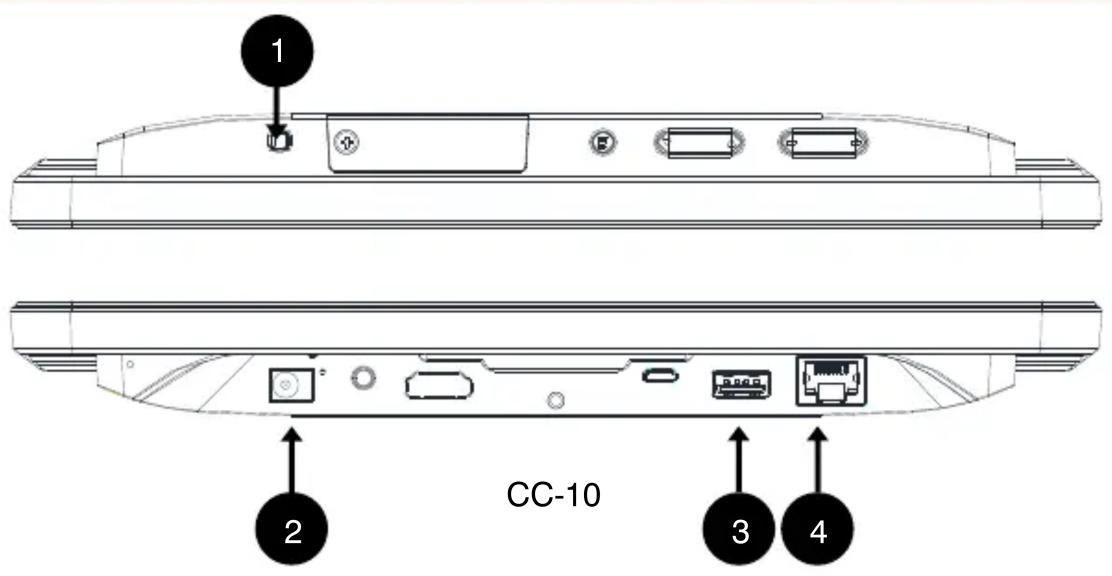
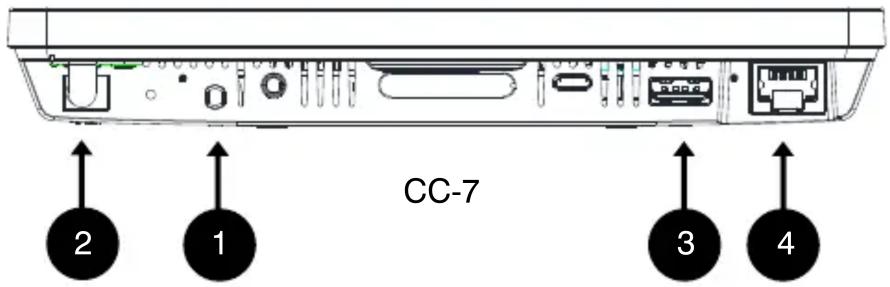
1. Power button
Short press for sleep / wake up.
Long press to power down / reboot. A confirmation dialog box is displayed on the screen.
2. DC Input and LED indicator
12V/2A DC input. Alternatively, the unit can be powered over Ethernet.
Only use the PSU supplied with the touch panel.
The LED indicator lights up green when the unit is powered and red when the unit is in sleep mode.
3. USB-A port
USB 2.0 port for Custom Control updates.
4. Ethernet port
PoE enabled, Gigabit Ethernet RJ45 port for connection to the mixing system.
Operation
The touch panels are configured to launch the Custom Control app at power up and in kiosk mode, hiding the OS status / notification bar and navigation bar, and preventing end users from exiting the app, thus securing the settings and operation of the touch panel.
At power up, wait until the Custom Control login screen is displayed. Select a system from the list or enter the target IP address, enter the Username and Password, and touch Connect.
Swipe right from the left border to access further app settings such as Auto Login.
The Custom Control app downloads and displays a custom user interface from a compatible Allen & Heath system. The interface is created and uploaded using the Custom Control editor. For more information on Custom Control, please refer to the Allen & Heath website and the app Help.
Configuration
An installer, integrator or system admin can exit the app to change the touch panel settings such as IP address or brightness, or to update the software.
Swipe right from the left border to access the app settings and touch Quit. Enter the factory unlock PIN code: 8789.
The Settings app gives access to several settings for the touch panel, for example:
- Network settings – select Ethernet and enter a static IP address, subnet mask and gateway if required. Factory default is automatic IP address (DHCP).
- Scheduled sleep – select Schedule / Set Scheduled sleep On/Off Clocks and set the Time and Repeat options as desired.
- Language – select System / Language & Input. This applies to the Android OS only, not to the Custom Control app.
To adjust the brightness of the screen, swipe down from the top of the screen, touch Brightness and slide the control to adjust. Auto adjusts the brightness automatically based on the ambient light.
Software updates
To update the Custom Control app:
- Download the kiosk version of the app from www.allen-heath.com/custom-control/.
- Store the correct version of the installer file on a USB drive. Use: CustomControllerApp-32k.apk (32bit) for CC-10, CustomControllerApp-64k.apk (64bit) for CC-7.
- Insert the USB drive into the USB port of the touch panel.
- Exit the app as described in the section above, open the Files app, locate and launch the .apk installer.
- Follow the instructions on screen.
CC-7 and CC-10 require the kiosk version of Custom Control, V1.20 or higher. Only install updates from the Allen & Heath website. Do not use the public version of the Custom Control app from the Google Play store.
Check www.allen-heath.com for the latest version of the Custom Control kiosk app and any updates for the CC-7 and CC-10 panels.
Specifications
| Power and Temperature | |
| DC Input | +12V DC 2A |
| Operating Temperature Range | 0°C to 40°C (32°F to 104°F) |
| PoE Requirements | 802.3af 15W |
| CC-7 screen | Capacitive, 10 point touch projected |
| Resolution | 1024x600 |
| Brightness | 240 cd/m2 |
| Viewing Angle | H 140° / V 130° |
| Contrast Ratio | 600:1 |
| Aspect Ratio | 17:10 |
| CC-10 screen | Capacitive, 5 point touch projected |
| Resolution | 1280x800 |
| Brightness | 500 cd/m2 |
| Viewing Angle | H 160° / V 160° |
| Contrast Ratio | 800:1 |
| Aspect Ratio | 16:10 |
A limited one year manufacturer's warranty applies to this product, the conditions of which can be found at: www.allen-heath.com/legal.
Copyright © 2022 Allen & Heath. All rights reserved.
ALLEN&HEATH
Allen & Heath Limited, Kernick Industrial Estate, Penryn, Cornwall, TR10 9LU, UK
http://www.allen-heath.com
Brand : ALLEN & HEATH
Model : CC-10
Category : Monitor