
Colors - Music Software STEINBERG - Free user manual and instructions
Find the device manual for free Colors STEINBERG in PDF.


| Product Type | USB Audio Interface |
| Brand | Steinberg |
| Model | Colors |
| Connectivity | USB 2.0 |
| Analog Inputs | 2 (Combo XLR/TRS) |
| Analog Outputs | 2 (TRS) |
| Headphone Output | 1 (1/4" TRS) |
| MIDI I/O | In/Out |
| Sample Rate | Up to 192 kHz |
| Bit Depth | 24-bit |
| Phantom Power | +48V |
| Direct Monitoring | Yes |
| Power Supply | USB bus powered |
| Dimensions (W x D x H) | 150 x 100 x 45 mm |
| Weight | 0.3 kg |
| Compatibility | Windows, macOS, iOS |
| Included Software | Cubase AI, DAW |
| Color | Various (model name) |
Frequently Asked Questions - Colors STEINBERG
User questions about Colors STEINBERG
0 question about this device. Answer the ones you know or ask your own.
Ask a new question about this device
Download the instructions for your Music Software in PDF format for free! Find your manual Colors - STEINBERG and take your electronic device back in hand. On this page are published all the documents necessary for the use of your device. Colors by STEINBERG.
USER MANUAL Colors STEINBERG
MANUAL
∴ m = 3/11
CINEMATIQUE INSTRUMENTS
Thanks for buying COLORS!
How to install?
In order to properly install your HALion library please follow the instructions given on the Steinberg website or watch the „How to install“ HALion instruments video.
For any kind of questions concerning the installation or registration of HALion instruments please contact Steinberg – in terms of the instrument please contact us at : support@cinematique-instruments.com
COLORS
Colors is a box full of ambiences, pads and textures. You can create your own sound from a beautiful set full of characterful and lovingly selected source sounds in no time at all - as easy as mixing colors together in a paint box, simple and ingenious at the same time. The included modulation section adds subtle life or extreme weirdness, depending on what you need. So, you are able to paint your own sound!
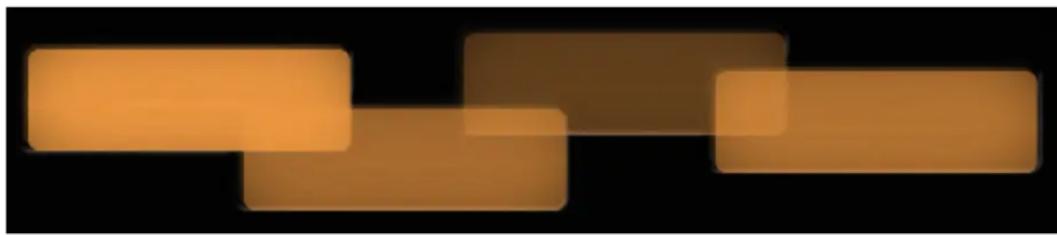
With the exquisite preset color box offering presets sorted by color only, you'll have a huge selection of timbres in no time.
OVERVIEW & CONCEPT

COLORS is a unique tool that opens the way for you to create modern pads and textures with lots of movement and variations. With the exquisite preset color box offering around 100 presets sorted by color only, you'll have a huge selection of timbres in no time. But of course you can also build your own sound from scratch. Four layers with useful sound shaping tools in combination with a clever modification engine offer you almost infinite possibilities to create beautiful, atmospheric, deep and even abstract sound-sculptures that will help you to add more color to your music. And if you seek even more inspiration, just let COLORS create a sound randomly for you.
THE MAIN FEATURES
Uniqueness
The way the sound sources work in conjunction with the modulation and movement possibilities is absolutely unique and results in beautiful, inspiring and - most importantly - very usable sounds that can be adapted to one's needs in no time.
Easel Section
This section is the core of Colors. There are 4 sound layers, all of which can be equipped with different sound sources and provide many edit options such as equalizers or modulation sources. Each unit contains carefully and lovingly selected sound sources, which all fit very well with each other and achieve an optimal result.
Modulations of the Colors
The Master Section contains all global setting options. Decay of the sounds, reverb, delay (with different types), a modifiable chorus effect, 2 different filters and distortion types.
Live Modulation by ModWheel
Almost all parameters of the Master Section - as well as Layer 2+3 - are connected with a 100 step long programmable table so that you can dynamically set and run your own parameters via the Mod Wheel. So you can change the complete sound in no time.
Automatic Movements
As a small special feature we have added a few automatic movement tools to the master section. These are Auto Filter, Filter Sweep, Main Volume Chop. All these tools can be played simultaneously in many tempos and are synced to the host.
Random Sounds
With the random function, you can fully randomize all sounds and parameters. This randomization occurs both at the easel and in the master section.
THE EASEL SECTION

Instr. Select opens a menu to select a sound source
Volume sets the volume of the slot instrument
Solo mutes the instruments of the other slots
Pan positions the sound of the slot in the stereo panorama
Tune offsets the tuning of the slot from -12 to 12 semitones corresponding to the notes you are playing
Mod Wheel assigns the volume of the slot to the Mod Wheel (MIDI CC1)
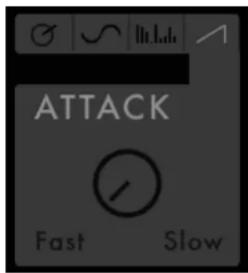
Attack controls the attack of the slots instrument
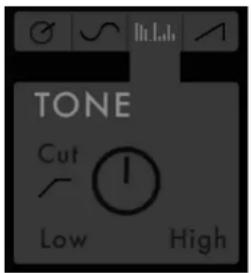

Tone turning the knob left will boost the low and reduce the high frequencies and vice versa.
Cut enables a Low Cut Filter, removing low frequencies
LFO modulates the volume of the slot
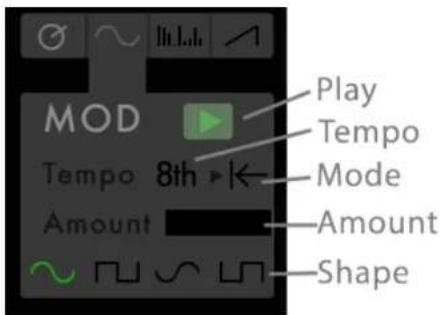
Play enables or bypasses the LFO modulating the slots volume
Mode switches the triggering behavior between free running and restarting with each new note getting pressed
Tempo changes the speed of the LFO from whole bar to 64th
Amount sets the range of the volume modulation of the slot
Shape sets the waveform and phase of the LFO
ARP automatically steps through notes

Play enables or bypasses the Arp
Length controls the decay and release of the instrument and deactivates the sustain. Only at 100% the sound behaves in usual manner with full sustain and length controlled by the master decay
Mode switches the behavior of the arp between using the held note(s), adding intervals of the note(s) played or adding completely random notes
Tempo changes the speed of the Arp from whole bar to 64th
Reset sets all(!) parameters to their default position
Random sets all(!) parameters randomly

THE MASTER TAB

e opens an edit section with further parameters to tweak the corresponding effect
assigns the parameter to the mod wheel (MIDI CC1) depending on the table within the MW tab of the corresponding edit section

Decay controls the release of all instruments

Drive underneath the drive knob you can set the mode
Drive mode: controls the amount of the drive effect
LoFi mode: reduces the sample rate of the signal
Warmth controls the warmth of the overdrive effect
Bits reduces the bit resolution of the signal

Chorus controls the amount of a chorus effect
Tempo controls the frequency of the LFO of the chorus effect
Phase controls the stereo width of the chorus effect

Filter below the knob you can set the mode
EQ: behaves like a tone knob
Filter: controls the cutoff frequency of a high cut filter
Resona controls the resonance of the filter
Auto assigns a random LFO to the filter cutoff frequency
A. Tempo controls the speed of the modulation
Intens controls the intensity of the modulation
Sweep opens and the closes the filter with every note getting triggered
S. Tempo controls the speed of the sweep
Delay controls the amount of delay
below the knob you can set the delay time
Reverb controls the amount of reverb
below the knob you can set the reverb type
in the edit window you can set the table for the mod wheel behavior

Main controls the output volume of colors
Chop enables a step sequencer modulating the main volume
Tempo controls the speed of the step sequencer

Thanks to René, Jumpel, Marc, Nati and Jonas at Cinematique Instruments and Florian, Frank, Michael and Florian at Steinberg.
Copyright © August, 2022 by Cinematique Instruments, Cologne, Germany
Brand : STEINBERG
Model : Colors
Category : Music Software