PRO-BD45R - Lighting GVM - Free user manual and instructions
Find the device manual for free PRO-BD45R GVM in PDF.


| Brand | GVM |
| Model | PRO-BD45R |
| Product Type | Photography LED Fill Light |
| Dimensions (mm) | 50 x 46 x 1200 |
| Net Weight | 1.6 kg |
| Power | 45W |
| Voltage Range | AC 100V-240V |
| Standard Power Supply | 15V 3A |
| Number of LED Beads | 660 |
| Color Rendering Index (CRI) | ≥ 97 |
| Color Temperature Range | 2700K - 10000K |
| Hue Range | 0° - 360° |
| Saturation Range | 0% - 100% |
| Lumens (at 1m) | 750 lux |
| Lumens (at 0.5m) | 2180 lux |
| Power Supply Mode | DC power supply / Battery (2x 7.4V 4400mAh) |
| Control Method | APP Bluetooth, MESH networking, Manual, DMX |
| Light Effect Modes | CCT, HSI, RGB, Scene Effects (12), Pixel FX (6) |
| Display | OLED |
| Material | Aluminum alloy + Engineering plastic |
| Heat Dissipation | Self heat dissipation |
| Mounting Options | 1/4" and 3/8" screw interfaces, support stand |
| Country of Origin | China (Huizhou) |
| Cleaning | Unplug, use damp cloth only |
| Warranty | Do not modify product; contact for repair |
Frequently Asked Questions - PRO-BD45R GVM
User questions about PRO-BD45R GVM
0 question about this device. Answer the ones you know or ask your own.
Ask a new question about this device
Download the instructions for your Lighting in PDF format for free! Find your manual PRO-BD45R - GVM and take your electronic device back in hand. On this page are published all the documents necessary for the use of your device. PRO-BD45R by GVM.
USER MANUAL PRO-BD45R GVM
natural_image
Two identical isometric line drawings of cylindrical metal rods with mounting brackets (no text or symbols)GVM
GREAT VIDEO MAKER
GVM-PRO-BD25R
GVM-PRO-BD45R
CONTENT
Product description Page 1
Disclaimer Page 2
Use and Save Page 2
Product parameter GVM-PRO-BD25R ---- Page 3
Product parameter GVM-PRO-BD45R ---- Page 4
Product Structure Analysis --Page 5
Installation Method Page 6
Product Control Key Description --Page 7
Function introduction & instruction ---- Page 8\~11
APP control Page 12\~13
Precautions Page 13
Simple faults and troubleshooting methods ---- Page 14
Packing List Page 15
PRODUCT DESCRIPTION
Welcome to "GVM-PRO-BD25R / GVM-PRO-BD45R", this product is designed for senior photography enthusiasts, the product usage scenarios are suitable for live broadcast/outdoor/performance studio photography, etc., can also be used for YouTube video shooting.
The main features of the product are:
① Have 5 light effect modes: CCT, HSI, RGB, scene light effects, pixel FX light effects. Bright degree/color temperature/hue/saturation/RGB color can be controlled at will. LED lights with high CRI beads, which help restore and enrich the color of objects, giving you natural and vivid shooting results fruit.
② APP intelligent control system, which can be controlled by your smart mobile device.
③ Using OLED display, large viewing angle, low power consumption, and stable and smooth operating system system. Stick-shaped design, and has two power supply options of mains power supply and battery power supply, which can be Hand-held custom control fill light. Easy to carry, allowing you to shoot whatever you want with ease Effect.
④ It can simulate 12 kinds of scene light effects: Lightning, CCT Loop, Candle, Bad Bilb, TV, Paparazzi, Explosion, Pulsing, Disco, Cop Car, Party, HUE Loop.
⑤ It can simulate 6 kinds of Pixel FX light effects: Rolling, Rainbow, Block Game, PingPong, Wave, Meteor, Custom pixels.
We firmly believe that the correct use of this product will definitely have a great impact on your shooting work. To help, it is strongly recommended that you read the following user guide carefully before using the product.
DISCLAIMER
- Before using this product, please read the text carefully to ensure proper operation of the product. not follow and failure to follow the instructions and warnings in this article may cause injury to you and those around you, or even damage the product or other surrounding items.
- Once you use this product, it is deemed that you have carefully read the disclaimer and warning, understand and agree with all terms and contents of this statement, and undertake to take full responsibility for the use of this product and the possible consequences.
- Design and specifications are subject to change without notice.
USE AND SAVE
Do not place the product in an environment with high humidity, strong electromagnetic fields, direct sunlight, and high temperature. If you do not use this product for a long time, please disconnect the power.
Cleaning: Before cleaning, please unplug. And use a damp cloth instead of any detergent or soluble liquid to avoid damaging the surface layer.
Power supply: Make sure that the power supply is within the required range of use, too high or too low will affect the work.
Repair: In case of failure or performance degradation, do not open the case package by yourself to avoid damage to the machine and loss of maintenance rights. In the event of a malfunction, please feel free to contact us and we will do our best to solve the problem.
Accessories: Use manufacturer-supplied accessories or approved accessory products for optimum performance.
Warranty: Do not modify the product or you will void the right to repair.
PRODUCT PARAMETER GVM-PRO-BD25R
Brand: GVM
Product Name: Photography light
Product type: Photography fill light
Features: 5 light effect modes, pixel FX control
- Control method: APP Bluetooth, MESH networking control, Manual control, DMX
Number of lamp beads: 300 pcs
Lumens: 465 lux/1m ; 1630 lux/0.5m
- Color rendering index: ≥ 97
◆ Color temperature: 2700K \~ 10000K
Hue: 0°\~360°
Saturation: 0% \~ 100%
Voltage: AC100V\~240V
Power: 25W
Standard power supply: 15V3A
Product net weight: 0.8KG
Product size (mm): 50×46×600
Power supply mode: DC power supply / battery power supply
Battery capacity: 7.4V \~ 4400mAh×2
Product material: Aluminum alloy + engineering plastic
- Heat dissipation: Aelf heat dissipation
Place of Origin: China. Huizhou
PRODUCT PARAMETER GVM-PRO-BD45R
Brand: GVM
Product Name: Photography light
Product type: Photography fill light
Features: 5 light effect modes, pixel FX control
- Control method: APP Bluetooth, MESH networking control, Manual control, DMX
Number of lamp beads: 660 pcs
Lumens: 750 lux/1m ; 2180 lux/0.5m
- Color rendering index: ≥ 97
◆ Color temperature: 2700K \~ 10000K
Hue: 0°\~360°
Saturation: 0% \~ 100%
Voltage: AC100V\~240V
Power: 45W
Standard power supply: 15V3A
Product net weight: 1.6KG
Product size (mm): 50×46×1200
Power supply mode: DC power supply/battery power supply
Battery capacity: 7.4V \~ 4400mAh×2
Product material: Aluminum alloy + engineering plastic
- Heat dissipation: Self heat dissipation
Place of Origin: China. Huizhou
PRODUCT
STRUCTURE ANALYSIS
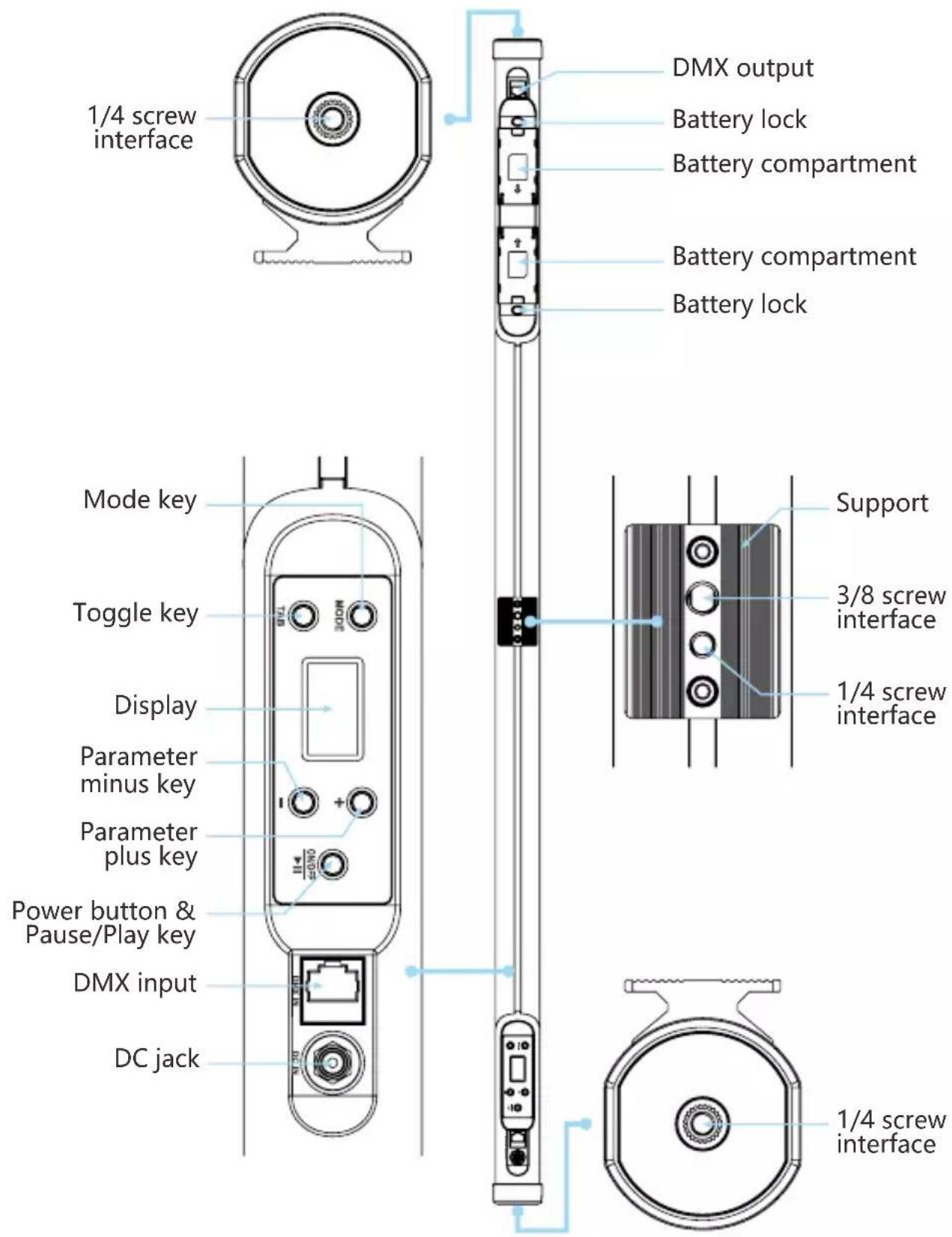
INSTALLATION METHOD
1 There are two power supply modes to choose from:
①Connect the power cord and adapter to supply power.
② Use battery power.
(Battery must be inserted in both battery slots to supply power)
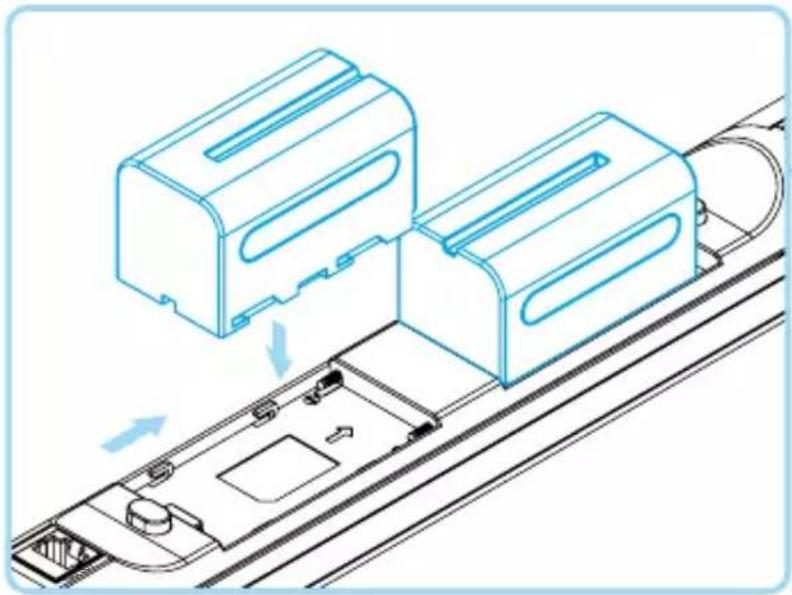
natural_image
Technical line drawing of two electronic components connected to a rail track, with directional arrows indicating movement (no text or symbols present)Battery mounting slot
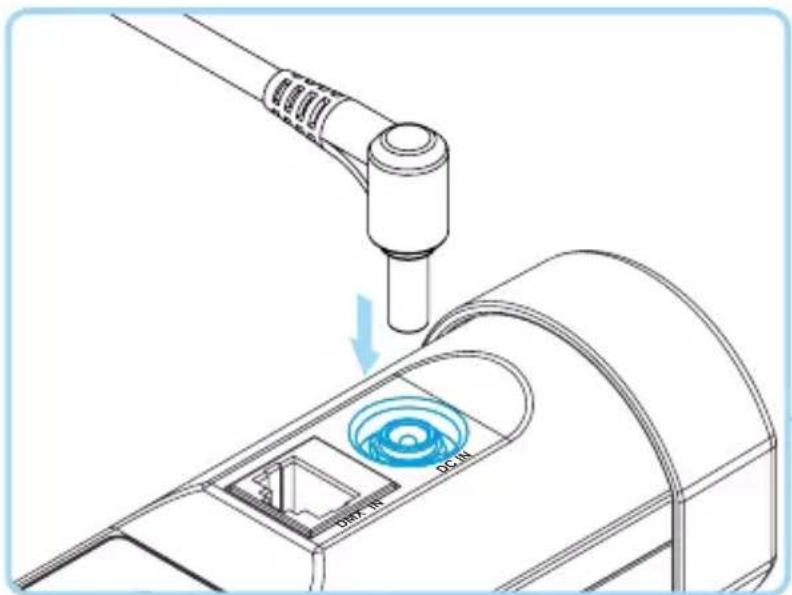
Adapter interface

natural_image
Technical line drawing of a vertical cylindrical device with control panel and buttons (no text or symbols)PRODUCT CONTROL KEY DESCRIPTION
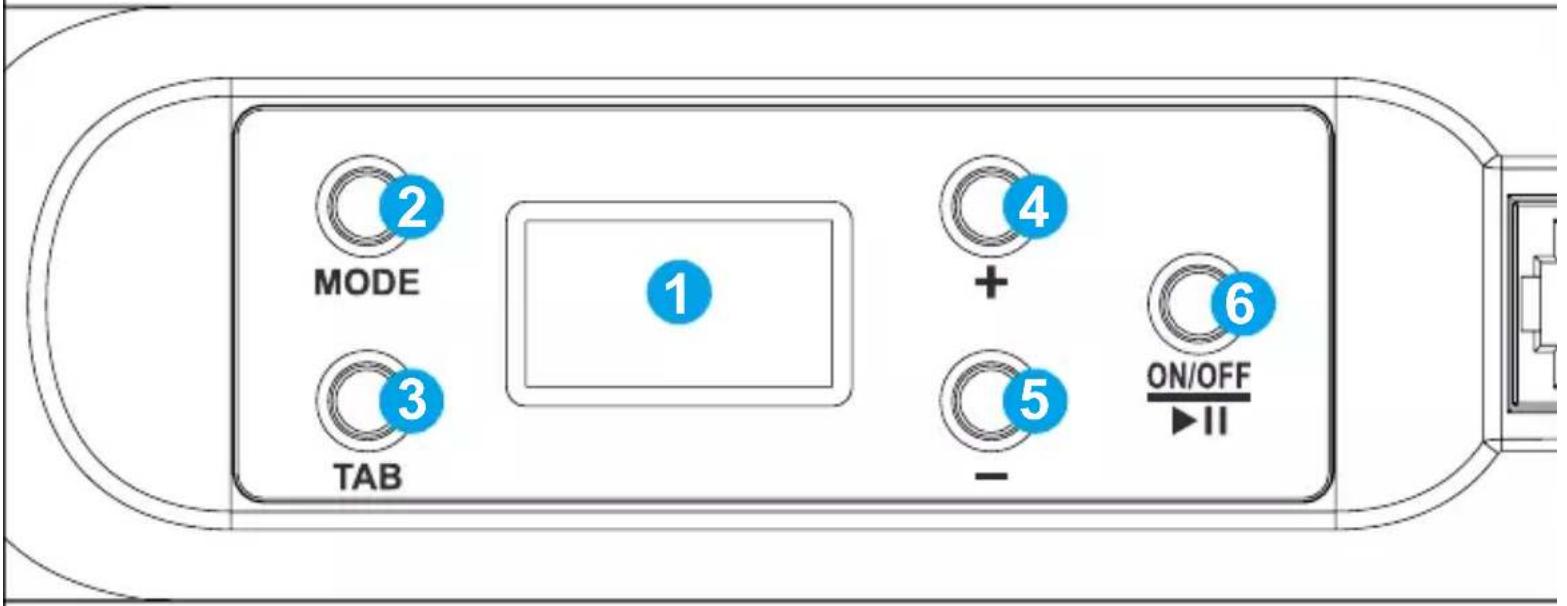
1 Display: Displays the current menu and lighting parameters.
2 Mode switch key: Press this key to switch modes.
3 Parameter switch key: Press this key to switch parameters.
4 Parameter + key: Press this key to increase the parameter value upwards.
5 Parameter - key: Press this key to decrease the parameter value downwards.
6 Composite key: long press and hold for 2 seconds to turn on and off; short press the “start/pause” to turn on in scene light effect mode and pixel light effects mode.
FUNCTION INTRODUCTION & INSTRUCTION
① Set up:
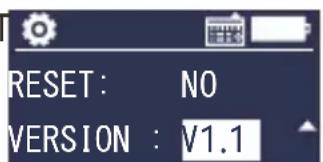
Press [MODE key] to switch to [ ⚙ ] menu
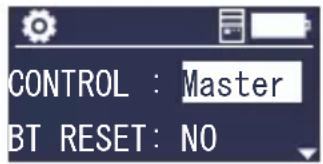
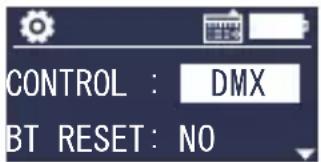
CONTROL: There are two control modes, Master/DMX.
- Master: This is the Master control mode, the screen displays the icon, and the light effect is controlled by the APP or the buttons on the light.
- DMX: This is the DMX control mode, the screen displays the icon 📄, and the light effect is adjusted by connecting to the DMX console. This mode is not controllable by the APP.
Press [TAB key] to switch to [CONTROL] → press [+/-key] to select control mode [Master/DMX]
BT RESET: Press [TAB key] to switch to [BT RESET] → press [+/- key], Select [Yes/No] for Bluetooth reset operation
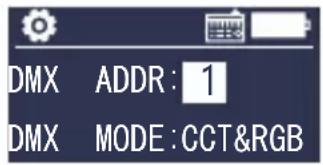
DMX ADDR: DMX channel setting, range 1-512.
Press [TAB key] to switch to [DMX channel] → press [+/- key] to select the channel.
DMX MODE: BD25R/BD45R provides a variety of DMX modes, please download the DMX channel table on the official website www.gvmled.com to view the detailed configuration information.
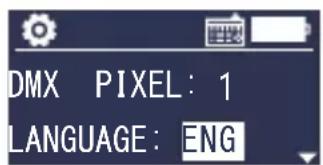
DMX PIXEL: The lighting effect of single or multiple pixels can be controlled through DMX.
LANGUAGE: Support [Chinese/English].
Press [TAB key] to switch to [ ] → press [+/- LANGUAGE key] to select language
RESET: Press [TAB key] to switch to [] → press RESET [+/- key] to select [Yes/No] for system reset operation
VERSION: Version number, showing the current software version.
② CCT mode:
In the [Master] control mode, press the [MODE key] to switch to the [CCT] mode, which can adjust the INT, CCT and green/magenta offset of the light.
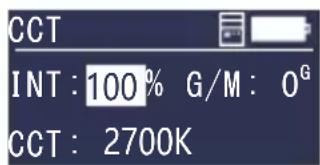
INT: Press [TAB key] to switch to [INT] → press [+/- key] to adjust intensity of light
CCT: Press [TAB key] to switch to [CCT] → press [+/- key] to adjust color temperature
G/M: Press [TAB key] to switch to [G/M] press [+/- key] to adjust the green/magenta offset
③ HSI mode:
In the [Master] control mode, press the [MODE key] to switch to the [HSI] mode, and the INT, HUE and SAT of the light can be adjusted.
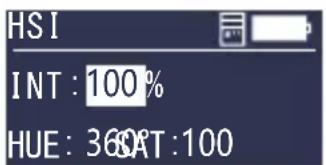
INT: Press [TAB key] to switch to [INT] → press [+/- key] to adjust intensity of light.
HUE: Press [TAB key] to switch to [] → press [+/- key] to adjust hue.HUE
SAT: Press [TAB key] to switch to [SAT] → press [+/- key] to adjust saturation.
④ RGB mode:
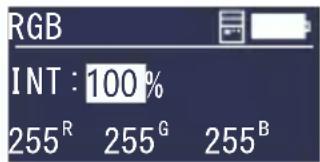
In the [Master] control mode, press the [MODE key] to switch to the [RGB] mode, which can adjust the intensity of light of the light and the three primary colors (red/green/blue).
INT: Press [TAB key] to switch to [INT] → press [+/- key] to adjust intensity of light.
R: Press [TAB key] to switch to [R] → press [+/- key] to adjust the red parameter of light.
G: Press [TAB key] to switch to [G] → press [+/- key] to adjust the green parameter of light.
B: Press [TAB key] to switch to [B] → press [+/- key] to adjust the blue parameter of light.
⑤ EFFECT mode:
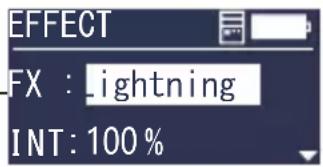
In the [Master] control mode, press the [MODE key] to switch to the [Effect] mode, you can select the scene light effects and adjust the parameters of the current light effects, and press the [▶II] key to [Start/Stop] the scene light effect.
FX: Press [TAB key] to switch to [FX] → press [+/- key] to switch scene light effect.
There are 12 kinds of scene light effects: lightning, CCT Loop, Candle, Bad Bilb, TV, Paparazzi, Explosion, Pulsing, Disco, Cop Car, Party, HUE Loop.
INT: Press [TAB key] to switch to [INT] → press [+/- key] to adjust intensity of light.
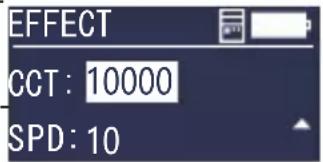
CCT: Press [TAB key] to switch to [CCT] → press [+/-key] to adjust color temperature.
SAT: Press [TAB key] to switch to [SAT] → press [+/-key] to adjust saturation.
SPD: Press [TAB key] to switch to [SPD] → press [+/-key] to adjust the speed.
⑥ PIXEL FX mode:
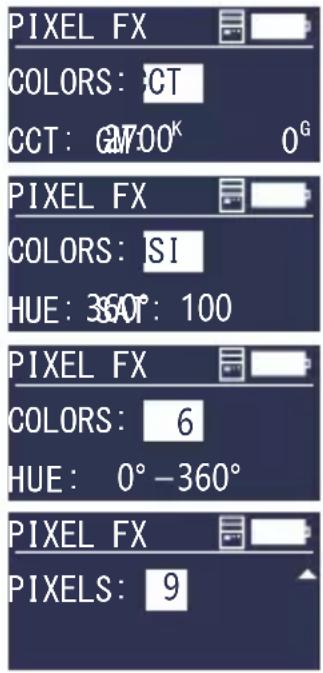
In the [Master] control mode, press the [MODE key] to switch the lighting mode to [Pixel FX], the following parameters can be adjusted, and press the [] key to pause/play the pixel light effect.
FX: Press [TAB key] to switch to [FX] → press [+/- key] to switch scene light effects 6 pixel light effects can be simulated: Rolling, Rainbow, Block game, Ping Pong, Wave, Meteor
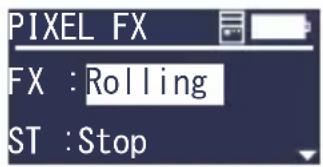
ST: Pixel light effect status, there are two statuses [Stop] and [Run]. Press [TAB key] to switch to [ST] → press [+/- key] to switch state.
INT: Press [TAB key] to switch to [INT] → press [+/- key] to adjust intensity of light.
SPD: The running speed, the running speed of the pixel light effect, the range is 1\~10. Press [TAB key] to switch to [SPD] → press [+/- key] to adjust the speed.
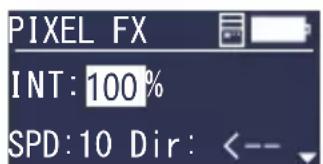
Dir: Running direction, the running direction of the pixel light effect, left or right. Press [TAB key] to switch to [Dir] → press [+/- key] to switch the running direction.
COLORS: The number of colors, this parameter is only valid in [Rolling] mode, the value is CCT, HSI, 2\~X(BD25R:X=15;BD45R:X=33).
Press [TAB key] to switch to [ ] → press [+/- key] COLORS to switch parameters.
- When [Colors=CCT], the color temperature rolling. Adjustable color temperature, G/M, motion lattice.
- When [Colors=HSI], the hue flows. Adjustable hue, saturation, motion lattice.
- When Colors=2\~X, multi-color rolling.
PIXELS: Adjust the number of motion lattices of the light: 1\~X.
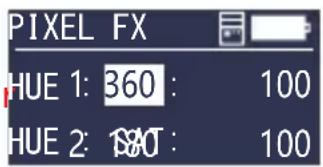
Hue 1: The foreground hue, followed by the SAT of the hue
Hue 2: The background hue, followed by the SAT of the hue
Note: If the values of Hue 1 and Hue 2 are equal on their SAT is 0, then the effect of the pixel FX cannot be displayed.
APP CONTROL
APP download method
(Scan the QR code on the back of the manual to download the APP)
Android version: official website QR code, Google Play, Huawei Store, etc.
iOS version: App Store
Register an account
Register and log in with your email; (Figure 1)
There may be a delay in sending the verification code, and the delivery speed depends on your order e-mail server used;
Some email servers may recognize our verification email for advertising purposes, please check your blocked email inbox.
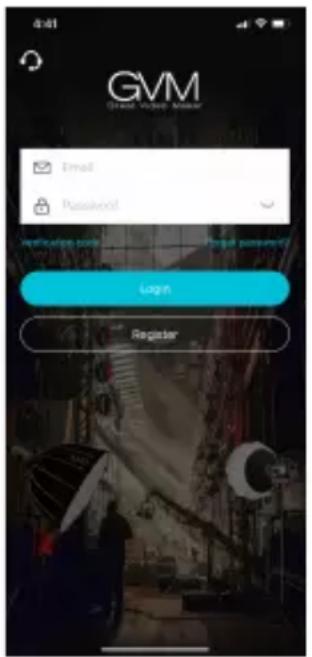
Figure 1
Add device
①Before adding a device, please make sure that you have enabled turn on the Bluetooth and network data functions of the mobile phone, and reset the Bluetooth of the lighting device;
②On the "My Devices" page, click "Add Device" button, look for nearby Bluetooth lighting devices that are turned on, and select the one that needs to be connected. The device is connected to the network. (figure 2)
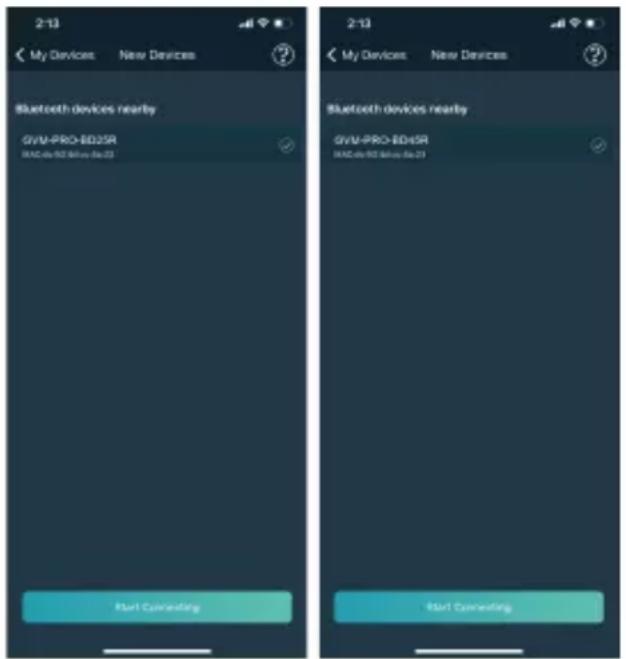
GVM-PRO-BD25R GVM-PRO-BD45R
Figure 2
* Android system requires location permission to be turned on to connect devices using Mesh technology, We do not collect any of your location information during this process.
Device management
①After successfully adding your lighting equipment, your equipment will be displayed in "My Equipment" list; (Figure 3)
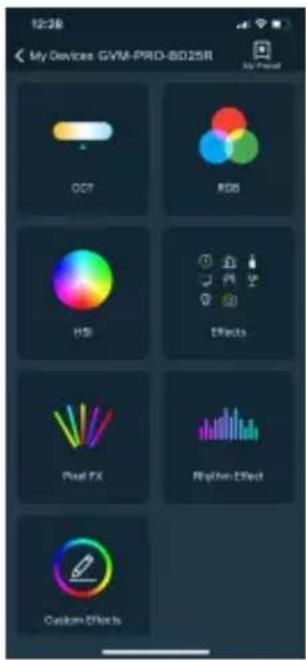
②Click the device bar to enter the device control. (Figure 4)
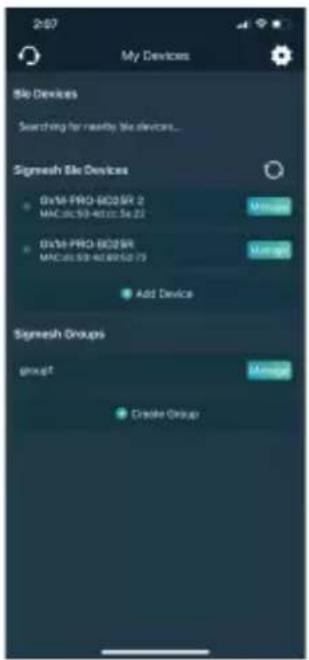
Figure 3
① Please use the matching power adapter to supply power to the product, do not use non-original power adapters with different output power power adapter with voltage parameters to supply power to the product;
② The product is not waterproof, please use it in a rain-proof environment;
③ The product is not anti-corrosion, do not let the product come into contact with any corrosive liquid;
④ When the product is in use, it is necessary to ensure that the product is placed firmly to prevent the product from falling and being damaged;
⑤ When the product is not used for a long time, please turn off the power of the product to save energy consumption;
SIMPLE FAULTS AND TROUBLESHOOTING METHODS
| Fault phenomenon | Check the product Troubleshoot | |
| Turn on light is off | 1 Whether the conne cti on between the lamp and the power supply is normal. | Make sure the adapter plug is making good contact |
| 2When using lithium battery for power supply, make sure that the battery does not have "low power" protection | Using the product after charging the battery | |
| After the APP enters the Add Device, the device Bluetooth cannot be searched | Check whether the device is turned on normally and whether it has been bound by others. | Normal steps:1The mobile phone has the Bluetooth and network data functions enabled, and the Android system needs to enable the location permission;2Reset the device Bluetooth. |
| APP failed to connect to the device network | Check whether the device is turned on normally and whether it has been bound by others; check whether the Bluetooth and network conditions of the mobile phone are in good condition. | Retry the connection after resetting the device Bluetooth and restarting the APP. |
| The device cannot be searched after being removed from the APP | Whether to remove the device when the device is offline or in poor network conditions. | After resetting the device's Bluetooth, search again to add the device. |
| The device click in the APP cannot enter the control | Check whether the device is online (a small green dot is displayed); if it is offline, you can check it according to the steps of network connection failure. | Restart the device, wait for 5 seconds, it can be controlled when it is displayed as online; reset the device's Bluetooth, and add the device to the device list again. |
PACKING LIST
| Name | Quantity | Notes | ||||
| Light Suit | ||||||
| Photography light | 1 | |||||
| Power cable | 1 | |||||
| Power adapter | 1 | |||||
| Battery | 2 | |||||
| Battery charger | 2 | |||||
| 1/4 eye screw | 1 | |||||
| Carrying bag | 1 | |||||
| Manual | 1 | |||||
GVM
GREAT VIDEO MAKER

website

FacebookGVM Official Download APP

- GVM
- CONTENT
- PRODUCT DESCRIPTION
- DISCLAIMER
- USE AND SAVE
- PRODUCT PARAMETER GVM-PRO-BD25R
- PRODUCT PARAMETER GVM-PRO-BD45R
- INSTALLATION METHOD
- PRODUCT CONTROL KEY DESCRIPTION
- FUNCTION INTRODUCTION & INSTRUCTION
- ① Set up:
- ② CCT mode:
- ③ HSI mode:
- ④ RGB mode:
- ⑤ EFFECT mode:
- ⑥ PIXEL FX mode:
- APP CONTROL
- APP download method
- Register an account
- Add device
- Device management
- SIMPLE FAULTS AND TROUBLESHOOTING METHODS
- GREAT VIDEO MAKER
Brand : GVM
Model : PRO-BD45R
Category : Lighting