
VLHDMICTL2 - HDMI switch Vivolink - Free user manual and instructions
Find the device manual for free VLHDMICTL2 Vivolink in PDF.


| Product Type | 18G HDMI Manager with EDID & HDCP Management |
| Model Number | VLHDMICTL2 |
| Brand | Vivolink |
| Video Input | 1x HDMI 2.0 (Female type-A) |
| Video Output | 1x HDMI 2.0 (Female type-A) |
| Maximum Supported Resolution | 4K@60Hz 4:4:4 |
| Bandwidth | 18 Gbps |
| HDCP Support | HDCP 2.2 |
| EDID Management | Predefined and user-defined EDID via DIP switch |
| HDCP Management | Switchable via DIP switch; can force non-HDCP output |
| CEC Block Switch | Yes, on/off |
| Auto-downscaling | Supported |
| Power Supply | 5V 1A (powered via HDMI or USB-C) |
| Power Consumption | 2.4W max |
| Dimensions (W x H x D) | 54 x 18 x 60 mm |
| Net Weight | 85 g |
| Firmware Upgrade | Via USB-C port using .APP file |
| Package Contents | VLHDMICTL2 unit, User Manual |
| Maintenance | Wipe with a dry cloth; do not use liquids |
| Safety Precautions | Avoid moisture; use only specified power adapter |
| Repairability | No user-serviceable parts; contact Vivolink for service |
Frequently Asked Questions - VLHDMICTL2 Vivolink
User questions about VLHDMICTL2 Vivolink
0 question about this device. Answer the ones you know or ask your own.
Ask a new question about this device
Download the instructions for your HDMI switch in PDF format for free! Find your manual VLHDMICTL2 - Vivolink and take your electronic device back in hand. On this page are published all the documents necessary for the use of your device. VLHDMICTL2 by Vivolink.
USER MANUAL VLHDMICTL2 Vivolink
18G HDMI Manager with EDID & HDCP Manage
All Rights Reserved
Version: VLHDMICTL2_2023V1.0
1. Product Introduction
The VLHDMICTL2 is a 18G HDMI manager with EDID&HDCP manage. It supports up to 4K@604:4:4 and HDCP2.2. The product is power by HDMI or USB-C, and it contains CEC block switch and support auto-downscaling.
2. Feature
● 18G HDMI 2.0 4K@60 444 HDCP2.2;
● Supports EDID & HDCP manage;
● Power by HDMI or USB-C;
- CEC block switch.
3. Package
- VLHDMICTL2
1x User Manual
4. Specification
| Video Input | |
| Input | (1) HDMI 2.0 |
| Input Connector | (1) Female type-A |
| HDMI Input Resolution | Up to 4K@60 4:4:4 |
| Video Output | |
| Output | (1) HDMI 2.0 |
| Output Connector | (1) Female type-A |
| HDMI Output Resolution | Up to 4K@60 4:4:4 |
| General | |
| Bandwidth | 18Gbps |
| Power Supply | 5V 1A |
| Power Consumption | 2.4W(MAX) |
| Dimension (W*H*D) | 54x18x60mm |
| Net Weight | 85g |
5. Panel Description

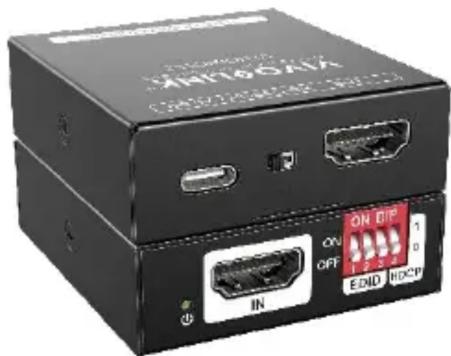
- Power LED: The LED indicates green when power on.
- HDMI IN: HDMI2.0 input, connect to source.
- DIP Switch: 4-pin dip switch for EDID and HDCP management.
- USB-C: USB-C is used to power the machine, upload EDID and firmware upgrade.
- CEC Switch: Turn on/off the CEC
- HDMI OUT: HDMI 2.0 output, connect to display.
6. System Connection

flowchart
graph TD
    A["Control: VIVIQIANK"] -->|EDID Update| B["HDPI"]
    B --> C["ODI"]
    C --> D["HDMI"]
    D --> E["ODI"]
    E --> F["HDMI"]
    F --> G["EDID Management HDCP Management"]
    G --> H["Camera"]
    G --> I["Laptop"]
    G --> J["DVD"]
    G --> K["Ps4"]
    G --> L["set top box"]
    H --> M["Monitor"]
    I --> N["Display"]
    J --> O["TV"]
7. EDID&HDCP management Predefined EDID Setting
| Switch Status | Video Resolution | Audio Format |
| 000 | obtain the Display EDID | |
| 001 | 1080p | LPCM |
| 010 | 1080p | DTS/Dolby |
| 011 | 3840x2160@30Hz HDR | LPCM |
| 100 | 3840x2160@30Hz HDR | DTS/Dolby |
| 101 | 3840x2160@60Hz HDR | LPCM |
| 110 | 3840x2160@60Hz HDR | DTS/Dolby |
| 111 | user defined EDID | |
User Defined EDID Setting
1) Rename the user defined EDID according to the following format:
0803C000.DAT
2) Connect the machine to the PC with USB cable, the PC will automatically detect a U-disk named of "BOOTDISK".
3) Copy the EDID file into the U-disk, and then open the U-disk. If there is a SUCCESS. TXT file, it means that the EDID upload is successful.
4) Remove the USB cable, connect the adapter to power on the machine.
HDCP management
| Switch Status | HDCP Function |
| 1 | Show a identify code to Source that no HDCP is supported by the device,then the source will assume that no HDCP is supported by the device and will send the content without HDCP encryption if the signal format allows it. |
| 0 | Switch off HDCP management |
8. Firmware Upgrade
1) Rename the upgrade file according the following format:
08009000.APP
2) Disconnect the HDMI and connect the VLHDMICTL2 to the PC with USB cable, the PC will detect a U-disk named of "BOOTDISK".
3) Copy the file into the U-disk, and then open the U-disk. If there is a SUCCESS.TXT file, it means upgrade is successful, and if there is an UNKNOW.TXT file, it means fail.


Brand : Vivolink
Model : VLHDMICTL2
Category : HDMI switch