
TL-PA717 - Powerline Adapter TP-LINK - Free user manual and instructions
Find the device manual for free TL-PA717 TP-LINK in PDF.


| Product Type | AV1000 Gigabit Powerline Adapter |
| Brand | TP-Link |
| Model | TL-PA717 |
| Interface | 1 x Gigabit Ethernet Port |
| Data Rate | Up to 1000 Mbps (HomePlug AV2) |
| Frequency Band | 2-86 MHz (HomePlug AV2) |
| Encryption | 128-bit AES |
| Range | Up to 300 m over household electrical wiring |
| Power Consumption | Typical <2.5 W; Power-Saving <0.5 W |
| Power Supply | Built-in AC plug, 100-240 V, 50/60 Hz |
| LED Indicators | Power, Powerline, Ethernet |
| Buttons | Pair/Reset (press 1s to pair, 6s to reset) |
| Dimensions (Approx.) | 100 x 60 x 35 mm |
| Weight (Approx.) | 150 g |
| Operating Temperature | 0°C to 40°C |
| Storage Temperature | -40°C to 60°C |
| Operating Humidity | 10% to 90% non-condensing |
| Storage Humidity | 5% to 90% non-condensing |
| Standards | HomePlug AV2, HomePlug AV, IEEE 1901 |
| Security | Pairing button for private powerline network |
| Management | tpPLC Utility (Windows) |
| Compliance | FCC, CE, RoHS |
| Package Contents | 1 x TL-PA717, 1 x Ethernet cable, 1 x Quick Installation Guide |
| Warranty | 2 years (typical from TP-Link) |
Frequently Asked Questions - TL-PA717 TP-LINK
User questions about TL-PA717 TP-LINK
0 question about this device. Answer the ones you know or ask your own.
Ask a new question about this device
Download the instructions for your Powerline Adapter in PDF format for free! Find your manual TL-PA717 - TP-LINK and take your electronic device back in hand. On this page are published all the documents necessary for the use of your device. TL-PA717 by TP-LINK.
USER MANUAL TL-PA717 TP-LINK
Chapter 1. Get to Know Your Powerline Adapter .....2
-
- Product Overview....3
1.2. Product Appearance.... 3
- Product Overview....3
Chapter 2. Use Your Powerline Adapter....5
2.1. Before You Start 6
2.2. Extend Your Wired Network by Plug & Play 7
2.3. Secure Your Powerline Network by Pairing....8
2.4. Add Another Powerline Adapter....9
2.5. Manage Your Powerline Network via tpPLC Utility....10
FAQ (Frequently Asked Questions) 11
About This Guide
This guide is a complement to Quick Installation Guide. The Quick Installation Guide provides instructions for quick internet setup, while this guide contains details of each function and demonstrates how to configure them in typical scenarios.
When using this guide, please notice that features of the powerline adapter may vary slightly depending on the model and software version you have. The powerline adapter availability may also vary by region or ISP. All images, steps, and descriptions in this guide are only examples and may not reflect your actual powerline adapter experience.
*Compatible with all HomePlug AV and AV2 Standard Powerline adapters. This product may not be compatible with routers or gateways with firmware that has been altered, is based on open source programs, or are non-standard or outdated.
*Maximum wireless signal rates are the physical rates derived from IEEE Standard 802.11 specifications. Actual wireless data throughput and wireless coverage are not guaranteed and will vary as a result of network conditions, client limitations, and environmental factors, including building materials, obstacles, volume and density of traffic, and client location.
*Maximum Powerline signal rates are the physical rates derived from HomeplugAV/AV2 specifications. Actual Powerline data throughput and Powerline range are not guaranteed and will vary as a result of network conditions and environmental factors, including electrical interference, volume of traffic and network overhead, AFCI circuit breaker, and Powerline being located in a separate circuit.
Conventions
In this guide, the following conventions are used:
| Convention | Description |
| Teal Underlined | Hyperlinks are in teal and underlined. You can click to redirect to a website or a specific section. |
| Teal | Key information appears in teal, including management page text such as menus, items, buttons and so on. |
| ■ Note: | Ignoring this type of note might result in a malfunction or damage to the device. |
| ◦ Tips: | Indicates important information that helps you make better use of your device. |
More Info
- The latest software, management app and utility are available from the Download Center at https://www.tp-link.com/support/.
- The Quick Installation Guide (QIG) can be found where you find this guide or inside the product package.
- Specifications can be found on the product page at https://www.tp-link.com.
- A community is provided for you to discuss our products at https://community.tp-link.com/.
- Our Technical Support contact information can be found at the Contact Technical Support page at https://www.tp-link.com/support/.
Chapter 1
Get to Know Your Powerline Adapter
This chapter introduces what the powerline adapter can do and describes its appearance.
It contains the following sections:
- Product Overview
• Product Appearance
1. 1. Product Overview
TP-Link powerline adapter aims to extend your existing home network, with the help of your home's electrical circuit.
1.2. Product Appearance
Your powerline adapter may differ in appearance slightly from that depicted because of the region and product version.
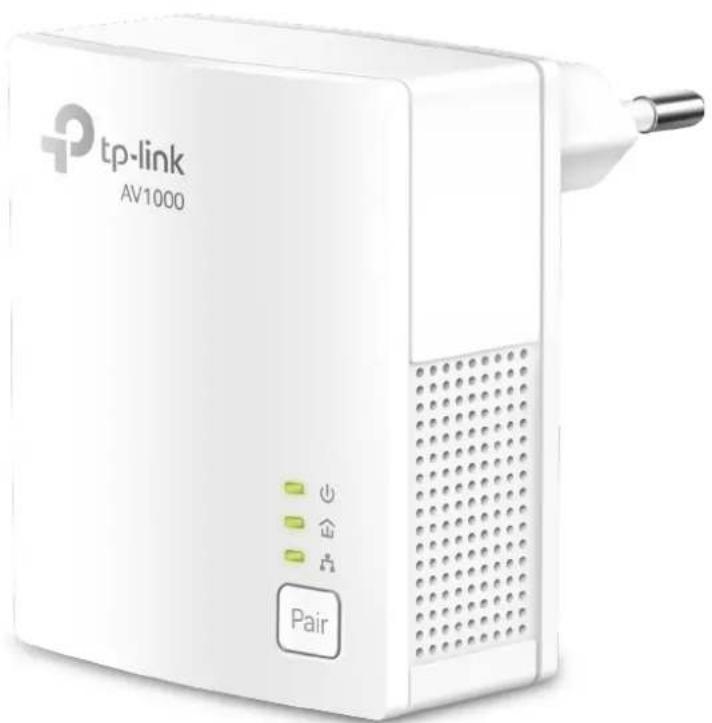
1. 2. 1. LED Indicators
natural_image
White TP-link AV1000 wireless device with three indicator lights and a 'Pair' button (no readable text beyond branding)LEDs indicate the powerline adapter's working status. For more details, please refer to the following table.
| Name Status Indication | ||
| On/Off The powerline adapter is on or off. | ||
| Power | Blinking | Quickly: Pairing is in process.Slowly: Power-Saving Mode* is on. |
| Powerline | On | The powerline adapter is successfully connected to a powerline network. |
| Off | The powerline adapter is not connected to any powerline network. | |
| Ethernet | On The Ethernet port is connected. | |
| Off The Ethernet port is not connected. | ||
* Five minutes after the device connected to the powerline adapter is turned off or inactive, the powerline adapter will automatically switch to Power-Saving Mode.
1. 2. 2. Physical Interface
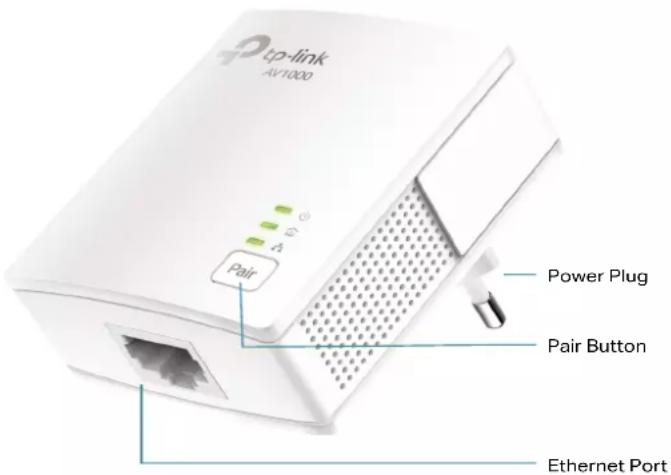
Note: European version is used for demonstration in this guide
Power Plug
The powerline adapter has a Plug that can be connected to any power socket.
Pair Button
Press and hold the button for 1 second to join a powerline network. Go to Secure Your Powerline Network by Pairing for more information.
Press and hold the button for more than 6 seconds to reset the powerline adapter to factory defaults.
Ethernet Port
Connect the Ethernet port to your wired devices, such as a computer, a router or a game console, via an Ethernet cable.
Chapter 2
Use Your Powerline Adapter
This chapter guides you on how to use the powerline adapter.
It contains the following sections:
- Before You Start
- Extend Your Wired Network by Plug & Play
- Secure Your Powerline Network by Pairing
- Add Another Powerline Adapter
- Manage Your Powerline Network via tpPLC Utility
2.1. Before You Start
Powerline adapters work in pairs. You should have at least two powerline products to build a powerline network. To optimize your network performance, please follow these principles:
- All powerline adapters should be on the same electrical wiring system.
- Avoid plugging in powerline adapters and high-powered household devices (such as washing machines and refrigerators) close to one another.
- Plug the powerline adapter directly into a wall outlet. Do not plug the powerline adapter into a power strip, extension cord, or surge protector.
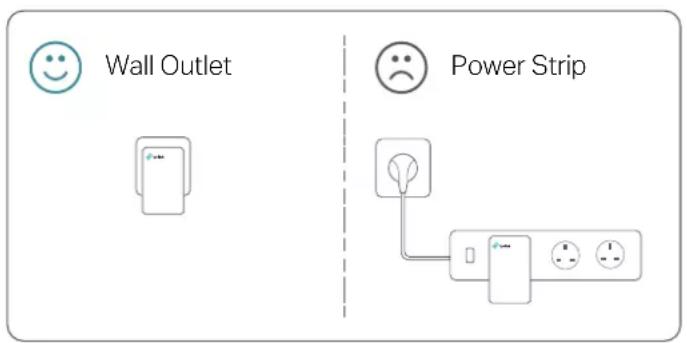
- Environment:
Operating Temperature: 0 °C \~ 40 °C
Storage Temperature: -40°C\~60°C
Operating Humidity: 10%\~90%RH, Non-condensing
Storage Humidity: 5%\~90%RH, Non-condensing
2.2. Extend Your Wired Network by Plug & Play
I want to:
Use two powerline adapters to set up a new powerline network in my house.
For example, I have a router in my house, but there are not enough LAN ports for all my wired devices. I don't want complex and expensive cabling. People told me that I can solve this problem with two powerline adapters.
How can I do that?
-
Connect one of the powerline adapters to an available LAN port of the router using an Ethernet cable.
-
Plug the powerline adapter into a wall outlet.
-
Plug the other powerline adapter into a wall outlet on the same electrical circuit. Wait until the powerline LED ⇌ turns on.
Note: If the Powerline LED is off, refer to What should I do if the Powerline LED is off? for detailed information.
- Connect your wired device, such as a computer or game console, to the powerline adapter via an Ethernet cable.
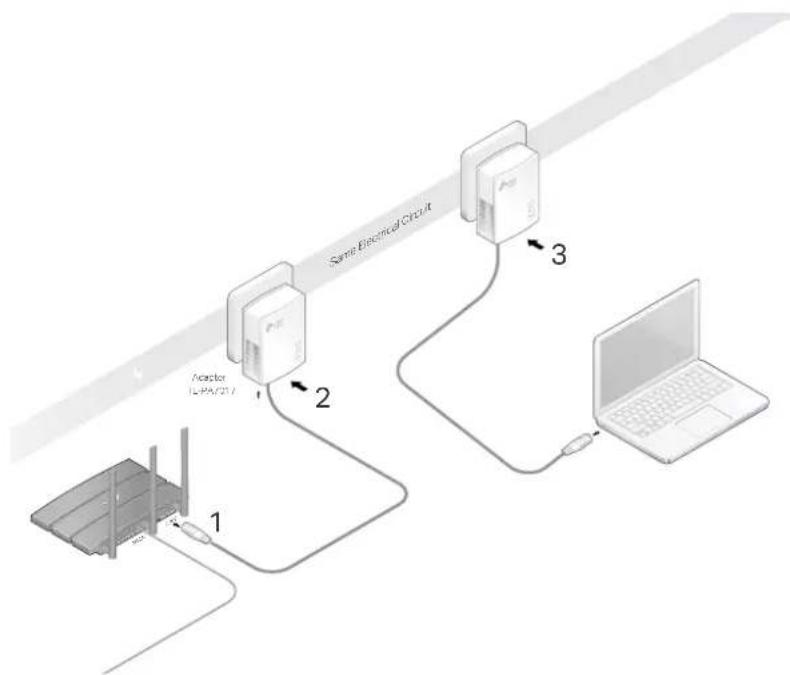
flowchart
graph TD
    A["Device"] -->|1| B["Switch"]
    B -->|2| C["Sensor 1"]
    C -->|3| D["Laptop"]
    style A fill:#f9f,stroke:#333
    style B fill:#ccf,stroke:#333
    style C fill:#cfc,stroke:#333
    style D fill:#fcc,stroke:#333
Done! Now enjoy the internet!
2.3. Secure Your Powerline Network by Pairing
All powerline adapters share some common factory settings, and can communicate with one another. If you want your powerline adapters to communicate only with your own powerline adapters, you should pair them. Thus a secured powerline network is formed and other powerline adapters can no longer join your powerline network without being paired.
Note: You can only pair two devices at a time.
I want to:
Secure my powerline network and prevent other powerline devices from being added to my network.
For example, I've extended my network using the Plug & Play method. Now I want to secure my network.
How can I do that?
- Verify all powerline devices' Power LEDs are solid on.
Tips: We recommend that you plug in your powerline devices near each other, or as close to each other as possible when pairing. Your settings will not be affected. The devices can be relocated to where they are needed once pairing is complete. - Press the Pair button on one of the powerline devices for 1 second. Its Power LED ⏻ starts blinking.
- Within two minutes, press the Pair button on another powerline adapter for 1 second. Its Power LED ⏻ starts blinking. When the Powerline LED ⏻ turns on, the pairing process is complete.
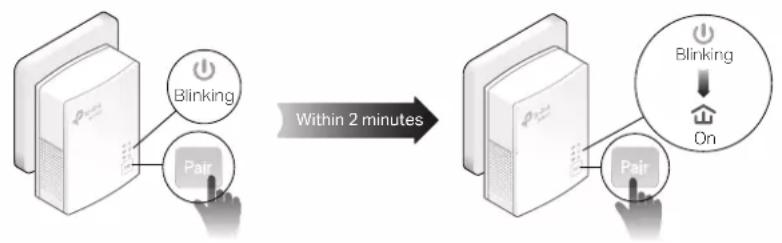
flowchart
graph LR
    A["Server"] -->|Blinking| B["Pair"]
    B --> C["Within 2 minutes"]
    C --> D["Server"]
    D -->|Blinking| E["On"]
    D --> F["Pair"]
Done! Enjoy your secure powerline network!
2.4. Add Another Powerline Adapter
I want to:
Add a new powerline adapter into the existing powerline network to extend my network. For example, I've already set up a powerline network using powerline devices, but the network does not reach everywhere I need it to. I purchased another one to further extend my network.
How can I do that?
- Plug the new powerline adapter into a wall outlet near one of the existing powerline devices.
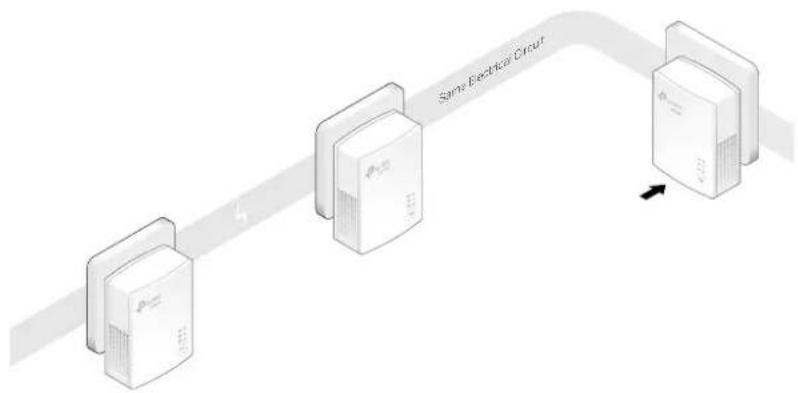
flowchart
graph LR
    A["Server 1"] -->|Same Electrical Circuit| B["Server 2"]
    B --> C["Server 3"]
- Wait for a minute, and check whether the Powerline LED turns on. If it's on, skip to step 3. If it's not, continue with step 2 to pair the new powerline adapter into the secured powerline network.
a. Press the Pair button on one of the existing powerline devices for 1 second. Its Power LED ⏻ starts blinking.
b. Within two minutes, press the Pair button on the new powerline adapter for 1 second. Its Power LED ⏻ starts blinking. When the Powerline LED ⏻ turns on, the pairing process is complete.
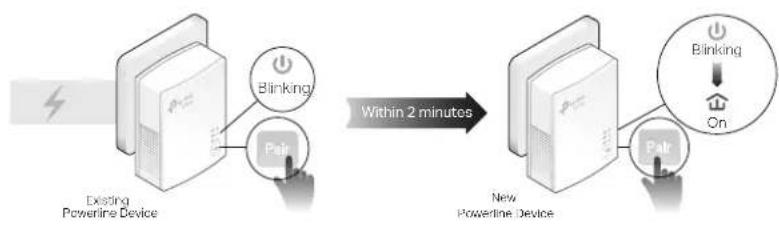
flowchart
graph LR
    A["Existing Powerline Device"] --> B["Blinking"]
    B --> C["Pair"]
    C --> D["New Powerline Device"]
    D --> E["Blinking"]
    E --> F["On"]
    style A fill:#f9f,stroke:#333
    style D fill:#ccf,stroke:#333
    style E fill:#cfc,stroke:#333
- Relocate the new powerline adapter to the place where wired internet access is needed.
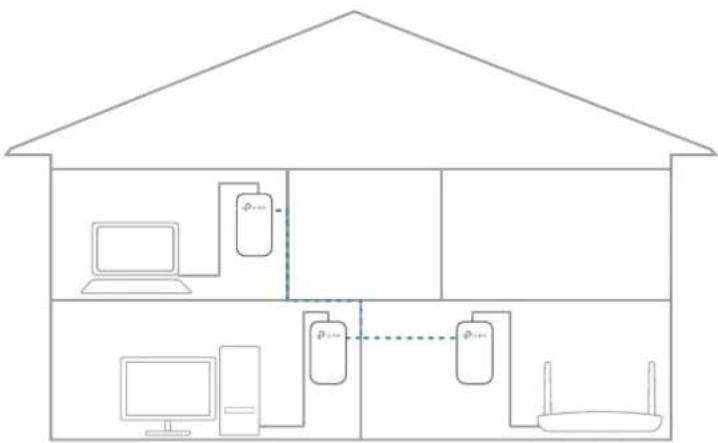
flowchart
graph TD
    A["Computer"] --> B["Rear"]
    C["Router"] --> D["Rear"]
    E["Computer"] --> F["Switch"]
    G["Switch"] --> H["Switch"]
    I["Switch"] --> J["Switch"]
    K["Switch"] --> L["Switch"]
    M["Switch"] --> N["Switch"]
    O["Switch"] --> P["Switch"]
    Q["Switch"] --> R["Switch"]
    S["Switch"] --> T["Switch"]
    U["Switch"] --> V["Switch"]
    W["Switch"] --> X["Switch"]
    Y["Switch"] --> Z["Switch"]
    AA["Switch"] --> AB["Switch"]
    AC["Switch"] --> AD["Switch"]
    AE["Switch"] --> AF["Switch"]
    AG["Switch"] --> AH["Switch"]
Done! Enjoy the internet through your extended network!
2.5. Manage Your Powerline Network via tpPLC Utility
The tpPLC utility enables you to view and manage your TP-Link powerline network. Its bold and intuitive interface helps you easily configure each powerline device.
You can find the utility and its user guide on the product support page at https://www.tp-link.com.
FAQ (Frequently Asked Questions)
Q1. How do I reset my powerline adapter?
With the powerline adapter plugged into the wall socket, press and hold its Pair button for more than 6 seconds until the Power LED ⏻ goes off momentarily and comes back on.
Q2. What should I do if the Powerline LED is off?
- Try another wall socket and make sure all powerline devices are on the same electrical circuit.
- Try to set up a powerline network by pairing. Refer to the section above Secure Your Powerline Network by Pairing for instructions.
- If the problem persists, contact our Technical Support.
Q3. How to troubleshoot if there is no internet connection via my powerline network?
- Make sure all powerline devices are on the same electrical circuit.
- Make sure the Powerline LEDs are lit on all of your powerline devices. If they are not, pair all powerline devices according to Secure Your Powerline Network by Pairing.
- Make sure all devices are correctly and securely connected.
- Verify that you have an internet connection by connecting your computer directly to the modem or the router.
Q4. What can I do if a successfully-paired powerline device does not reconnect after it has been moved to a new location?
- Try another socket on the same electrical circuit.
- Try to pair it again, and make sure the Powerline LED ^凸 is on.
- Check for possible interference due to washing machines, air conditioners or other household appliances. Some powerline devices have an integrated electrical socket. You can plug appliances into this socket to remove the electrical noise originating from them, using a power strip if necessary.
FCC compliance information statement

Product Name: AV1000 Gigabit Powerline Adapter
Model Number: TL-PA7017
Responsible party:
TP-Link USA Corporation
Address: Address: 10 Mauchly, Irvine, CA 92618
Website: http://www.tp-link.com/us/
Tel: +1 626 333 0234
This equipment has been tested and found to comply with the limits for a Class B digital device, pursuant to part 15 of the FCC Rules. These limits are designed to provide reasonable protection against harmful interference in a residential installation. This equipment generates, uses and can radiate radio frequency energy and, if not installed and used in accordance with the instructions, may cause harmful interference to radio communications. However, there is no guarantee that interference will not occur in a particular installation. If this equipment does cause harmful interference to radio or television reception, which can be determined by turning the equipment off and on, the user is encouraged to try to correct the interference by one or more of the following measures:
- Reorient or relocate the receiving antenna.
- Increase the separation between the equipment and receiver.
- Connect the equipment into an outlet on a circuit different from that to which the receiver is connected.
- Consult the dealer or an experienced radio/ TV technician for help.
This device complies with part 15 of the FCC Rules. Operation is subject to the following two conditions:
- This device may not cause harmful interference.
- This device must accept any interference received, including interference that may cause undesired operation.
Any changes or modifications not expressly approved by the party responsible for compliance could void the user's authority to operate the equipment.
We, TP-Link USA Corporation, has determined that the equipment shown as above has been shown to comply with the applicable technical standards, FCC part 15. There
is no unauthorized change is made in the equipment and the equipment is properly maintained and operated.
Issue Date: 2022.03.30
CE Mark Warning

This is a class B product. In a domestic environment, this product may cause radio interference, in which case the user may be required to take adequate measures.
EU Declaration of Conformity
TP-Link hereby declares that the device is in compliance with the essential requirements and other relevant provisions of directives 2014/30/EU, 2014/35/EU, 2009/125/EC, 2011/65/EU and (EU)2015/863.
The original EU declaration of conformity may be found at https://www.tp-link.com/en/ce

TP-Link hereby declares that the device is in compliance with the essential requirements and other relevant provisions of the Electromagnetic Compatibility Regulations 2016 and Electrical Equipment (Safety) Regulations 2016.
The original UK Declaration of Conformity may be found at https://www.tp-link.com/support/ukca
Canadian Compliance Statement
This device contains licence-exempt transmitter(s)/receiver(s) that comply with Innovation, Science and Economic Development Canada's licence-exempt RSS(s). Operation is subject to the following two conditions:
1) This device may not cause interference
2) This device must accept any interference, including interference that may cause undesired operation of the device.
Industry Canada Statement
CAN ICES-3 (B)/NMB-3(B)
CAN ICES-6/NMB-6
Korea Warning Statements
- Keep the device away from water, fire, humidity or hot environments.
- Do not attempt to disassemble, repair, or modify the device. If you need service, please contact us.
- The socket-outlet shall be installed near the equipment and shall be easily accessible
- For passthrough devices, plug the power strips into the integrated electrical sockets of the devices, but devices of the same or another type not be stacked in normal use.
- Plug the powerline devices directly into the wall outlets but not the power strips.

Please read and follow the above safety information when operating the device.
We cannot guarantee that no accidents or damage will occur due to improper use of the device. Please use this product with care and operate at your own risk.
Operating Temperature: 0°C\~40°C
Explanation of the symbols on the product label
| Symbol Explanation | |
 | Class II equipment |
 | AC voltage |
 | Indoor use only |
 | Protection earth |
 | Functional earth wiring terminals only |
 | RECYCLINGThis product bears the selective sorting symbol for Waste electrical and electronic equipment (WEEE). This means that this product must be handled pursuant to European directive 2012/19/EU in order to be recycled or dismantled to minimize its impact on the environment.User has the choice to give his product to a competent recycling organization or to the retailer when he buys a new electrical or electronic equipment. |
- Chapter 1. Get to Know Your Powerline Adapter .....2
- Chapter 2. Use Your Powerline Adapter....5
- FAQ (Frequently Asked Questions) 11
- About This Guide
- Conventions
- More Info
- Chapter 1
- Get to Know Your Powerline Adapter
- 1. Product Overview
- Product Appearance
- 2. 1. LED Indicators
- 2. 2. Physical Interface
- Power Plug
- Pair Button
- Ethernet Port
- Chapter 2
- Use Your Powerline Adapter
- Before You Start
- Extend Your Wired Network by Plug & Play
- I want to:
- How can I do that?
- Secure Your Powerline Network by Pairing
- Add Another Powerline Adapter
- Manage Your Powerline Network via tpPLC Utility
- FAQ (Frequently Asked Questions)
- Q1. How do I reset my powerline adapter?
- Q2. What should I do if the Powerline LED is off?
- Q3. How to troubleshoot if there is no internet connection via my powerline network?
- Q4. What can I do if a successfully-paired powerline device does not reconnect after it has been moved to a new location?
- FCC compliance information statement
- CE Mark Warning
- EU Declaration of Conformity
- Canadian Compliance Statement
- Industry Canada Statement
- Korea Warning Statements
Brand : TP-LINK
Model : TL-PA717
Category : Powerline Adapter