
PFF-1037B - Digital photo frame DENVER - Free user manual and instructions
Find the device manual for free PFF-1037B DENVER in PDF.


| Product Type | Digital Photo Frame |
| Brand | Denver |
| Model | PFF-1037B |
| Power Input | DC 5V, 2A |
| Power Adapter Model | RSF-DY080-0502000EU |
| Battery Type | Lithium (internal, non-user-replaceable) |
| Connectivity | Wi-Fi (802.11 b/g/n, 2.4 GHz), USB (service only), microSD (max 32 GB) |
| Operating System | Android (underlying), Frameo software |
| Compatible App | Frameo (iOS and Android) |
| Photo Transfer | Via Frameo app over Wi-Fi, or import from microSD/USB |
| Display Features | Touchscreen, swipe navigation, slideshow with timer, fill/fit frame modes |
| Sleep Mode | Programmable (default 23:00-07:00), screen off but still receives photos |
| Storage | Internal (exact capacity not specified), supports microSD expansion |
| Supported Media | Photos, videos (with sound) |
| Backup & Restore | To/from microSD card, automatic backup option |
| Operating Temperature | -10°C to 40°C |
| Safety Certifications | CE, RoHS, WEEE |
| Radio Frequency | 2412-2472 MHz, max output power 17 dBm |
| Manufacturer | Denver A/S, Omega 5A, Soeften, DK-8382 Hinnerup, Denmark |
| Warranty | Refer to included documentation |
Frequently Asked Questions - PFF-1037B DENVER
User questions about PFF-1037B DENVER
0 question about this device. Answer the ones you know or ask your own.
Ask a new question about this device
Download the instructions for your Digital photo frame in PDF format for free! Find your manual PFF-1037B - DENVER and take your electronic device back in hand. On this page are published all the documents necessary for the use of your device. PFF-1037B by DENVER.
USER MANUAL PFF-1037B DENVER
Before connecting, operating or adjusting this product, please read this user's manual carefully and completely.
If the user manual is not printed in your local language, then please enter our website to see if it is found online under the model you have. The website address is: denver.eu
ENGLISH
Important safety information
WARNING: Please read the safety instructions carefully before using the product for the first time and keep the instructions for future reference. Read all the safety information below before using this Frameo product.
- This product is not a toy. Keep it out of reach of children. If operated by children, please always make adult supervision.
- Please keep the product away from pets.
- Warning this Frameo product is with lithium battery inside, so pls follow below:

Do not try to open the Frameo product! The device may contain parts with deadly voltage.
Do not expose to heat, water, moisture, direct sunlight!
Only charge with the original adapter supplied with this product!
Do not attempt to replace the inside battery yourself- you may damage the battery, which could cause overheating and injury. The lithium battery in the product should be replaced only by skilled engineer and must be recycled or disposed of separately from household waste. Do not incinerate the battery.
Repairs or service should only be performed by qualified personnel.
- To reduce the risk of fire or electric shock, do not expose this apparatus to rain or moisture. The apparatus shall not be exposed to dripping or splashing and that objects filled with liquids, such as vases, shall not be placed on apparatus.
- The direct plug-in adapter is used as disconnect device, the disconnect device shall remain readily operable. So make sure there is space around the power outlet for easy access.
- Product operating and storage temperature is from -10 degree Celsius to 40 degree Celsius. Under and over this temperature might affect the function.
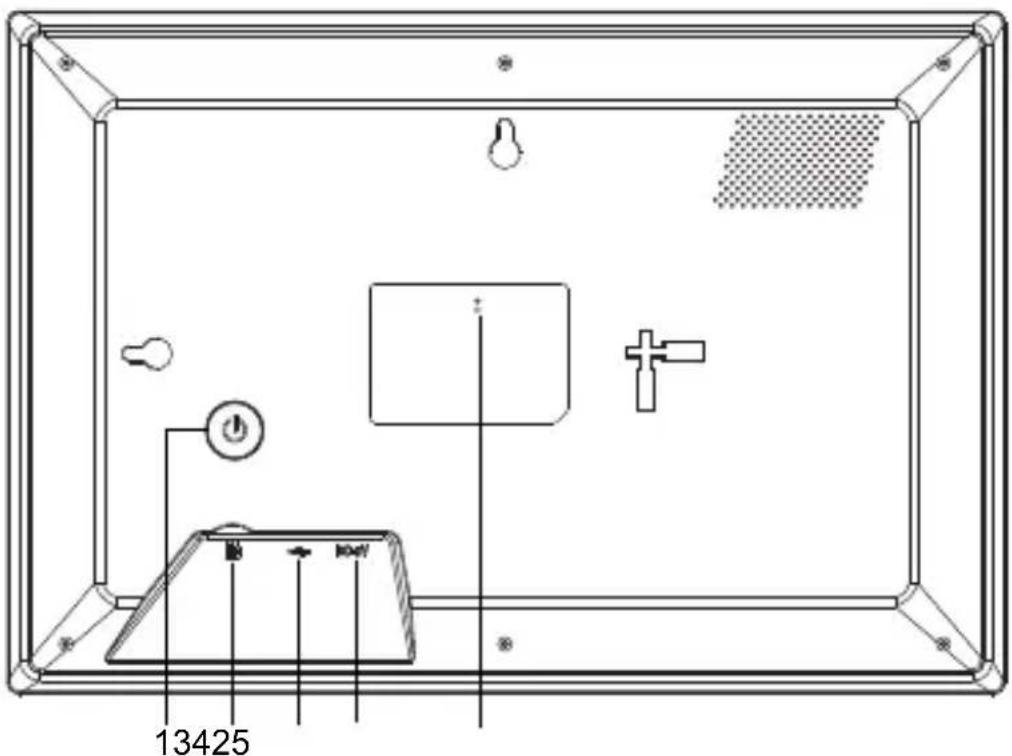
1. POWER
After connecting power adapter, please press and hold power button for approximately 5 seconds (until screen turns on).
When it is on, press and hold power button for approximately 3 seconds to access reboot or power off menu. Short press on power button will turn off/onscreen (but leave the photo frame in on position).
2. USB
Connect a USB flash drive. USB is for service use only.
3. RESET
Use a needle or paper clip to reset unit.
4. MicroSD card
Load external max 32GB microSD memory card here.
5. DC
Connect DC adapter to power on the device.

natural_image
Abstract logo design with red and white circular elements forming a stylized hand-like symbol (no text or symbols present)frameo
User Manual
Version: 1.10.4
Contents
Getting started. 4
Frameo app 4
Frameo quick setup. 5
Start using Frameo....6
Connecting a new friend . 6
Navigating your Frameo. 7
Settings . 10
My frame . . . 10
Manage photos....10
My Friends. 11
Display 12
Slideshow....12
Wi-Fi. 13
Notifications.... 14
Backup and Restore 15
Help. 15
About. 16
Privacy. 17
Support. 17
Warranty, Compliance, Support and Safety information.... 17
Getting started
Congratulations on your brand new Frameo photo frame!
If you are new to using Frameo then start by following the Frameo quick setup or follow the on-screen guide when powering it on for the first time.
Once you have set up your Frameo frame, you can start connecting it to your friends and family.
Frameo app
To send photos to your frame, use the Frameo app for iOS or Android.

natural_image
Abstract logo design with red and white hand-like shapes (no text or symbols)Find the Frameo app by scanning this code:
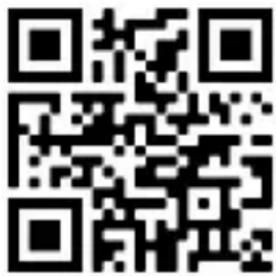
For Android:
Search for "Frameo" on Google Play.
For iOS:
Search for "Frameo" on App Store.
Frameo quick setup
When starting your frame for the first time, you will need to set up the frame.
- Select a language. This will be the language used on the Frameo.
- Connect your frame to the internet by connecting it to Wi-Fi.
- Verify or correct the date and time.
- Frameo may ask you to update to the latest version. It is recommended to update your frame before continuing if asked to.
- Enter your name, and the location where you have placed your frame e.g. "John Doe" and "Living room", "Kitchen" or "Office". Finally set the timezone if not already correct.
Start using Frameo
Next step is to connect Frameo with your friends and family by providing them with a code from your frame.
If you want to be able to send photos to the frame yourself, start by downloading the app for iOS or Android on App Store or Google Play. Then use the code to connect your frame and app as described below.
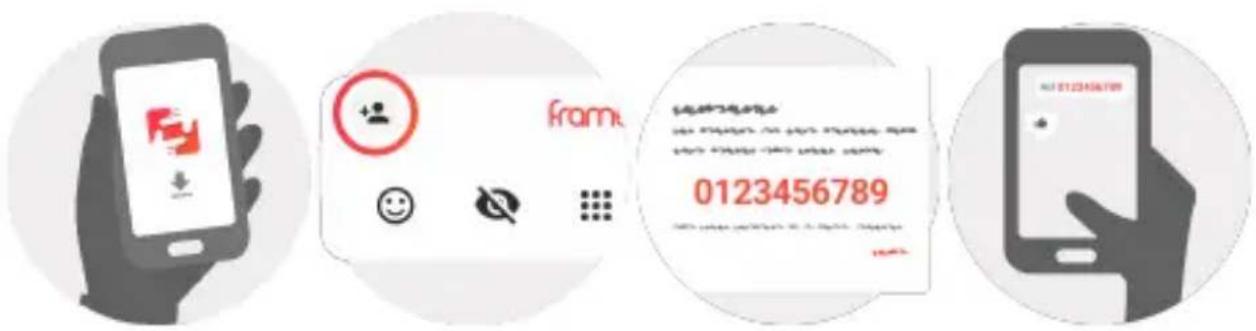
Connecting a new friend
Make sure that your friend has downloaded and installed the Frameo app.
Click the add friend icon on your frame. A dialog will appear showing a connection code, which is valid for 12 hours.
Now share this code in whatever fashion you prefer e.g. SMS, E-Mail, IM, phone call, to your friend.
Once your friends have added the code in their Frameo app, they will automatically appear on your frame and be able to send you photos.
Read chapter Change options for a friend to allow connected friends, to retrieve and share the connection code via the smartphone app.
Navigating your Frameo
Swipe left or right to go through your photos.
To access the menu, simply tap once on the screen.

frameo


In the menu you will find the most used features.

Add friend
This will generate a code that you can share with your friends and family so they can connect and send photos to your frame.

Settings
Opens the Settings.

Power menu
Opens the Power menu.

React
Opens the React menu.
NB. The React menu can also be accessed by double-tapping on the screen.

Hide photo
Hides the current photo. This means that the photo will no longer be shown in the slideshow. If needed the photo can be shown again through the settings menu.

Gallery
Opens a gallery which allows for easy and fast navigation through your photos.

Fit to frame/Fill frame
This toggles how the photo is shown.
The Fill frame option is the default. The photo is scaled so that it fills the whole screen. It will be centered around what is selected as the most important part. See the first picture below.
Fit to frame will make sure that the entire photo is shown on the screen. See the second picture below.

natural_image
Close-up of a sliced watermelon in a bowl with a spoon, next to a cut of watermelon (no text or symbols visible)
natural_image
Close-up of a halved watermelon cut with visible seeds, set against a cloudy sky background (no text or symbols)
Adjust photo
Allows you to adjust the position of the photo in the frame for an even better fit. Here you can also use to rotate your photo.
Interacting with videos
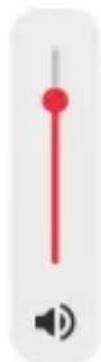
When a video is shown two additional controls are shown. One for play/pause of the video and one to control the volume level for video sounds.

Press to start the video playback. Pressing will pause the video playback.

Press to open the volume slider. Use the slider to adjust the volume level for video sounds.
Pressing will mute the video while pressing will unmute the video.
Power menu
Tap the power icon to access the power menu. Here you can power off using, restart your frame using or enter sleep mode using.


NB. Make sure to always use the power off button on the device or in the power menu to turn Frameo off. Never disconnect power when Frameo is running.
React menu
Tap one of the reactions to let the sender know how it made you feel.




Settings
Through the settings, you can personalize your frame to your needs.
My frame
Frame name
Changes the name of your frame. This is also the name that connected friends and family will see in their list of connected frames in the smartphone app.
Frame location
Changes the location of your frame. This is the location displayed on your friends' and family's list of connected frames which can help to distinguish frames from each other.
Set language
Sets the language used on the frame.
Date
Sets the date used on the frame.
Time
Sets the time used on the frame.
Frameo will automatically try to set the correct date and time when connected to the internet.
Time zone
Sets the time zone used on the frame.
Enable/Disable 24-hour format
Enables, and disables, 24-hour time format.
Manage photos
In the manage photos menu you can see how many photos are on your frame and the storage they use. You can also see the amount of storage left available on your device for storing new photos.
Show/hide photos
Select which photos to hide by tapping them. Hidden photos will NOT be deleted from your frame and you can always select them to be shown again.
Use to hide or show all photos.
Delete photos
Select photos that you want to permanently delete from your frame by tapping the photo.
Use to select or deselect all and to permanently delete the selected photos.
Import photos
Allows you to import photos from an external storage (e.g. microSD card).
Before you try to import photos, make sure you have an external storage (e.g. microSD card) inserted into your frame with the photos you wish to import.
Start by selecting the photos that you want to import onto your frame. Once selected tap the import button to start the import process.
Use to select or deselect all photos on the external storage (e.g. microSD card).
Use to set the sort order of photos before import and to order by ascending/descending.
It is currently not possible to add a caption or define the most important part of the photo when using the import function. An alternative for this is to add yourself to your friend list and send the photos using the app.
Export photos
Allows you to export photos from the frame to external storage (e.g. microSD card).
The export function will export all photos on the frame as well as profile pictures.
My Friends
This list contains all the connected friends that are allowed to send photos to your frame.
Change options for a friend
Click the options icon to open the friend options menu. From here you can allow / disallow if a friend may share the code to the frame. If this is enabled the friend can retrieve and share the code to the frame from his/her app.
From the options menu you can also delete a friend, by pressing the DELETE FRIEND button. This will remove the friend from the list and thereby remove their permission to send photos to the frame. You will then be asked to confirm the removal and if you would like to remove all photos previously received from this friend.
Add person
To allow a new person to send you photos, simply tap the add friend button and share the presented code in whatever way you prefer.
Display
Brightness level
Adjust the brightness level of the screen.
Sleep mode
Frameo offers a sleep mode which turns off the screen to reduce power consumption. The default setting is to turn off the screen at 23:00 and turn on the screen again at 07:00. To change this just set the sleep mode start/end time.
Your frame is not powered down or in standby, so you will still be able to receive photos during sleep mode.
Slideshow
Timer
Set the duration that a photo should be displayed before showing the next photo.
Show caption
Sets whether or not to display the captions that your friends have sent with the photo. Check to display captions. Uncheck to hide captions.
Fill frame
Sets the default frame photo setting. Check to set default to fill which makes the photos fit the device screen according to the most important part of the photo. Uncheck to make the photo fit inside the screen of the device, adding blurred bars on the sides or top/bottom
Photo display order
Sets the order in which your photos are displayed on the frame.
- By date taken: Photos are shown in order of when it was taken.
- By date received: Photos are shown in order of when it was received.
- Shuffle: Photos are shuffled and shown in a random order.
Reverse photo display order
Sets if photos are displayed newest to oldest or oldest to newest.
Autoplay
Enables/disables autoplay of videos in the slideshow. Videos can always be manually started regardless of this setting.
Video playback
Determines how videos should be played when autoplay is enabled.
- Loop videos: The video will loop until the slideshow timer is up.
- Play once: The video will play once and show its thumbnail until the timer is up.
- Play once and continue: The video will play once and continue to the next photo, or video, once it completes.
Video volume
Adjust the volume level for video sounds on the frames.
Wi-Fi
Set which Wi-Fi the frame connects to. If you are connecting to a network with a captive portal Connection status will say that Wi-Fi login is required and show . Tap this to open a login screen where you can enter credentials to access the network.
Wi-Fi details
Use to show details about the current connected Wi-Fi.
Reset Wi-Fi
Use to delete all Wi-Fi information and restart your frame.
Notifications
Show notifications
Enables/disables whether notifications are shown in the slideshow (e.g. when a new photo is received).
Notification volume
Adjust the volume level for notification sounds.
Storage space
Enables/disables notifications shown when frame storage is low.
Backup
Enables/disables notifications shown if automatic backup has failed.
Network connection
Enables/disables notifications showing network connection status.
New photos
Enables/disables notifications shown when receiving new photos.
New friends
Enables/disables notifications shown when new friends are added.
Software update
Enables/disables notifications shown when a software update has been installed.
Feature news
Enables/disables notifications shown when new exciting features are added.
Date and time
Enables/disables notifications shown if time or date is not set correctly.
Backup and Restore
Backup frame to external storage (e.g. microSD card)
Tap to make a backup of your photos, friends and settings. The time of the latest successful backup is also displayed here.
Any existing backup on the external storage will be overridden!
Automatic backup
If checked, your frame will automatically take a backup within 30 hours of receiving new photos or making changes to your frame.
Restore from backup
Before you attempt to restore your frame, start by confirming that your backup is up-to-date. This is done by confirming the date under "Backup frame to external storage (e.g. microSD card)". If e.g. the last backup is too old or if no backup is made, then press the "Backup frame to external storage (e.g. microSD card)" button to make a new backup.
NB: To keep both the old and the new frame operational at the same time after restoring from backup, please make sure that both frames are updated to the latest version beforehand.
If you wish to restore a backup on a frame that has already been setup, then you must first reset the frame. This is done by pressing the "Reset frame" button. This will delete all data on the Frameo and reset the Frameo to its setup screen.
On the setup screen you can select the "Restore from backup" button which will restore your frame according to the backup.
If the “Restore from backup” button isn’t visible, then confirm that the external storage (e.g. microSD card) is correctly mounted.
Reset frame
Removes all data from your frame.
This will permanently remove all your photos, friends/connections and settings.
Help
Open source libraries
Opens a list of open source libraries used in the app and their licenses.
Share anonymous analytics data
Sharing anonymous analytics data helps us tremendously to improve the Frameo software. We understand if you do not wish to share this data with us. Keep it checked if you wish to help us improve Frameo. Set unchecked to deny the sharing of anonymous analytics data.
Guide
Opens the quick start guide, that was shown when you first started the frame.
About
Android version
See what version of Android that is installed on the frame.
Peer ID
This is a unique ID for your photo frame. When contacting our support, please provide this ID with your message.
MAC
Shows the MAC address of your frame.
Frameo version
Shows what version of the Frameo software is currently installed on your frame.
Up time
Shows how long the photo frame has been powered on.
Check for update
Check if an update is available for your frame.
Beta program
If checked the device will join the Beta program where it will receive updates more frequently and before normal release devices.
Privacy
For more information regarding privacy, please visit http://privacy.frameo.net
Support
Please visit https://support.frameo.net/hc for FAQ, support and to provide feedback.
Warranty, Compliance, Support and Safety information
For more information regarding warranty, hardware compliances, support and safety please refer to the material included in the package.
| Manufacturer's name or trade mark, commercial registraon number and address | Shenzhen Run Sheng Feng Power Supply Techonolgy Co., Ltd commercial registration number: 91440300580068676U 3^rd Floor, 4^th Building, Zone A Xinfu Industrial Park, Chongqing Road, Fuyong Street, Bao'an District, Shenzhen, China |
| Model idener | RSF-DY080-0502000EU |
| Input voltage | 100-240V |
| Input AC frequency | 50/60Hz |
| Output voltage | 5V |
| Output current | 2A |
| Output power | 10W |
| Average acve eciency | 78.79% at 115V 60Hz79.09% at 230V 50Hz |
| Eciency at low load (10%) | 79.37% at 115V 60Hz76.55% at 230V 50Hz |
| No-load power consumpon | 0.037W at 115V 60Hz0.056W at 230V 50Hz |
Please notice - All products are subject to change without any notice. We take reservations for errors and omissions in the manual.
ALL RIGHTS RESERVED, COPYRIGHT DENVER A/S

denver.eu

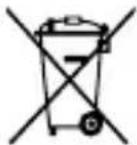
Electric and electronic equipment contains materials, components and substances that can be hazardous to your health and the environment, if the waste material (discarded electric and electronic equipment) is not handled correctly.
Electric and electronic equipment is marked with the crossed out trash can symbol, seen above. This symbol signifies that electric and electronic equipment should not be disposed of with other household waste, but should be disposed of separately.
All cities have established collection points, where electric and electronic equipment can either be submitted free of charge at recycling stations and other collection sites, or be collected from the households. Additional information is available at the technical department of your city.
Hereby, Denver A/S declares that the radio equipment type PFF-1037B is in compliance with Directive 2014/53/EU. The full text of the EU declaration of conformity is available at the following internet address: denver.eu and then click the search ICON on topline of website. Write model number: PFF-1037B. Now enter product page, and RED directive is found under downloads/other downloads.
Operating Frequency Range: 2412 -2472 MHz
Max Output Power: 17 dbm
DENVER A/S
Omega 5A, Soeften
DK-8382 Hinnerup
Denmark
www.facebook.com/denver.eu
- Important safety information
- POWER
- USB
- RESET
- MicroSD card
- DC
- frameo
- User Manual
- Contents
- Getting started
- Frameo app
- Frameo quick setup
- Start using Frameo
- Connecting a new friend
- Navigating your Frameo
- Add friend
- Settings
- Power menu
- React
- Hide photo
- Gallery
- Fit to frame/Fill frame
- Adjust photo
- Interacting with videos
- React menu
- My frame
- Frame name
- Frame location
- Set language
- Date
- Time
- Time zone
- Enable/Disable 24-hour format
- Manage photos
- Show/hide photos
- Delete photos
- Import photos
- Export photos
- My Friends
- Change options for a friend
- Add person
- Display
- Brightness level
- Sleep mode
- Slideshow
- Timer
- Show caption
- Fill frame
- Photo display order
- Reverse photo display order
- Autoplay
- Video playback
- Video volume
- Wi-Fi
- Wi-Fi details
- Reset Wi-Fi
- Notifications
- Show notifications
- Notification volume
- Storage space
- Backup
- Network connection
- New photos
- New friends
- Software update
- Feature news
- Date and time
- Backup and Restore
- Backup frame to external storage (e.g. microSD card)
- Automatic backup
- Restore from backup
- Reset frame
- Help
- Open source libraries
- Share anonymous analytics data
- Guide
- About
- Android version
- Peer ID
- MAC
- Frameo version
- Up time
- Check for update
- Beta program
- Privacy
- Support
- Warranty, Compliance, Support and Safety information
Brand : DENVER
Model : PFF-1037B
Category : Digital photo frame