
NSZ-GS8 - Lecteur multimédia connecté SONY - Free user manual and instructions
Find the device manual for free NSZ-GS8 SONY in PDF.


| Product Type | Network Media Player / Set-Top Box |
| Brand | Sony |
| Model | NSZ-GS8 |
| Dimensions (approx.) | 130 mm x 130 mm x 30 mm |
| Weight (approx.) | 250 g |
| Power Supply | DC 5V, 1.5A (via USB power adapter) |
| Operating System | Google TV (Android-based) |
| Video Output | HDMI (up to 1080p) |
| Audio Output | HDMI, optical (TOSLINK) |
| Network Connectivity | Wi-Fi 802.11 b/g/n, Ethernet 10/100 |
| Storage | 8 GB internal (expandable via USB) |
| Remote Control | QWERTY keyboard remote with touchpad |
| Main Functions | Streaming apps, web browsing, media playback, voice search |
| Cleaning Instructions | Wipe with a dry, soft cloth. Do not use liquids or solvents. |
| Safety Warnings | Keep away from moisture and heat. Use only the provided power adapter. |
| Spare Parts Availability | Remote control and power adapter available from Sony service centers. |
| Repairability | Not user-serviceable. Contact Sony support for repairs. |
Frequently Asked Questions - NSZ-GS8 SONY
User questions about NSZ-GS8 SONY
0 question about this device. Answer the ones you know or ask your own.
Ask a new question about this device
Download the instructions for your Lecteur multimédia connecté in PDF format for free! Find your manual NSZ-GS8 - SONY and take your electronic device back in hand. On this page are published all the documents necessary for the use of your device. NSZ-GS8 by SONY.
USER MANUAL NSZ-GS8 SONY
Turns the player on or off.

MIC
Launches the voice search function.
- When speaking into the microphone, keep a distance of about 10 cm (4 inches) away from it.
Control connected devices with one remote:
- To use this function, make sure that the player is on or [Quick start] is enabled.
- For details on the settings for the remote code, see "Help Guide" (page 15).
TV/AMP

ON/STANDBY (TV/AMP)
Turns on or off the TV/AV Receiver

INPUT (TV/AMP)
Changes inputs.

GUIDE\*
Displays the TV Program Guide screen of the connected Cable/Satellite Box.
DVR\*
Displays the DVR (Digital Video Recorder) list of recorded content.
* Press (HOME) to return to the Home screen.

Function
Keys with orange markings will be available when the Function indicator is on.
Volume/Channel Control (on the side):

VOLUME
Turns the volume up or down.

CHANNEL (for the Cable/Satellite Box only)
Selects the next (+) or previous (−) channel.

MUTING
Silences the sound
Basic Control:

PICTURE IN PICTURE HOME
Displays two pictures, such as a TV program and a website, on the screen simultaneously (page 12).
Opens the Home screen (page 6). Press this button to return to the Home screen from the screen of a connected device such as a Cable/Satellite Box.

BACK MENU (OPTIONS)
Returns to the previous display, or exits the application.

Displays special options associated with each feature.
Playback Control:


These keys are available when videos, music, or photos are playing. The and keys work only when they are held down continuously (not tapped).


Operate intuitively with a touch-pad:
You can click, scroll, drag and drop, and zoom in/out with your remote.
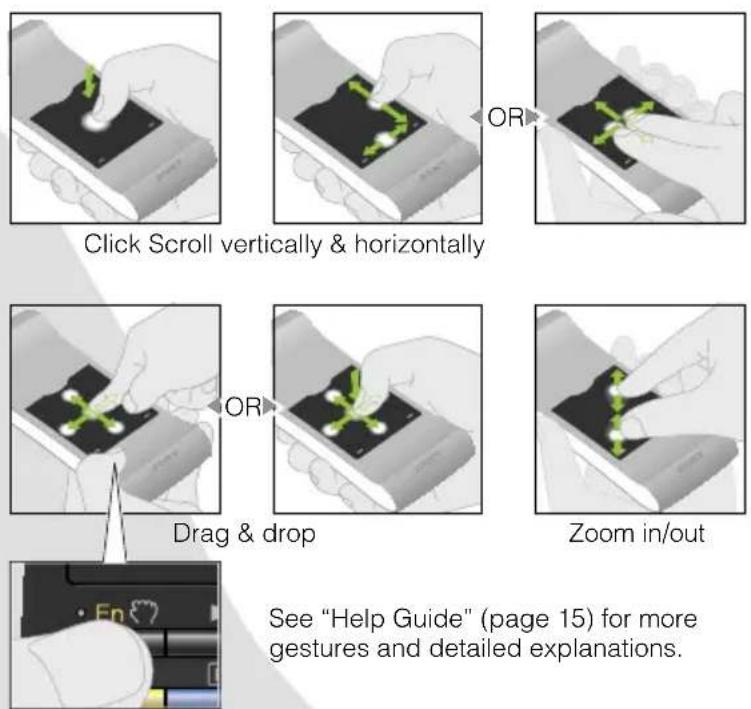
Press and hold the button to drag an item, then release the button to drop it.
Using the special keys:

Search
Type your query in the Quick Search Box, and the player will suggest content from various media.

Bookmark
Bookmarks your favorite content.
![INFO WIDE 3D AUDIO SUBTITLE REC Esc 1 2 3 4 5 6 7 8 9 0 TV ★ Tab Q < W > E R T Y U I O P → A S D= F- G+ H* J# K ( L ) Enter Fn ↑ Z X % C_ V/ B$ N^ M I ! ? ↑ Q Ctrl & @ [ ( ] ) , : . LIGHT](/content/2026/05/888919/images/2b373fd499ee7e9baf820abf1c7ff7cbbc2567bfcc036eb1237f180431600816.jpg)
Other keys:

Function
Keys with orange markings will be available when the Function indicator is on.

Shift

Language Selector

TV
Switches to Live TV mode and displays the connected Cable/Satellite Box screen.
Press ⏻HOME) to return to the Home screen.
When using in the dark:


LIGHT
Turns the backlight on and off*.
* You can set the backlight to be turned on and off automatically from "Settings" (see "Help Guide" (page 15) for details).
Please note that battery power drains quickly when using this function.

Home
Access each feature from here
natural_image
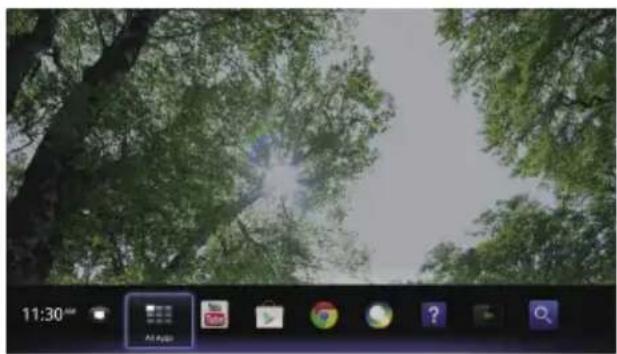
Desktop screenshot showing a tree canopy view with app icons and timecode (11:30 AM), no readable text or symbols on the image itself.You can access various content and applications from the Home screen. The Home screen contains Notifications, All Apps, and shortcuts to select applications and websites.

The Home screen can be customized to suit your preferences. You can arrange the Home menu, add widgets to the Home screen, and change the wallpaper.


Google Chrome
Browse websites

This player uses Google Chrome™ as its web browser. You can access all your favorite websites with the Google Chrome web browser.

flowchart
graph LR
    A["press select select"] --> B["All Apps"]
    B --> C["Google Chrome"]
Websites can be bookmarked, and you can access bookmarks from the browser menu. You can also add a shortcut of a website to All Apps.


All Apps
Enjoy installed applications
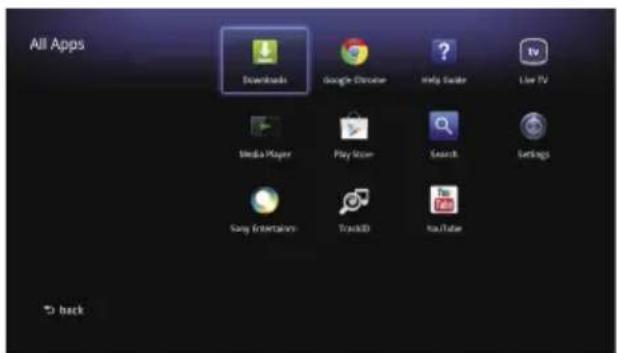
You can access all applications installed on your player from the All Apps list. You can launch applications including Live TV, Media Player, and Help Guide from here.
Applications or bookmarks in the All Apps list can be uninstalled, hidden, or removed, depending on what you select.


Google play
Find interesting applications

Google Play™ can provide you with additional favorite applications.
You can download applications and instantly use them on your player. Downloaded applications are stored in All Apps.

flowchart
graph LR
    A["press select select"] --> B["All Apps"]
    B --> C["Play Store"]
You can check the progress of downloads.


Media Player
Play files from USB devices/DLNA servers
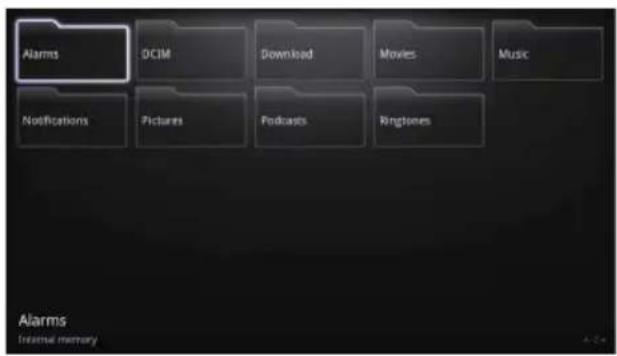
You can play back audio/video/image files stored on a USB device or a DLNA Certified Media Server, using Media Player.

flowchart
graph LR
    A["press select select"] --> B["All Apps"]
    B --> C["Media Player"]
You can select a device and change its settings.

Voice Search
Search content by saying your query
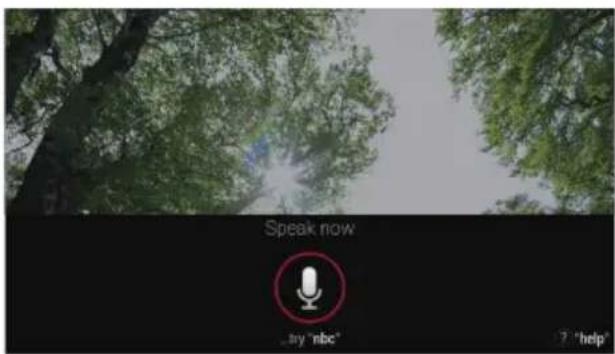
You can search content such as weather reports or information on your favorite movie star, etc., with ease by simply saying your query.

Say your query
Say "Help" to display the help screen of Voice Search.

Picture-in-Picture
Enjoy applications and websites while watching TV

PIP (Picture-in-Picture) is a feature that allows you to display the TV screen in a smaller window (a sub window). For example, you can browse the Internet on the full screen, while watching a TV program in a sub window at the same time.

You can close or change the size or position of the sub window by moving the pointer over the sub window using the touch-pad.
This function is available only when a device is connected to the HDMI IN jack.

Settings
Customize your player

You can change various settings for your player from the Settings menu.

flowchart
graph LR
    A["press select select"] --> B["All Apps"]
    B --> C["Settings"]
You can also access the Settings menu from the menu that appears when the Home screen is displayed.

TV SideView
Use your smartphone or tablet more effectively

natural_image
Person using a tablet in a living room with TV and a child nearby (no visible text or symbols)Download the free "TV SideView" app to your Android™ phone, Android™ tablet, iPhone, or iPad.

Using TV SideView, you can use the device as a remote for the player, view the program guide without blocking the TV screen, or search for information about your favorite content.

Help Guide
Learn more about your player
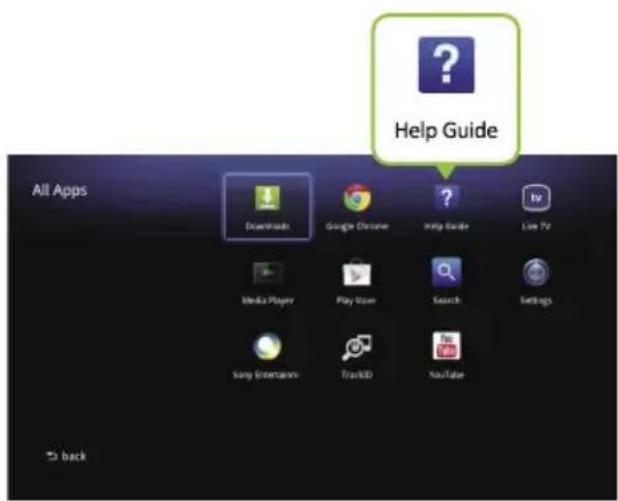
The Help Guide gives you detailed information on how to use the player.

flowchart
graph LR
    A["press select select"] --> B["All Apps"]
    B --> C["Help Guide"]
You can also access the Help Guide from a PC browser or smartphone.
http://www.sony.net/helpguide/r/networkplayer/

© 2013 Sony Corporation
Printed in China
4-466-234-11(1)

Sony Customer Support
Please Call Before Returning the Product to the Store
Trademark Information
- Google TV, Google Chrome, Google Play, Android and their respective logos are trademarks of Google Inc.
- iPad and iPhone are trademarks of Apple Inc., registered in the U.S. and other countries.
- DLNA ^ is a trademark of the Digital Living Network Alliance.
- Other system and product names are generally trademarks or registered trademarks of the manufacturers. ^TM and ^® marks are not indicated in this document.
Screen images, operations, and specifications are subject to change without notice.
- MIC
- Control connected devices with one remote:
- ON/STANDBY (TV/AMP)
- INPUT (TV/AMP)
- GUIDE\*
- DVR\*
- Function
- Volume/Channel Control (on the side):
- VOLUME
- CHANNEL (for the Cable/Satellite Box only)
- MUTING
- Basic Control:
- PICTURE IN PICTURE HOME
- BACK MENU (OPTIONS)
- Playback Control:
- Operate intuitively with a touch-pad:
- Using the special keys:
- Search
- Bookmark
- Other keys:
- Shift
- Language Selector
- TV
- When using in the dark:
- Home
- Access each feature from here
- Google Chrome
- Browse websites
- All Apps
- Enjoy installed applications
- Google play
- Find interesting applications
- Media Player
- Play files from USB devices/DLNA servers
- Voice Search
- Search content by saying your query
- Picture-in-Picture
- Enjoy applications and websites while watching TV
- Settings
- Customize your player
- Use your smartphone or tablet more effectively
- Help Guide
- Learn more about your player
- Sony Customer Support
- Please Call Before Returning the Product to the Store
- Trademark Information
Brand : SONY
Model : NSZ-GS8
Category : Lecteur multimédia connecté